

What Is Manual FBA Prep?
Manual FBA prep is the process of transferring inventory from a Jetpack fulfillment center to an Amazon FBA warehouse using manual order creation rather than automated workflows. This method gives you direct control over:- Inventory selection - Choose exactly which products and quantities to transfer
- Shipment configuration - Specify packing requirements and shipping methods
- Label application - Control when and how FBA labels are applied
- Carrier selection - Choose between Jetpack-purchased labels, freight services, or your own prepaid options
Manual FBA Prep Pricing and SLA
Manual FBA orders are a value-add service, not a standalone offering. For detailed pricing information, contact Jetpack Care. For service level agreement details specific to manual FBA prep orders, refer to Jetpack’s SLA documentation.Providing Amazon FNSKU Barcodes to Jetpack
If Jetpack needs to apply Amazon Product Labels to your inventory during the FBA prep process, you must provide a PDF of the FNSKU barcode sheet on each product’s details page in your dashboard.Uploading FNSKU Barcode Sheets
Access the Product Catalog
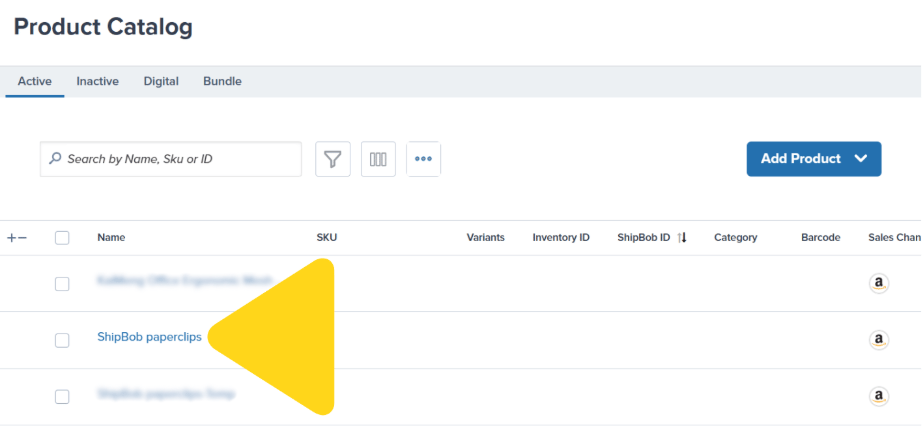
Select the product and upload FNSKU barcode sheet
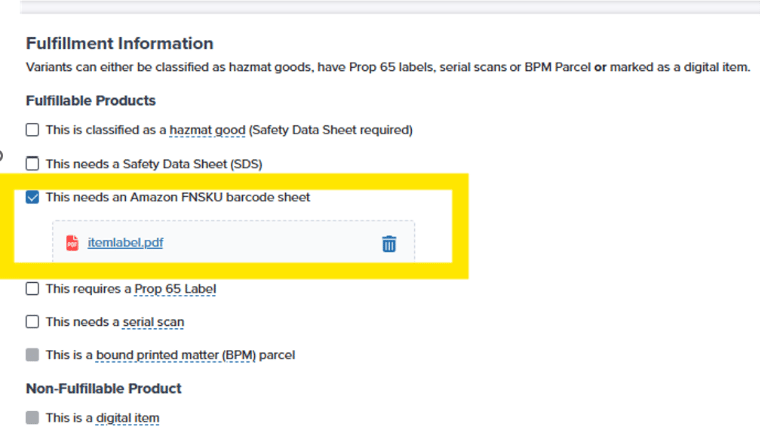
Save your changes

Creating Manual FBA Orders in Amazon Seller Central
Before creating the FBA prep order in your Jetpack dashboard, you must first create the FBA shipment in Amazon Seller Central. This generates the FBA Shipment ID that you’ll need for the Jetpack transfer order.Step-by-Step: Amazon Seller Central Setup
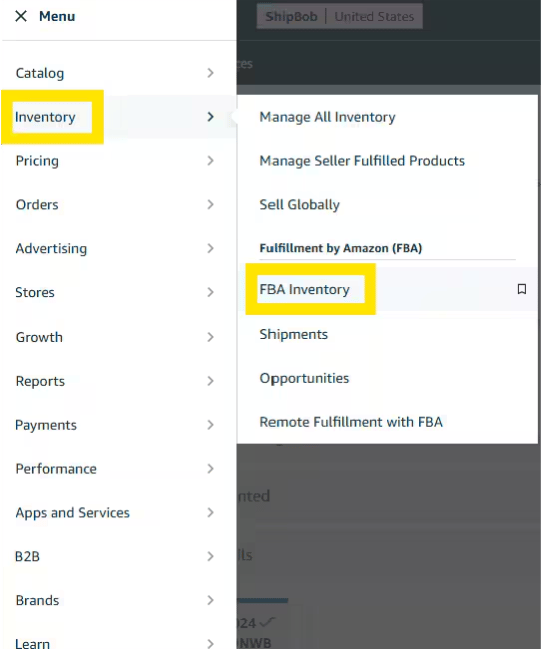
Navigate to FBA Inventory
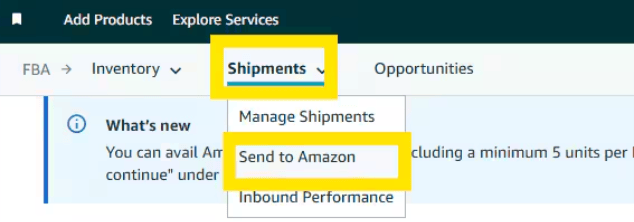
Access Shipments and start new

Configure shipment details
Ready to pack

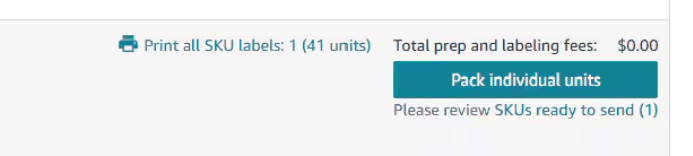
Skip packing and review splits
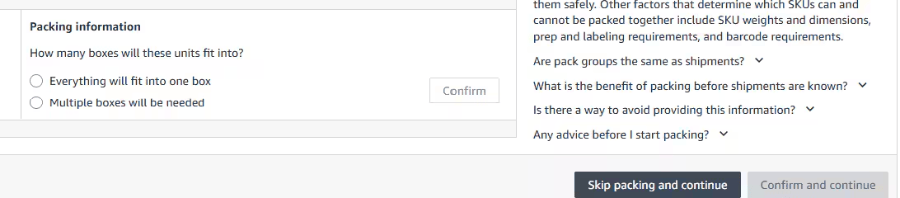
Creating Manual FBA Prep Orders in the Jetpack Dashboard
After creating the FBA shipment in Amazon Seller Central, you’ll transfer the inventory through your Jetpack dashboard using the Inventory Transfer workflow.Step-by-Step: Jetpack Dashboard Setup
Navigate to Orders and create new order
Access Inventory Transfer page
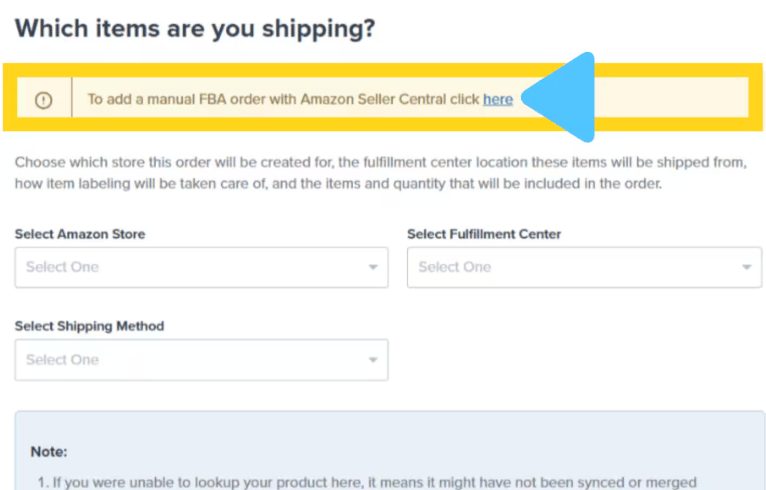
Click Transfer Inventory

Enter transfer information
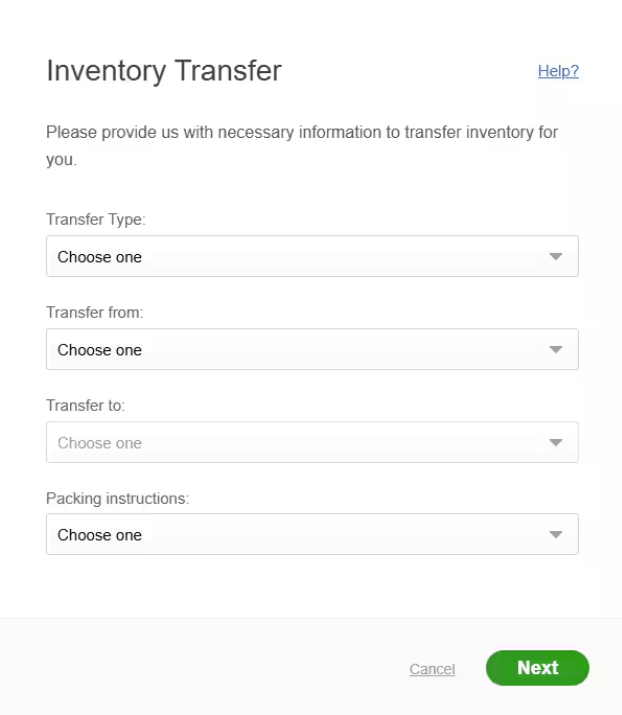
Choose your shipping method
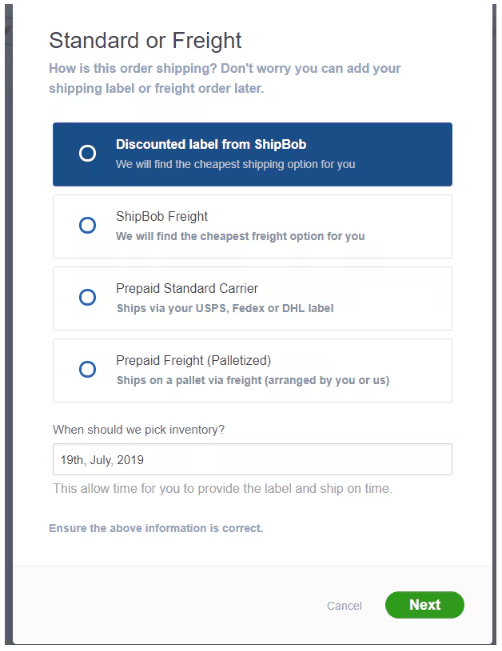
Complete order details and save
FBA Prep Requirements
Amazon has specific labeling and packaging requirements for all FBA shipments. Jetpack follows these standards to ensure your inventory is accepted at Amazon warehouses.Labeling Requirements
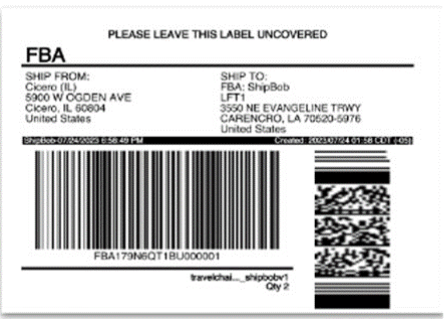
Every box or pallet must have a unique GS1 (carton and pallet) label. You will incur label fees per carton/pallet applied.FBA Carton Label Example
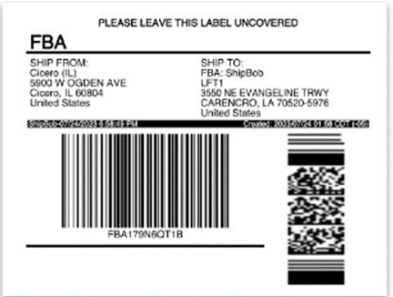
FBA Pallet Label Example
FBA Carton Label Placement
Labels must be placed on the exterior of boxes in a visible location that won’t be obscured during transit or warehousing.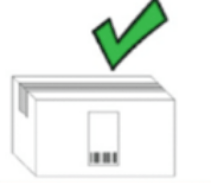
FBA Pallet Label Placement
Pallet labels must be applied to all four sides of the pallet at a height easily scannable by warehouse staff.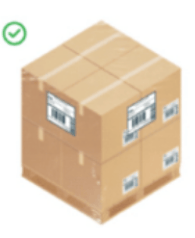
Dimension and Weight Limits
Amazon enforces strict dimension and weight limits for FBA shipments. If your order exceeds these limits, Jetpack will automatically split it into multiple compliant shipments.Post-Packing Steps: Uploading Amazon Box Labels
After Jetpack has packed your FBA prep order, you must complete additional steps in Amazon Seller Central to generate and upload the Amazon Box labels. These labels are separate from shipping labels and are required for all Amazon FBA shipments.What Happens After Packing
- You will receive an email notification that the order has been packed
- The email will prompt you to upload the Amazon Box labels
- You can view dimensions and weight under the Shipment Breakdown section of the order in your Jetpack dashboard
- Click View Dimensions for the full packing configuration
Completing Amazon Seller Central Workflow
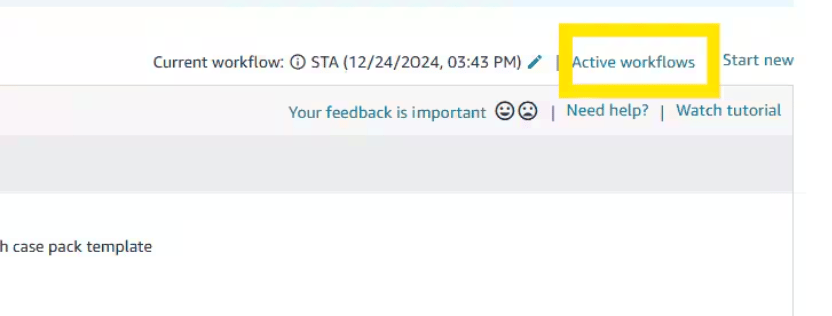
Access Active Workflows
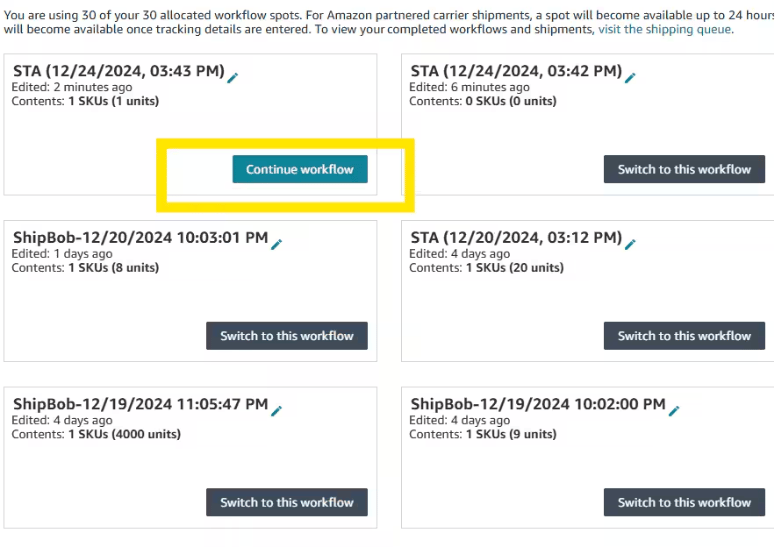
Submit packing details
Confirm transportation
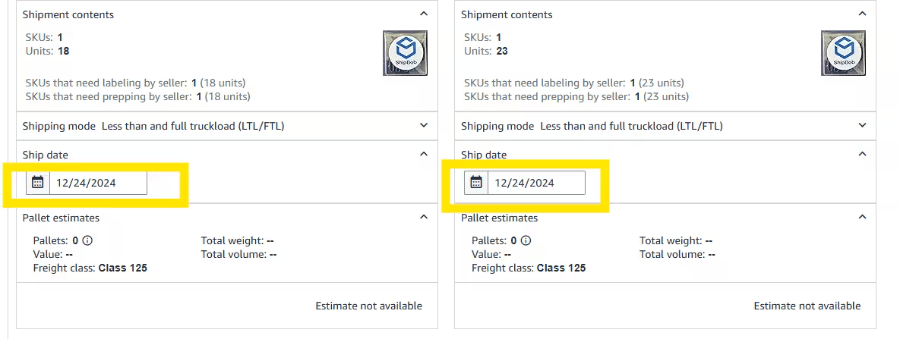
Fill out the Excel template
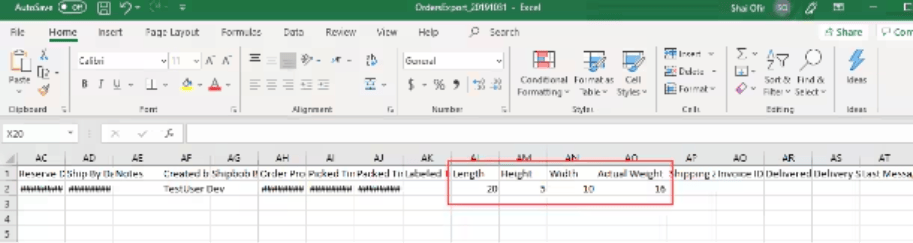
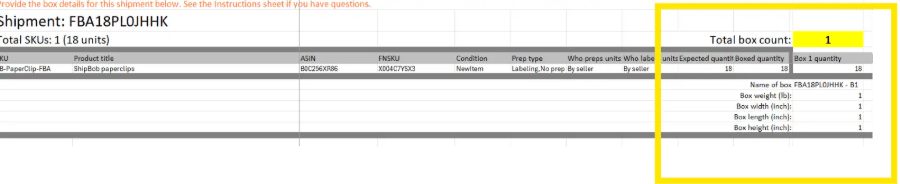
Upload Excel file
Download Amazon Box Labels
Select carrier and configure shipment
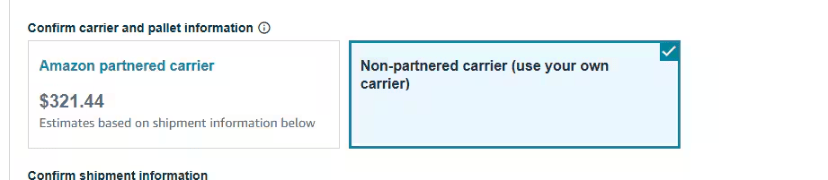
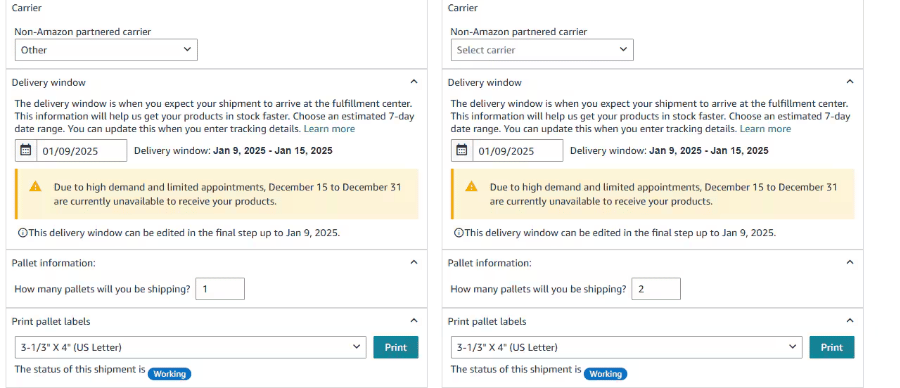
Download labels and approve shipment
Final Steps: Uploading Labels to Jetpack Dashboard
After completing the Amazon Seller Central workflow, return to your Jetpack dashboard to upload all required labels and documentation.Uploading Amazon Box Labels
Navigate to your FBA prep order
Upload Amazon Box Labels
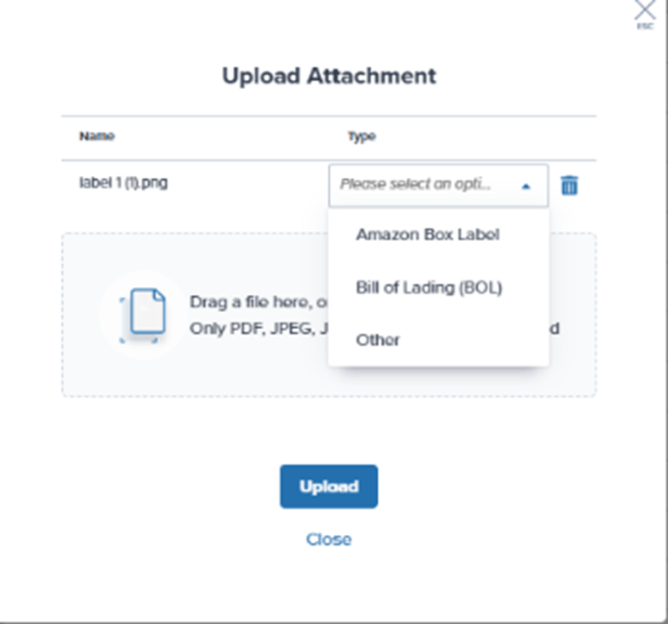
Uploading Additional Documents
Depending on your shipment configuration, you may need to upload additional documents:Upload Issues
If you encounter any issues uploading attachments to your FBA order in the Jetpack dashboard, contact Jetpack Care via Slack, phone, or email.Manual FBA Prep FAQs
What's the difference between manual and automated FBA prep?
What's the difference between manual and automated FBA prep?
Can I use manual FBA prep for parcel orders, or is it only for freight?
Can I use manual FBA prep for parcel orders, or is it only for freight?
How do I know which fulfillment center address to use in Amazon Seller Central?
How do I know which fulfillment center address to use in Amazon Seller Central?
What happens if Amazon splits my shipment to multiple warehouses?
What happens if Amazon splits my shipment to multiple warehouses?
Do I need to upload FNSKU barcode sheets for every product?
Do I need to upload FNSKU barcode sheets for every product?
What is the difference between Amazon Box Labels and shipping labels?
What is the difference between Amazon Box Labels and shipping labels?
How long does it take to process a manual FBA prep order?
How long does it take to process a manual FBA prep order?
Can I change the FBA prep order after I create it in the Jetpack dashboard?
Can I change the FBA prep order after I create it in the Jetpack dashboard?
Let’s Dive Deeper
Amazon FBA Overview
Creating Automated FBA Shipments
Creating Manual B2B Orders
FBA LTL Workflow
Troubleshooting FBA Errors
Upload Order Attachments

Questions? Contact Jetpack Care.
If you have any questions or run into issues with manual FBA prep, you can always contact Jetpack Care for help. Our team is always here to assist via Slack, phone, or email!