

When SKUs run out of stock, orders that depend on that inventory enter the Exception status and cannot be fulfilled until inventory is replenished. The Out of Stock Inventory with Exception Orders report gives you a centralized view of which SKUs are causing order exceptions, how many orders are affected, and which incoming WROs will resolve the shortages—helping you quickly prioritize replenishment and clear your exception queue.
Report Overview
The Out of Stock Inventory with Exception Orders report refreshes once daily at 10:00 am UTC. The dashboard displays the date and time of the last refresh at the top of the page. Use this report to quickly resolve issues with orders stuck in the Exception status due to out-of-stock SKUs. By identifying which products need replenishment and tracking inbound WROs, you can prioritize inventory restocking and minimize order delays.Orders enter the Exception status when they cannot be fulfilled due to issues like unavailable inventory. When a SKU is out of stock and an order requires that product, the order remains in Exception status until the inventory is replenished or the order is modified.
Available Sub-Reports
The Out of Stock Inventory with Exception Orders page provides five distinct sub-reports, each offering a different view of your inventory shortages and affected orders:Out of Stock Inventory with Exception Orders - Summary
This sub-report provides a high-level snapshot of your out-of-stock situation and helps you understand how many SKUs have sufficient incoming inventory versus those that need additional replenishment.
Use this summary to prioritize which SKUs need immediate attention—particularly those with no incoming WROs or insufficient incoming quantity to clear the exception queue.
Inventory and Exception Orders
This sub-report provides detailed, SKU-level insight into inventory shortages, ongoing exception orders, and expected restock timelines based on created WROs.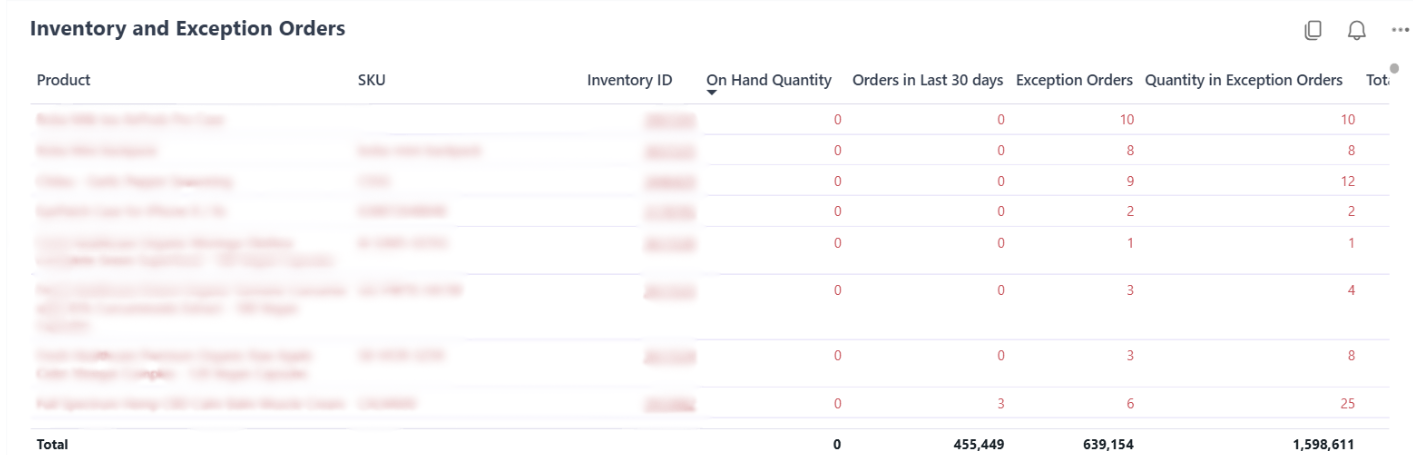
Column Definitions
This view helps you compare current demand (exception orders) against incoming supply (WRO quantity) to identify which SKUs need additional replenishment beyond what’s already in transit.
On-Hand Quantity across Fulfillment Centers
This sub-report shows how your available inventory is distributed across various Jetpack fulfillment centers for each SKU.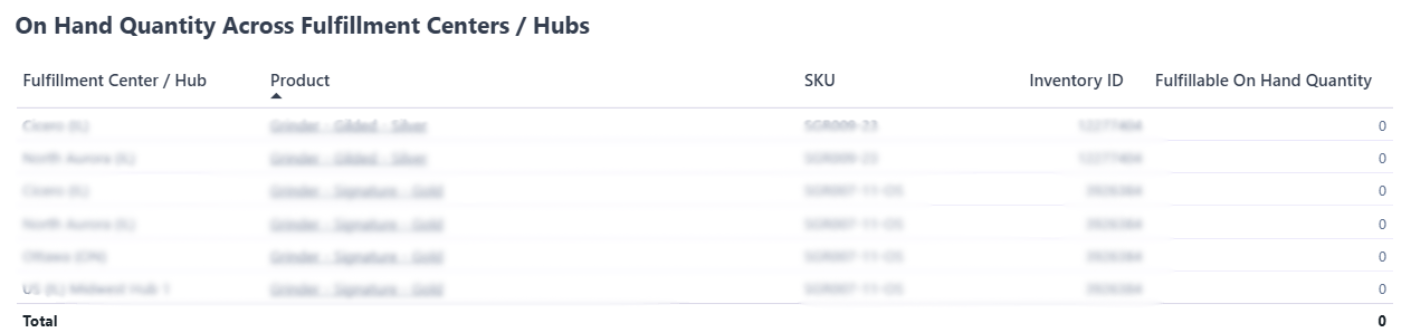
Incoming WRO
This sub-report displays all Warehouse Receiving Orders created to restock SKUs that are out of stock or causing orders to be in the Exception status.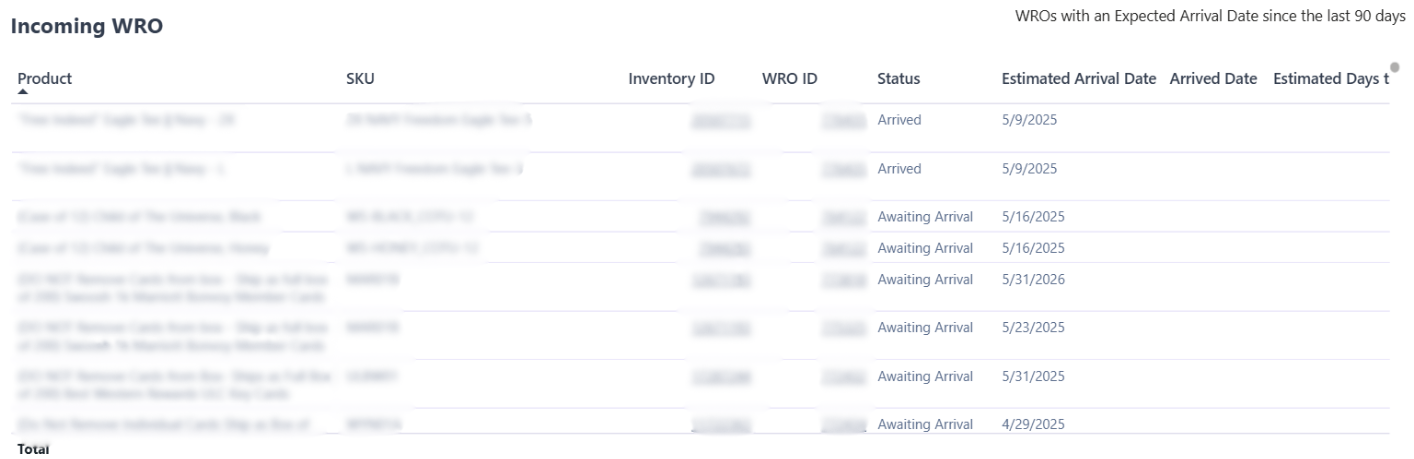
Exception Orders
This sub-report lists individual orders stuck in the Exception status due to one or more required products being out of stock, along with the specific SKUs causing the status.
Column Definitions
Use this view to identify which specific orders are waiting for replenishment and prioritize resolution based on order age, customer importance, or order value.
Filtering the Report
You can refine the data across all sub-reports using four filter options to focus on specific products, inventory conditions, or replenishment scenarios.By Product / SKU / Inventory ID
Use the dropdown or search bar to select specific products. By default, all products are shown.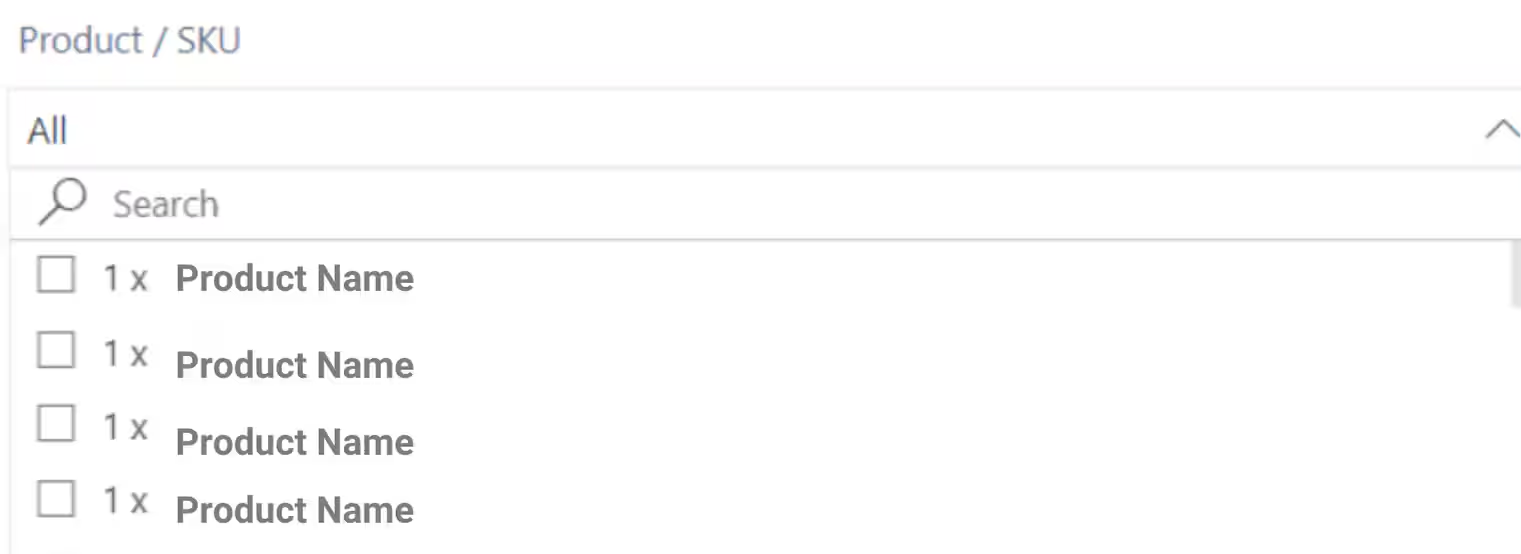
By Inventory Status
Use the dropdown to filter by stock availability: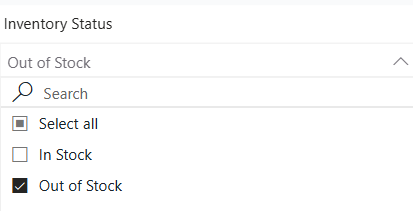
By Exception Status
Use the dropdown to filter based on whether SKUs are associated with exception orders: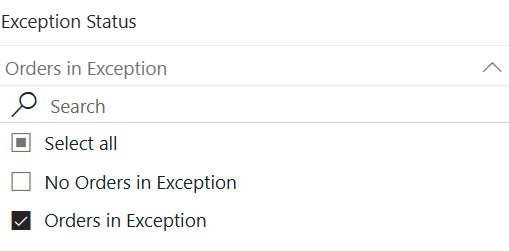
By WRO Status
Use the dropdown to filter SKUs based on their replenishment status: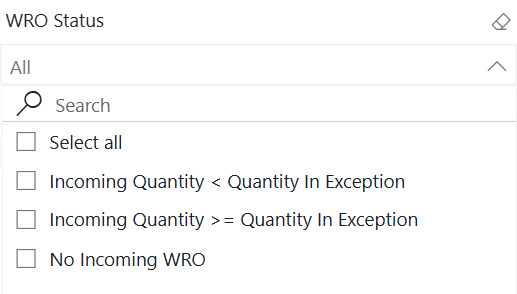
Exporting Sub-Reports
You can export any sub-report on this page to analyze data offline or share with your team.1
Hover over the table you want to export
Locate the sub-report table you want to export and hover your cursor over it.
2
Click the three-dot menu
Click the three-dot menu (•••) at the top-right corner of the table. Additional menu options will appear.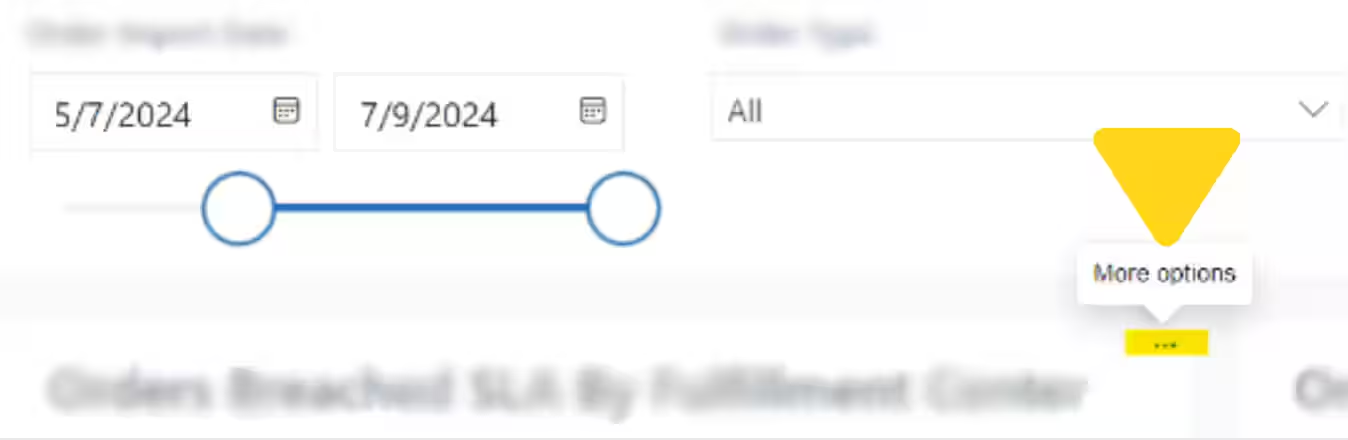
3
Select Export data and choose format
Click Export data from the menu, then choose your preferred export format: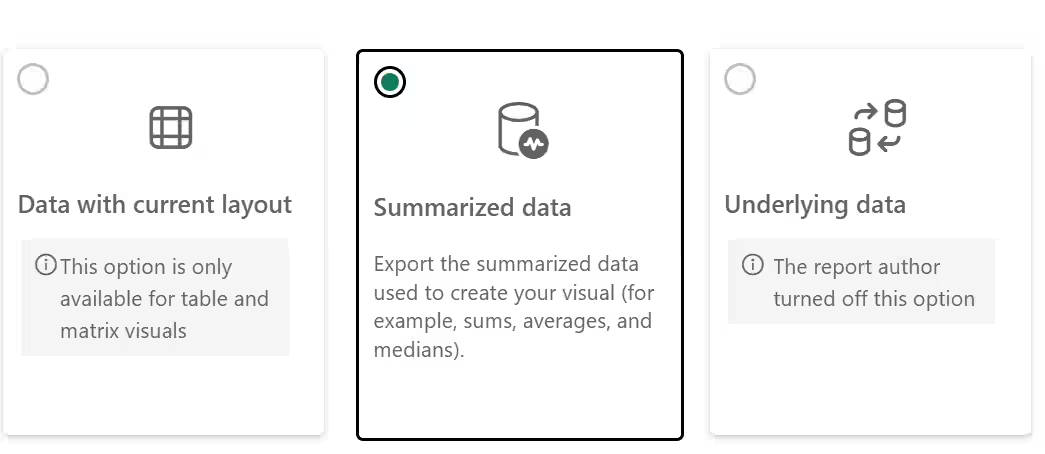
- Current Layout - Exports the table exactly as displayed with current filters applied
- Summary Data - Exports a condensed version of the data
4
Click Export to download
Click Export to download the file. A progress bar will appear, and once completed, the file will automatically download to your computer.
Let’s Dive Deeper
About Jetpack Reports
Overview of all available reports and analytics tools
Inventory Status Page
View real-time inventory levels and availability
Managing Your WROs
Track inbound replenishment shipments
Creating a WRO
Create new replenishment shipments to restock out-of-stock SKUs
Managing Replenishment Schedules
Plan and optimize inventory replenishment
Order Status Overview
Understand order statuses including Exception status

Questions? Contact Jetpack Care.
If you have any questions or run into issues, you can always contact Jetpack Care for help. Our team is always here to assist via Slack, phone, or email!