

If you sell products that come in multiple options—like different sizes, colors, flavors, or scents—variants help you organize them efficiently in your Product Catalog. Instead of managing dozens of individual SKUs, you can group them under a single parent product for easier navigation and management.
What Are Variants?
Variants are physical products that differ by characteristics like color, size, flavor, or scent, but are otherwise the same item. They’re grouped together under a parent/primary product for organizational purposes. For example:- Parent Product: “Cat Mug” (organizational container, not physical)
- Variants: Blue Cat Mug (SKU: CAT-BLUE), Green Cat Mug (SKU: CAT-GREEN), Orange Cat Mug (SKU: CAT-ORANGE)
Key Terminology
Before we dive into creating variants, let’s clarify some important terms:Parent/Primary Product
Parent/Primary Product
A non-physical container used to group similar variant SKUs:
- Has a Name and Category but no SKU or shipping details
- Must have at least 2 variants (maximum 100)
- Cannot be created retroactively from a base product
- Used solely for organization—never stored or shipped
Variant
Variant
A physical product that differs by characteristics (color, size, etc.):
- Nested under a parent/primary product in the catalog
- Has its own SKU, dimensions, weight, and inventory
- Each variant gets measured individually via Cubiscan during receiving
Base Product
Base Product
A standalone physical product with no variants:
- Can be converted into a variant, but cannot become a parent/primary product
- Useful for products sold in only one configuration
Creating a New Parent Product with Variants
1
Navigate to Add Product
Click Products in the left-hand navigation.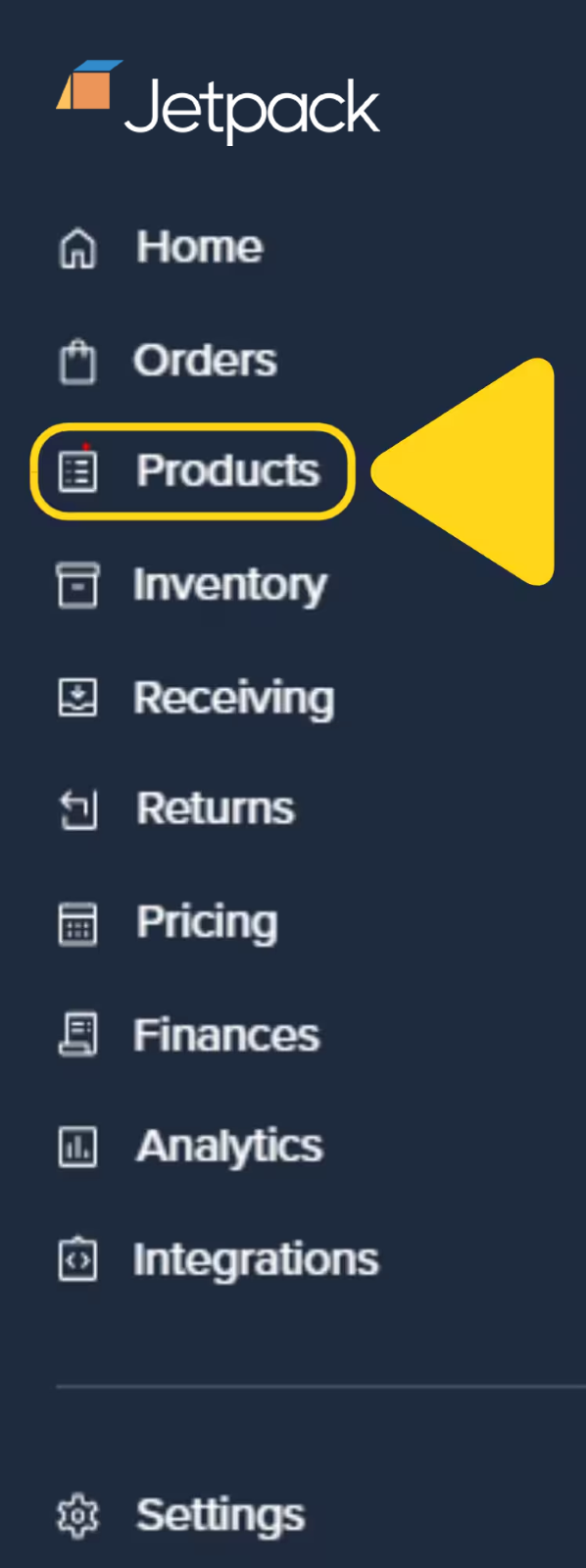
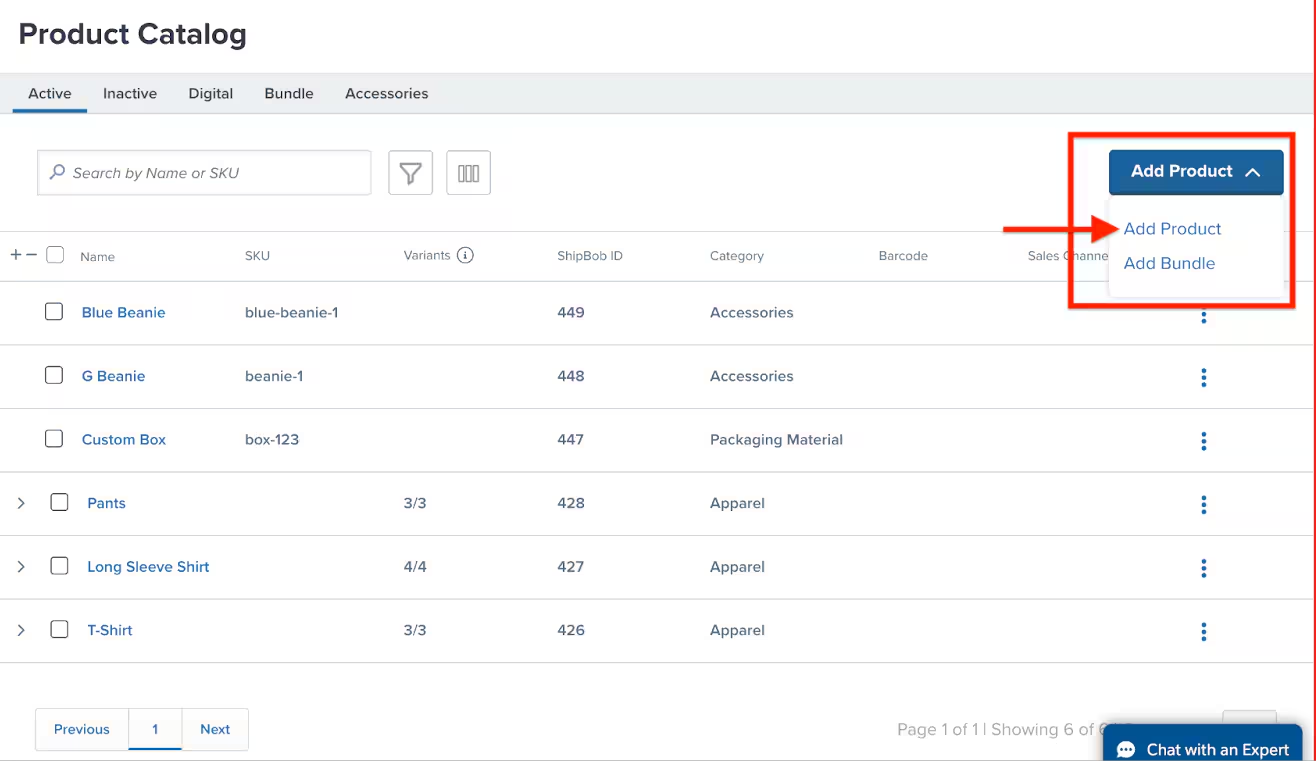
2
Choose product type
In the pop-up window, choose Add products manually.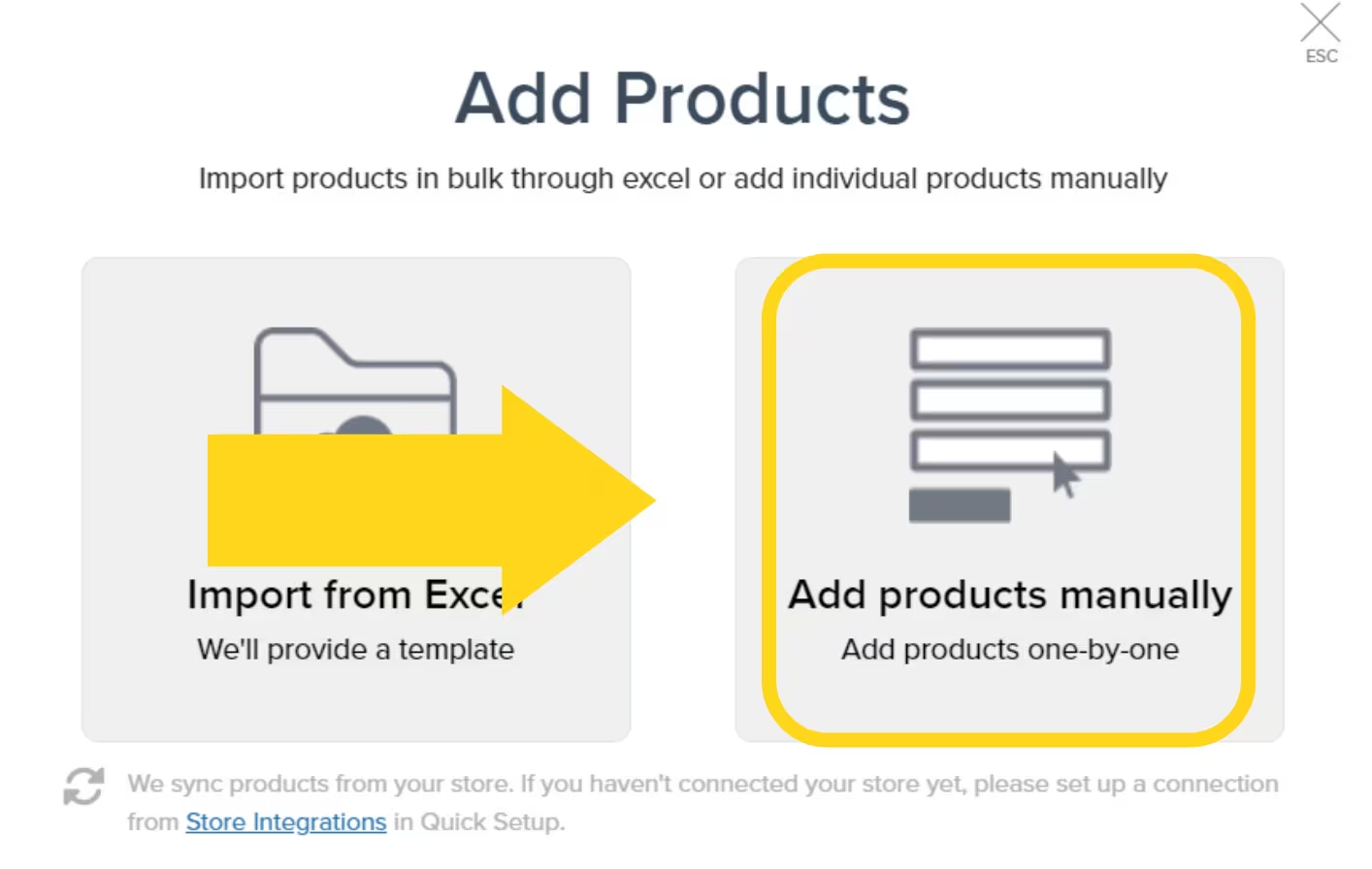
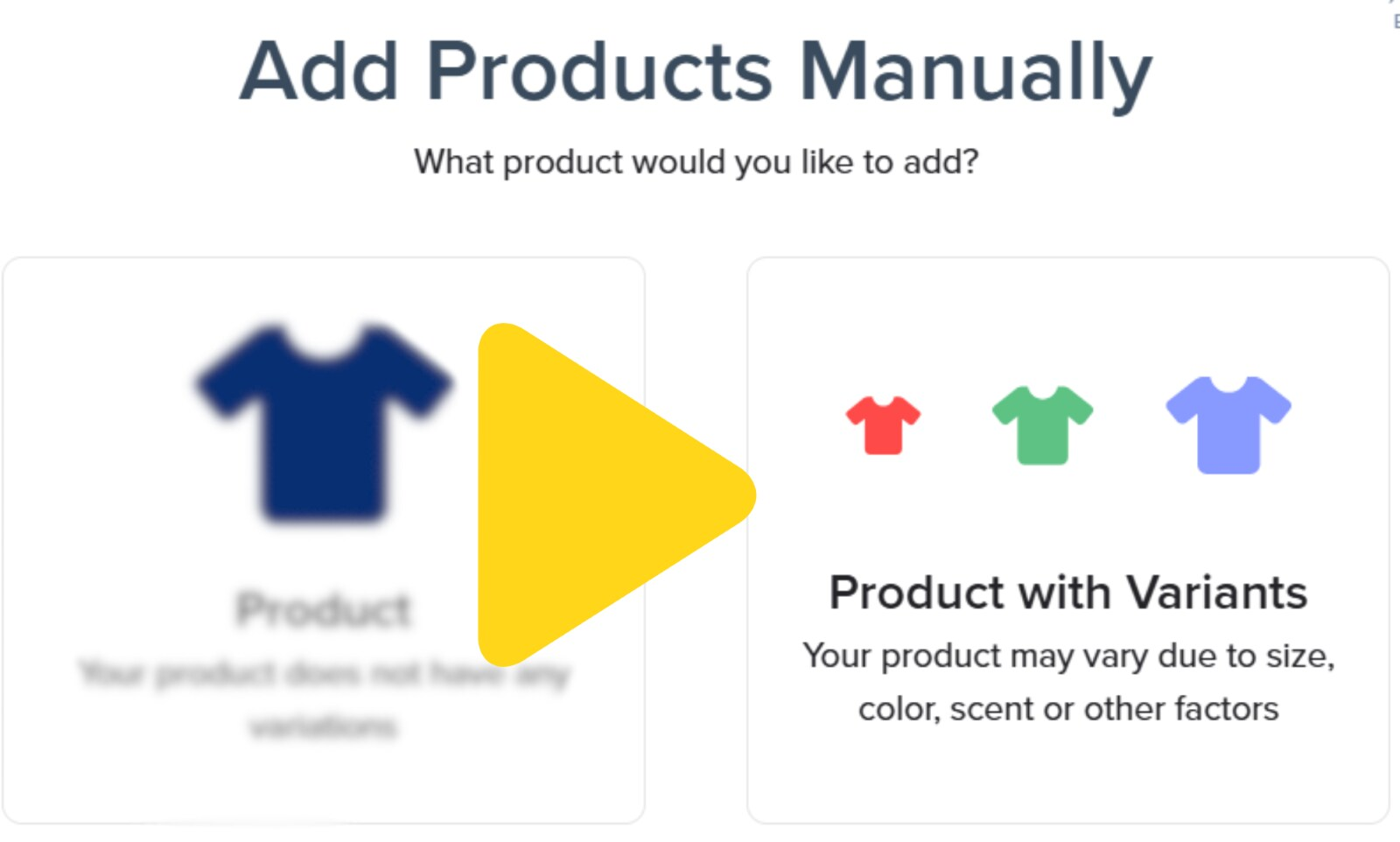
3
Configure parent product
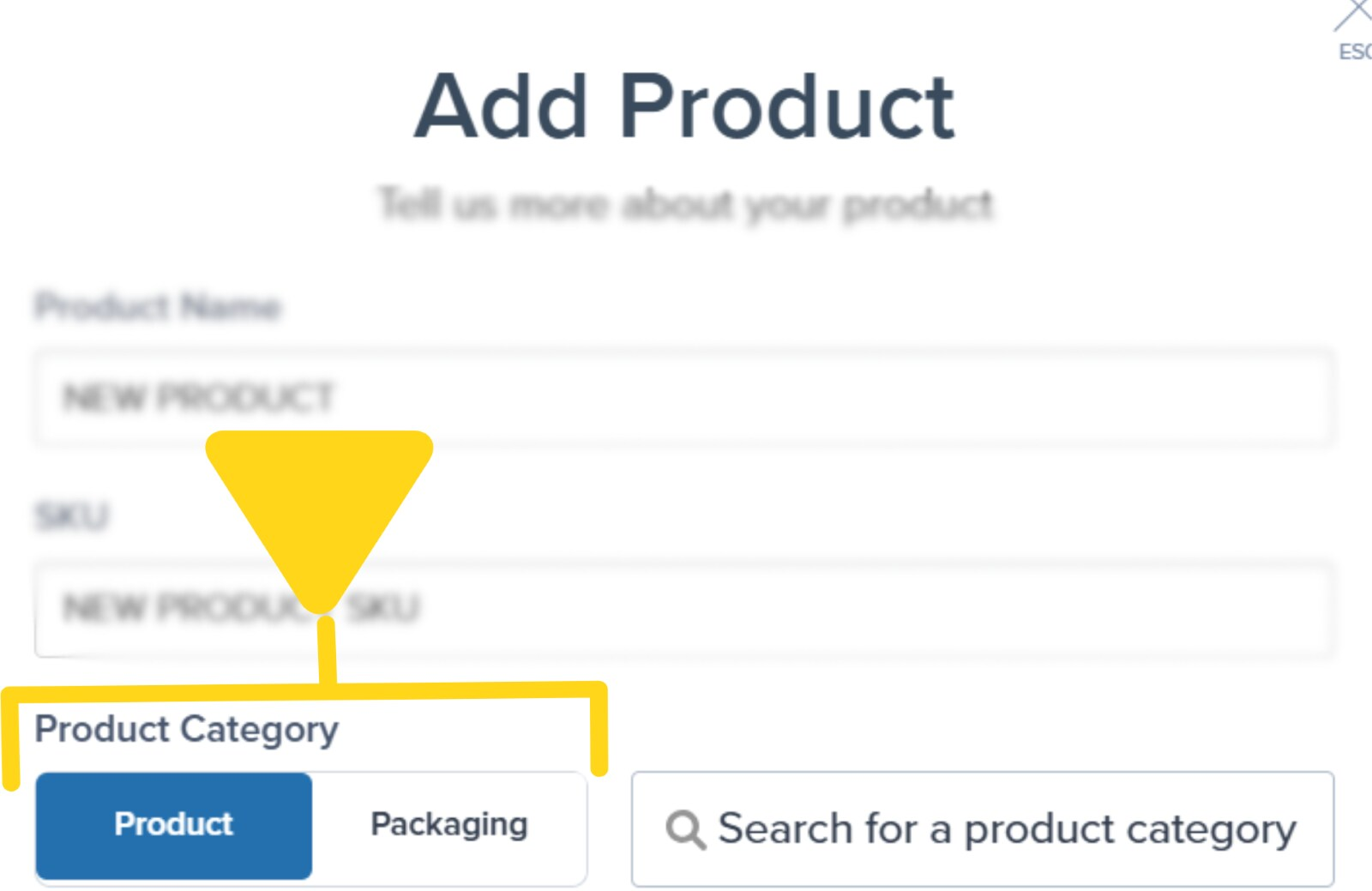
Enter a name for the parent product (e.g., “Cat Mug”).
4
Add variants
For each variant:
- Enter the Variant Name (e.g., “Blue Cat Mug”)
- Enter its unique SKU (e.g., “CAT-BLUE”)
- Click Add Variant to add another row
5
Create product and variants
Click Add Product to create the parent product and all variants.Once created, you can view each variant’s details by clicking the Variants tab on the Product Details page.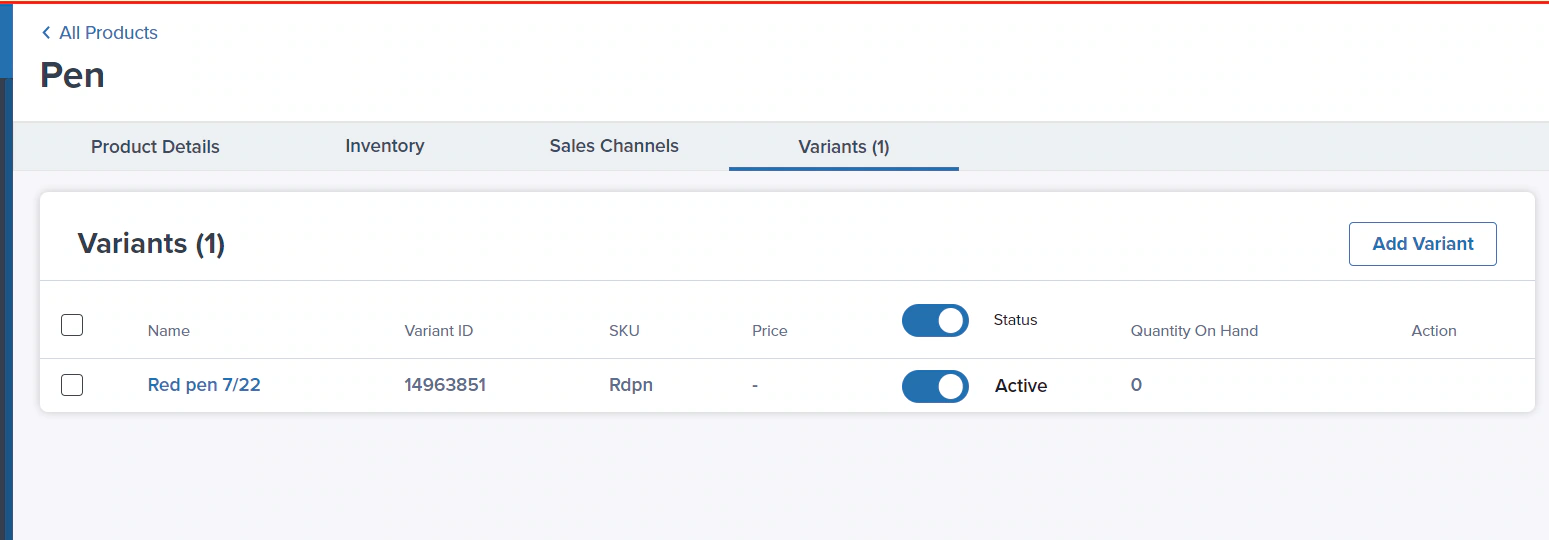
Converting Existing Products to Variants
Already have base products that you want to organize under a parent product? You can convert them to variants without losing any data.1
Select product to convert
Find the product you want to convert using the search bar or by scrolling, then click the three vertical dots under the Actions column and select Convert to variant(s) and move under a product from the dropdown.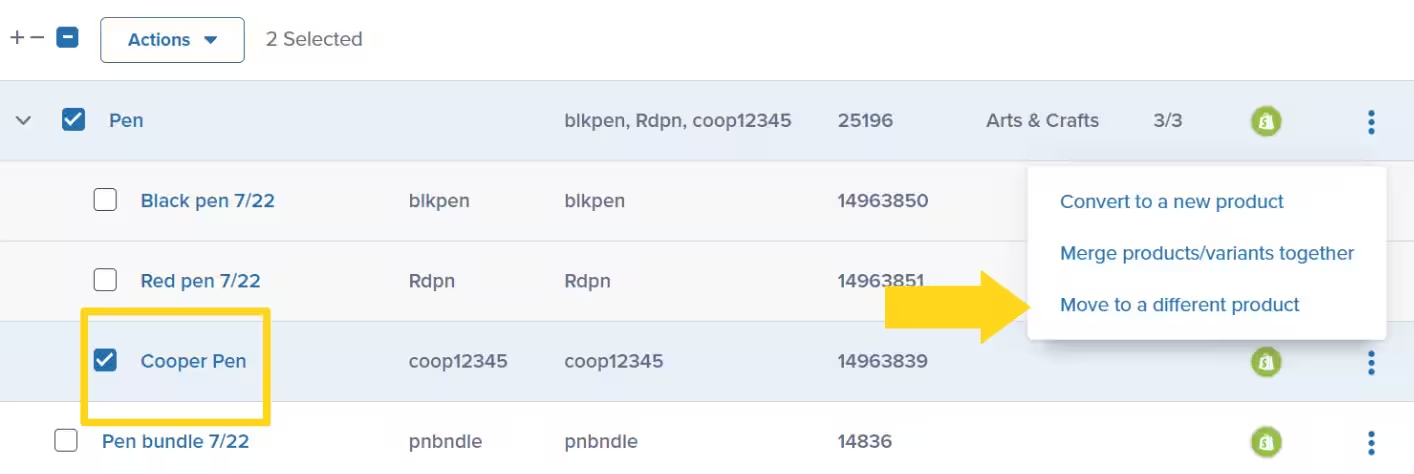
2
Review and add products
A pop-up will display the selected product(s).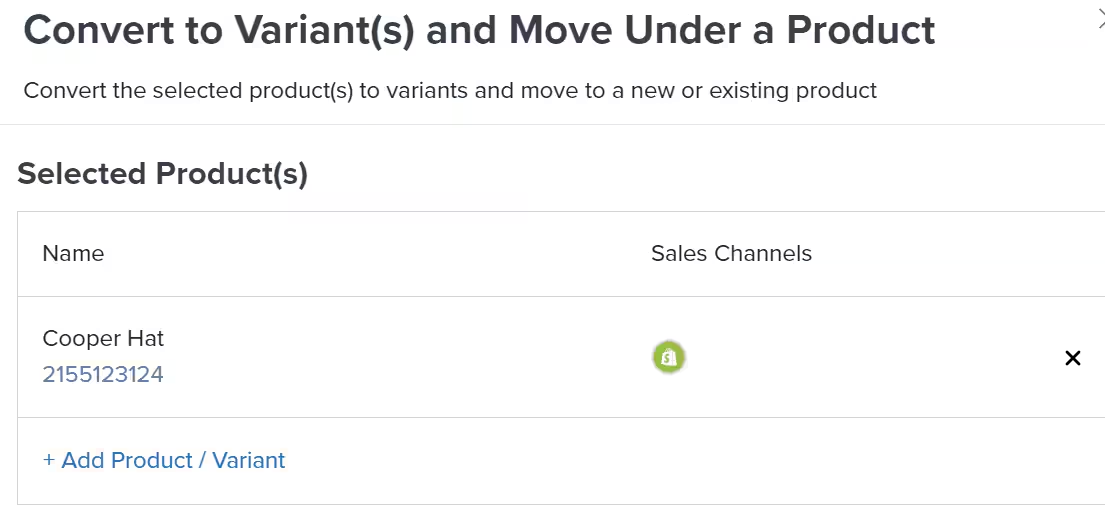
3
Choose destination
Choose whether to add these variants to: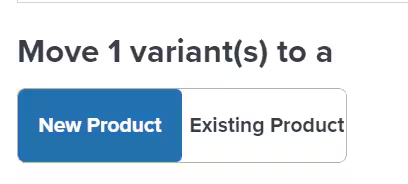
- New Product - Enter a new parent product name and select a category
- Existing Product - Select an existing parent product that already has variants
4
Complete conversion
Click Convert to Variant(s) to complete the process. Your products will now appear as variants under the parent product you selected or created.
Moving Variants to a Different Parent Product
Need to reorganize? You can move variants from one parent product to another.1
Select variant to move
Click the three vertical dots next to the variant you want to move, then choose Move to a different product from the menu.
2
Review and add variants
A pop-up will appear showing the selected product(s).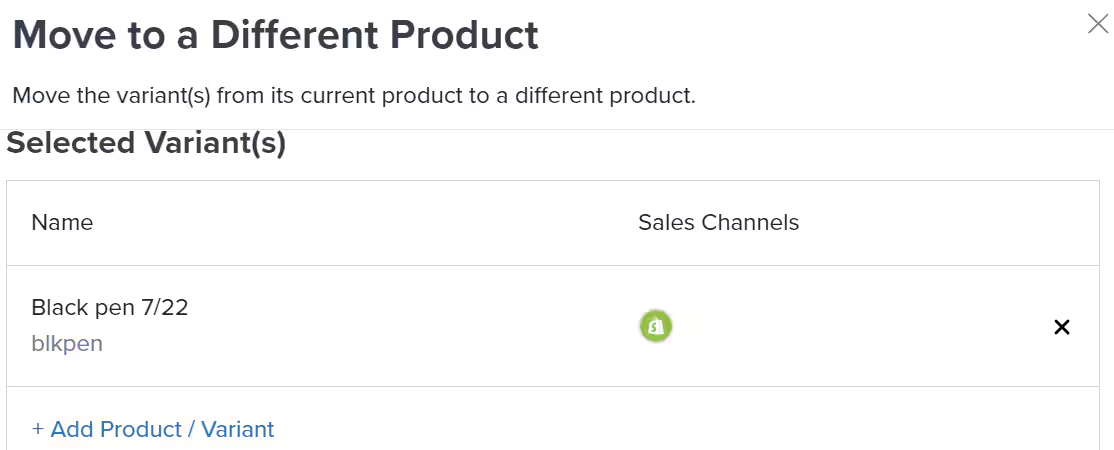
3
Select destination
Choose your destination:
- New Product - Create a new parent product by entering a name and category
- Existing Product - Type the parent product name (must already have variants) and select it
4
Complete the move
Click Move Variant(s) to complete the transfer. The variant will now appear under its new parent product, and the old parent will update its variant count accordingly.
Creating Parent Products and Variants in Bulk
If you have many variants to add, use our Excel template to bulk upload them all at once. To prepare for bulk upload:- Click the Add Product button
- Select Add Product from the dropdown
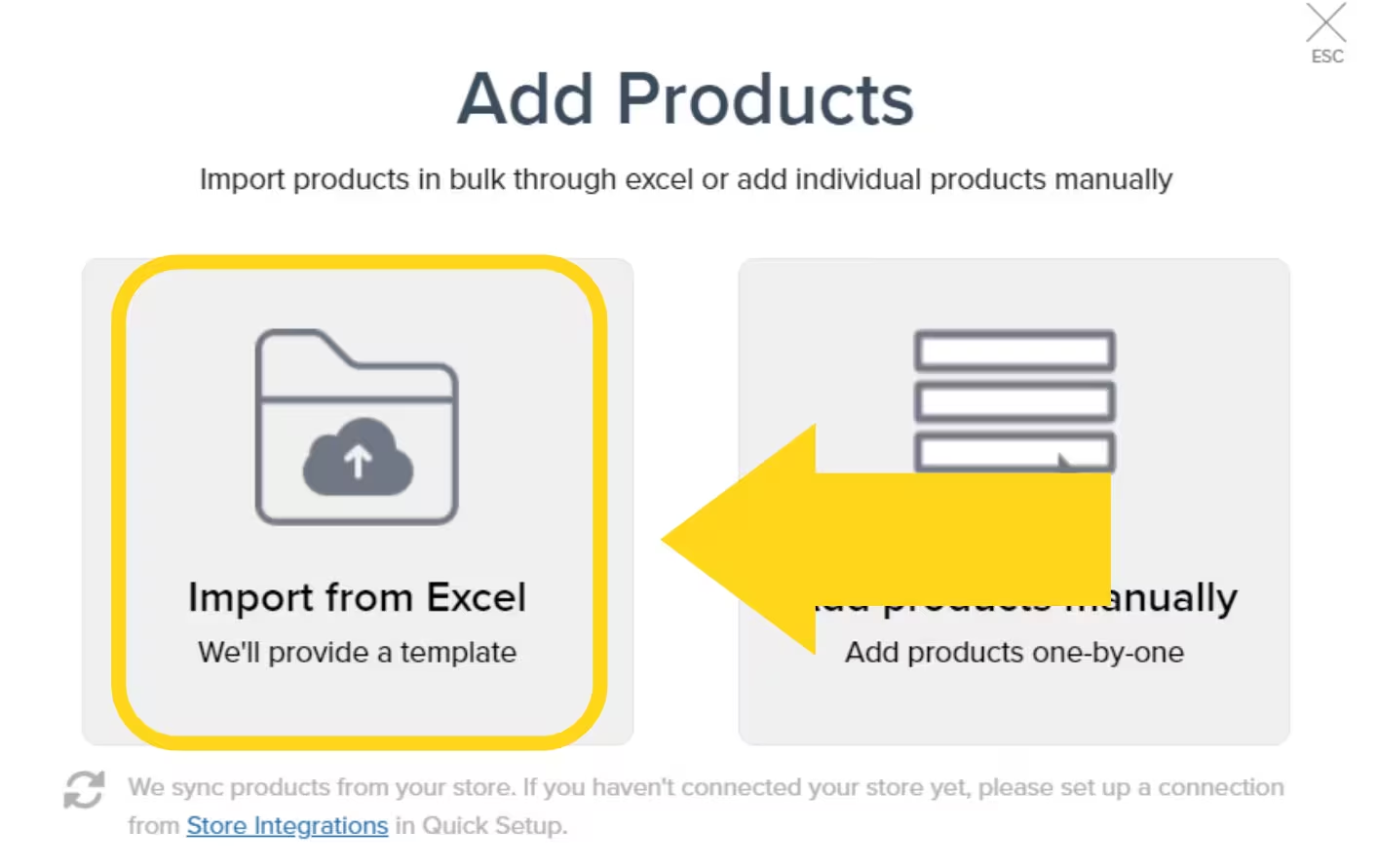
- Choose Import from Excel in the pop-up window
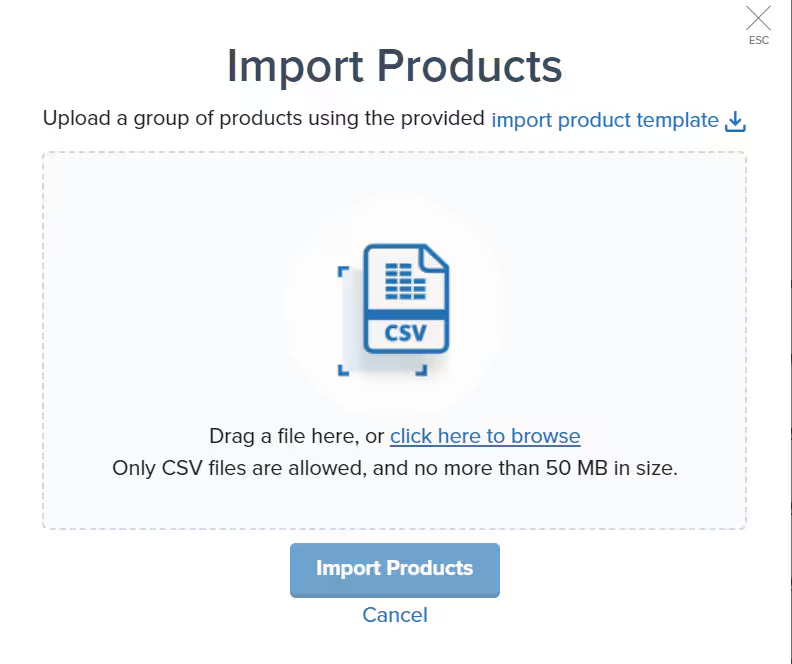
- Click the import product template link to download the Excel file
- Open the file and delete the sample data (but keep all column headers)
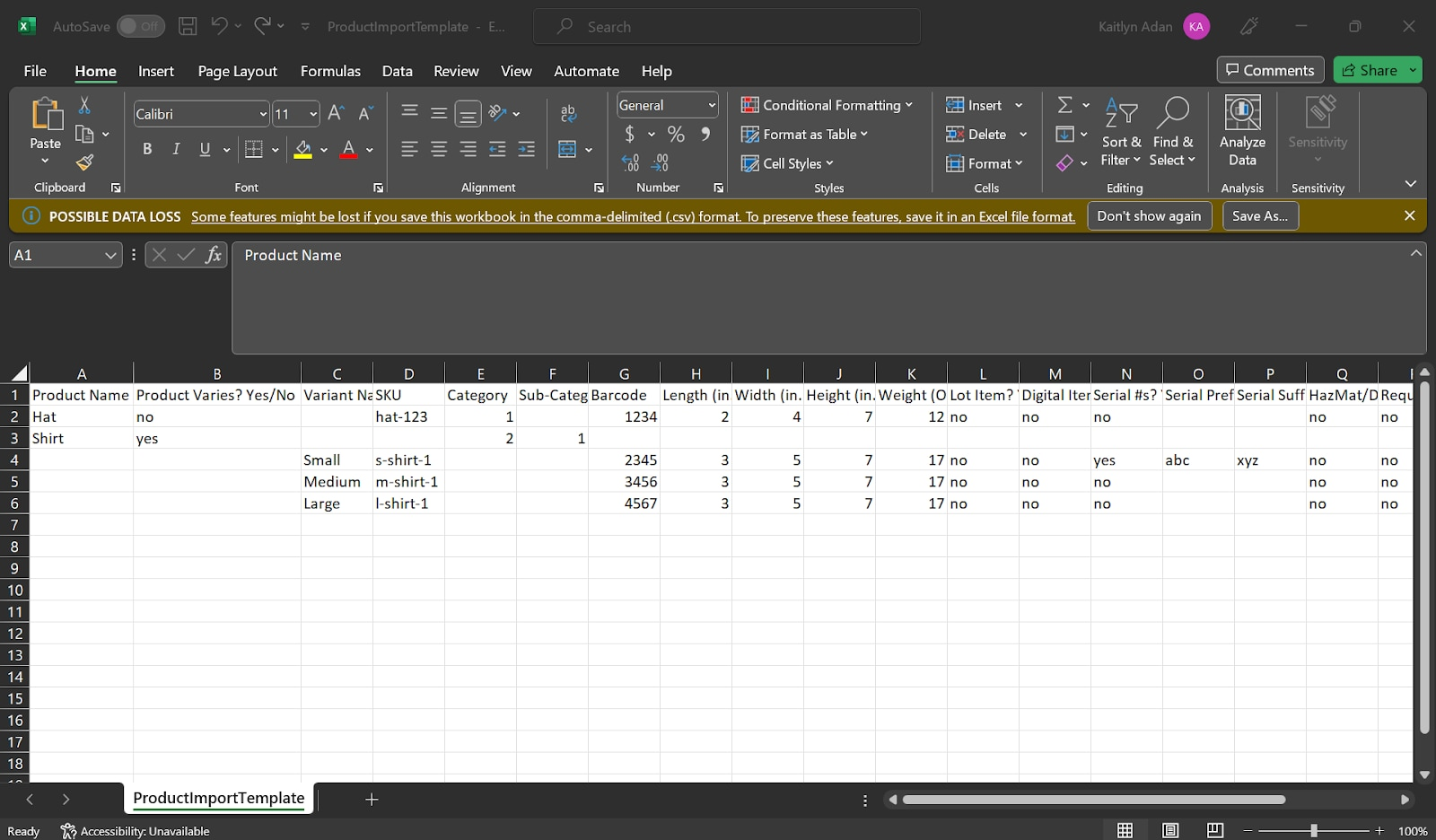
- Enter the Product Name (e.g., “Cat Mug”)
- Set Product Varies? to Yes
- Leave other columns blank for now
- Enter the Variant Name (e.g., “Blue Cat Mug”)
- Enter the unique SKU (e.g., “CAT-BLUE”)
- Leave the Product Name and Product Varies columns blank
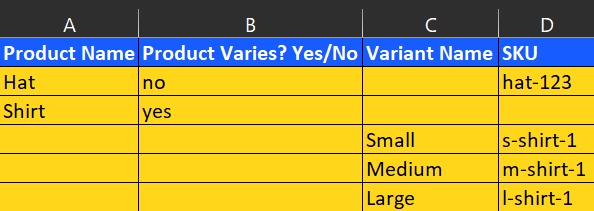
Excel Template Example
Excel Template Example
This creates one parent product (“Cat Mug”) with three variants.
- Save your changes
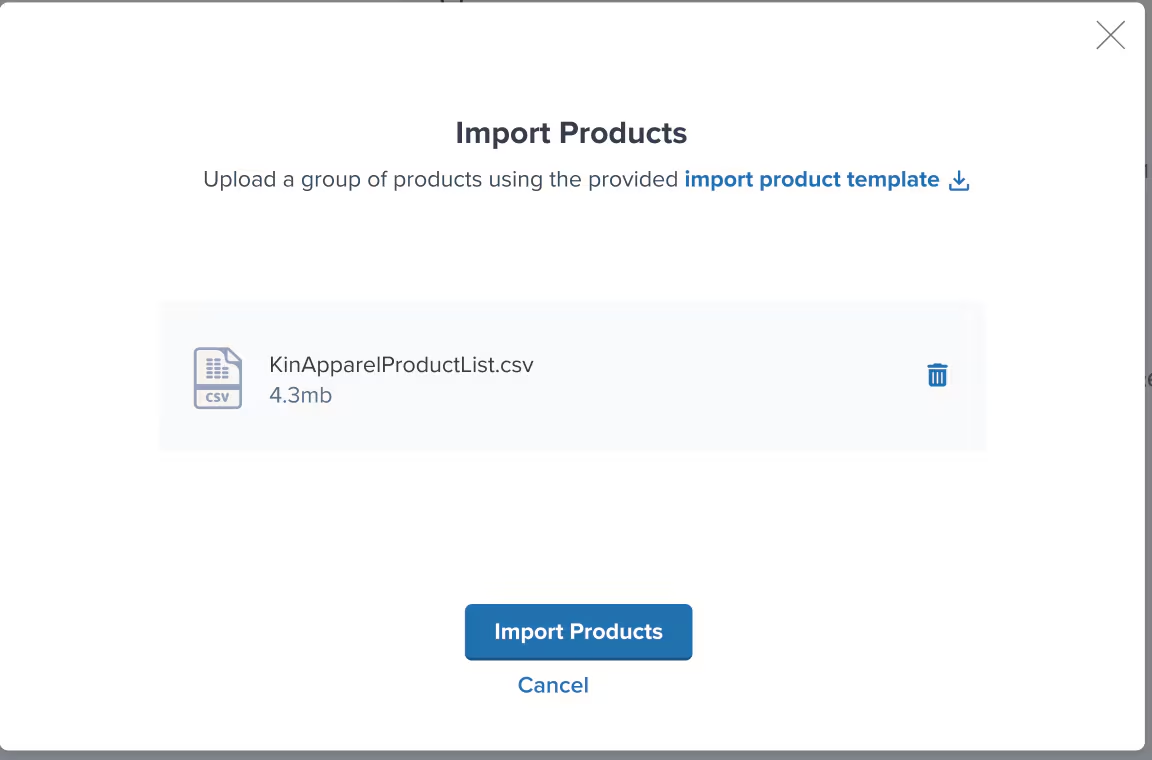
- Drag and drop the file into the upload area, or click the link to browse for it
- Click Import Products
Managing Variants After Creation
Once you’ve created variants, you can manage them from the Product Details page:Viewing Variants
- Navigate to the parent product
- Click the Variants tab
- See all variants grouped under that parent
Editing Individual Variants
- Click on any variant name to open its Product Details page
- Configure settings like packaging requirements, customs information, or return preferences
- Each variant has its own independent settings
Adding More Variants Later
- Open the parent product’s Variants tab
- Click Add Variant
- Enter the new variant’s name and SKU
Toggling Variant Status
- Set variants to Active or Inactive
- Only Active variants can be received via WROs
- Inactive variants will cause orders to move to Exception status
Best Practices for Using Variants
1. Plan Your Structure Before Creating
Decide on your parent product names and how you’ll organize variants (by color, size, etc.) before bulk uploading. This saves time reorganizing later.2. Use Consistent Naming Conventions
Keep variant names and SKUs consistent for easier management:- Good: Blue Cat Mug (CAT-BLUE), Green Cat Mug (CAT-GREEN)
- Confusing: Cat Mug - Blue (BLUE-CAT), Mug Cat Green (CAT-G)
3. Consider Identical Products Settings
If your variants have the same dimensions and weight, configure them as identical products to lock in measurements and ensure consistent pricing.4. Keep Variants Organized
Don’t create too many unrelated variants under one parent. If products differ significantly (e.g., mugs vs. plates), create separate parent products.5. Review After Bulk Uploads
Always check your Product Catalog after bulk uploads to ensure variants were created correctly and are under the right parent products.Let’s Dive Deeper
Product Catalog Page
Product Details Page
Setting Product Preferences
About Barcodes
Move, Merge, Convert Products
Sending Inventory

Questions? Contact Jetpack Care.
If you have any questions or run into issues, you can always contact Jetpack Care for help. Our team is always here to assist via Slack, phone, or email!