

This feature is exclusively available to merchants who meet certain eligibility criteria. To learn more about pricing and enablement, please reach out to your Jetpack Care Manager.
Marketing inserts let you include branded promotional materials in your shipments without the hassle of pre-printing and storing them as separate SKUs. Jetpack’s US fulfillment centers print these materials on-demand, ensuring every eligible order includes your latest marketing message.
What Are Marketing Inserts?
Marketing inserts are promotional materials printed and included with your outbound shipments. Once enabled, a 4.1 x 6-inch (10 x 15-cm) marketing insert will be printed in full color on a 65# Cover Rolland Opaque postcard style paper for all applicable orders.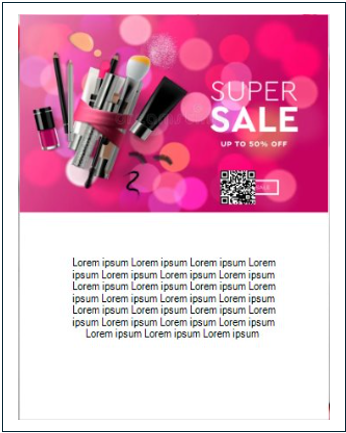
Marketing Insert Specifications
Your marketing insert image must meet the following specifications:
You can download a template to ensure your design meets these requirements: Marketing Insert Template
Pricing
You are subject to a 3% credit card processing fee if you meet all of the criteria outlined by your Jetpack Care Manager.
Enable Marketing Inserts
Follow these steps to enable marketing inserts for your orders:1
Navigate to Marketing Inserts settings
From the Customize Order Documents page, click Manage Marketing Inserts (hyperlinked). You will be redirected to the marketing inserts configuration page.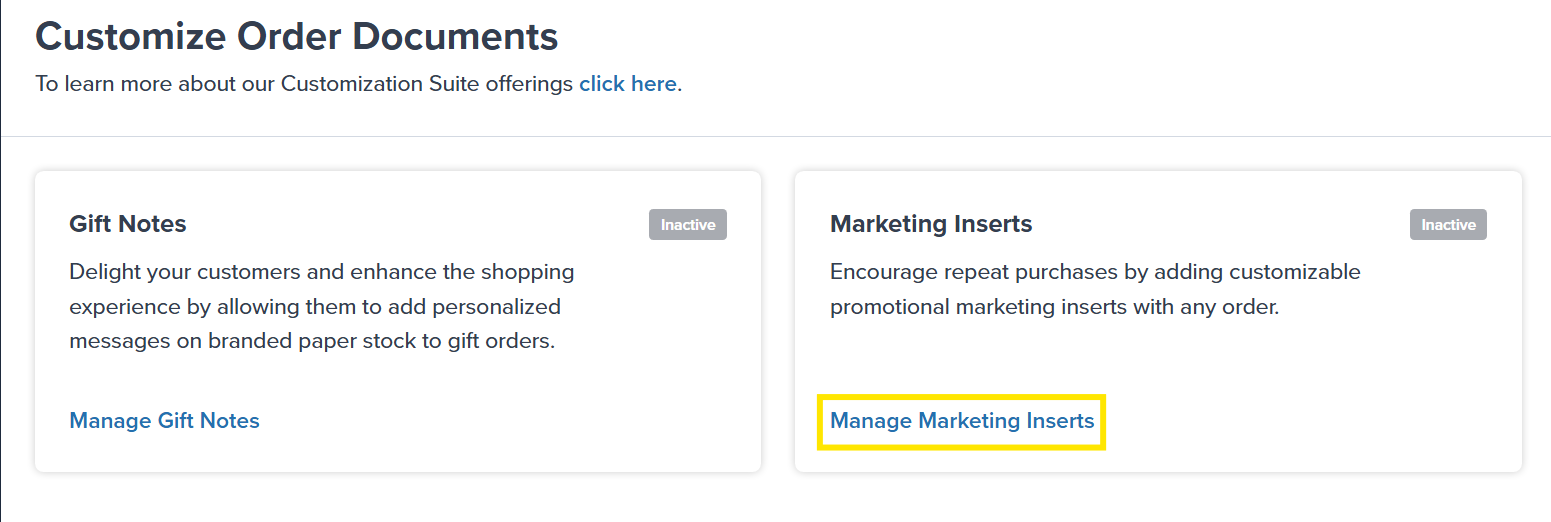
2
Expand the Standard Marketing Insert panel
Click the Standard Marketing Insert panel. The panel will expand to show additional options.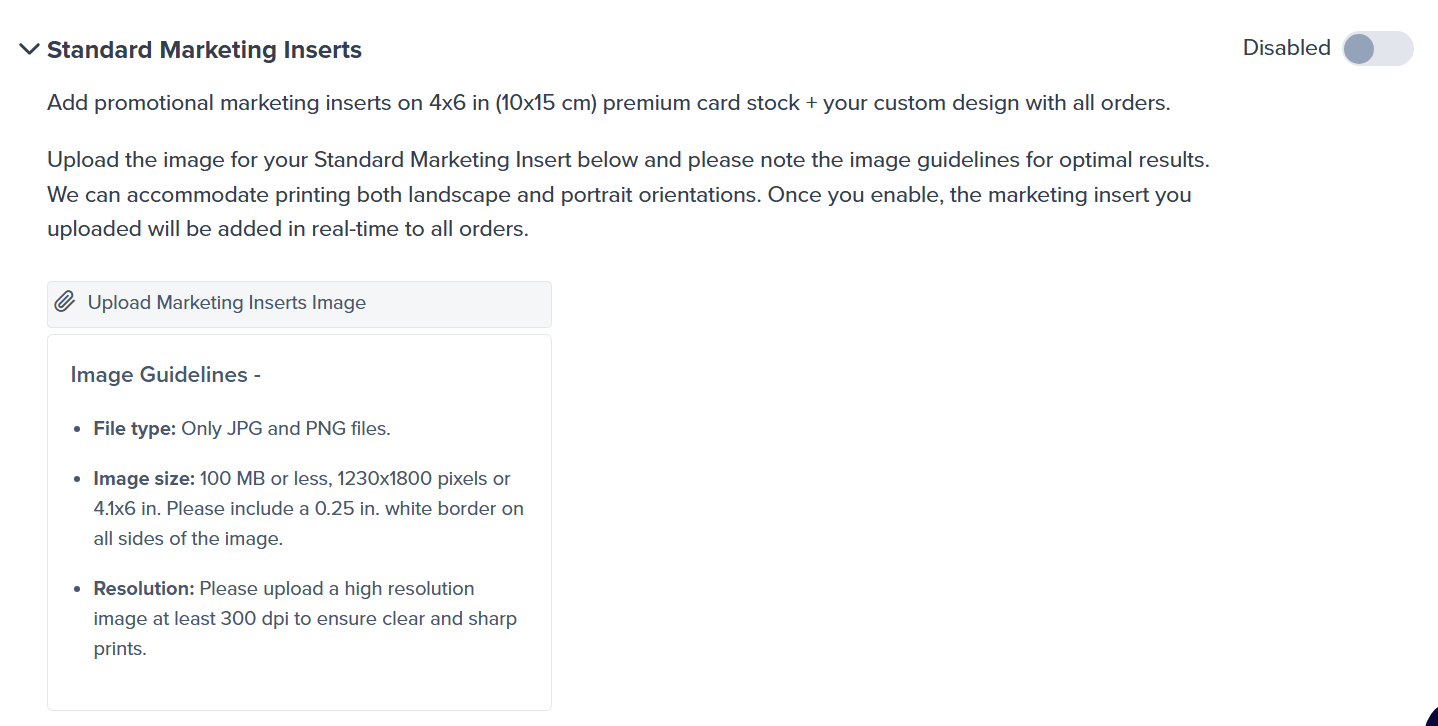
3
Upload your marketing insert image
Click Upload Marketing Inserts Image.This will allow you to add a single 1230 x 1800-pixel (300 dots per image) color image to your marketing inserts (4.1 x 6 inches or 10 x 15 centimeters).
- There must be a 0.25-inch (0.635-centimeter) white border on all sides of the image
- The orientation will depend on the orientation of the image uploaded (portrait or landscape)
- Download template here: Marketing Insert Template
4
Select your file
Select the file to upload. For the best results, select a file in .jpg or .png format that is 100 MB or less.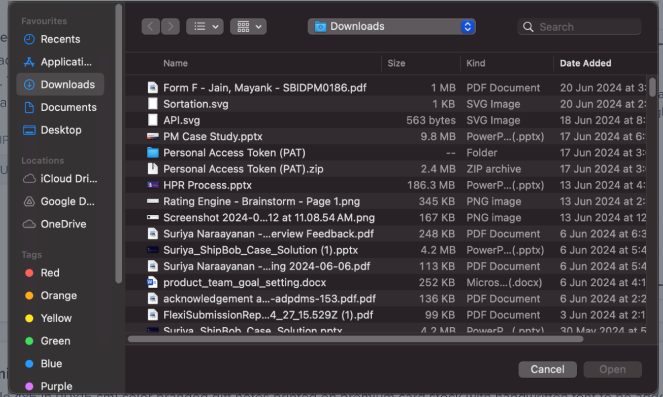
5
Review any alerts (if applicable)
If your image does not meet requirements, you’ll see an on-screen alert:

- Image too large: You will not be allowed to proceed until you upload a supported size
- Image too small: You will be alerted, but you can proceed if desired
6
Save your changes
Click Save Changes in the Unsaved Changes bar.
7
Enable the marketing insert feature
Click the toggle icon next to Disabled (located at the top right of the Standard Marketing Insert panel). A pop-up window will appear.
8
Confirm enablement
Review the on-screen message, check the box to confirm acknowledgment, and click Yes, Enable.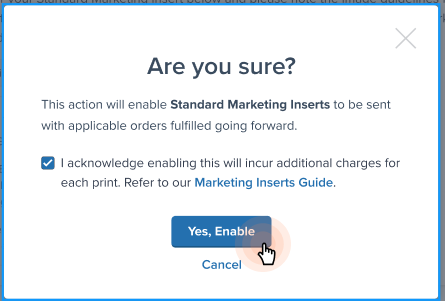
Disable Marketing Inserts
You can disable marketing inserts at any time in your Jetpack dashboard. Once disabled, all orders for which we have not yet started the fulfillment process (i.e., are not yet picked) will not receive the marketing insert.1
Navigate to Marketing Inserts settings
From the Customize Order Documents page, click Manage Marketing Inserts (hyperlinked). You will be redirected to the marketing inserts configuration page.
2
Expand the Standard Marketing Insert panel
Click the Standard Marketing Insert panel. The panel will expand to show additional options.
3
Disable the feature
Click the toggle icon next to Enabled.You will receive a success message, and the toggle icon will turn gray and update to Disabled. Your previous marketing insert settings will remain configured if you choose to enable the feature later.
Delete Marketing Insert Image
You can update the image utilized for marketing inserts at any time by deleting the previous image and uploading a new one.Once updated, orders for which we have not yet started the fulfillment process will receive the new image, while orders that we have already started fulfilling will receive the previously uploaded image.
1
Navigate to Marketing Inserts settings
From the Customize Order Documents page, click Manage Marketing Inserts (hyperlinked). You will be redirected to the marketing inserts configuration page.
2
Expand the Standard Marketing Insert panel
Click the Standard Marketing Insert panel. The panel will expand to show additional options.
3
Delete the current image
Click the trash can/bin icon next to Replace Current Marketing Insert Image. A pop-up screen will appear.Keep in mind:
- You are required to have an image for marketing inserts
- Removing the image will disable the marketing insert feature
- If you want to continue utilizing marketing inserts, you must provide a new background image and re-enable the feature
4
Confirm deletion
Review the on-screen message and click Yes, Delete.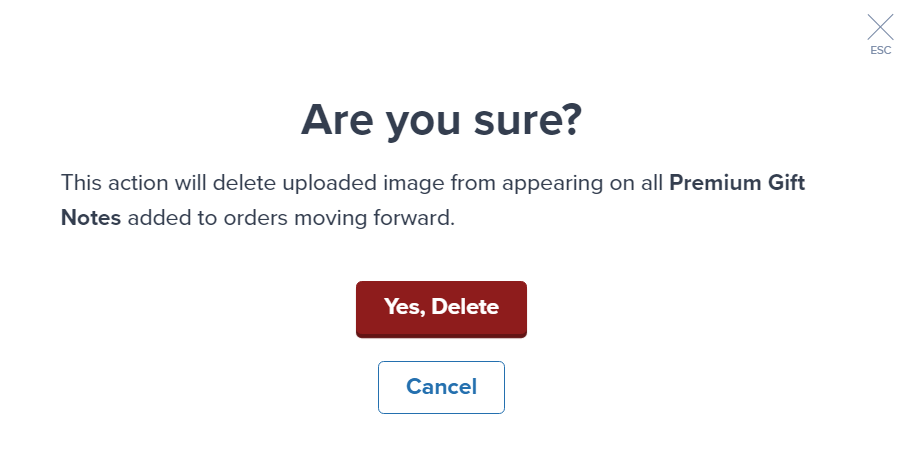
Let’s Dive Deeper
Labels and Packaging Overview
Back to the main customization guide
Customize Order Documents Page
Configure settings for gift notes and marketing inserts
Gift Notes
Add personalized Standard or Premium gift notes
Custom Sender Labels
Personalize sender information on shipping labels
Packaging Preferences
Configure packaging types
Custom Packaging
Use branded boxes and materials
Questions? Contact Jetpack Care.
If you have any questions or run into issues, you can always contact Jetpack Care for help. Our team is always here to assist via Slack, phone, or email!