

When your inventory is distributed across multiple fulfillment centers, Jetpack’s Order Auto Split Rules automatically split B2C orders to prevent fulfillment delays and optimize shipping. Choose between Partial Shipment Rules (which split orders when no single fulfillment center has complete inventory) or Product-Based Shipment Rules (which split orders based on specific product criteria).
Order Splitting Options
Jetpack offers two auto-split options to help manage orders when inventory is distributed across multiple fulfillment centers:- Partial Shipment Rules automatically split orders when no single fulfillment center can fulfill the entire order
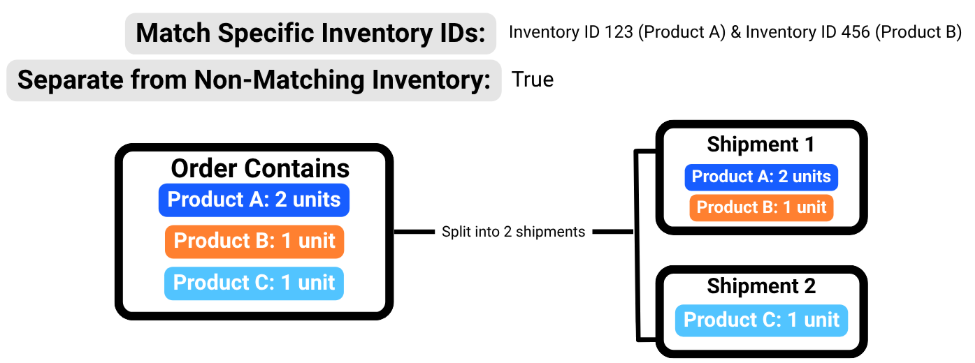
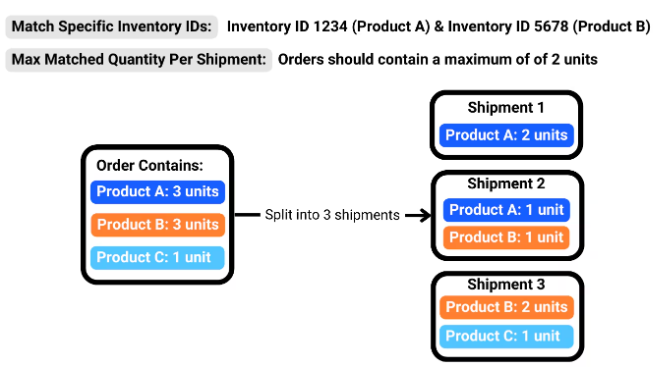
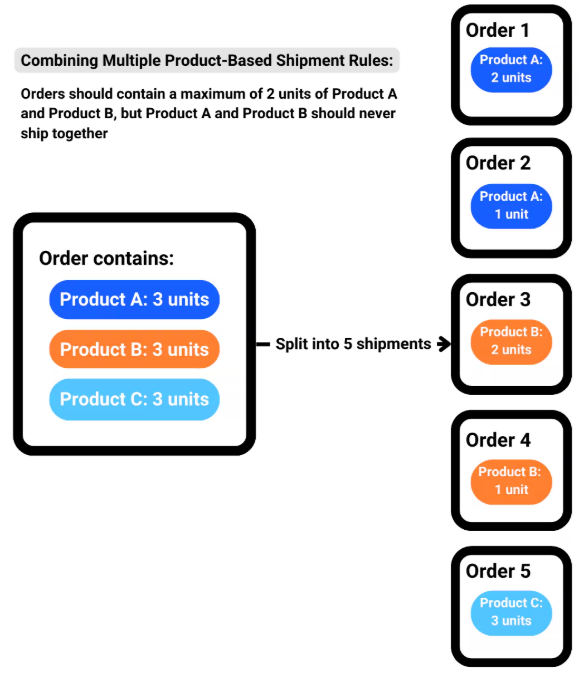
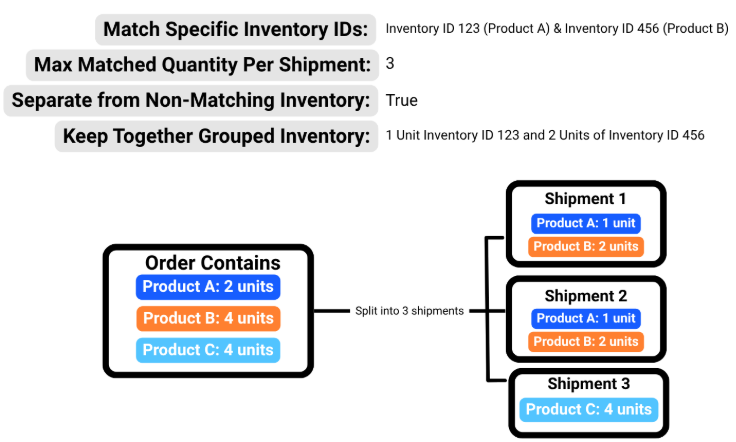
- Product-Based Shipment Rules split orders based on specific product criteria
Choosing Your Order Splitting Approach
- Partial Shipment Rules
- Product-Based Rules
Partial Shipment Rules
By default, when an order contains SKUs or units that are not all available in one fulfillment center, the order defaults to Exception status until one fulfillment center can fulfill it entirely. Enabling Partial Shipment Rules prevents fulfillment delays by automatically splitting orders across centers when needed.How Partial Shipment Rules Work
Key Features:- B2C orders only: Both Partial Shipment and Partial Backorders rules apply only to B2C orders
- Separate billing: Each split shipment is billed separately, with details visible on the Shipment Breakdown panel in the order details
- Maximum shipments: By default, orders split into a maximum of 2 shipments. This can be customized to 2, 3, 4, or 5 shipments, based on available fulfillable inventory
- Packaging exceptions: Orders will not split if they include items with specific packaging requirements (e.g., marketing inserts, Prop 65 labels, custom packages)
Partial Backorders
Partial Shipment Rules will not split orders if any of the SKUs are out of stock (OOS). To allow orders to split when SKUs are OOS, enable Partial Backorders Rules.When items are OOS, available SKUs ship as one order, while the order remains in Exception status until the backordered inventory is replenished. Once OOS items are restocked, the order automatically moves into Processing status, provided no other exceptions exist.Example:If an order includes:- SKU A at Fulfillment Center X
- SKU B at Fulfillment Center Y
- SKU C at Fulfillment Center Z
International Shipments
By default, order splits are restricted to fulfillment centers in the same country as the customer. Override this by enabling the International Shipments setting.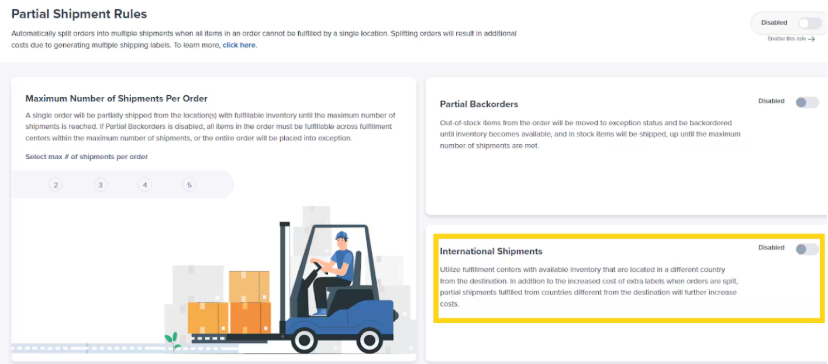
Ensure the maximum number of shipments setting corresponds to the number of fulfillment centers you use for optimal operation.
Accessing the Partial Shipment Rules Page
Only Account Owners and Client Admins can configure partial shipment rules.
1
Navigate to Rules
From the Jetpack dashboard, click Orders on the left-hand navigation bar. Additional menu options will appear. Select Rules.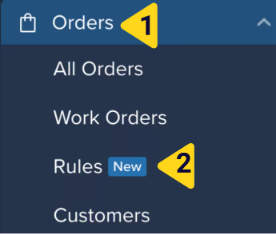
2
Configure settings
You will be redirected to the Partial Shipment Rules page, where you can adjust settings including international shipments and the maximum number of shipments per order.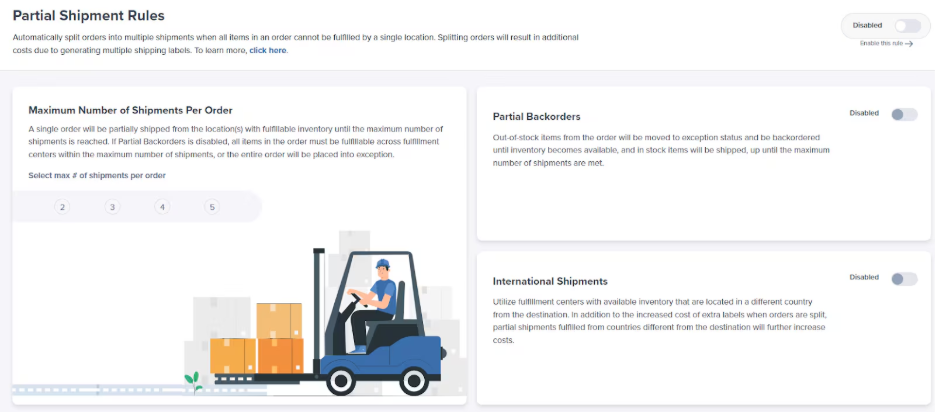
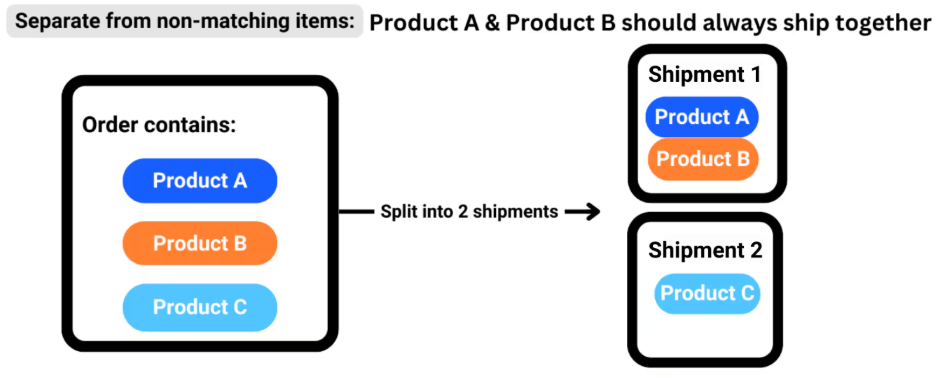
Add-On Rules
Add-on rules (in combination with split rules) allow custom packaging to be assigned to shipments after being split. Using the packaging’s inventory ID or a keyword (located at the beginning or end of the item name), Add-on rules will:- Review the products and total units per product already in the shipment
- Add specified products and total units based on the rule configuration
Let’s Dive Deeper
Automation Rules
Automatically apply fulfillment behaviors to your orders
Destination-Based Rules
Route orders to specific fulfillment centers based on destination
FIFO Order Allocation
Prioritize older orders when inventory is replenished
Multi-Box Package Selection Rule
Control multi-box packaging behavior
Standard Packaging Split Shipment Rules
Learn about packaging constraints that affect order splitting
Back to Main Guide
Return to automation workflows overview

If you have any questions or run into issues configuring order split rules, you can always contact Jetpack Care for help. Our team is always here to assist via Slack, phone, or email!