

MultiHub IQ (MIQ) automatically generates optimized transfer plans that determine how your inbound inventory will be distributed across fulfillment centers. These plans are based on demand forecasting, historical sales data, and regional optimization—but you retain full control to adjust them. This guide explains what transfer plans are, how to review them, and how to edit them through the dashboard interface or bulk update via Excel templates.
Whether you’re responding to a regional promotional campaign, stocking a new fulfillment center for a product launch, or rebalancing inventory based on market shifts, you can customize transfer plans as long as you make changes before your shipment arrives at the Hero Hub.
Understanding the Editing Window
Transfer plans can be modified from the moment your WRO is created until your shipment arrives at the Hero Hub for receiving. Key Timeline Points:Why You Might Edit Transfer Plans
While MIQ’s algorithm optimizes for overall network efficiency, specific business scenarios may warrant manual adjustments: Common Editing Scenarios:- Regional Promotions: Allocating extra inventory to fulfillment centers serving regions with planned advertising campaigns
- New Product Launches: Stocking specific fulfillment centers for coordinated market rollouts
- Seasonal Demand Shifts: Anticipating demand patterns not yet reflected in historical data (e.g., new holiday products)
- Strategic Inventory Positioning: Testing new markets or expanding into regions with limited historical order data
- Rebalancing After Stockouts: Prioritizing fulfillment centers that recently experienced stockouts
Editing Transfer Plans in the Dashboard
The dashboard editor allows you to adjust individual SKU allocations across fulfillment centers with real-time validation.1
Access the transfer plan editor
From the WRO details page, locate the Inventory Distribution tile showing your transfer plan summary, then click the Edit button under the tile heading.
2
Review auto-generated allocation
Review the auto-generated allocation for each SKU across fulfillment centers. Hover over the information icon (ⓘ) next to any SKU to see why MIQ suggested that specific split.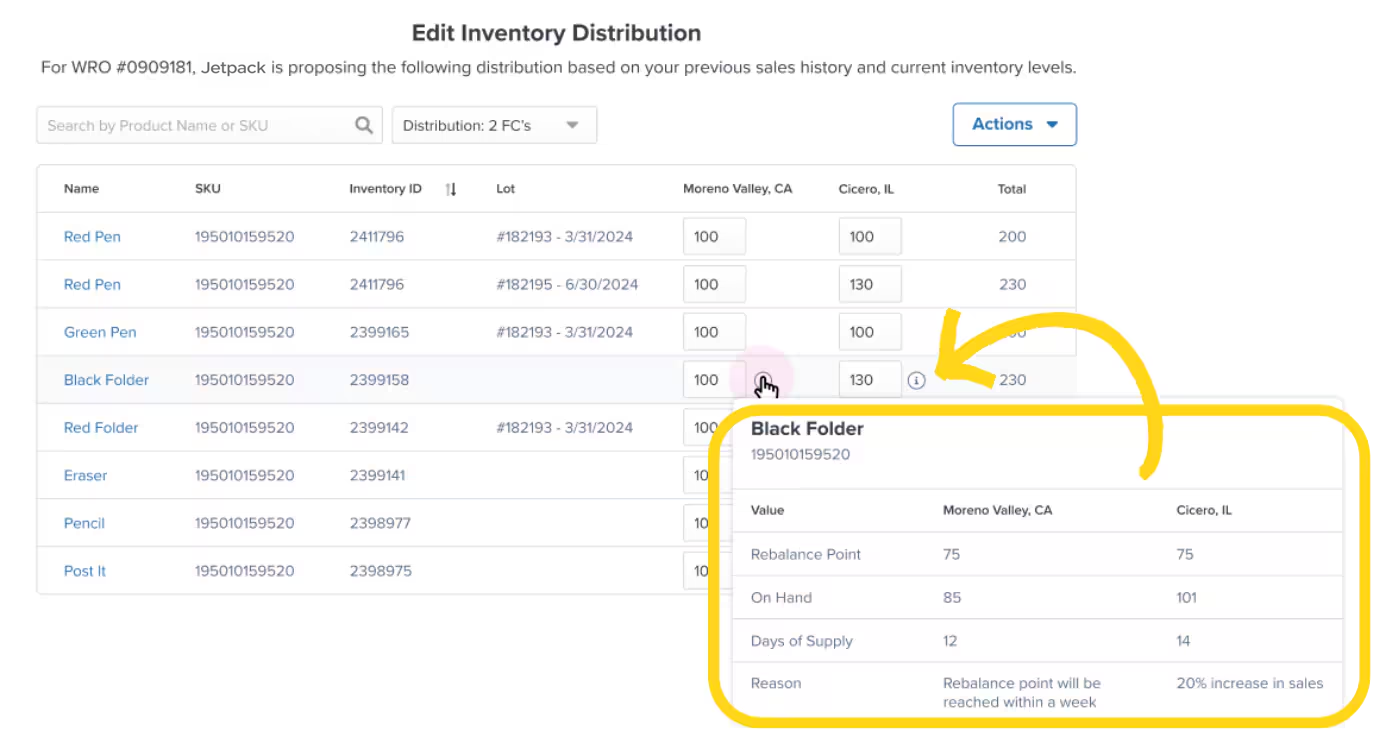
3
Adjust quantities
Input your desired quantities in the text boxes for each fulfillment center. Ensure your total matches the Expected Quantity shown in the plan (totals must equal across all FCs).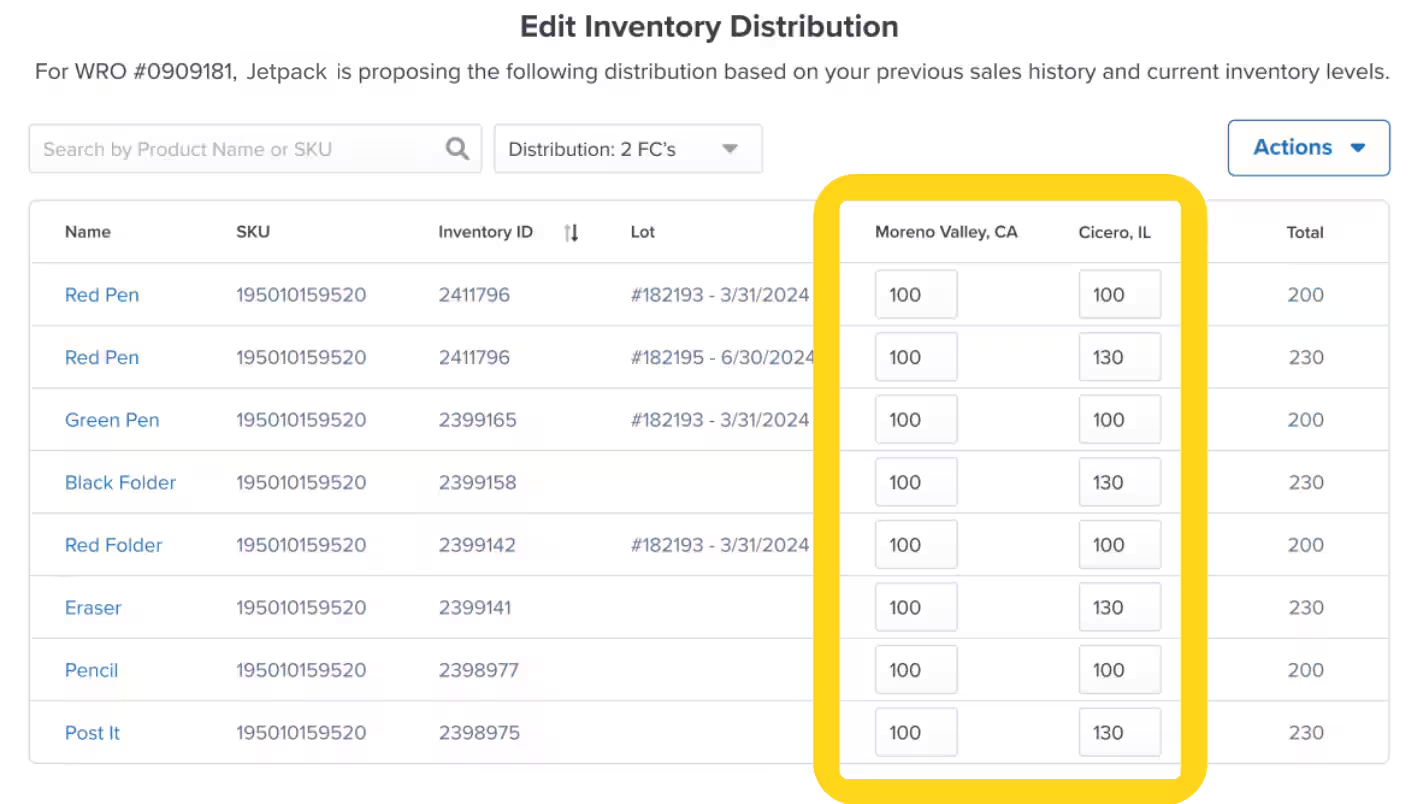
4
Save your changes
Click Update Inventory Distribution to save your changes.
Validation and Error Handling
If your edited quantities don’t match the expected total, the system prevents saving and highlights errors: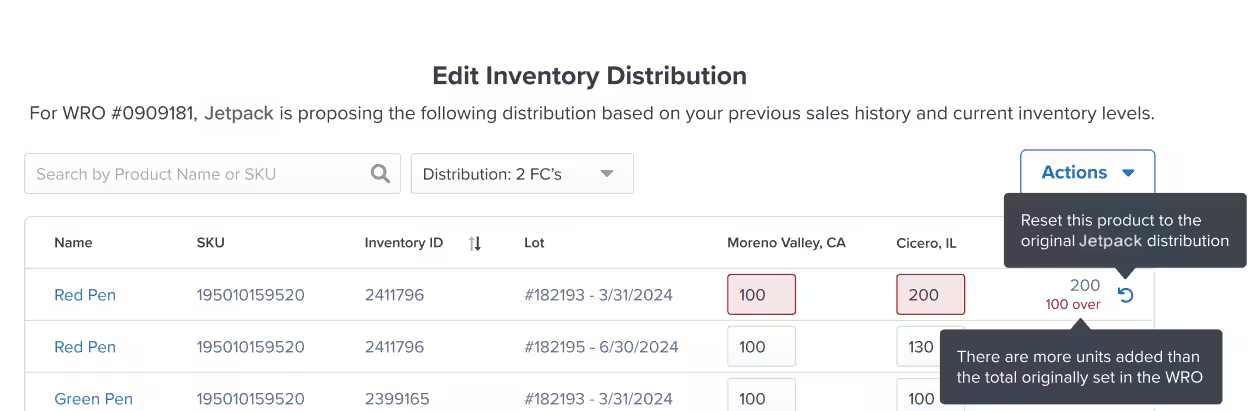
Bulk Editing Transfer Plans with Excel
For WROs with many SKUs or complex allocation changes, bulk editing via Excel template saves time and reduces manual entry errors.1
Access bulk editing
From the WRO details page, click Edit under the Inventory Distribution tile, then click the Actions button at the top right of the editor and select Bulk Update from the dropdown menu.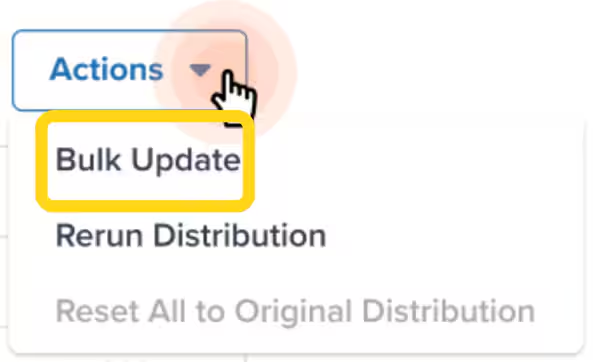
2
Download the template
Click on “inventory distribution” to download the Excel template pre-populated with your WRO data, then open the template in Excel or Google Sheets.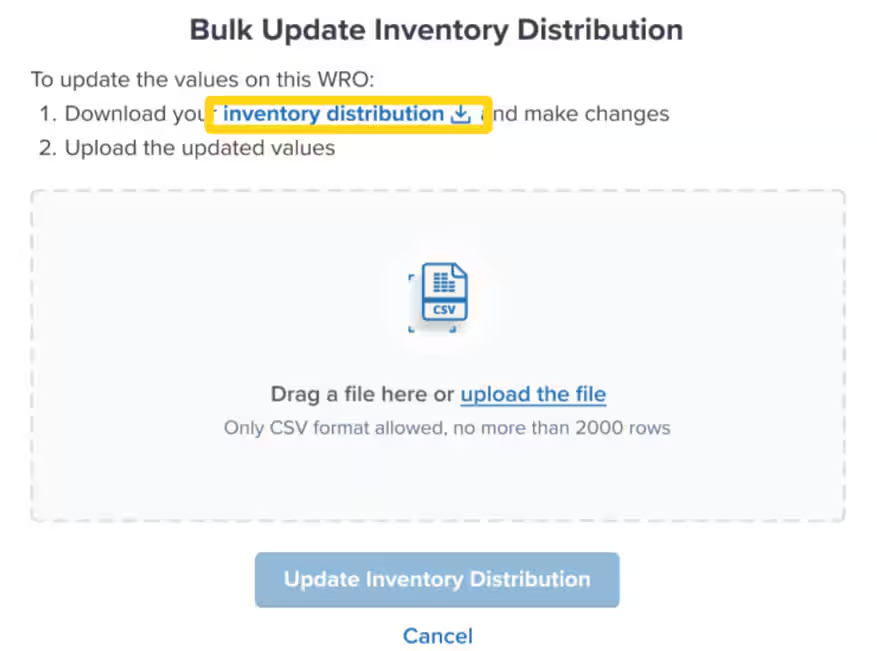
Understanding the Excel Template
The template contains these columns:Fulfillment centers are identified by their local airport codes in the template (e.g., ORD for Chicago, LAX for Los Angeles, DFW for Dallas). This standardization ensures clarity when distributing across multiple locations.
1
Edit the template
Make changes in the template:For non-lot products:
- Modify quantities in the FC columns as needed
- Leave Lot Date and Lot Number columns blank
- Ensure the Total column sums correctly across all FCs
- Include Lot Date and Lot Number values for each row
- Modify FC quantities as needed
- Ensure products with the same lot information are grouped correctly
2
Upload and apply changes
Save the file (keep the same Excel format), then return to the WRO editor in your dashboard. Drag and drop the file into the upload area, or click the upload link to browse for the file.Click Update Inventory Distribution to apply the changes and review the success message confirming your updates.If you decide not to save changes, click Cancel to exit without applying the bulk edits.
Adding or Removing Fulfillment Centers
MIQ distributes inventory only to fulfillment centers enabled in your account. You can add or remove fulfillment centers from the distribution plan, triggering MIQ to recalculate optimal allocation.1
Open transfer plan editor
From the Inventory Distribution tile, click Edit to open the transfer plan editor.
2
Modify fulfillment center selection
Locate the dropdown menu next to the search bar at the top of the editor. Uncheck boxes for fulfillment centers you want to remove from the plan, and check boxes for fulfillment centers you want to add to the plan.
3
Apply FC changes
Click Update to apply the FC changes.
4
Rerun distribution
Click the Actions button, then select Rerun Distribution from the dropdown.
5
Confirm regeneration
Review the confirmation popup explaining that MIQ will regenerate the transfer plan based on your new FC selections. Click Rerun Distribution to confirm, or Cancel if you change your mind.
Resetting to Original Distribution
If you want to discard all edits and return to the original MIQ-generated plan:- Click Actions in the transfer plan editor
- Select Reset All to Original Distribution
- Confirm to revert to the initial auto-generated plan
Best Practices for Editing Transfer Plans
Follow these guidelines to make effective manual adjustments while preserving MIQ’s optimization benefits: When to Edit:- You have market intelligence not reflected in historical data (new product launches, promotional campaigns)
- Regional demand patterns have shifted suddenly (viral social media, influencer partnerships)
- You’re testing new fulfillment centers and want to ensure strategic initial stocking
- Coordinating inventory placement with marketing campaigns targeting specific regions
- Historical sales data accurately reflects ongoing demand patterns
- No major promotional campaigns or market shifts are planned
- You’re managing steady-state replenishment without seasonal fluctuations
- Algorithm recommendations align with your intuition based on order origins
- Review the “why”: Hover over info icons to understand MIQ’s reasoning before overriding
- Make incremental changes: Adjust quantities by 10-20% rather than complete reallocation unless you have strong rationale
- Coordinate with Jetpack Care: For major edits affecting multiple SKUs or FCs, consult your Jetpack Care team to validate your strategy
- Document your reasoning: Track why you made manual adjustments to evaluate accuracy over time
- Monitor results: Compare performance (split shipments, shipping costs, delivery times) between auto-generated and manually edited plans to refine your editing approach
Understanding Transfer Plan Adjustments
MIQ transfer plans can change automatically between WRO creation and shipment arrival based on real-time conditions: Factors That Trigger Auto-Adjustments:- Inventory levels at destination fulfillment centers change significantly (stockouts or unexpected surpluses)
- Order velocity shifts dramatically for specific SKUs in certain regions
- Fulfillment center capacity constraints emerge
- Other WROs arrive and alter network-wide inventory distribution
After your shipment arrives at the Hero Hub and receiving completes, review the Inventory Distribution tile to see the final executed transfer plan. This shows exactly how inventory was distributed across fulfillment centers, accounting for both your manual edits and any auto-adjustments MIQ made before the editing window closed.
Troubleshooting Common Issues
Encountering problems while editing transfer plans? Here are solutions to common scenarios:Let’s Dive Deeper
What is MultiHub IQ?
Back to the MultiHub IQ overview and system explanation
Using MultiHub IQ
Create WROs, review transfer plans, and use ITOs
MIQ Best Practices
Strategic guidance for when to edit vs accept recommendations
Managing Your WROs
Track WRO status and monitor shipment progress
Managing Replenishment
Decide when to replenish inventory with forecasting
Creating a WRO
Step-by-step WRO creation process for Hero Hub

Questions? Contact Jetpack Care.
If you have any questions or run into issues, you can always contact Jetpack Care for help. Our team is always here to assist via Slack, phone, or email!