

Export Overview
Jetpack allows you to export orders as a.csv file from the Orders page. You can choose to export specific orders, all orders on the current page, or all orders based on your applied filters.
Key Export Capabilities
- Export up to 1 million lines of data in a single download
- Expanded column options including Order Tags, Ship Option, Sales Channel Store, Store Shipping Method, and SKU
- Export specific orders, current page, or all filtered results
- All dates and timestamps in UTC time for consistency
Data Retention
Orders in Shipped status are available on the Orders page for 14 months from the ship date. After 14 months, orders are deleted from the Jetpack dashboard. To retrieve data for shipped orders older than 14 months, contact Jetpack Care via Slack.How to Export Orders
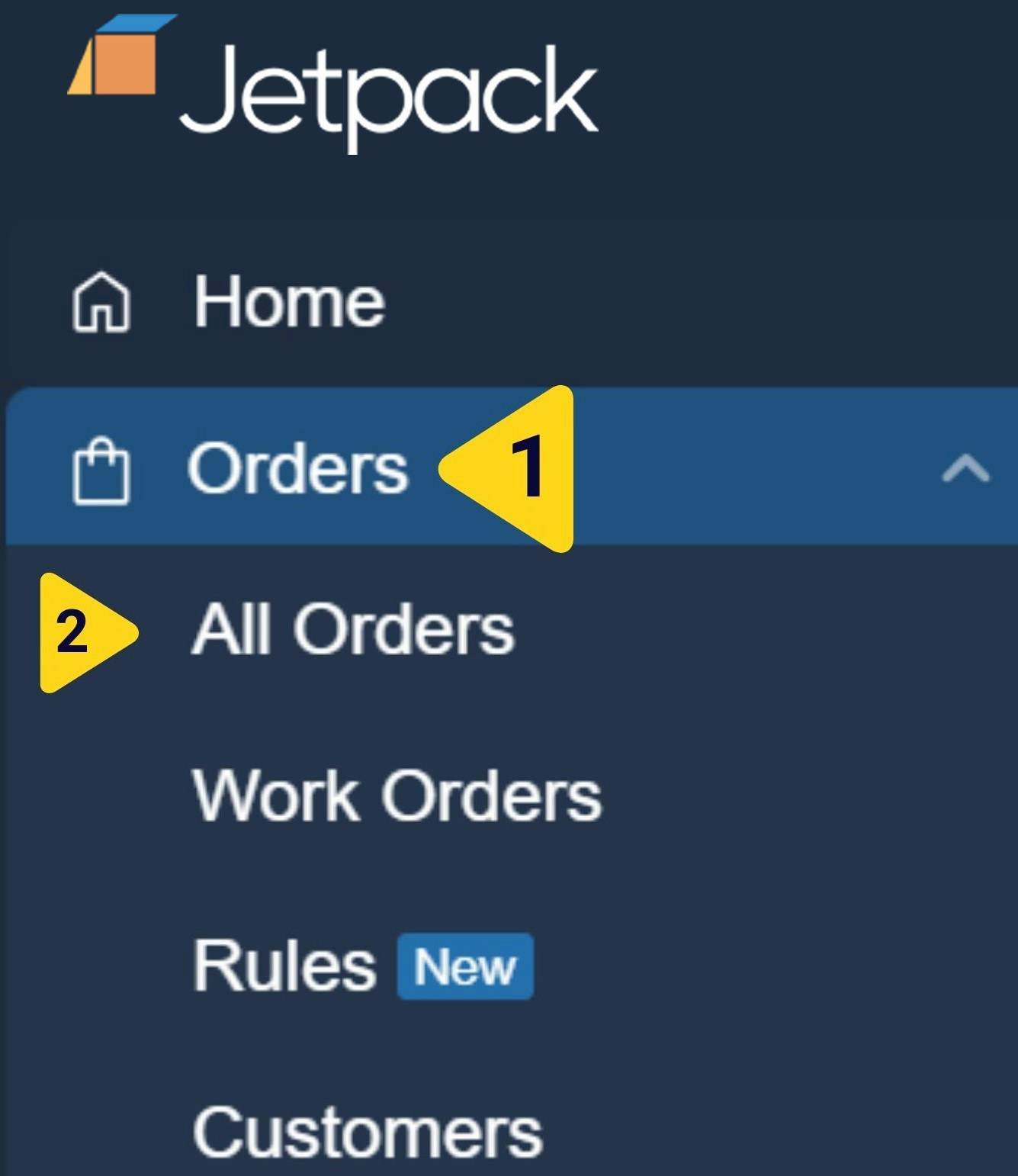
Navigate to the Orders page
Apply filters or select orders to export
- Click the funnel icon to open the filter panel on the right side of the page
- Select filter categories from the left side (e.g., Import Date, Fulfillment Center, Order Status)
- Choose your filter criteria from the right side of the panel
- Click Apply Filters to view matching orders
- Check the boxes next to specific orders you want to export
- Or check the box in the column header to select all orders on the current page
Open the Actions menu
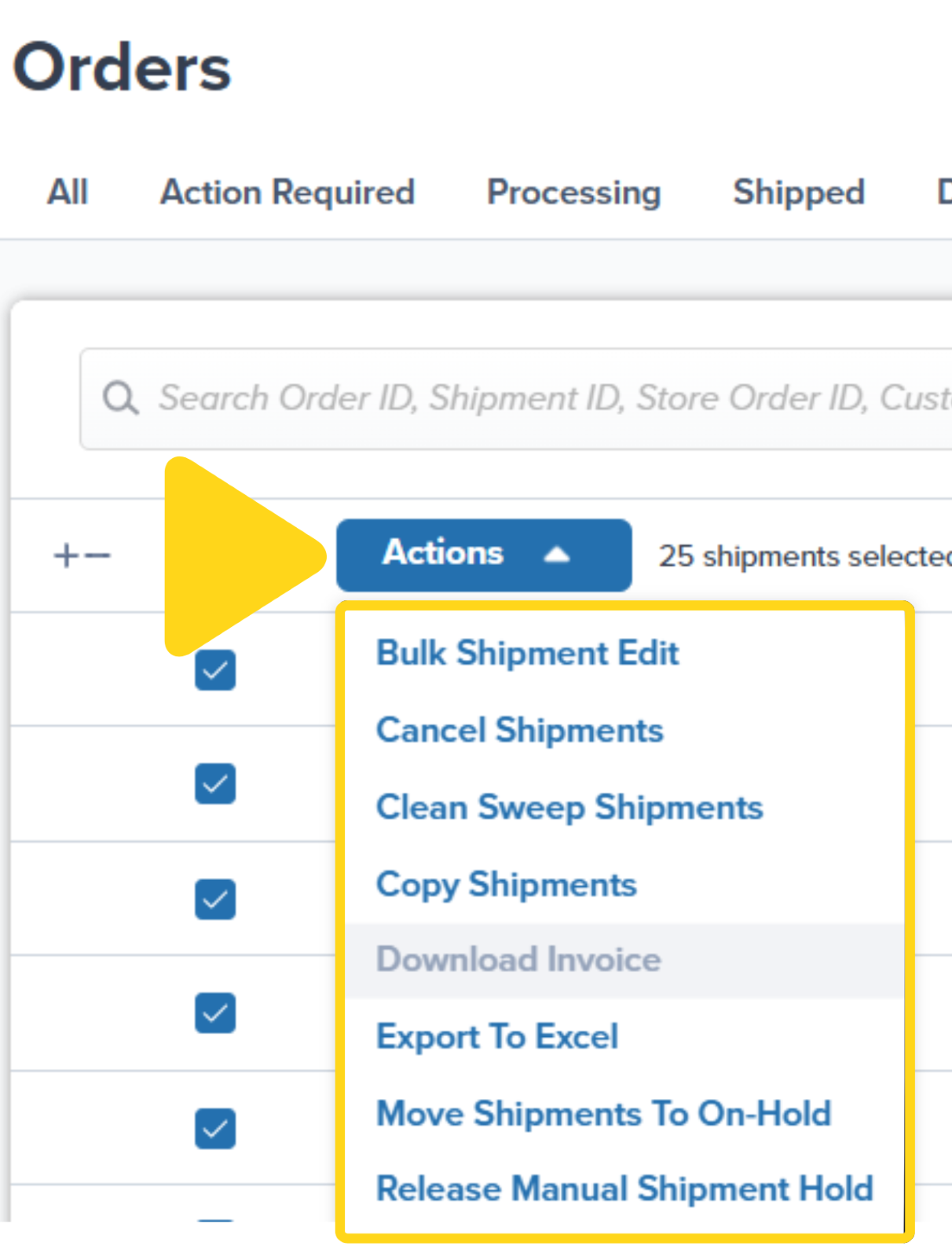
Choose your export scope
- Current Selection - Only the orders you checked
- Current Page - All orders visible on the current page
- All Orders with Current Filters - All orders matching your filters (across all pages)
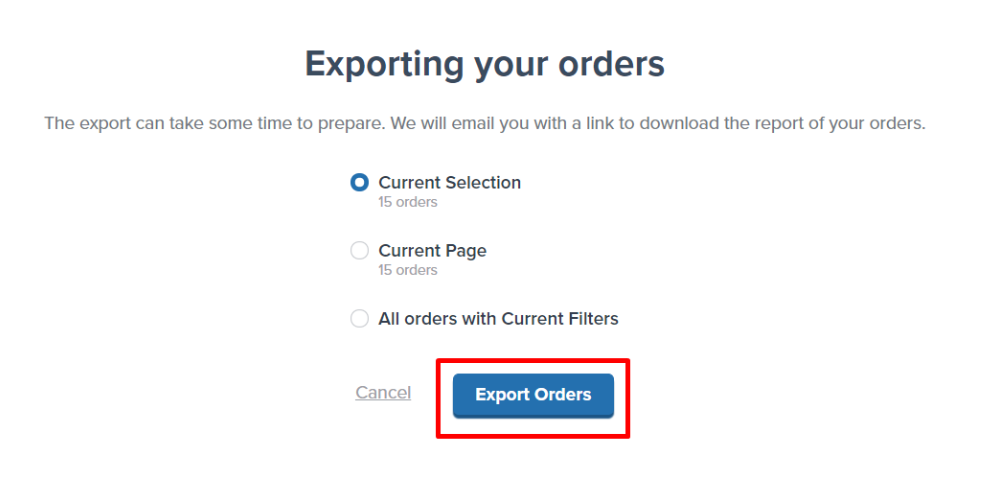
Complete the export request
Receiving Your Export
Jetpack will send you an email with the subject line “Export of your orders.” The email contains a download link that’s valid for 24 hours.Open the export email
Download the CSV file
.csv file will download to your computer.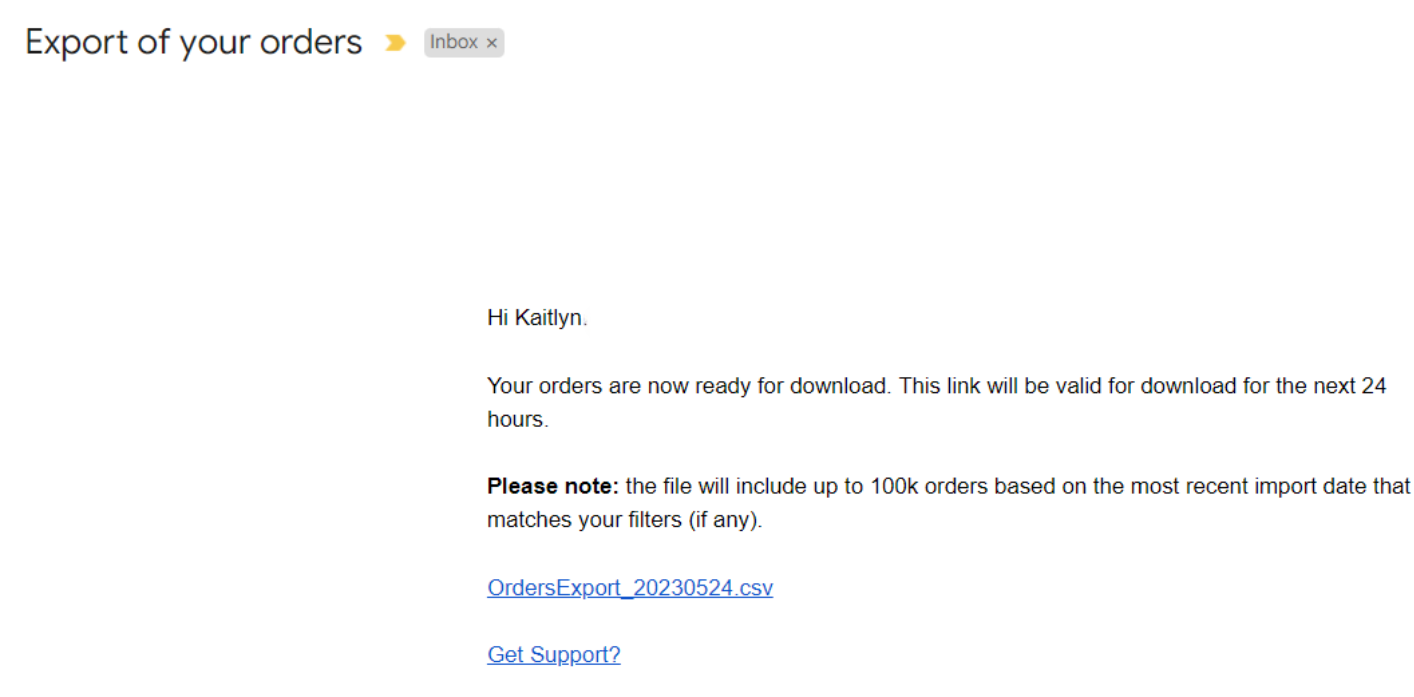
Open the file
Understanding Your CSV Export
Your exported CSV file contains comprehensive order data across multiple columns. Here’s what each column represents:Order Identification
Dates and Timestamps
Note: All dates and timestamps are in UTC time.Customer Information
Order Source and Processing
Shipping and Tracking
Package Details
Product Information
Note: A single order may span multiple rows if it contains more than one unique product.Fulfillment Details
SLA and Fulfillment Metrics
Formatting the CSV in Excel
To ensure that tracking numbers and other numeric fields are formatted correctly in Excel, follow these steps to prevent Excel from automatically converting tracking numbers to scientific notation or removing leading zeros.Open the downloaded CSV file
.csv file in Excel.Access the Data import menu
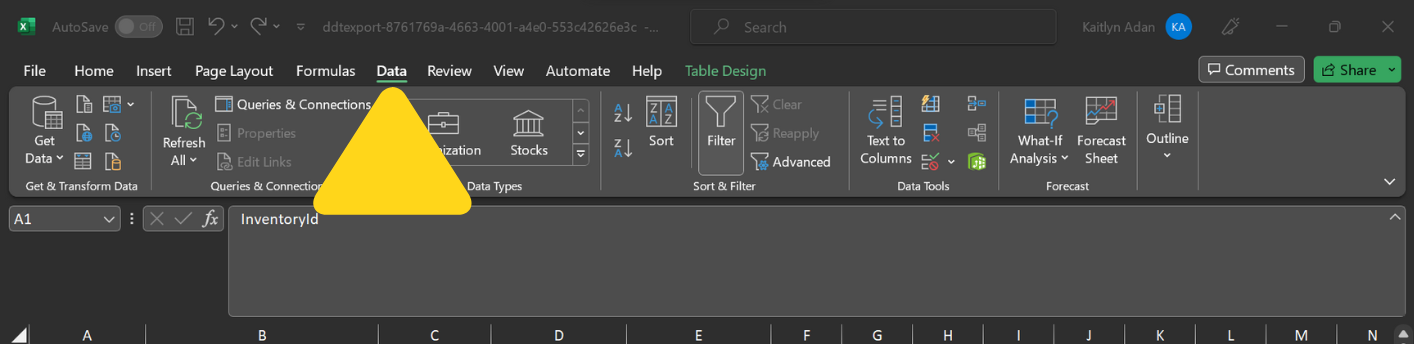
Select the import method
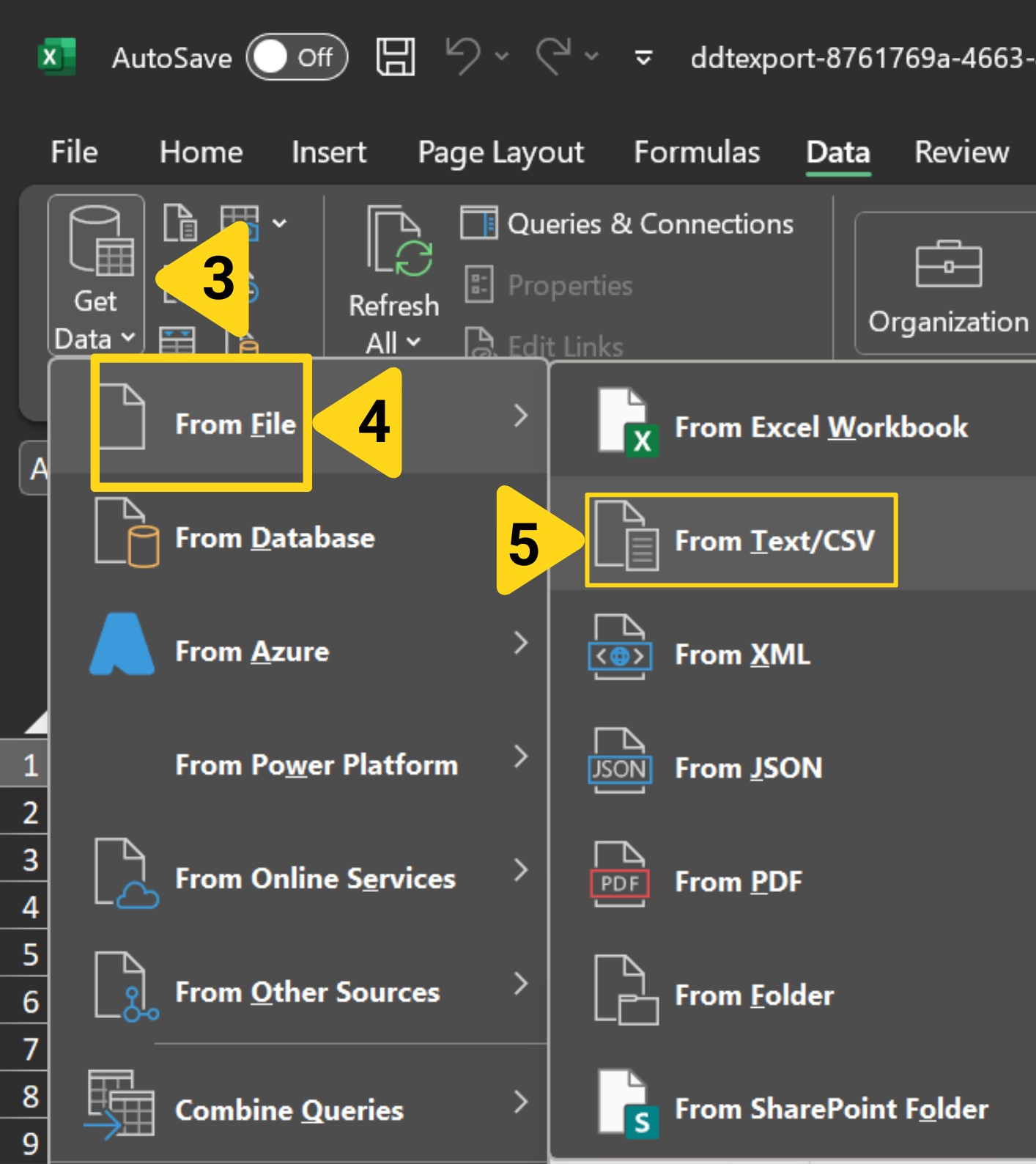
Locate your export file
Configure data type detection
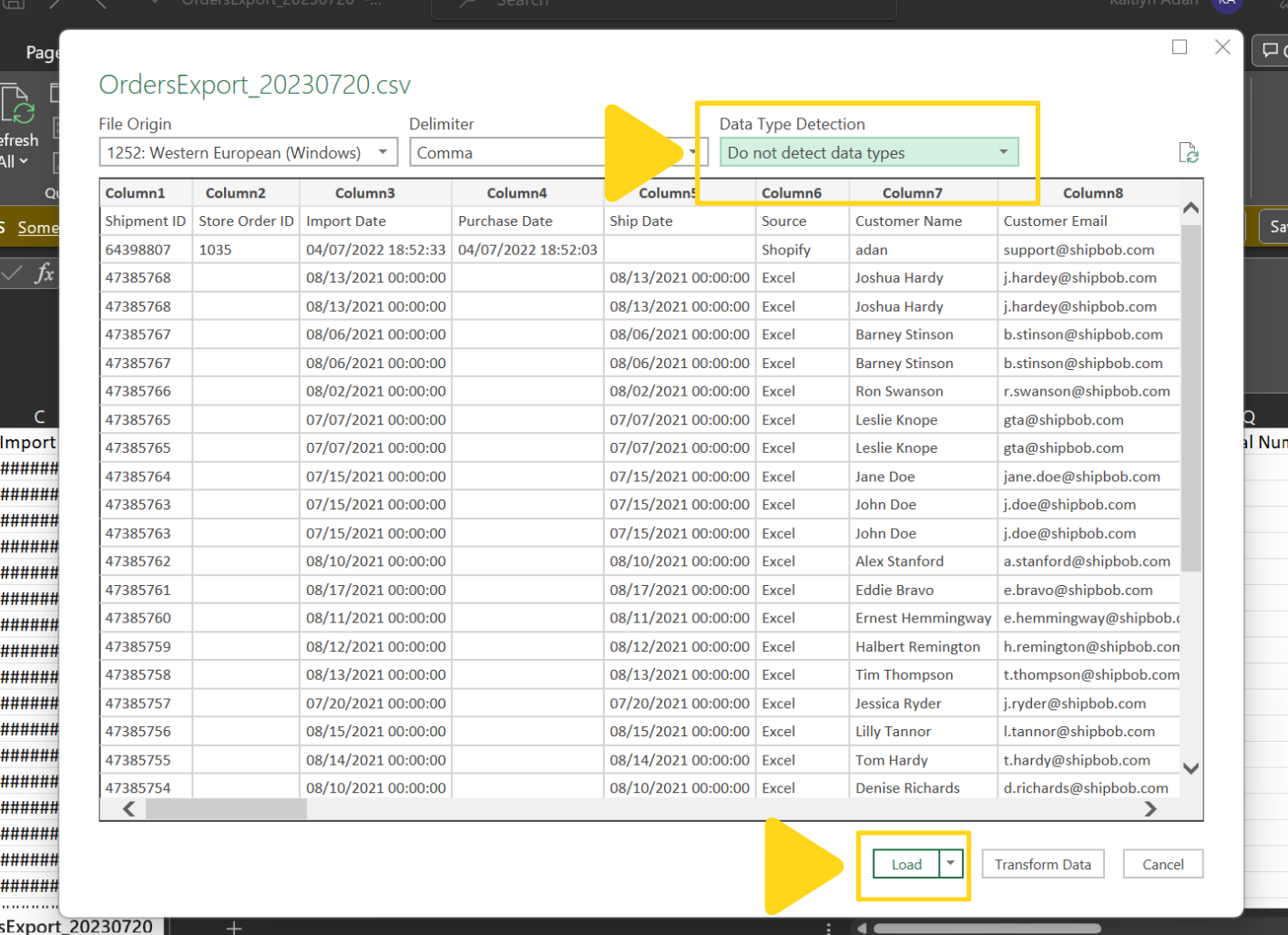
Load the data
CSV Export FAQs
Why are some columns blank in my export?
Why are some columns blank in my export?
- Tracking Information is blank if the order hasn’t been labeled yet
- Delivery Date is blank if the order hasn’t been delivered
- Package dimensions (Length, Width, Height, Actual Weight) are blank if the order hasn’t been packed
- Store Order ID is blank if the order was manually created or missing from an Excel upload
- Purchase Date is blank if the order was manually created
Why does a single order appear on multiple rows?
Why does a single order appear on multiple rows?
- Row 1: Product A with its quantity
- Row 2: Product B with its quantity
Can I schedule automatic exports?
Can I schedule automatic exports?
- Use the ShipBob API to pull order data programmatically
- Contact Jetpack Care to discuss custom reporting solutions for your business needs
What's the difference between Import Date and Purchase Date?
What's the difference between Import Date and Purchase Date?
How can I export only orders from a specific fulfillment center?
How can I export only orders from a specific fulfillment center?
Open the filter panel
Select the Fulfillment Center filter
Apply filters
Export with filters applied
Can I export order data older than 14 months?
Can I export order data older than 14 months?
Let’s Dive Deeper
The Orders Page
D2C Turnaround Times + SLAs
Order Status Overview
Tracking Packages
Bulk Actions on Orders
Shipment Details Page

Questions? Contact Jetpack Care.
If you have any questions or run into issues, you can always contact Jetpack Care for help. Our team is always here to assist via Slack, phone, or email!