

This article explains how to manually add products to your Jetpack Product Catalog without a store integration, whether one at a time (as a base product or with variants) or in bulk via Excel, so you can keep your inventory up to date and organized.
Accessing the Add Product Options
1
Navigate to Products
Click Products in the left-hand navigation. You’ll be redirected to the Product Catalog page.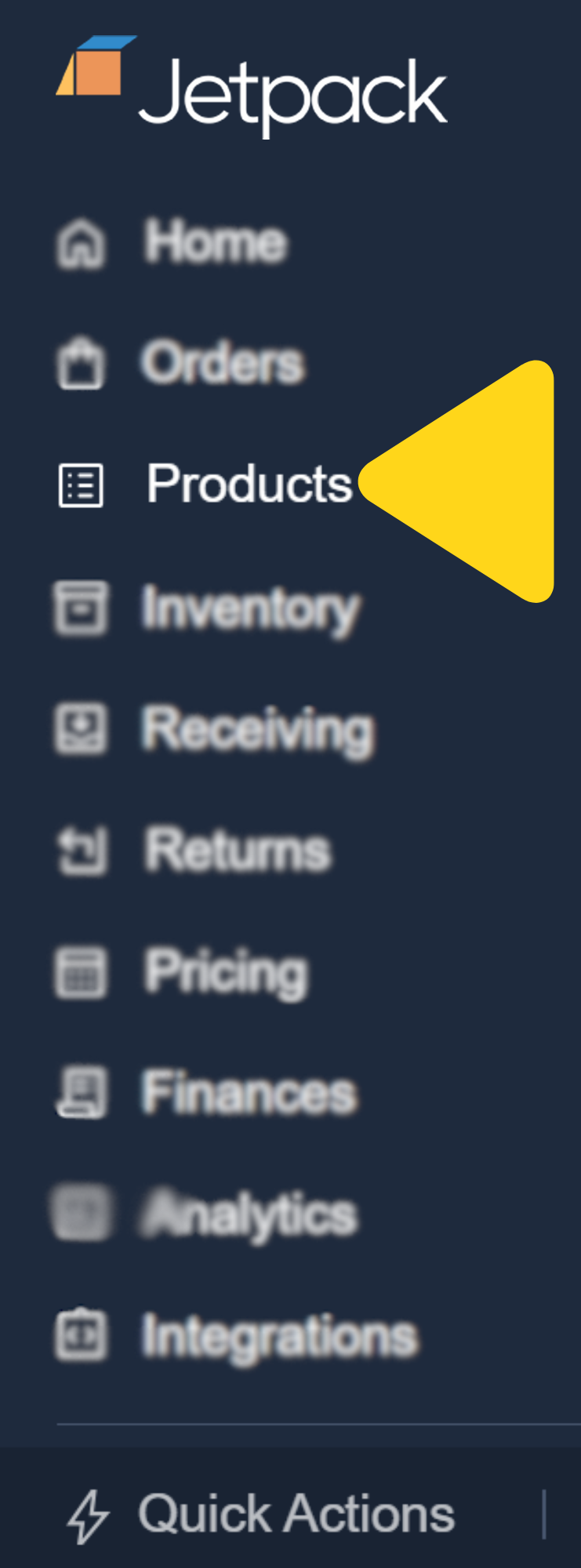
2
Open Add Product menu
Click Add Product in the top-right corner, then select Add Product from the dropdown. A pop-up will appear asking you to choose how to add your items.
3
Choose your import method
Select the method to add the new product(s): Import from Excel or Add products manually.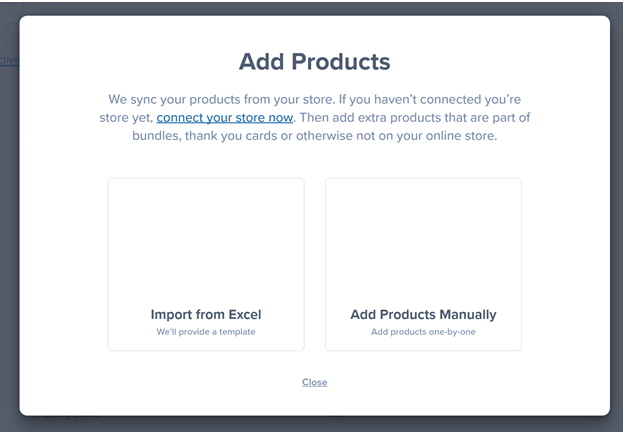
Manually Adding a Base Product
Use this when your item has no variants.1
Select manual product entry
Select Add Products Manually from the pop-up.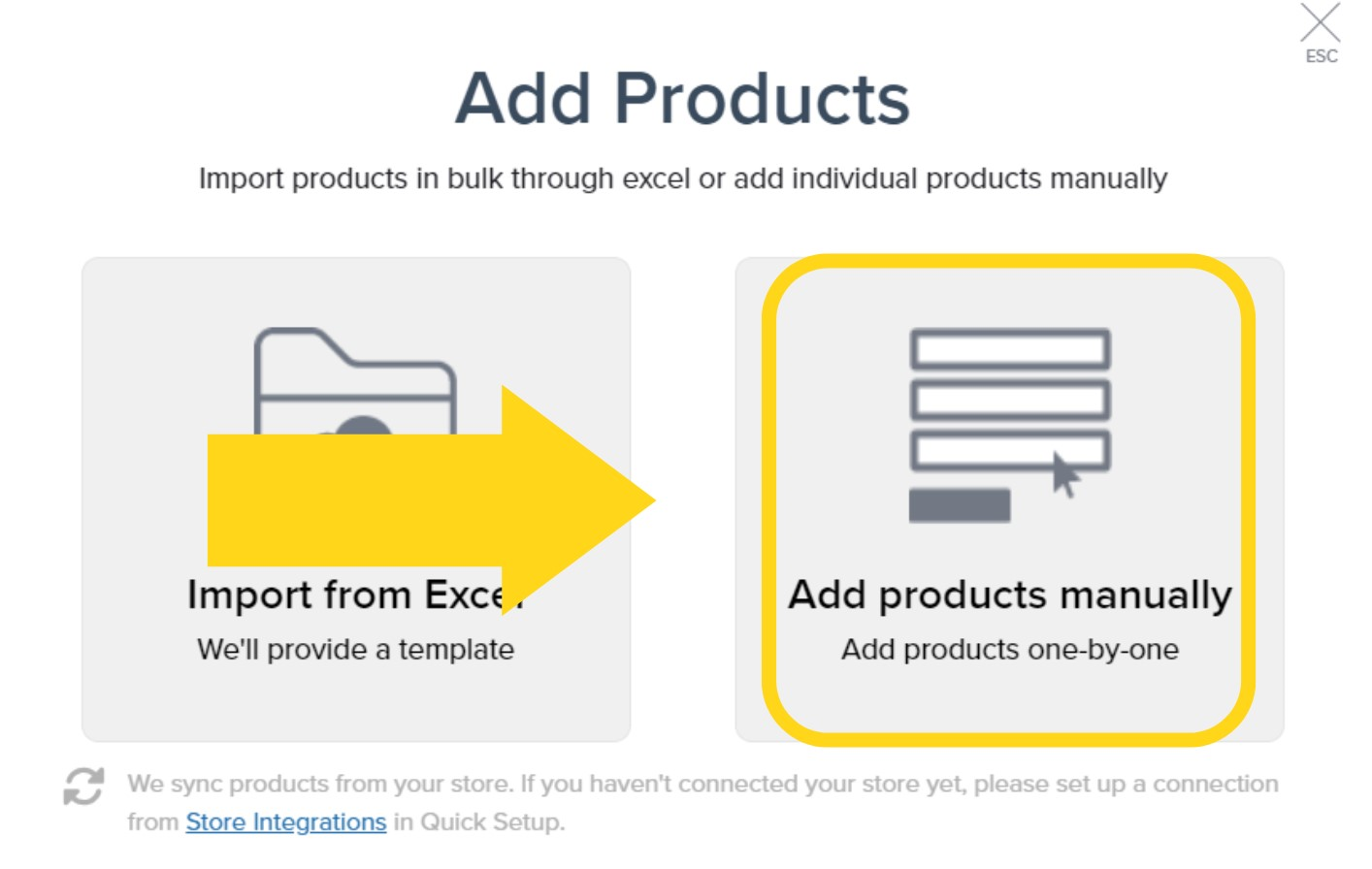
2
Choose Base Product type
Select Base Product as your product type.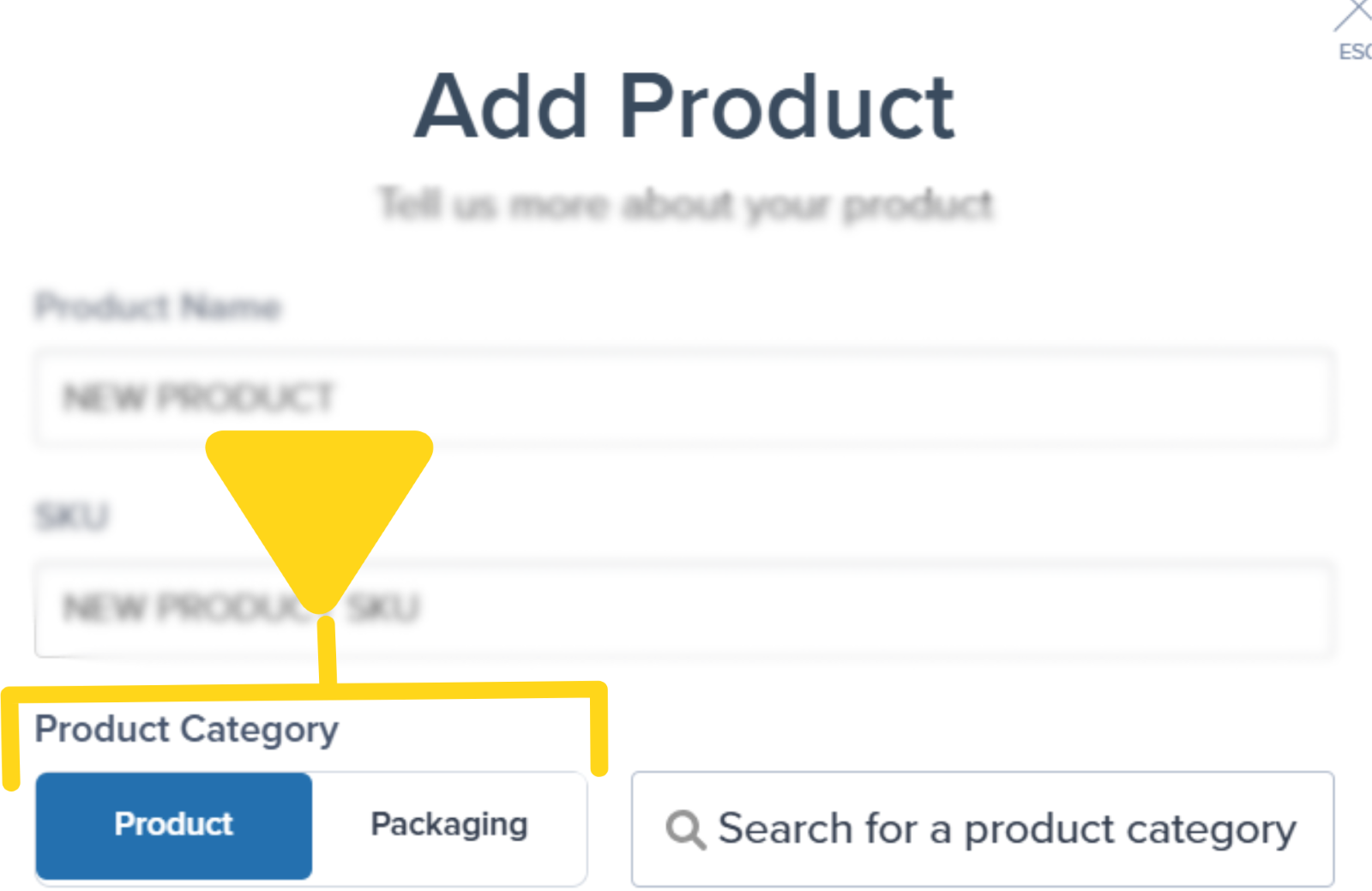
3
Enter product details
Enter a Product Name and a unique SKU, then select either Product or Packaging for Product Category.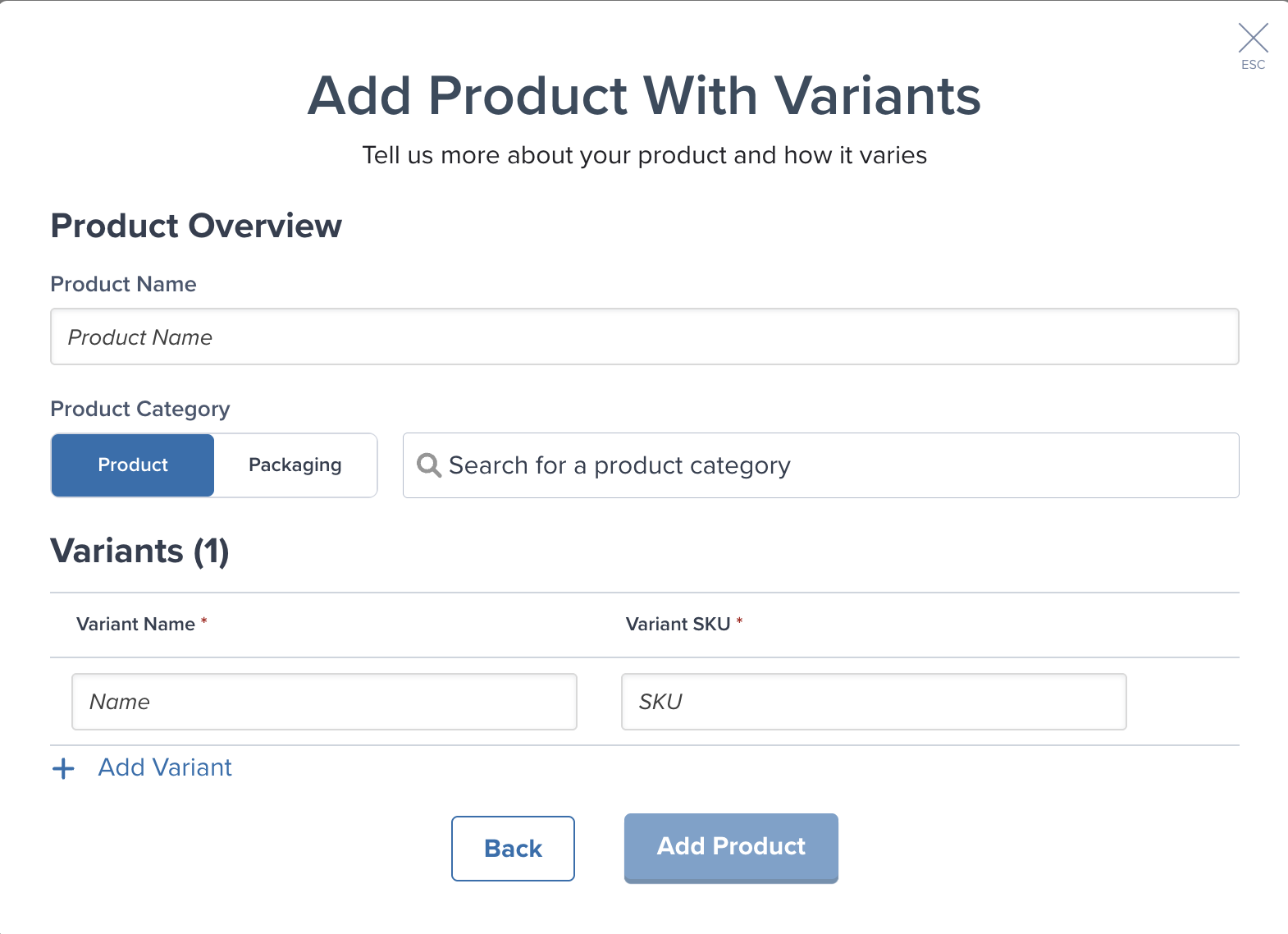
4
Select product category
Use the drop-down options next to Product and Packaging to select the category or packaging type.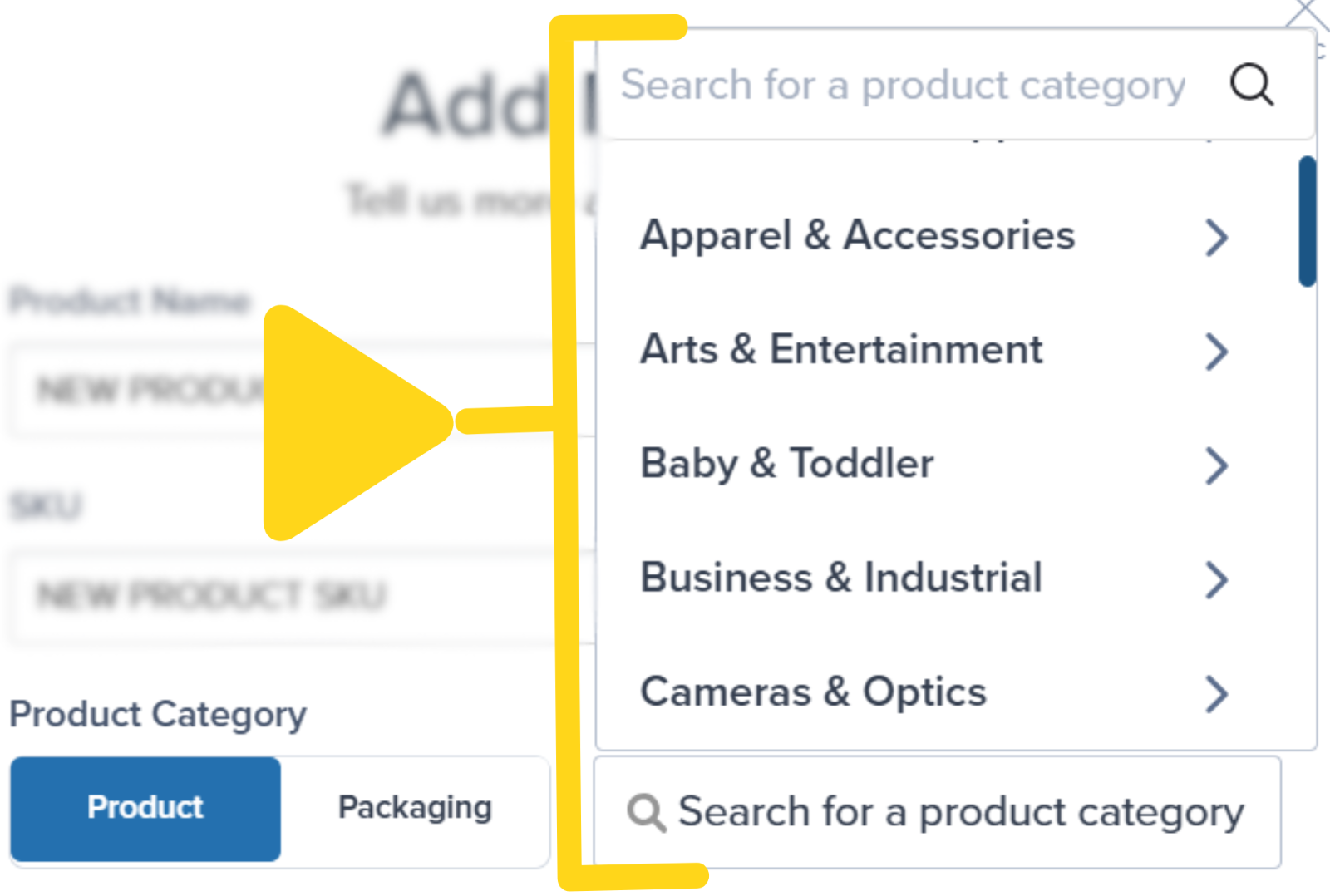
5
Create the product
Click Add Product. You’ll be taken to the new product’s details page.
Manually Adding a Product with Variants
Use this when you have two or more related SKUs under one parent item.1
Select varying product type
Select Product that varies from the product type options.
2
Set up parent product
Enter a Product Name for the parent (container) item. This holds all your variants together.Optionally choose Product or Packaging, then pick a Category (or let Jetpack’s AI suggest one).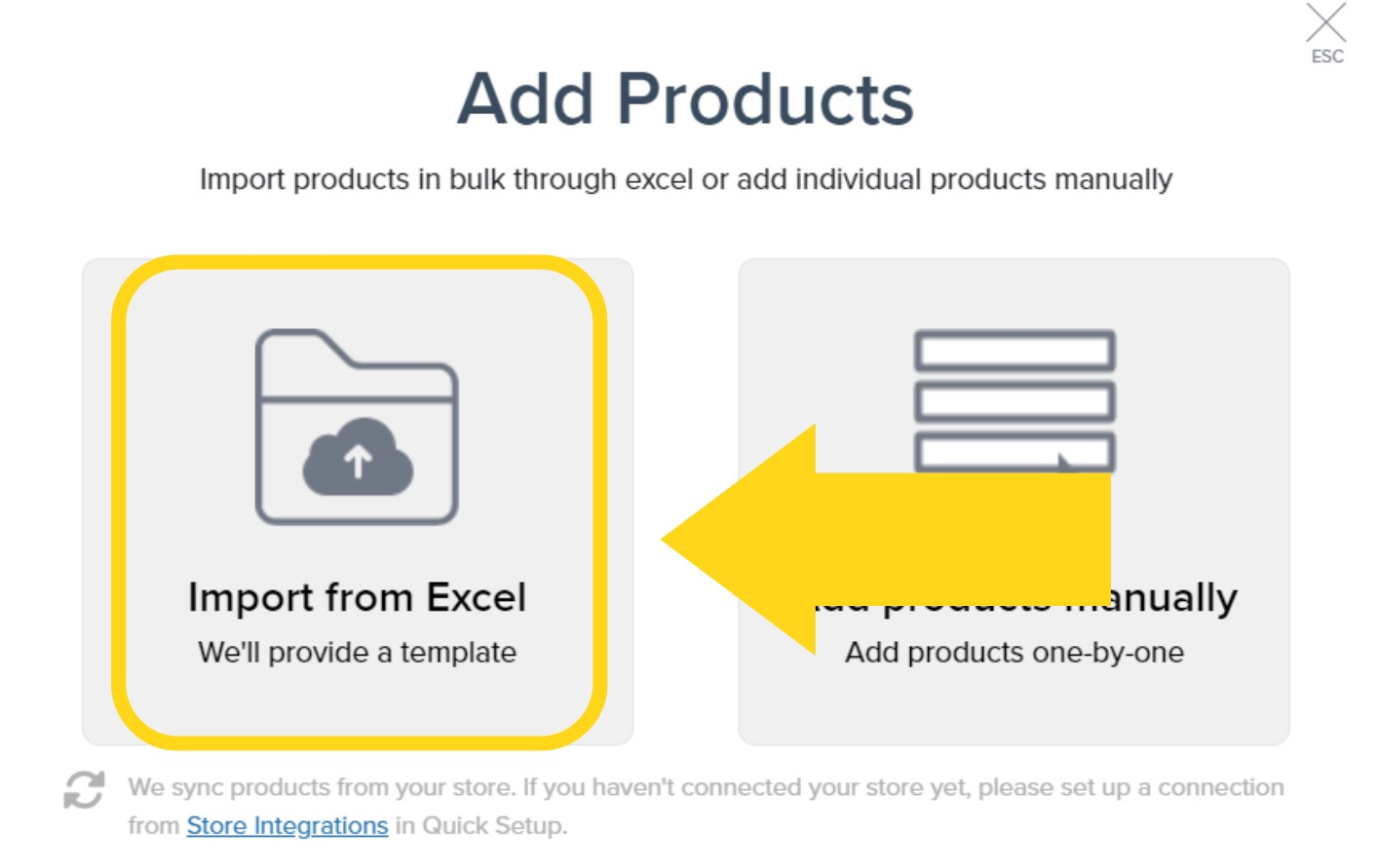
3
Add variants
For each variant:
- Enter its Variant Name
- Enter its Variant SKU
- Click Add Variant to create another row
You can add up to 100 variants per parent/primary product.
4
Create the product with variants
When all variants are listed, click Add Product. You’ll be redirected to the parent product’s page, where each variant appears under the Variants tab.
Adding Products in Bulk (Excel Upload)
You can import base products and products with variants all at once using our Excel template.1
Select Excel import method
Select Import from Excel from the add product options.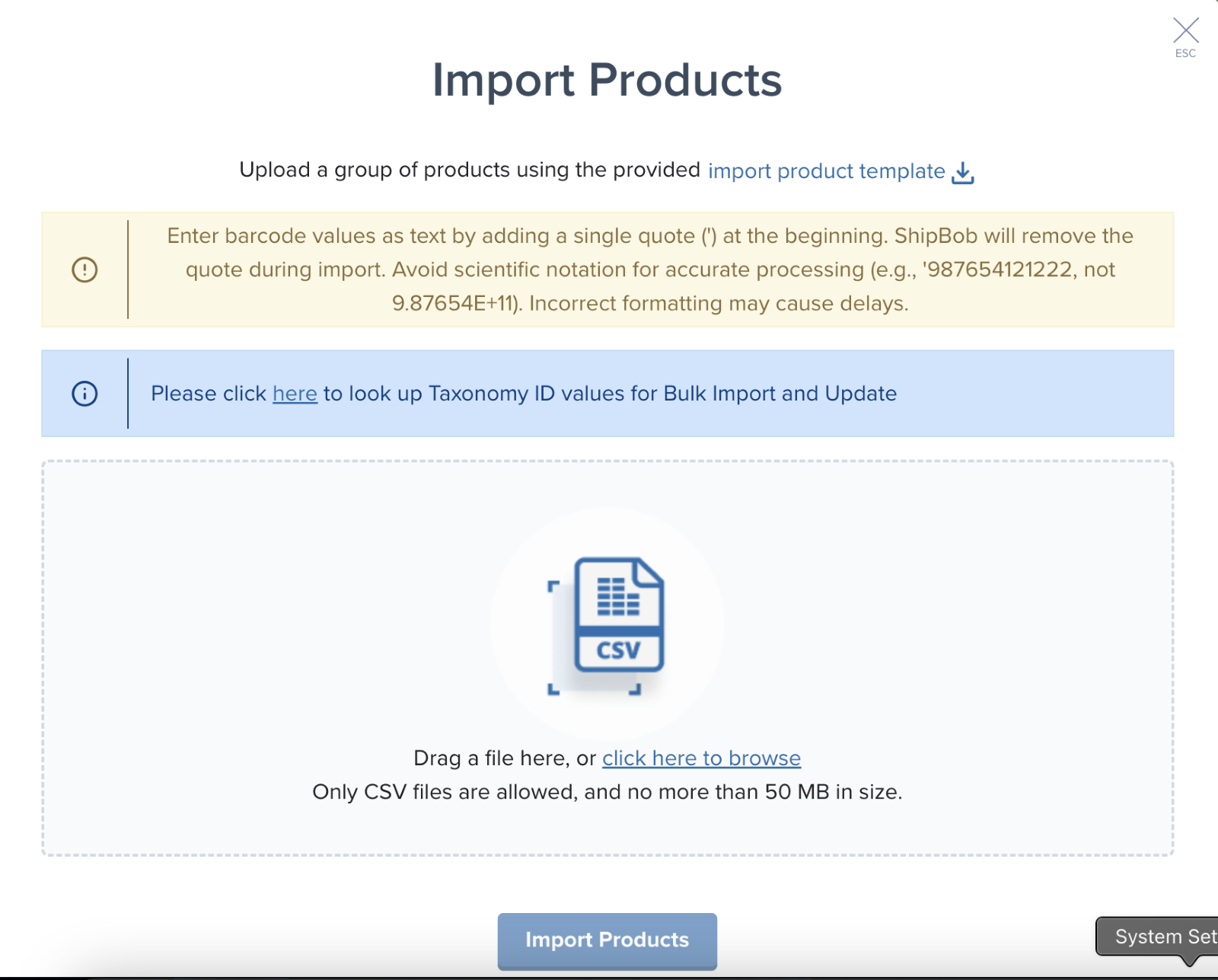
2
Download the template
Click the import product template link to download the Excel file.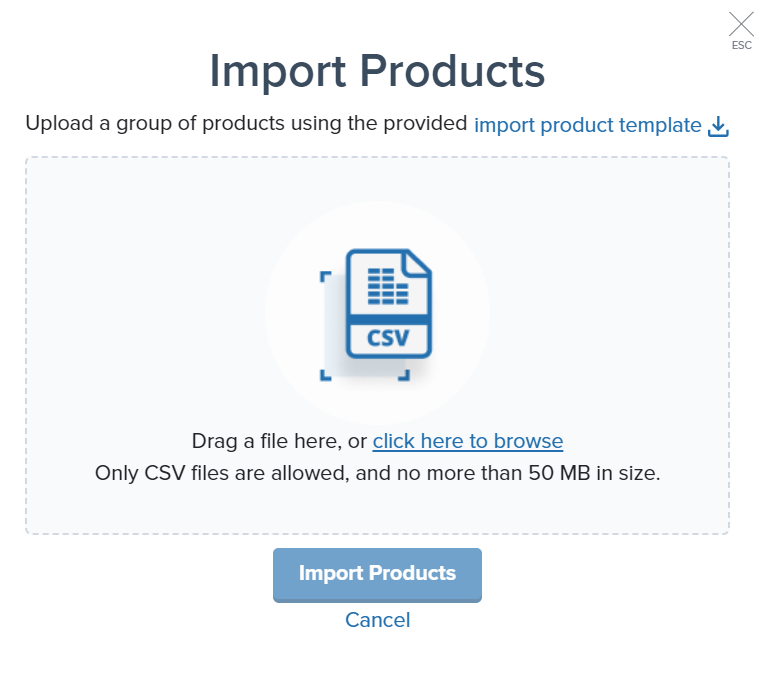
3
Prepare your product data
Open the downloaded file and delete the sample rows but keep all column headers.Save your edited Excel file and return to the pop-up.
4
Upload your file
Drag and drop the file, or select click here to browse.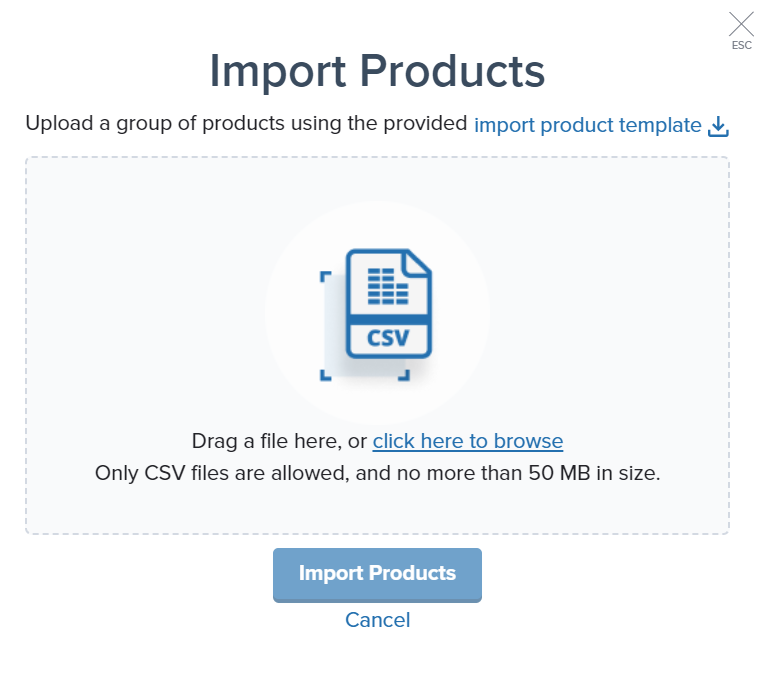
Click the trash can icon to the right of the file’s name to remove the selected file.
5
Import and confirm
Click Import Products. A success message will appear, and the new products will appear under the Active tab after you refresh your Products page. You will receive an email summary of your bulk upload request.
Troubleshooting Failed Imports
If any of your products failed to import, click Download import template (hyperlinked) to review why the product(s) failed.Let’s Dive Deeper
Product Catalog Page
Navigate and organize your full product catalog
Product Details Page
Configure detailed settings for each product
Adding Product Variants
Learn more about managing product variants
Setting Product Preferences
Essential product configuration overview
Bulk Updating Products
Update multiple products at once via Excel
Syncing Your Products
Import products from your integrated stores

Questions? Contact Jetpack Care.
If you have any questions or run into issues, you can always contact Jetpack Care for help. Our team is always here to assist via Slack, phone, or email!