

Transform your customer experience with gift notes that add a personal touch to every order. Jetpack offers two gift note options: Standard (monochrome thermal labels) and Premium (full-color printed cards). Choose the option that best fits your brand and budget.
This feature is exclusively available to merchants who meet certain eligibility criteria. To learn more about pricing and enablement, please reach out to your Jetpack Care Manager.
Gift Note Options
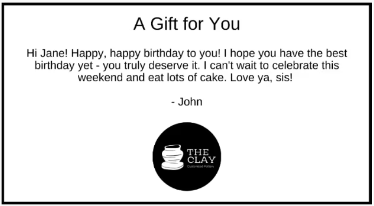
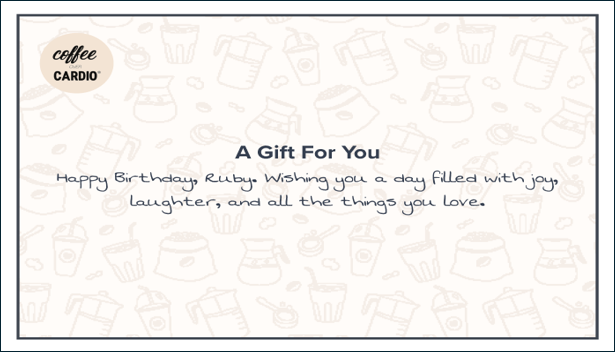
Jetpack offers two mutually exclusive gift note options. Select the one that aligns with your brand and customer experience goals.- Standard
Gift Note Pricing
You are subject to a 3% credit card processing fee if you meet certain criteria outlined in your pricing agreement.
Enabling Gift Notes
You can enable either Standard or Premium gift notes in your Jetpack dashboard. Only one option can be enabled at a time.1
Navigate to Gift Notes settings
From the Customize Order Documents page, click Manage Gift Notes (hyperlinked).You will be redirected to the Gift Notes page.
2
Select your gift note type
Click Standard Gift Notes or Premium Gift Notes. The selected section will expand.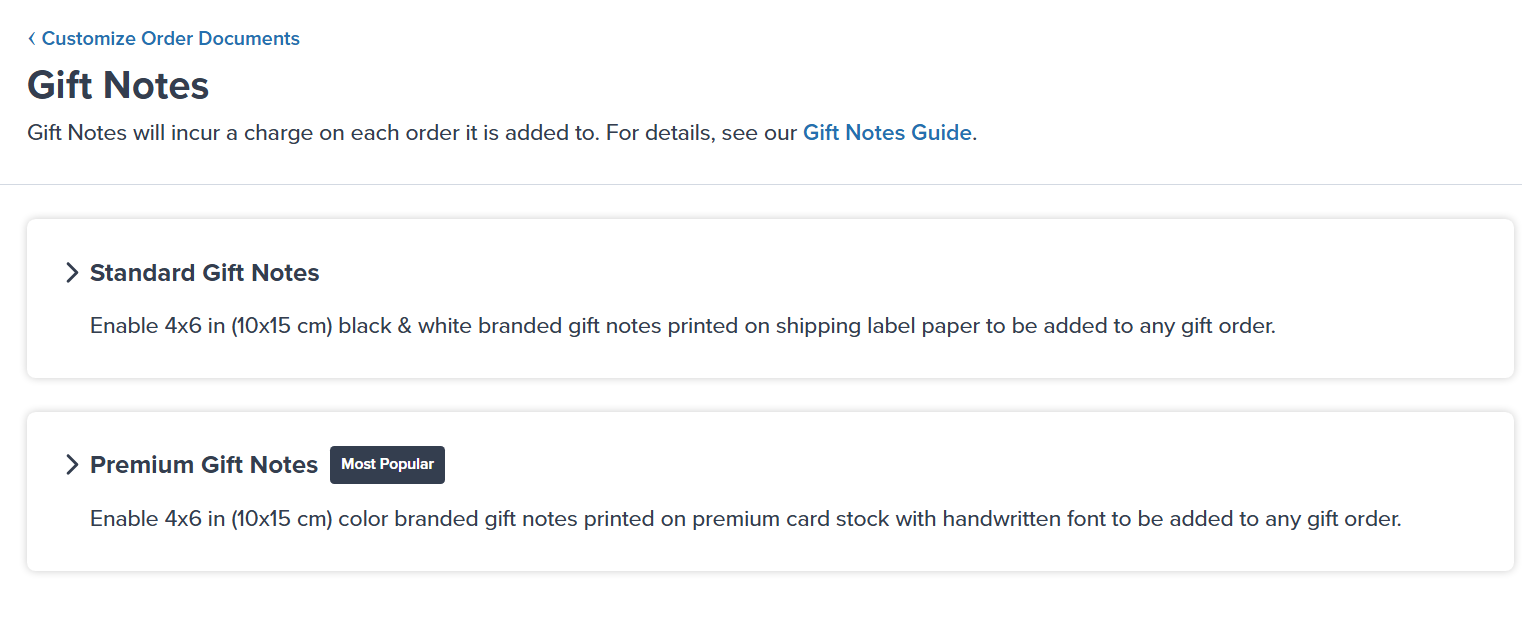
You can only have one option enabled at once.
Enabling Standard Gift Notes
- Standard
Steps to Enable Standard Gift Notes
1
Upload your logo (optional)
Standard gift notes do not require a logo. If you choose to add one, upload a 100 x 100 pixel (1 x 1 inches or 2.54 x 2.54 centimeters) black and white monochrome image.The logo will appear at the bottom center of the gift note.
2
Enable the feature
Click the toggle icon next to Disabled to enable Standard gift notes.You will receive a success message confirming the feature is enabled.
3
Configure gift messages
You can now add gift messages to individual orders through your Jetpack dashboard or integrated e-commerce platform.
Adding Gift Notes to Orders
Once gift notes are enabled, you can add personalized messages to customer orders.Steps to Add Gift Notes to Orders
Gift notes can be added through your integrated e-commerce platform or directly in the Jetpack dashboard when creating or editing orders. The gift message will be included in the order details and printed when the order is fulfilled. Your enabled gift note type (Standard or Premium) will automatically apply to all orders that include a gift message.Disabling Gift Notes
You can disable Standard or Premium gift notes at any time in your Jetpack dashboard.1
Navigate to Gift Notes settings
From the Customize Order Documents page, click Manage Gift Notes (hyperlinked).You will be redirected to the Gift Notes page.
2
Select the gift note type to disable
Select Standard Gift Notes or Premium Gift Notes (depending on the gift note you have enabled).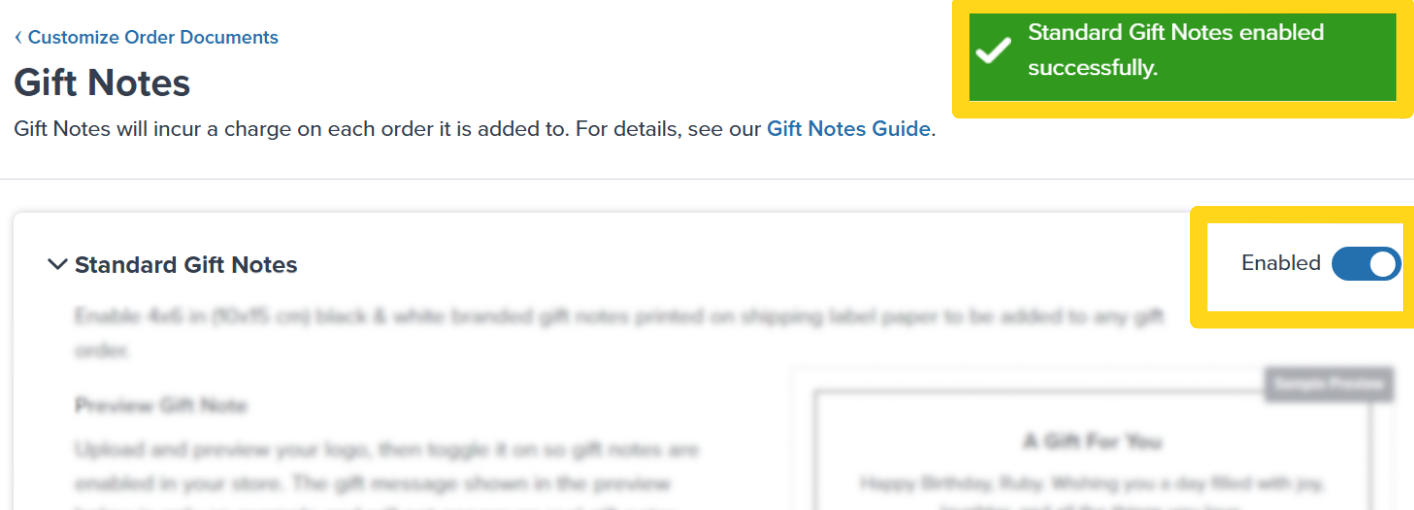
3
Toggle off the feature
Click the toggle icon next to Enabled.You will receive a success message, and the toggle icon will turn gray and update to Disabled. Your previous gift note settings will remain configured if you choose to enable the feature later.
Deleting Gift Note Images
You can delete and replace the logo (Standard) or background image (Premium) associated with your gift notes.1
Navigate to Gift Notes settings
From the Customize Order Documents page, click Manage Gift Notes (hyperlinked).You will be redirected to the Gift Notes page.
2
Select the gift note type
Select Standard Gift Notes or Premium Gift Notes (depending on the gift note you have enabled).
- Standard gift notes: You are not required to have an image. If you do not provide a new image, your Standard gift notes will print without a logo.
- Premium gift notes: You are required to have an image. Removing the image will disable the feature, and you must re-enable it once you have provided a new background image.
3
Click the trash can icon
Click the trash can/bin icon next to Replace Current Gift Note Image.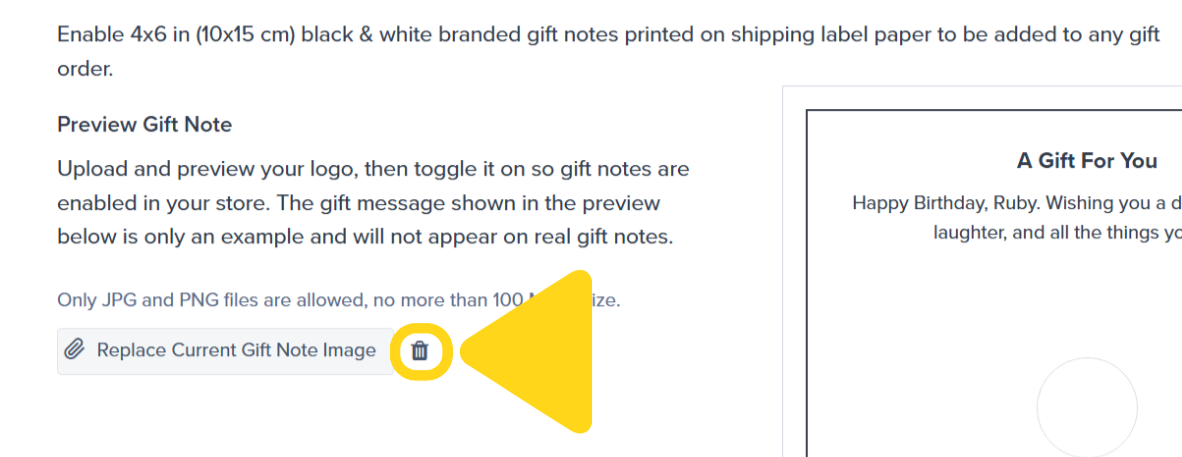
4
Confirm deletion in the dialog
A confirmation dialog will appear. Review the on-screen message and click Yes, Delete.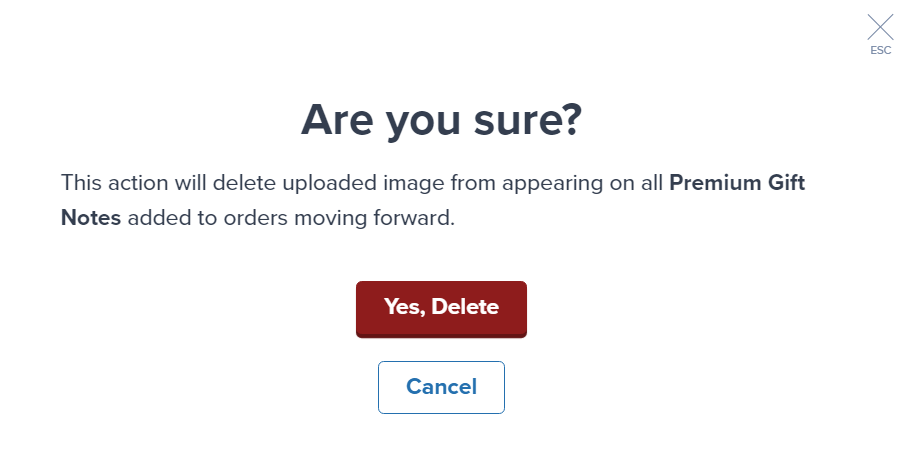
5
Verify the deletion
You will receive a confirmation message indicating the changes were saved successfully.
Let’s Dive Deeper
Customize Order Documents
Overview of all document customization options
Marketing Inserts
Print on-demand promotional materials
Custom Sender Labels
Personalize sender information on shipping labels
Labels and Packaging Overview
Back to the main labels and packaging guide
Packaging Preferences
Configure standard, SIOC, and custom packaging options
Custom Packaging
Send custom packaging materials to fulfillment centers
Questions? Contact Jetpack Care.
If you have any questions about gift notes or need assistance with image requirements, contact Jetpack Care for help. Our team is always here to assist via Slack, phone, or email!