

MultiHub IQ (MIQ) streamlines your inbound receiving workflow by automating inventory distribution decisions. Once onboarded to MIQ, you create Warehouse Receiving Orders (WROs) to your Hero Hub just as you would for any fulfillment center—but MIQ immediately generates an optimized transfer plan showing how inventory will be allocated across your regional fulfillment center network. This guide walks through the complete MIQ workflow: creating WROs, reviewing transfer plans, tracking distribution status, and using Internal Transfer Orders (ITOs) to dynamically rebalance inventory already in the Jetpack network.
MIQ transforms replenishment from complex multi-location inventory planning into a streamlined single-destination workflow supported by data-driven distribution.
Creating MIQ WROs in the Dashboard
The process for creating MIQ-enabled WROs mirrors the standard WRO creation workflow—the only difference is the automatic transfer plan generation after submission.Step-by-Step: Creating Your MIQ WRO
Follow the same process you use to create any WRO in the dashboard:- Navigate to the Receiving tab and click Create WRO
- Select your Hero Hub as the destination fulfillment center
- Choose your shipment type (Parcel, Pallet, Floor Loaded Container)
- Add products and quantities based on your replenishment needs
- Configure lot information if applicable for products requiring batch tracking
- Review and submit your WRO
Before creating your MIQ WRO, use Jetpack’s replenishment tools to determine when to order and how much inventory you need. MIQ handles the where (distribution across FCs), but replenishment planning remains your responsibility.
Understanding MIQ Transfer Plans
After submitting your WRO, MIQ immediately generates a transfer plan detailing the distribution strategy for your inbound inventory.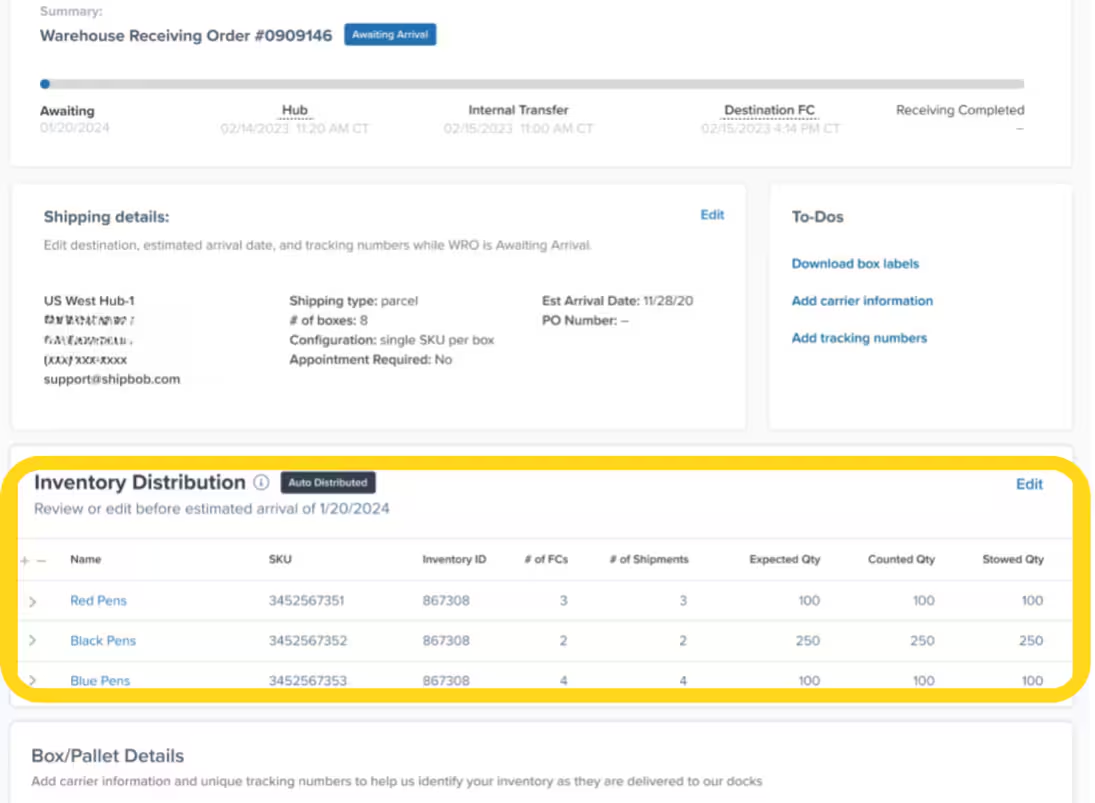
What the Transfer Plan Shows
The Inventory Distribution tile on your WRO details page provides both high-level summary and detailed SKU-level information:Viewing Detailed SKU-Level Information
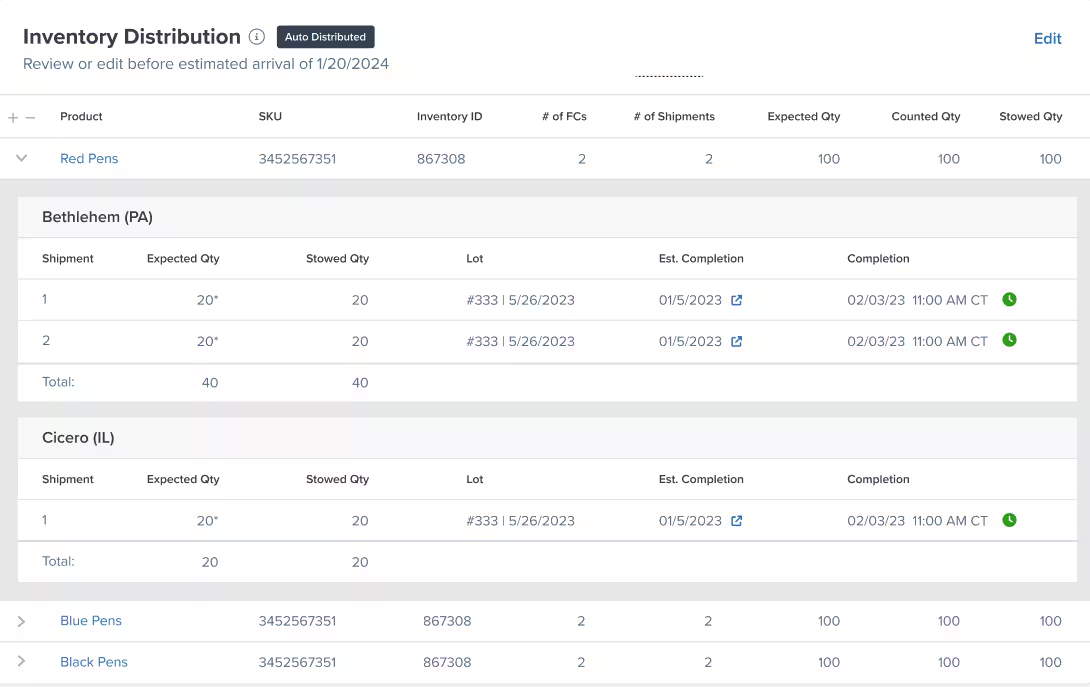
Click the arrow to the left of any SKU to expand detailed information about how that product will be distributed: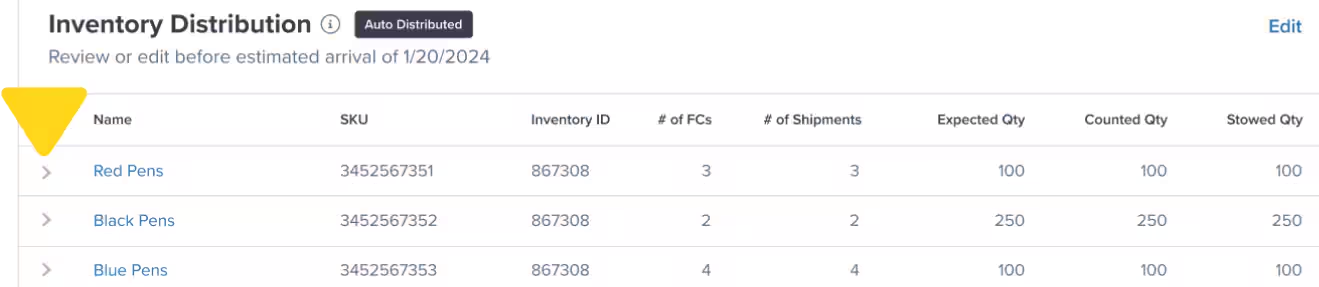
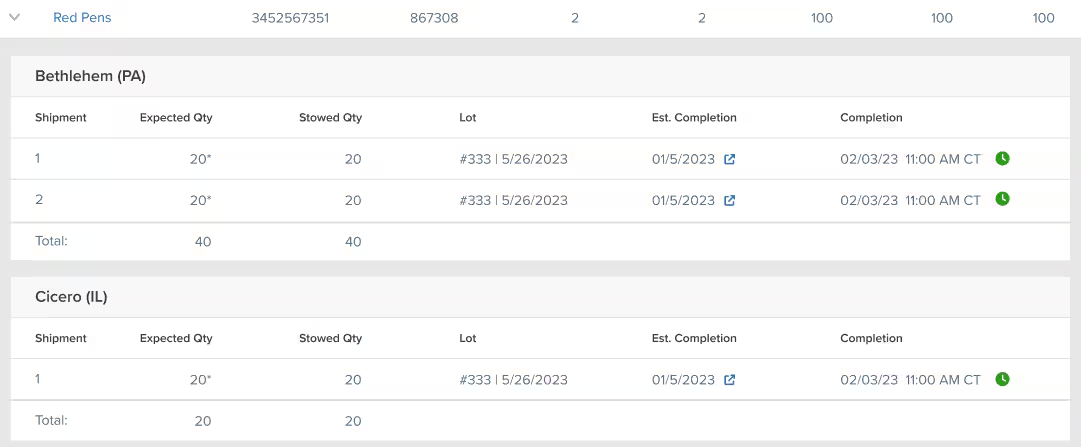
After clicking the arrow, you’ll see expanded details showing each shipment with lot information, estimated completion dates, and stowing progress:
Reviewing and Editing Transfer Plans
While MIQ generates optimized transfer plans automatically, you retain full control to adjust them based on your business needs.When to Review Transfer Plans
Review your auto-generated transfer plan immediately after WRO creation if any of these scenarios apply: Reasons to Review Promptly:- Planning a regional promotional campaign requiring extra inventory at specific FCs
- Launching a new product and coordinating stocking with marketing rollouts
- Anticipating seasonal demand shifts not yet reflected in historical data
- Responding to recent stockouts at specific fulfillment centers
- Testing new fulfillment center locations with strategic initial stocking
How to Edit Transfer Plans
If you determine adjustments are needed, you can edit transfer plans through two methods: Dashboard Editing: Adjust individual SKU allocations directly in the WRO details page interface Bulk Excel Editing: Download an Excel template, modify quantities for multiple SKUs simultaneously, and re-upload Both methods require changes to be made before the Review/Edit by Date shown on your WRO details page.Adding or Removing Fulfillment Centers
You can adjust which fulfillment centers receive inventory by adding or removing FCs from your transfer plan.1
Click Edit in the Inventory Distribution tile
From the WRO details page, locate the Inventory Distribution tile and click the Edit button in the top right corner.
2
Select or deselect fulfillment centers
Use the drop-down menu next to the search bar to check boxes for FCs you want to add or uncheck boxes for FCs you want to remove.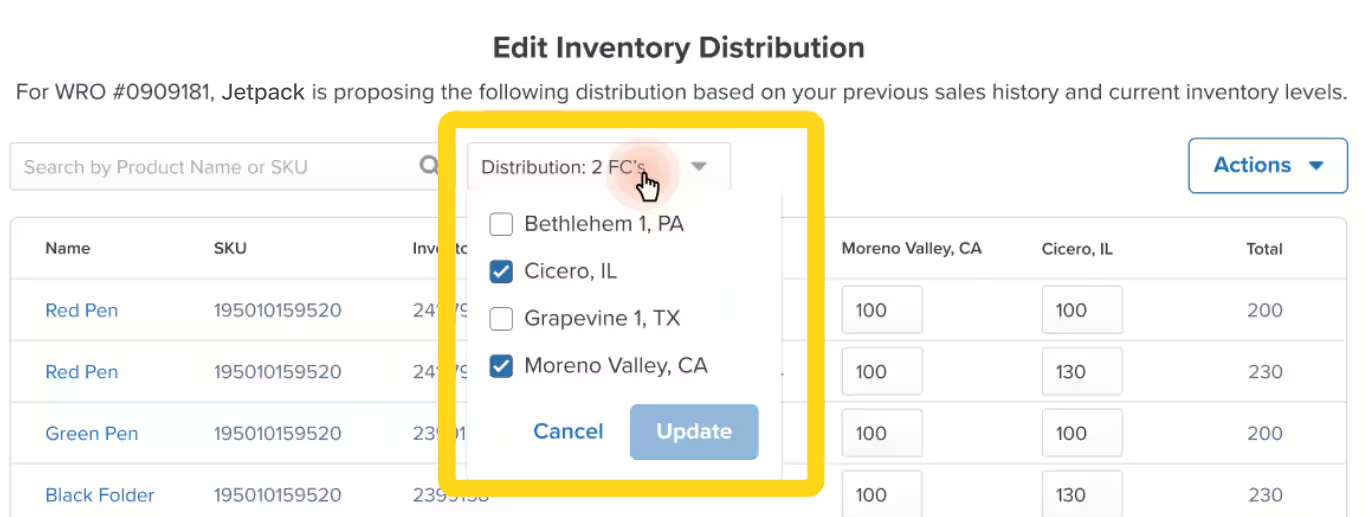
3
Click Update to save your selections
After making your FC selections, click the Update button to save your changes.
4
Click Actions to open the actions menu
Click the Actions button to reveal the available distribution actions.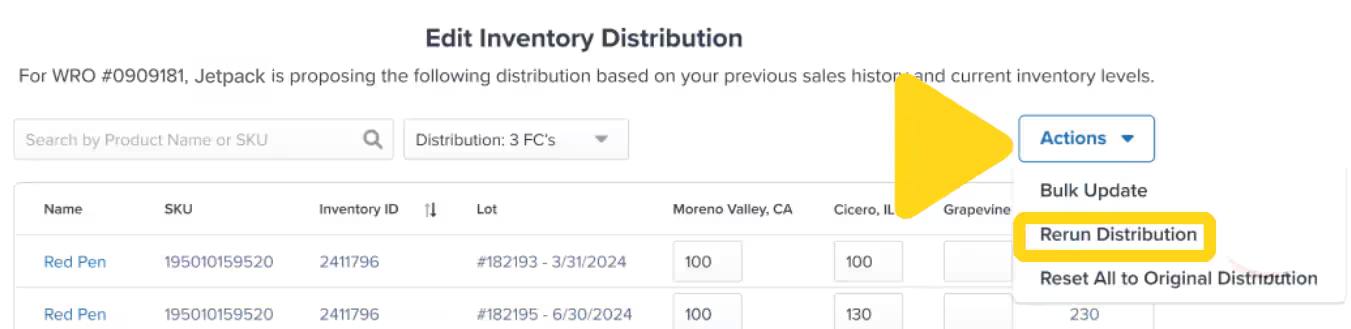
5
Select Rerun Distribution
From the Actions menu, select Rerun Distribution. A confirmation pop-up will appear.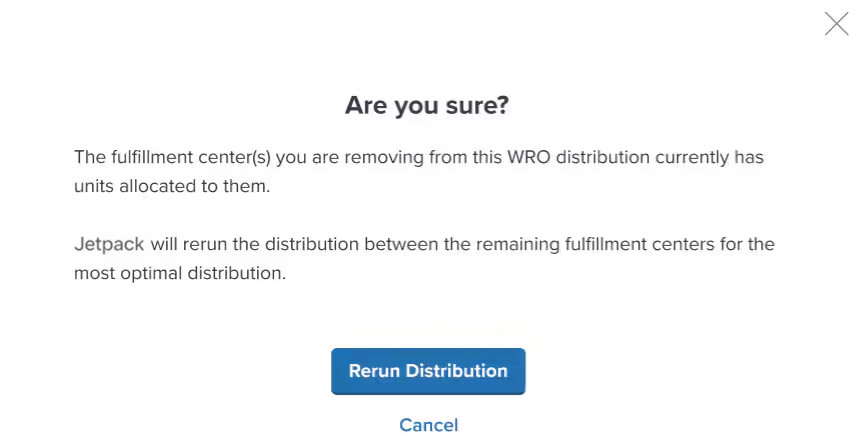
6
Confirm the distribution change
Review the message in the pop-up, then click Rerun Distribution to confirm. If you change your mind, click Cancel.
To revert to the original MIQ-generated plan, click Actions and choose Reset All to Original Distribution.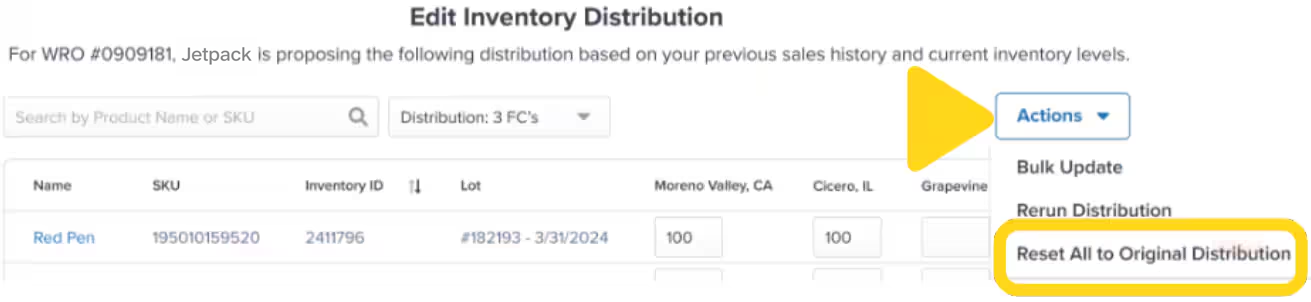
Custom Routing WROs to Specific Fulfillment Centers
While MIQ automates distribution for most replenishment, you can bypass MIQ and route WROs directly to specific fulfillment centers when needed. When to Use Custom Routing:- Stocking a new fulfillment center location for the first time
- Responding to urgent stockouts requiring immediate availability at a specific FC
- Handling promotional inventory tied to regional campaigns
- Testing demand in new markets before committing to MIQ-managed distribution
Tracking MIQ WRO Status
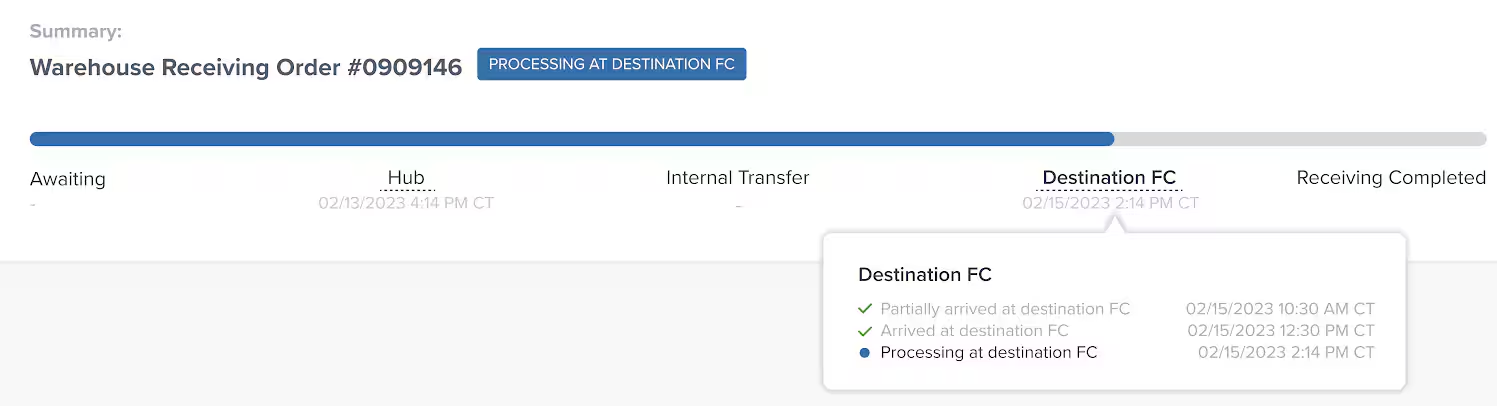
MIQ-enabled WROs progress through a detailed status timeline showing the journey from Hero Hub arrival through final stowing at destination fulfillment centers.Understanding WRO Status Timeline
At the top of each MIQ WRO details page, a visual timeline shows progress with timestamps and detailed status information:
Click any status in the timeline for more detailed information, including tracking links where applicable.
Monitoring Multi-FC Distribution
For MIQ WROs distributing to multiple fulfillment centers, the status timeline tracks each destination independently:- Internal Transfer section lists each destination FC with separate tracking links
- Destination FC section shows arrival times for each location
- Processing at Destination FC provides per-FC stowing progress
- Receiving Completed confirms when all destination FCs have stowed their allocated inventory
MultiHub IQ Pricing
So, what does it cost? Our brands find that compared with managing multiple hubs on its own, MIQ optimizes not just the experience, but it optimizes for cost as well. MIQ WRO Cost Structure:- Standard WRO Fees: Per-unit receiving fees based on billable weight (same as non-MIQ WROs)
- MIQ Distribution Fee: Based on the billable weight of individual units within the WRO, covering the reorganization and redistribution at the Hero Hub
- Standard Fulfillment Costs: Ongoing storage and order fulfillment fees at destination FCs
Jetpack provides insights into what your overall MIQ costs will be prior to onboarding. Pricing does vary based on unit weight, shipment type, and destination fulfillment center distances.
Rebalancing Inventory With Internal Transfer Orders (ITOs)
Beyond initial replenishment, MIQ enables dynamic rebalancing of inventory already in the Jetpack network through Internal Transfer Orders (ITOs).What Are ITOs?
Internal Transfer Orders (ITOs) move existing inventory between Jetpack fulfillment centers to achieve optimal distribution based on:- Current inventory levels at each fulfillment center
- Inbound WROs and their transfer plans
- Real-time on-hand inventory across the network
- Sales forecasts provided by your team
When Jetpack Uses ITOs
Jetpack Operations may initiate ITOs in these scenarios: ITO Triggers:- Regional demand patterns shift and inventory needs to move from low-demand to high-demand FCs
- A fulfillment center approaches stockout while another FC has excess inventory of the same SKU
- Seasonal demand changes require repositioning inventory before peak periods
- New fulfillment centers come online and need initial stocking from existing network inventory
- Split shipment rates increase due to imbalanced distribution
ITO Pricing
Internal Transfer Orders incur fees covering the logistics of moving inventory between fulfillment centers:
These fees are typically lower than the cost of split shipments resulting from poor inventory distribution, making ITOs a cost-effective rebalancing tool.
Monitoring ITOs
ITOs appear in your dashboard similar to WROs, with tracking information showing movement between fulfillment centers. You can monitor:- Which SKUs are being transferred
- Origin and destination fulfillment centers
- Transfer quantities
- Estimated arrival and stowing dates
- Current status in the transfer process
Best Practices for MIQ Replenishment
Follow these strategies to maximize the benefits of MIQ-managed replenishment:Review Transfer Plans Strategically
Always Review When:- You have upcoming promotional campaigns targeting specific regions
- Launching new products with coordinated marketing rollouts
- Seasonal demand patterns are shifting (e.g., Q4 holiday ramp-up)
- Recent stockouts indicate distribution imbalance
- Operating in steady-state conditions without major demand shifts
- Historical sales data accurately reflects ongoing patterns
- No regional marketing campaigns are planned
- Algorithm recommendations align with your order origin data
Coordinate Major Replenishments With Jetpack Care
For significant inventory changes, reach out to your Jetpack Care team: Contact Jetpack Care For:- Large WROs (10+ pallets) requiring expedited processing
- New product launches with specific FC stocking requirements
- Seasonal ramp-ups requiring network-wide rebalancing
- Questions about why MIQ suggested specific allocations
- Requests for manual ITOs to correct distribution issues
Monitor Post-Distribution Performance
After several MIQ WROs complete, evaluate performance metrics: Track These KPIs:- Split shipment rate compared to pre-MIQ baseline
- Average shipping cost per order by fulfillment center
- Time from WRO submission to inventory availability at destination FCs
- Stockout frequency at regional fulfillment centers
- Percentage of orders fulfilled from optimal FCs (closest to customer)
Troubleshooting Common MIQ WRO Issues
Encountering problems with MIQ replenishment? Here are solutions to common scenarios:Let’s Dive Deeper
What is MultiHub IQ?
Back to the MultiHub IQ overview and system explanation
MIQ Transfer Plans
Edit transfer plans before shipment arrival at Hero Hub
MIQ Best Practices
Strategic guidance for using MIQ effectively
Creating a WRO
Step-by-step WRO creation process for Hero Hub
Managing Your WROs
Track and monitor WRO status and distribution
Managing Replenishment
Decide when to replenish inventory with forecasting tools

Questions? Contact Jetpack Care.
If you have any questions or run into issues, you can always contact Jetpack Care for help. Our team is always here to assist via Slack, phone, or email!