

For perishable goods like consumables, health products, or beauty items, traceability is critical. When fulfilling B2B orders to retailers or wholesalers, you can select specific lot numbers and expiration dates for each product in your shipment. This ensures that your customers receive inventory with the batch tracking information they need for compliance and quality control.
Understanding B2B Orders with Lot Selection
B2B orders are shipped to retailers or wholesalers and often require special handling due to order size or product type. For perishable goods, such as consumables, health, or beauty products, a single lot ID per order is required for traceability. Jetpack allows you to select a lot ID for each product within a B2B order.For pricing details, contact Jetpack Care.
Creating a B2B Order with Lot Selection
By following these structured steps, you can efficiently manage B2B orders with lot selection in the Jetpack dashboard and ensure that lot information is accurate and up to date for traceability purposes.1
Navigate to Orders
From the Jetpack dashboard, click Orders on the left-hand navigation bar. Additional menu options will appear.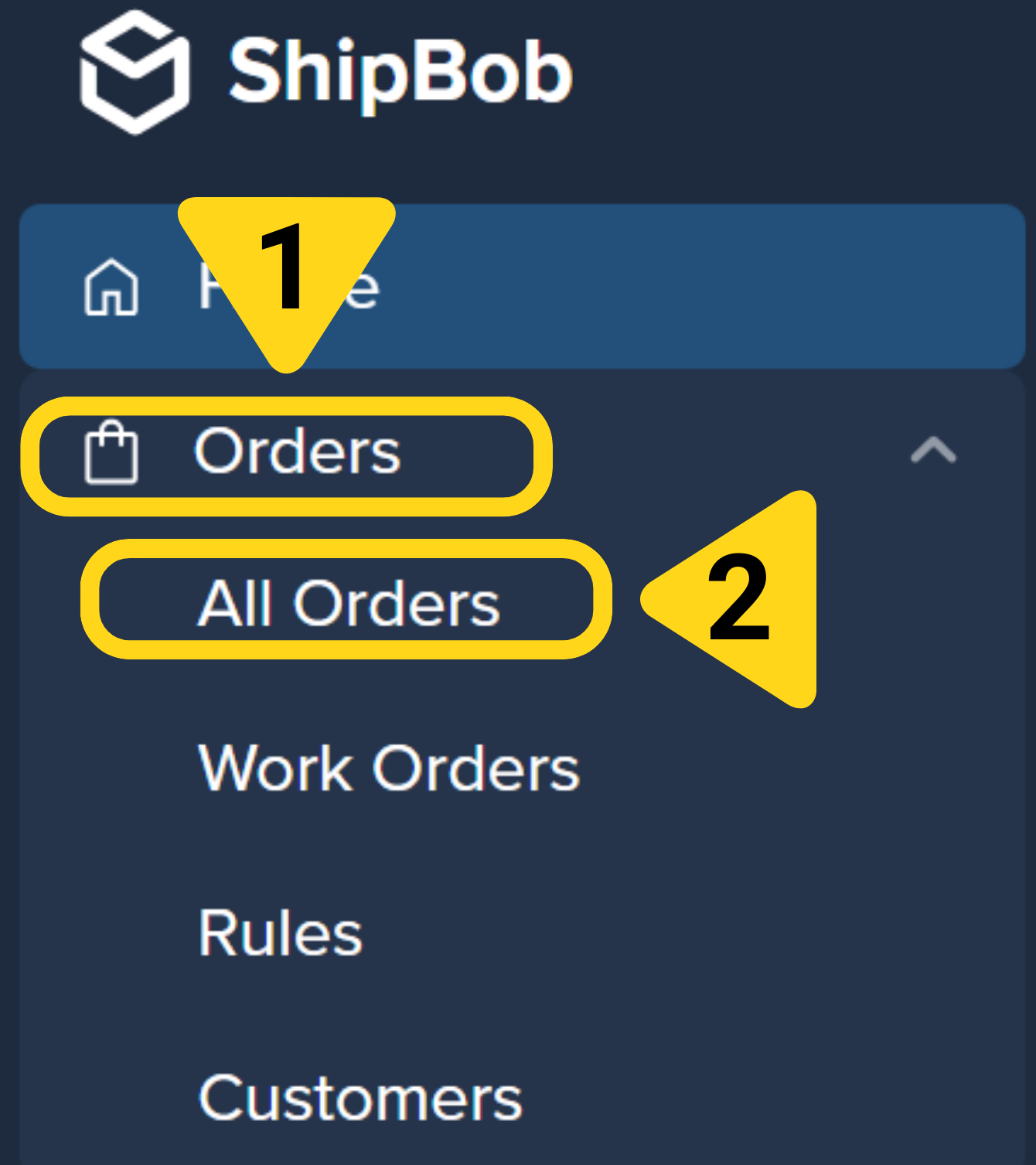
2
Choose All Orders
In the expanded Orders menu, select All Orders.
3
Click New Order
At the top right-hand corner of the page, click New Order.
4
Select Business recipient type
Under “Who are you shipping to?”, select Business.Click Next - Recipient Info.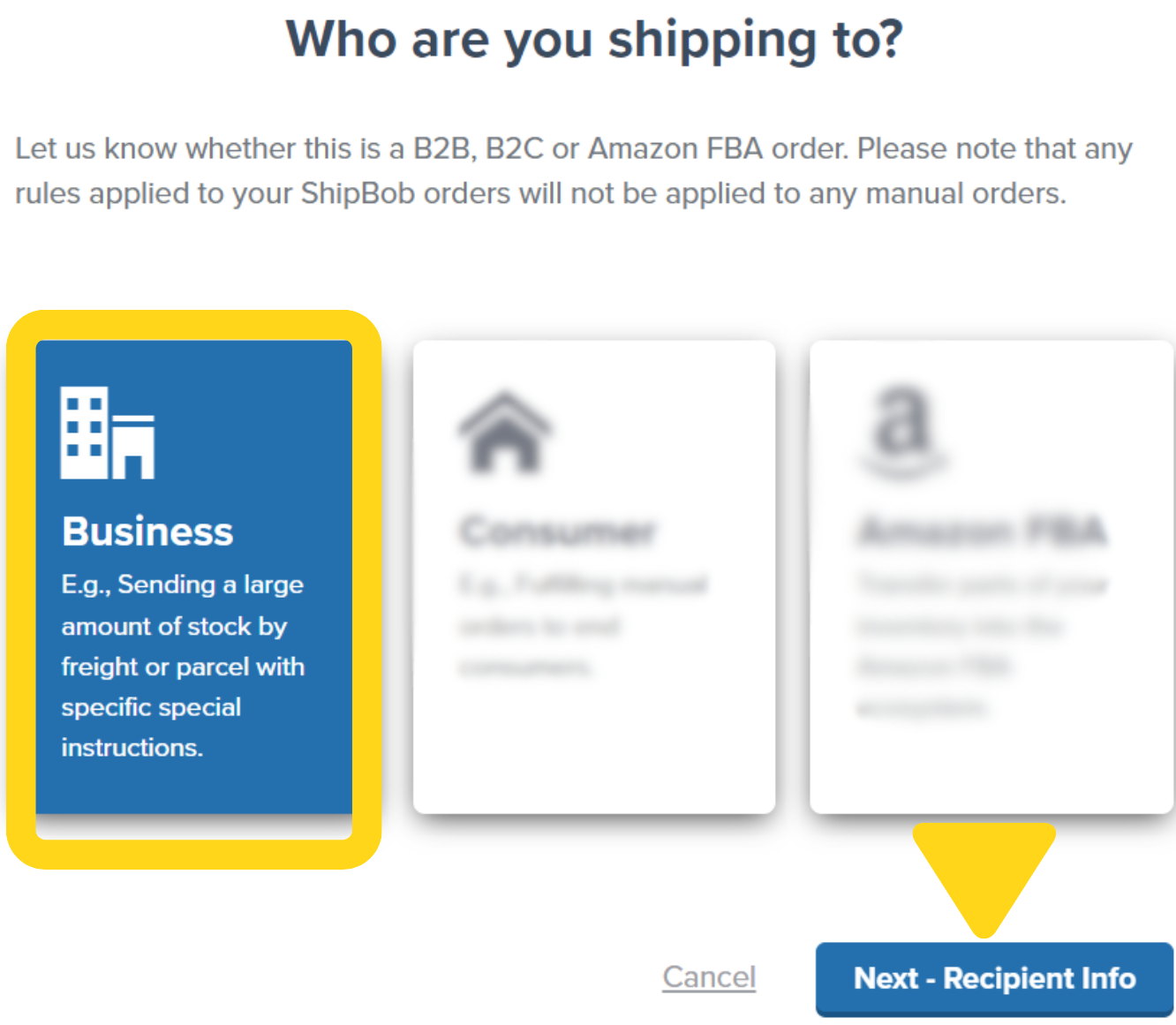
5
Enter recipient information
Use the textbox under Search Recipient/Company Name to find a saved contact, or click Create New Contact to enter new details for your wholesale or retail customer.Once you’ve selected or created the recipient, click Next - Shipping Info.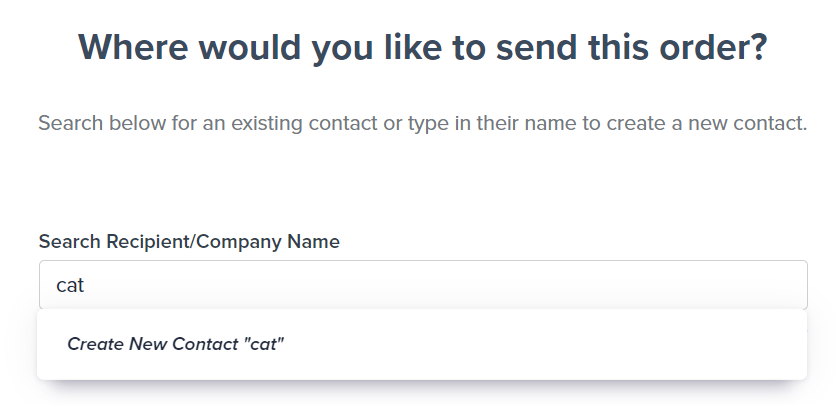
6
Choose shipping method
Select either Parcel (for individual boxes) or Freight (for palletized shipments) based on your needs.Click Next - Shipping Details.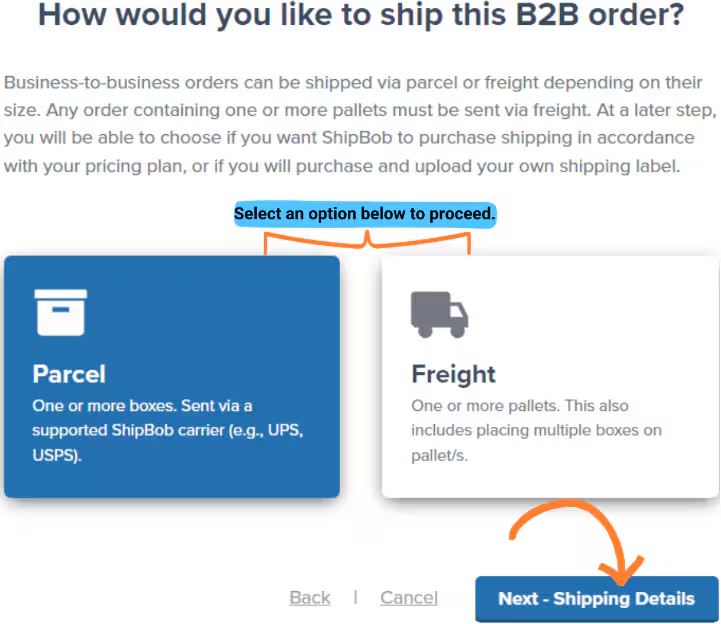
7
Configure shipping details
Choose your shipping method:
- ShipBob Buys - Jetpack automatically purchases shipment labels using ShipBob’s shipping network. The order will automatically be billed to your Jetpack dashboard.
- Upload Your Own - You prefer to handle shipping labels and freight pickup independently.
8
Add packing instructions
Input any special instructions for packing and assembly in the provided textbox.You may also upload a purchase order or other attachments:Click Next - Order Items.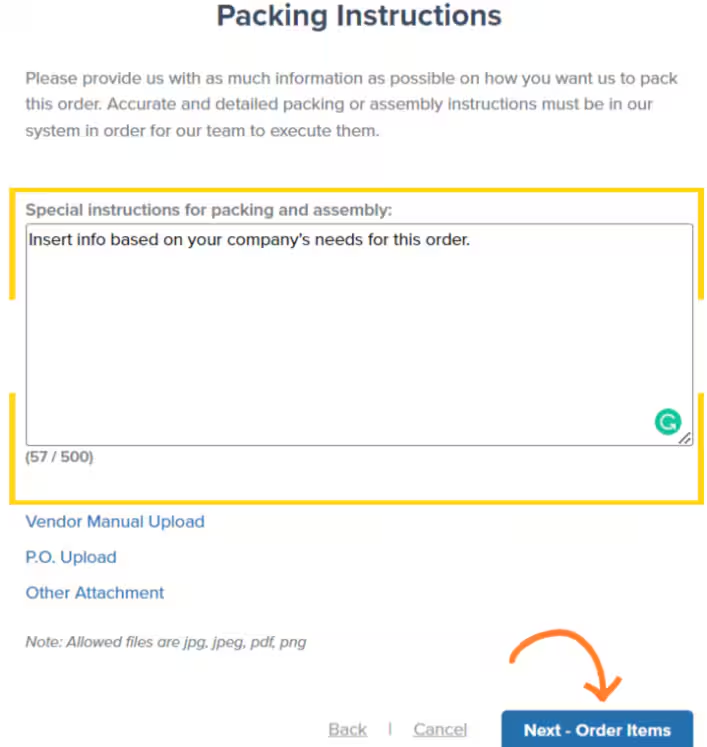
- Supported file types:
.jpg,.jpeg,.pdf,.png - Maximum file size: 5 MB
The “Vendor Manual Upload” hyperlink does not have functionality - Jetpack cannot follow or read vendor manuals uploaded through this field.
9
Select fulfillment center and add products
Select the fulfillment center from the drop-down list, or choose Let Jetpack optimize for me to have the most optimal center selected automatically.Enter the products for the order by searching and selecting from your Product Catalog.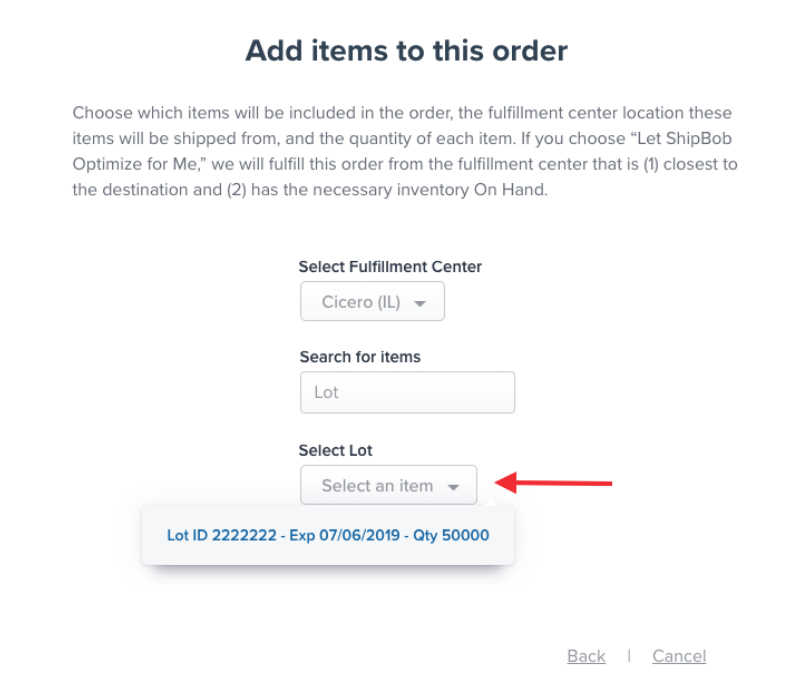
10
Select lot numbers for products
For each product, a Select Lot dropdown will appear if you’ve configured that product with lot tracking.Choose the appropriate lot number and lot date for each product from the dropdown.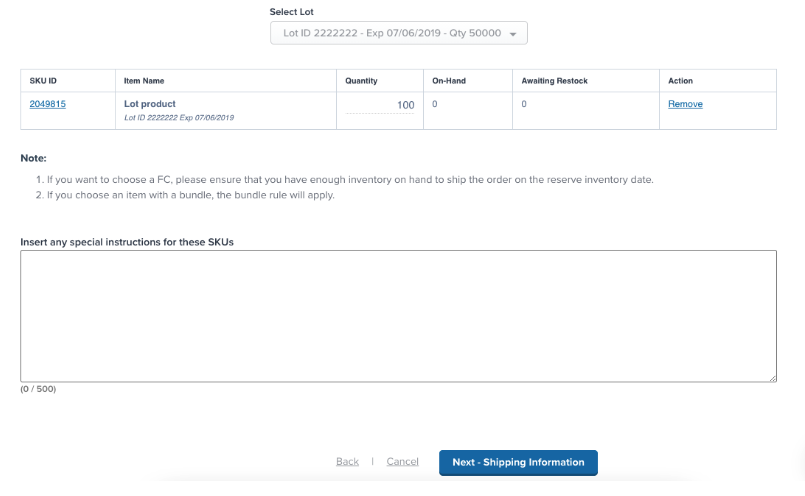
11
Set reserve date
Specify the date on which you want the inventory reserved.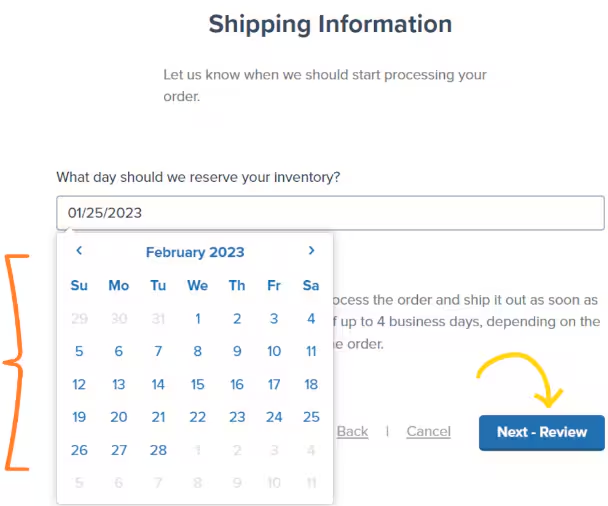
- If immediate processing is required, use today’s date
- Note that the SLA (Service Level Agreement) will start once the reserve date is met
12
Review and create order
Review all order details including recipient information, shipping method, products, lot selections, and reserve date.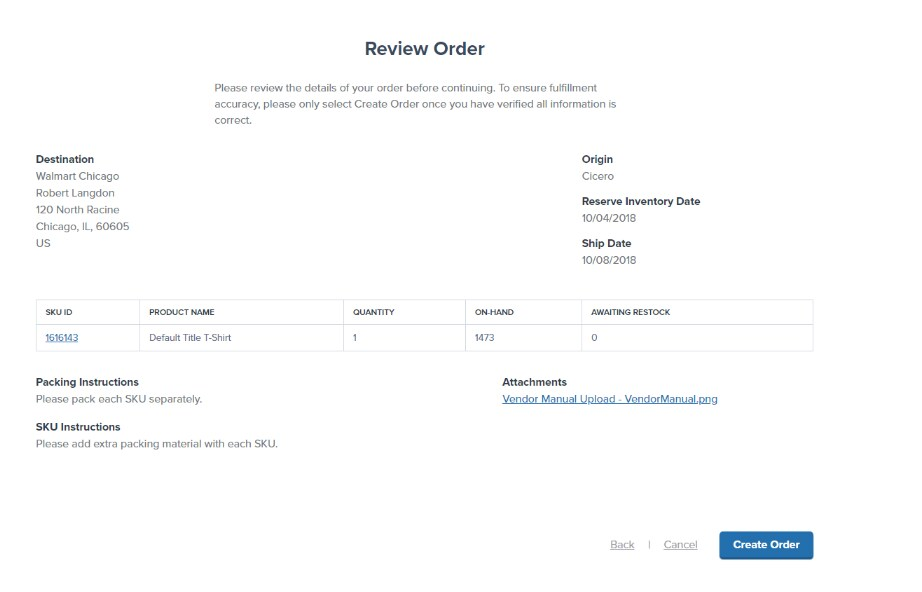
Editing Lot Information on a B2B Order
You can modify the lot information for B2B shipments that are either imported from your e-commerce platform or manually created in the Jetpack dashboard.1
Open the shipment
From the Orders page, click on the Shipment ID (hyperlinked) for the B2B shipment you want to update.
2
Click Edit Items
On the order details page, click Edit Items.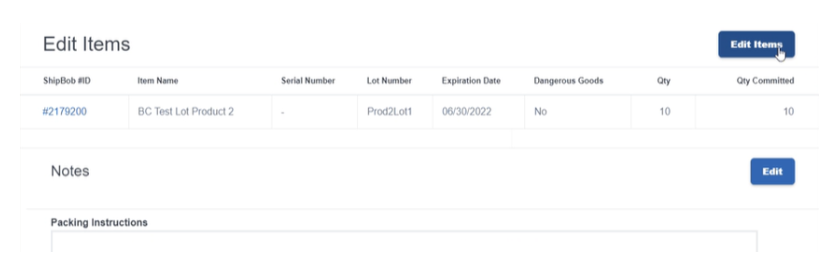
3
Select new lot information
Click the current lot information for the product to display a dropdown of available lot numbers and expiration dates.Select the correct lot information for the chosen fulfillment center.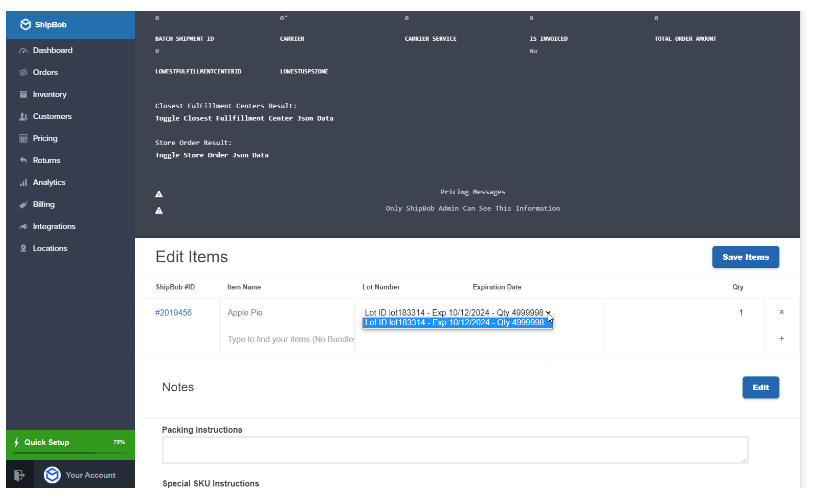
4
Save changes
Click Save Items to update the lot information.The order will now be fulfilled using the updated lot selection.
Let’s Dive Deeper
Our Approach to B2B
Back to the B2B fulfillment overview
Creating Manual B2B Orders
Complete guide to manual B2B order creation
Importing Shopify B2B Orders
Automatically import B2B orders from Shopify
Inventory Transfers
Transfer inventory between fulfillment centers
Managing Your Inventory
Track and manage inventory across your fulfillment network
Creating Lot Products
Set up and manage lot-tracked inventory

Questions? Contact Jetpack Care.
If you have any questions or run into issues with lot selection or B2B order creation, you can always contact Jetpack Care for help. Our team is always here to assist via Slack, phone, or email!