

When a shipment arrives at a Jetpack fulfillment center without proper identification or with discrepancies, it enters on-hold receiving status and generates a URO (Unidentified Receiving Order). Understanding URO scenarios and knowing how to link WROs to resolve these holds ensures your inventory gets processed quickly and avoids additional processing time and fees.
What Are UROs (Unidentified Receiving Orders)?
UROs are created when shipments can’t be immediately matched to an existing WRO in your Jetpack dashboard. When a URO is created, you’ll receive an email notification and can view the on-hold shipment details in your dashboard. Processing Timeline: Once you link a WRO to the URO ID, your inventory will be received within 3 business days.URO Pricing
URO processing incurs additional fees, set out in the pricing provided with your Jetpack fulfillment agreement. See Unidentified Receiving Orders for grace periods and how fees accrue.URO Scenarios: What Creates a URO?
A URO may be created in the following cases:This URO process applies to all fulfillment centers in Europe, the UK, Canada, Australia, and select US locations that do not follow the hub process.
Receiving Overage & URO Process for Hub Locations
For locations that use hubs (in the US), Jetpack’s Operations team will create a WRO on your behalf for select scenarios below, instead of creating UROs in your Jetpack dashboard. If Jetpack’s Operations team cannot create a WRO on your behalf, UROs will be created for your Jetpack account.When Jetpack’s Operations Team Will Create a WRO for You
At hub sites, Jetpack’s Operations team will create a WRO in your dashboard in these situations:
For more information about receiving overages and UROs, see Unidentified / On-Hold Shipments (UROs).
Viewing On-Hold Receiving Boxes/Pallets
When one of your boxes/pallets receives an on-hold receiving status, you’ll be notified via email. You can view all boxes/pallets that are in on-hold receiving status and their URO ID numbers from the Jetpack dashboard.1
Navigate to On-Hold Receiving
From the Jetpack dashboard: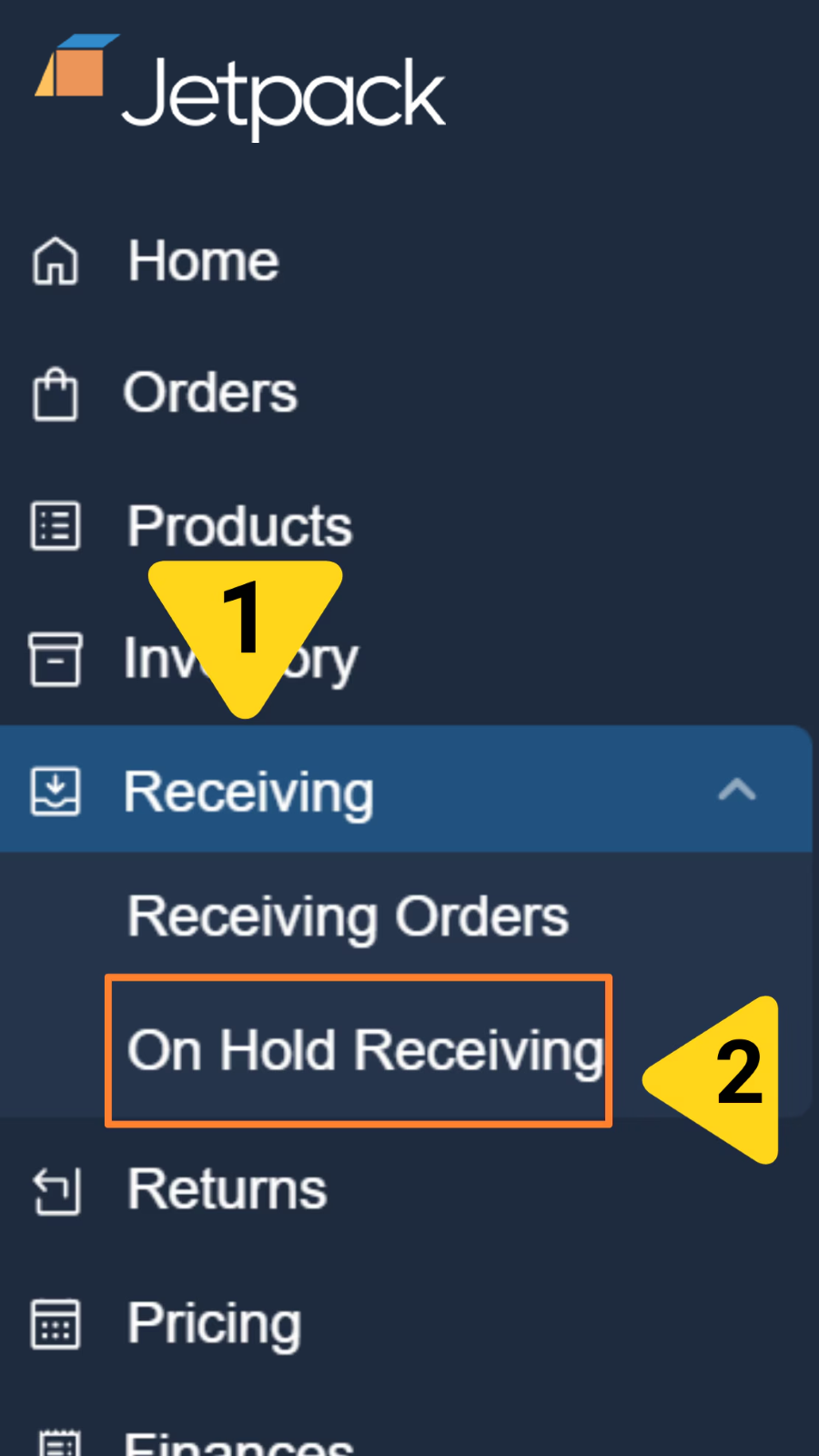
- Click Receiving in the left-hand navigation
- Select On-Hold Receiving from the additional menu options
2
Review URO details and verify ownership
Make sure that the box/pallet belongs to you. Each URO can come with multiple labels and item images that the operations team will update for your review. The images can be reviewed by selecting the highlighted links under each category.If the items are not yours, click on the Not Me link under the Action column to un-associate it from your account.
Linking a WRO to a URO
To resolve an on-hold receiving box/pallet and process your inventory, you’ll need to create a WRO (if one doesn’t already exist) and link it to the URO ID.1
Click Link WRO in the Action column
From the On-Hold Receiving page, locate the URO you want to resolve and click Link WRO under the Action column.
2
Fill out the WRO details
Complete the WRO form with your shipment details. You must include the box number associated with this box/pallet (this is mandatory).
Only WROs in Awaiting Arrival status can be linked to UROs.
3
Save and link the WRO
Click Save to link the WRO to the URO ID. Your inventory will be processed within 3 business days.
Let’s Dive Deeper
Managing Your Warehouse Receiving Orders
Track and monitor your WROs in the dashboard
Editing a Warehouse Receiving Order (WRO)
Edit WROs when shipment details change
Unidentified / On-Hold Shipments (UROs)
Complete URO prevention and resolution guide
Creating a Warehouse Receiving Order (WRO)
Step-by-step WRO creation process
Avoid These Common WRO Mistakes
Seven common mistakes to avoid when creating WROs
Tools & Techniques Overview
Back to the main tools guide
Questions? Contact Jetpack Care.
If you have any questions or run into issues linking WROs to UROs, you can always contact Jetpack Care for help. Our team is always here to assist via Slack, phone, or email!