


Prerequisites
Before connecting QuickBooks Online to Jetpack, ensure you have:- QuickBooks Online account with administrator access
- Jetpack merchant account with login credentials
- Access to the company you want to connect in QuickBooks Online
Understanding QuickBooks Online Integration Capabilities
The QuickBooks Online integration offers basic functionality designed to keep your product catalog and inventory counts synchronized between systems. This integration focuses on inventory management without affecting your accounting data, order workflows, invoicing, or payment processing. What This Integration Syncs:- Products: Pull product information from QuickBooks Online to Jetpack
- Inventory Counts: Push inventory stock counts from Jetpack back to QuickBooks Online
Installing the QuickBooks Online Integration
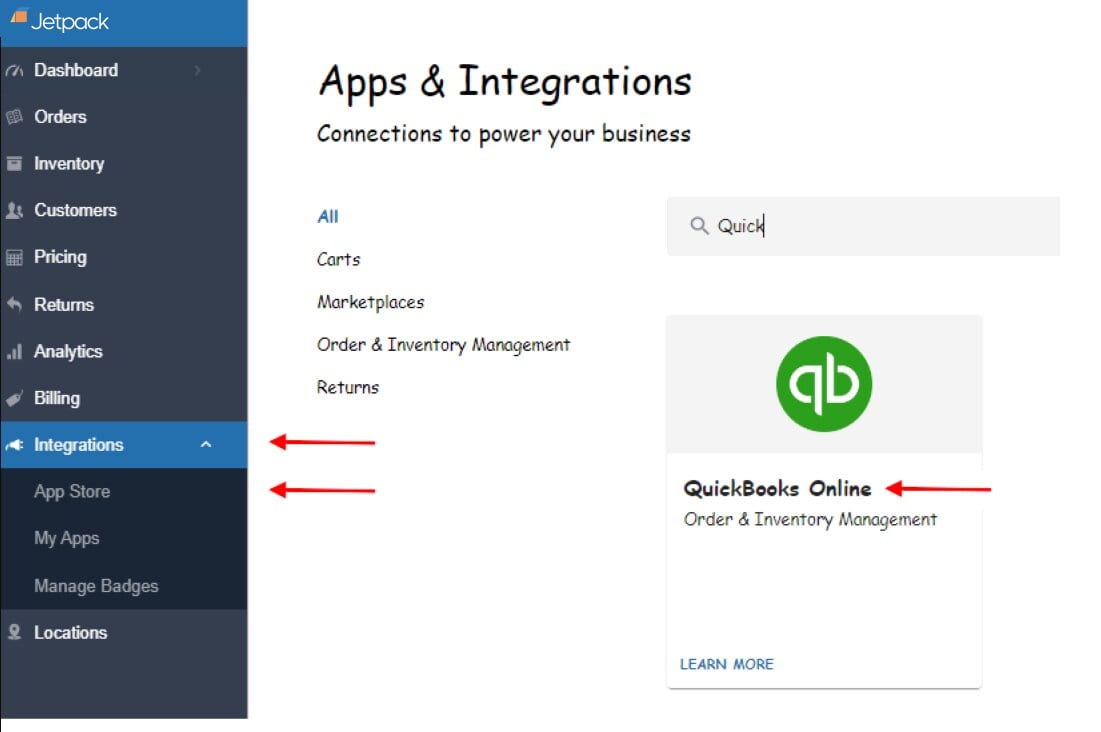
Follow these steps to connect your QuickBooks Online account with Jetpack and configure your sync settings.Click Integrations in the side navigation bar
Select App Store
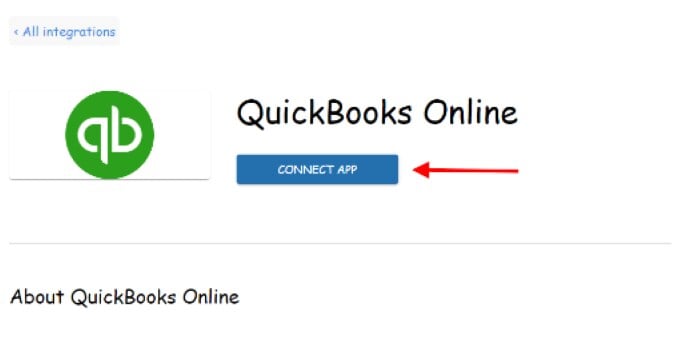
Click Connect App
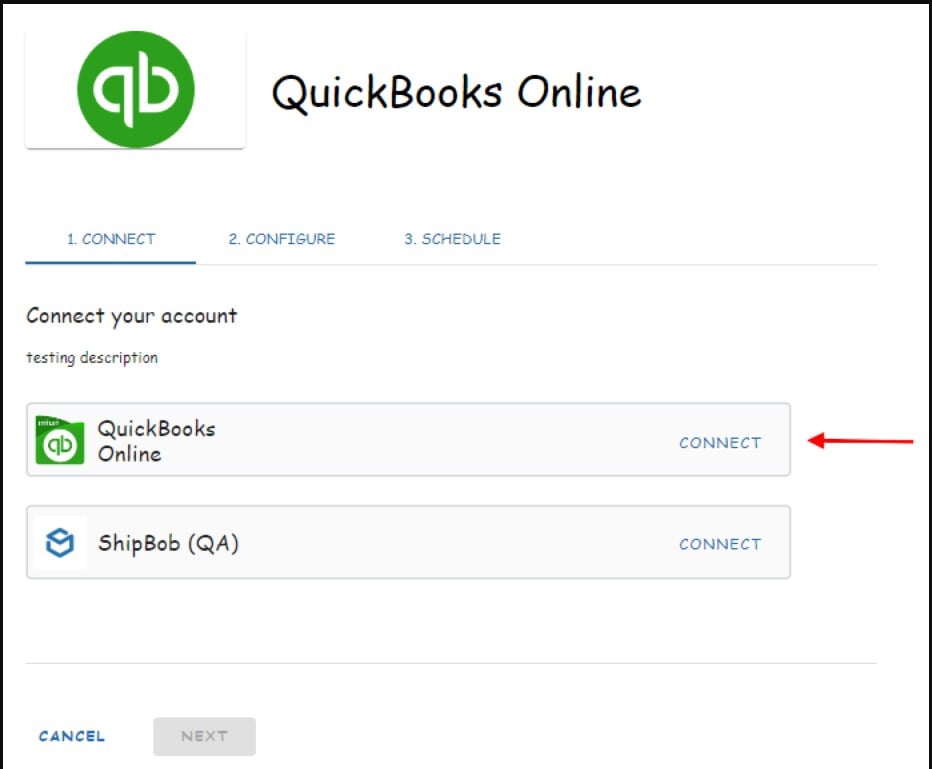
Click Connect for the QuickBooks Online app
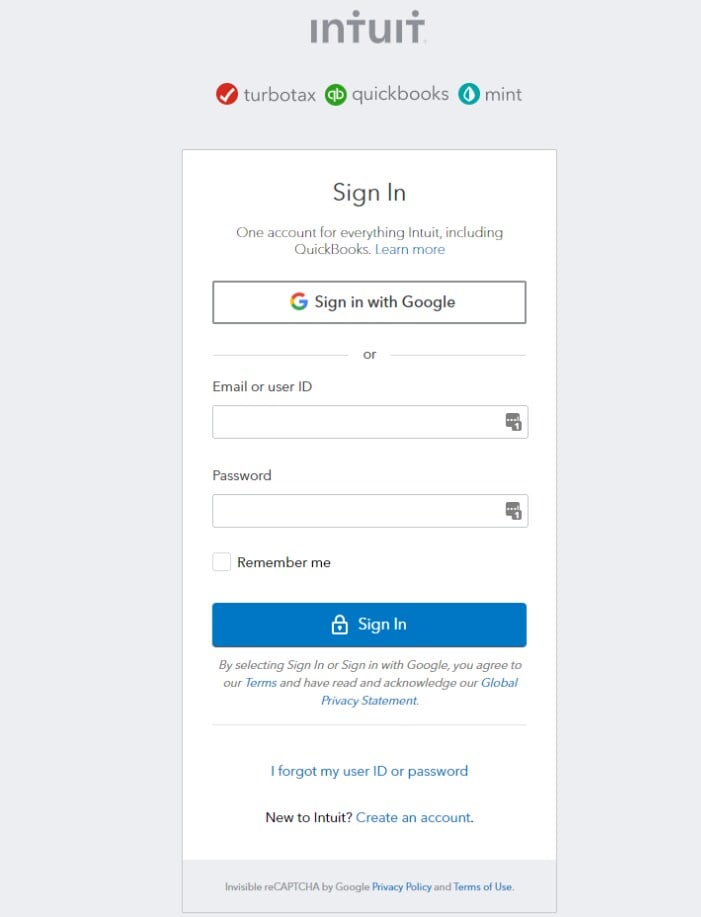
Enter your QuickBooks credentials and sign in
Select your company and click Next
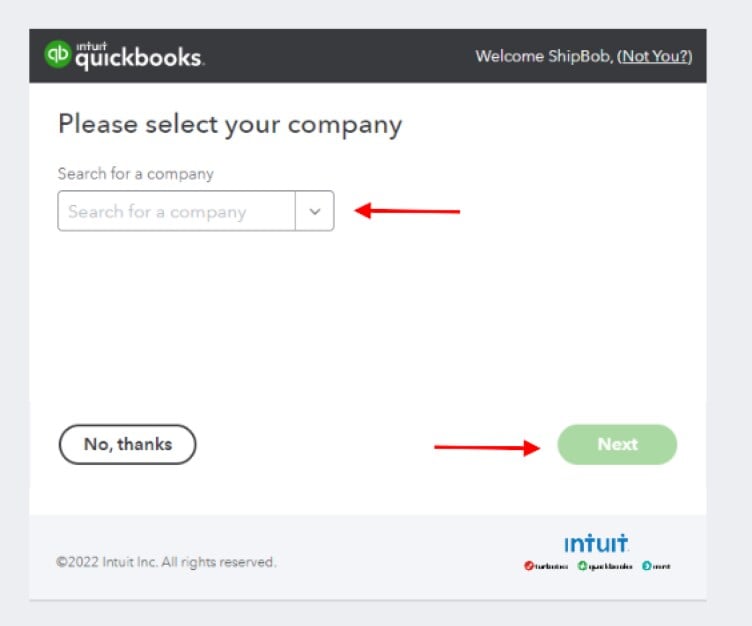
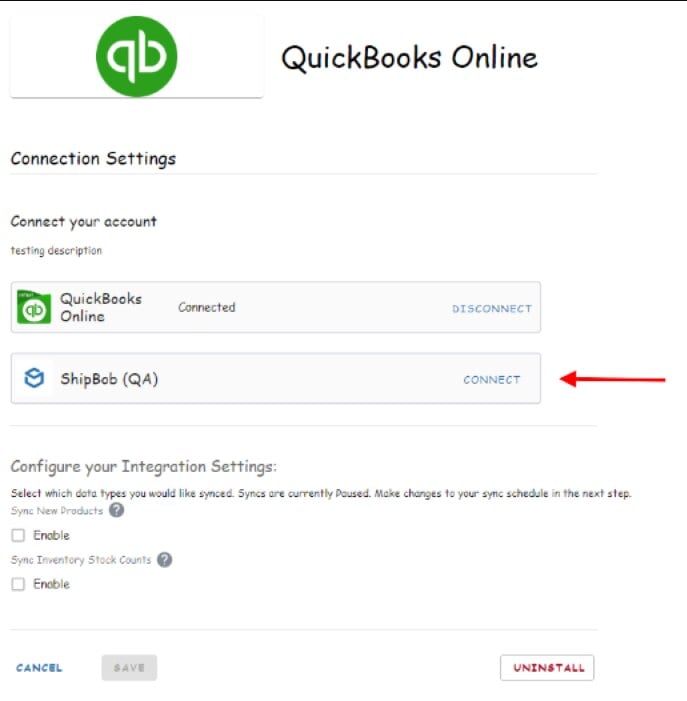
Return to Connection Settings and connect ShipBob to sync Jetpack
Enter your Jetpack credentials and log in
Grant access and select your channel
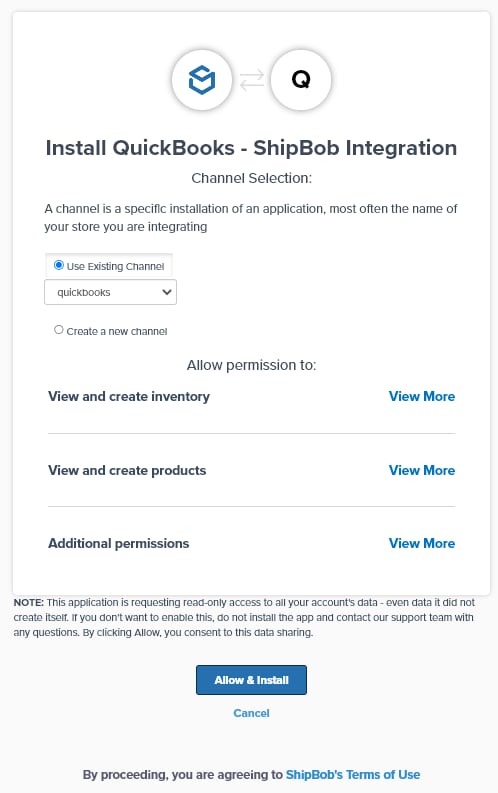
Click Allow & Install to finalize the connection
Configure sync settings
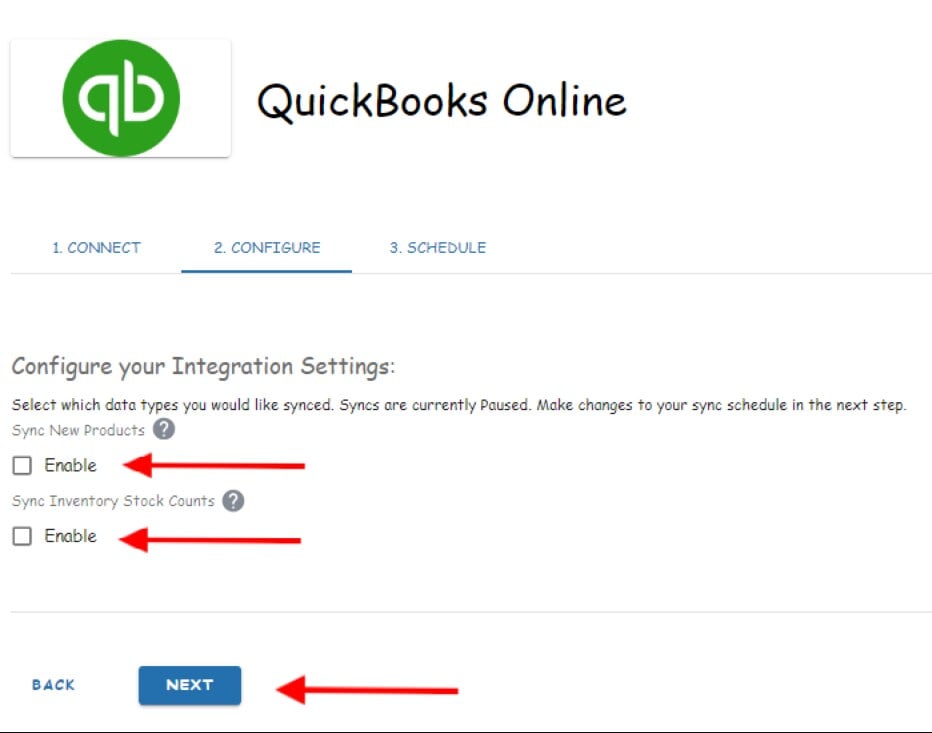
- Sync New Products: Automatically sync new products added to QuickBooks Online
- Sync Inventory Stock Counts: Push inventory counts from Jetpack back to QuickBooks Online
Set up your sync schedule
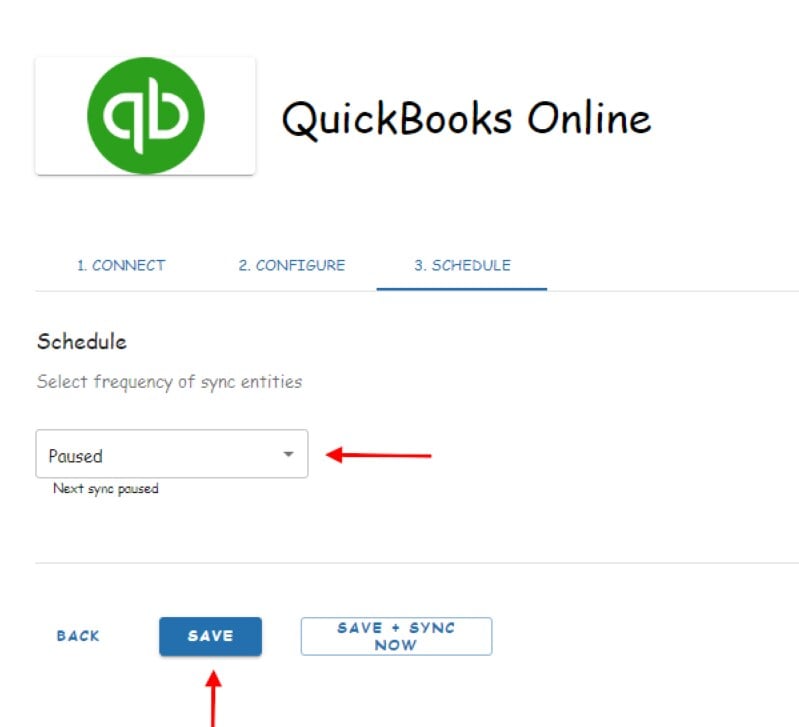
- Automatic Sync: Choose your desired syncing frequency from the dropdown list to sync data automatically at regular intervals
- Pause Sync: If you prefer not to have automatic syncing, leave the option set to Pause (the default setting)
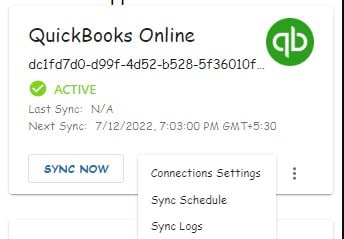
Syncing Products from QuickBooks Online
After completing the initial setup, you can configure Jetpack to sync both existing products and new products from your QuickBooks Online account.Syncing Existing Products
As part of the integration setup, you can choose to sync existing products from your QuickBooks Online store to your Jetpack dashboard. This option appears during the initial configuration when you select which data to sync in the Configure your Integration Settings step.Syncing New Products
To enable automatic syncing of new products added to QuickBooks Online:Navigate to Integrations and click My Apps
Select QuickBooks Online from the list
Open Connections Settings
Enable Sync New Products
Syncing Inventory Stock Counts
You can automatically sync your inventory stock counts from Jetpack back to your QuickBooks Online store, keeping your accounting records up to date with actual fulfillment center inventory levels. To enable automatic inventory sync:Navigate to Integrations and click My Apps
Select QuickBooks Online from the list
Open Connections Settings
Enable Sync Inventory Stocks Count
Disabling the QuickBooks Online Integration
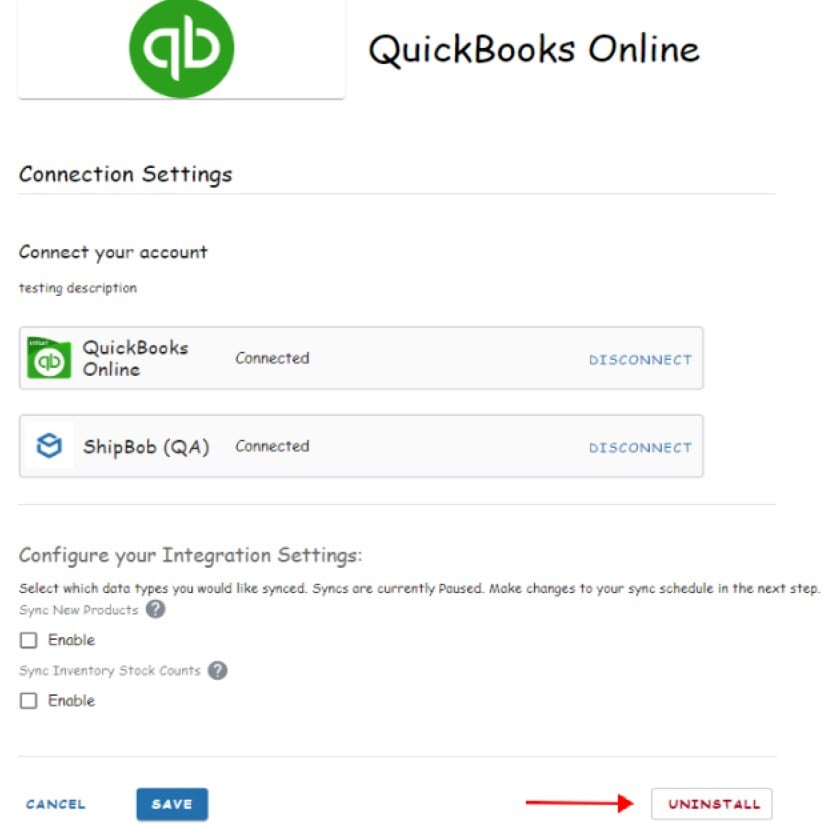
If you need to disconnect your QuickBooks Online integration:Navigate to Integrations and My Apps
Open QuickBooks settings
Uninstall the integration
Let’s Dive Deeper
Other Integrations Overview
NetSuite ERP
Fulfil.io ERP
Managing Products
Managing Inventory
Inventory Snapshot Report

Questions? Contact Jetpack Care.
If you have any questions or run into issues, you can always contact Jetpack Care for help. Our team is always here to assist via Slack, phone, or email!