

Integrating NetSuite with Jetpack enables real-time syncing of B2C orders, product catalogs, inventory quantities, and carrier tracking information between your NetSuite ERP and your Jetpack dashboard. This comprehensive integration requires configuring custom fields in NetSuite, enabling authentication features, creating API credentials, and then connecting the systems through your Jetpack dashboard.

About ShipBob Integration References
During setup, you’ll configure the “ShipBob” integration in NetSuite and authorize access through the ShipBob API. This is expected—Jetpack has licensed ShipBob’s integration infrastructure to provide reliable connections. Your data flows seamlessly to your Jetpack dashboard.
Integration Overview
When you integrate NetSuite and Jetpack, B2C orders from NetSuite will automatically sync in real time, or you can manually sync orders from NetSuite to your Jetpack dashboard. This integration provides comprehensive order, product, inventory, and tracking synchronization to keep your ERP and fulfillment operations aligned.Setting Up Your NetSuite Integration
Prior to integrating NetSuite and Jetpack, you must add custom Transaction Body Fields within NetSuite and configure your NetSuite Account Settings.1
Add Required Custom Fields in NetSuite
To allow NetSuite to receive order import acknowledgments from Jetpack (when an order has been successfully imported to Jetpack), you must add custom fields in NetSuite.From NetSuite, click Customization on the top navigation bar, then select Lists, Records, & Fields from the drop-down options. Additional menu options will appear. Select Transaction Body Fields, then select New. You will be redirected.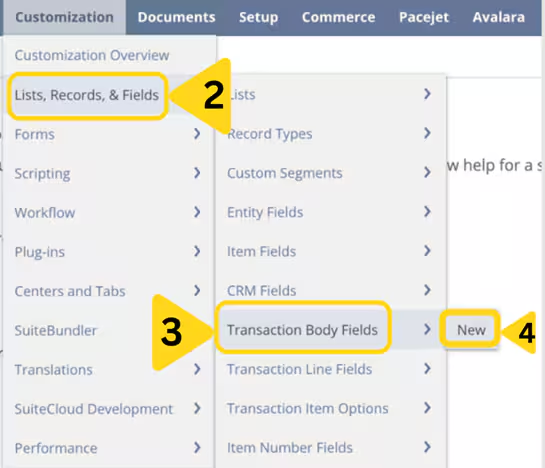
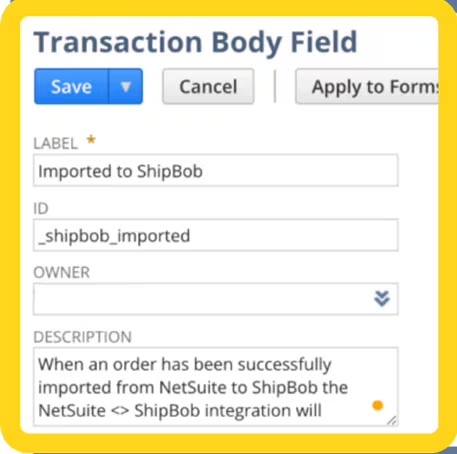
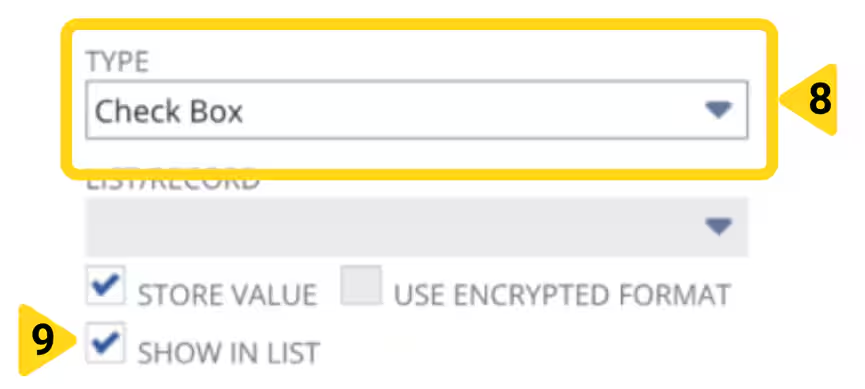
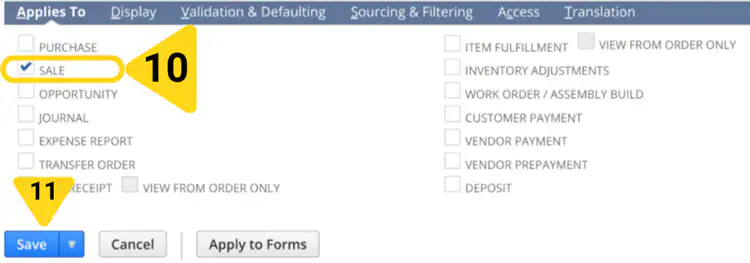
- LABEL: Imported to ShipBob
- ID: _shipbob_imported
- DESCRIPTION: When an order has been successfully imported from NetSuite to ShipBob the integration will automatically update this field to be TRUE. It should not be manually adjusted
For the Sales Channel field, the value must be one of the following verbatim: amazon, bigcommerce, ebay, faire, macy, magento, shein, shopify, squarespace, targetplus, temu, tiktok, unleashed, walmart, woocommerce
2
(Optional) Import B2B Orders into Jetpack from NetSuite
To import B2B orders into Jetpack, create Transaction Body Fields based on the table below.
Once imported into the Jetpack dashboard, B2B orders will use Jetpack’s standard GS1 labels and packing slips.
3
(Optional) Import Customer Returns into Jetpack from NetSuite Return Authorization (RA) Records
You can have Return orders automatically imported into Jetpack based on Return Authorization (RA) records in NetSuite. RAs are based on the following criteria: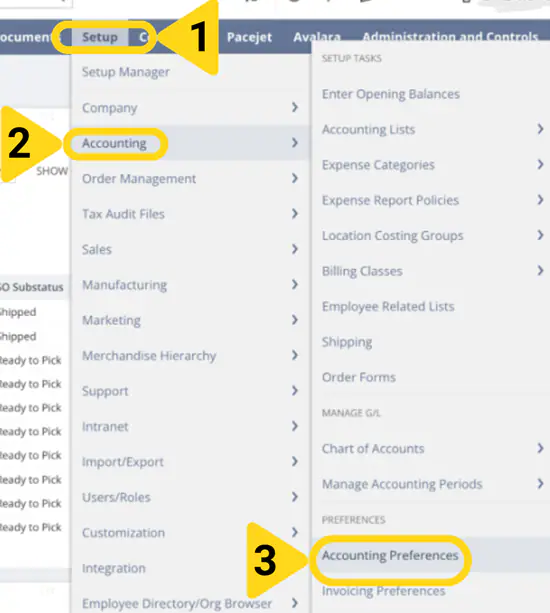
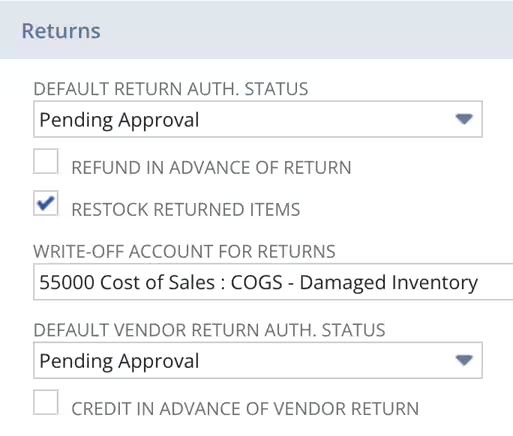
- RA must not be voided
- RA must not be marked as already imported into ShipBob
- RA must have been created within the last two weeks (14 days)
- RA must have a To Location in NetSuite configured to a Jetpack fulfillment center (to which your customer will ship the order)
- RA record must be linked to a Sales Order that was fulfilled by Jetpack via the NetSuite integration
4
Enable NetSuite Features
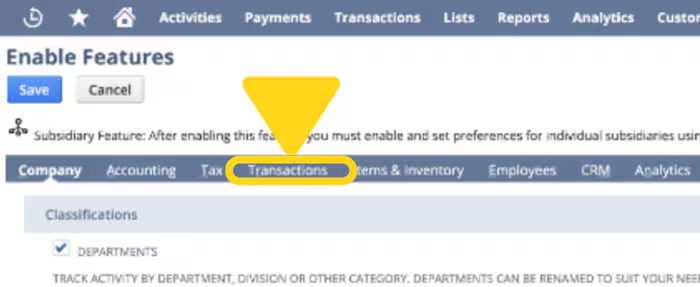
You must configure your NetSuite account settings to allow Jetpack to update NetSuite order statuses.From NetSuite, navigate to Setup, click Company, and select Enable Features. You will be redirected to the Enable Features page.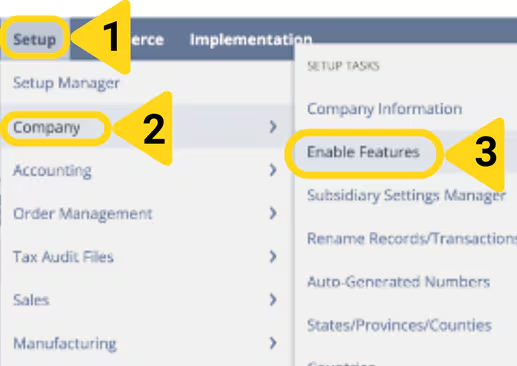
5
Configuring the NetSuite Integration Record in NetSuite
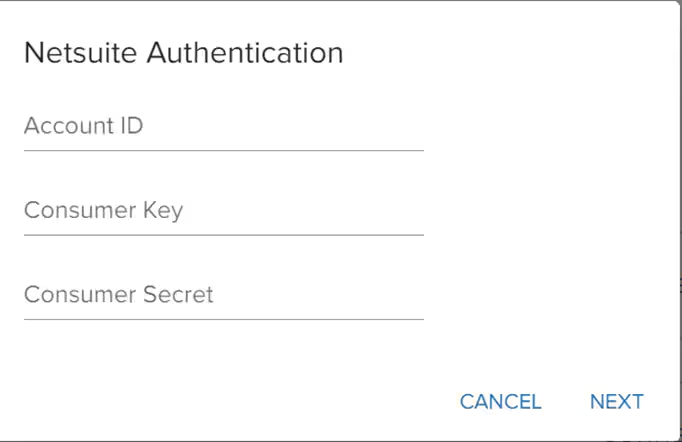
To retrieve the Consumer Key and Consumer Secret that are required to integrate NetSuite, you must create an Integration Record in NetSuite.From NetSuite, navigate to Setup, click Integration, select Manage Integrations, and click New. You will be redirected.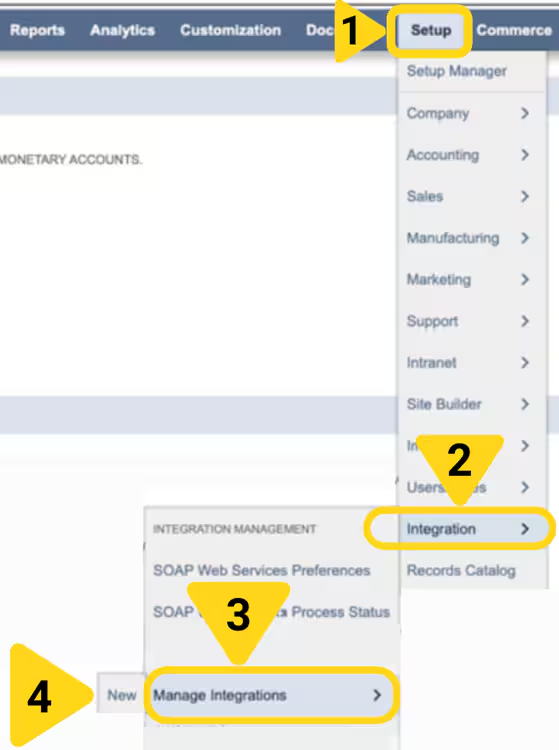
https://api.pandium.io/v0/author/callback/netsuiteCheck PUBLIC CLIENT under the OAuth 2.0 panel. Paste the following URL under REDIRECT URL: https://api.pandium.io/v0/author/callback/netsuiteCheck RESTLETS and REST WEB SERVICES under the OAuth 2.0 panel. Click Save. You will be redirected.https://1234567.app.netsuite.com/, your account ID is 1234567. If you are using a sandbox NetSuite account, it will have a suffix. When inputting your Account ID in the Jetpack dashboard, you must input your suffix with a hyphen (-) instead of an underscore (_). Example: If your suffix is _SB2, you would input –SB2 instead.6
Configuring Roles & User Permissions in NetSuite
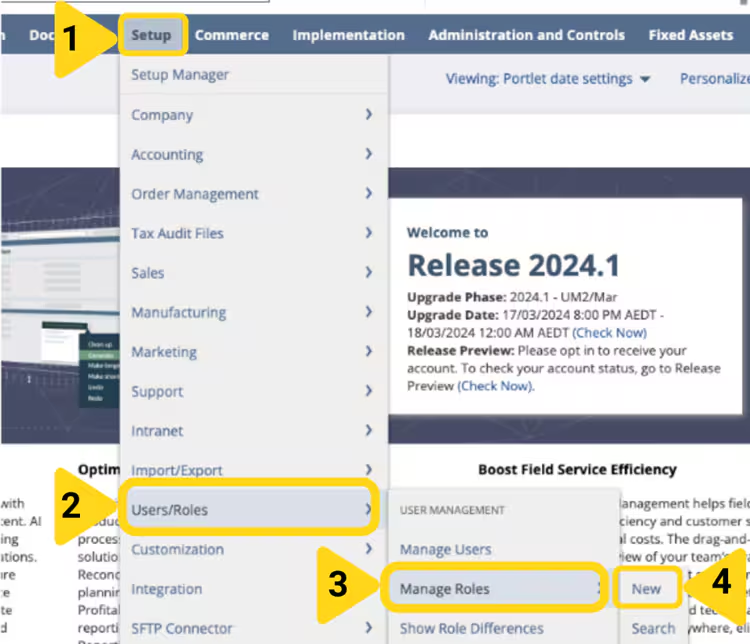
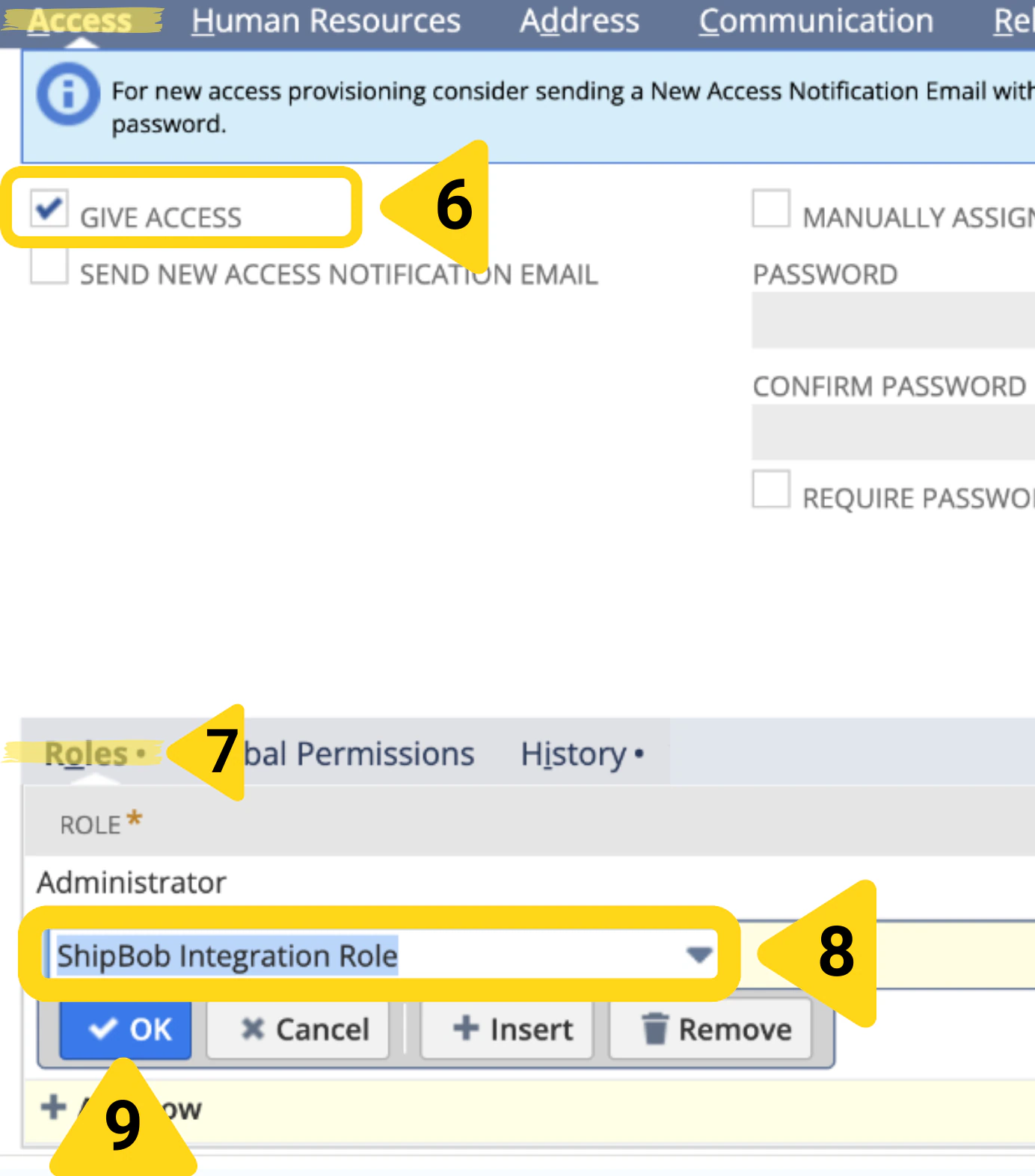
You must create a Role and configure Permissions within NetSuite before integrating.From NetSuite, navigate to Setup, select User/Roles, click Manage Roles, and click New.Name the role (e.g., “ShipBob API Role”). Add the required Permissions based on the permissions tabs: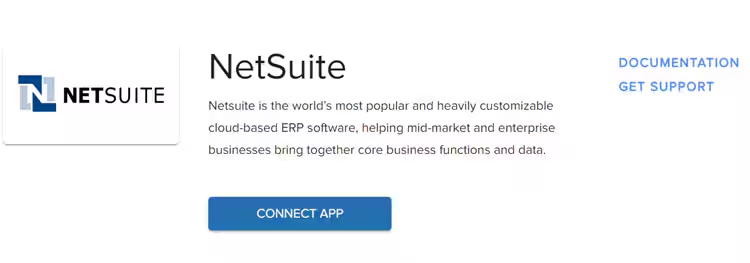
- Setup Tab
- Lists Tab: If your NetSuite account does not have the ability to grant List permission for the Subsidiary, Department, Class, or Source records, the integration will still work, but the order sync filter for any missing record will not work
- Transactions Tab
- Custom Records Tab
- Reports Tab
7
Integrating Jetpack & NetSuite
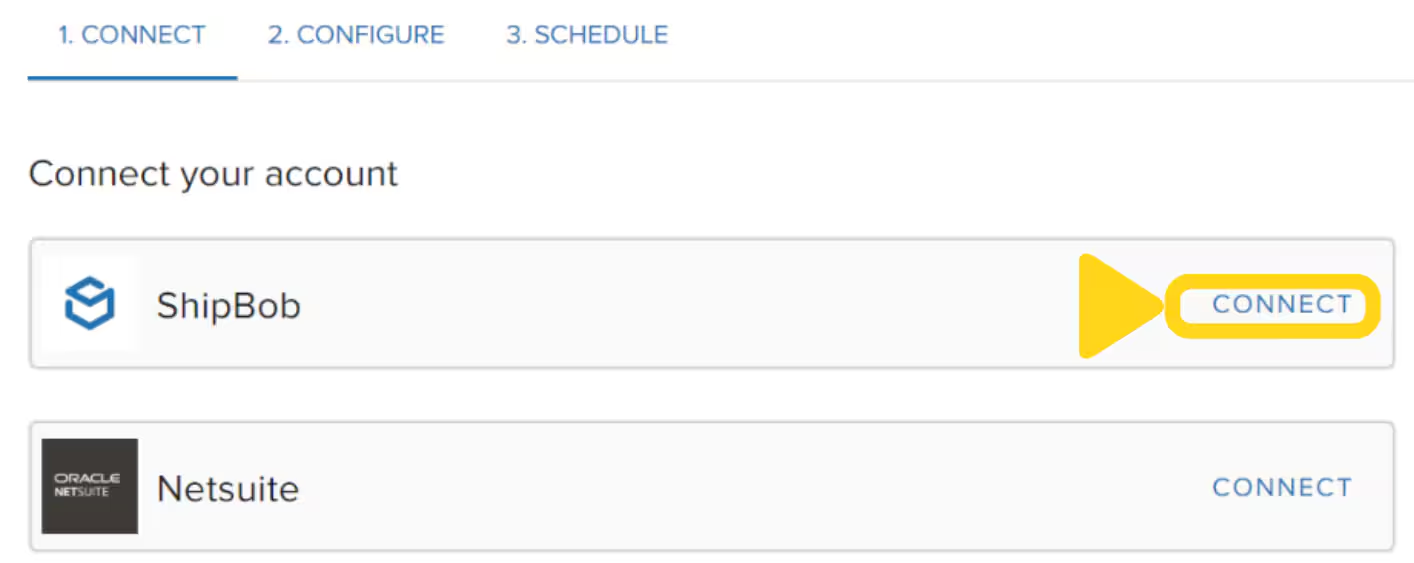
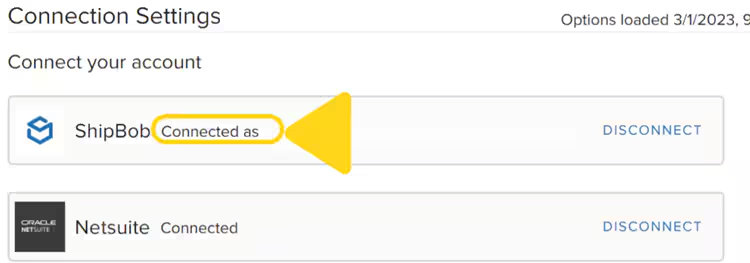
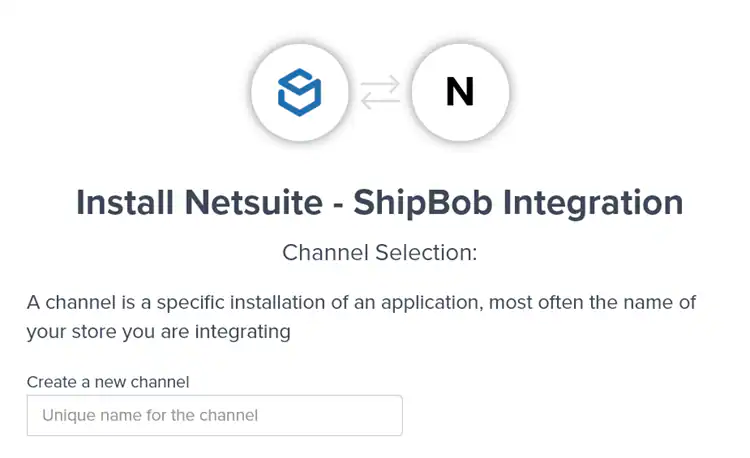
From the Jetpack dashboard, navigate to Integrations and find NetSuite, then click CONNECT APP.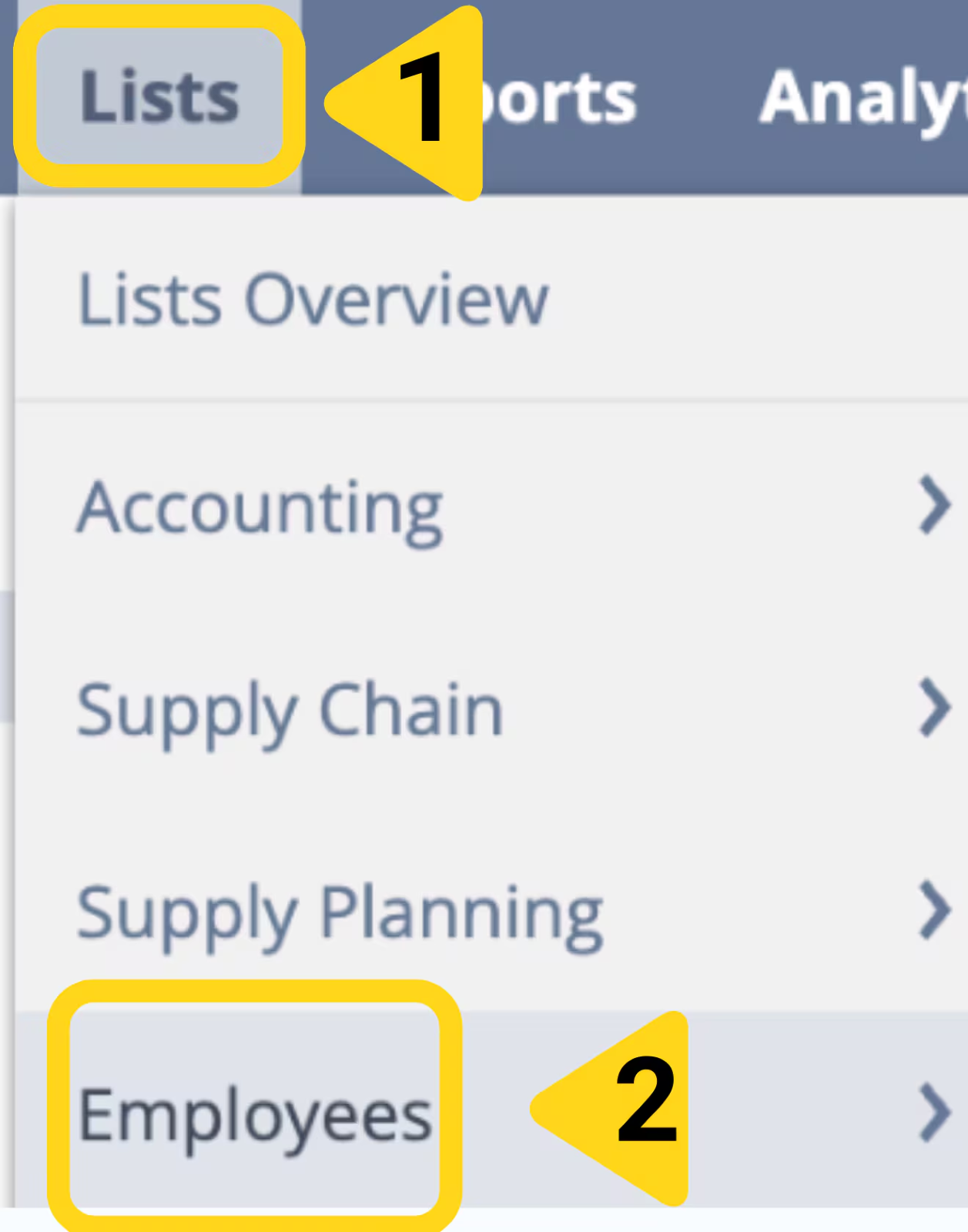

NetSuite Features and Capabilities
After completing the initial setup, you can configure and manage sync features between NetSuite and Jetpack, including Order Sync, Product Sync, Inventory Quantity Sync, and Carrier Tracking Sync.Order Sync
Order sync allows you to automatically import orders from NetSuite to Jetpack. Once enabled, orders will be imported automatically based on your workflow cadence.B2B Orders
By default, B2B orders are not automatically imported from NetSuite into the Jetpack dashboard. To enable automatic import, follow the steps under the (Optional) Import B2B Orders into Jetpack from NetSuite section. Alternatively, you can manually create B2B orders in Jetpack. Once imported, B2B orders will use Jetpack’s standard GS1 labels for tracking and packing slips. These GS1 labels are printed on a 4 x 6-inch (10.16 x 15.24 cm) label and cannot be customized, though the information can vary. The label includes a unique serial shipping container code (SSCC) for each box or pallet. Placement of GS1 labels on shipments are allowed to vary.Return Orders
By default, customer return orders are not automatically imported from NetSuite. Alternatively, you can manually create return orders in the Jetpack dashboard.Orders created manually within the Jetpack dashboard or imported from your ecommerce platforms that are integrated with Jetpack will not sync back to NetSuite.
Enabling Order Sync
To import orders automatically from NetSuite, enable the Sync Orders and Start Shipping Date features in Jetpack. From the Jetpack dashboard, click Integration on the left-hand navigation bar and select My Apps from the dropdown menu. Locate your NetSuite integration and click the three vertical dots, then select Connection Settings from the dropdown menu. Scroll down to the Sync Orders section. Check the box next to Enable under Sync Orders to enable order auto sync (uncheck the box to disable the feature). Input a Start Shipping Date to fetch orders created on or after the specified date (maximum 14 days in the past). To further refine which orders are imported from NetSuite, you can filter by one or more of the following:- Subsidiaries
- Classifications
- Departments
- Sources
- Statuses - This filter allows you to specify which orders Jetpack will import based on their status. If no status is selected, orders with the following statuses will be synced from NetSuite: Pending Fulfillment, Partially Fulfilled, or Pending Billing/Partially Fulfilled.
For more information on the terms mentioned above, please refer to NetSuite’s support portal.
Import Delay
If updates are made to orders in NetSuite after being imported to Jetpack, they will not be reflected in your Jetpack dashboard and vice versa. Please make updates in both NetSuite and Jetpack if there are changes to orders to ensure the changes are accurately made everywhere. To give you enough time to make updates to orders in NetSuite before they are imported to Jetpack, use the order Import Delay feature. From the Jetpack dashboard, click Integrations on your left-hand navigation bar and select My Apps from the dropdown menu. Locate your NetSuite integration, click the three vertical dots, and select Connection Settings from the dropdown menu. Select the text box under Import Delay and select the desired order Import Delay option from the dropdown menu. Choose from: 30 minutes, 1 hour, 2 hours, 3 hours, 6 hours, 12 hours, or 24 hours.Product Sync
Product Sync allows you to automatically sync your NetSuite product catalog with Jetpack, based on your sync cadence. This includes syncing inventory items, kits, and assemblies to Jetpack. Available configurations include:- Enable/Disable Sync Products: Control whether the sync is active or not
- Custom Product Field Mapper: Map specific NetSuite Item object fields to corresponding Jetpack product properties
Important Considerations When Using Product Sync
- Syncing limitations: This feature only syncs products from NetSuite to Jetpack. Products created in Jetpack will not be synced back to NetSuite.
- Kits and assemblies: Kit or assembly items are decoupled during import. This means that the child SKUs, which make up the kits or assemblies, will be imported into Jetpack, but the parent SKU from NetSuite will not.
- (Required) Custom Item Field Mapping: Each product must have a Custom Item field applied for it to sync from NetSuite to Jetpack. This custom field must be a checkbox value and have the following name verbatim upon creation:
custitem_push_to_shipbob
Lot Numbered Items and Inventory Quantity Sync
Lot Numbered Items in NetSuite are supported by the Inventory Quantity Sync feature in Jetpack. Lot numbers are also supported by the Sync Tracking Information feature in Jetpack, which ensures that tracking information can be uploaded to NetSuite for fulfillment.Configuring Product Sync in Jetpack
Use the steps below to configure product sync and ensure smooth integration between NetSuite and Jetpack. From the Jetpack dashboard, click Integration on the left-hand navigation bar and select My Apps from the dropdown menu. Locate your NetSuite integration and click the three horizontal dots, then select Connection Settings from the dropdown menu. Scroll down to the Sync Products and Custom Product Field Mapper section. To enable product sync, check the box next to Enable under Sync Products. Use the dropdown menus under Custom Product Field Mapper to map NetSuite properties to corresponding Jetpack product fields. Example: You can map a custom SKU field (e.g., “myStoreSKU_forEuropeRegion”) in NetSuite to the Jetpack sku field. Available product properties to map include: sku, barcode, gtin, and unit_price.Inventory Quantity Sync
Enabling Inventory Quantity Sync ensures that inventory counts for your products are synchronized from Jetpack to NetSuite. You can choose to sync inventory counts either for all Jetpack fulfillment centers or from a specific fulfillment center. The Inventory Quantity Sync feature handles:- Order fulfillment: Inventory deductions caused by fulfilling orders are automatically handled when generating item fulfillment records (see Carrier Tracking Sync section below)
- Inventory adjustments: Adjustments from cycle counts, returned orders, and incoming WROs are covered as part of a True Up sync. This sync can be scheduled less frequently than other workflows
- Lot numbered items: The Inventory Quantity Sync feature supports Lot Numbered Items in NetSuite. If you use Lot Numbered Items, the lot numbers must match exactly in both NetSuite and Jetpack
- Kitting: Inventory quantities for kits will be updated per child item back to NetSuite
Carrier Tracking Sync
Sync Tracking Information allows you to generate item fulfillment records and sync tracking numbers from Jetpack to NetSuite once shipping labels have been generated. An item fulfillment transaction records the shipment of some or all items on an order to the customer and is directly connected to the original Sales Order in NetSuite. This sync supports split shipment orders (i.e., multiple fulfillment records) in NetSuite, each with their own tracking information and still linked back to the original sales order. Available configurations include:- Toggle tracking sync on/off
- Notify Jetpack if your NetSuite account has “carrier registrations” established
- Map NetSuite fulfillment center locations to Jetpack fulfillment center locations
Product, Order, and Carrier Tracking Sync Cadence
Order, Product, and Tracking Information syncs can be run at a set cadence of your choosing. All three of these syncs will run at the same cadence. The available options are:- Every 30 minutes
- Every 1 hour
- Every 4 hours
- Every 6 hours
- Every 12 hours
- Once Per Day
- Paused
Inventory Quantity True Up Sync Cadence
Inventory Quantity True Up Cadence can be set separately from the Order, Product, And Tracking Information cadences. The available options are:- 1x per day
- 2x per day
- 4x per day
Let’s Dive Deeper
Other Integrations Overview
Back to the main integrations guide
Integrations + Apps Overview
Understand integration management
Syncing Your Products
Set up your product catalog
Importing Your Orders
Understand how orders flow into Jetpack
Fulfil.io Integration
Another ERP integration option
B2B Fulfillment
Explore B2B fulfillment options

Questions? Contact Jetpack Care.
If you have any questions or run into issues, you can always contact Jetpack Care for help. Our team is always here to assist via Slack, phone, or email!