

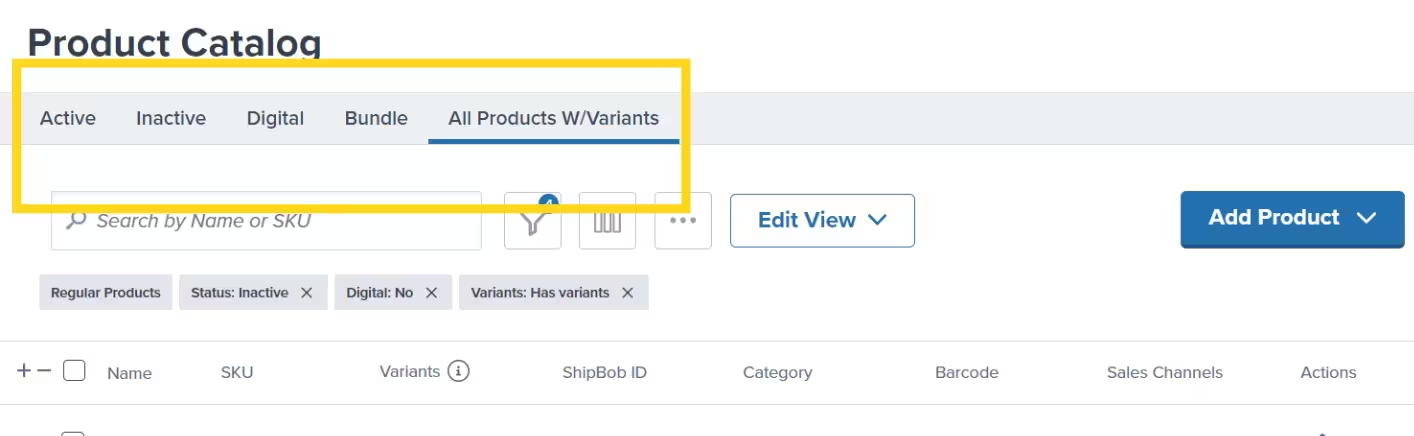
Product Catalog views let you save personalized layouts with specific filters and column arrangements, making it easy to switch between different ways of organizing your products. Your saved views appear as quick-access links at the top of your Product Catalog page, alongside default product lists like Active, Inactive, Digital, and Bundle.
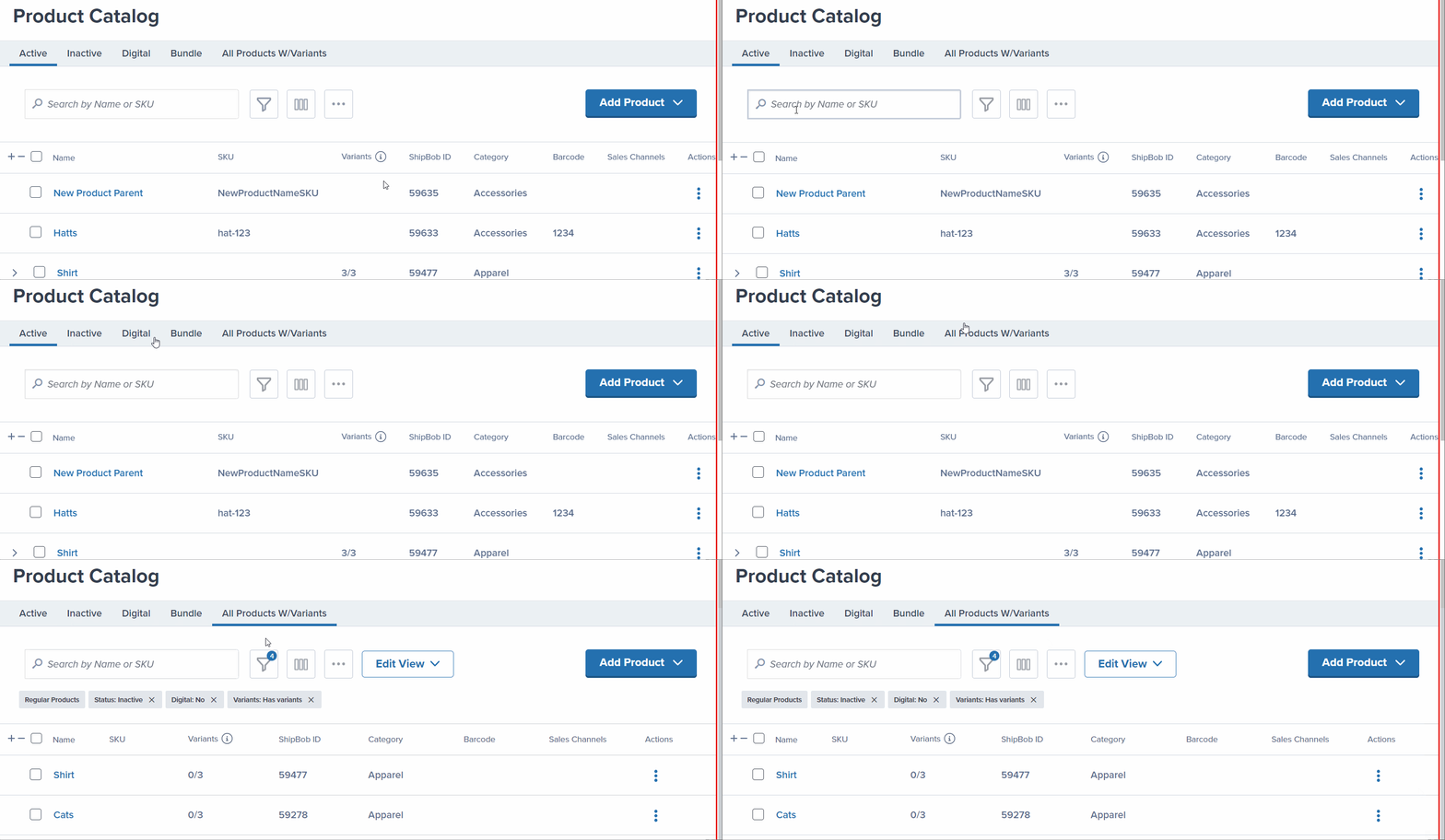
Creating a Saved View
The active filters can be seen under the search bar. After filtering and/or rearranging columns on the Product Catalog page, follow these steps:1
Click the Save New View button
A pop-up menu will appear.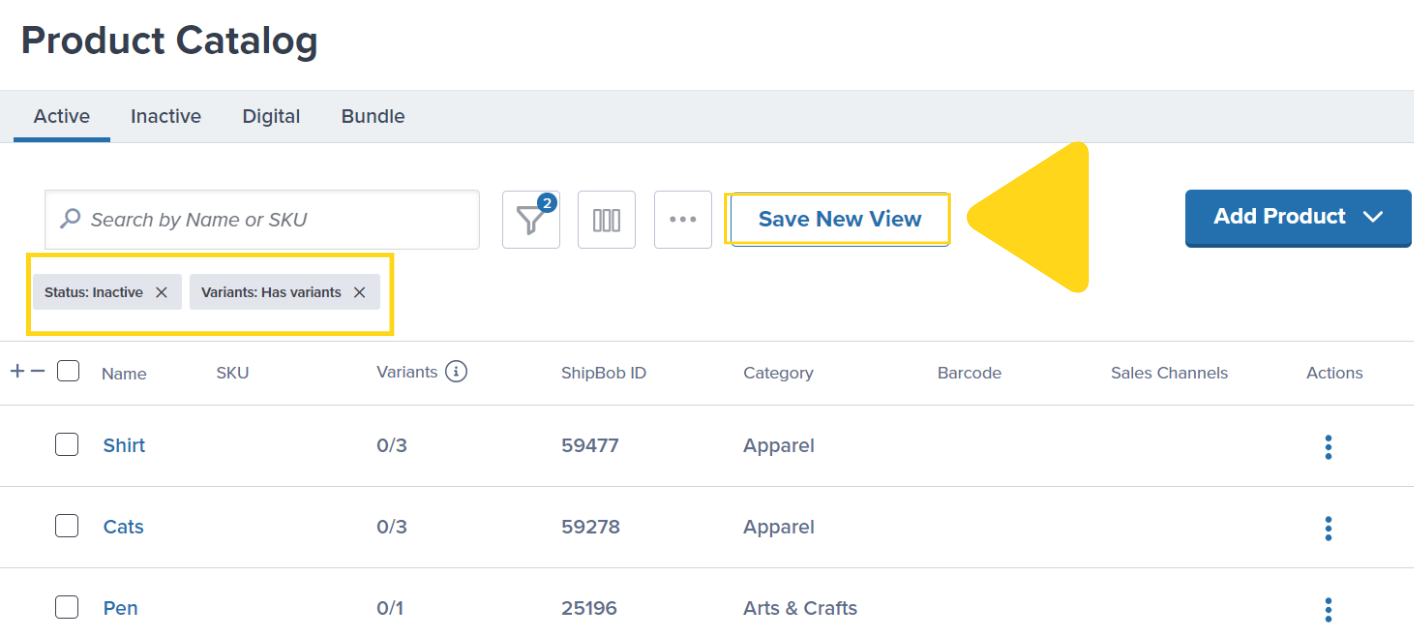
2
Enter a name for your view
In the textbox provided, type a descriptive name for your view.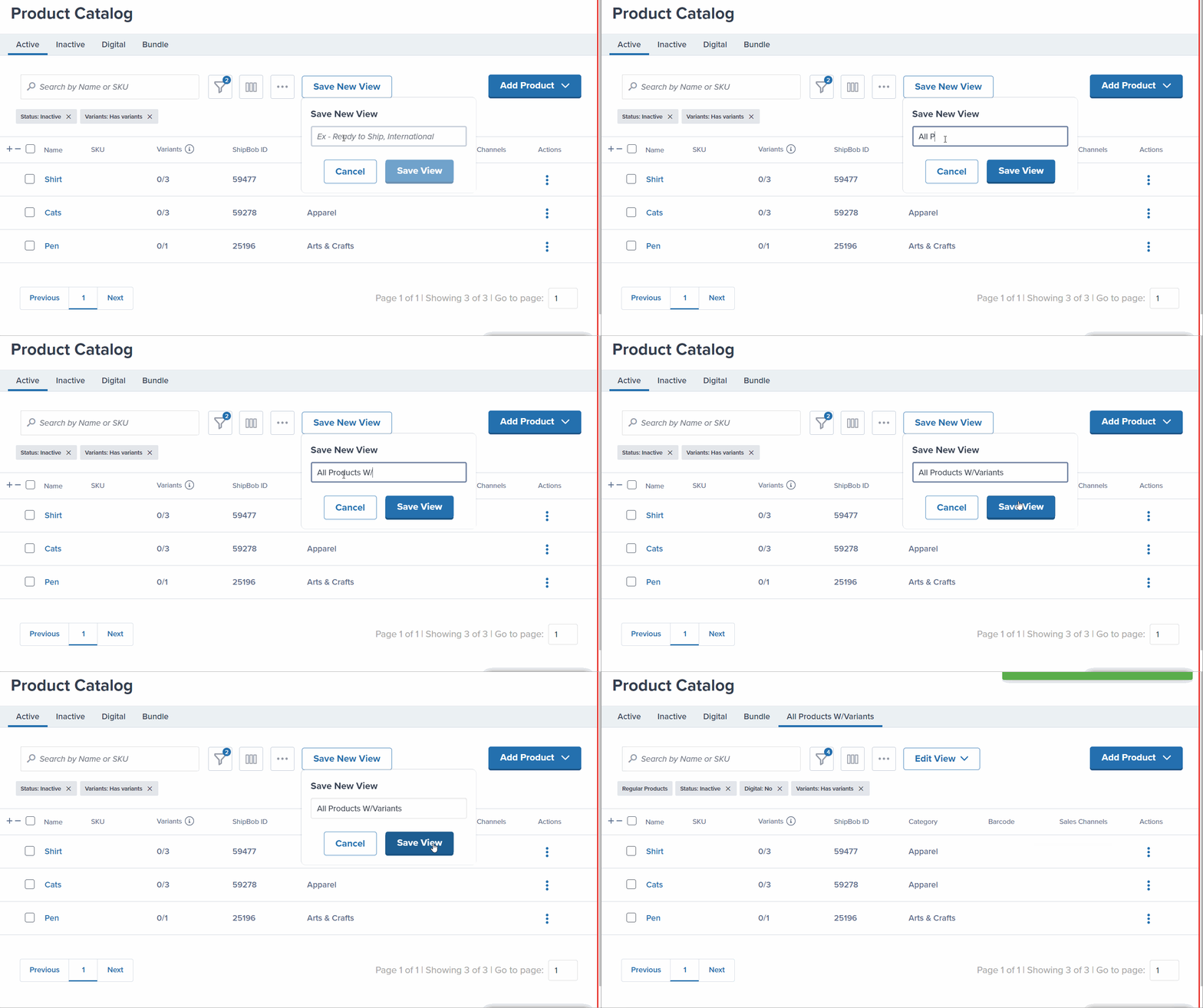
3
Click Save View
A success message will appear to confirm that your view is saved.
Editing the Name of Saved Views
To update the name of a saved view:1
Click the view name you wish to update
Select the hyperlinked view name from the top of the page.
2
Click the Edit View drop-down menu
3
Select Edit View Name
From the drop-down menu, select Edit View Name. A pop-up menu will appear with the current name pre-populated in the textbox.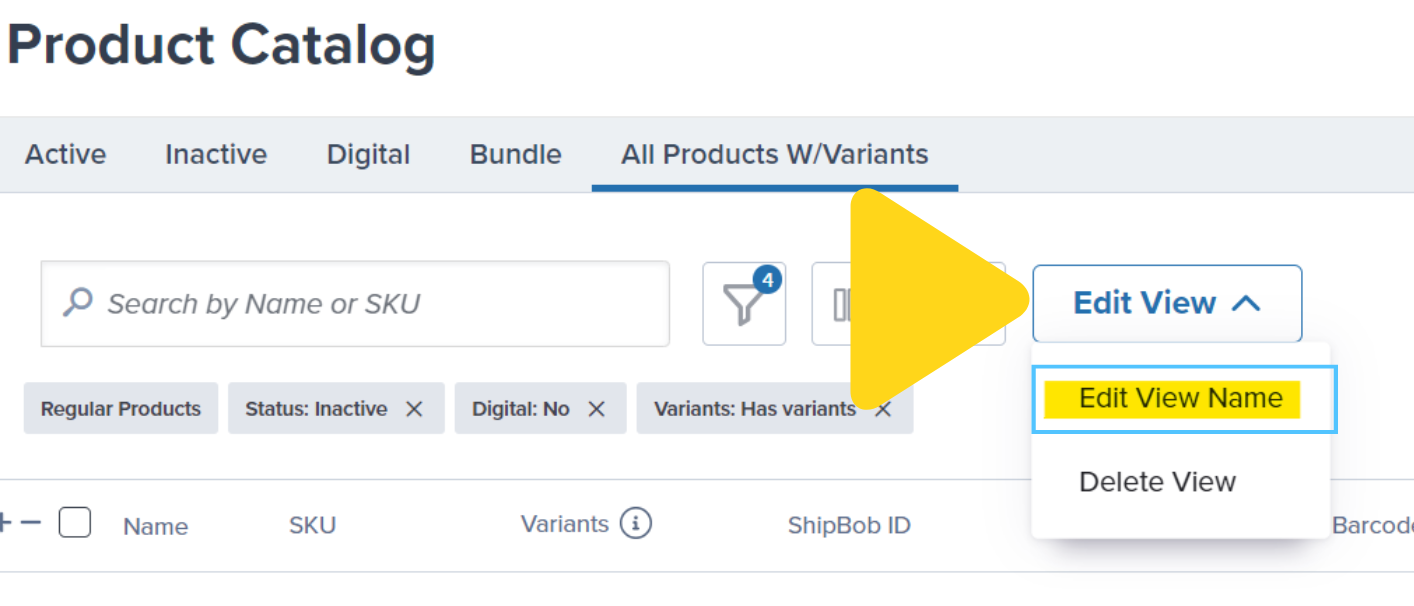
4
Update the view's name
In the textbox, enter the new name for your view.
5
Click Save View
A success message will appear to confirm that your view is saved.
Editing Saved Views
To modify the filters and/or column arrangement of a saved view:1
Remove unwanted filters
Click the X next to the filter name under the search bar.
2
Access advanced filter options
Click the funnel icon for advanced filter options and to rearrange your columns.
3
Apply your filter changes
Click Apply Filters to update the display.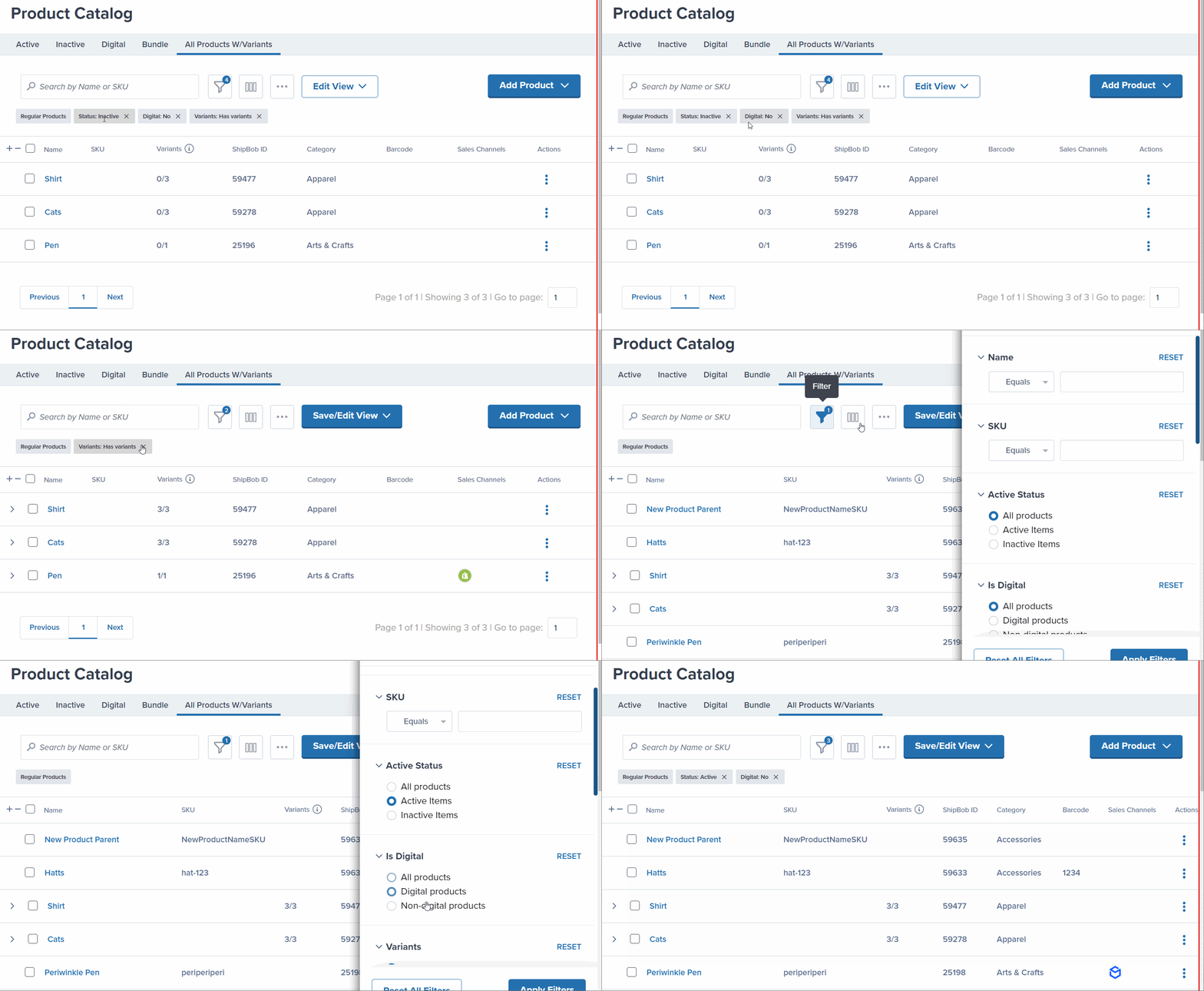
1
Click the Save/Edit View drop-down button
Locate and click the Save/Edit View drop-down.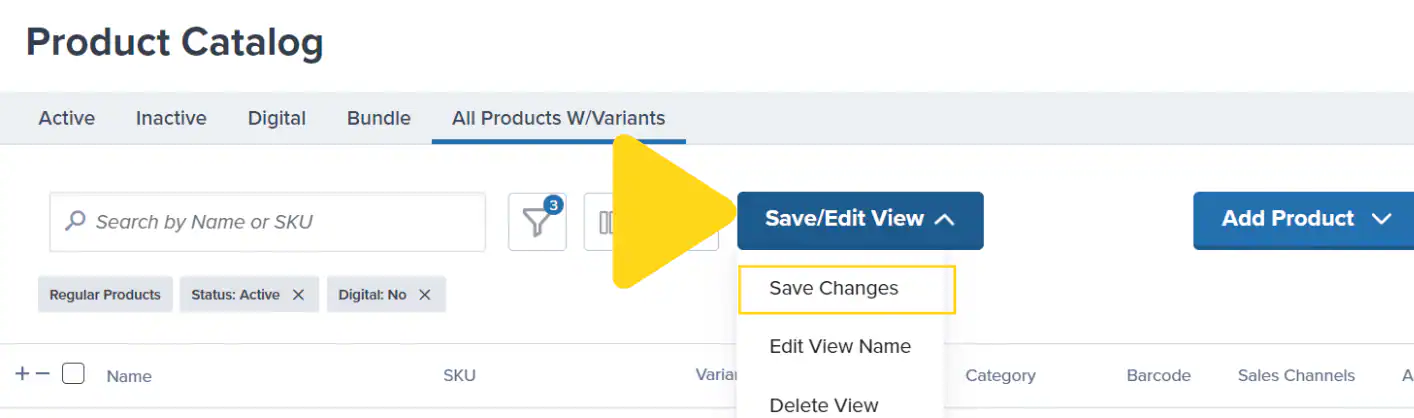
2
Select Save Changes
From the drop-down options, select Save Changes.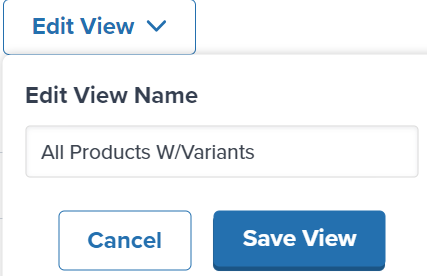
Exporting Saved Views to Excel
To export products from a saved view to Excel, follow these steps:1
Click the hyperlinked name of the saved view
Select the view you want to export from the tabs at the top of the page.
2
Click the three horizontal dots icon
Locate the icon with three horizontal dots to the right of the search bar.
3
Select Export Products
From the drop-down menu, select Export Products. A pop-up window will appear.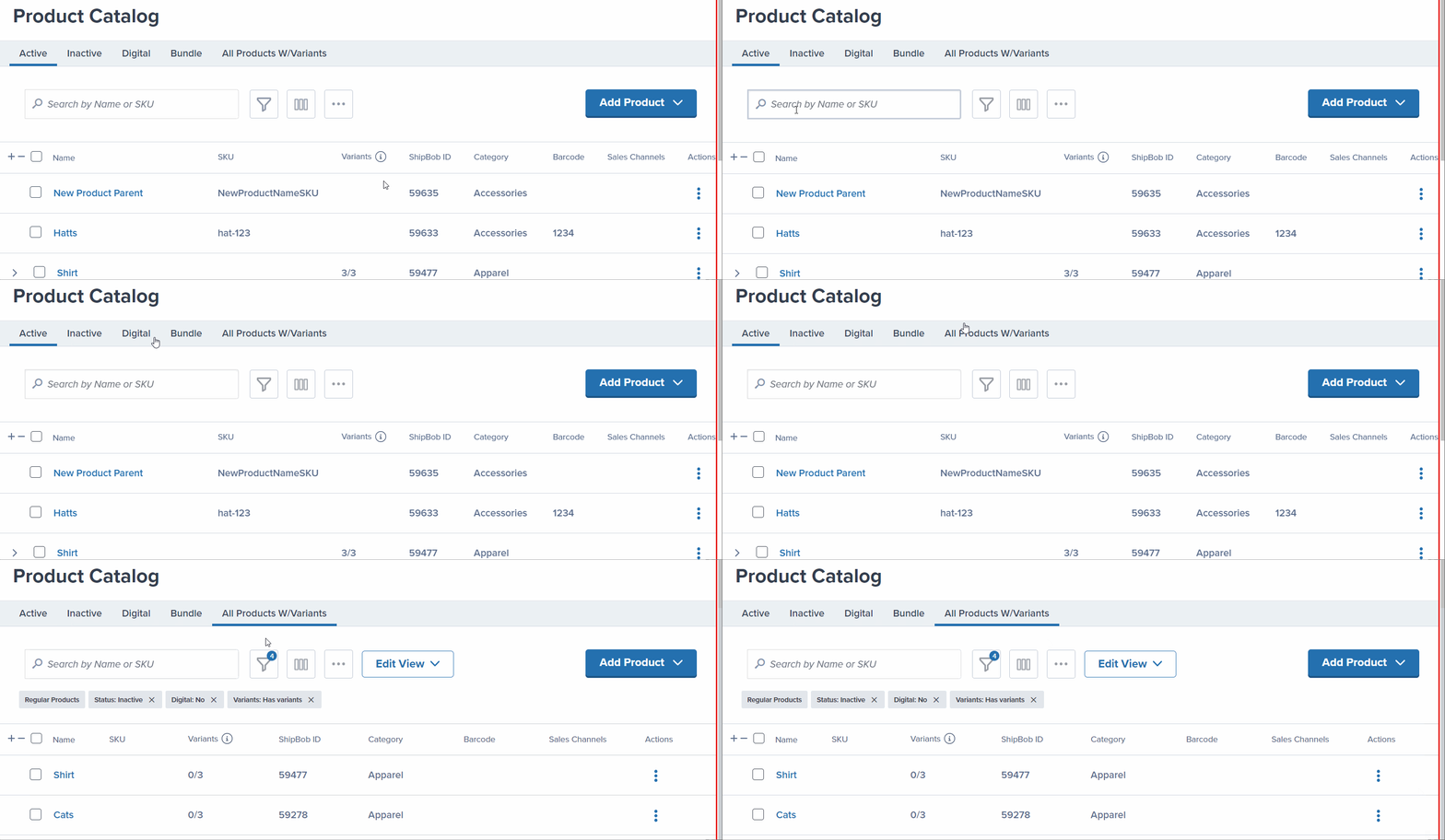
4
Click Yes, export
Confirm the export by clicking the Yes, export button.
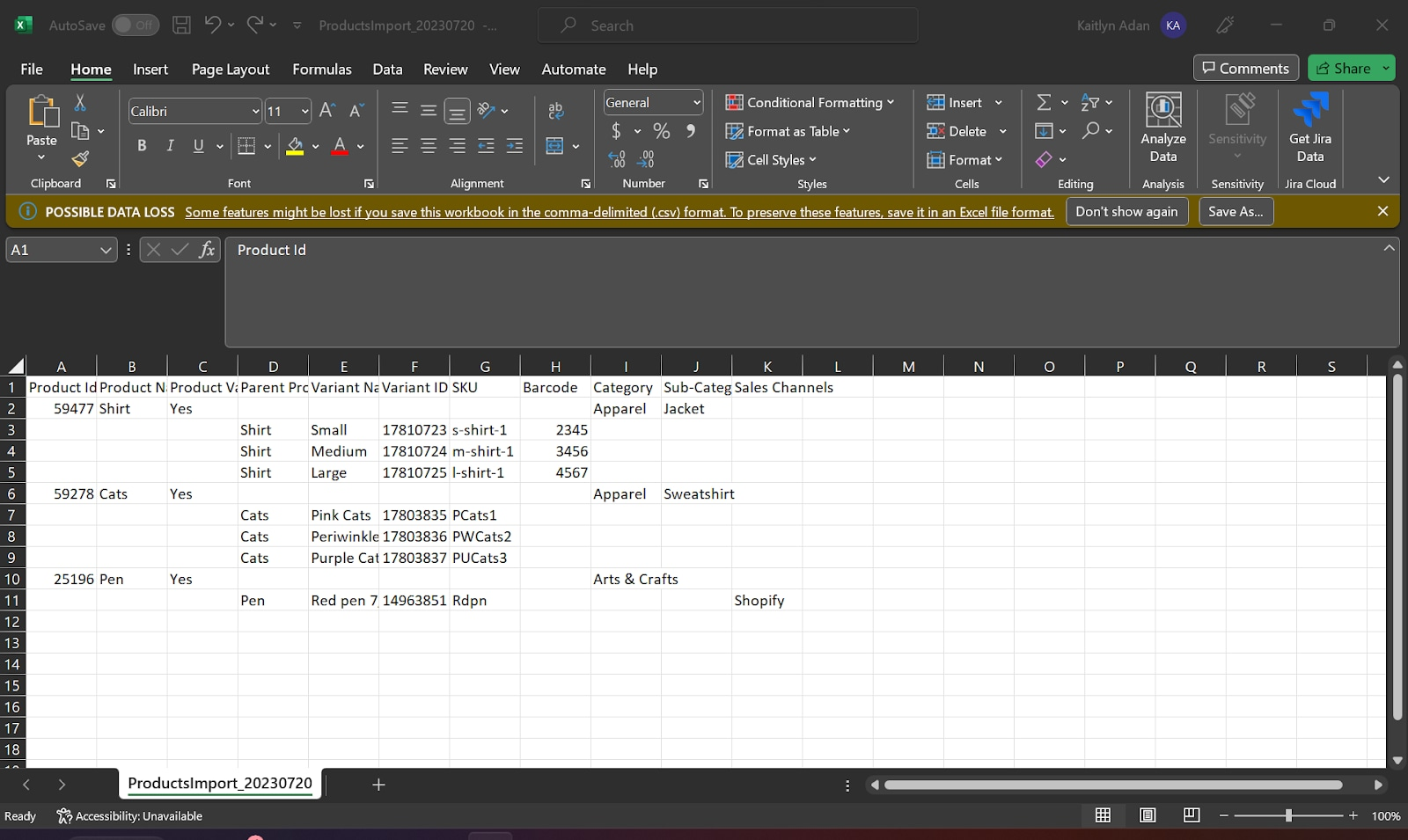
Deleting Saved Views
To delete a saved view:1
Click the hyperlinked name of the view you want to delete
Select the view from the tabs at the top of the page.
2
Click the Edit View button
Open the Edit View drop-down menu.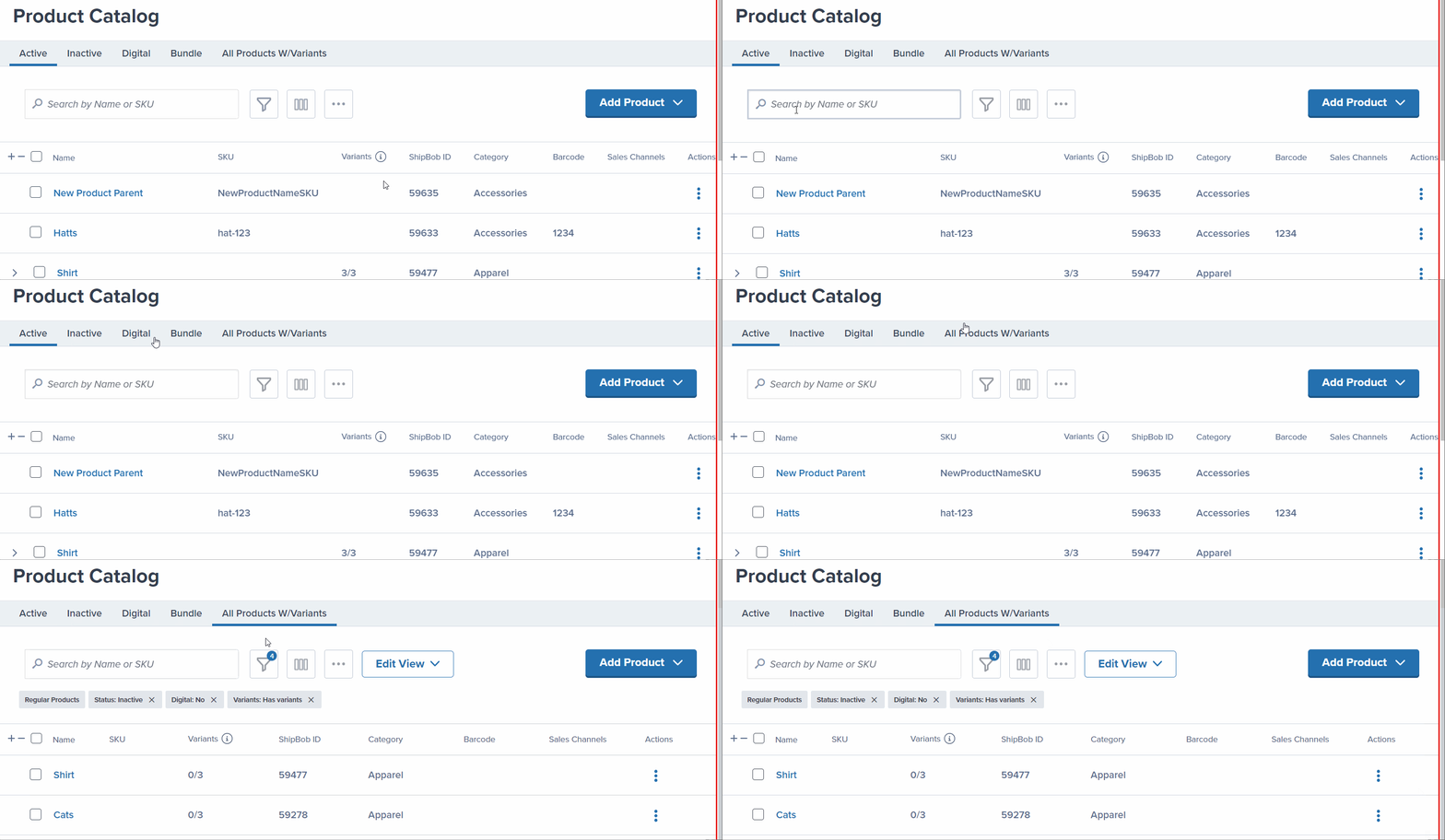
3
Select Delete View
From the drop-down menu, select Delete View. A pop-up window will appear.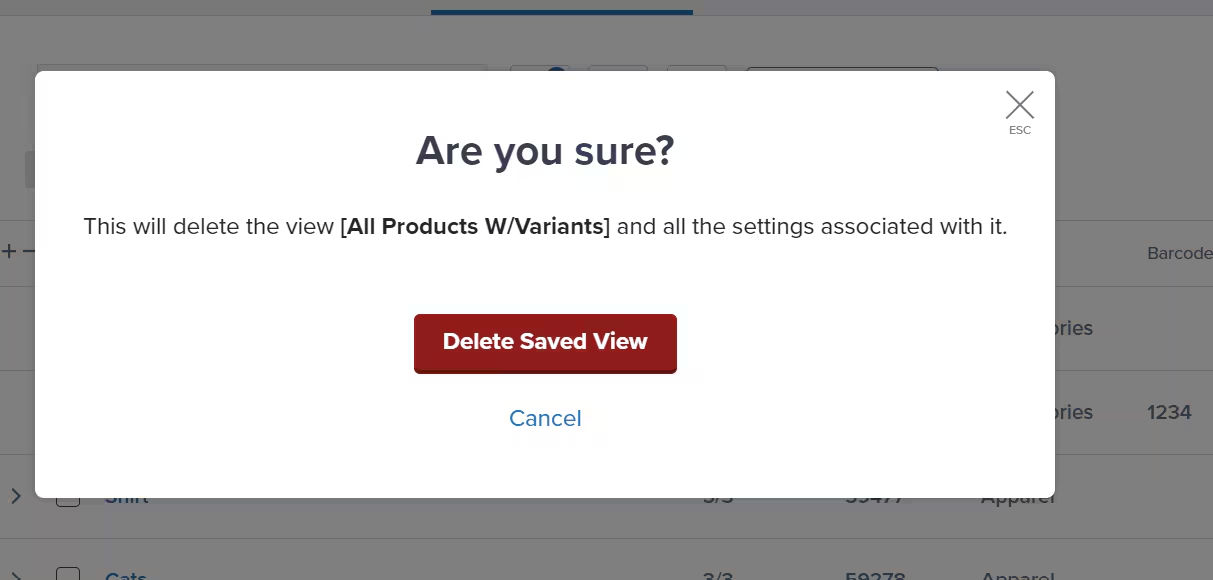
4
Click Delete Saved View
Confirm the deletion by clicking the Delete Saved View button.A success message will appear to confirm that your view was deleted and removed from your Product Catalog page.
Let’s Dive Deeper
Product Catalog Page
Master the Product Catalog interface and features
Bulk Updating Products
Update multiple products via Excel template
Setting Product Preferences
Configure essential product settings
Adding Product Variants
Organize products with multiple options
Move, Merge, Convert Products
Reorganize your product catalog structure
Product Details Page
Configure individual product settings

Questions? Contact Jetpack Care.
If you have any questions or run into issues, you can always contact Jetpack Care for help. Our team is always here to assist via Slack, phone, or email!