Manage and organize product variants by converting base products to variants, merging duplicate products, moving variants between parent products, and converting variants to standalone products.
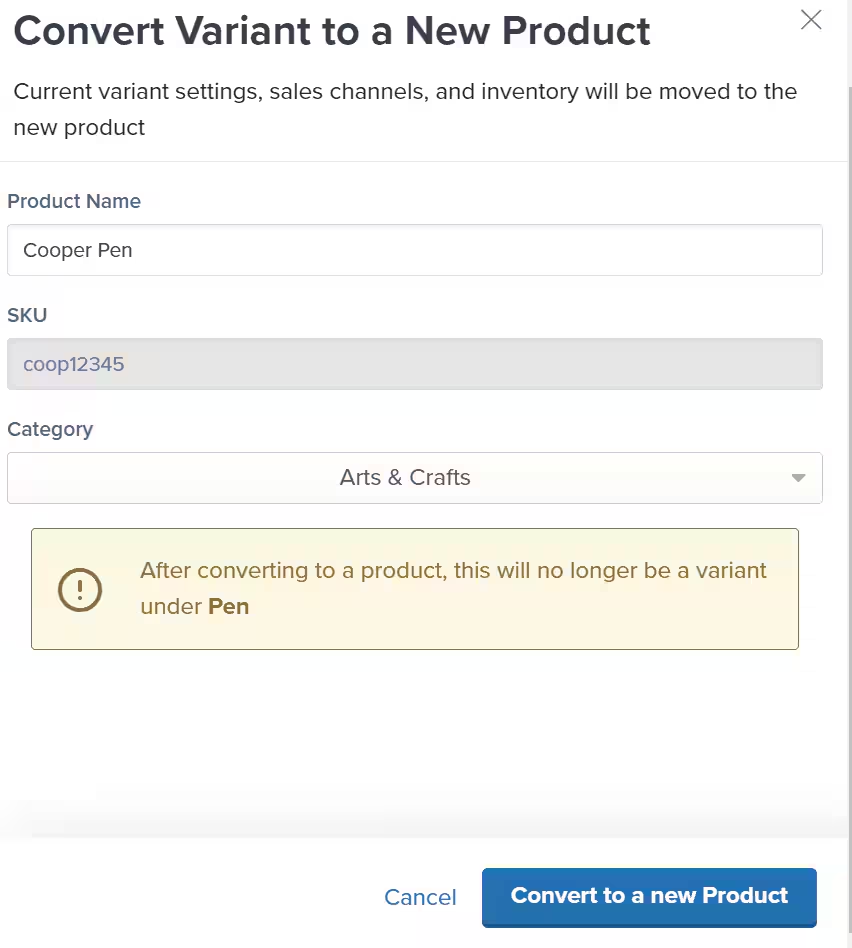
As your catalog grows, you may need to reorganize how products and variants are structured. Jetpack lets you convert standalone products into variants, merge duplicates together, move variants between different parent products, or split variants back into standalone products—giving you flexibility to keep your catalog organized as your business evolves.
Before performing these operations, it’s important to understand the distinction:
Base products are physical standalone items with their own inventory, SKUs, and product details
Parent/primary products are containers that group related variants together but hold no inventory themselves
Variants are the actual physical products (like “Blue T-Shirt - Small”) that live under a parent product
Base products (physical standalone items) cannot be converted into a parent/primary product once created or synced. This is because base products contain information like inventory and SKUs that parent/primary products cannot hold.
If you have standalone products that should actually be variants of a parent product (for example, different colors or sizes of the same item), you can convert them.
The base product being converted cannot have on-hand inventory in the Jetpack dashboard. Make sure inventory is zero before proceeding.
1
Find the base product in your Product Catalog
Navigate to the Product Catalog page and locate the base product using the search bar or by scrolling through the catalog.
2
Open the Actions menu
Click the three vertical dots under the Actions column for the product you want to convert.
3
Select Convert to variant(s) and move under a product
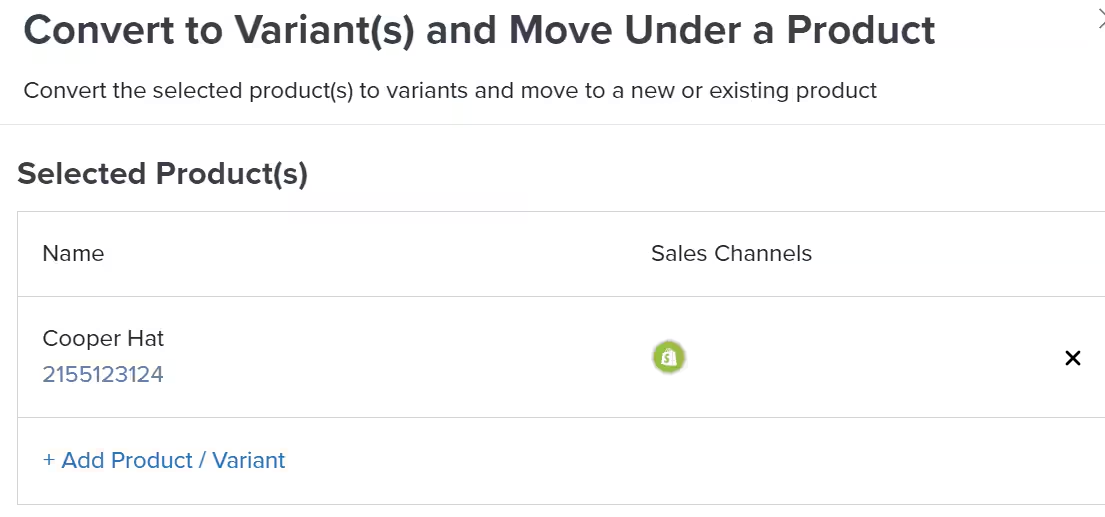
From the drop-down menu, select Convert to variant(s) and move under a product.A pop-up window will appear showing the selected product(s).
4
Add additional products if needed (optional)
If you want to convert multiple products to variants at once, click + Add Product / Variant to include more SKUs.
5
Choose the parent product destination
Decide whether to add the variant(s) to:
A new parent/primary product (creates a new container)
An existing parent/primary product (adds to an existing container)
Review your selection and click the button to complete the conversion.
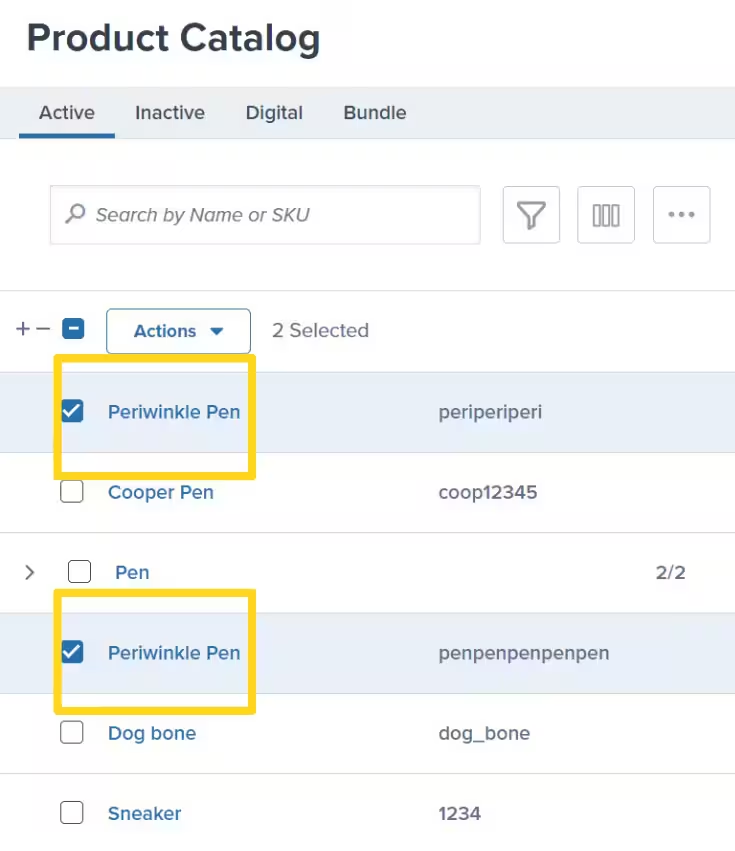
If you have duplicate products in your catalog—often caused by importing the same SKU from multiple stores or integrations—you can merge them into a single product.
Once merged, products cannot be unmerged. The merge is permanent.
The same physical SKU was imported multiple times from different stores
You have duplicate listings for the same product
You want to consolidate inventory and order history under one product
1
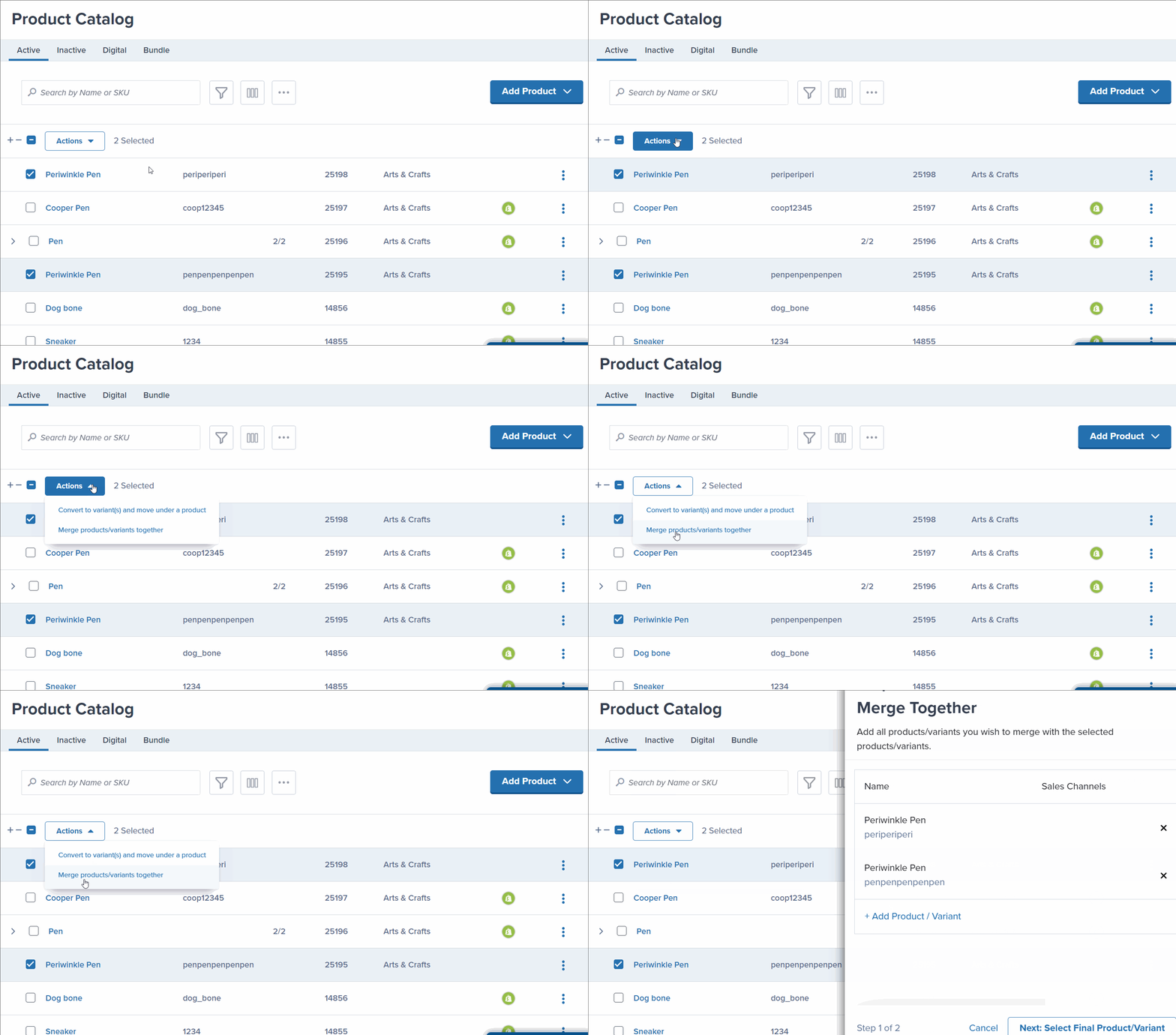
Locate and select the products to merge
In the Product Catalog, locate the products/variants you want to merge and check the box next to each product’s name.
If you select a parent/primary product, all its variants will be automatically selected. Deselect any variants you don’t want to merge.
2
Open the Actions menu
With your products selected, click the Actions button at the top of the catalog.
3
Select Merge products/variants together
From the Actions menu, select Merge products/variants together.A pop-up window will appear showing your selected items.
4
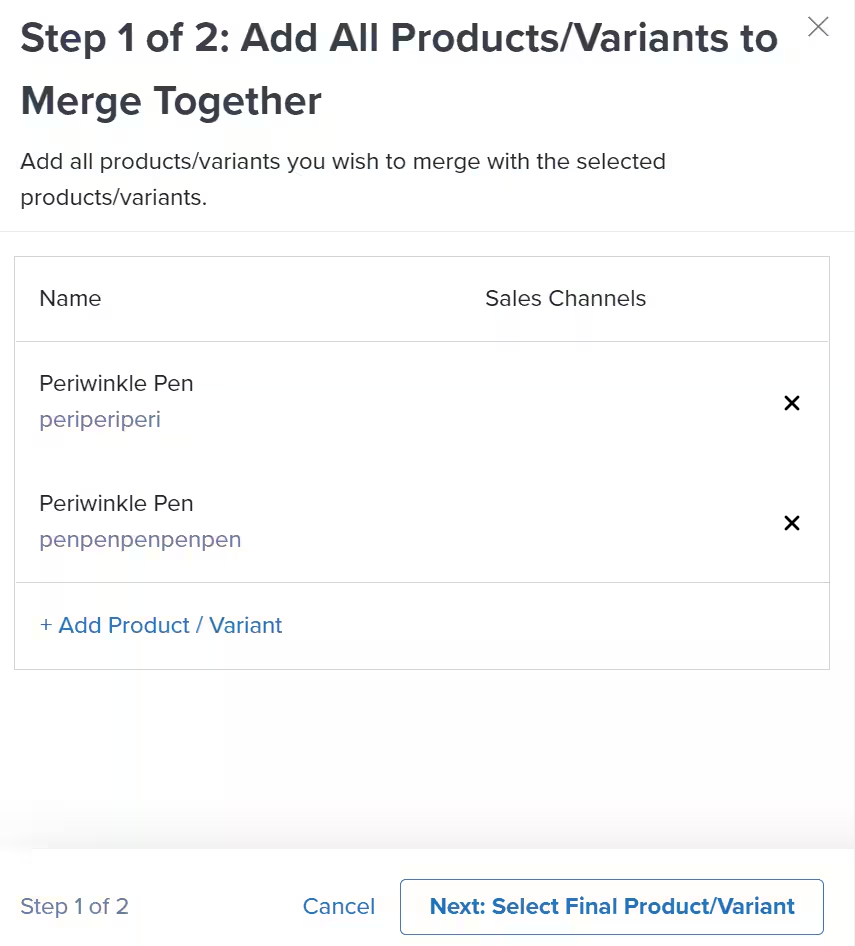
Review and add additional products (optional)
Review the selected products in the dialog. If needed, click + Add Product / Variant to include additional SKUs in the merge.
5
Proceed to final product selection
Click Next: Select Final Product/Variant to continue to the next step.
6
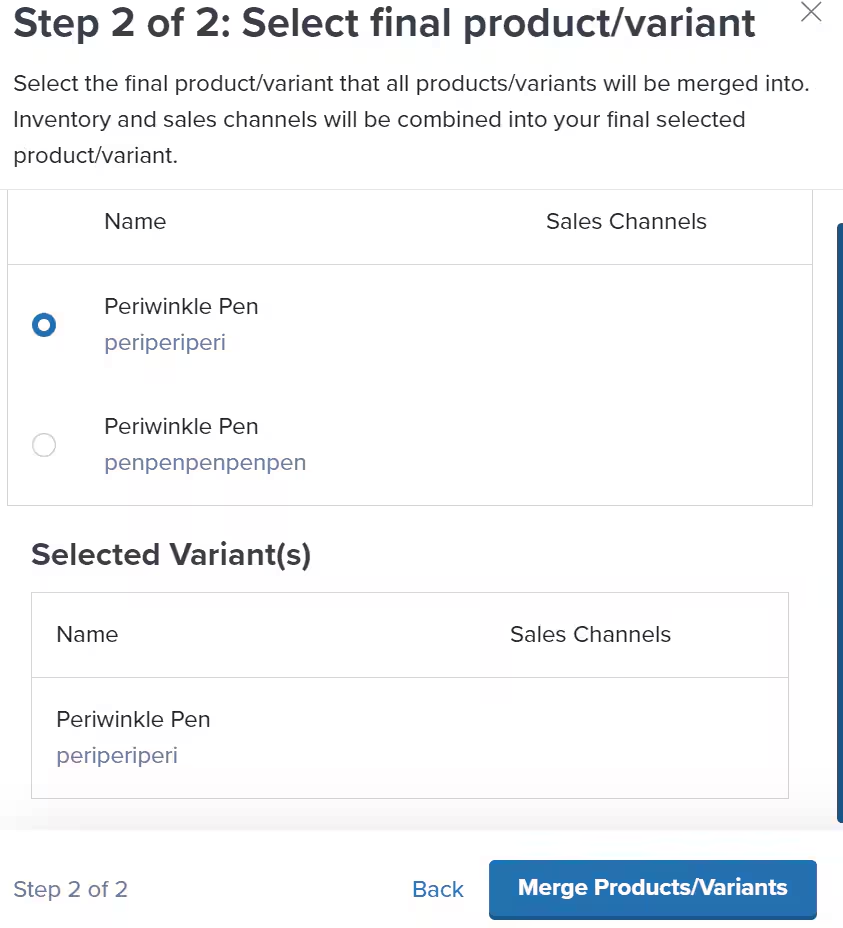
Choose the main product
Select which product/variant should be the main product (this one will remain after the merge).The selected final product will retain all combined inventory, sales channels, and settings.
7
Complete the merge
Click Merge Products/Variants to finalize the merge.A success message will confirm the merge is complete.
While you can’t fully unmerge products, you can unmerge Seller SKUs from the primary SKU’s Sales Channels page. This can trigger product syncs or new order imports that recreate a product, provided the SKU doesn’t already exist in your catalog.
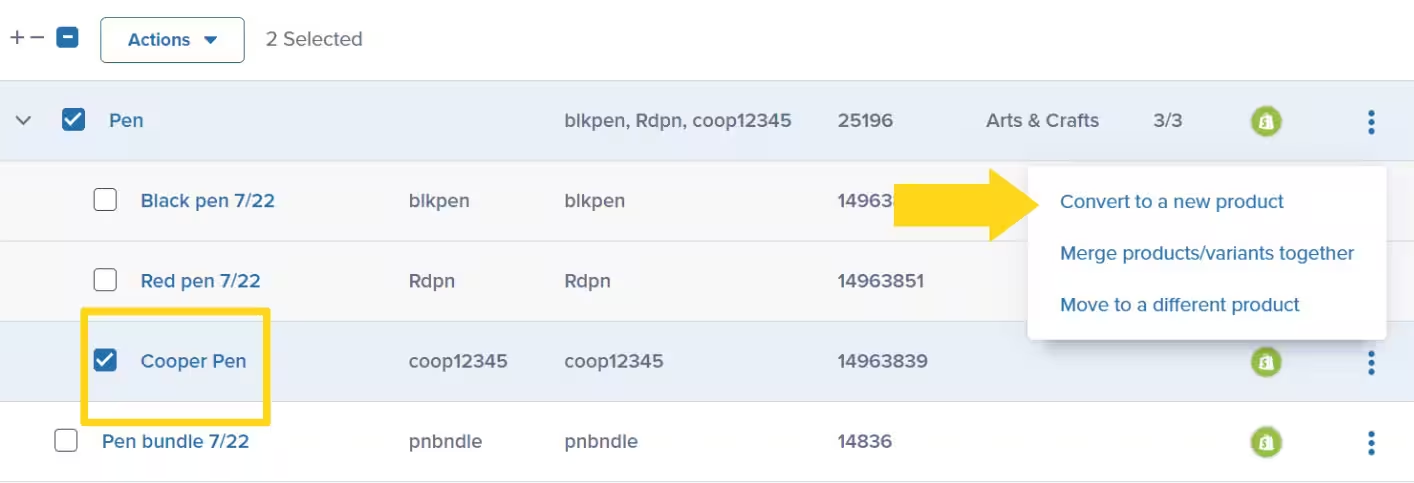
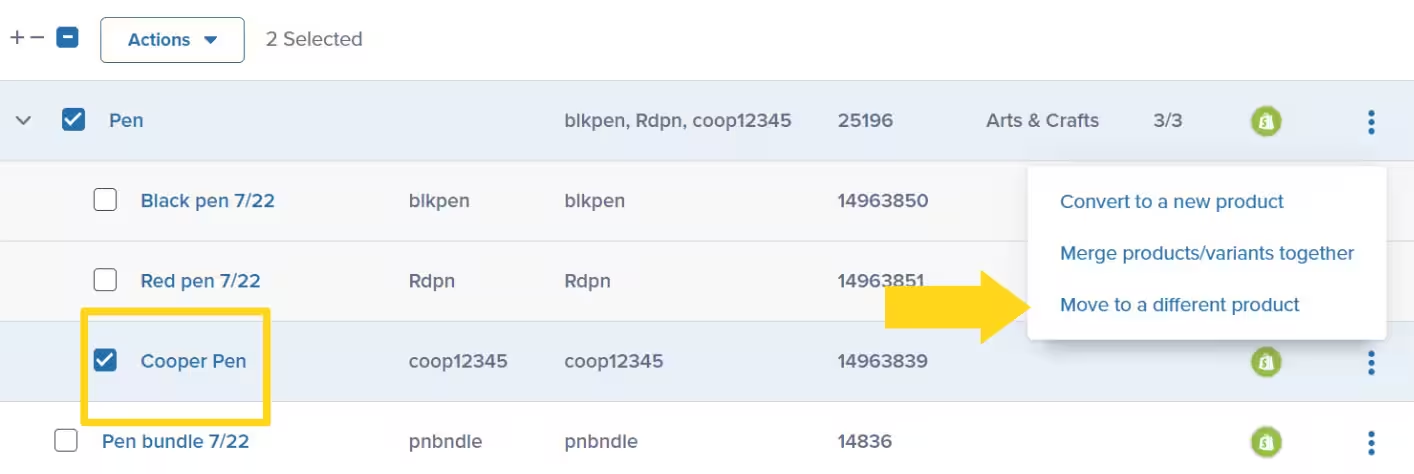
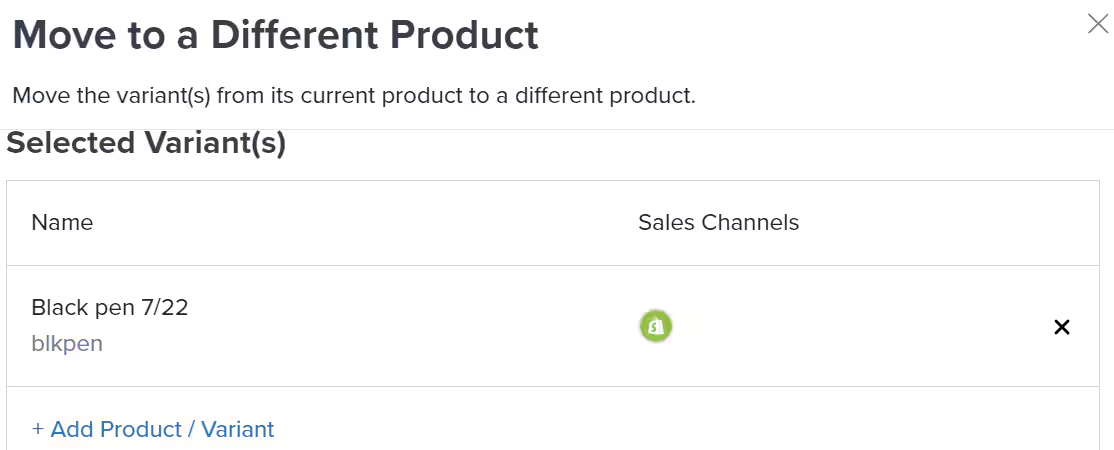
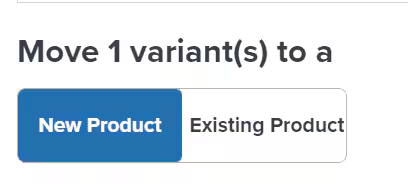
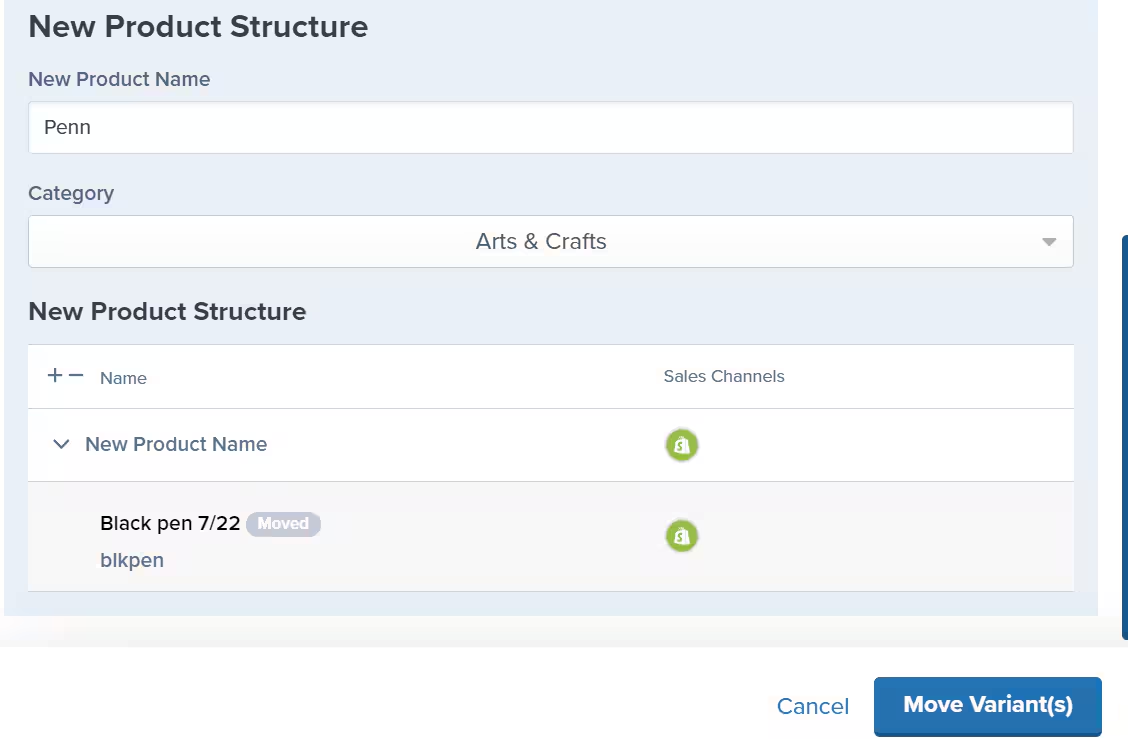
Sometimes you need to reorganize variants by moving them from one parent product to another. This helps you keep related products grouped together logically.
If you have any questions or run into issues, you can always contact Jetpack Care for help. Our team is always here to assist via Slack, phone, or email!