

California Proposition 65 requires warning labels on products that contain certain chemicals. This guide explains what the labels are, why they matter, who is responsible for providing them, how they affect your pricing, and how to configure your SKUs in the Jetpack dashboard so the labels are applied to your products destined for California.
What Is Proposition 65?
Proposition 65 is a California state law that requires warning labels on retail packaging for products containing chemicals known to cause cancer, congenital disabilities, or reproductive harm. A Proposition 65 label is a sticker applied to each individual product, alerting consumers to the presence of these chemicals.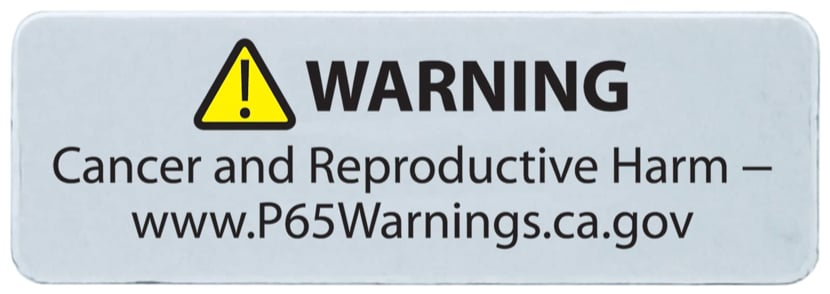
Who Provides the Labels?
You, the merchant, supply the Proposition 65 labels to Jetpack. Labels must be individually cut to aid the picking process.Setting Up Proposition 65 Labels
Two things need to be configured in the Jetpack dashboard: each product that needs a label is flagged, and the label itself is set up as a SKU.Flag a Product as Requiring a Label
To have Jetpack apply Proposition 65 labels to D2C orders going to California, go to Products in the Jetpack dashboard, then:1
Open the product
Click the relevant product name to open the Product Details page.
2
Check This requires a Prop 65 Label
Scroll to the Fulfillment Information panel and click the checkbox for This requires a Prop 65 Label.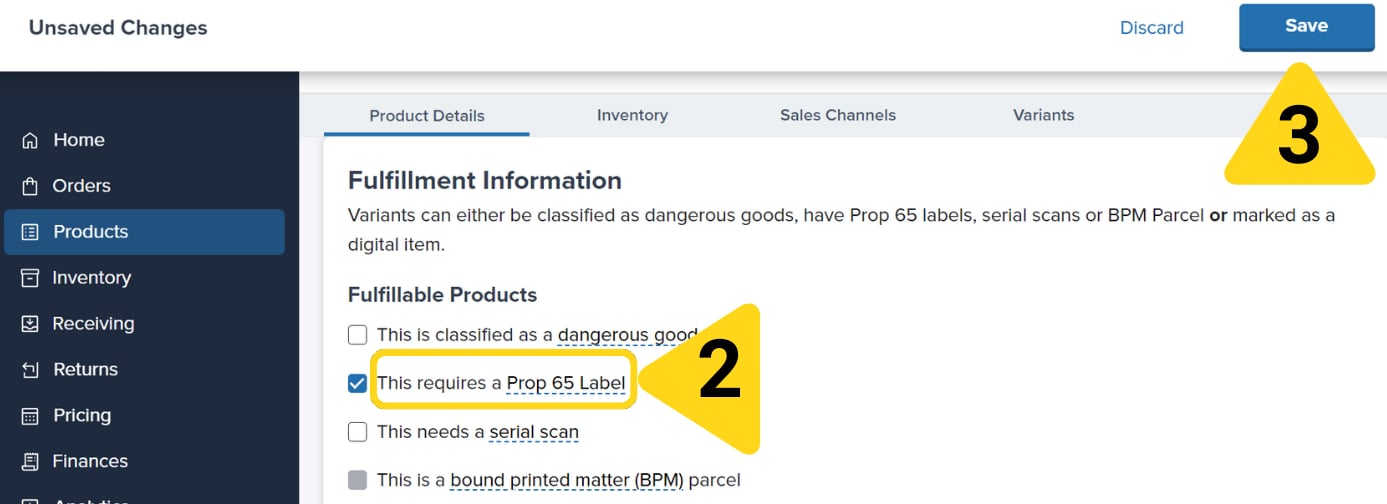
3
Click Save
A success message appears to confirm the configuration.
Set Up the Label as a SKU
1
Open the label SKU
Open the Product Details page for the SKU representing the physical Proposition 65 label.
2
Select Packaging Material
Under Product Overview, select Packaging Material from the drop-down options.
3
Select Prop 65 Label
When the Product Sub-Category appears, select Prop 65 Label.
4
Click Save
Let’s Dive Deeper
Product Details Page
Where the Fulfillment Information panel and the Prop 65 checkbox live
Custom Packaging
How packaging-material SKUs, including Prop 65 labels, are set up and stocked
Prohibited + Restricted Items
Items that cannot be fulfilled or require special handling
Terms, SLAs, and Policies
Back to the policies overview
Questions? Contact Jetpack Care.
For help with Proposition 65 label handling, storage, or SKU setup, Slack message or email your dedicated Jetpack Care team.