Automatic Processing Pause moves all newly created orders (manual, store import, or Excel uploads) to the On-Hold status indefinitely, without reserving inventory, until you decide to move them to Processing. This feature is ideal when you need time to review orders before fulfillment begins or when you want to make batch modifications to shipping preferences.

How Automatic Processing Pause Works

When Automatic Processing Pause is enabled, all new orders created in your Jetpack dashboard are automatically placed in On-Hold status:
  1. Orders arrive from your store, manual entry, or Excel import
  2. System places order On-Hold without reserving inventory
  3. You review the order and make any necessary changes (shipping method, address, special instructions)
  4. You manually release orders to Processing when ready for fulfillment
This gives you control over the fulfillment timeline and ensures orders meet your requirements before Jetpack’s Operations team begins picking and packing.
Automatic Processing Pause is particularly useful during promotional periods, when testing new products, or when you need to verify shipping addresses before fulfillment. It’s also valuable for merchants who batch-process orders at specific times of day.

What Happens When You Enable Automatic Processing Pause

After enabling Automatic Processing Pause, you can expect the following:

Enabling or Disabling Automatic Processing Pause

Automatic Processing Pause is disabled by default, so orders syncing to the dashboard are fulfilled immediately (as long as the order doesn’t have additional On-Hold or Exception statuses). The steps below walk through how to enable and disable Automatic Processing Pause.

Accessing Shipment Settings

From the Jetpack dashboard:
1

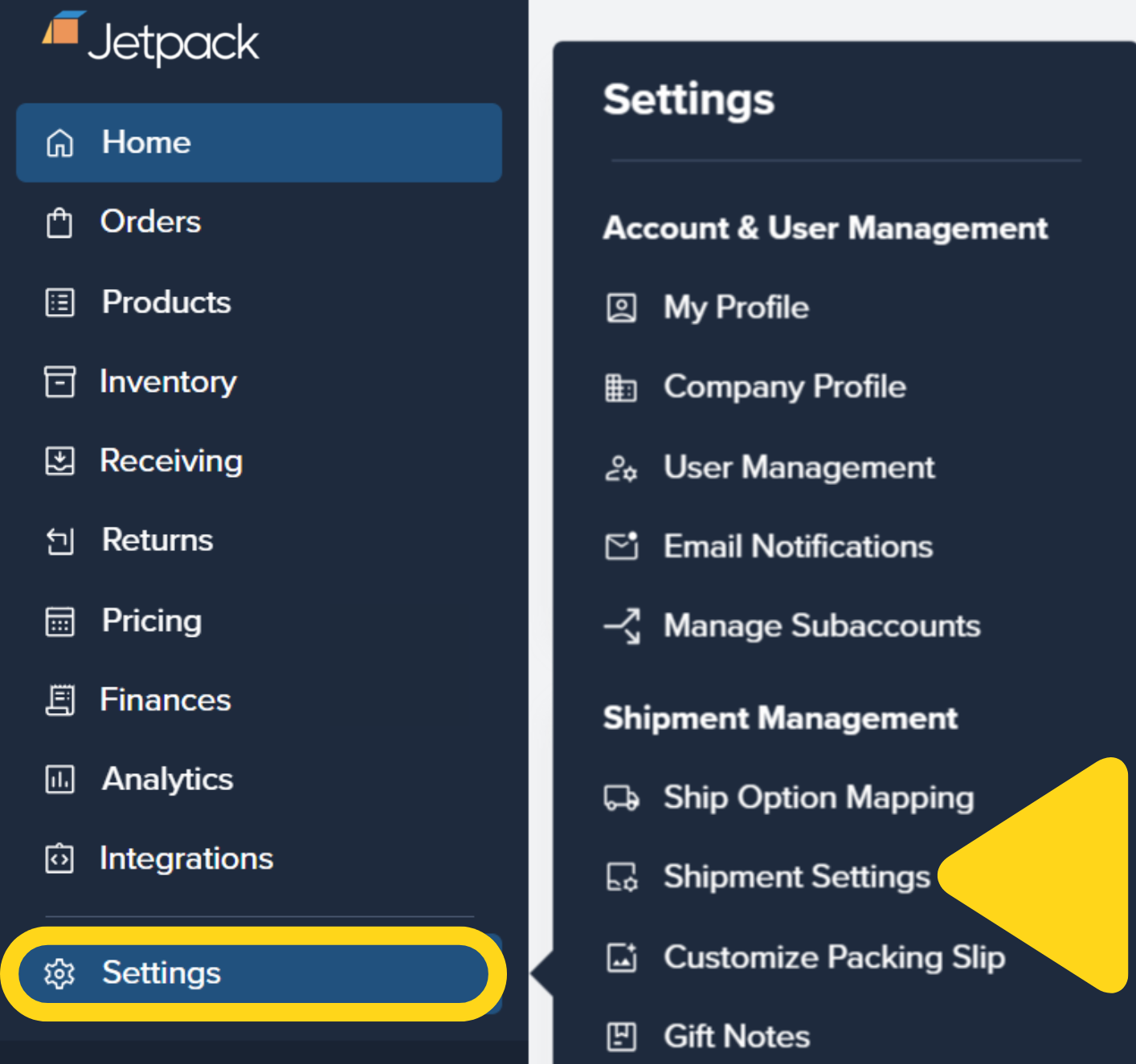
Click Settings on the left-hand navigation bar

Additional menu options will appear.
2

Select Shipment Settings

You will be redirected to the Shipment Settings page.Settings menu with Shipment Settings option highlighted

Enabling Automatic Processing Pause

To enable the feature:
1

Navigate to the Shipment Settings page

See steps above.
2

Locate Automatic Processing Pause

3

Check the Automatic Processing Pause box
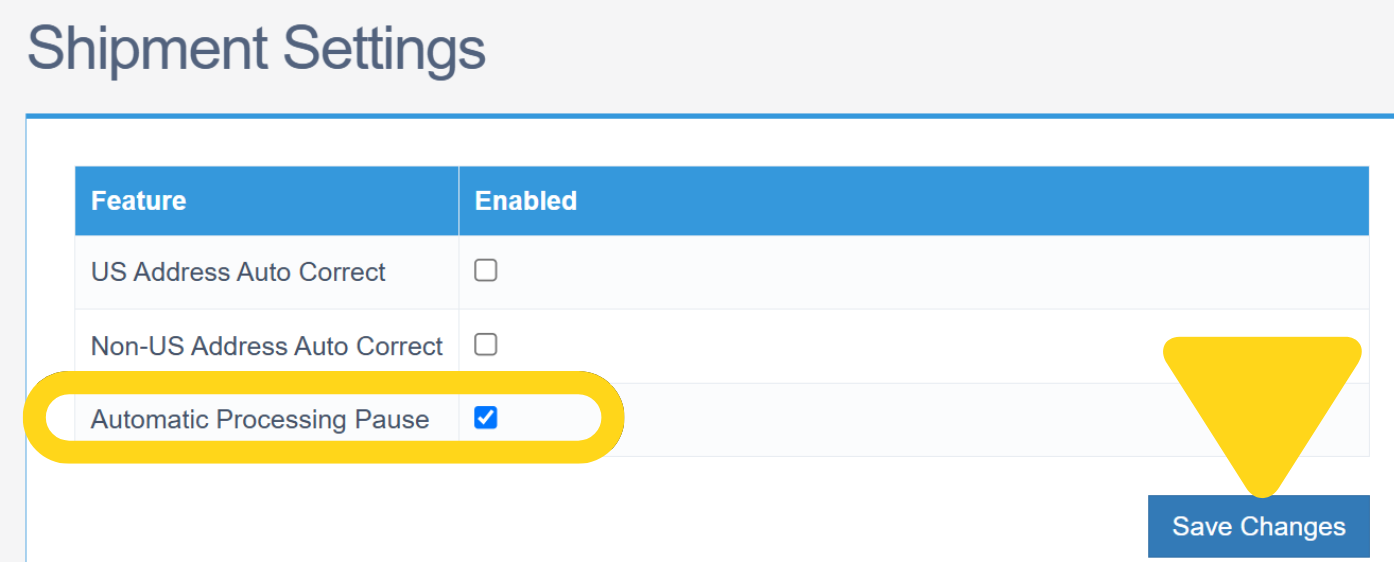
Located under the Enabled column.Shipment Settings page showing Automatic Processing Pause checkbox
4

Click Save Changes

All new orders will now be placed On-Hold until you manually release them to Processing.

Disabling Automatic Processing Pause

To disable the feature:
1

Navigate to the Shipment Settings page

2

Locate Automatic Processing Pause

3

Uncheck the Automatic Processing Pause box
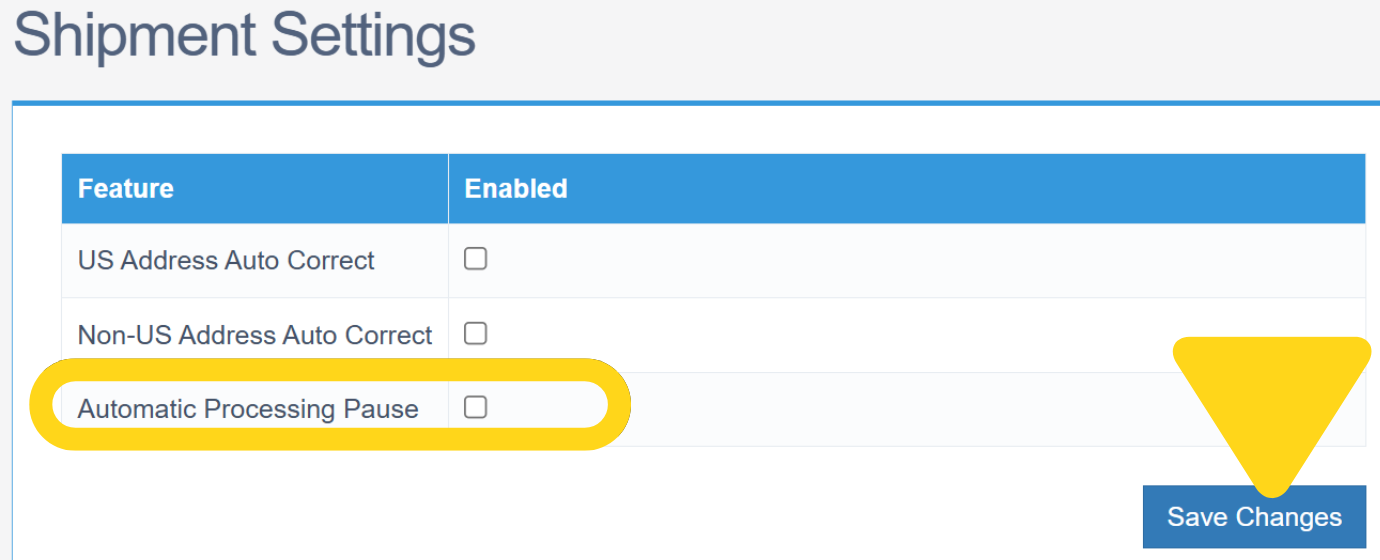
Located under the Enabled column.Shipment Settings page with Automatic Processing Pause unchecked
4

Click Save Changes

New orders will now proceed directly to Processing (assuming no other On-Hold or Exception conditions exist).
Disabling Automatic Processing Pause does not automatically release orders already On-Hold. You must manually move these orders to Processing using the steps in the next section.

Releasing Orders from On-Hold Status

Once you’ve reviewed orders and are ready for fulfillment, you need to manually release them to Processing. From the Jetpack dashboard:
1

Click Orders on the left-hand navigation bar

2

Select All Orders

3

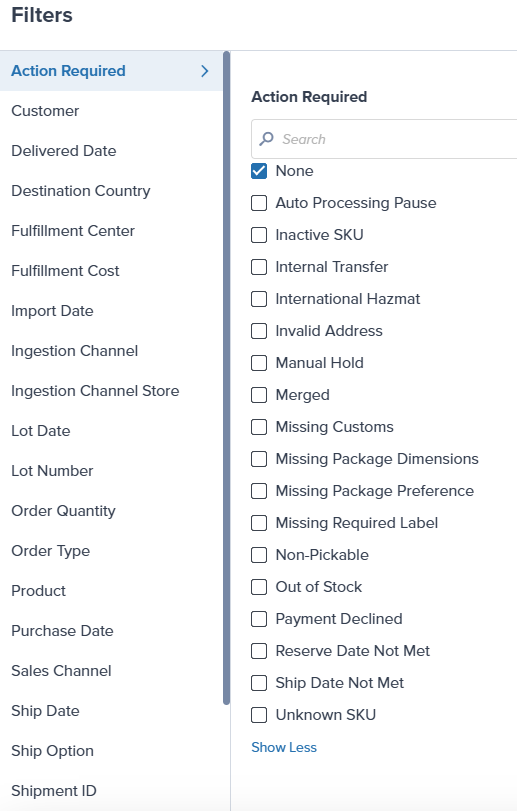
Use the Filter option

Show only orders with On-Hold reason: Automatic Processing Pause.Filters panel showing Action Required with Auto Processing Pause option
4

Check the boxes for orders to release

Orders page showing selected orders with ON HOLD status
5

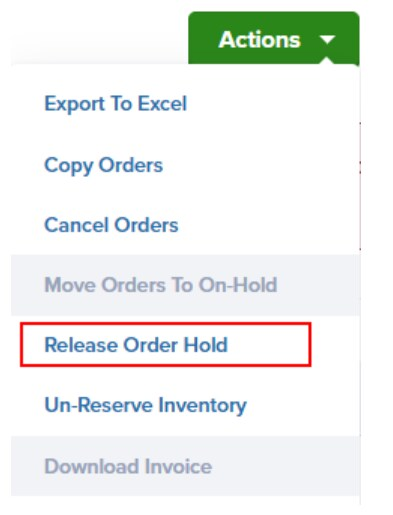
Click the Actions button

Located at the top right (green button).
6

Select Release Order Hold

Actions dropdown menu showing Release Order Hold option
7

Confirm the action in the pop-up window

The selected orders will move to Processing and begin fulfillment.
You can select multiple orders at once and release them in bulk. This is particularly useful if you’re reviewing orders once or twice per day and want to release them all at the same time.

Filtering Orders by On-Hold Reason

When Automatic Processing Pause is enabled, you can easily find affected orders using the On-Hold reason filter:
1

Navigate to Orders > All Orders

2

Click the Filter button

3

Select Action Required

From the filter categories on the left side.Filters panel showing Action Required with Auto Processing Pause option
4

Check the box for Auto Processing Pause

5

Click Apply Filters

This displays all orders currently held due to Automatic Processing Pause.

Automatic Processing Pause vs. Manual On-Hold

Understanding the difference between these two hold methods: For more information on manually placing orders On-Hold, see Managing Order Status.

Let’s Dive Deeper

Shipping Preferences Overview

Back to the main shipping preferences guide

Signature Requirements

Require signatures for high-value deliveries

Orders Page

Understand order statuses and workflows

Choosing Default Carriers

Configure shipping methods while orders are On-Hold

Automation Rules

Create conditional fulfillment logic

Start Shipping Date

Control when orders begin shipping
Jetpack

Questions? Contact Jetpack Care.

If you have any questions or run into issues, you can always contact Jetpack Care for help. Our team is always here to assist via Slack, phone, or email!