


Prerequisites
Before connecting your Temu account to Jetpack, ensure you have:- Temu Seller Center account with active products
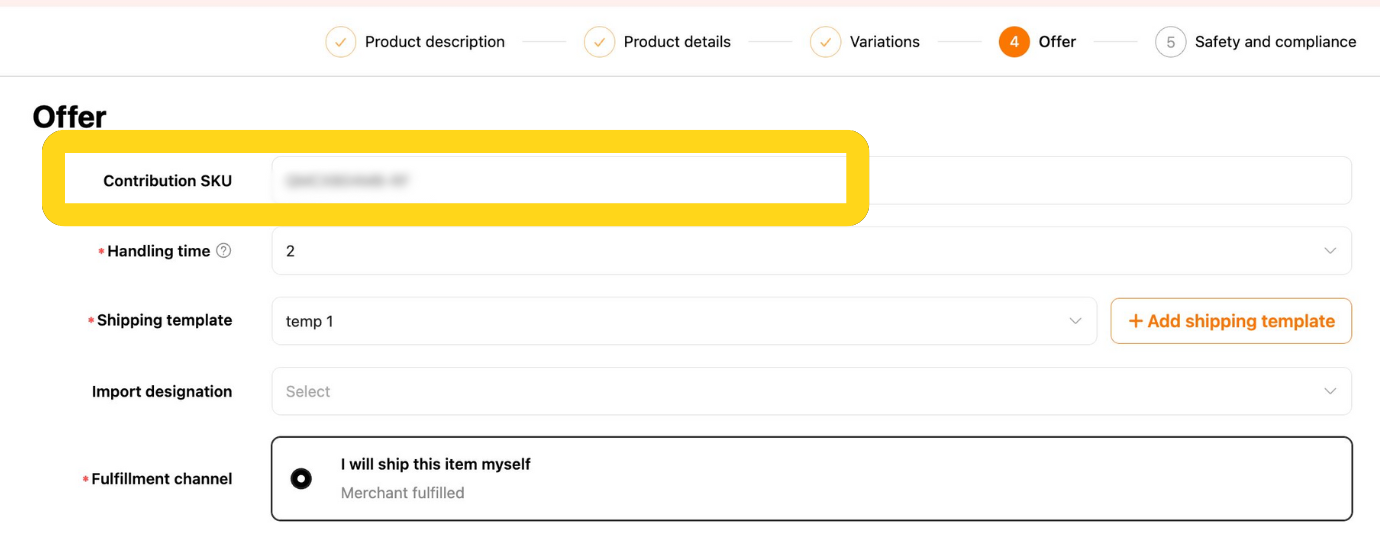
- Contribution SKU assigned to all products you plan to ship with Jetpack
- Jetpack merchant account with login credentials and access to your dashboard
Installing the Temu Integration
The integration process requires actions in both Temu Seller Center and your Jetpack dashboard. Follow these steps to complete the connection:Step 1: Generate Access Token in Temu Seller Center
Review products and add Contribution SKUs if missing
Click Apps and services in the left-hand navigation
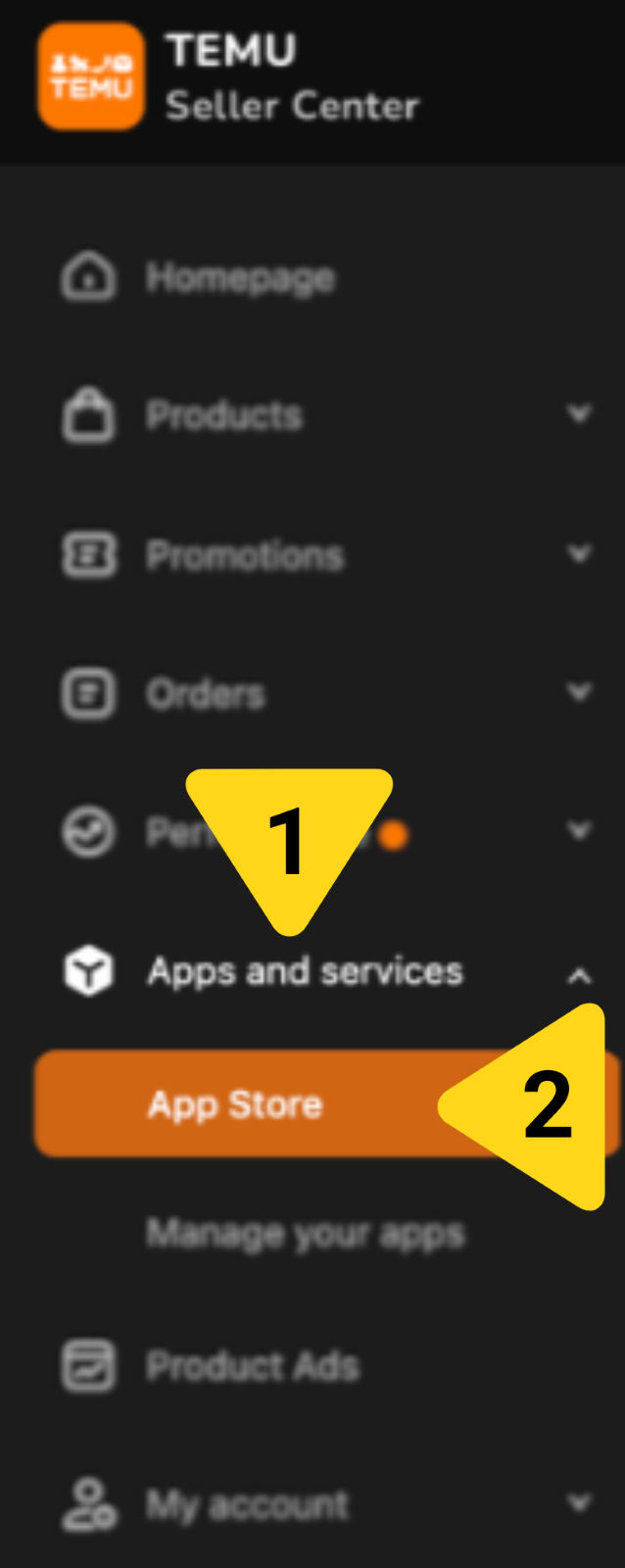
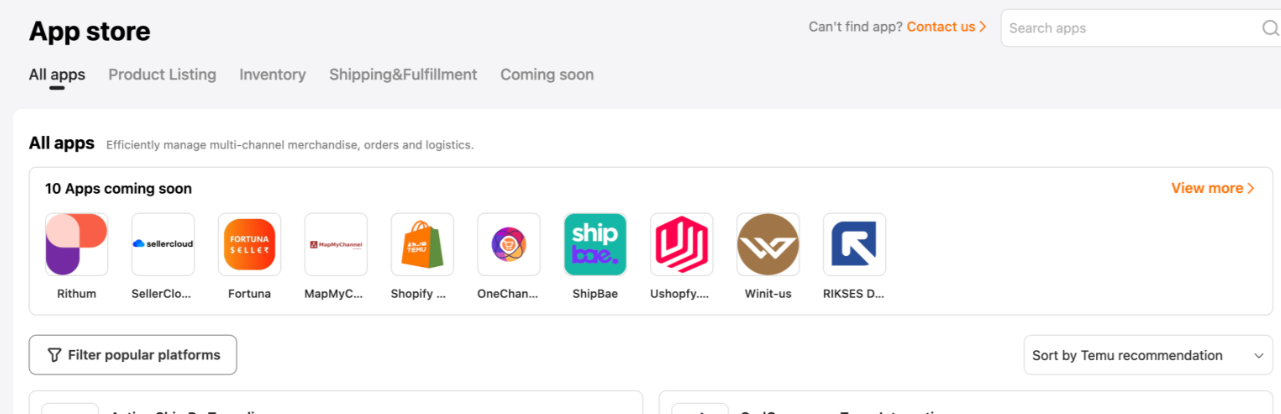
Select App Store
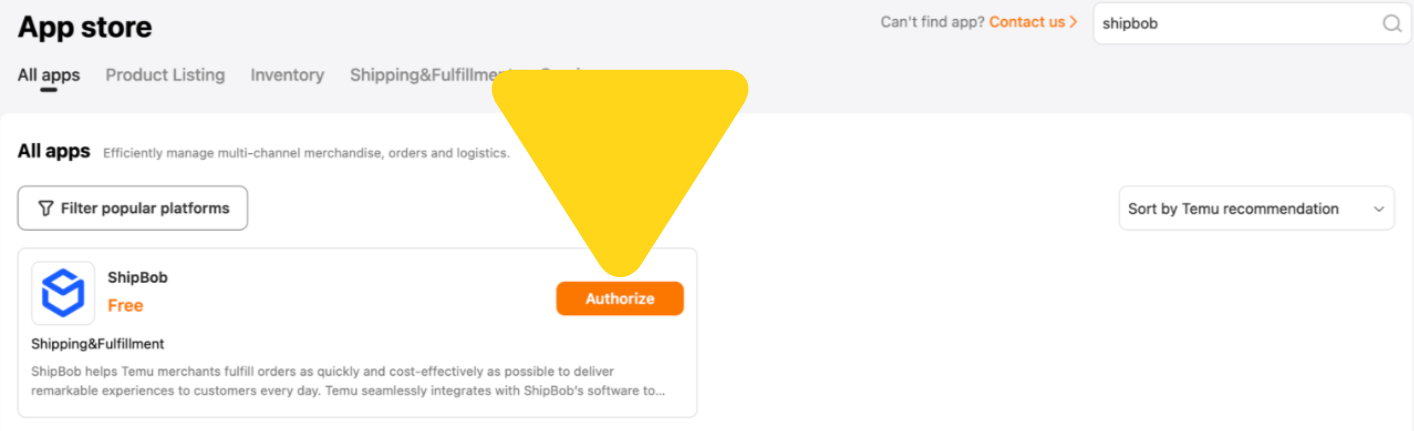
Locate the ShipBob tile
Click Authorize
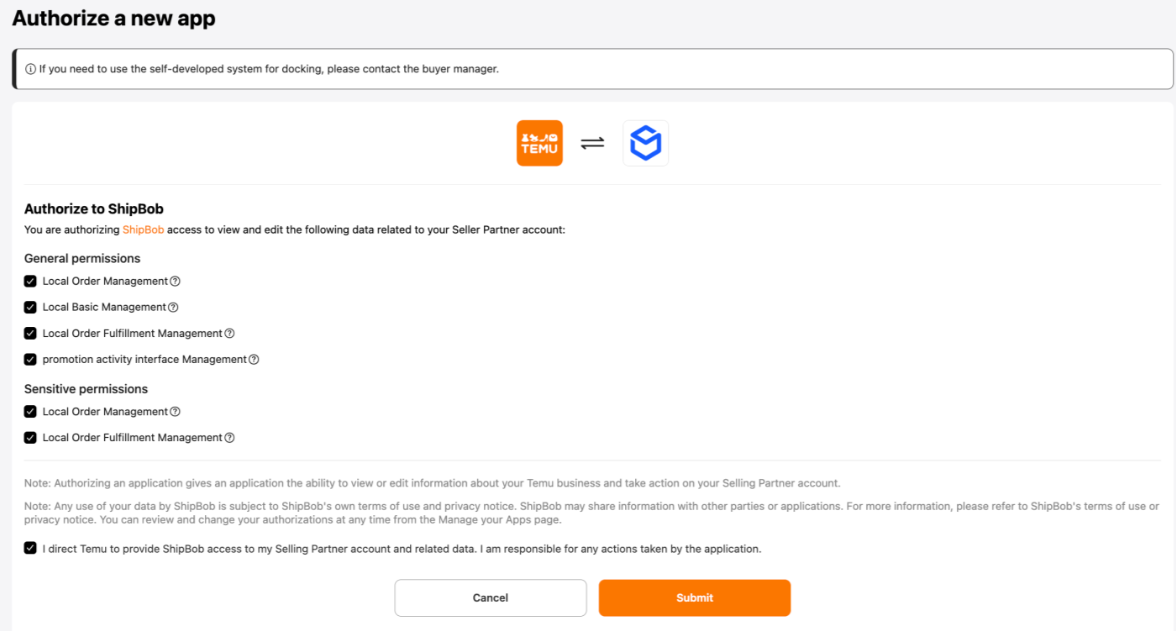
Review the permissions you are granting ShipBob
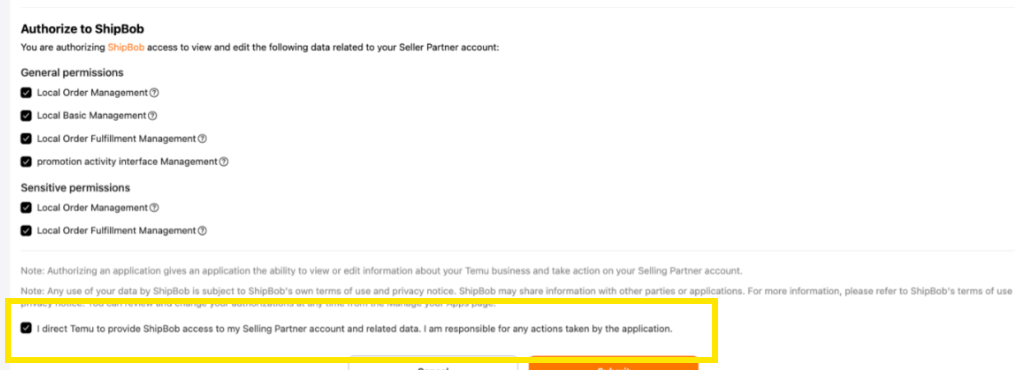
Check the consent box and click Submit
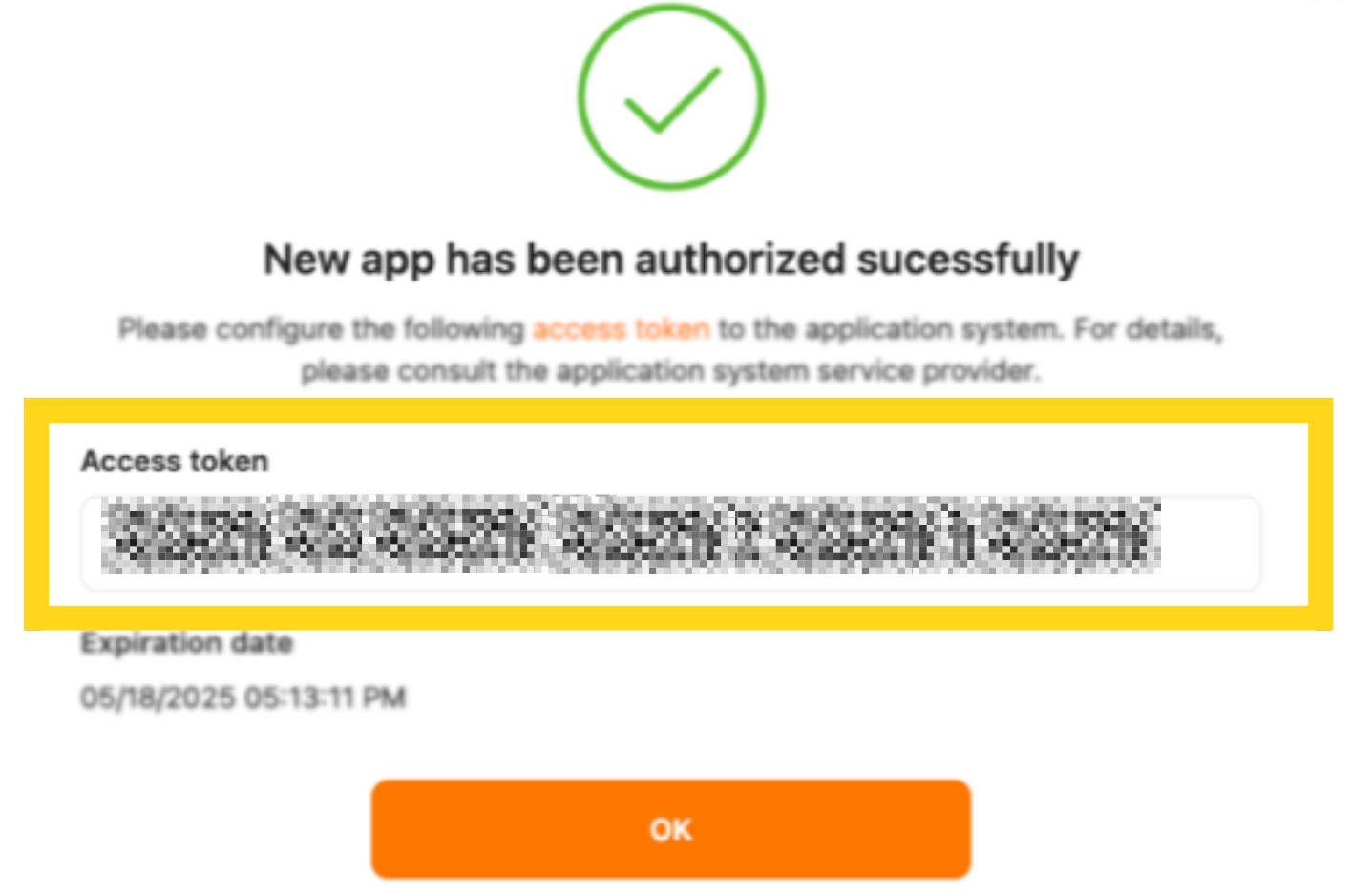
Copy and securely store the Access Token
Step 2: Connect in Jetpack Dashboard
Click Integrations in the left-hand navigation
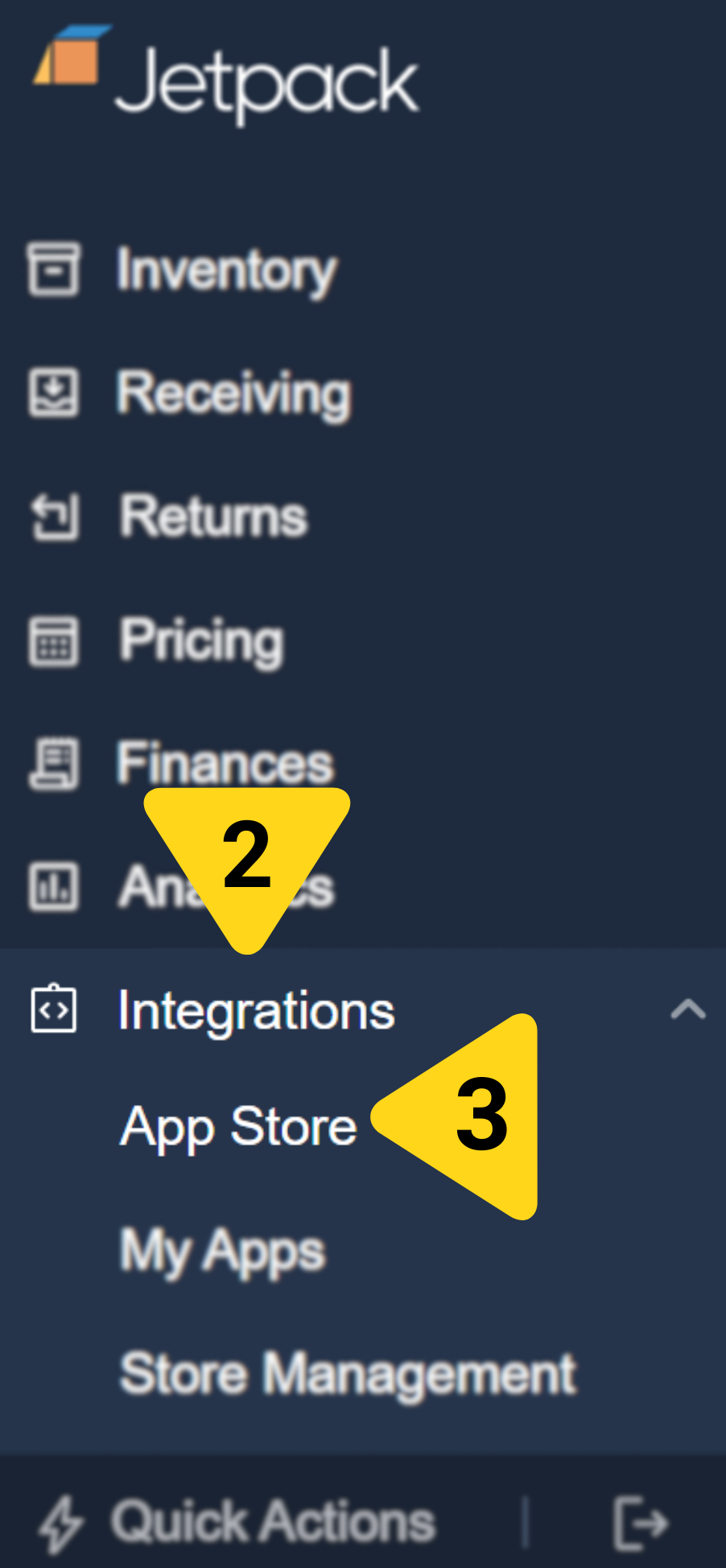
Select App Store
Locate and select the Temu tile
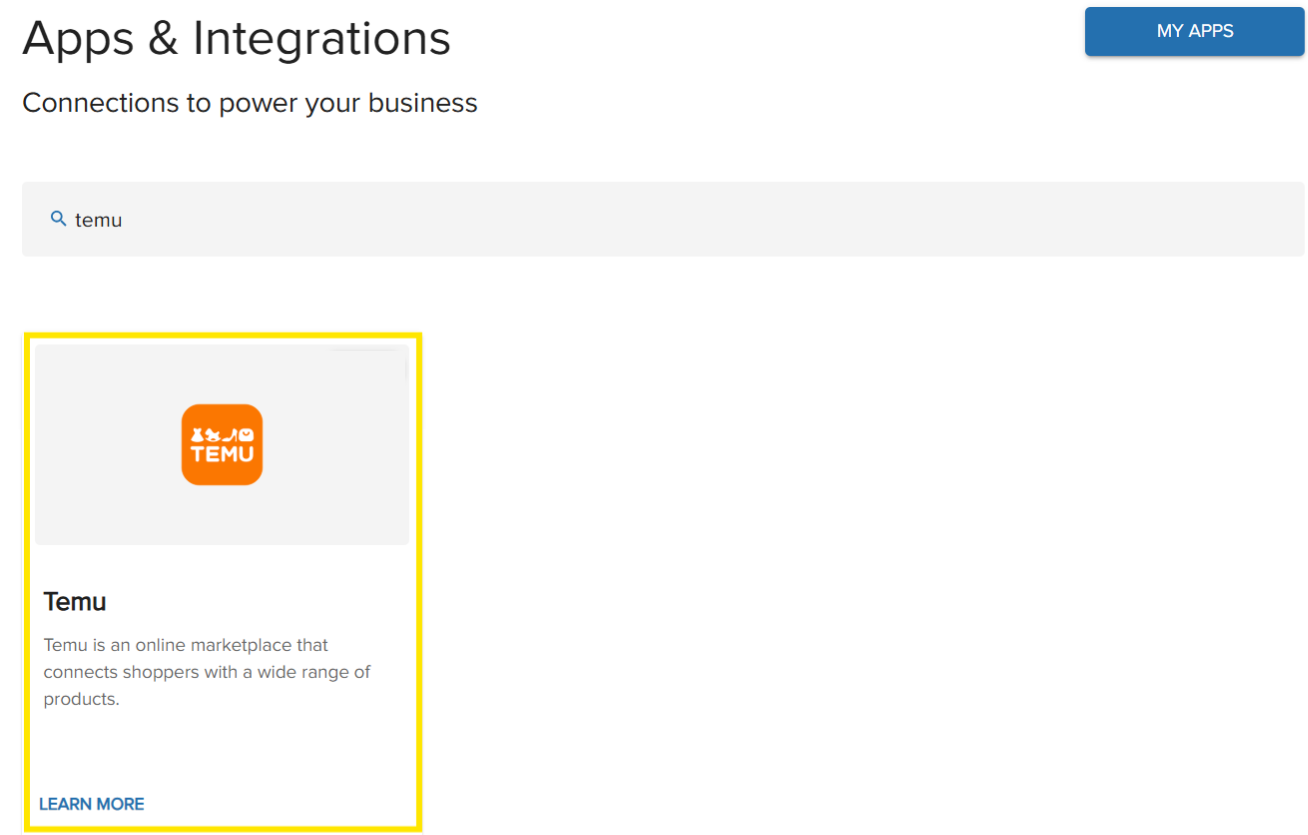
Click GET APP
Click Integrate New Store
Paste your Temu Access Token and click Continue
Configuring Your Temu Integration Settings
After successfully connecting Temu, you can configure which features sync between Temu and Jetpack. All features are controlled by toggle switches in the Configuration tab.Accessing Integration Settings
Navigate to the Temu integration page in your Jetpack dashboard
Click Manage next to your Temu store
Click the Configuration tab
Available Sync Features
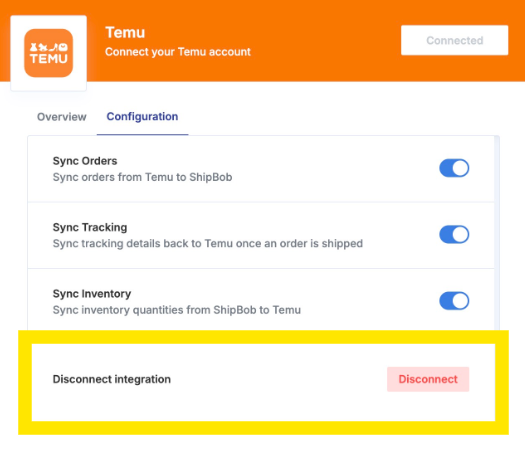
Enable the following features by clicking the toggle icon (blue when enabled, gray when disabled):Sync Orders
Enable this feature to automatically allow new orders to sync from Temu to Jetpack every hour. What syncs:- Customer name and shipping address
- Products and quantities ordered
- Order number (mapped to Jetpack Reference ID)
Sync Tracking
Enable this feature to allow carrier tracking information to sync to Temu once Jetpack fulfills an order. What syncs:- Carrier name
- Tracking number
- Fulfillment confirmation
Sync Inventory
Enable this feature to automatically sync Sellable quantities to Temu every hour. Important Notes:- When this feature is enabled, Jetpack’s dashboard will only sync quantities for products that exist in Temu. Products in your Jetpack dashboard that are not on Temu (e.g., a product you sell exclusively through a different retailer) will not sync through or be impacted by this integration.
- Sellable quantity = Fulfillable quantity - Exception quantity
- Your Sellable, Fulfillable, and Exception quantities can be viewed from the Inventory Status page in your Jetpack dashboard
Uninstalling the Temu Integration
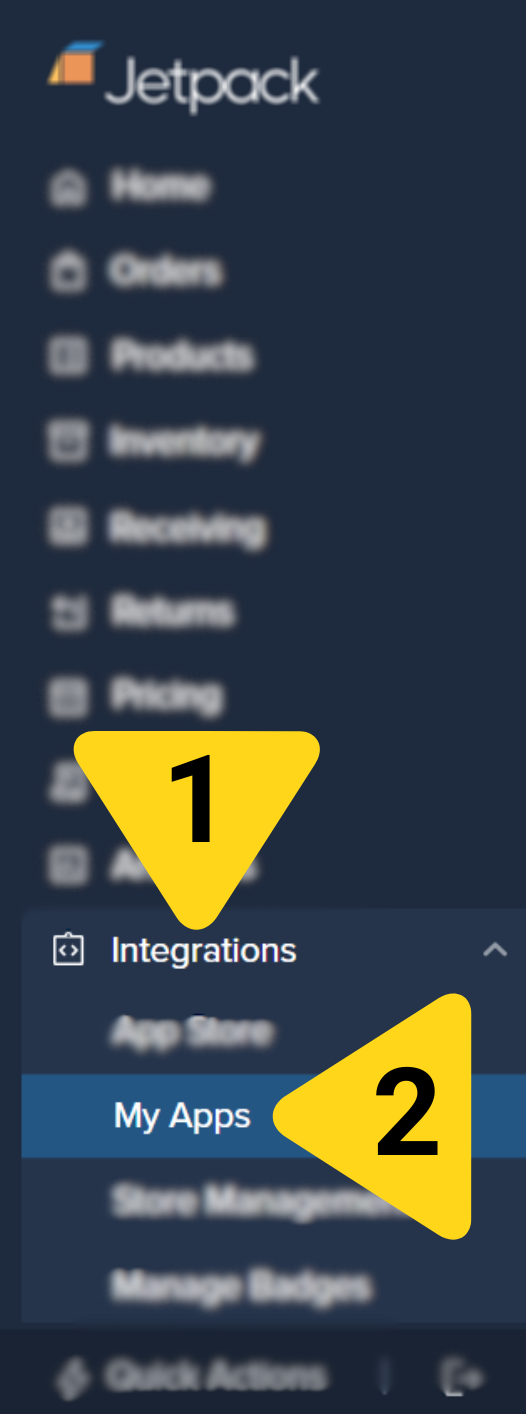
If you need to disconnect your Temu integration:Click Integrations in the left-hand navigation
Select My Apps
Click Launch next to the Temu tile
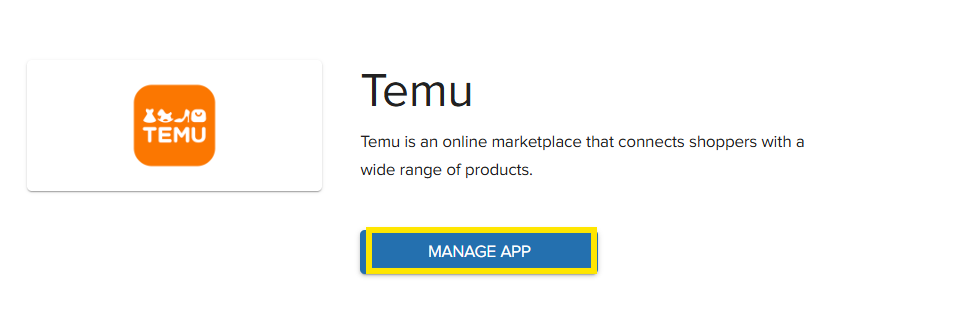
Click MANAGE APP
Click Manage next to your Temu store

Click Disconnect
Let’s Dive Deeper
Store Integration Overview
Syncing Products
Importing Orders
Managing Inventory
Integrations Overview
Order Management

Questions? Contact Jetpack Care.
If you have any questions or run into issues, you can always contact Jetpack Care for help. Our team is always here to assist via Slack, phone, or email!