> ## Documentation Index
> Fetch the complete documentation index at: https://help.jetpack3pl.com/llms.txt
> Use this file to discover all available pages before exploring further.
# Putting Orders on Hold
> Manually move orders to On-Hold status and release them when ready for fulfillment
Need to pause an order before it ships? The On-Hold status lets you temporarily stop fulfillment for orders that haven't been picked yet. Whether you're waiting for customer confirmation, need to make order changes, or want time to review before shipping, moving orders to On-Hold gives you control over when fulfillment begins.
## Why Put Orders on Hold
Pausing orders before fulfillment is useful in several scenarios:
* **Order verification** - Confirm details with customers before shipping
* **Making changes** - Hold orders while you edit line items or shipping addresses
* **Payment issues** - Pause fulfillment while resolving payment problems
* **Inventory management** - Reserve inventory for specific orders while managing allocation
* **Bulk review** - Hold multiple orders for review before releasing them together
When you move an order to On-Hold, you decide whether to reserve inventory for that order or release it back to available stock.
***
## Understanding On-Hold vs Exception Status
It's important to understand the difference between On-Hold and Exception statuses:
* **On-Hold Status** - A manual hold you place on orders. You control when orders move to On-Hold and when they're released. Orders can only be moved to On-Hold if they haven't been picked yet.
* **Exception Status** - An automatic status that occurs when there isn't enough inventory to fulfill an order. Orders in Exception automatically reprocess every 30 minutes and move to Processing status once inventory becomes available.
Both statuses pause fulfillment, but On-Hold is your manual control while Exception is inventory-driven.
When orders are created in your Jetpack dashboard (either automatically from an integration or manually), they immediately move to Import Review status. Orders that can be fulfilled move to Processing status, while orders needing review move to either On-Hold or Exception status. Learn more about [How Jetpack's Order Flow Works](/fulfillment/tools-techniques/order-flow).
***
## How to Move Orders to On-Hold
Follow these steps to manually move orders to On-Hold status:
From your Jetpack dashboard, click **Orders** in the left navigation menu.
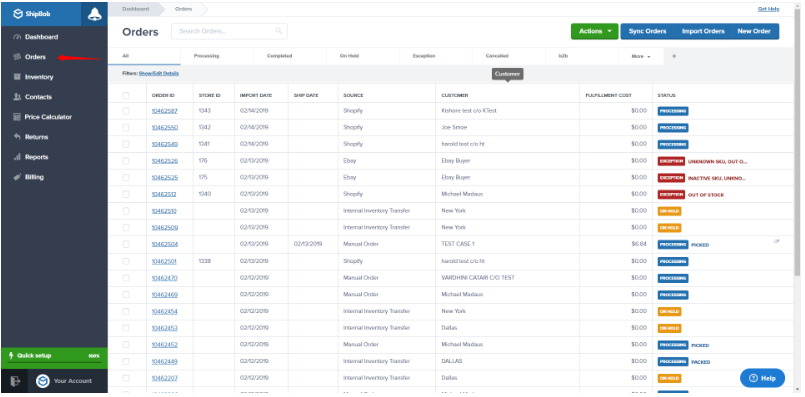 Choose the order(s) you want to move to On-Hold status by clicking the checkbox next to each order.
Only orders that have not yet been picked can be moved to On-Hold. Orders that are already in the picking, packing, or shipping stages cannot be held.
Choose the order(s) you want to move to On-Hold status by clicking the checkbox next to each order.
Only orders that have not yet been picked can be moved to On-Hold. Orders that are already in the picking, packing, or shipping stages cannot be held.
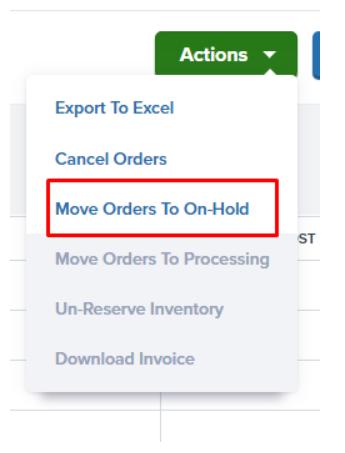
 Click the **Actions** button at the top-right corner of the page, then select **Move Order To On-Hold** from the dropdown menu.
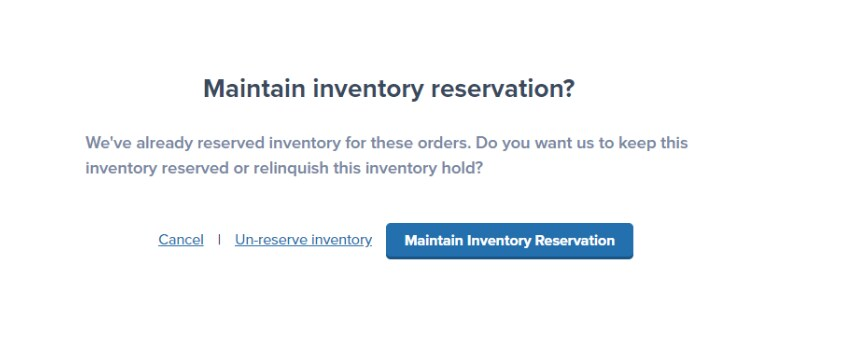
 In the dialog that appears, choose whether to reserve inventory for the order:
* **Maintain Inventory Reservation** - Keeps inventory specifically reserved for this order (recommended if you plan to release the order soon)
* **Un-reserve inventory** - Returns inventory to available stock (useful if you're unsure when you'll release the order)
Your decision affects [order allocation](/fulfillment/d2c/order-allocation-explained) for other orders and FIFO rules if enabled.
In the dialog that appears, choose whether to reserve inventory for the order:
* **Maintain Inventory Reservation** - Keeps inventory specifically reserved for this order (recommended if you plan to release the order soon)
* **Un-reserve inventory** - Returns inventory to available stock (useful if you're unsure when you'll release the order)
Your decision affects [order allocation](/fulfillment/d2c/order-allocation-explained) for other orders and FIFO rules if enabled.
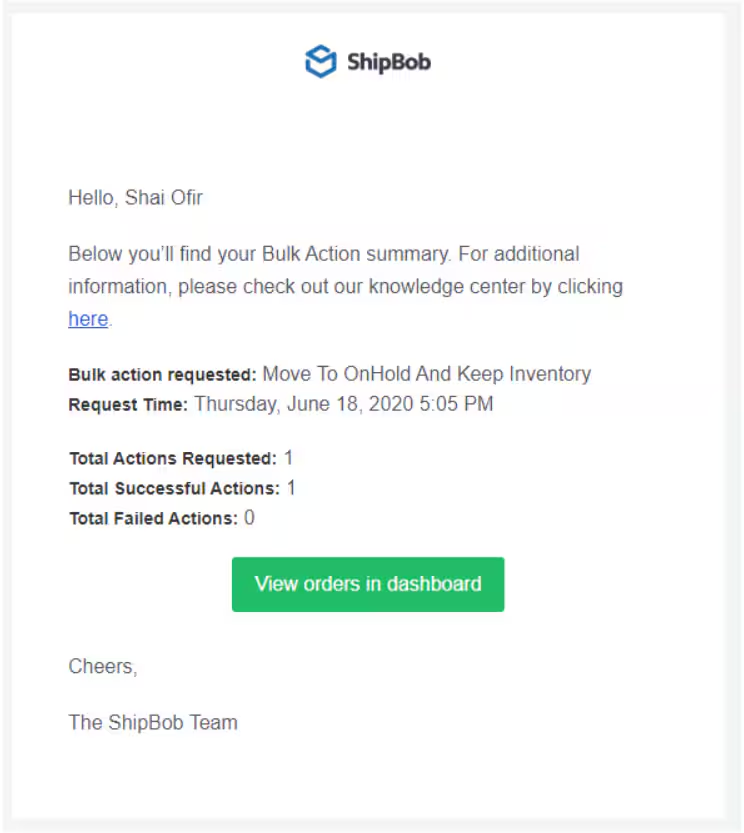
 Click your selection to confirm the action. Once completed, you'll receive a summary email confirming the orders were moved to On-Hold status.
 ***
## How to Release Orders from On-Hold
When you're ready to resume fulfillment, release orders from On-Hold status:
From your Jetpack dashboard, click **Orders** in the left navigation menu.
***
## How to Release Orders from On-Hold
When you're ready to resume fulfillment, release orders from On-Hold status:
From your Jetpack dashboard, click **Orders** in the left navigation menu.
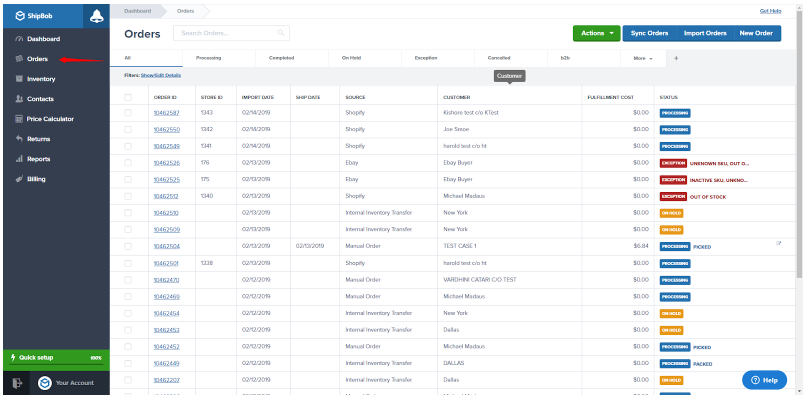 Choose the order you want to release from On-Hold status by clicking the checkbox next to it.
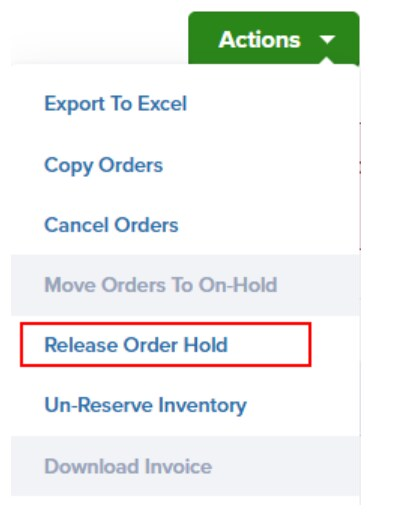
 Click the **Actions** button at the top-right, then select **Release Order Hold** from the dropdown menu.
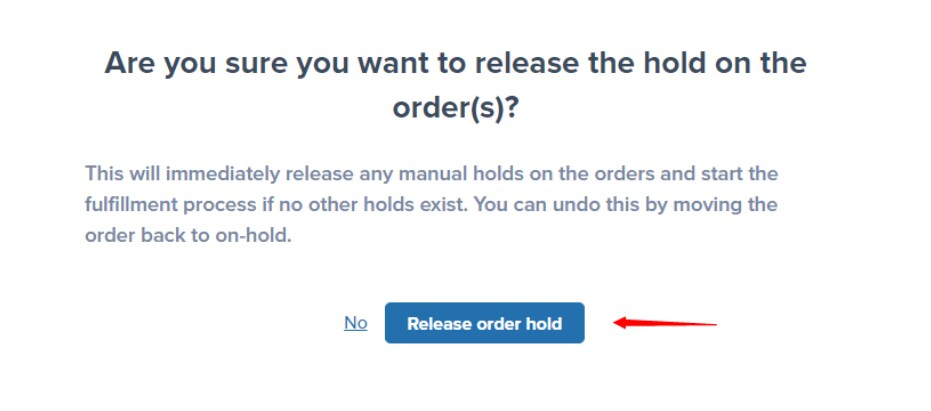
 In the confirmation dialog, click **Release order hold** to approve the release.
Releasing a manual hold will immediately start the fulfillment process unless other hold reasons exist (such as Exception status due to insufficient inventory).
In the confirmation dialog, click **Release order hold** to approve the release.
Releasing a manual hold will immediately start the fulfillment process unless other hold reasons exist (such as Exception status due to insufficient inventory).
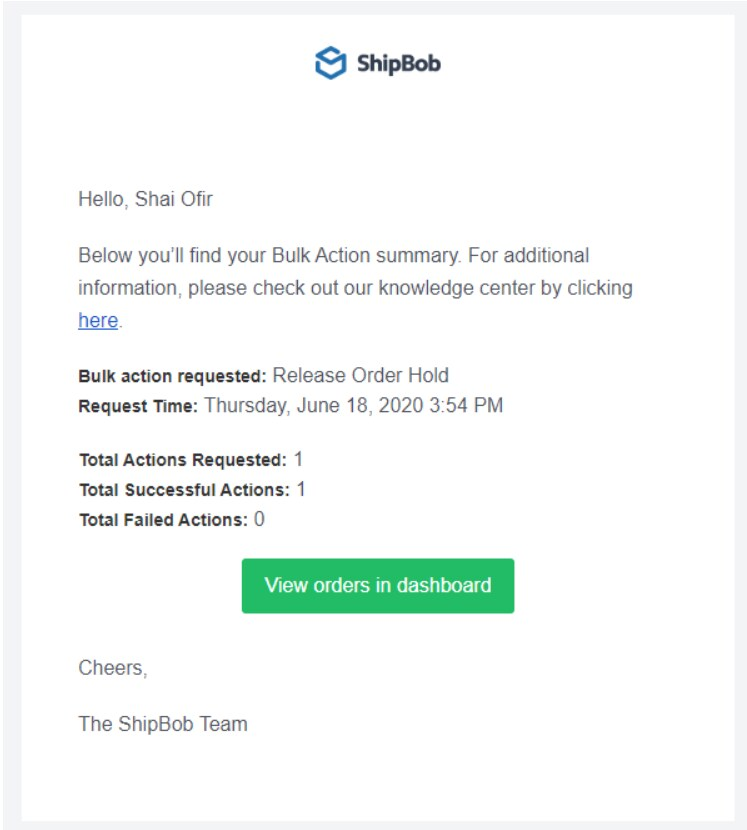
 A summary email will be sent once the release action is completed, confirming the orders have been released from On-Hold status.
 ***
## Bulk Actions for Holding and Releasing Orders
You can move or release multiple orders at once using bulk actions:
* **Select multiple orders** - Check the boxes next to relevant orders to select them individually
* **Select all orders on page** - Use the checkbox at the top of the order list to select all visible orders, then click **Select all** to choose all orders matching your current filters
* **Apply bulk action** - Use the Actions menu to move selected orders to On-Hold or release them
***
## Bulk Actions for Holding and Releasing Orders
You can move or release multiple orders at once using bulk actions:
* **Select multiple orders** - Check the boxes next to relevant orders to select them individually
* **Select all orders on page** - Use the checkbox at the top of the order list to select all visible orders, then click **Select all** to choose all orders matching your current filters
* **Apply bulk action** - Use the Actions menu to move selected orders to On-Hold or release them
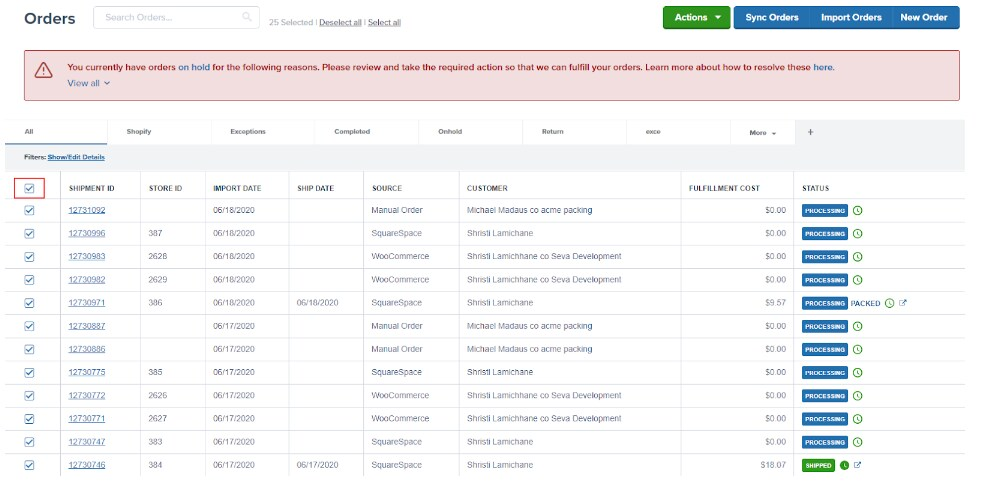 When you select all orders on the current page, a notification bar appears allowing you to select all orders matching your filters, not just those visible on the current page.
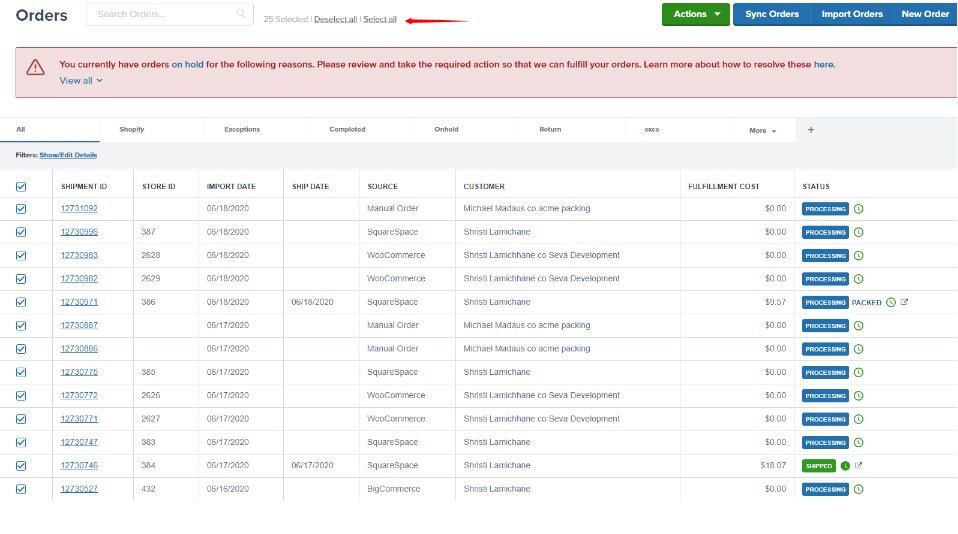 This is especially useful when you need to hold or release orders in batches, such as after resolving inventory issues or completing bulk order reviews.
For detailed instructions on bulk actions, see [Bulk Actions on Orders](/fulfillment/tools-techniques/bulk-actions-on-orders).
***
## Let's Dive Deeper
Perform actions on multiple orders at once
Add or remove line items from multiple orders
Use dummy SKUs to pause order processing automatically
Understand order statuses and allocation logic
Learn about all order statuses in Jetpack
Back to the main tools guide
This is especially useful when you need to hold or release orders in batches, such as after resolving inventory issues or completing bulk order reviews.
For detailed instructions on bulk actions, see [Bulk Actions on Orders](/fulfillment/tools-techniques/bulk-actions-on-orders).
***
## Let's Dive Deeper
Perform actions on multiple orders at once
Add or remove line items from multiple orders
Use dummy SKUs to pause order processing automatically
Understand order statuses and allocation logic
Learn about all order statuses in Jetpack
Back to the main tools guide
Questions? Contact Jetpack Care.
If you have any questions or run into issues, you can always contact Jetpack Care for help. Our team is always here to assist via Slack, phone, or email!