> ## Documentation Index
> Fetch the complete documentation index at: https://help.jetpack3pl.com/llms.txt
> Use this file to discover all available pages before exploring further.
# Get Order Updates by Email
> Subscribe to email notifications for order fulfillment and tracking updates directly from your Jetpack dashboard.
Stay informed about specific orders without constantly checking your dashboard. The Subscribe to Updates feature allows your team to receive automatic email notifications about order fulfillment progress and tracking information for individual shipments.
## How It Works
When you subscribe to updates for a specific order, Jetpack sends email notifications to the addresses you provide as the order moves through fulfillment stages and when tracking information becomes available. This feature is designed for your internal team to monitor specific orders that need extra attention or coordination.
This subscription feature is for your internal team's email addresses only. Do not enter customer email addresses—customers receive their own automated tracking notifications through your store integration.
***
## Subscribe to Order Updates
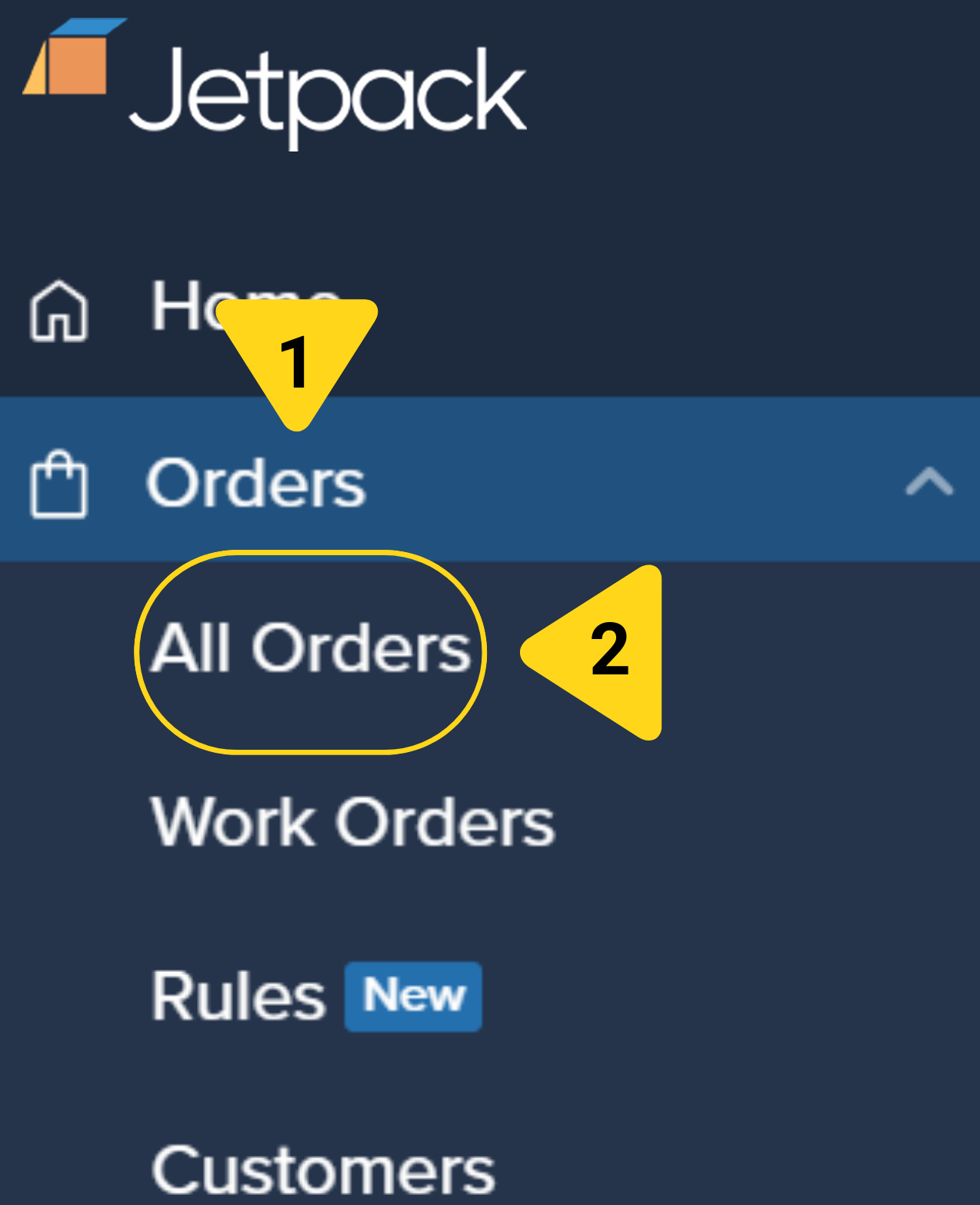
From the Jetpack dashboard, click **Orders** on the left-hand navigation bar. Additional menu options will appear.
Select **All Orders** from the menu. You will be redirected to the Orders page.
 Click on the **Shipment ID** (hyperlinked) to view the order details page for the order you want to track.
At the top right of the order details page, click the **Actions** button. From the drop-down menu, select **Subscribe to Updates**.
Click on the **Shipment ID** (hyperlinked) to view the order details page for the order you want to track.
At the top right of the order details page, click the **Actions** button. From the drop-down menu, select **Subscribe to Updates**.
 In the **Subscribe to Order Updates** dialog, insert your team's email address(es) in the Email Addresses field. If you want to subscribe multiple email addresses, separate them with commas.
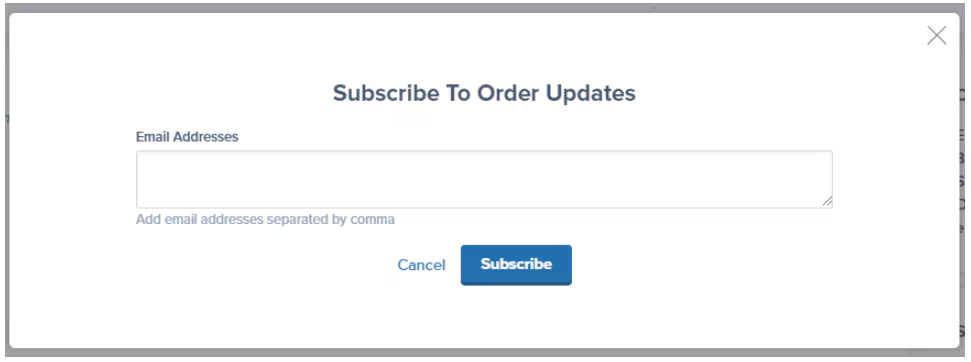 Click the **Subscribe** button.
Once subscribed, the provided email addresses will receive updates regarding the order's fulfillment and tracking information.
***
## Let's Dive Deeper
Master your order management interface
View comprehensive shipment information
Understand order status stages
View shipment tracking information
Perform actions on multiple orders at once
Back to the main tools guide
Click the **Subscribe** button.
Once subscribed, the provided email addresses will receive updates regarding the order's fulfillment and tracking information.
***
## Let's Dive Deeper
Master your order management interface
View comprehensive shipment information
Understand order status stages
View shipment tracking information
Perform actions on multiple orders at once
Back to the main tools guide
Questions? Contact Jetpack Care.
If you have any questions or run into issues, you can always contact Jetpack Care for help. Our team is always here to assist via Slack, phone, or email!