> ## Documentation Index
> Fetch the complete documentation index at: https://help.jetpack3pl.com/llms.txt
> Use this file to discover all available pages before exploring further.
# Copy, Cancel, or Clean Sweep Orders
> Copy orders for reshipment, cancel orders before fulfillment begins, or clean sweep orders to prepare for reimport.
The Jetpack dashboard gives you three powerful actions to manage orders that need special handling: copying orders to create identical reshipments, canceling orders before fulfillment begins, and clean sweeping orders to remove them for reimport. Each action serves a distinct purpose in your order management workflow.
## Overview of Order Management Actions
When managing orders in your Jetpack dashboard, you have three key actions available from the Actions dropdown on the Orders page:
| Action | When to Use It | What It Does |
| ---------------------- | ---------------------------------------------------------------------------------------------------------------------------------------------------------------------------------------------------------------------- | ------------------------------------------------------------------------------------------------------------------------------------------------------------------------------------------------------------------- |
| **Copy Orders** | - You need to reship an order to a customer
- You want to duplicate an order with identical contents and customer details
| Creates a new order that is identical in contents and customer details to the original order. The new order gets its own Shipment ID, tracking number, and SLA date. |
| **Cancel Orders** | - You already fulfilled the order elsewhere
- You no longer need the order fulfilled
- Orders are in Processing status and haven't been picked yet
| Prevents Jetpack's Operations team from fulfilling the selected orders. For integrated orders, the status updates to CANCELLED. Manually created, Excel imported, or prepaid orders are removed from the dashboard. |
| **Clean Sweep Orders** | - You need to reimport the exact orders to your dashboard
- You updated ship option mapping and want orders to reflect the new settings
- Orders haven't been picked yet by Jetpack's team
| Removes orders from the dashboard so you can reimport them with updated settings or configurations. |
***
## Copy a Jetpack Order
If you want to reship an order to a customer, you can manually copy the original order in the Jetpack dashboard, which allows a new order to be created that is identical in contents and customer details to the original order.
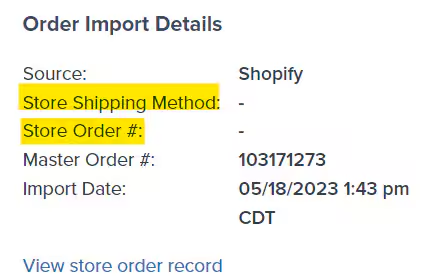
You must copy the order before you can add or remove products, and the new order will not have a Store Order ID (since the new order was manually created in the Jetpack dashboard).
### What Gets Copied (and What Doesn't)
When you copy an order, the new order will include all of the original order details, but certain information will be newly assigned:
| Information Category | What Happens |
| ---------------------------------- | --------------------------------------------------------------------------------------------------------------------------------------------- |
| **Copied from Original Order** | - Recipient address
- Products and units
- Source
- Store Shipping Method
|
| **Newly Assigned to Copied Order** | - Shipment ID (new ID generated)
- Tracking number (assigned when shipped)
- SLA date (calculated from copy date)
|
 You cannot copy orders that have been clean swept.
### How to Copy Orders
Follow these steps to copy one or more orders in your Jetpack dashboard:
From the Jetpack dashboard:
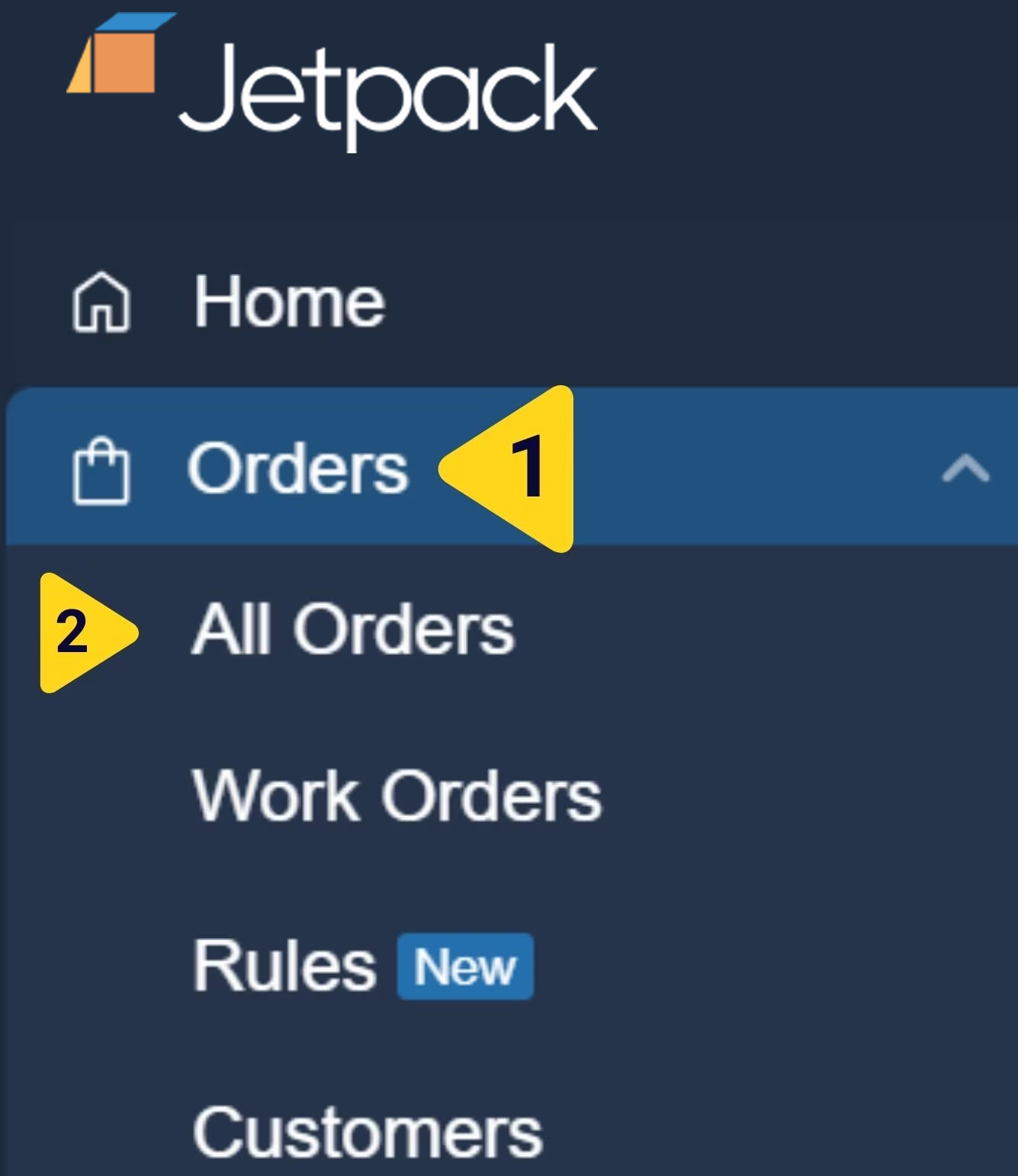
1. Click **Orders** on the left-hand navigation bar. Additional menu options will appear.
2. Select **All Orders**. You will be redirected to the Orders page.
You cannot copy orders that have been clean swept.
### How to Copy Orders
Follow these steps to copy one or more orders in your Jetpack dashboard:
From the Jetpack dashboard:
1. Click **Orders** on the left-hand navigation bar. Additional menu options will appear.
2. Select **All Orders**. You will be redirected to the Orders page.
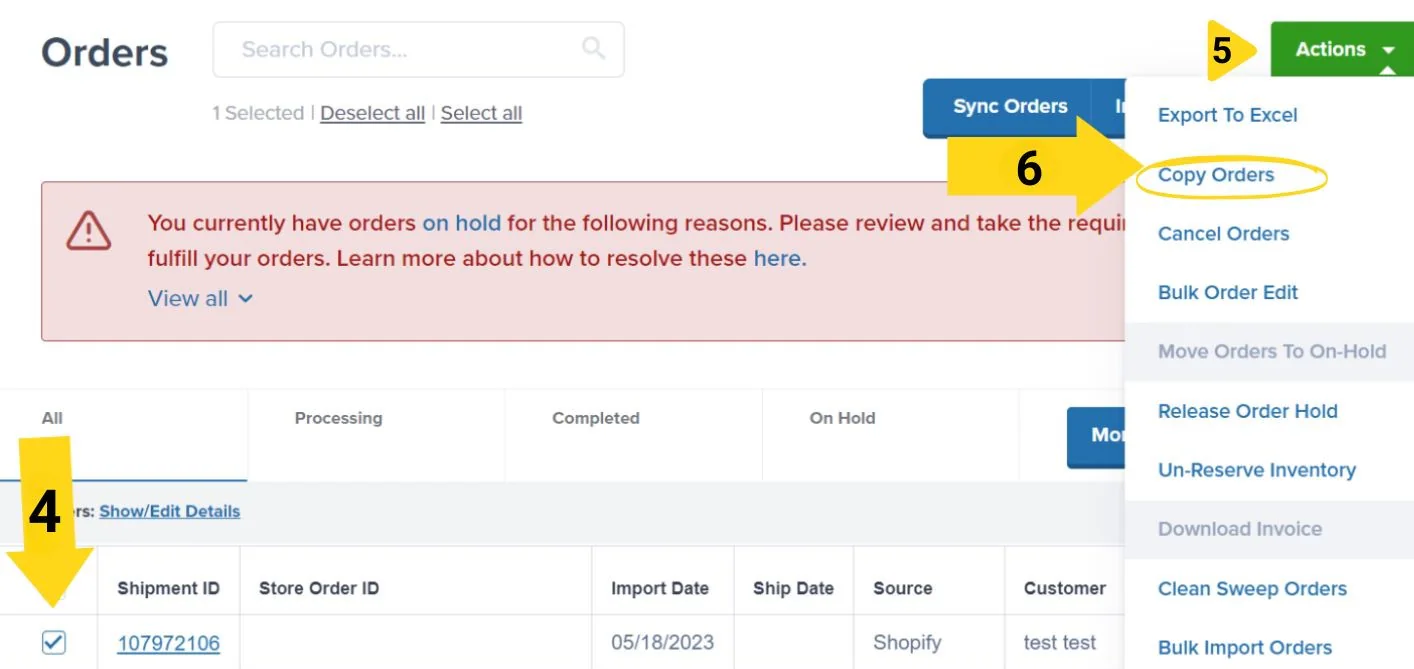
 1. Locate the order(s) you need to copy by using the search bar or filters.
2. Check the box next to the left of the Shipment ID(s).
3. Click **Actions**. Additional menu options will appear.
4. Select **Copy Orders** from the dropdown.
1. Locate the order(s) you need to copy by using the search bar or filters.
2. Check the box next to the left of the Shipment ID(s).
3. Click **Actions**. Additional menu options will appear.
4. Select **Copy Orders** from the dropdown.
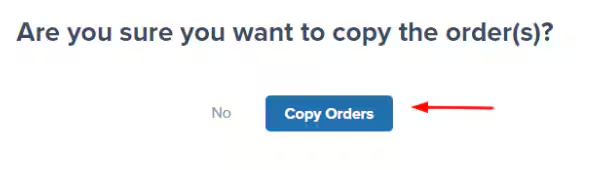
 A pop-up window will appear.
Click **Copy Orders** in the pop-up window. A success message will appear to confirm that the order(s) were copied.
A pop-up window will appear.
Click **Copy Orders** in the pop-up window. A success message will appear to confirm that the order(s) were copied.
 Once copied, the orders will appear on your Orders page.
If your orders do not copy within a few minutes, please use Slack or email before attempting to copy the orders again.
For information on how to make changes to copied orders or other orders in the Processing status (that have yet to be picked), see [Editing an Order](/fulfillment/order-management/editing-orders).
***
## Cancel a Jetpack Order
Canceling orders in your Jetpack dashboard ensures that the selected orders are not fulfilled by Jetpack's Operations team. This is beneficial if you already fulfilled the order, or no longer need the order fulfilled for any reason.
**Important:** Orders can only be canceled if they are in the Processing status and have yet to be picked by Jetpack's team (the fulfillment process has yet to begin).
### How to Cancel Orders
Follow these steps to cancel one or more orders in your Jetpack dashboard:
From the Jetpack dashboard:
1. Click **Orders** on the left-hand navigation bar. Additional menu options will appear.
2. Select **All Orders**. You will be redirected to the Orders page.
1. Locate the order(s) that need to be canceled by using the search bar or filters.
Once copied, the orders will appear on your Orders page.
If your orders do not copy within a few minutes, please use Slack or email before attempting to copy the orders again.
For information on how to make changes to copied orders or other orders in the Processing status (that have yet to be picked), see [Editing an Order](/fulfillment/order-management/editing-orders).
***
## Cancel a Jetpack Order
Canceling orders in your Jetpack dashboard ensures that the selected orders are not fulfilled by Jetpack's Operations team. This is beneficial if you already fulfilled the order, or no longer need the order fulfilled for any reason.
**Important:** Orders can only be canceled if they are in the Processing status and have yet to be picked by Jetpack's team (the fulfillment process has yet to begin).
### How to Cancel Orders
Follow these steps to cancel one or more orders in your Jetpack dashboard:
From the Jetpack dashboard:
1. Click **Orders** on the left-hand navigation bar. Additional menu options will appear.
2. Select **All Orders**. You will be redirected to the Orders page.
1. Locate the order(s) that need to be canceled by using the search bar or filters.
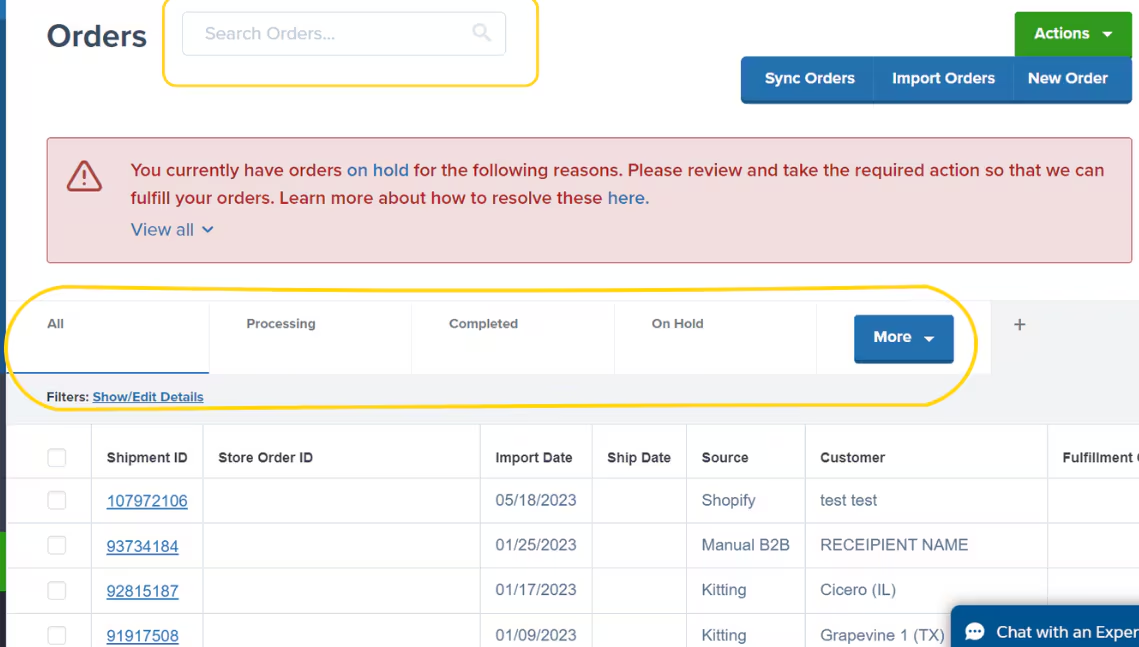 2. Check the box next to the order(s).
3. Click the **Actions** dropdown button at the top right.
4. Select **Cancel Orders** from the dropdown menu.
2. Check the box next to the order(s).
3. Click the **Actions** dropdown button at the top right.
4. Select **Cancel Orders** from the dropdown menu.
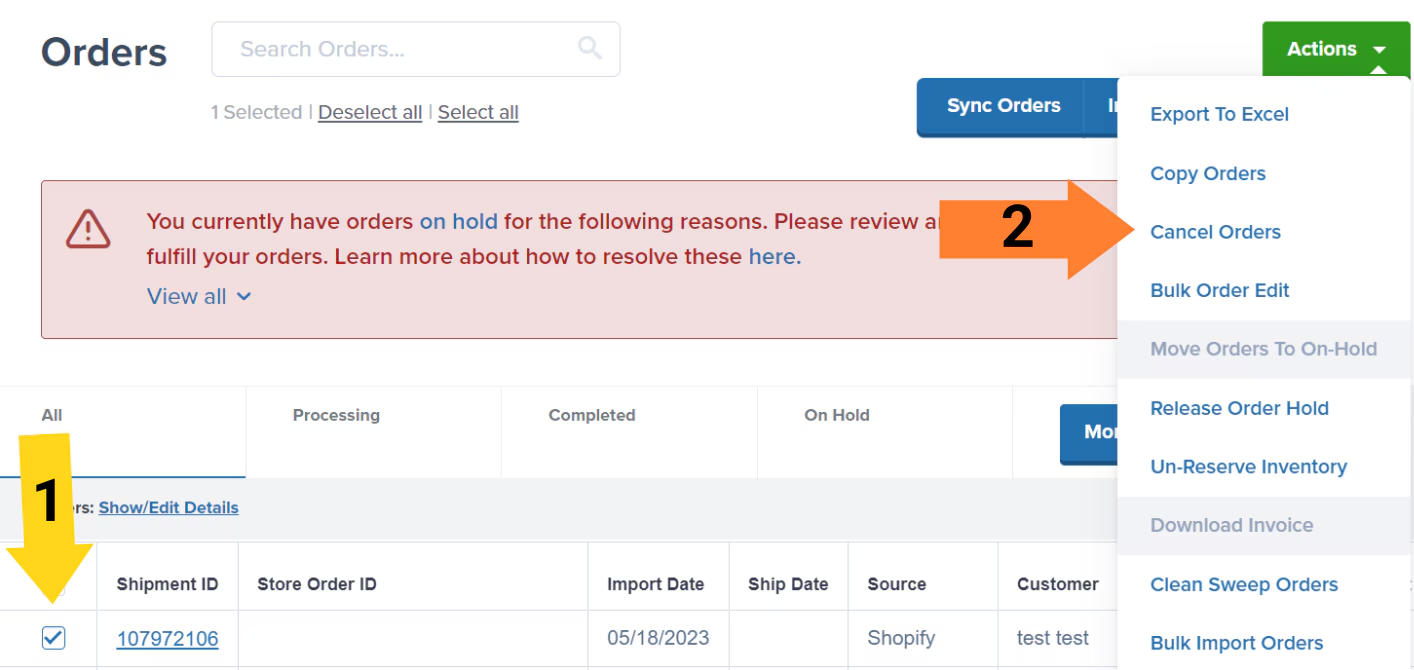 The Cancel Orders option will be disabled if Jetpack's Operations team has already started fulfilling the order.
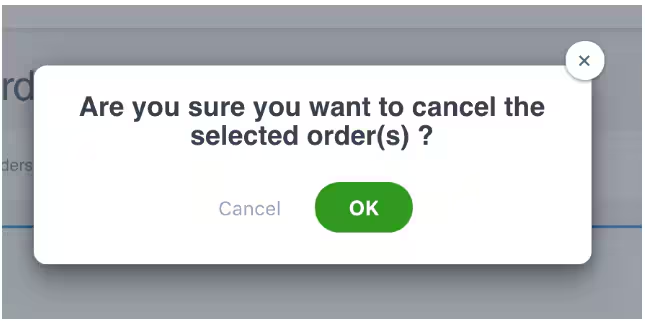
A pop-up window will appear.
Click **OK** in the pop-up window to confirm the cancellation. A success message will appear on the top right screen.
The Cancel Orders option will be disabled if Jetpack's Operations team has already started fulfilling the order.
A pop-up window will appear.
Click **OK** in the pop-up window to confirm the cancellation. A success message will appear on the top right screen.
 ### What Happens After Cancellation
The behavior after canceling orders depends on how the orders were created:
| Order Type | What Happens After Cancellation |
| ---------------------------- | ---------------------------------------------------------------------------------------------------------------------------------------------------------------------------------------------------------------------------------------------------------------------------------------------------------------------------------------------------------------------------------------------------------------------------------------------------------------------------------------------------------------------------------------------------------------------------------------------------------------------------------------------------------------------------------------------------------------------------------------------------------------------------------------------------------------------------------------------------------------------------------------------------------------------------------------------------------------------------------------------------------------------------------------------------------------------------------------------------------------------------------------------------------------------------------------------------------------------------------------------------------------------------------------------------------------------------------------------------------------------------------------------------------------------------------------------------------------------------------------------------------------------------------------------------------------------------------------------------------------------------------------------------------------------------------------------------------------------------------------------------------------------- |
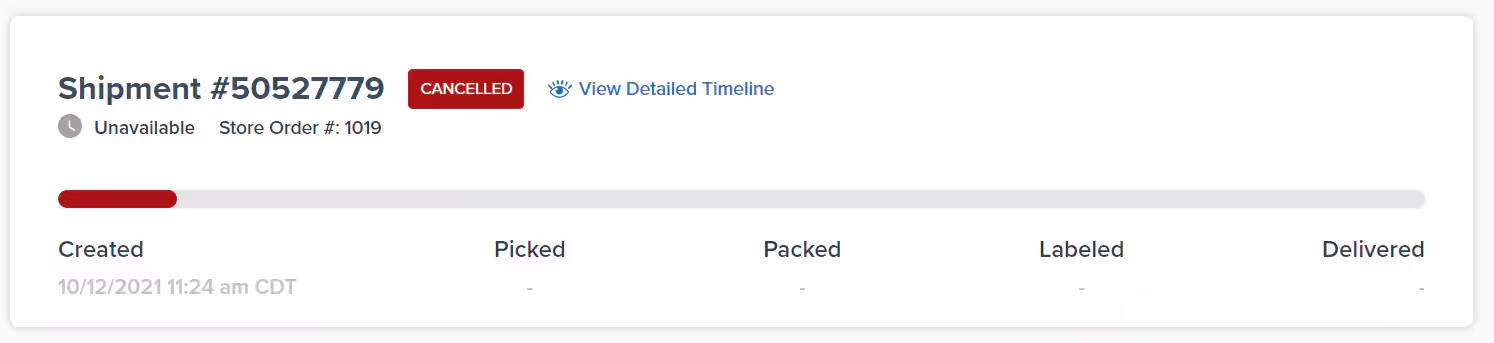
| **Orders from Integrations** | The status of the order will update to **CANCELLED**. The order remains visible in your dashboard with the cancelled status.
### What Happens After Cancellation
The behavior after canceling orders depends on how the orders were created:
| Order Type | What Happens After Cancellation |
| ---------------------------- | ---------------------------------------------------------------------------------------------------------------------------------------------------------------------------------------------------------------------------------------------------------------------------------------------------------------------------------------------------------------------------------------------------------------------------------------------------------------------------------------------------------------------------------------------------------------------------------------------------------------------------------------------------------------------------------------------------------------------------------------------------------------------------------------------------------------------------------------------------------------------------------------------------------------------------------------------------------------------------------------------------------------------------------------------------------------------------------------------------------------------------------------------------------------------------------------------------------------------------------------------------------------------------------------------------------------------------------------------------------------------------------------------------------------------------------------------------------------------------------------------------------------------------------------------------------------------------------------------------------------------------------------------------------------------------------------------------------------------------------------------------------------------- |
| **Orders from Integrations** | The status of the order will update to **CANCELLED**. The order remains visible in your dashboard with the cancelled status.
 |
| **Manually Created Orders** | The order will not appear in the Jetpack dashboard after you cancel it. It will be considered a clean swept order, regardless of whether you chose the Clean Sweep Orders option. |
| **Excel Imported Orders** | The order will not appear in the Jetpack dashboard after you cancel it. It will be considered a clean swept order, regardless of whether you chose the Clean Sweep Orders option. |
| **Prepaid Orders** | The order will not appear in the Jetpack dashboard after you cancel it. It will be considered a clean swept order, regardless of whether you chose the Clean Sweep Orders option. |
***
## Clean Sweep a Jetpack Order
When you clean sweep an order in the Jetpack dashboard, it will be removed from the dashboard. This action is done instead of canceling the order(s) if you need to reimport the exact order(s) to your Jetpack dashboard.
**Example Use Case:** If you updated your ship option mapping in the Jetpack dashboard after orders were imported, you could clean sweep the orders and manually reimport them to ensure they reflect the updated ship option.
**Important:** You can take the Clean Sweep Orders action on orders in most statuses as long as the order has yet to be picked by Jetpack's team (the fulfillment process has yet to begin).
### How to Clean Sweep Orders
Follow these steps to clean sweep one or more orders in your Jetpack dashboard:
From the Jetpack dashboard:
1. Click **Orders** on the left-hand navigation bar. Additional menu options will appear.
2. Select **All Orders**.
1. Locate the order(s) that require the Clean Sweep Orders action by using the search bar or filters.
|
| **Manually Created Orders** | The order will not appear in the Jetpack dashboard after you cancel it. It will be considered a clean swept order, regardless of whether you chose the Clean Sweep Orders option. |
| **Excel Imported Orders** | The order will not appear in the Jetpack dashboard after you cancel it. It will be considered a clean swept order, regardless of whether you chose the Clean Sweep Orders option. |
| **Prepaid Orders** | The order will not appear in the Jetpack dashboard after you cancel it. It will be considered a clean swept order, regardless of whether you chose the Clean Sweep Orders option. |
***
## Clean Sweep a Jetpack Order
When you clean sweep an order in the Jetpack dashboard, it will be removed from the dashboard. This action is done instead of canceling the order(s) if you need to reimport the exact order(s) to your Jetpack dashboard.
**Example Use Case:** If you updated your ship option mapping in the Jetpack dashboard after orders were imported, you could clean sweep the orders and manually reimport them to ensure they reflect the updated ship option.
**Important:** You can take the Clean Sweep Orders action on orders in most statuses as long as the order has yet to be picked by Jetpack's team (the fulfillment process has yet to begin).
### How to Clean Sweep Orders
Follow these steps to clean sweep one or more orders in your Jetpack dashboard:
From the Jetpack dashboard:
1. Click **Orders** on the left-hand navigation bar. Additional menu options will appear.
2. Select **All Orders**.
1. Locate the order(s) that require the Clean Sweep Orders action by using the search bar or filters.
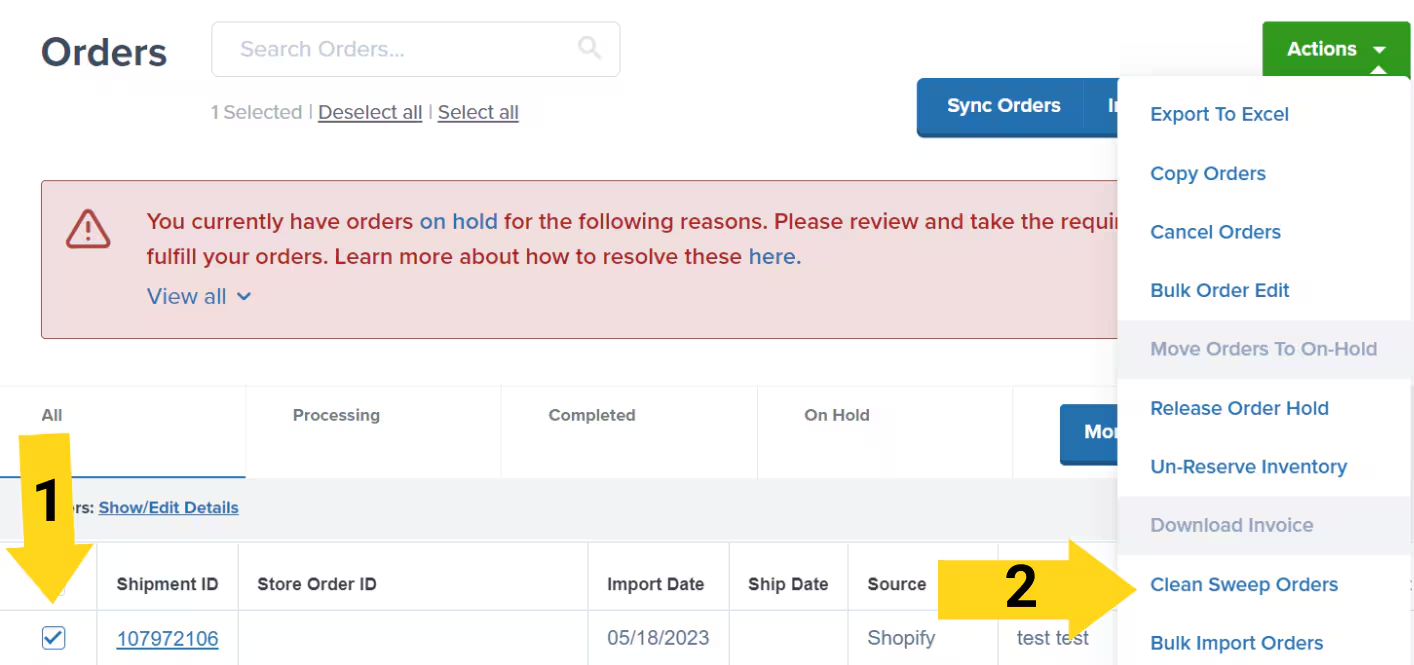
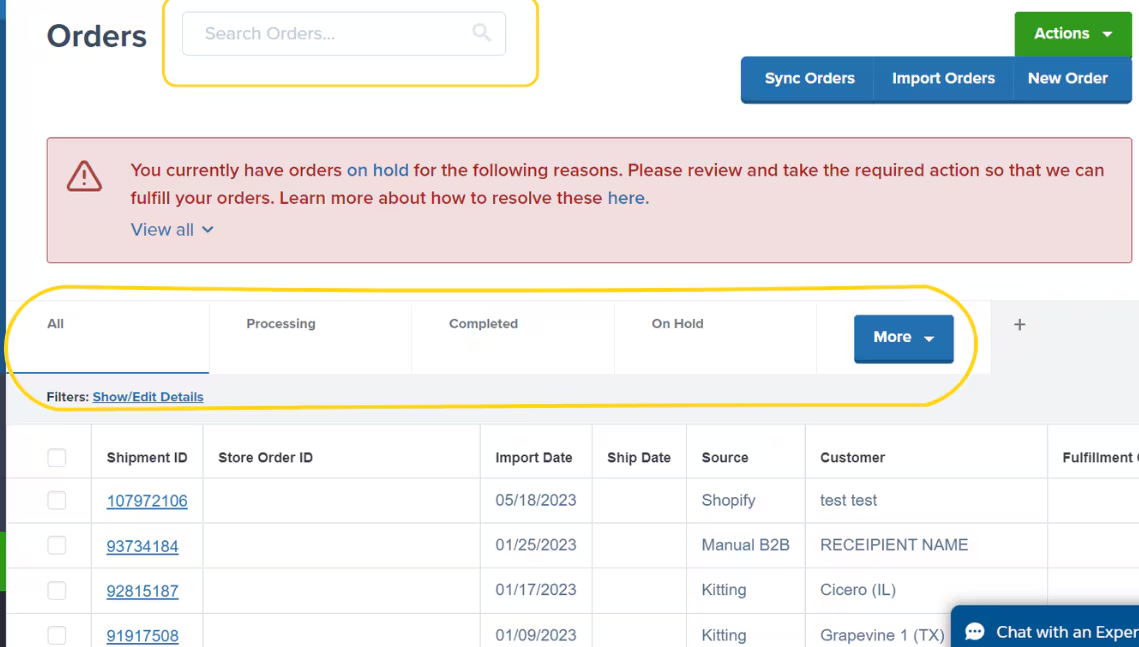 2. Check the box next to the left of the order(s)/Shipment ID(s).
3. Click the **Actions** dropdown button at the top right.
4. Select **Clean Sweep Orders** from the dropdown menu.
2. Check the box next to the left of the order(s)/Shipment ID(s).
3. Click the **Actions** dropdown button at the top right.
4. Select **Clean Sweep Orders** from the dropdown menu.
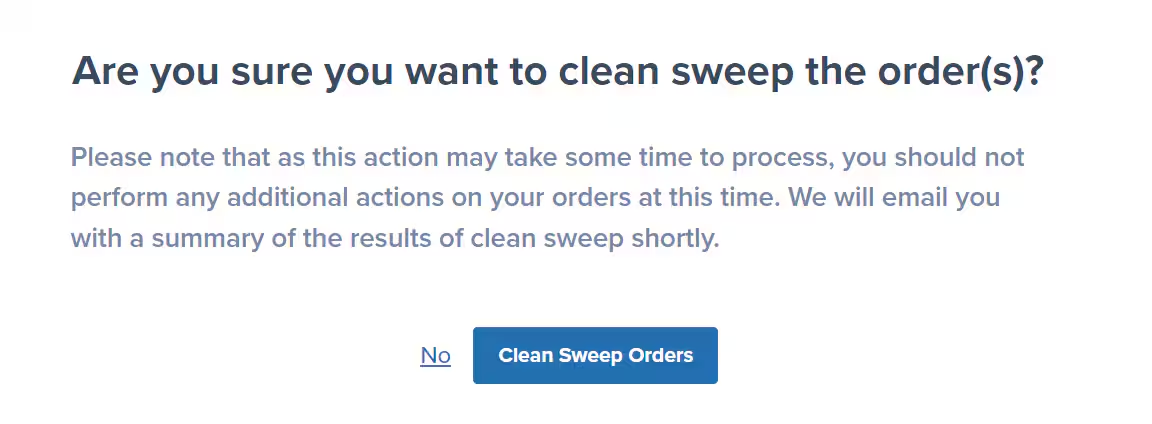
 A pop-up window will appear.
Click **Clean Sweep Orders** in the pop-up window. A success message will appear, and you will be emailed an Action Summary.
A pop-up window will appear.
Click **Clean Sweep Orders** in the pop-up window. A success message will appear, and you will be emailed an Action Summary.
 Please wait until you receive an Action Summary email before trying the Clean Sweep Orders action again.
### Understanding the Action Summary Email
The Total Action Summary email will include the following information:
| Section | What It Shows |
| ---------------------------- | ----------------------------------------------------------------------- |
| **Total Actions Requested** | The total number of orders that you selected in the clean sweep action. |
| **Total Successful Actions** | The total number of orders that were successfully clean swept. |
| **Total Failed Actions** | The total number of orders that failed to clean sweep. |
If you have orders that fall under the Failed Actions category, repeat the steps above to attempt the Clean Sweep Orders action again.
If the Clean Sweep Orders action continues to fail on the selected order(s), please use Slack or email.
***
## Let's Dive Deeper
View and manage all your orders
Learn what can be edited and when
Deep dive into individual order details
Perform actions on multiple orders at once
Edit multiple orders simultaneously
Back to the main tools guide
Please wait until you receive an Action Summary email before trying the Clean Sweep Orders action again.
### Understanding the Action Summary Email
The Total Action Summary email will include the following information:
| Section | What It Shows |
| ---------------------------- | ----------------------------------------------------------------------- |
| **Total Actions Requested** | The total number of orders that you selected in the clean sweep action. |
| **Total Successful Actions** | The total number of orders that were successfully clean swept. |
| **Total Failed Actions** | The total number of orders that failed to clean sweep. |
If you have orders that fall under the Failed Actions category, repeat the steps above to attempt the Clean Sweep Orders action again.
If the Clean Sweep Orders action continues to fail on the selected order(s), please use Slack or email.
***
## Let's Dive Deeper
View and manage all your orders
Learn what can be edited and when
Deep dive into individual order details
Perform actions on multiple orders at once
Edit multiple orders simultaneously
Back to the main tools guide
Questions? Contact Jetpack Care.
If you have any questions or run into issues, you can always contact Jetpack Care for help. Our team is always here to assist via Slack, phone, or email!