> ## Documentation Index
> Fetch the complete documentation index at: https://help.jetpack3pl.com/llms.txt
> Use this file to discover all available pages before exploring further.
# Controlling Processing Speed
> Learn how to control order processing speed using dummy SKUs to review orders before fulfillment.
There are times when you may need to slow down the order processing flow to allow yourself time to review orders manually—for example, to check for fraud alerts or verify order details. Jetpack provides flexible methods to pause order processing, giving you the control you need before orders are fulfilled.
## Order Processing Overview
If you want to review orders before they are fulfilled by Jetpack, you can slow the order processing flow using one of the following methods:
* **Enable Automatic Processing Pause** to move all orders to the On-Hold status once they are created in the Jetpack dashboard. [Learn more about Automatic Processing Pause](/fulfillment/tools-techniques/putting-orders-on-hold).
* **Add a dummy SKU** to the order to force the order to move to either the On-Hold or Exception status (depending on the dummy SKU's packaging preference).
If you utilize the Partially allocate inventory to oldest orders (FIFO Order Allocation rule), you should consider adding dummy SKUs to your orders instead of using Automatic Processing Pause. This allows the rule to allocate inventory to the order while still giving you review time.
***
## What is a Dummy SKU?
A dummy SKU is a product in your Product Catalog that is not intended to ship (and therefore doesn't have inventory stored in any Jetpack fulfillment center). By adding a dummy SKU to an order, you can pause order processing while maintaining inventory allocation capabilities.
Depending on the dummy SKU's packaging preference, the order will move to:
* **On-Hold status** - If the dummy SKU has no packaging preference
* **Exception status** - If the dummy SKU has a packaging preference (allows inventory allocation for FIFO Order Allocation rules and manual order splits)
***
## Creating a Dummy SKU
Follow these steps to create a dummy SKU in your Jetpack dashboard:
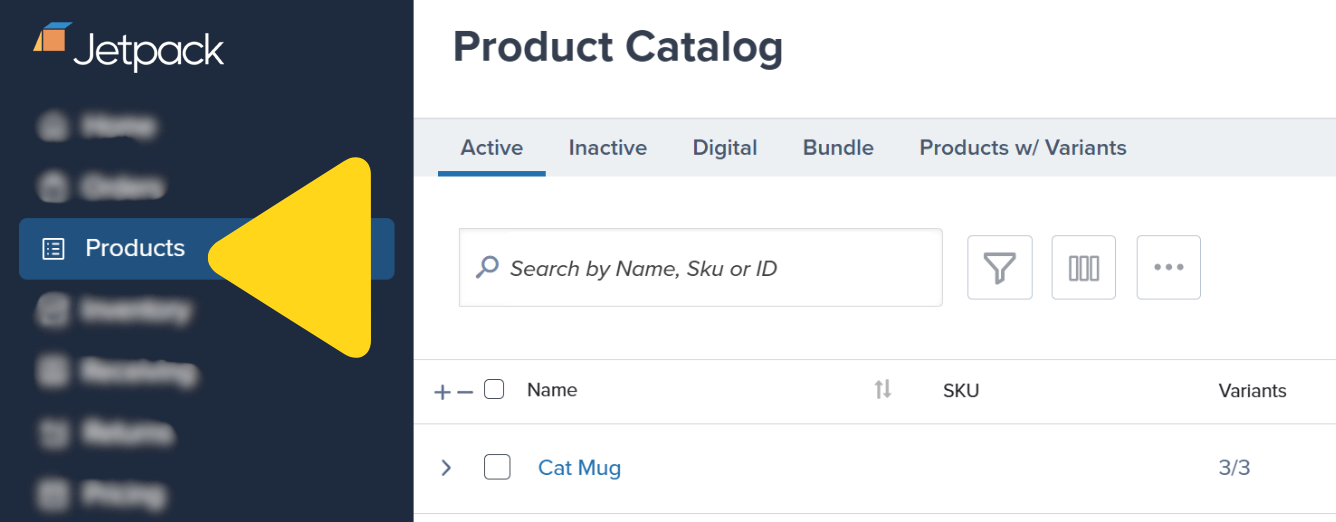
Click **Products** on the left-hand navigation bar.
You will be redirected to the Product Catalog page.
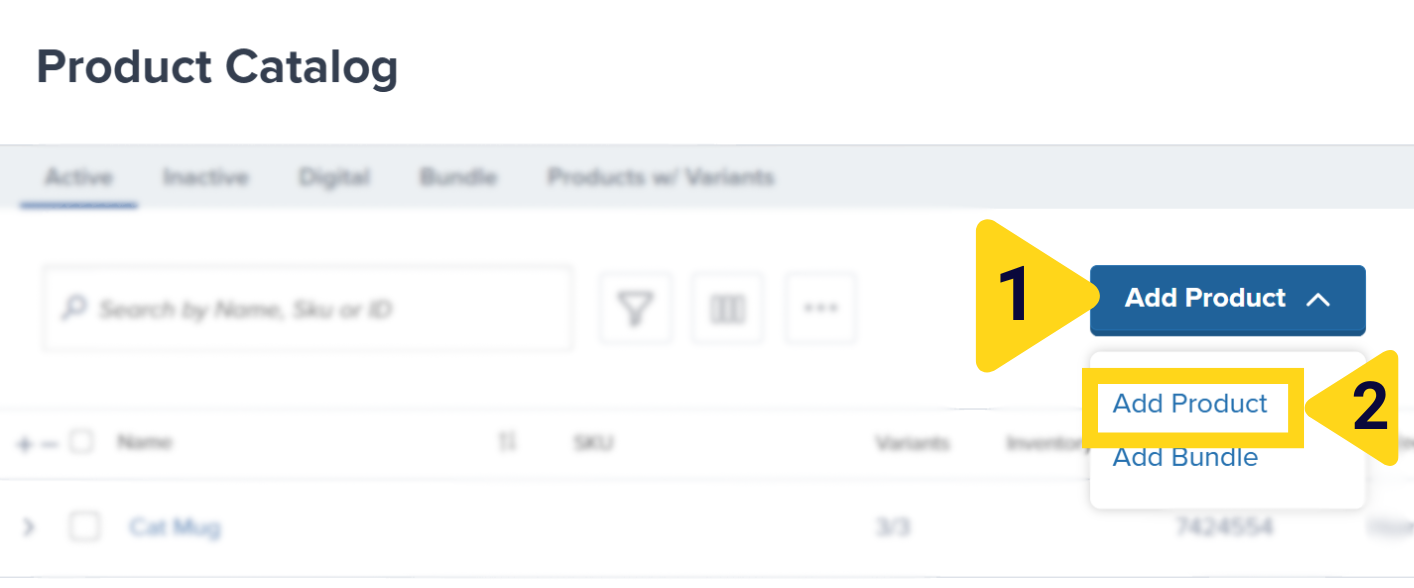
 Click **Add Product**.
Additional menu options will appear.
Select **Add Product**.
Click **Add Product**.
Additional menu options will appear.
Select **Add Product**.
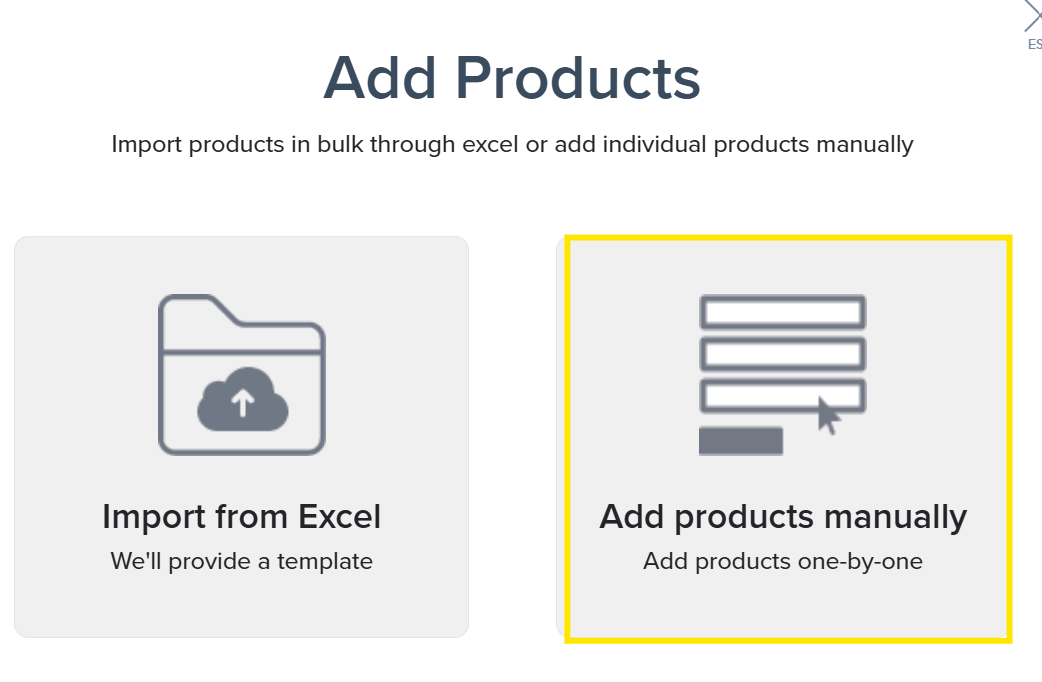
 A pop-up window will appear.
Select **Add products manually**.
A pop-up window will appear.
Select **Add products manually**.
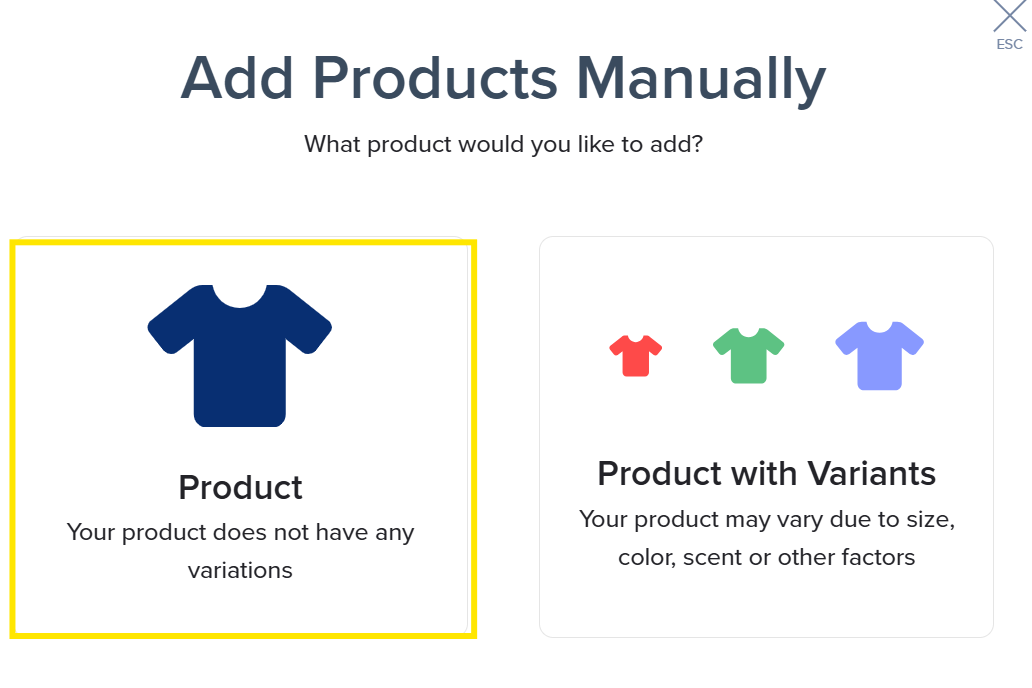
 Select **Product**.
 Input any name in the textbox under **Product Name**.
Input a fake SKU in the textbox under **SKU**.
Be sure that the SKU input will never match with a real product's SKU.
Input any name in the textbox under **Product Name**.
Input a fake SKU in the textbox under **SKU**.
Be sure that the SKU input will never match with a real product's SKU.
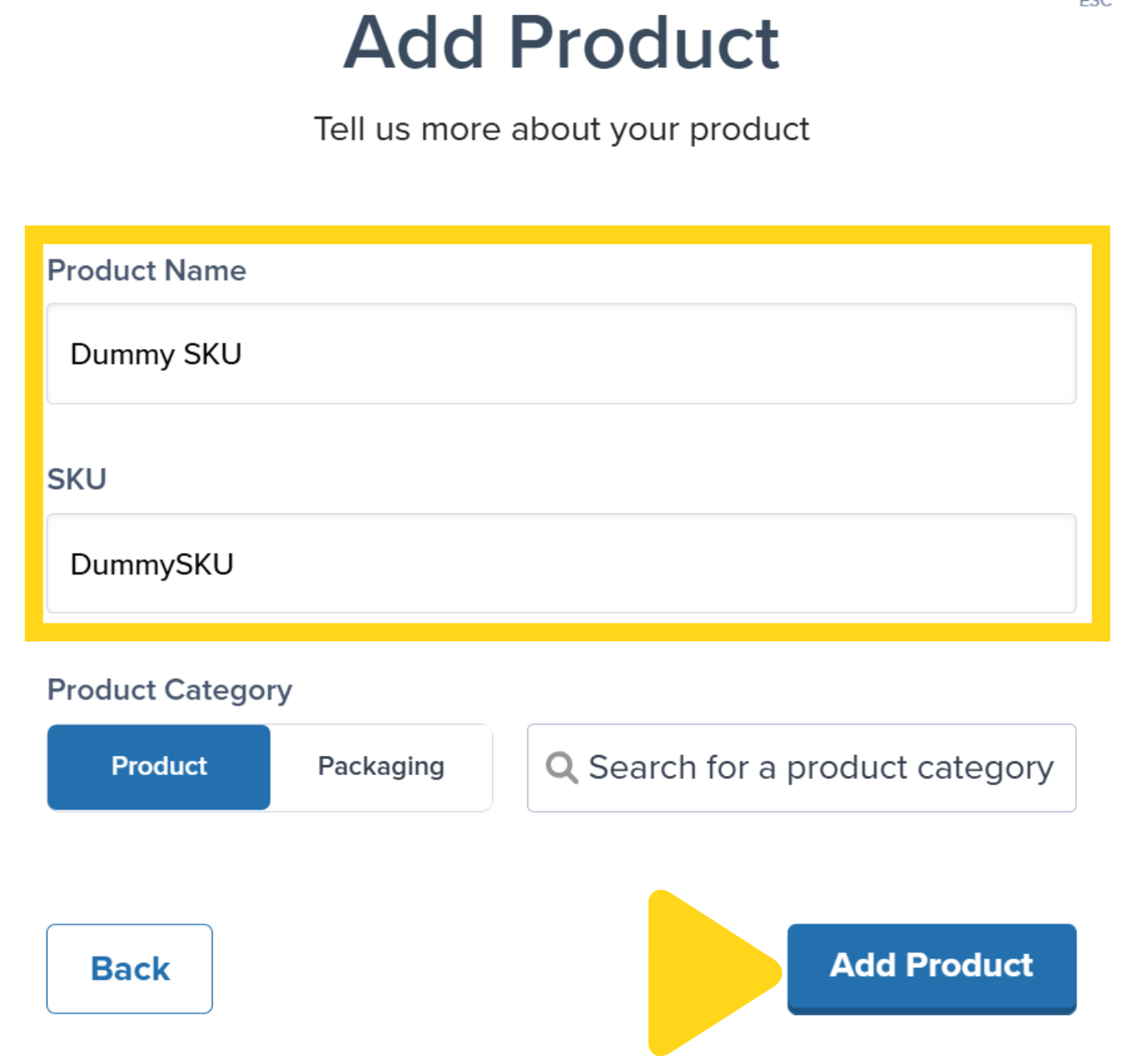 Click **Add Product**.
You will be redirected to the product details page of the newly created dummy SKU.
Click **Add Product**.
You will be redirected to the product details page of the newly created dummy SKU.
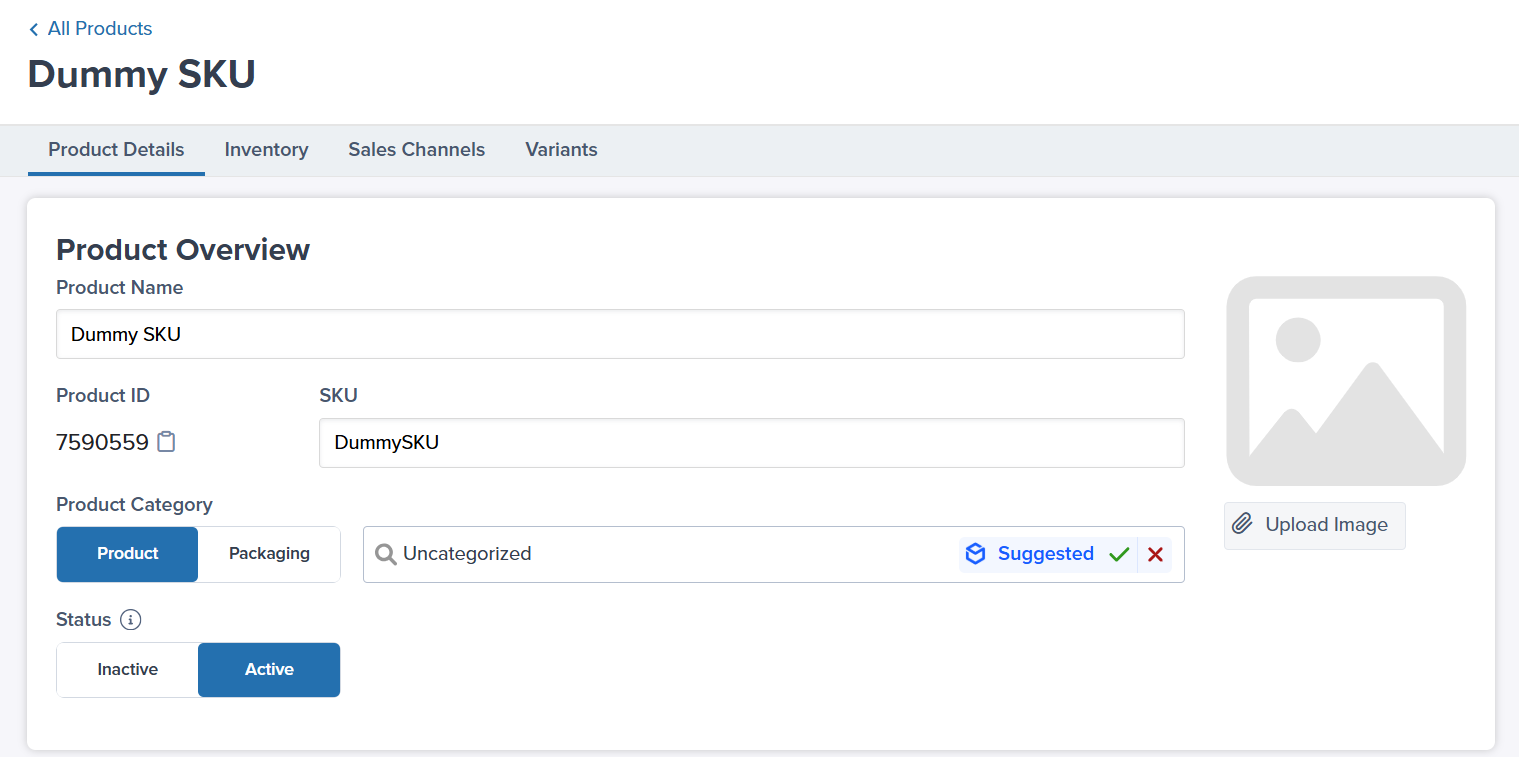 **Applicable only if you utilize FIFO Order Allocation rules or plan to manually split the orders:**
Select **has no requirements** and **Box** from the drop-down options under Packaging Requirements, then click **Save** in the Unsaved Changes bar.
**Applicable only if you utilize FIFO Order Allocation rules or plan to manually split the orders:**
Select **has no requirements** and **Box** from the drop-down options under Packaging Requirements, then click **Save** in the Unsaved Changes bar.
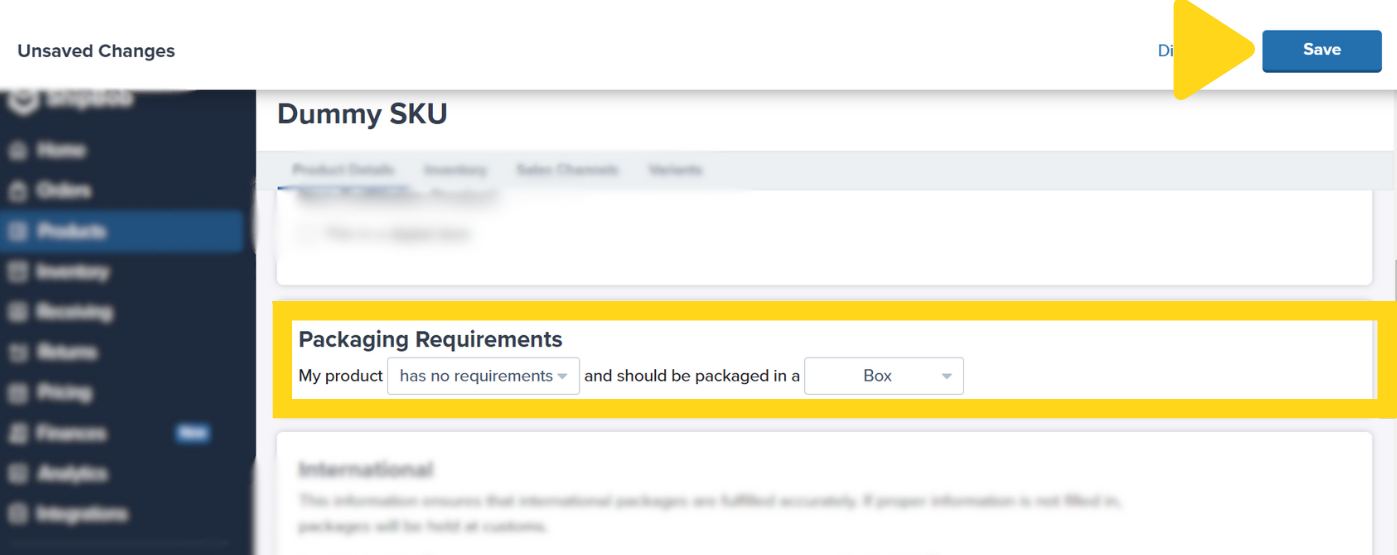 When an order contains a dummy SKU with packaging preference, the order will move to the Exception status instead of the On-Hold Status (which allows inventory allocation for FIFO Order Allocation rules and manual order splits).
***
## Adding Dummy SKU to Orders
Dummy SKUs can be added to orders using one of the below options:
### Using Automation Rules
Automation Rules can be used to automatically add the dummy SKU to orders based on conditions. [Learn more about Automation Rules](/fulfillment/rules-customization-kitting/automation-rules) and how to request them.
### Manual Addition for a Specific Order
The Order Details tile on the order details page can be used to manually add a dummy SKU to a specific order. [Learn how to edit an order](/fulfillment/order-management/orders-page#editing-order-details).
### Bulk Addition Using Bulk Order Edit
Bulk Order Edit actions can be used to add the dummy SKU to orders in bulk using the Orders page.
To search for a group of orders at once using the search bar, separate each Store Order ID or Shipment ID by the pipe character (|) on your keyboard.
[Learn how to use Bulk Order Edit actions](/fulfillment/tools-techniques/bulk-editing-orders) to add the dummy SKU to multiple orders at once.
***
## Removing Dummy SKU from Orders
After reviewing the order, you can cancel it to prevent order fulfillment (e.g., if the order is fraud) or remove the dummy SKU from the order to allow the order to be shipped to your customer.
Dummy SKUs can be removed from orders using one of the below options:
### Manual Removal for a Specific Order
The Order Details tile on the order details page can be used to manually remove a dummy SKU from a specific order. [Learn how to edit an order](/fulfillment/order-management/orders-page#editing-order-details).
### Bulk Removal Using Bulk Order Edit
Bulk Order Edit actions can be used to remove the dummy SKU from orders in bulk using the Orders page.
To search for a group of orders at once using the search bar, separate each Store Order ID or Shipment ID by the pipe character (|) on your keyboard.
[Learn how to use Bulk Order Edit actions](/fulfillment/tools-techniques/bulk-editing-orders) to remove the dummy SKU from multiple orders at once.
***
## Let's Dive Deeper
Use Automatic Processing Pause to move all orders to On-Hold status
Learn about bulk operations available on the Orders page
Edit multiple orders at once efficiently
View, search, and manage your orders
Learn about the Product Catalog and product management
Back to the main tools guide
When an order contains a dummy SKU with packaging preference, the order will move to the Exception status instead of the On-Hold Status (which allows inventory allocation for FIFO Order Allocation rules and manual order splits).
***
## Adding Dummy SKU to Orders
Dummy SKUs can be added to orders using one of the below options:
### Using Automation Rules
Automation Rules can be used to automatically add the dummy SKU to orders based on conditions. [Learn more about Automation Rules](/fulfillment/rules-customization-kitting/automation-rules) and how to request them.
### Manual Addition for a Specific Order
The Order Details tile on the order details page can be used to manually add a dummy SKU to a specific order. [Learn how to edit an order](/fulfillment/order-management/orders-page#editing-order-details).
### Bulk Addition Using Bulk Order Edit
Bulk Order Edit actions can be used to add the dummy SKU to orders in bulk using the Orders page.
To search for a group of orders at once using the search bar, separate each Store Order ID or Shipment ID by the pipe character (|) on your keyboard.
[Learn how to use Bulk Order Edit actions](/fulfillment/tools-techniques/bulk-editing-orders) to add the dummy SKU to multiple orders at once.
***
## Removing Dummy SKU from Orders
After reviewing the order, you can cancel it to prevent order fulfillment (e.g., if the order is fraud) or remove the dummy SKU from the order to allow the order to be shipped to your customer.
Dummy SKUs can be removed from orders using one of the below options:
### Manual Removal for a Specific Order
The Order Details tile on the order details page can be used to manually remove a dummy SKU from a specific order. [Learn how to edit an order](/fulfillment/order-management/orders-page#editing-order-details).
### Bulk Removal Using Bulk Order Edit
Bulk Order Edit actions can be used to remove the dummy SKU from orders in bulk using the Orders page.
To search for a group of orders at once using the search bar, separate each Store Order ID or Shipment ID by the pipe character (|) on your keyboard.
[Learn how to use Bulk Order Edit actions](/fulfillment/tools-techniques/bulk-editing-orders) to remove the dummy SKU from multiple orders at once.
***
## Let's Dive Deeper
Use Automatic Processing Pause to move all orders to On-Hold status
Learn about bulk operations available on the Orders page
Edit multiple orders at once efficiently
View, search, and manage your orders
Learn about the Product Catalog and product management
Back to the main tools guide
Questions? Contact Jetpack Care.
If you have any questions or run into issues, you can always contact Jetpack Care for help. Our team is always here to assist via Slack, phone, or email!