> ## Documentation Index
> Fetch the complete documentation index at: https://help.jetpack3pl.com/llms.txt
> Use this file to discover all available pages before exploring further.
# Bulk Editing Orders
> Learn how to add or remove items across multiple orders simultaneously with bulk editing tools, including available actions and step-by-step workflow.
When you need to make the same product-level changes across multiple orders—adding promotional items, removing discontinued SKUs, or adjusting quantities—bulk editing saves you hours of manual work. Unlike bulk actions (which change order settings), bulk editing modifies the actual items within orders in a single operation.
## Bulk Editing vs. Bulk Actions
It's important to understand the difference between these two features:
**Bulk Actions** (separate feature):
* Change order **settings** like fulfillment center, signature requirements, or On-Hold status
* Operate on order-level properties
* Learn more about [bulk actions on orders](/fulfillment/tools-techniques/bulk-actions-on-orders)
**Bulk Editing** (this feature):
* Modify **products** within orders—add items, remove items, adjust quantities
* Operate on order contents
* Useful for promotional inserts, product recalls, or inventory adjustments
***
## Available Bulk Edit Actions
You can perform two types of bulk edits on multiple orders simultaneously:
| Action | What It Does | Use Cases |
| ---------------- | --------------------------------------------------------------------------------------- | --------------------------------------------------------------------------------------------------------------------------------------------------------------------------------------- |
| **Add Items** | Adds a specified product (by SKU) with a specified quantity to all selected orders | - Adding promotional inserts or free gifts
- Including marketing materials in shipments
- Adding forgotten items to a batch of orders
|
| **Remove Items** | Removes a specified product (by SKU) with a specified quantity from all selected orders | - Removing discontinued or recalled products
- Eliminating out-of-stock items from pending orders
- Removing promotional items that are no longer available
|
### Important Considerations
**Inventory Availability**:
* If there is not enough inventory to fulfill an added item across all selected orders, some orders will move to **Action Required** status until stock becomes available
* The bulk edit will complete for orders where inventory is available
**Missing Items**:
* Attempting to remove an item that is not present in an order has no effect on that order
* If you remove every item from an order, that order is **automatically cancelled**
**Feature Limitations**:
* **Bundles cannot be added or removed** in bulk—bundles must be edited individually
* **B2B orders containing manual-lot items** cannot be updated via bulk edit—lot products require individual order editing
***
## How to Bulk Edit Orders
Follow these steps to add or remove items across multiple orders:
Click **Orders** in the left-hand navigation bar
Choose **All Orders** (or apply a custom filter to narrow your order list)
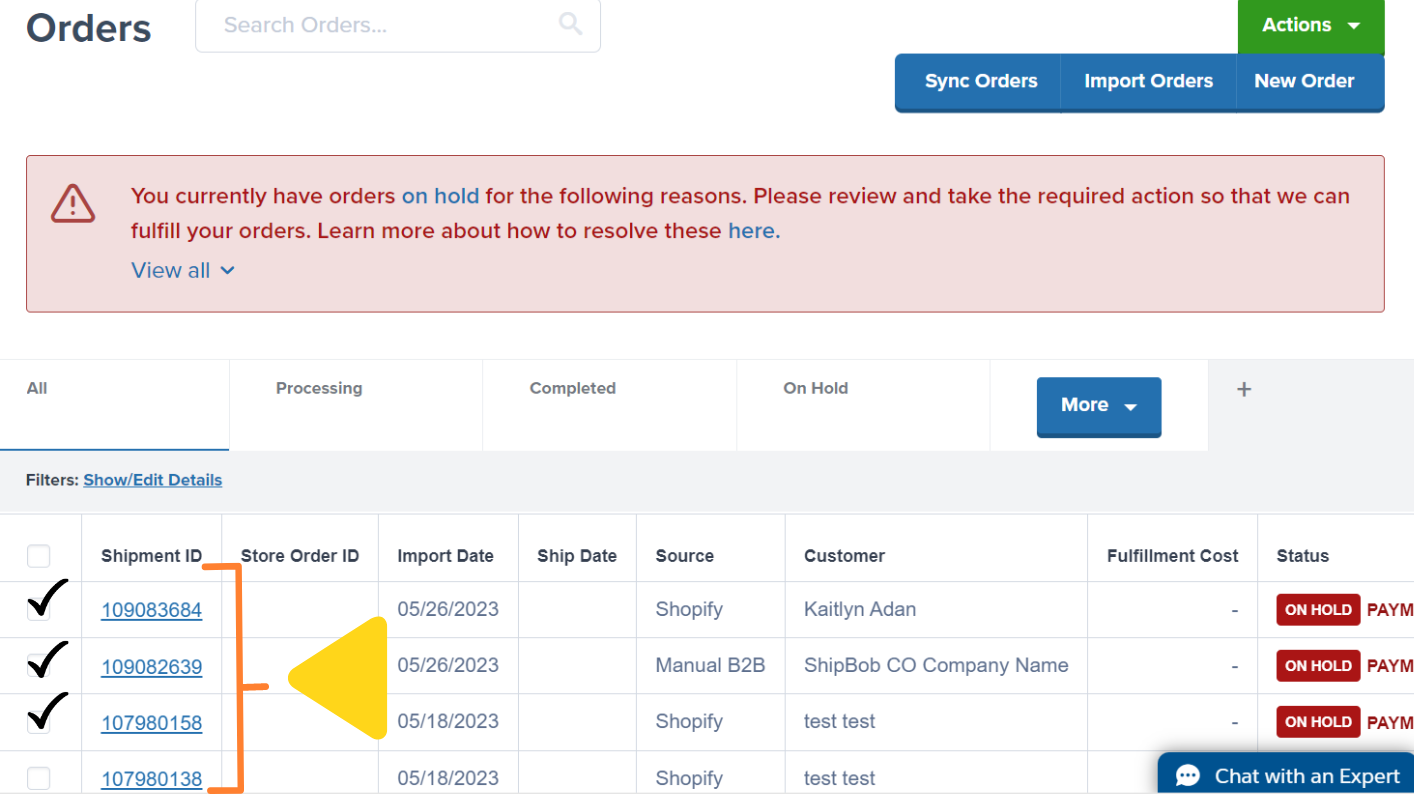
Check the box next to each order (**Shipment ID**) you wish to edit
Orders cannot be modified once Jetpack's Operations team has begun fulfillment. Only select orders in **Action Required** or **Processing** status that have not yet been picked.
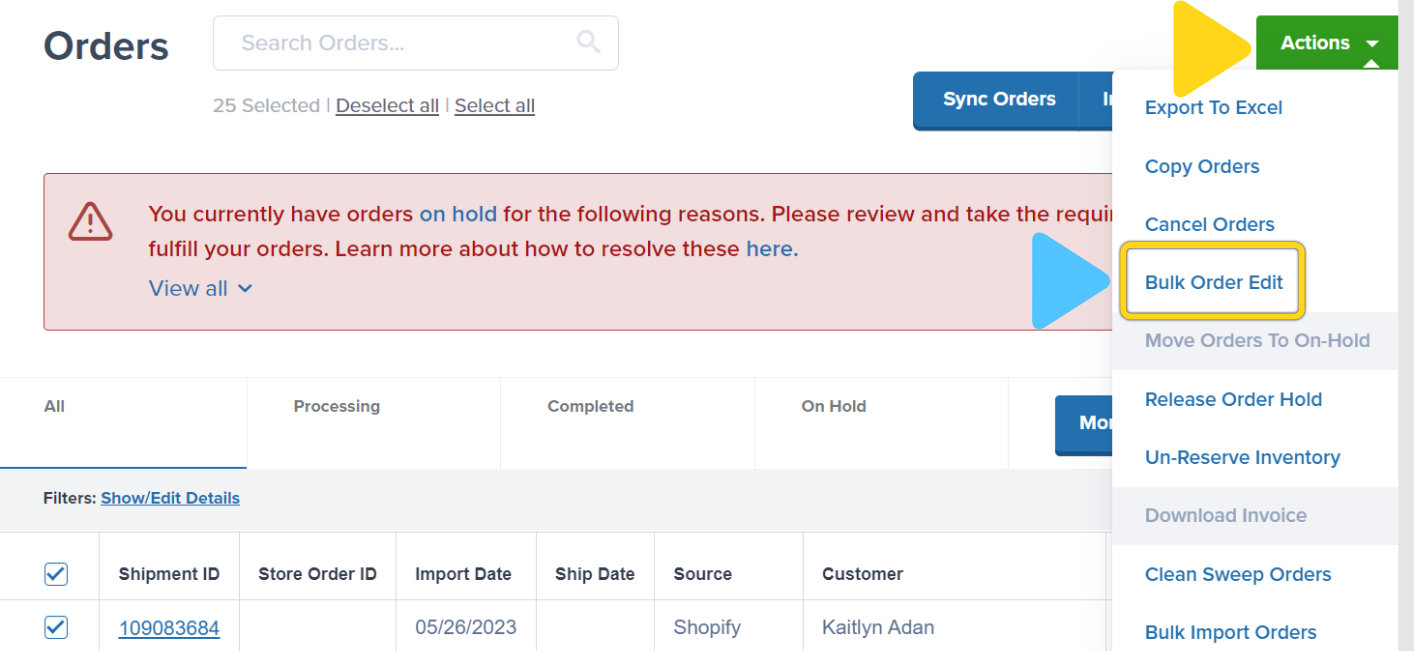
 Click the green **Actions** button at the top right of the Orders page, then select **Bulk Order Edit** from the dropdown menu
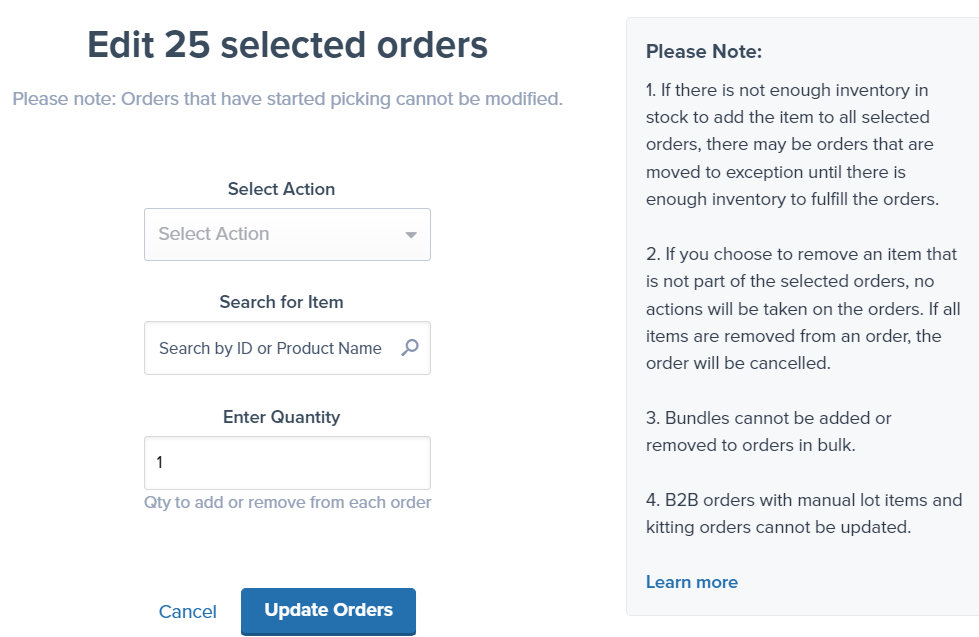
 In the Bulk Edit popup:
1. Use the **Select Action** dropdown to choose:
* **Add Item to Order** - To add products to all selected orders
* **Remove Item from Order** - To remove products from all selected orders
2. Enter the target **SKU** or **product name** in the **Search for Item** field
3. Specify the **quantity** to add or remove in the **Enter Quantity** box
4. Click **Update Orders**
The quantity you enter will be added to (or removed from) **each** selected order, not split across all orders.
For example, if you add 2 units of a SKU to 10 orders, you're adding 20 total units (2 per order).
In the Bulk Edit popup:
1. Use the **Select Action** dropdown to choose:
* **Add Item to Order** - To add products to all selected orders
* **Remove Item from Order** - To remove products from all selected orders
2. Enter the target **SKU** or **product name** in the **Search for Item** field
3. Specify the **quantity** to add or remove in the **Enter Quantity** box
4. Click **Update Orders**
The quantity you enter will be added to (or removed from) **each** selected order, not split across all orders.
For example, if you add 2 units of a SKU to 10 orders, you're adding 20 total units (2 per order).
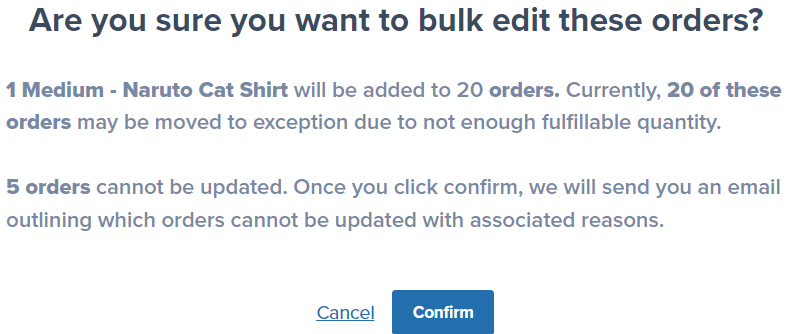
 Review the on-screen summary, which shows **how many orders can be updated**. Orders that cannot be edited will trigger a **follow-up email** detailing the reasons for failure (e.g., insufficient inventory, order already picked, lot products present, etc.)
Click **Confirm** to finalize the changes. The bulk edit will be applied to all eligible orders, and you'll receive confirmation once the operation completes.
Review the on-screen summary, which shows **how many orders can be updated**. Orders that cannot be edited will trigger a **follow-up email** detailing the reasons for failure (e.g., insufficient inventory, order already picked, lot products present, etc.)
Click **Confirm** to finalize the changes. The bulk edit will be applied to all eligible orders, and you'll receive confirmation once the operation completes.
 ***
## Tracking Bulk Edit Results
After submitting a bulk edit, Jetpack processes the changes and provides feedback:
### Successful Updates
Orders that were successfully updated will reflect the changes immediately:
* **Added items** appear in the Shipment Details panel with reserved inventory
* **Removed items** are removed from the Shipment Details panel and inventory is unreserved
* Orders remain in their current status (unless inventory issues arise)
### Failed Updates
Orders that could not be updated will generate a **follow-up email** sent to your account email address. The email will detail:
* Which orders could not be updated
* The specific reason for each failure (e.g., insufficient inventory, order status, lot products, bundles)
* Recommended next steps
### Common Failure Reasons
| Reason | Why It Happens | What to Do |
| ------------------------------ | ------------------------------------------------------------------ | ----------------------------------------------------------------------------------------------------------------------------------------------------------------------------------------------------------------------- |
| **Insufficient Inventory** | Not enough stock at the assigned FC to fulfill the added item |
***
## Tracking Bulk Edit Results
After submitting a bulk edit, Jetpack processes the changes and provides feedback:
### Successful Updates
Orders that were successfully updated will reflect the changes immediately:
* **Added items** appear in the Shipment Details panel with reserved inventory
* **Removed items** are removed from the Shipment Details panel and inventory is unreserved
* Orders remain in their current status (unless inventory issues arise)
### Failed Updates
Orders that could not be updated will generate a **follow-up email** sent to your account email address. The email will detail:
* Which orders could not be updated
* The specific reason for each failure (e.g., insufficient inventory, order status, lot products, bundles)
* Recommended next steps
### Common Failure Reasons
| Reason | Why It Happens | What to Do |
| ------------------------------ | ------------------------------------------------------------------ | ----------------------------------------------------------------------------------------------------------------------------------------------------------------------------------------------------------------------- |
| **Insufficient Inventory** | Not enough stock at the assigned FC to fulfill the added item | - [Create a WRO](/fulfillment/sending-inventory/creating-wro) to replenish inventory
- Remove the order from the bulk edit selection and handle individually
|
| **Order Already Picked** | The order has moved to Picked, Packed, Labeled, or Shipped status | - Contact [Jetpack Care](/fulfillment/jetpack-care) if changes are urgent
- Accept that the order cannot be modified
|
| **Lot Products Present (B2B)** | The order contains manual-lot items requiring individual selection | - Edit the order individually from the [Shipment Details page](/fulfillment/order-management/shipment-details-page)
- Learn more about [Pick By Lot for B2B orders](/fulfillment/b2b/pick-by-lot)
|
| **Bundle Limitation** | You attempted to add or remove a product bundle | - Edit bundles individually from the Shipment Details page
- Bundles cannot be added or removed in bulk
|
***
## Let's Dive Deeper
Navigate and filter all your orders with customizable views
Make changes to individual orders including customer info and products
Change order settings like fulfillment center or On-Hold status across multiple orders
Access detailed order information and editing options
Use dummy SKUs to control order timing
Back to the main tools guide
Questions? Contact Jetpack Care.
If you have any questions or run into issues, you can always contact Jetpack Care for help. Our team is always here to assist via Slack, phone, or email!