> ## Documentation Index
> Fetch the complete documentation index at: https://help.jetpack3pl.com/llms.txt
> Use this file to discover all available pages before exploring further.
# Bulk Actions on Orders
> Select multiple orders and perform bulk actions like releasing holds, canceling orders, and managing line items.
When you need to manage multiple orders at once, bulk actions let you efficiently process dozens or even hundreds of orders simultaneously. Whether you're releasing order holds, canceling problematic orders, or updating line items across multiple shipments, the Orders page gives you the tools to select and manage orders in bulk.
## Available Bulk Actions
From the Orders page, you can select multiple orders and perform a variety of bulk actions to streamline your order management workflow:
| Bulk Action | What It Does |
| ---------------------------- | -------------------------------------------------------------------------------------------------------------------------------------------------------------------------- |
| **Move Orders to On-hold** | Places selected orders on hold, with optional inventory reservation. [Learn more about putting orders on hold](/fulfillment/tools-techniques/putting-orders-on-hold). |
| **Release Order Hold** | Removes the hold status from selected orders, allowing them to proceed to fulfillment. |
| **Clean Sweep Orders** | Clears and reprocesses selected orders. [Learn more about clean sweep](/fulfillment/tools-techniques/copy-cancel-clean-sweep). |
| **Cancel Orders** | Cancels selected orders. [Learn more about canceling orders](/fulfillment/tools-techniques/copy-cancel-clean-sweep#canceling-orders). |
| **Add or Remove Line Items** | Adds new products or removes existing products from multiple orders at once. [Learn more about editing orders](/fulfillment/tools-techniques/bulk-editing-orders). |
| **Copy Orders** | Duplicates selected orders (up to one page of results at a time). [Learn more about copying orders](/fulfillment/tools-techniques/copy-cancel-clean-sweep#copying-orders). |
Some bulk actions aren't available for every order. For example, you can't release a hold on an order that isn't currently on hold, or cancel an order that's already shipped.
***
## Selecting Orders for Bulk Actions
Follow these steps to select the orders you want to manage:
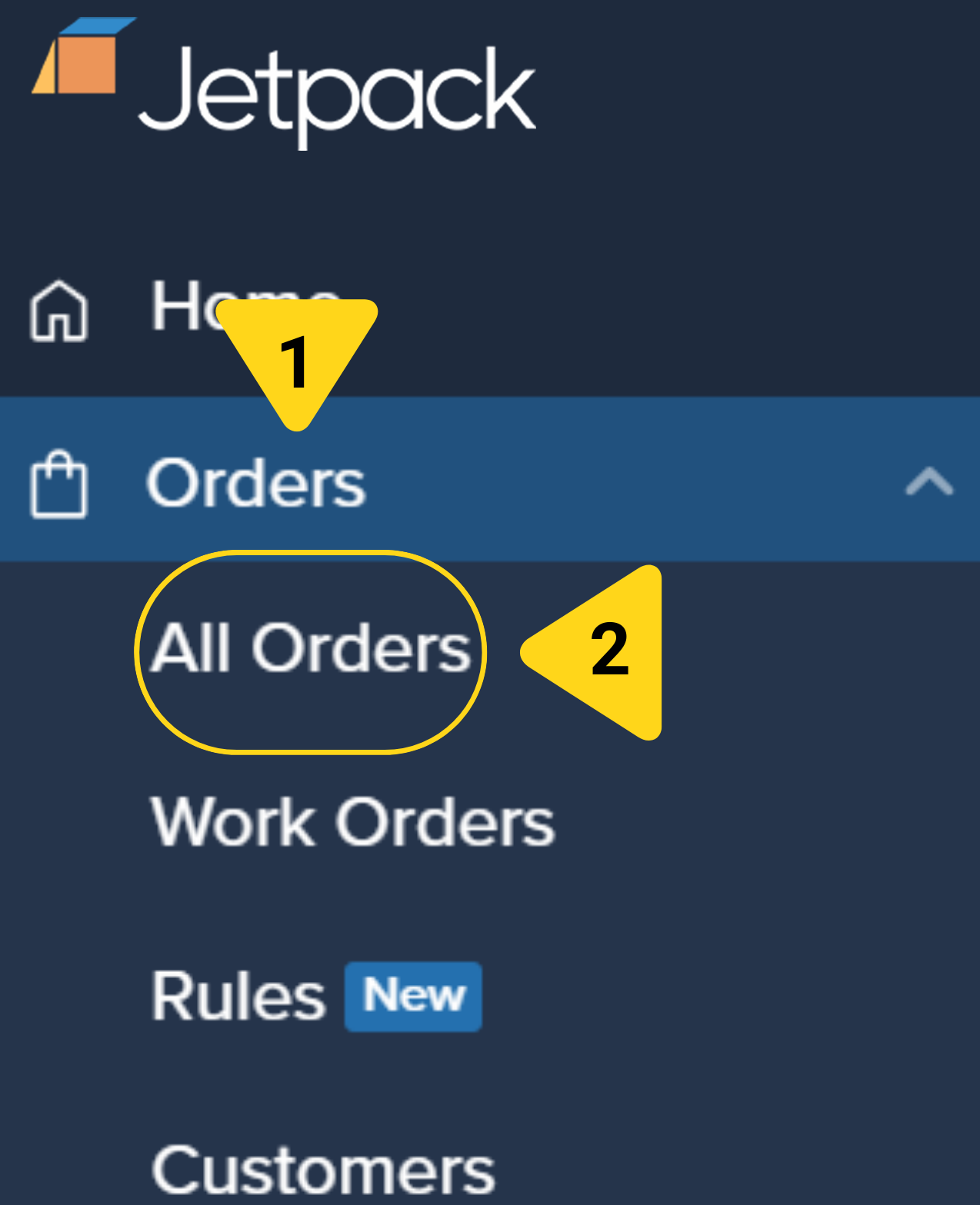
Click **Orders** in the left-hand navigation menu, then select **All Orders** or choose a saved filter to display the specific orders you want to manage.
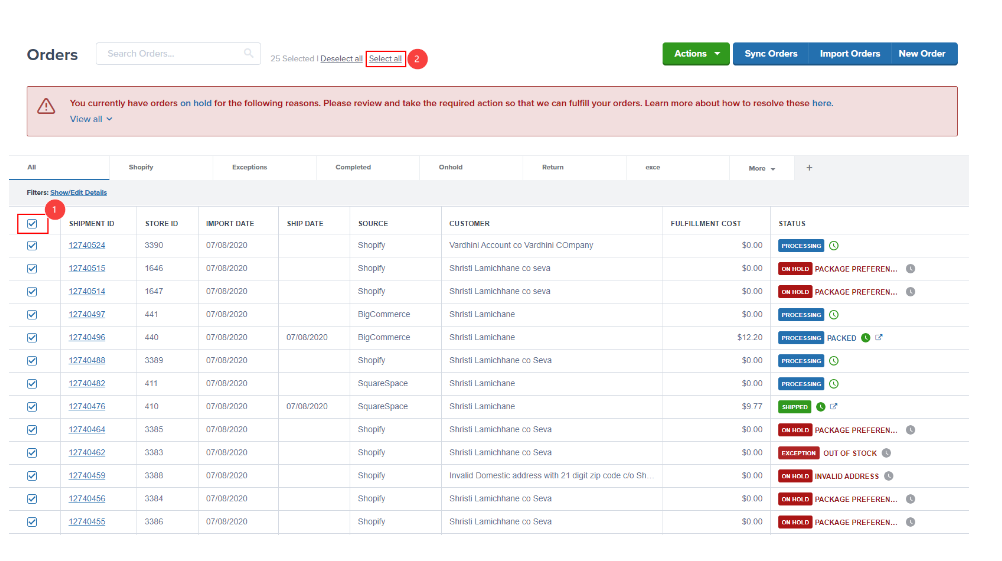
 Check the box next to each order you want to include in your bulk action.
 To select every order displayed under your current filter, check the box in the top row of the table header, then click **Select all** in the confirmation prompt that appears.
***
## Performing Bulk Actions
Once you've selected your orders, you can execute your bulk action:
With your orders selected, click the **Actions** button located above the orders table, then select the desired bulk action from the dropdown list. The system will begin processing your request.
To select every order displayed under your current filter, check the box in the top row of the table header, then click **Select all** in the confirmation prompt that appears.
***
## Performing Bulk Actions
Once you've selected your orders, you can execute your bulk action:
With your orders selected, click the **Actions** button located above the orders table, then select the desired bulk action from the dropdown list. The system will begin processing your request.
 Once Jetpack completes the bulk action, you'll receive a summary email that includes:
* A description of the action performed
* Whether each order succeeded or failed
* Failure reasons for any orders that weren't processed successfully
Once Jetpack completes the bulk action, you'll receive a summary email that includes:
* A description of the action performed
* Whether each order succeeded or failed
* Failure reasons for any orders that weren't processed successfully
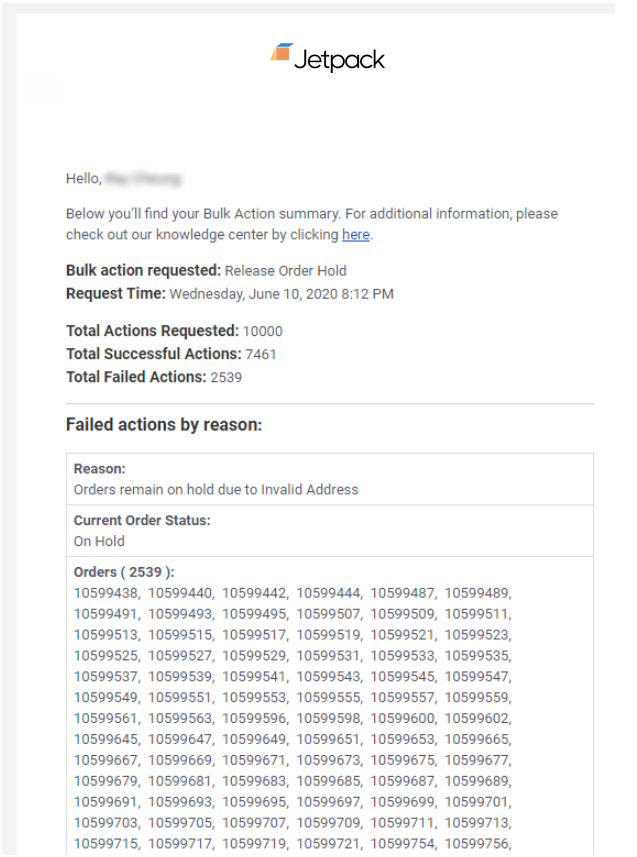 This summary email helps you quickly identify which orders processed successfully and which may require additional attention or manual intervention.
***
## Let's Dive Deeper
Back to the main tools and techniques guide
Manage order holds and inventory reservation
Add or remove line items from orders
Duplicate, cancel, or reprocess orders
Understand order processing stages
Use dummy SKUs to manage order timing
This summary email helps you quickly identify which orders processed successfully and which may require additional attention or manual intervention.
***
## Let's Dive Deeper
Back to the main tools and techniques guide
Manage order holds and inventory reservation
Add or remove line items from orders
Duplicate, cancel, or reprocess orders
Understand order processing stages
Use dummy SKUs to manage order timing
Questions? Contact Jetpack Care.
If you have any questions or run into issues, you can always contact Jetpack Care for help. Our team is always here to assist via Slack, phone, or email!