> ## Documentation Index
> Fetch the complete documentation index at: https://help.jetpack3pl.com/llms.txt
> Use this file to discover all available pages before exploring further.

# WRO Bulk Product Upload

> Streamline WRO creation with bulk CSV uploads for large product catalogs, saving time and reducing errors when managing extensive inventory shipments.

<div className="page-intro">
  Creating WROs with dozens or hundreds of products can be time-consuming when adding items one by one. Jetpack's bulk product upload feature lets you use a CSV template to quickly add multiple products, quantities, and lot information to your WROs.
</div>

## When to Use Bulk Upload

Bulk upload is ideal for:

<Check>**Large Product Lists**: WROs with many different SKUs</Check>
<Check>**Complex Lot Management**: Products with varying lot numbers and expiration dates</Check>
<Check>**Regular Shipments**: Recurring inventory patterns you can template</Check>
<Check>**Time Efficiency**: Reducing manual data entry for extensive catalogs</Check>

<Info title="Product Limit">
  The bulk upload template supports up to 100 products per WRO. For larger shipments, create multiple WROs (e.g., products 1-100, 101-200, etc.).
</Info>

***

## Bulk Upload Process

<Steps>
  <Step title="Begin WRO Creation">
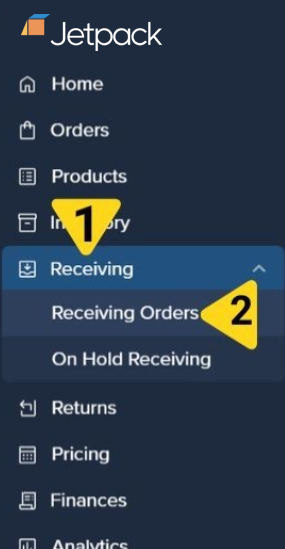
    Navigate to **Receiving > Receiving Orders** in your dashboard

    <img src="https://mintcdn.com/jetpack/TBssrYK7Z-ylVEkW/images/sending-inventory/wro-bulk-import-button.png?fit=max&auto=format&n=TBssrYK7Z-ylVEkW&q=85&s=ce35ffcfc37b05c5a87f1812c1fc4f49" alt="Import button location in WRO creation showing Step 2 of 6 with search bar and Import button" className="screenshot" width="285" height="549" data-path="images/sending-inventory/wro-bulk-import-button.png" />
  </Step>

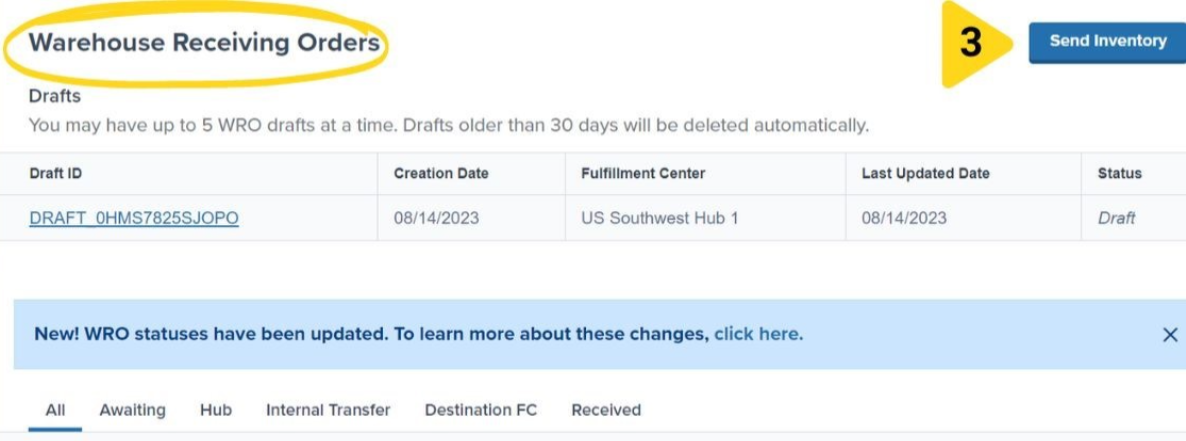
  <Step title="Click Send Inventory">
    On the WRO creation page, select your destination fulfillment center from the dropdown, optionally add your PO number, then click **Save & Continue** to proceed to Step 2 of the WRO process.

    <img src="https://mintcdn.com/jetpack/TBssrYK7Z-ylVEkW/images/sending-inventory/wro-bulk-csv-template-download.png?fit=max&auto=format&n=TBssrYK7Z-ylVEkW&q=85&s=e718b6c1c1238117d2fec8806ee11fa1" alt="Import popup dialog showing download CSV template link and drag-and-drop upload area" className="screenshot" width="1186" height="441" data-path="images/sending-inventory/wro-bulk-csv-template-download.png" />
  </Step>

  <Step title="Access Bulk Import">
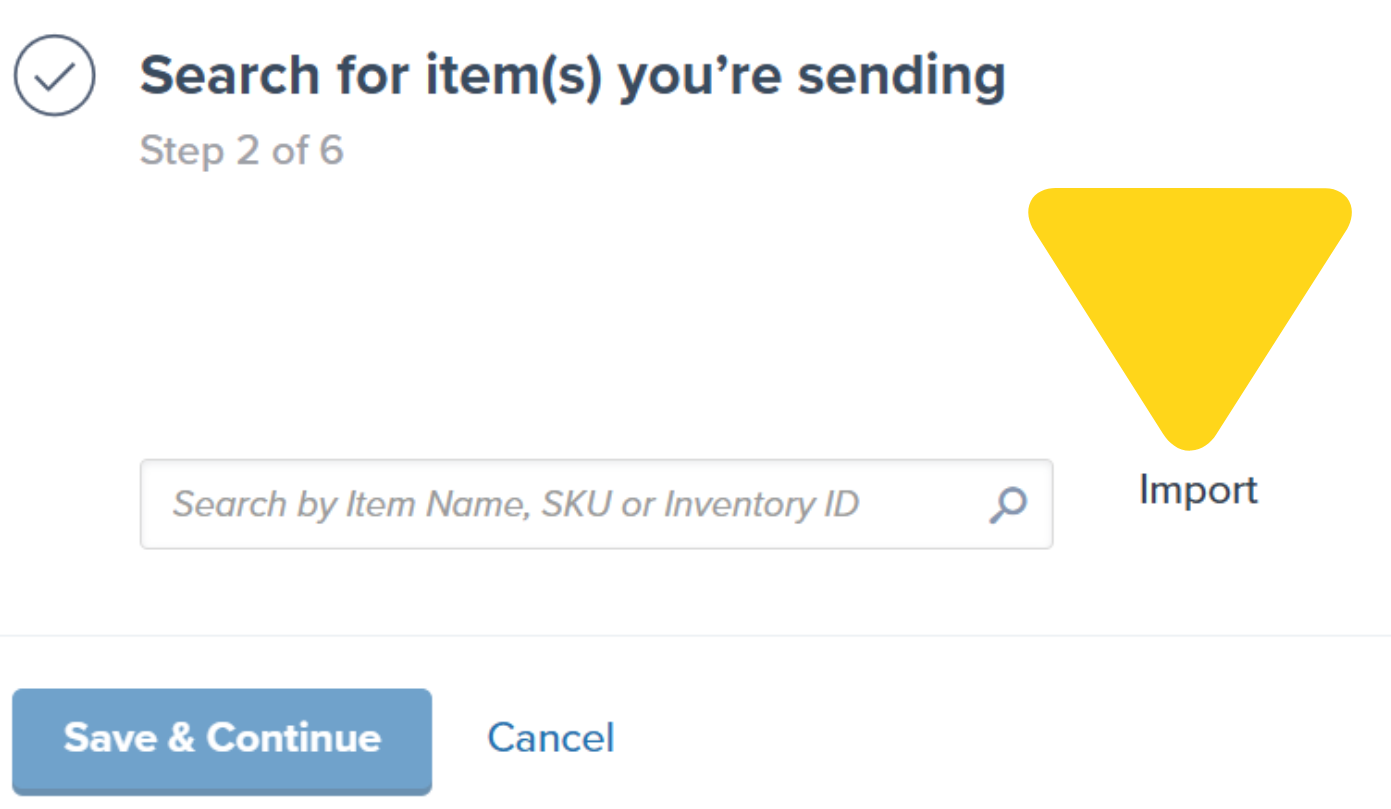
    Instead of searching for products individually, click the **Import** button located at the far right of the search bar.

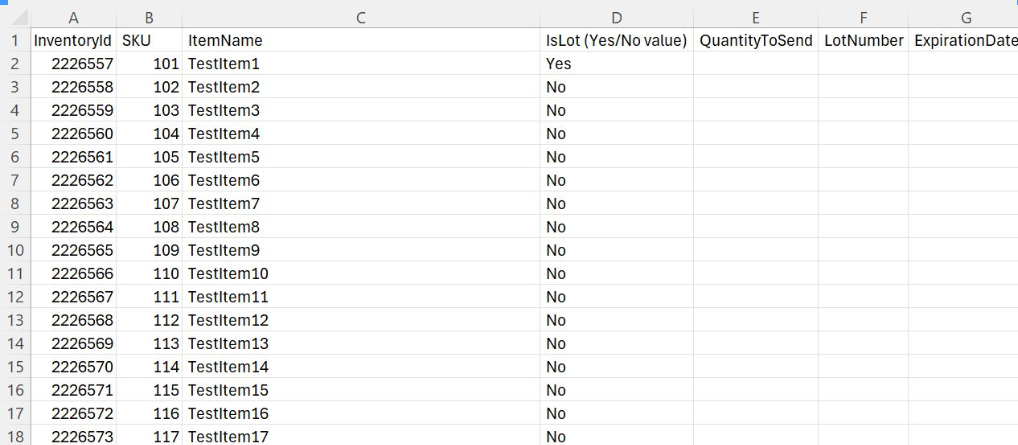
    <img src="https://mintcdn.com/jetpack/TBssrYK7Z-ylVEkW/images/sending-inventory/wro-bulk-csv-template-structure.png?fit=max&auto=format&n=TBssrYK7Z-ylVEkW&q=85&s=2c9a152f4b2239e81887fba2e484f645" alt="CSV template spreadsheet showing columns: InventoryId, SKU, ItemName, IsLot, QuantityToSend, LotNumber, ExpirationDate" className="screenshot" width="1391" height="809" data-path="images/sending-inventory/wro-bulk-csv-template-structure.png" />

    <Tip title="Skip Individual Search">
      You don't need to search for products one by one before using bulk import. The import feature replaces manual product selection entirely.
    </Tip>
  </Step>

  <Step title="Download the CSV Template">
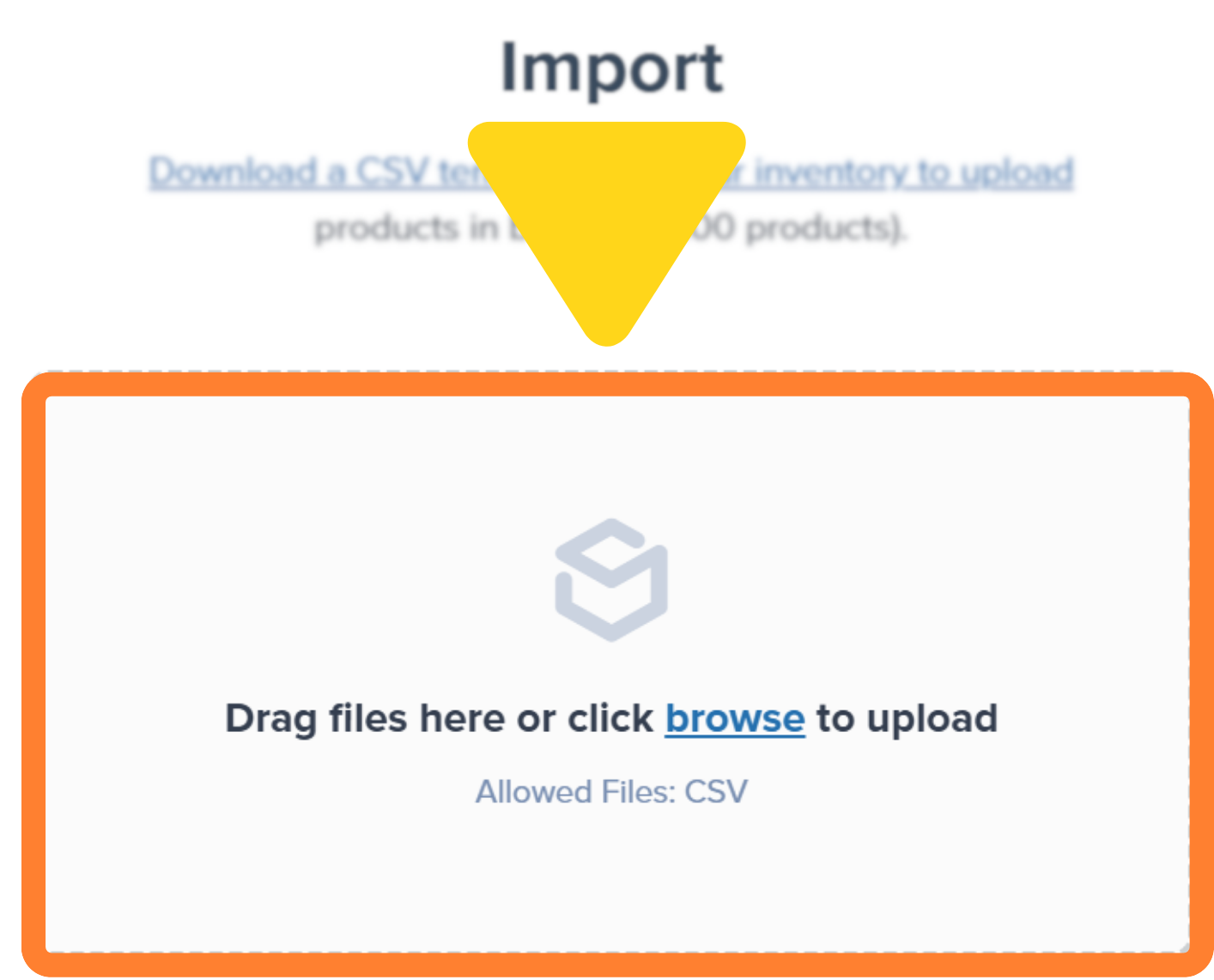
    In the bulk import popup, click the hyperlinked text **"Download a CSV template with your inventory to upload"**. A `.csv` file will automatically download to your computer containing your active and non-digital products.
  </Step>

  <Step title="Understand the Template Structure">
    <img src="https://mintcdn.com/jetpack/TBssrYK7Z-ylVEkW/images/sending-inventory/wro-bulk-csv-upload-interface.png?fit=max&auto=format&n=TBssrYK7Z-ylVEkW&q=85&s=f795e269d40909d0680705f715b3697c" alt="Import dialog with drag-and-drop upload area and browse button, showing 'Allowed Files: CSV'" className="screenshot" width="1018" height="445" data-path="images/sending-inventory/wro-bulk-csv-upload-interface.png" />

    The downloaded CSV contains these pre-populated columns:

    | Column             | Description                            | Editable |
    | ------------------ | -------------------------------------- | -------- |
    | **InventoryID**    | Internal Jetpack product identifier    | ❌ No     |
    | **SKU**            | Your product SKU                       | ❌ No     |
    | **ItemNames**      | Product display names                  | ❌ No     |
    | **QuantityToSend** | Units to include in WRO                | ✅ Yes    |
    | **LotNumber**      | Product lot identifier (if applicable) | ✅ Yes    |
    | **ExpirationDate** | Product expiration (MM/DD/YYYY)        | ✅ Yes    |

    <Warning title="Don't Modify Pre-populated Data">
      Never change the InventoryID, SKU, or ItemNames columns. Alterations will cause validation errors and prevent upload.
    </Warning>
  </Step>

  <Step title="Edit the Template">
    Edit your downloaded CSV template to match the products and quantities in your shipment:

    | Task                                  | Instructions                                                                                                                                                                                                                                                                                                  |
    | ------------------------------------- | ------------------------------------------------------------------------------------------------------------------------------------------------------------------------------------------------------------------------------------------------------------------------------------------------------------- |
    | **Remove Unwanted Products**          | <ul><li>**Delete Rows:** Remove entire rows for products not included in this WRO</li><li>**Keep Headers:** Always preserve the column header row</li></ul>                                                                                                                                                   |
    | **Add Quantities**                    | <ul><li>**QuantityToSend Column:** Enter the number of units for each product</li><li>**Required Field:** Every product row must have a quantity value</li><li>**Zero Quantities:** Delete the entire row instead of entering "0"</li></ul>                                                                   |
    | **Lot Information (When Applicable)** | <ul><li>**LotNumber:** Enter the specific lot identifier from your inventory</li><li>**ExpirationDate:** Use MM/DD/YYYY format (e.g., 10/01/2024)</li><li>**Month/Year Format:** If you only have MM/YYYY, use the first day (e.g., 10/01/2024)</li></ul>                                                     |
    | **Best Practices for CSV Editing**    | <ul><li>**Spreadsheet Software:** Use Excel, Google Sheets, or similar applications</li><li>**Save as CSV:** Maintain `.csv` format when saving changes</li><li>**No Extra Columns:** Don't add new columns or modify headers</li><li>**Clean Data:** Remove any extra spaces or special characters</li></ul> |
  </Step>

  <Step title="Upload the CSV">
    Return to the WRO creation page in your Jetpack dashboard. On the import popup, either drag and drop your edited CSV file onto the upload area, or click the **browse** button to select the file from your computer.

    <img src="https://mintcdn.com/jetpack/TBssrYK7Z-ylVEkW/images/sending-inventory/wro-bulk-validation-errors.png?fit=max&auto=format&n=TBssrYK7Z-ylVEkW&q=85&s=014b905228b2aab14c51e7cac2a3b52d" alt="Validation error display showing 'CSV could not be imported' with View All link to see detailed error list" className="screenshot" width="1414" height="1142" data-path="images/sending-inventory/wro-bulk-validation-errors.png" />
  </Step>

  <Step title="Validation Process">
    Jetpack automatically validates your CSV and displays results:

    | Validation Check          | What Happens                                                                                                                                                                                                                                                          |
    | ------------------------- | --------------------------------------------------------------------------------------------------------------------------------------------------------------------------------------------------------------------------------------------------------------------- |
    | **Automated Validation**  | <ul><li>**Correct Formatting:** Proper CSV structure and encoding</li><li>**Column Headers:** Exact match to required field names</li><li>**Data Integrity:** Valid product IDs and quantity formats</li><li>**File Size:** Maximum 100 products per upload</li></ul> |
    | **Successful Validation** | <ul><li>**Automatic Close:** Import window closes automatically</li><li>**Products Loaded:** Your WRO workflow populates with CSV data</li><li>**Continue Process:** Proceed with remaining WRO creation steps</li></ul>                                              |
    | **Validation Errors**     | <ul><li>**Error Display:** Detailed error messages appear</li><li>**Cannot Proceed:** Upload is blocked until issues are resolved</li><li>**View All Link:** Click to see complete error list</li></ul>                                                               |
  </Step>
</Steps>

***

## Troubleshooting Common CSV Errors

When validation errors occur, they will be displayed in the import window. Click the **View All** hyperlink within the error message to see a detailed list of issues.

Common validation errors and how to resolve them:

| Error Type                   | Problem                                    | Solution                                                                                                                                                                                                                                                                                                                                                                              |
| ---------------------------- | ------------------------------------------ | ------------------------------------------------------------------------------------------------------------------------------------------------------------------------------------------------------------------------------------------------------------------------------------------------------------------------------------------------------------------------------------- |
| **Column Name Issues**       | Column headers don't match expected values | Ensure exact spelling and capitalization:<ul><li>`InventoryID` (not `Inventory ID` or `inventoryid`)</li><li>`SKU` (not `sku` or `Sku`)</li><li>`ItemNames` (not `Item Names` or `Product Names`)</li><li>`QuantityToSend` (not `Quantity to Send` or `Qty`)</li><li>`LotNumber` (not `Lot Number` or `Lot`)</li><li>`ExpirationDate` (not `Expiration Date` or `Exp Date`)</li></ul> |
| **Data Modification Errors** | Pre-populated data has been changed        | Revert InventoryID, SKU, and ItemNames to exactly match your Product Catalog                                                                                                                                                                                                                                                                                                          |
| **Row Limit Exceeded**       | File contains more than 100 products       | Split products across multiple WROs and CSV files                                                                                                                                                                                                                                                                                                                                     |
| **Date Format Issues**       | Expiration dates in wrong format           | Use MM/DD/YYYY format exclusively (e.g., 03/15/2025)                                                                                                                                                                                                                                                                                                                                  |
| **Missing Quantities**       | Empty QuantityToSend values                | Enter quantities for all products or delete rows for products not being sent                                                                                                                                                                                                                                                                                                          |

<Accordion title="Advanced Troubleshooting">
  **File Won't Upload**: Ensure file is saved as `.csv` format, not Excel `.xlsx`

  **Special Characters**: Remove any special characters, extra spaces, or non-standard formatting

  **Encoding Issues**: Save CSV with UTF-8 encoding if international characters are causing problems

  **Large File Size**: Even with under 100 products, very long product names might cause file size issues
</Accordion>

***

## Continuing the WRO Process

<Steps>
  <Step title="Review Imported Data">
    After successful CSV upload, verify that all intended products are loaded with correct quantities and lot information before proceeding.
  </Step>

  <Step title="Complete WRO Creation">
    Continue through the remaining WRO creation steps, including box configuration, shipping details, and final review before submission.

    <Info title="Post-Import Editing">
      You can still modify product information after CSV upload but before submitting the WRO. Use the standard WRO editing interface for any last-minute changes.
    </Info>
  </Step>
</Steps>

***

## Support and Additional Help

If you encounter persistent CSV formatting errors, capture a screenshot of the error message and contact Jetpack Care via Slack. Include your WRO ID, CSV file, and error details. For immediate needs, consider using manual product entry as an alternative.

***

## Let's Dive Deeper

<CardGroup cols={3}>
  <Card title="Sending Inventory Overview" icon="warehouse" href="/fulfillment/sending-inventory">
    Back to the main guide on our receiving process and how to send inventory
  </Card>

  <Card title="Creating a WRO" icon="file-plus" href="/fulfillment/sending-inventory/creating-wro">
    Learn the complete WRO creation process to send your inventory
  </Card>

  <Card title="Managing Your WROs" icon="list-check" href="/fulfillment/sending-inventory/managing-wro">
    Track and monitor your WROs with real-time status updates
  </Card>

  <Card title="Editing a WRO" icon="pen-to-square" href="/fulfillment/sending-inventory/editing-wro">
    Update WRO details after creation before shipment arrives
  </Card>

  <Card title="Unidentified Shipments (UROs)" icon="triangle-exclamation" href="/fulfillment/sending-inventory/unidentified-receiving-orders">
    Resolve shipments that don't match WROs to avoid processing delays
  </Card>

  <Card title="Avoid Common WRO Mistakes" icon="shield-check" href="/fulfillment/sending-inventory/best-practices/avoid-common-wro-mistakes">
    Prevent the seven most common WRO errors that cause delays
  </Card>
</CardGroup>

<div className="jetpack-callout">
  <img src="https://mintcdn.com/jetpack/2iejPNBTYKEx6ntF/images/jetpack-logomark-256.png?fit=max&auto=format&n=2iejPNBTYKEx6ntF&q=85&s=340604ced4add3864f2641341826e1c9" alt="Jetpack" className="jetpack-callout-icon" width="256" height="256" data-path="images/jetpack-logomark-256.png" />

  <div className="jetpack-callout-content">
    <h4 className="jetpack-callout-title">Questions? Contact Jetpack Care.</h4>
    <p className="jetpack-callout-text">If you have any questions or run into issues, you can always contact Jetpack Care for help. Our team is always here to assist via Slack, phone, or email!</p>
  </div>
</div>