> ## Documentation Index
> Fetch the complete documentation index at: https://help.jetpack3pl.com/llms.txt
> Use this file to discover all available pages before exploring further.

# Unidentified / On-Hold Shipments (UROs)

> Understand how Jetpack handles shipments with missing or incorrect information, and learn to quickly resolve UROs to keep your inventory flowing smoothly.

<div className="page-intro">
  When shipments arrive at Jetpack fulfillment centers without proper identification or with information that doesn't match our records, they're placed on hold as Unidentified Receiving Orders (UROs). This process protects your inventory while ensuring accurate processing.
</div>

## What Creates a URO?

UROs are created when shipments can't be processed within our standard service level agreement due to missing or incorrect information. Common scenarios include:

| Scenario Type              | Examples                                                                                                                                                                                                                                                              |
| -------------------------- | --------------------------------------------------------------------------------------------------------------------------------------------------------------------------------------------------------------------------------------------------------------------- |
| **Missing Documentation**  | <ul><li>**No WRO Label:** Box arrives without attached Warehouse Receiving Order</li><li>**Missing Tracking:** No tracking number provided in advance</li><li>**Lost Labels:** WRO paperwork damaged or separated during transit</li></ul>                            |
| **Information Mismatches** | <ul><li>**Excess Inventory:** Quantities received exceed WRO by 10% or 25+ units</li><li>**Wrong Products:** SKUs that don't match the submitted WRO</li><li>**Barcode Issues:** Incorrect, duplicate, or unreadable barcodes</li></ul>                               |
| **Documentation Problems** | <ul><li>**Return Issues:** Return orders without proper RMA identification</li><li>**Lot Discrepancies:** Lot numbers or expiration dates don't match WRO</li><li>**Unlabeled Items:** Multiple similar SKUs mixed in one box without proper identification</li></ul> |
| **Compliance Issues**      | <ul><li>**Dangerous Goods:** HAZMAT products not properly declared or configured</li><li>**Inactive SKUs:** Products marked as inactive in your dashboard</li><li>**Late Arrivals:** Boxes arriving more than 28 days after WRO completion</li></ul>                  |

<Warning title="Automatic Disposal">
  Jetpack will automatically dispose of any unlinked URO after 90 days. Resolve UROs quickly to avoid losing your inventory.
</Warning>

***

## URO Processing Time and Cost

### Service Level Agreement

Once you link a WRO to a URO, your inventory will be received within **3 business days**.

### Associated Costs

URO processing incurs additional fees due to the extra handling and identification work required. Consult your pricing agreement or confirm with your Jetpack Care Manager.

<Info title="Hub vs. Fulfillment Center Differences">
  The URO process varies between locations. Hub locations (primarily in the US) may have our Operations team create WROs on your behalf in certain scenarios, while other fulfillment centers will create UROs requiring your action.
</Info>

***

## Hub Location Automatic Processing

For shipments to hub locations, Jetpack's Operations team may create a WRO on your behalf instead of generating a URO in certain situations:

| Processing Type                | Scenarios                                                                                                                                                                                                                                                                                                                                                                                                                                                                                                                                             |
| ------------------------------ | ----------------------------------------------------------------------------------------------------------------------------------------------------------------------------------------------------------------------------------------------------------------------------------------------------------------------------------------------------------------------------------------------------------------------------------------------------------------------------------------------------------------------------------------------------- |
| **We'll Create a WRO for You** | <ul><li>**Care Manager Approval:** Your Jetpack Care Manager has approved automatic processing</li><li>**Accidental Closure:** Original WRO was closed by mistake</li><li>**Identifiable Overages:** Excess quantities where the SKU can be clearly identified</li><li>**Canceled WRO Status:** Original WRO was canceled but inventory is identifiable</li><li>**Missing WRO Items:** Products not on original WRO but clearly identifiable</li><li>**Lot Corrections:** Lot numbers on physical products differ from WRO but are readable</li></ul> |
| **UROs Will Still Be Created** | <ul><li>**Unidentifiable Products:** SKUs cannot be determined from packaging or labels</li><li>**Care Manager Decline:** Your Jetpack Care Manager declines automatic WRO creation</li><li>**Complex Issues:** Barcode problems, illegible lot information, or safety concerns</li></ul>                                                                                                                                                                                                                                                             |

***

## Resolving UROs

When a URO is created, you'll receive email notification and can view details in your dashboard.

### Step 1: Access URO Management

**To view your on-hold shipments:**

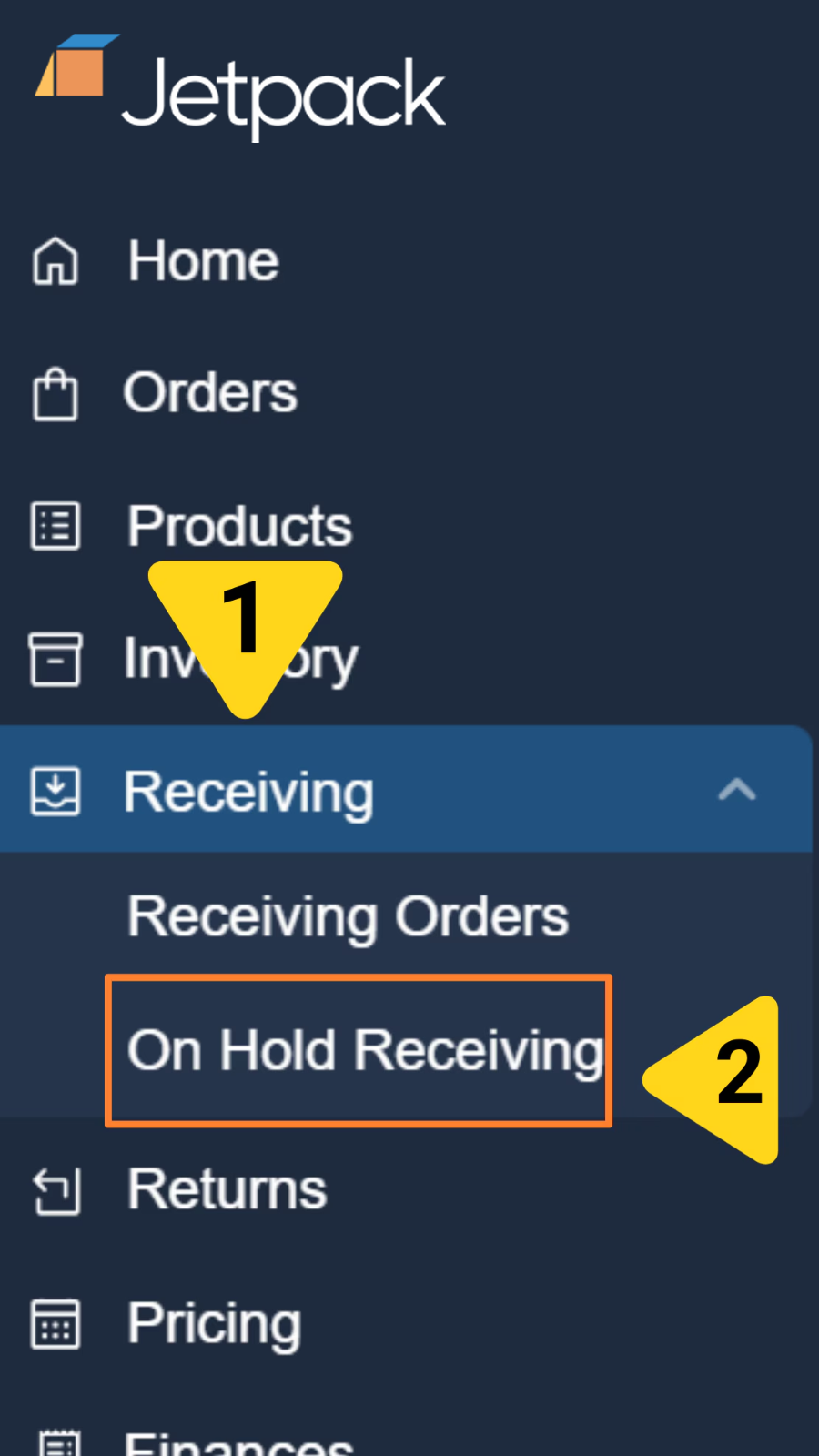
1. **Navigate to UROs**: Go to **Receiving > On-Hold Receiving** in your dashboard

<img src="https://mintcdn.com/jetpack/TBssrYK7Z-ylVEkW/images/sending-inventory/uro-navigation-menu.png?fit=max&auto=format&n=TBssrYK7Z-ylVEkW&q=85&s=97eefd512b185b9ace779e1d22379357" alt="Jetpack navigation menu showing Receiving expanded with On Hold Receiving option highlighted" className="screenshot" width="900" height="1600" data-path="images/sending-inventory/uro-navigation-menu.png" />

2. **Review URO Details**: Each URO displays key information to help you identify and resolve the shipment:

| Information Type        | What You'll See                                    |
| ----------------------- | -------------------------------------------------- |
| **URO ID Number**       | Unique identifier for this on-hold shipment        |
| **Photos**              | Images of boxes and labels                         |
| **Product Information** | Available details about items in the shipment      |
| **Hold Reason**         | Explanation of why the shipment was placed on hold |

<img src="https://mintcdn.com/jetpack/TBssrYK7Z-ylVEkW/images/sending-inventory/uro-dashboard-table-view.png?fit=max&auto=format&n=TBssrYK7Z-ylVEkW&q=85&s=39d3a0bdc085c7a16bedddece047939e" alt="On Hold Receiving dashboard table showing URO details including URO IDs, dates, fulfillment centers, and action links" className="screenshot" width="817" height="135" data-path="images/sending-inventory/uro-dashboard-table-view.png" />

### Step 2: Verify Ownership

**Before linking a URO, confirm the shipment belongs to you:**

* **Review Photos**: Check box images and label information
* **Verify Products**: Ensure items match your expected shipments
* **Check Details**: Confirm shipment origin and carrier information

<Warning title="Not Your Shipment?">
  If items don't belong to you, click "Not Me" under the Action column to disassociate it from your account. This prevents incorrect inventory allocation.
</Warning>

### Step 3: Link WRO to URO

**To connect a URO to a WRO:**

1. **Click "Link WRO"**: Under the Action column for the correct URO

2. **Create or Select WRO**:
   * Create a new WRO matching the shipment contents
   * Link to an existing WRO in "Awaiting Arrival" status

3. **Specify Box Number**: Enter the box number associated with this URO (mandatory)

4. **Save Connection**: Click **Save** to link the WRO to the URO

### Step 4: Complete WRO Information

**When creating a new WRO for a URO:**

* **Product Details**: Match exactly what's shown in URO photos
* **Quantities**: Reflect actual counts from received inventory
* **Lot Information**: Use lot numbers and expiration dates from physical products
* **Box Configuration**: Account for actual packaging received

<Tip title="Accuracy is Key">
  Make your WRO information match exactly what was received, not what you originally planned to send. This ensures smooth processing and accurate inventory counts.
</Tip>

***

## Preventing UROs

The best way to avoid URO fees and delays is to ensure your shipments arrive properly identified. Follow these practices at each stage:

| Prevention Stage            | Focus Area                                                                   | Best Practices                                                                                                                                                                                                                                                                               |
| --------------------------- | ---------------------------------------------------------------------------- | -------------------------------------------------------------------------------------------------------------------------------------------------------------------------------------------------------------------------------------------------------------------------------------------- |
| **Proper WRO Preparation**  | Complete your WRO accurately before shipping to avoid identification issues. | <ul><li>**Complete Information:** Ensure all WRO fields are accurate before shipping</li><li>**Clear Labeling:** Attach WRO labels securely to visible locations on each box</li><li>**Tracking Numbers:** Enter carrier tracking information in your WRO as soon as available</li></ul>     |
| **Shipping Best Practices** | Protect your documentation during transit to ensure it arrives readable.     | <ul><li>**Secure Packaging:** Use durable boxes and protect labels from damage</li><li>**Clear Identification:** Include "ATTN: Jetpack" on shipping labels</li><li>**Proper Documentation:** Attach Bill of Lading for freight shipments</li></ul>                                          |
| **Advance Communication**   | Configure your products correctly in the dashboard before shipping.          | <ul><li>**Product Configuration:** Mark HAZMAT products correctly in your dashboard before shipping</li><li>**Active SKUs:** Verify all products are marked as active before creating WROs</li><li>**Timing Coordination:** Ship all WRO boxes within 28 days of the first arrival</li></ul> |

***

## Support and Resolution

If you're having trouble resolving a URO, reach out to your Jetpack Care Manager ASAP.

***

## Let's Dive Deeper

<CardGroup cols={3}>
  <Card title="Sending Inventory Overview" icon="warehouse" href="/fulfillment/sending-inventory">
    Back to the main guide on our receiving process and how to send inventory
  </Card>

  <Card title="Creating a WRO" icon="file-plus" href="/fulfillment/sending-inventory/creating-wro">
    Learn how to create Warehouse Receiving Orders to send your inventory
  </Card>

  <Card title="Managing Your WROs" icon="list-check" href="/fulfillment/sending-inventory/managing-wro">
    Track and monitor your WROs after creation with real-time status updates
  </Card>

  <Card title="Editing a WRO" icon="pen-to-square" href="/fulfillment/sending-inventory/editing-wro">
    Edit WROs after creation to update quantities and shipping information
  </Card>

  <Card title="Avoid Common WRO Mistakes" icon="shield-check" href="/fulfillment/sending-inventory/best-practices/avoid-common-wro-mistakes">
    Prevent receiving delays by avoiding these seven common WRO errors
  </Card>

  <Card title="Managing Replenishment" icon="chart-line" href="/fulfillment/sending-inventory/managing-replenishment-schedules">
    Use forecasting tools and automated alerts to optimize inventory levels
  </Card>
</CardGroup>

<div className="jetpack-callout">
  <img src="https://mintcdn.com/jetpack/2iejPNBTYKEx6ntF/images/jetpack-logomark-256.png?fit=max&auto=format&n=2iejPNBTYKEx6ntF&q=85&s=340604ced4add3864f2641341826e1c9" alt="Jetpack" className="jetpack-callout-icon" width="256" height="256" data-path="images/jetpack-logomark-256.png" />

  <div className="jetpack-callout-content">
    <h4 className="jetpack-callout-title">Questions? Contact Jetpack Care.</h4>
    <p className="jetpack-callout-text">If you have any questions or run into issues, you can always contact Jetpack Care for help. Our team is always here to assist via Slack, phone, or email!</p>
  </div>
</div>