> ## Documentation Index
> Fetch the complete documentation index at: https://help.jetpack3pl.com/llms.txt
> Use this file to discover all available pages before exploring further.

# Managing Your Warehouse Receiving Orders

> Track, monitor, and manage all your WROs in one place with real-time status updates, SLA tracking, and powerful search tools to keep your inventory flowing smoothly.

<div className="page-intro">
  Managing your Warehouse Receiving Orders (WROs) is essential for maintaining smooth inventory flow and staying on top of your fulfillment operations. The WRO management interface gives you complete visibility into all your shipments, from draft creation to final receiving.
</div>

## WRO Dashboard Overview

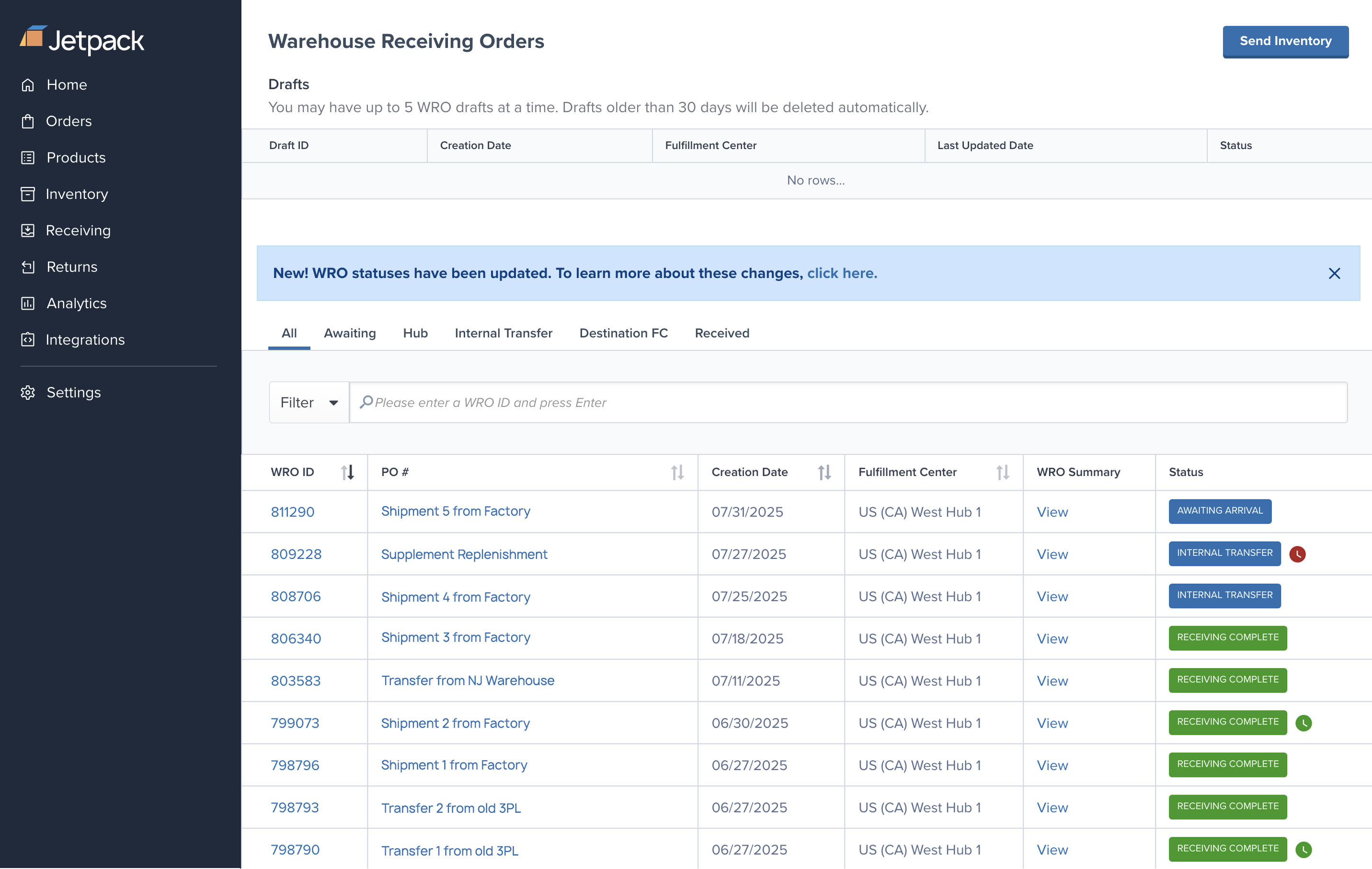
Your WRO management dashboard is your command center for tracking all inventory shipments. Access it by navigating to **Receiving > Receiving Orders** in your Jetpack dashboard.

<img src="https://mintcdn.com/jetpack/vowpUVk9ga2bYYSi/images/sending-inventory/wro-managing.png?fit=max&auto=format&n=vowpUVk9ga2bYYSi&q=85&s=ca3e797b9b163bf1a0a94b352e319953" alt="WRO Dashboard showing all receiving orders" className="screenshot" width="2864" height="1813" data-path="images/sending-inventory/wro-managing.png" />

### Draft WROs Section

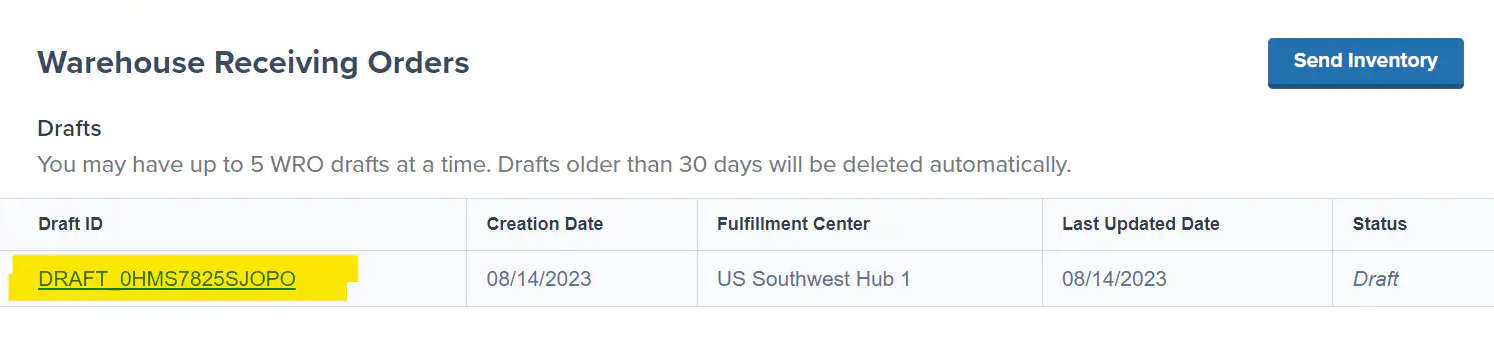
The top section displays WROs currently in draft mode:

* **Maximum Drafts**: You can have up to 5 WRO drafts at a time
* **Auto-Deletion**: Drafts older than 30 days are automatically deleted
* **Quick Resume**: Click any Draft ID to continue editing and submit your WRO
<img src="https://mintcdn.com/jetpack/vowpUVk9ga2bYYSi/images/sending-inventory/wro-manage-drafts.png?fit=max&auto=format&n=vowpUVk9ga2bYYSi&q=85&s=2f5fd3987204a4da6393a5780cb5ecdc" alt="WRO management page allows you to create drafts and come back later to finish" width="1494" height="348" data-path="images/sending-inventory/wro-manage-drafts.png" />

<Info title="Draft Management Tip">
  Use drafts to prepare WROs in advance, but remember to submit them before the 30-day expiration to avoid losing your work.
</Info>

### Main WRO Table

The main table shows all submitted WROs with these key details:

| Column                 | Description                                              |
| ---------------------- | -------------------------------------------------------- |
| **WRO ID**             | Unique identifier that links to detailed WRO information |
| **Creation Date**      | When the WRO was first created                           |
| **Fulfillment Center** | Destination hub or FC for your inventory                 |
| **WRO Summary**        | Detailed breakdown of products and quantities            |
| **Return ID**          | Only shown for return merchandise orders                 |
| **Last Updated**       | Most recent status change                                |
| **Status**             | Current processing stage with SLA indicator              |

***

## Understanding WRO Status and SLAs

Jetpack tracks whether your WROs are received within our service level agreement (SLA) of 3 business days. The status badge helps you monitor performance:

### Status Types

* **🟢 On-Time**: All boxes received within the SLA timeframe
* **🔴 Late**: One or more boxes arrived after the SLA deadline
* **🟡 Pending Receiving**: No boxes have been received yet
* **⚙️ Processing**: Currently being received and processed
* **✅ Received**: Complete and inventory available for orders

<Warning title="SLA Tracking">
  SLA compliance is measured at the box level. If even one box in your WRO arrives late, the entire WRO is marked as "Late." Check individual box details in the WRO Summary for specific timing.
</Warning>

***

## Search and Filter Tools

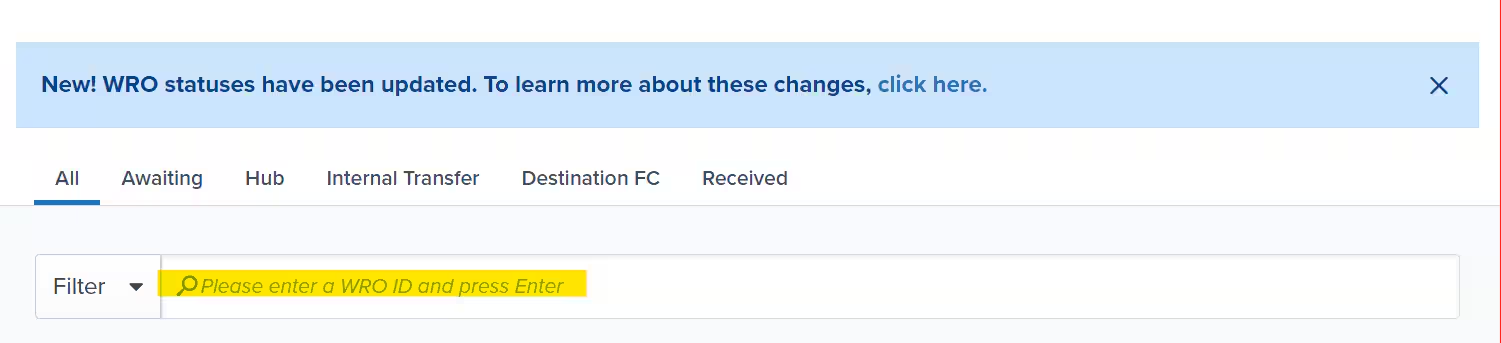
Finding specific WROs is easy with our comprehensive search and filtering options:

### Quick Search

<img src="https://mintcdn.com/jetpack/vowpUVk9ga2bYYSi/images/sending-inventory/wro-filter-search.png?fit=max&auto=format&n=vowpUVk9ga2bYYSi&q=85&s=6b73bbda3d5b536941741bbbfed7c524" alt="Jetpack WRO View page with the ability to search and Filter" className="screenshot" width="1501" height="343" data-path="images/sending-inventory/wro-filter-search.png" />

| Search Type       | Description                              |
| ----------------- | ---------------------------------------- |
| **WRO ID Search** | Enter the WRO number for instant results |

### Status Filters
<img src="https://mintcdn.com/jetpack/vowpUVk9ga2bYYSi/images/sending-inventory/wro-summary-shipping-details.png?fit=max&auto=format&n=vowpUVk9ga2bYYSi&q=85&s=f632c4d5543f21485a52887acde7343c" alt="WRO Summary page showing Shipping Details panel with origin/destination addresses, box count, carrier information, and Add Tracking button" className="screenshot" width="1414" height="288" data-path="images/sending-inventory/wro-summary-shipping-details.png" />

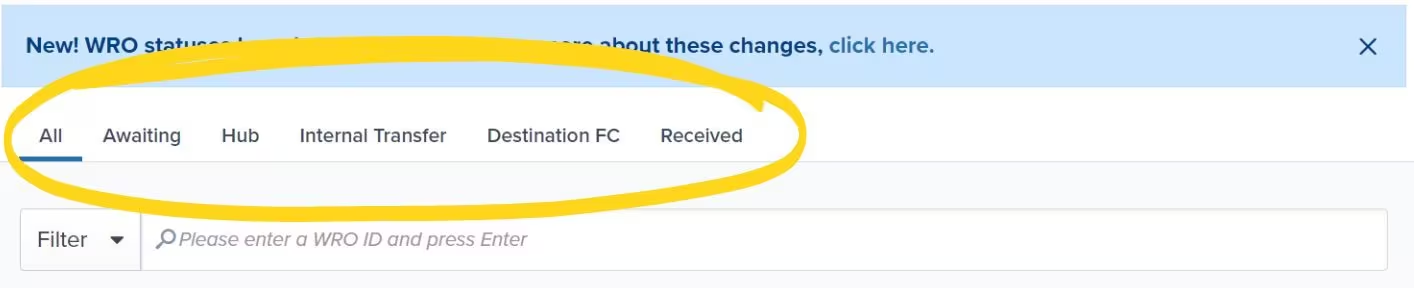
Use predefined filters to view WROs by current status:

| Status Filter         | What It Shows                                          |
| --------------------- | ------------------------------------------------------ |
| **All**               | Every WRO in your account                              |
| **Awaiting**          | Shipments in transit to receiving hub                  |
| **Hub**               | Arrival at your receiving hub                          |
| **Internal Transfer** | Transferring to correct fulfillment centers            |
| **Destination FC**    | Arrival at destination fulfillment center              |
| **Received**          | Goods arrived, counted, stowed, and ready for shipping |

### Advanced Filters

| Filter Option       | Description                                                                      |
| ------------------- | -------------------------------------------------------------------------------- |
| **Destination FC**  | Filter by specific fulfillment center                                            |
| **Product ID/Name** | Find WROs containing particular products                                         |
| **Column Sorting**  | Sort any column (except WRO Summary and Status) in ascending or descending order |

<Tip title="Pro Search Tip">
  Combine multiple filters to quickly locate specific shipments. For example, filter by "Processing" status and a specific fulfillment center to see active receiving at that location.
</Tip>

***

## WRO Summary Deep Dive

Click any **WRO Summary** link to access comprehensive details about a specific WRO. The summary page is organized into four key sections:

| Section                 | Summary                                           | Details                                                                                                                                                                                                                      |
| ----------------------- | ------------------------------------------------- | ---------------------------------------------------------------------------------------------------------------------------------------------------------------------------------------------------------------------------- |
| **Timeline Tracking**   | View the complete processing history of your WRO. | **Key Events:**<ul><li>Creation and submission timestamps</li><li>Arrival notifications at fulfillment centers</li><li>Processing start and completion times</li><li>Any hold or exception events</li></ul>                  |
| **Shipping Details**    | Complete shipping information for your WRO.       | **Includes:**<ul><li>Origin and destination addresses</li><li>Number of boxes/pallets sent</li><li>Carrier and tracking information</li><li>Label type (prepaid vs. your own labels)</li></ul>                               |
| **Product Summary**     | Detailed breakdown of your inventory.             | **Shows:**<ul><li>Product names and SKUs</li><li>Quantities sent vs. received</li><li>**Quantity Unpacked:** Items moved to pickable storage locations</li><li>Lot numbers and expiration dates (where applicable)</li></ul> |
| **Box/Pallet Tracking** | Individual status for each shipping unit.         | **Tracks:**<ul><li>Box/pallet identification numbers</li><li>Arrival timestamps</li><li>Individual SLA compliance badges</li><li>Processing status for each unit</li></ul>                                                   |

<Accordion title="Understanding Quantity Statuses">
  * **Quantity Unpacked**: Products that have been fully processed and moved to pickable storage bins, ready for order fulfillment
  * **Received**: Items that have been verified and accepted but may still be in transit to final storage locations
  * **Processing**: Currently being counted, inspected, and verified against your WRO
</Accordion>

***

## Monitoring Multiple Shipments

For businesses sending frequent inventory shipments, effective WRO management includes:

* **Regular Status Checks**: Review WRO status daily during active shipping periods
* **SLA Monitoring**: Track on-time performance to optimize your shipping schedules
* **Exception Management**: Address any "Late" or "On Hold" shipments promptly

<Info title="Proactive Management">
  Use the dashboard filters to create daily check routines. For example, filter by "Awaiting" to see shipments in transit, then "Processing" to monitor active receiving.
</Info>

***

## Adding Tracking Numbers to Your WRO

Enter carrier tracking information into your WRO as soon as it becomes available. Proper tracking helps Jetpack plan receiving capacity and ensures faster processing when your shipment arrives.

### Why Tracking Numbers Matter

Accurate tracking information enables Jetpack to:

* **Plan receiving capacity** based on expected arrival dates
* **Prevent delays** by identifying shipments before they arrive
* **Reduce UROs** by matching arrivals to WROs automatically
* **Meet SLA targets** by prioritizing processing for incoming shipments

<Warning title="Tracking Before Arrival">
  Failure to enter tracking numbers before your shipment arrives may result in significant receiving delays. If our receiving team cannot match your shipment to a WRO, it will be processed as a URO.
</Warning>

### Tracking Number Best Practices

Follow these guidelines when entering tracking information:

| Requirement                           | Details                                                                                                                                                                                                                                                                                 |
| ------------------------------------- | --------------------------------------------------------------------------------------------------------------------------------------------------------------------------------------------------------------------------------------------------------------------------------------- |
| **Enter Individual Tracking Numbers** | <ul><li>Add each box's tracking number separately</li><li>Do not enter master tracking numbers (they won't update individual box arrivals)</li><li>For multiple boxes, enter all individual tracking numbers</li></ul>                                                                  |
| **Formatting Rules**                  | <ul><li>Do not add spaces at the beginning or end of tracking numbers</li><li>Enter each tracking number on a separate line (not all on one line)</li><li>Do not include carrier names (e.g., "FEDEX", "UPS")</li><li>Do not add descriptive text (e.g., "master", "see box")</li></ul> |
| **Timing**                            | <ul><li>Enter tracking as soon as your shipping labels are generated</li><li>Update tracking if shipments are delayed or rescheduled</li></ul>                                                                                                                                          |

### How to Add Tracking Numbers

To enter tracking information for your WRO:

<Steps>
  <Step title="Navigate to Receiving > Receiving Orders" />

  <Step title="Locate your WRO in the main table" />

  <Step title="Open the detailed summary">
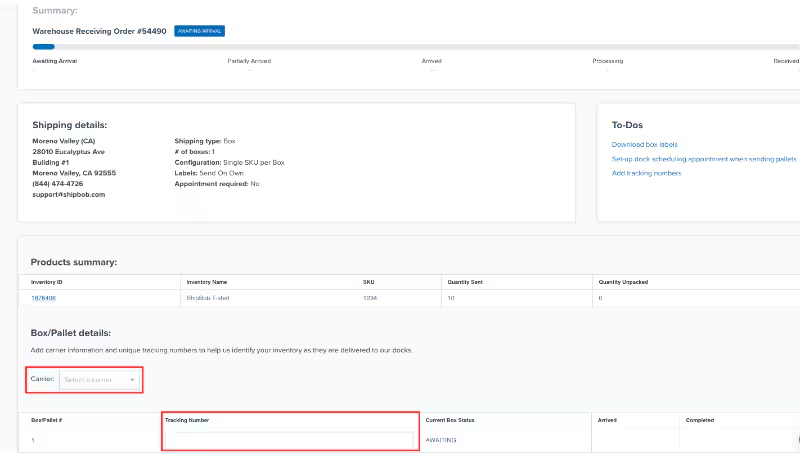
    Click the **WRO ID** to open the detailed summary page
  </Step>

  <Step title="Find the Box/Pallet Details section">
    <img src="https://mintcdn.com/jetpack/TBssrYK7Z-ylVEkW/images/sending-inventory/wro-add-tracking-numbers.png?fit=max&auto=format&n=TBssrYK7Z-ylVEkW&q=85&s=5b98eebe1f2847ee09405b01fb01d8f0" alt="Add Tracking button in the Shipping Details section with tracking number entry fields" className="screenshot" width="809" height="459" data-path="images/sending-inventory/wro-add-tracking-numbers.png" />
  </Step>

  <Step title="Access tracking entry">
    Click **Add Tracking** or **Edit Tracking** (if updating)
  </Step>

  <Step title="Enter each tracking number on a separate line" />

  <Step title="Save your changes">
    Click **Save** to update your WRO

    The tracking information will appear in your WRO summary and help receiving teams identify your shipment when it arrives.
  </Step>
</Steps>

***

## Let's Dive Deeper

<CardGroup cols={3}>
  <Card title="Sending Inventory Overview" icon="warehouse" href="/fulfillment/sending-inventory">
    Back to the main guide on our receiving process
  </Card>

  <Card title="Creating a WRO" icon="file-plus" href="/fulfillment/sending-inventory/creating-wro">
    Learn how to create Warehouse Receiving Orders for shipments
  </Card>

  <Card title="Editing a WRO" icon="pen-to-square" href="/fulfillment/sending-inventory/editing-wro">
    Update WRO details after creation before arrival
  </Card>

  <Card title="Unidentified Shipments (UROs)" icon="triangle-exclamation" href="/fulfillment/sending-inventory/unidentified-receiving-orders">
    Resolve shipments that don't match WROs
  </Card>

  <Card title="WRO Bulk Product Upload" icon="file-arrow-up" href="/fulfillment/sending-inventory/wro-bulk-product-upload">
    Use CSV templates for large product catalogs
  </Card>

  <Card title="Managing Replenishment" icon="chart-line" href="/fulfillment/sending-inventory/managing-replenishment-schedules">
    Use forecasting tools to optimize inventory levels
  </Card>
</CardGroup>

<div className="jetpack-callout">
  <img src="https://mintcdn.com/jetpack/2iejPNBTYKEx6ntF/images/jetpack-logomark-256.png?fit=max&auto=format&n=2iejPNBTYKEx6ntF&q=85&s=340604ced4add3864f2641341826e1c9" alt="Jetpack" className="jetpack-callout-icon" width="256" height="256" data-path="images/jetpack-logomark-256.png" />

  <div className="jetpack-callout-content">
    <h4 className="jetpack-callout-title">Questions? Contact Jetpack Care.</h4>
    <p className="jetpack-callout-text">If you have any questions or run into issues, you can always contact Jetpack Care for help. Our team is always here to assist via Slack, phone, or email!</p>
  </div>
</div>
