> ## Documentation Index
> Fetch the complete documentation index at: https://help.jetpack3pl.com/llms.txt
> Use this file to discover all available pages before exploring further.
# Creating + Managing Lot Products
> Configure and manage lot products with batch tracking, expiration dates, and inventory segregation for recalls, compliance, and FIFO fulfillment.
Lot products enable batch-level tracking for inventory that requires expiration date management, recall capability, or segregation by manufacturing batch. This comprehensive guide covers configuring lot products, creating lot-tracked WROs, and managing lot inventory over time.
## What Are Lot Products?
A **lot number** (also called a batch number) is a unique identifier assigned by the manufacturer to a specific production batch. Lot tracking enables:
* **Recall Management**: Quickly identify and segregate specific batches if recalls occur
* **Expiration Tracking**: Monitor shelf life and ensure oldest products ship first
* **Batch Segregation**: Keep different production runs separate for quality control
* **Compliance**: Meet regulatory requirements for food, supplements, cosmetics, and pharmaceuticals
### How Jetpack Handles Lot Inventory
When you configure a product as a lot product, Jetpack:
* **Ships nearest expiration date first**: Automatically selects units closest to expiration (FIFO - First In, First Out)
* **Stores each lot separately**: Different lot numbers receive separate storage locations
* **Charges individual storage fees**: Each lot incurs its own storage fees based on space used
* **Tracks lot-level inventory**: View available units by lot number and expiration date
Jetpack is not liable for products that expire while in storage. Monitor your inventory regularly and rotate stock or dispose of products approaching expiration dates.
***
## Configuring Products as Lot Products
Before sending lot inventory, you must configure the product in your Jetpack dashboard to enable lot tracking.
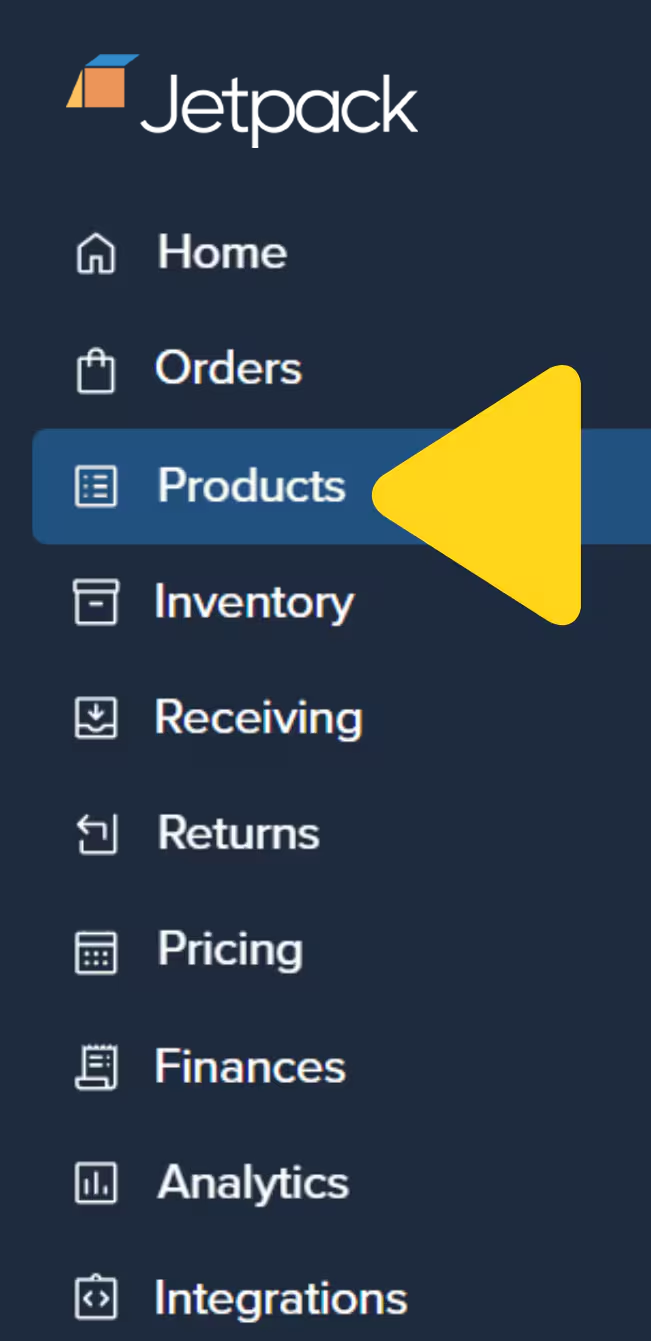
Click **Products** in the left-hand navigation bar.
 Use the search bar or scroll to locate and click the product's name to open the [Product Details Page](/fulfillment/managing-products/product-details-page).
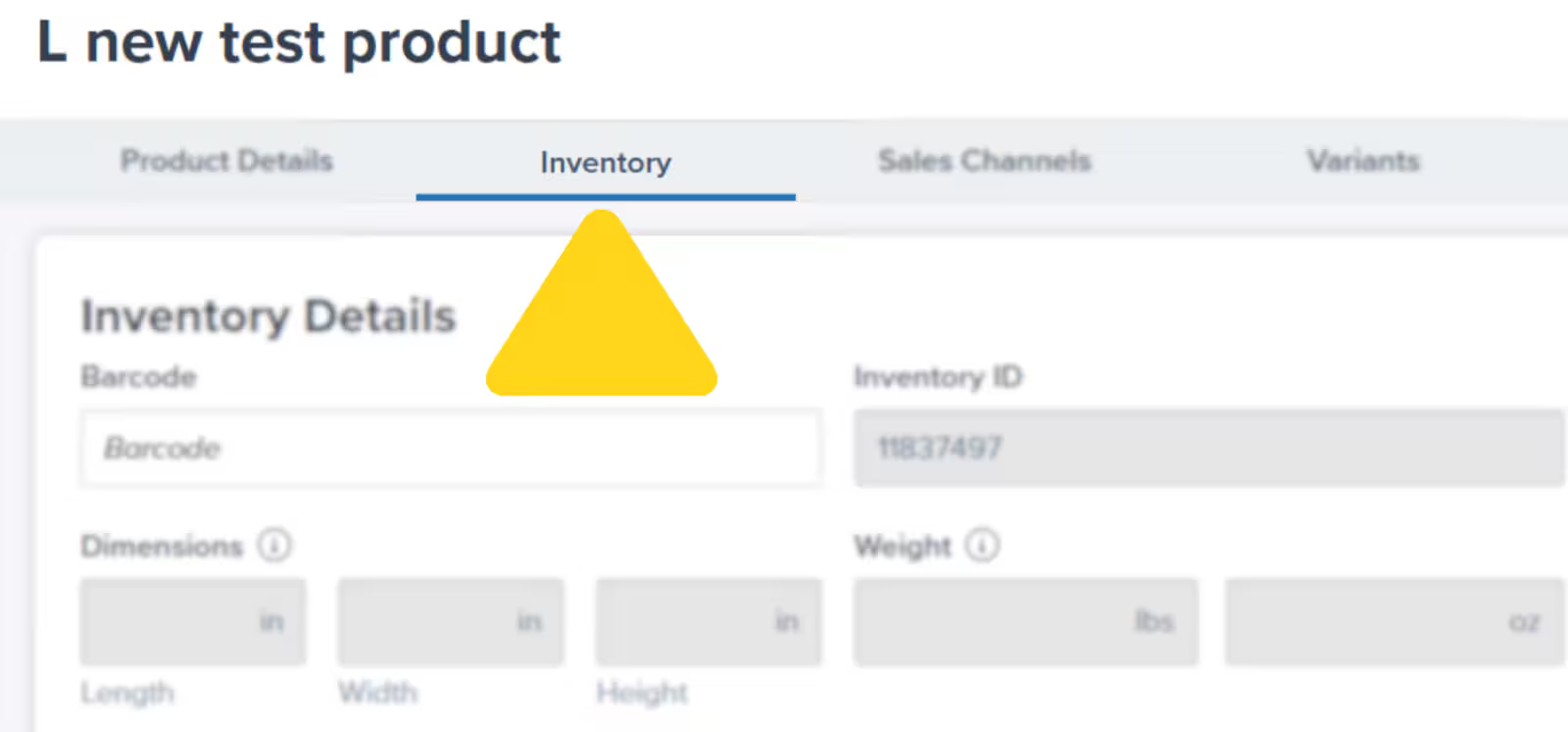
On the product's details page, click the **Inventory** tab.
Use the search bar or scroll to locate and click the product's name to open the [Product Details Page](/fulfillment/managing-products/product-details-page).
On the product's details page, click the **Inventory** tab.
 Check the box next to **Is this a lot product?**
Follow the on-screen message to update your Return Preferences:
* **For customer returns**: Options are **Quarantine** or **Dispose** (restocking for lot items is not supported)
* **For returned-to-sender (RTS) orders**: Options include **Restock**, **Quarantine**, or **Dispose**
If the product has a minimum shelf life, check the box and enter the minimum number of days. Products returned to sender with an expiration date within this timeframe will be processed using your defined RTS Backup Action.
Check the box next to **Is this a lot product?**
Follow the on-screen message to update your Return Preferences:
* **For customer returns**: Options are **Quarantine** or **Dispose** (restocking for lot items is not supported)
* **For returned-to-sender (RTS) orders**: Options include **Restock**, **Quarantine**, or **Dispose**
If the product has a minimum shelf life, check the box and enter the minimum number of days. Products returned to sender with an expiration date within this timeframe will be processed using your defined RTS Backup Action.
 Click **Save** to apply the lot product configuration.
Once a product is marked as a lot item, entering at least one of the fields (lot number and/or expiration date) is required when creating your WRO.
### Understanding Return Preferences
| Preference Type | Options | When to Use |
| -------------------------- | --------------------------------------------------------------------------------------------------------------------------------------------------------------------------------------------- | ----------------------------------------------------------------------- |
| **Returns** |
Click **Save** to apply the lot product configuration.
Once a product is marked as a lot item, entering at least one of the fields (lot number and/or expiration date) is required when creating your WRO.
### Understanding Return Preferences
| Preference Type | Options | When to Use |
| -------------------------- | --------------------------------------------------------------------------------------------------------------------------------------------------------------------------------------------- | ----------------------------------------------------------------------- |
| **Returns** | - **Quarantine**: Hold returned units for your review before restocking
- **Dispose**: Automatically dispose of returned units (cannot be restocked)
| Set based on product quality concerns and regulatory requirements |
| **RTS (Return to Sender)** | - **Restock**: Add undeliverable units back to available inventory
- **Quarantine**: Hold for review before restocking
- **Dispose**: Discard undeliverable units
| Choose based on whether products remain sellable after shipment attempt |
### Minimum Shelf Life Days (Optional)
Set a minimum number of days of remaining shelf life required for products to be available for order fulfillment. For example:
* Set **30 days** minimum shelf life for products with 6-month expiration dates
* Units with fewer than 30 days remaining won't be selected for orders
* Helps ensure customers receive fresh products
Use this setting for products where customers expect significant remaining shelf life. Food, supplements, and cosmetics benefit from minimum shelf life requirements to maintain customer satisfaction.
***
## Creating WROs for Lot Products
When sending lot inventory to Jetpack, you'll specify lot numbers and expiration dates directly in your [WRO (Warehouse Receiving Order)](/fulfillment/sending-inventory/creating-wro).
Navigate to **Receiving > Create WRO** in your Jetpack dashboard. In Step 2 of the WRO creation flow:
Search for the inventory ID or product name, then select the product(s) you want to include.
Enter the total number of units you're sending.
In the **Lot and Expiration** column, type the lot number and enter the expiration date (using manual entry or the calendar tool).
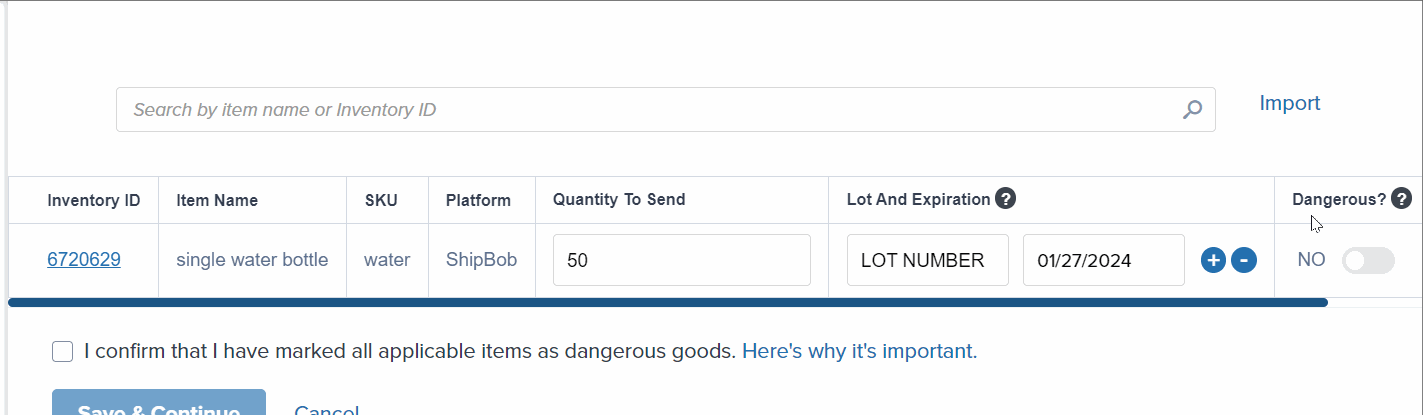 Click the **+ icon** to add another lot if you're sending different lots of the same product. Use the **- icon** to remove an entry if needed.
Do not mix multiple lot numbers of the same SKU in one box/pallet. Each box or pallet should contain only one lot number per product. Once one lot is selected, the option to add a different lot will be disabled for that configuration.
Complete the remaining WRO steps and submit. Once received by Jetpack's Operations team, items will be stored in separate locations according to their lot numbers, with each incurring storage fees.
For complete WRO creation guidance, see [Creating Warehouse Receiving Orders](/fulfillment/sending-inventory/creating-wro).
***
## Managing Lot Inventory
Once lot inventory is received, you can view and manage it through your Jetpack dashboard.
### Reviewing Expiration Dates and Lot Numbers
Click **Inventory**, then select **Inventory Status**.
Find the lot product you want to review.
Click **View** next to the desired lot product. A pop-up will display all lot numbers, associated expiration dates, and unit statuses (Incoming, On Hand, Committed, Fulfillable, Exception, Backordered, etc.).
Click the **+ icon** to add another lot if you're sending different lots of the same product. Use the **- icon** to remove an entry if needed.
Do not mix multiple lot numbers of the same SKU in one box/pallet. Each box or pallet should contain only one lot number per product. Once one lot is selected, the option to add a different lot will be disabled for that configuration.
Complete the remaining WRO steps and submit. Once received by Jetpack's Operations team, items will be stored in separate locations according to their lot numbers, with each incurring storage fees.
For complete WRO creation guidance, see [Creating Warehouse Receiving Orders](/fulfillment/sending-inventory/creating-wro).
***
## Managing Lot Inventory
Once lot inventory is received, you can view and manage it through your Jetpack dashboard.
### Reviewing Expiration Dates and Lot Numbers
Click **Inventory**, then select **Inventory Status**.
Find the lot product you want to review.
Click **View** next to the desired lot product. A pop-up will display all lot numbers, associated expiration dates, and unit statuses (Incoming, On Hand, Committed, Fulfillable, Exception, Backordered, etc.).
 Click the **X** at the top right to close the pop-up.
If you have SKUs with a mix of items with and without lot information, they will be stored separately. The ones with an expiration date are prioritized for shipping.
### Adding Lot Information to Existing Inventory
If you need to add lot numbers or expiration dates to inventory already at a fulfillment center, contact Jetpack Care and provide:
* The **inventory ID(s)** to update
* **Lot number and expiration date** for each SKU
* A **breakdown of units per lot number/expiration date**
If information is missing, Jetpack can submit a paid request (billed at USD \$45.00 per hour) to update the inventory lot information and separate each lot number into its own warehouse location.
### Best Practices for Managing Lots
| Practice | Why It Matters |
| ----------------------------- | --------------------------------------------------------------------------------------------------------------------------------------------------------------------------- |
| **Monitor Expiration Dates** |
Click the **X** at the top right to close the pop-up.
If you have SKUs with a mix of items with and without lot information, they will be stored separately. The ones with an expiration date are prioritized for shipping.
### Adding Lot Information to Existing Inventory
If you need to add lot numbers or expiration dates to inventory already at a fulfillment center, contact Jetpack Care and provide:
* The **inventory ID(s)** to update
* **Lot number and expiration date** for each SKU
* A **breakdown of units per lot number/expiration date**
If information is missing, Jetpack can submit a paid request (billed at USD \$45.00 per hour) to update the inventory lot information and separate each lot number into its own warehouse location.
### Best Practices for Managing Lots
| Practice | Why It Matters |
| ----------------------------- | --------------------------------------------------------------------------------------------------------------------------------------------------------------------------- |
| **Monitor Expiration Dates** | - Prevent inventory from expiring in storage
- Run promotions for products approaching expiration
- Dispose of unsellable inventory proactively
|
| **Track Lot Performance** | - Identify slow-moving lots
- Adjust purchasing based on shelf life constraints
|
| **Separate Storage Planning** | - Each lot incurs individual storage fees
- Consolidate lots when possible to reduce costs
- Balance inventory levels with storage expenses
|
***
## Lot Products and Storage Fees
Understanding storage fee implications helps you manage lot inventory cost-effectively:
### How Lot Storage Works
* **Each lot stored separately**: Different lot numbers occupy separate warehouse locations
* **Individual storage fees per lot**: Every lot incurs storage charges based on cubic feet occupied
* **No consolidation across lots**: Even identical products with different lot numbers cannot share storage space
### Minimizing Storage Costs
To control storage fees for lot products:
* **Send consolidated lot quantities**: Larger quantities of fewer lots cost less than small quantities of many lots
* **Monitor slow-moving lots**: Promote or liquidate inventory before it expires
* **Plan replenishment timing**: Balance inventory levels with storage cost considerations
Storage fees are calculated monthly based on the cubic footage your inventory occupies. Each lot is measured and charged separately. For complete pricing information, see [General Pricing](/fulfillment/billing-invoicing/general-pricing).
***
## Common Lot Product Scenarios
### Recalls
When a manufacturer recall affects specific lot numbers:
1. Contact Jetpack Care immediately with affected lot numbers
2. Jetpack will quarantine the affected lots
3. Choose to dispose or return to sender based on recall instructions
4. Unaffected lots remain available for order fulfillment
### Expiration Management
As products approach expiration:
1. Monitor expiration dates via Inventory Status page
2. Consider running promotions to move aging inventory
3. Request disposal through Jetpack Care for expired units
4. Jetpack automatically ships nearest-expiration units first (FIFO)
### Quality Issues with Specific Lots
If quality issues arise with a specific lot:
1. Contact Jetpack Care to quarantine the affected lot number
2. Review units or request disposal
3. Other lots remain available for fulfillment
4. Update manufacturing partners with lot-specific feedback
***
## Let's Dive Deeper
Back to the main guide on our receiving process
Create Warehouse Receiving Orders for lot-tracked products
Don't forget to add lot numbers before submitting WROs
Configure lot tracking and product settings
View and manage inventory by lot number and expiration date
Select specific lot numbers for B2B wholesale orders

Questions? Contact Jetpack Care.
If you have any questions or run into issues, you can always contact Jetpack Care for help. Our team is always here to assist via Slack, phone, or email!