> ## Documentation Index
> Fetch the complete documentation index at: https://help.jetpack3pl.com/llms.txt
> Use this file to discover all available pages before exploring further.
# Multi-Box Package Selection Rule
> Automatically split B2C orders into multiple shipments when products cannot fit in a single package or exceed weight thresholds.
Jetpack's Multi-Box Package Selection rule streamlines your B2C fulfillment by automatically splitting orders that cannot safely ship in a single package. This rule works behind the scenes to determine optimal packaging and split orders into as few shipments as possible, reducing manual intervention from Operations associates while ensuring your products arrive safely.
## Overview of the Multi-Box Package Selection Rule
The Multi-Box Package Selection rule allows B2C orders to automatically split if the entire shipment cannot fit in a single package or exceeds the maximum weight threshold (if you have a maximum weight threshold configured).
Only B2C orders can be split using the Multi-Box Package Selection rule. Internal Transfer Orders (ITOs) and B2B orders are excluded from these rules.
***
## How the Multi-Box Package Selection Shipment Rule Splits Orders
Once Multi-Box Package Selection is enabled, the Jetpack dashboard automatically processes B2C orders (once they are in the Processing status) using the following logic:
* Determines whether all products can ship safely within a single package, based on the packaging requirements of the products within the order, along with the maximum weight threshold for shipments if configured.
* If you configured a maximum weight threshold during rule setup, orders exceeding that threshold will automatically split. You must set this threshold during rule configuration.
* The total number of new shipments is not limited, reducing the need for Jetpack Operations associates to manually determine packaging and total number of split shipments required.
* Orders can be split into Jetpack standard packaging (based on Ship in Own Container \[SIOC] classification) or provided custom packaging (if you have it included in the Custom Box Adder).
* ShipBob's Box Selection Process is used to determine the packaging for each shipment.
* **If the order can safely ship in one package:** Additional shipments will not be created unless the packing team determines that the assigned packaging will not protect the order from damage during transit.
* **If the order cannot safely ship in one package:** The order will be split into as few shipments as possible to safely ship the order.
* Each shipment will be linked to the original order in the Jetpack dashboard.
There may be instances where Jetpack's Operations associates must create additional shipments when packing to prevent damage to your products.
**For SIOC Products:**
If the order contains products classified as SIOC, and all units cannot be shipped in a single shipment, SIOC products will be split into their own separate shipments with SIOC as their packaging preference.
***
## Enabling the Multi-Box Package Selection Shipment Rule
To request Multi-Box Package Selection for B2C orders, follow these steps:
If you utilize custom packaging, ensure your custom packaging is added to the Custom Box Adder feature to allow your custom boxes to be included in ShipBob's Box Selection Process.
 Submit the request to Jetpack Care using Slack or email. Be sure to include whether you would like to impose a maximum weight threshold per shipment (e.g., each shipment should only be 40 pounds or less).
You must specify during rule configuration whether you want your orders split based on a maximum weight threshold. If you do, you must set that threshold when submitting your request.
***
## Reviewing Shipments Created by the Multi-Box Package Selection Shipment Rule
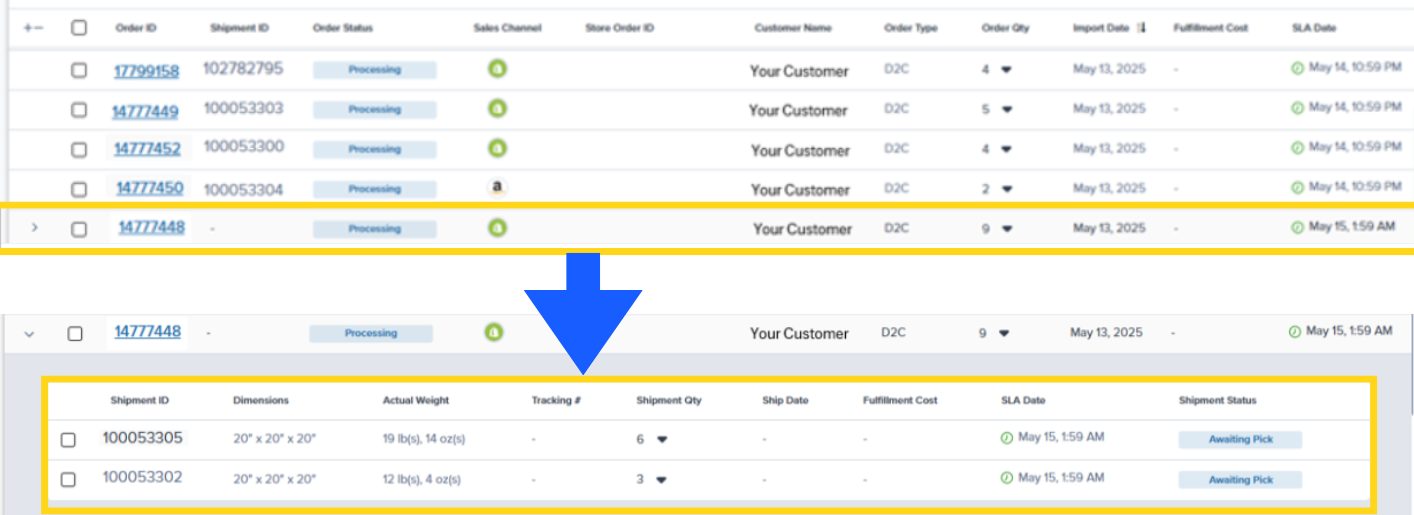
When an order is split into multiple shipments, each shipment appears as its own record as soon as the Multi-Box Package Selection Shipment Rule splits the order (and will be attached to the original order in the Jetpack dashboard).
You will have the same insight into each shipment, such as the packaging used, the dimensions of the packaging, carrier tracking, its SLA, and more.
To review shipments created by the Multi-Box Package Selection rule on the new Orders page:
Click the > icon located to the right of the Shipment ID. The section will expand to display all associated shipments.
Submit the request to Jetpack Care using Slack or email. Be sure to include whether you would like to impose a maximum weight threshold per shipment (e.g., each shipment should only be 40 pounds or less).
You must specify during rule configuration whether you want your orders split based on a maximum weight threshold. If you do, you must set that threshold when submitting your request.
***
## Reviewing Shipments Created by the Multi-Box Package Selection Shipment Rule
When an order is split into multiple shipments, each shipment appears as its own record as soon as the Multi-Box Package Selection Shipment Rule splits the order (and will be attached to the original order in the Jetpack dashboard).
You will have the same insight into each shipment, such as the packaging used, the dimensions of the packaging, carrier tracking, its SLA, and more.
To review shipments created by the Multi-Box Package Selection rule on the new Orders page:
Click the > icon located to the right of the Shipment ID. The section will expand to display all associated shipments.
 ***
## Let's Dive Deeper
Back to the main rules and automation guide
Create custom rules for order fulfillment
Split orders based on custom criteria
Apply rules based on shipping destination
Prioritize older orders when inventory is replenished
Return to automation workflows overview
***
## Let's Dive Deeper
Back to the main rules and automation guide
Create custom rules for order fulfillment
Split orders based on custom criteria
Apply rules based on shipping destination
Prioritize older orders when inventory is replenished
Return to automation workflows overview

Questions? Contact Jetpack Care.
If you have any questions or run into issues, you can always contact Jetpack Care for help. Our team is always here to assist via Slack, phone, or email!