> ## Documentation Index
> Fetch the complete documentation index at: https://help.jetpack3pl.com/llms.txt
> Use this file to discover all available pages before exploring further.
# Destination-Based Fulfillment Rules
> Control which fulfillment centers process orders based on destination country to optimize shipping and prevent cross-border fulfillment.
When you operate fulfillment centers in multiple countries, Jetpack automatically fulfills orders from international centers when domestic inventory is unavailable. Destination-Based Fulfillment Rules give you precise control over which fulfillment centers process orders based on the destination country—preventing unwanted cross-border fulfillment, optimizing shipping costs, and ensuring orders ship from the most appropriate location.
## Default Cross-Border Fulfillment
If you use Jetpack fulfillment centers in different countries, your orders may be fulfilled from an international fulfillment center when the domestic center is out of stock (OOS). As long as the foreign fulfillment center has sufficient inventory, the order will be shipped from that location.
**Example**: If you use Jetpack fulfillment centers in the US and Poland, and an item is OOS in the US, the order may be fulfilled from Poland.
To control where your orders are fulfilled, you can configure Destination-Based Fulfillment Rules.
***
## Supported End-Destinations for Orders
The table below shows countries where Jetpack fulfillment centers can ship internationally:
| Country | International Shipping Destinations |
| ------------------ | ----------------------------------- |
| **United States** | Ships to 250+ destinations |
| **Canada** | Ships to 250+ destinations |
| **United Kingdom** | Ships to 250+ destinations |
| **Netherlands** | Ships to 250+ destinations |
| **Australia** | Ships to 250+ destinations |
To view a complete list of Jetpack fulfillment centers, [explore our fulfillment network](/fulfillment/partnership-with-shipbob).
***
## Destination-Based Fulfillment Rules Overview
Jetpack's Destination-Based Fulfillment Rules let you control which fulfillment centers process orders based on the order's destination country.
**Example**: If you want all orders shipping to Mexico to be fulfilled only from the Fort Worth, TX (USA) fulfillment center, you can set a rule preventing fulfillment from any other location, even if inventory is available elsewhere.
These rules are useful when:
* You ship from multiple fulfillment centers and want to ensure domestic shipping
* You want to prevent international fulfillment when a local center is out of stock
* You are expanding internationally and need better control over fulfillment locations
If you only use one fulfillment center, you do not need to set up rules unless you add another fulfillment center (especially in a different country). Rules must be enabled at the time an order is imported into Jetpack to take effect.
Rules do not apply if a fulfillment center is manually assigned via API, integrations, or automation. If orders are already in Exception status, the rule will not apply to those orders unless they are re-imported.
***
## Setting Up Destination-Based Fulfillment Rules
By properly setting up Destination-Based Fulfillment Rules, you can optimize shipping costs, reduce transit times, and ensure orders are fulfilled from the most appropriate location.
From the Jetpack dashboard, click **Orders** in the left-hand navigation bar, then select **Rules** from the drop-down menu.
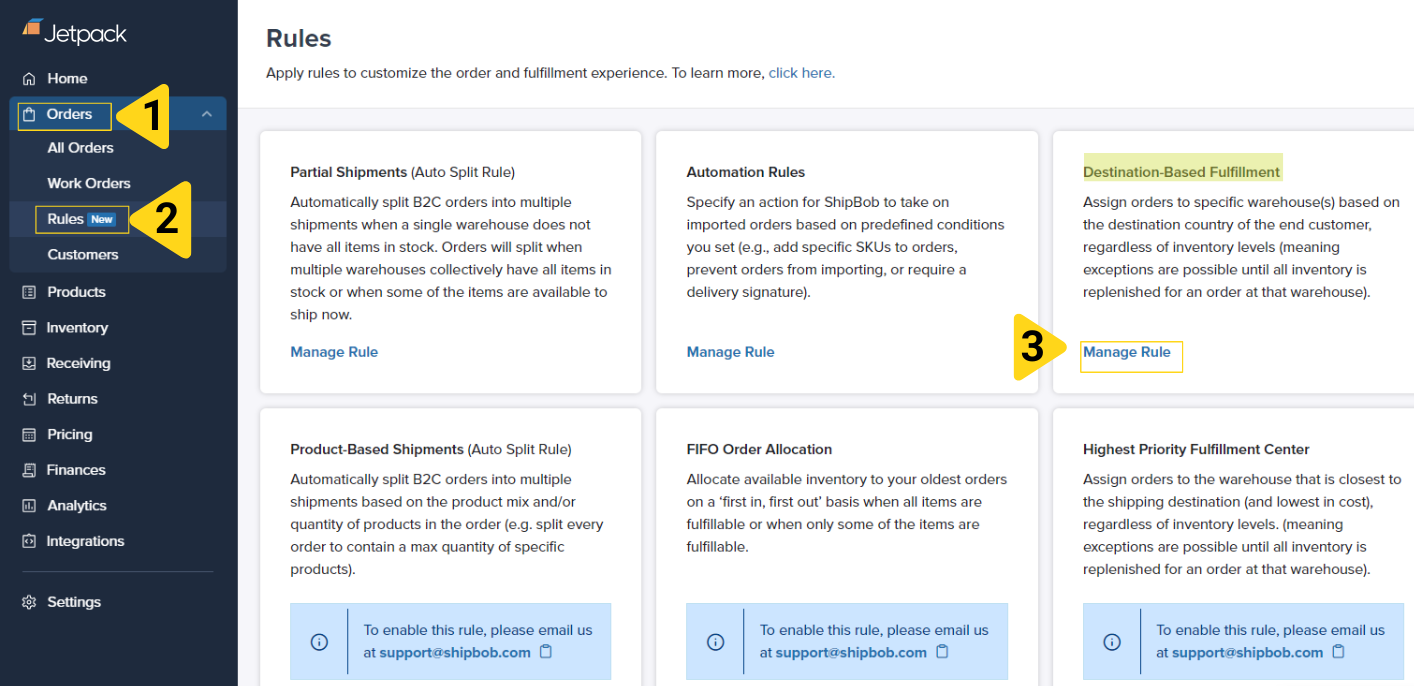 Click **Manage Rule** under the Destination-Based Fulfillment section.
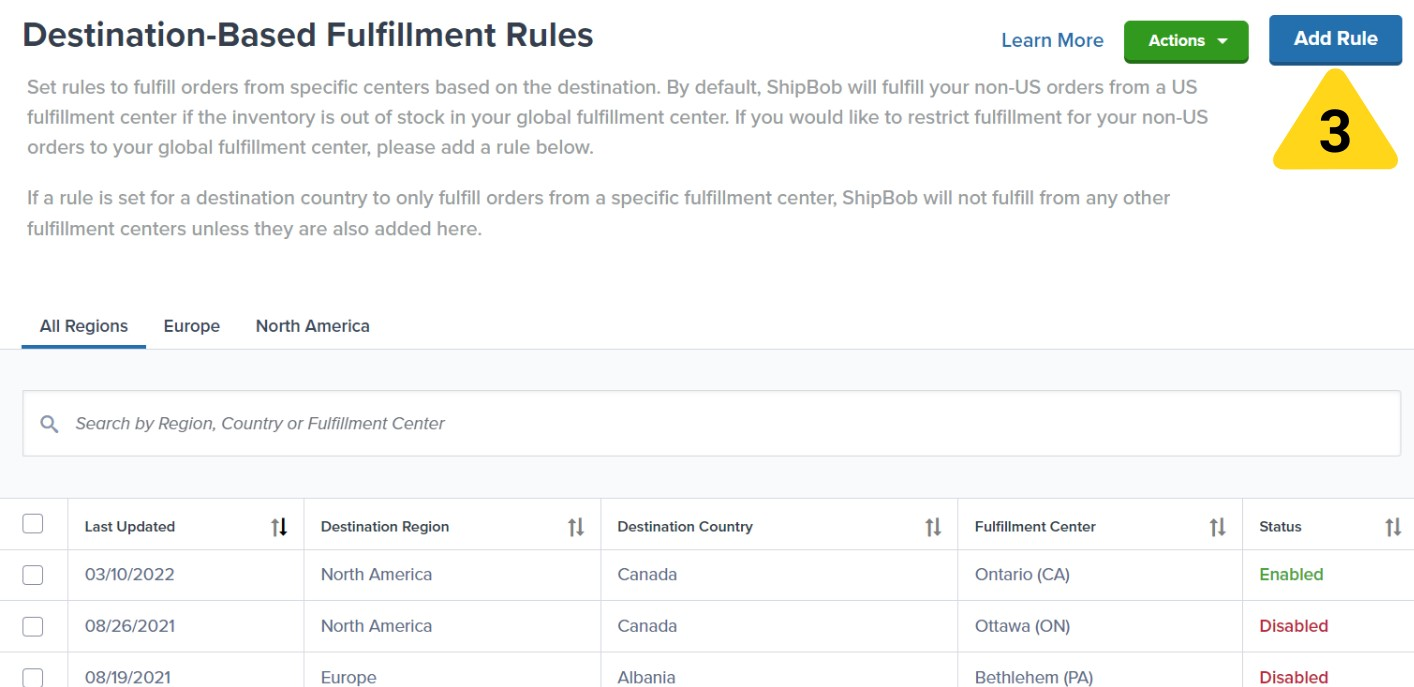 On the Destination-Based Fulfillment Rules page, click **Add Rule**.
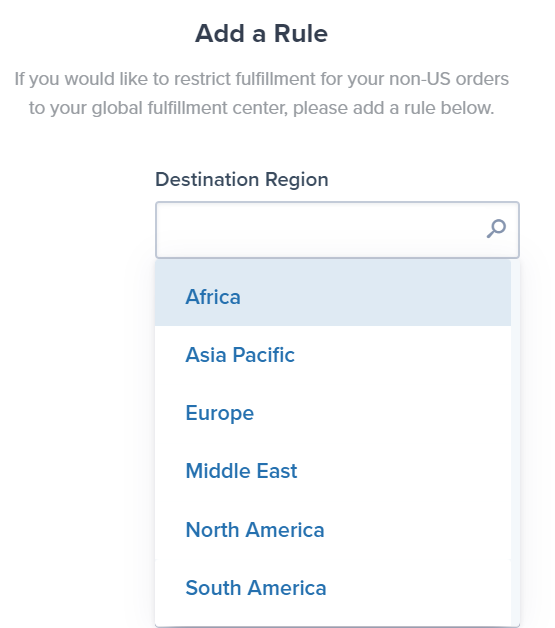
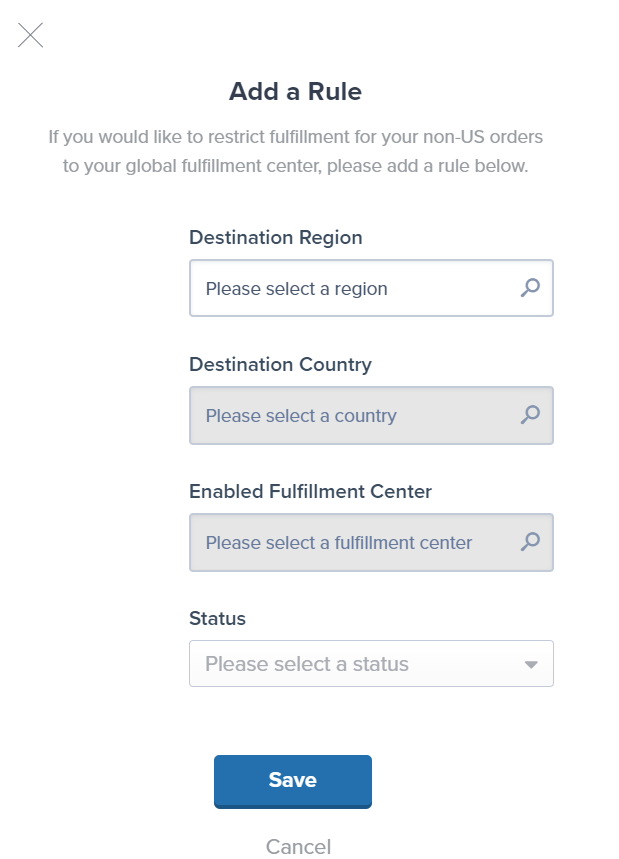 In the **Destination Region** dropdown, select your region. Only one region can be selected.
 In the **Destination Country/Countries** field, select the destination countries for this rule. Multiple selections are allowed.
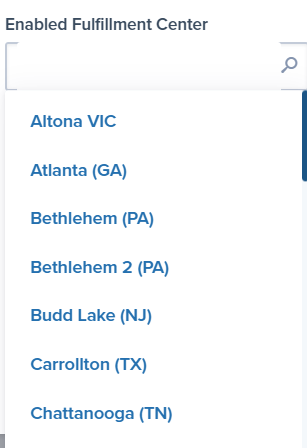
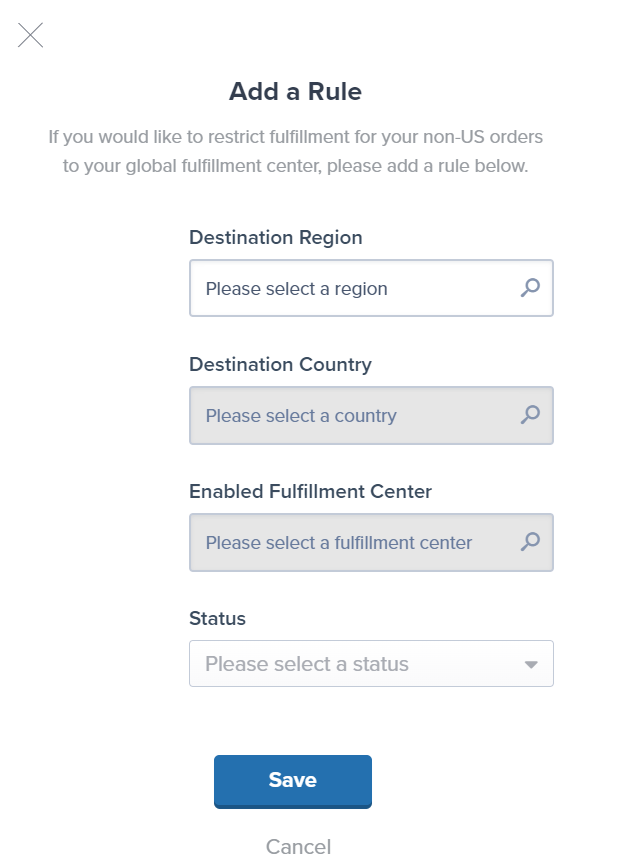 In the **Enabled Fulfillment Center** dropdown, choose where orders for these destinations will be fulfilled.
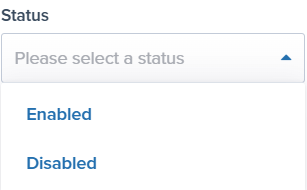
 Choose a **Status** (Enabled or Disabled), then click **Save** to apply the rule.
 You will receive a success message that confirms the rule was created, and the rule will appear on your Destination-Based Fulfillment Rules page. Each country selected will generate a separate rule.
***
## Managing Destination-Based Fulfillment Rules
Once you've created rules, you can enable, disable, or delete them as your fulfillment strategy evolves.
From the Jetpack dashboard, navigate to the Destination-Based Fulfillment Rules page (Orders → Rules → Manage Rule under Destination-Based Fulfillment).
Check the box next to the rule(s) you want to modify.
Click the **Actions** button and select **Enable Rule**, **Disable Rule**, or **Delete Rule**.
You will receive a success message that confirms the rule was created, and the rule will appear on your Destination-Based Fulfillment Rules page. Each country selected will generate a separate rule.
***
## Managing Destination-Based Fulfillment Rules
Once you've created rules, you can enable, disable, or delete them as your fulfillment strategy evolves.
From the Jetpack dashboard, navigate to the Destination-Based Fulfillment Rules page (Orders → Rules → Manage Rule under Destination-Based Fulfillment).
Check the box next to the rule(s) you want to modify.
Click the **Actions** button and select **Enable Rule**, **Disable Rule**, or **Delete Rule**.
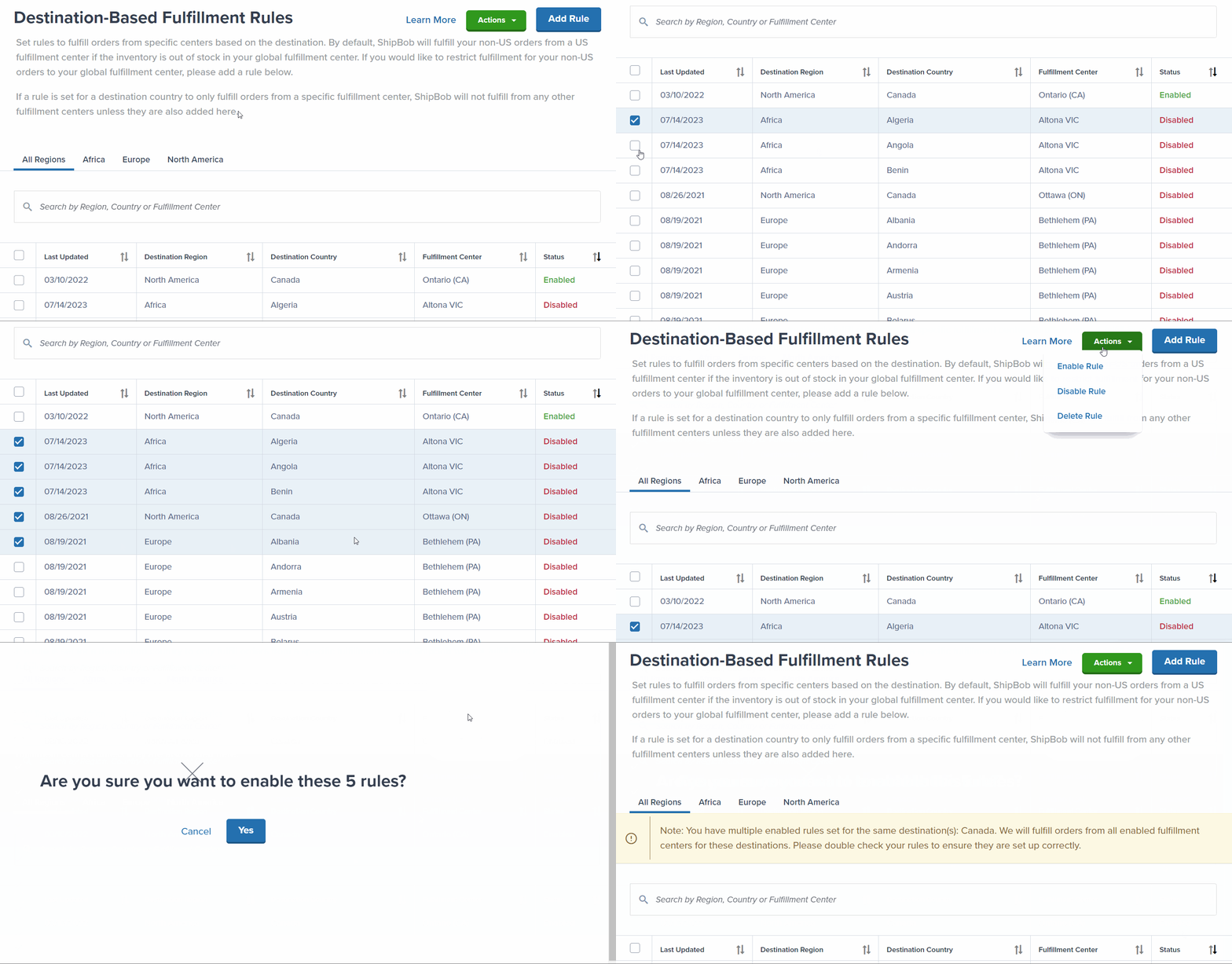 Confirm your selection when prompted.
***
## Overriding a Destination-Based Fulfillment Rule for an Individual Order
If Jetpack's operations team has not started fulfilling an order, you can manually override its fulfillment center—bypassing any active Destination-Based Fulfillment Rules for that specific order.
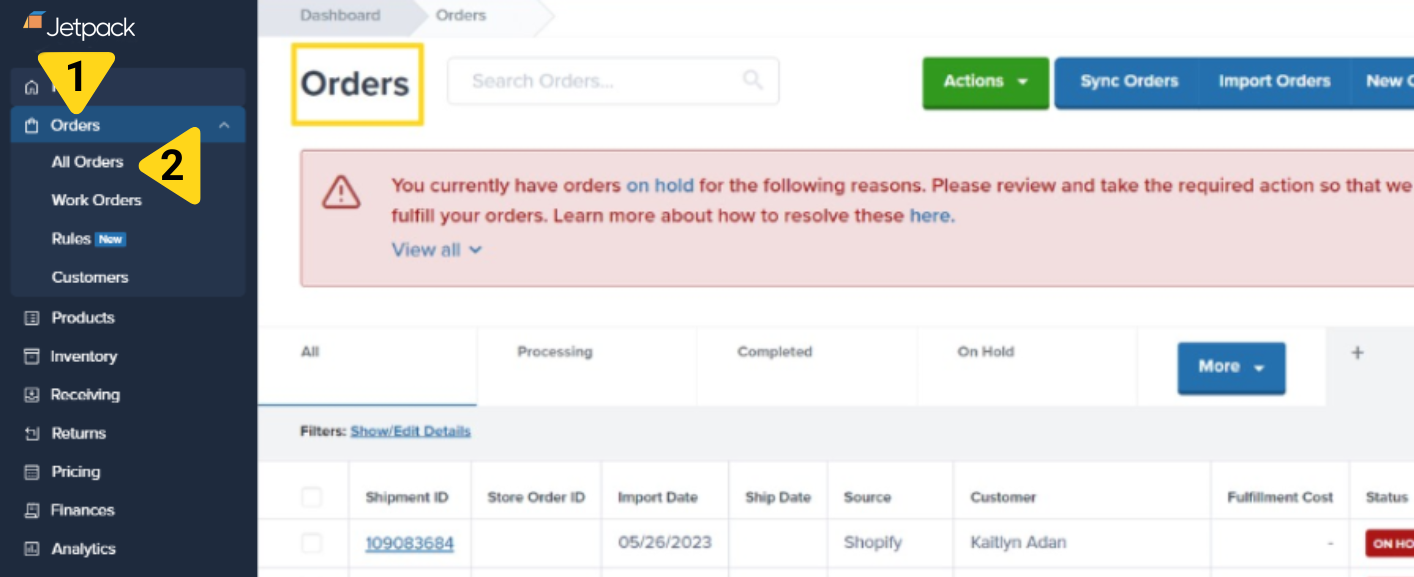
From the Jetpack dashboard, click **Orders** in the left-hand navigation bar, then select **All Orders**.
Confirm your selection when prompted.
***
## Overriding a Destination-Based Fulfillment Rule for an Individual Order
If Jetpack's operations team has not started fulfilling an order, you can manually override its fulfillment center—bypassing any active Destination-Based Fulfillment Rules for that specific order.
From the Jetpack dashboard, click **Orders** in the left-hand navigation bar, then select **All Orders**.
 Search for the order using the **Shipment ID** or **Order ID**.
Click the **Shipment ID** to open the order details page.
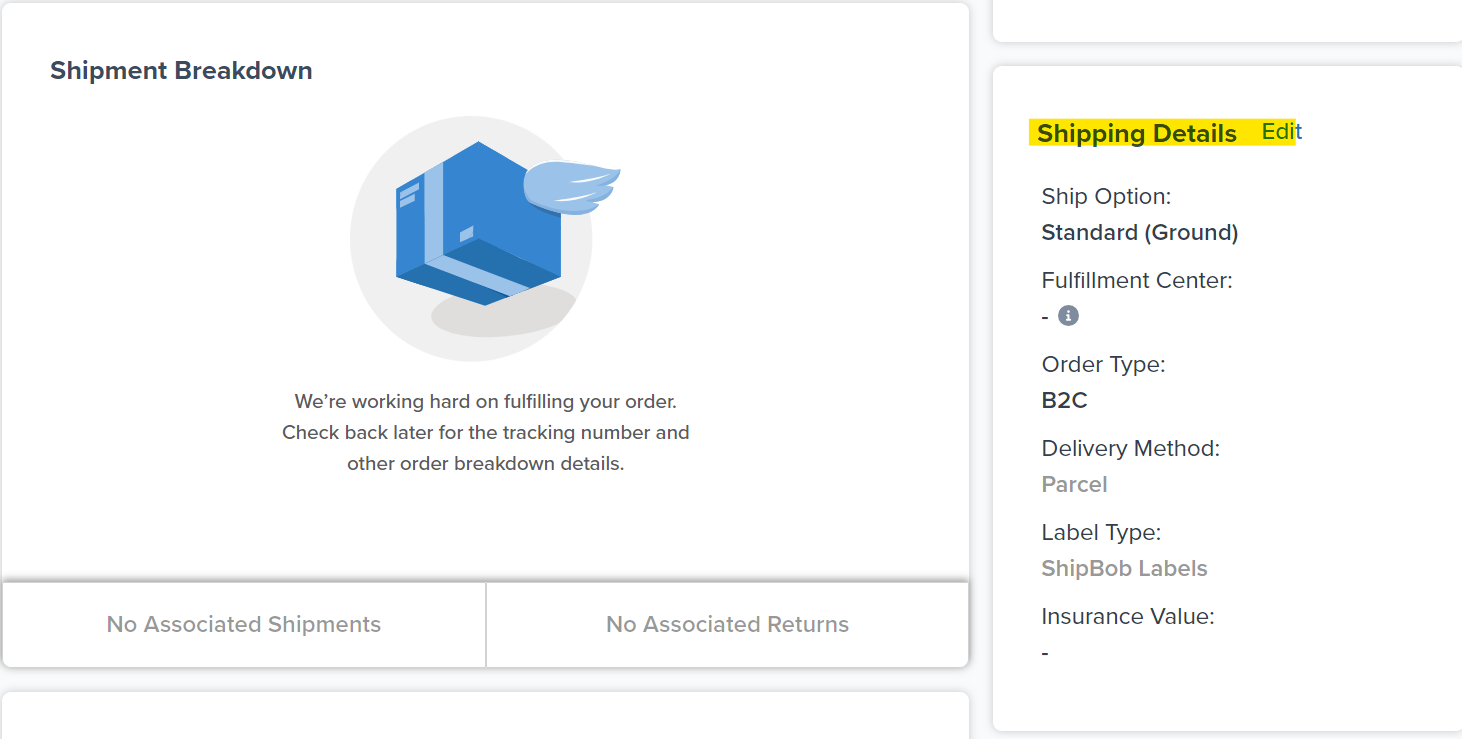
Scroll to the **Jetpack Shipping Details** section and click **Edit**.
Search for the order using the **Shipment ID** or **Order ID**.
Click the **Shipment ID** to open the order details page.
Scroll to the **Jetpack Shipping Details** section and click **Edit**.
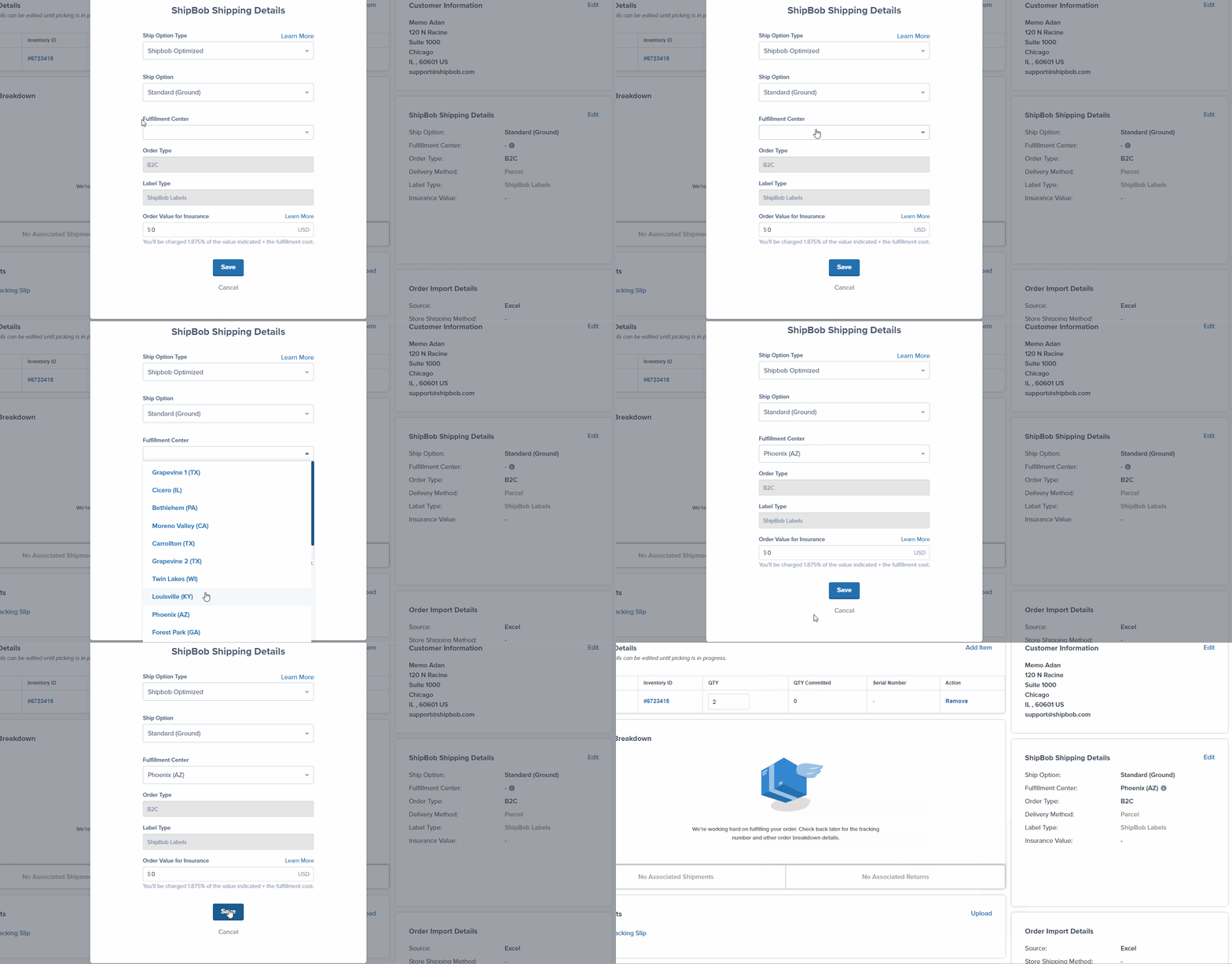
 Select the preferred **Fulfillment Center** from the drop-down menu.
Click **Save** to apply the override.
Select the preferred **Fulfillment Center** from the drop-down menu.
Click **Save** to apply the override.
 ***
## Let's Dive Deeper
Back to the main rules guide
Automatically apply fulfillment behaviors based on order attributes
Split orders with items from different fulfillment centers
Prioritize older orders when inventory is replenished
Control multi-box packaging behavior
Return to automation workflows overview
***
## Let's Dive Deeper
Back to the main rules guide
Automatically apply fulfillment behaviors based on order attributes
Split orders with items from different fulfillment centers
Prioritize older orders when inventory is replenished
Control multi-box packaging behavior
Return to automation workflows overview

Questions? Contact Jetpack Care.
If you have any questions or run into issues with Destination-Based Fulfillment Rules, you can always contact Jetpack Care for help. Our team is always here to assist via Slack, phone, or email!