> ## Documentation Index
> Fetch the complete documentation index at: https://help.jetpack3pl.com/llms.txt
> Use this file to discover all available pages before exploring further.
# Order Auto Split Rules
> Configure automatic order splitting to fulfill orders from multiple fulfillment centers when inventory is distributed across locations.
When your inventory is distributed across multiple fulfillment centers, Jetpack's Order Auto Split Rules automatically split B2C orders to prevent fulfillment delays and optimize shipping. Choose between Partial Shipment Rules (which split orders when no single fulfillment center has complete inventory) or Product-Based Shipment Rules (which split orders based on specific product criteria).
## Order Splitting Options
Jetpack offers two auto-split options to help manage orders when inventory is distributed across multiple fulfillment centers:
* **Partial Shipment Rules** automatically split orders when no single fulfillment center can fulfill the entire order
* **Product-Based Shipment Rules** split orders based on specific product criteria
These rules apply only to B2C orders. Internal transfer orders (ITOs) and B2B orders are excluded from automatic splitting.
***
## Choosing Your Order Splitting Approach
## Partial Shipment Rules
By default, when an order contains SKUs or units that are not all available in one fulfillment center, the order defaults to Exception status until one fulfillment center can fulfill it entirely. Enabling Partial Shipment Rules prevents fulfillment delays by automatically splitting orders across centers when needed.
### How Partial Shipment Rules Work
**Key Features:**
* **B2C orders only:** Both Partial Shipment and Partial Backorders rules apply only to B2C orders
* **Separate billing:** Each split shipment is billed separately, with details visible on the Shipment Breakdown panel in the order details
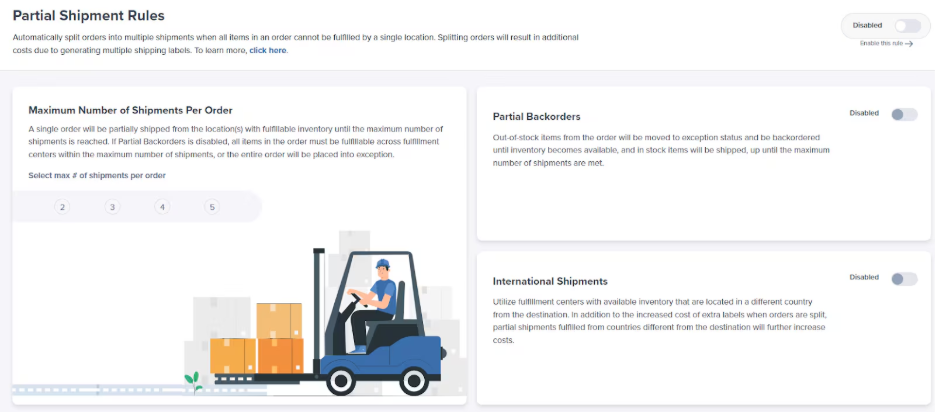
* **Maximum shipments:** By default, orders split into a maximum of 2 shipments. This can be customized to 2, 3, 4, or 5 shipments, based on available fulfillable inventory
* **Packaging exceptions:** Orders will not split if they include items with specific packaging requirements (e.g., marketing inserts, Prop 65 labels, custom packages)
Custom Dunnage can be split as its own shipment. Adjust the Maximum Number of Shipments Per Order setting to avoid this.
### Partial Backorders
Partial Shipment Rules will not split orders if any of the SKUs are out of stock (OOS). To allow orders to split when SKUs are OOS, enable Partial Backorders Rules.
When items are OOS, available SKUs ship as one order, while the order remains in Exception status until the backordered inventory is replenished. Once OOS items are restocked, the order automatically moves into Processing status, provided no other exceptions exist.
**Example:**
If an order includes:
* SKU A at Fulfillment Center X
* SKU B at Fulfillment Center Y
* SKU C at Fulfillment Center Z
This would require three shipments (one per fulfillment center). You can manually split the order in the dashboard if you prefer to ship available SKUs immediately.
### International Shipments
By default, order splits are restricted to fulfillment centers in the same country as the customer. Override this by enabling the International Shipments setting.
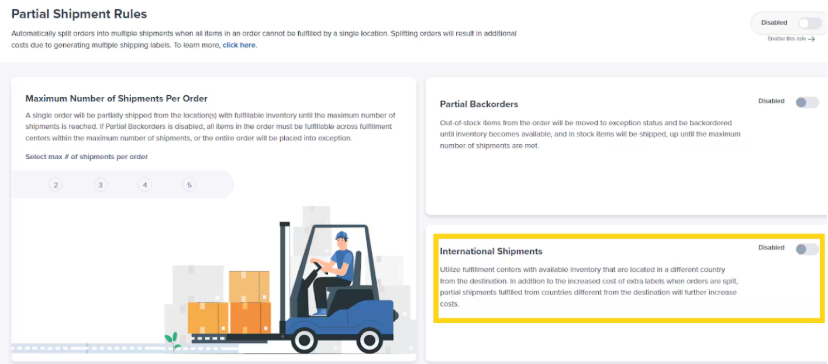 Ensure the maximum number of shipments setting corresponds to the number of fulfillment centers you use for optimal operation.
### Accessing the Partial Shipment Rules Page
Only Account Owners and Client Admins can configure partial shipment rules.
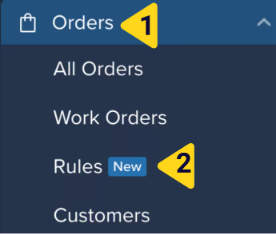
From the Jetpack dashboard, click **Orders** on the left-hand navigation bar. Additional menu options will appear. Select **Rules**.
Ensure the maximum number of shipments setting corresponds to the number of fulfillment centers you use for optimal operation.
### Accessing the Partial Shipment Rules Page
Only Account Owners and Client Admins can configure partial shipment rules.
From the Jetpack dashboard, click **Orders** on the left-hand navigation bar. Additional menu options will appear. Select **Rules**.
 You will be redirected to the Partial Shipment Rules page, where you can adjust settings including international shipments and the maximum number of shipments per order.
 ## Product-Based Shipment Rules
Product-based split rules are configured by combining one of three conditions with one or more types of Product-Based Shipment Rules. Orders are automatically split after they are imported into the dashboard.
### Conditions for Product-Based Shipment Rules
There are 3 conditions for Product-Based Shipment Rules:
| Condition | Description |
| --------------------------------- | ------------------------------------------------------------------------------------------------------------------------------------------------------------------------------------------------------------------------------------------------------------------------------------------------------------------------------------------------------------------ |
| **Apply to All Inventory** | This condition allows for the rule to split all B2C orders imported into your Jetpack dashboard into multiple shipments regardless of their source, but we will exclude internal transfer orders (ITOs) and B2B orders. |
| **Match Specific Inventory IDs** | This condition allows for the rule to split B2C orders imported into your Jetpack dashboard into multiple shipments based on specific inventory ID(s) included in the order. |
| **Match Products Using Keywords** | This condition allows for the rule to split B2C orders imported into your Jetpack dashboard into multiple shipments using keywords that appear at the beginning or end of the product's name.
## Product-Based Shipment Rules
Product-based split rules are configured by combining one of three conditions with one or more types of Product-Based Shipment Rules. Orders are automatically split after they are imported into the dashboard.
### Conditions for Product-Based Shipment Rules
There are 3 conditions for Product-Based Shipment Rules:
| Condition | Description |
| --------------------------------- | ------------------------------------------------------------------------------------------------------------------------------------------------------------------------------------------------------------------------------------------------------------------------------------------------------------------------------------------------------------------ |
| **Apply to All Inventory** | This condition allows for the rule to split all B2C orders imported into your Jetpack dashboard into multiple shipments regardless of their source, but we will exclude internal transfer orders (ITOs) and B2B orders. |
| **Match Specific Inventory IDs** | This condition allows for the rule to split B2C orders imported into your Jetpack dashboard into multiple shipments based on specific inventory ID(s) included in the order. |
| **Match Products Using Keywords** | This condition allows for the rule to split B2C orders imported into your Jetpack dashboard into multiple shipments using keywords that appear at the beginning or end of the product's name.
**Example:** If your products are Cat T-Shirt and Dog T-Shirt, configuring the keyword as "T-Shirt" will allow orders containing these products to split. |
### Available Product-Based Shipment Rules
After determining the condition, select one or more of the three Product-Based Shipment Rules:
#### Separate From Non-Matching Inventory
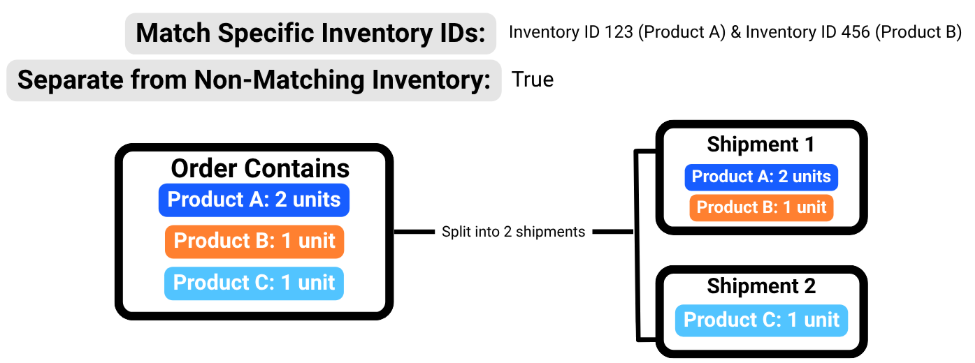
This rule splits orders into multiple shipments with the following behavior:
* Splits orders into multiple shipments
* Inventory IDs that match the rule ship together, separate from all other IDs
* Non-matching inventory ships together (unless packaging constraints require further splitting)
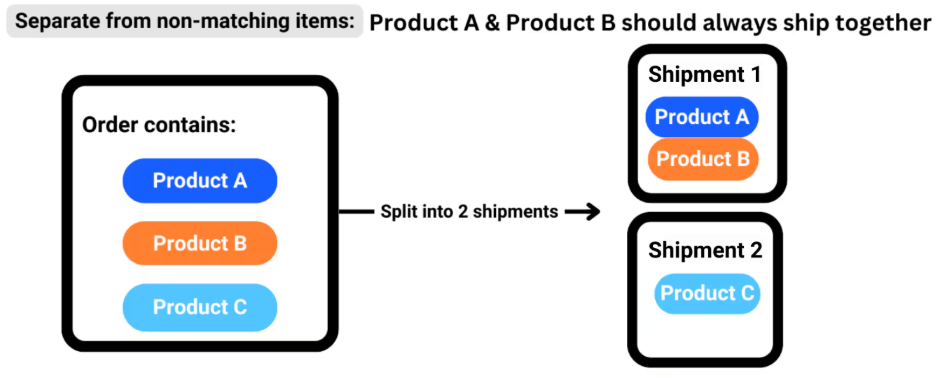 **Example:** To split heavy products from non-heavy products, you can use Match Specific Inventory IDs combined with Separate from Non-Matching Inventory.
 #### Max Matched Quantity Per Shipment
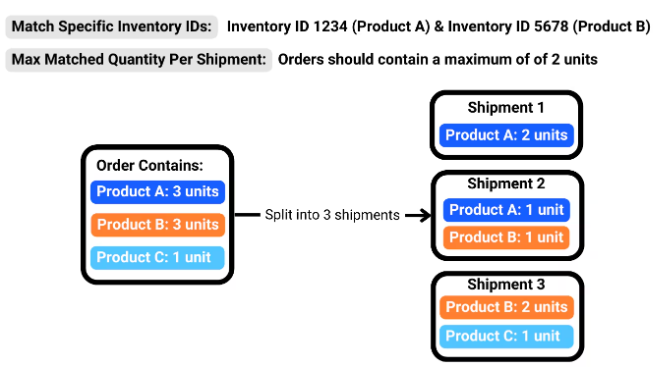
This rule splits orders into multiple shipments to ensure each shipment does not exceed a predefined maximum unit count:
* Splits orders into multiple shipments to ensure each shipment does not exceed a predefined maximum unit count
* Bundles in an order may be split, causing items within a bundle to ship separately. To keep all items in a bundle together, use the Keep Together Grouped Inventory rule
* Shipments created by this rule can include other products not governed by the rule, as its primary goal is to limit dangerous goods (DG)/HAZMAT products due to safety regulations and carrier restrictions
* To prevent SKUs covered by this rule from shipping with other SKUs, consider using the Separate From Non-Matching Inventory rule
#### Max Matched Quantity Per Shipment
This rule splits orders into multiple shipments to ensure each shipment does not exceed a predefined maximum unit count:
* Splits orders into multiple shipments to ensure each shipment does not exceed a predefined maximum unit count
* Bundles in an order may be split, causing items within a bundle to ship separately. To keep all items in a bundle together, use the Keep Together Grouped Inventory rule
* Shipments created by this rule can include other products not governed by the rule, as its primary goal is to limit dangerous goods (DG)/HAZMAT products due to safety regulations and carrier restrictions
* To prevent SKUs covered by this rule from shipping with other SKUs, consider using the Separate From Non-Matching Inventory rule
 #### Keep Together Grouped Inventory
Allows orders to split into multiple shipments while ensuring one shipment contains the entire bundle (or a group of inventory IDs and the total units required for each).
### Combining Multiple Rules
Multiple Product-Based Shipment Rules can be enabled at once to create sophisticated order splitting logic.
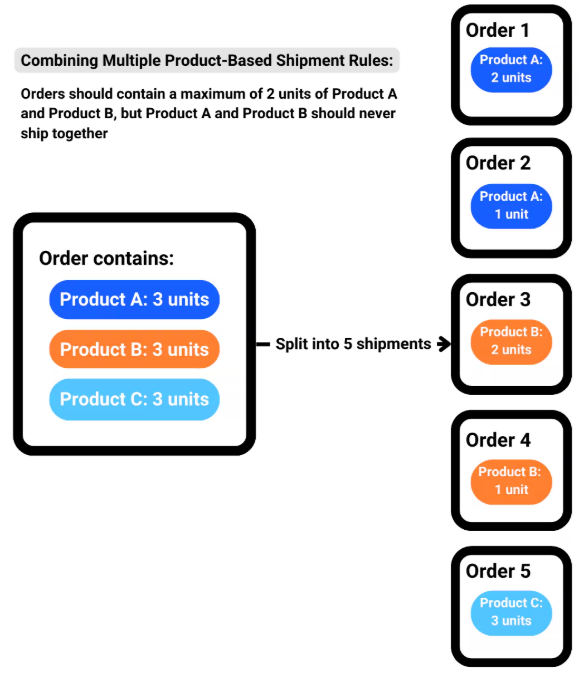
**Example 1: Limiting Quantity and Separating Products**
You can combine the Max Matched Quantity Per Shipment and Separate From Non-Matching Inventory rules to ensure orders contain a maximum of 2 units of Product A and Product B, while ensuring Product A and Product B are never shipped together (or with other products in the order).
#### Keep Together Grouped Inventory
Allows orders to split into multiple shipments while ensuring one shipment contains the entire bundle (or a group of inventory IDs and the total units required for each).
### Combining Multiple Rules
Multiple Product-Based Shipment Rules can be enabled at once to create sophisticated order splitting logic.
**Example 1: Limiting Quantity and Separating Products**
You can combine the Max Matched Quantity Per Shipment and Separate From Non-Matching Inventory rules to ensure orders contain a maximum of 2 units of Product A and Product B, while ensuring Product A and Product B are never shipped together (or with other products in the order).
 **Example 2: Preserving Bundles While Splitting Orders**
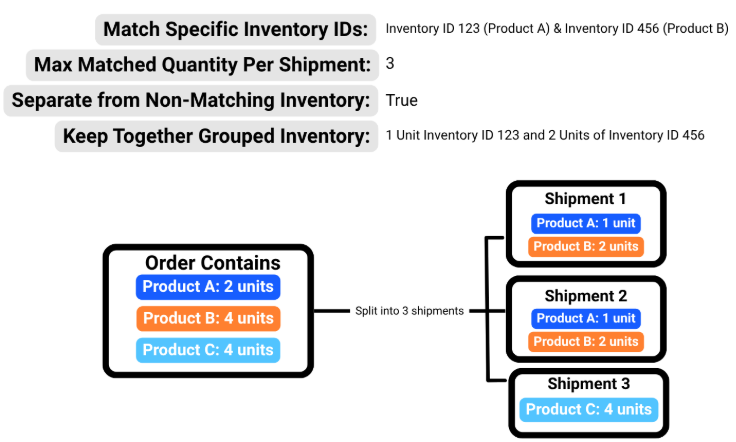
To preserve bundles (allowing them to ship together), you can use Match Specific Inventory IDs combined with Max Match Quantity Per Shipment, Separate from Non-Matching Inventory, and Keep Together Grouped Inventory.
**Example 2: Preserving Bundles While Splitting Orders**
To preserve bundles (allowing them to ship together), you can use Match Specific Inventory IDs combined with Max Match Quantity Per Shipment, Separate from Non-Matching Inventory, and Keep Together Grouped Inventory.
 ### How Product-Based Rules Apply
Product-Based Shipment Rules affect all B2C orders imported into your dashboard. Orders split based on these rules are in Processing or Exception status.
You can enable multiple Product-Based Shipment Rules simultaneously. However, Partial Backorder cannot be enabled without enabling Partial Shipment Rules.
Orders imported via certain integrations (like Shopify) will have additional tracking details visible on the Order Details page.
***
## Add-On Rules
Add-on rules (in combination with split rules) allow custom packaging to be assigned to shipments after being split.
Using the packaging's inventory ID or a keyword (located at the beginning or end of the item name), Add-on rules will:
1. Review the products and total units per product already in the shipment
2. Add specified products and total units based on the rule configuration
**Example:** If you have a Product-Based Shipment Rule configured to split all shipments containing exactly 1 unit of "Cat T-Shirt" into its own shipment, an Add-on rule can be used to add your "Custom T-Shirt Mailer" to only those shipments.
***
## Let's Dive Deeper
Automatically apply fulfillment behaviors to your orders
Route orders to specific fulfillment centers based on destination
Prioritize older orders when inventory is replenished
Control multi-box packaging behavior
Learn about packaging constraints that affect order splitting
Return to automation workflows overview
### How Product-Based Rules Apply
Product-Based Shipment Rules affect all B2C orders imported into your dashboard. Orders split based on these rules are in Processing or Exception status.
You can enable multiple Product-Based Shipment Rules simultaneously. However, Partial Backorder cannot be enabled without enabling Partial Shipment Rules.
Orders imported via certain integrations (like Shopify) will have additional tracking details visible on the Order Details page.
***
## Add-On Rules
Add-on rules (in combination with split rules) allow custom packaging to be assigned to shipments after being split.
Using the packaging's inventory ID or a keyword (located at the beginning or end of the item name), Add-on rules will:
1. Review the products and total units per product already in the shipment
2. Add specified products and total units based on the rule configuration
**Example:** If you have a Product-Based Shipment Rule configured to split all shipments containing exactly 1 unit of "Cat T-Shirt" into its own shipment, an Add-on rule can be used to add your "Custom T-Shirt Mailer" to only those shipments.
***
## Let's Dive Deeper
Automatically apply fulfillment behaviors to your orders
Route orders to specific fulfillment centers based on destination
Prioritize older orders when inventory is replenished
Control multi-box packaging behavior
Learn about packaging constraints that affect order splitting
Return to automation workflows overview

Questions? Contact Jetpack Care.
If you have any questions or run into issues configuring order split rules, you can always contact Jetpack Care for help. Our team is always here to assist via Slack, phone, or email!