> ## Documentation Index
> Fetch the complete documentation index at: https://help.jetpack3pl.com/llms.txt
> Use this file to discover all available pages before exploring further.
# Exporting Your Order Data
> Export orders as CSV files with comprehensive data including products, tracking, customer details, timestamps, and fulfillment costs for analysis and record-keeping.
Exporting your order data lets you analyze fulfillment metrics, maintain records, share information with your team, and integrate Jetpack data with your business intelligence tools. You can export up to a million lines of order data at once, with dozens of data fields including products, tracking, timestamps, costs, and customer information.
## Export Overview
Jetpack allows you to export orders as a `.csv` file from the Orders page. You can choose to export specific orders, all orders on the current page, or all orders based on your applied filters.
### Key Export Capabilities
* **Export up to 1 million lines of data** in a single download
* **Expanded column options** including Order Tags, Ship Option, Sales Channel Store, Store Shipping Method, and SKU
* **Export specific orders, current page, or all filtered results**
* **All dates and timestamps in UTC time** for consistency
### Data Retention
**Orders in Shipped status are available on the Orders page for 14 months** from the ship date. After 14 months, orders are deleted from the Jetpack dashboard.
To retrieve data for shipped orders older than 14 months, contact Jetpack Care via Slack.
***
## How to Export Orders
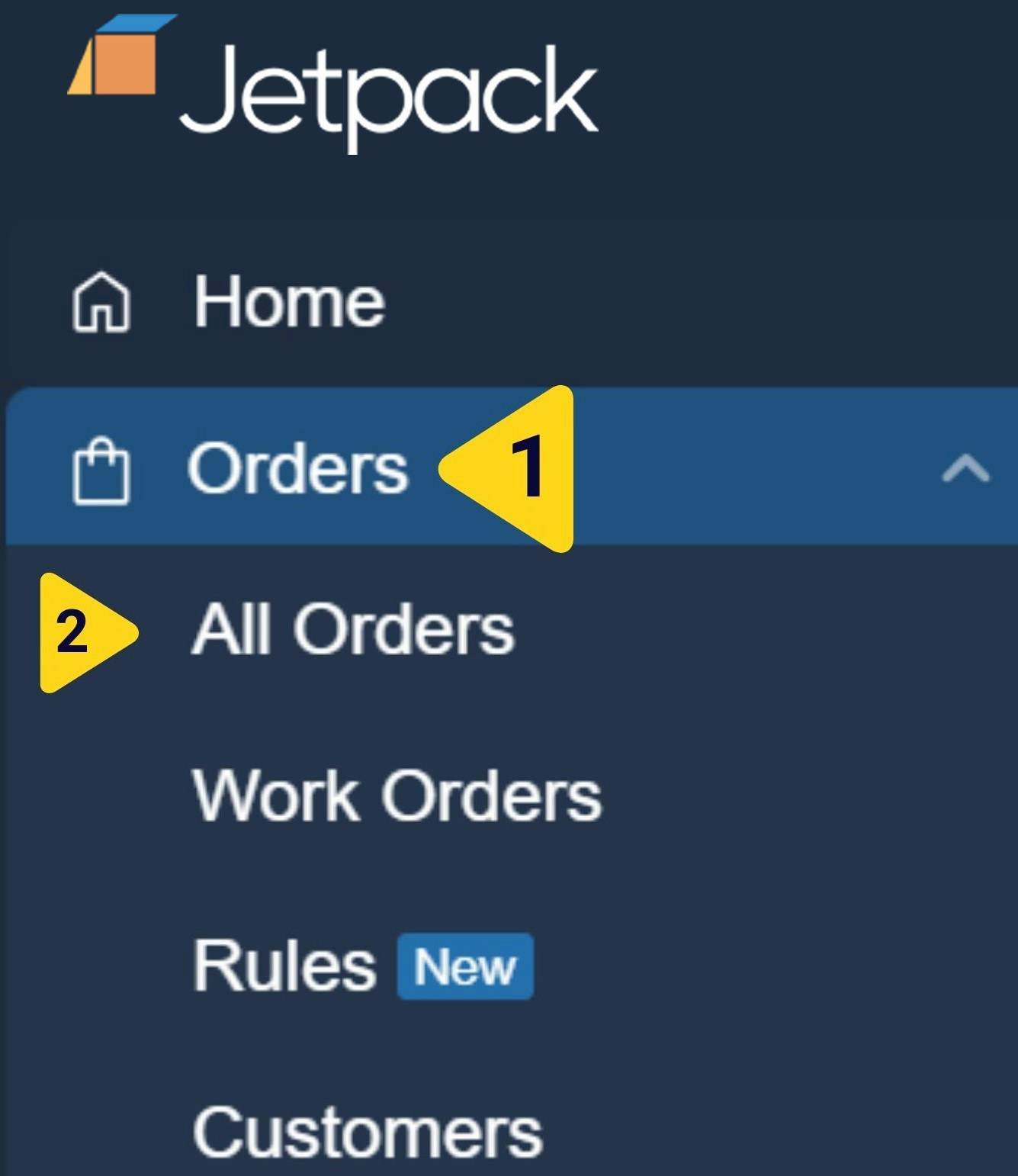
From the Jetpack dashboard, click **Orders** on the left-hand navigation bar, then select **All Orders** from the menu options.
 You have two options for choosing which orders to export:
**Option 1: Apply filters** to display specific orders
* Click the **funnel icon** to open the filter panel on the right side of the page
* Select filter categories from the left side (e.g., Import Date, Fulfillment Center, Order Status)
* Choose your filter criteria from the right side of the panel
* Click **Apply Filters** to view matching orders
**Option 2: Select individual orders**
* Check the boxes next to specific orders you want to export
* Or check the box in the column header to select all orders on the current page
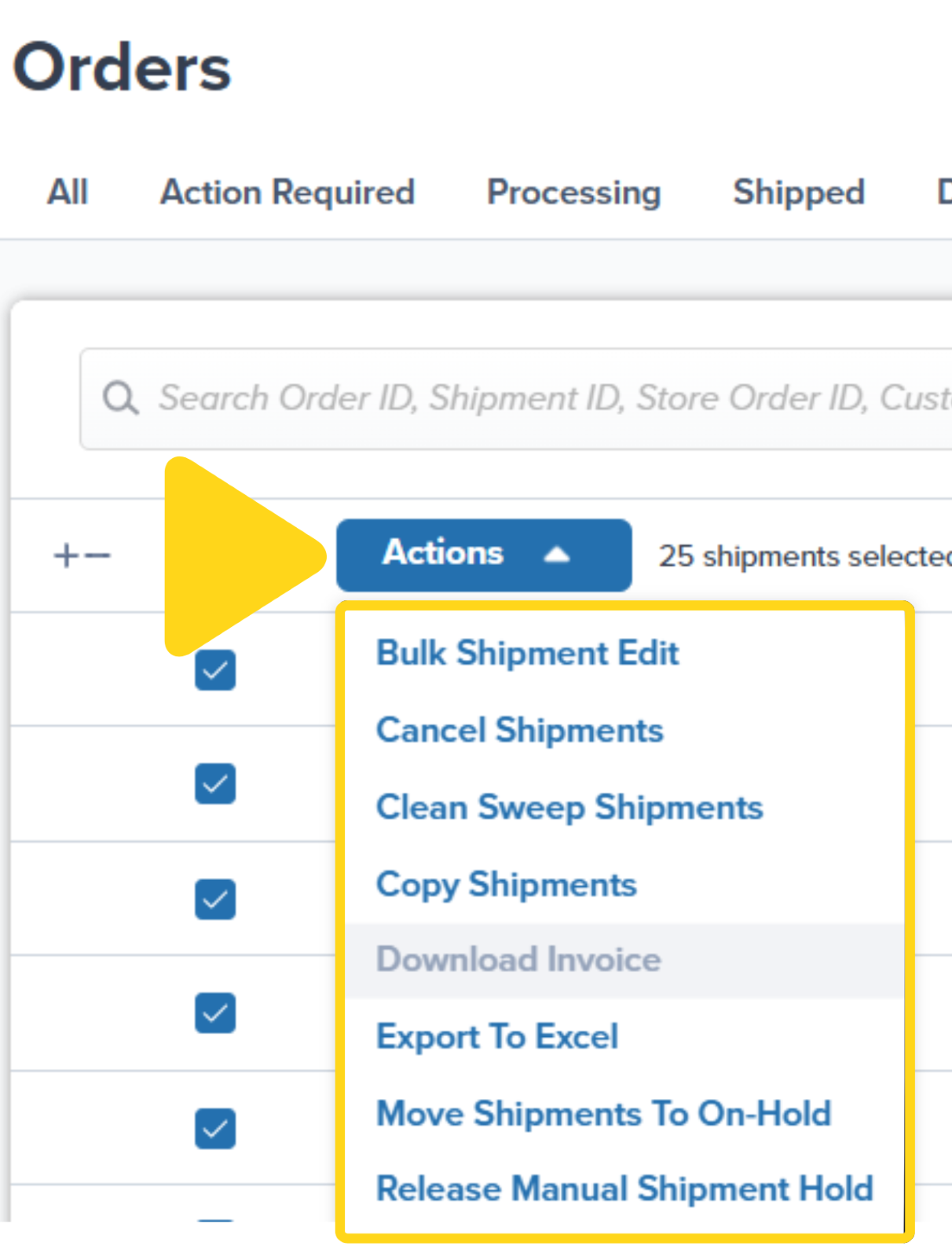
After applying filters or selecting orders, click the **Actions** button. Then select **Export To Excel** from the dropdown menu.
You have two options for choosing which orders to export:
**Option 1: Apply filters** to display specific orders
* Click the **funnel icon** to open the filter panel on the right side of the page
* Select filter categories from the left side (e.g., Import Date, Fulfillment Center, Order Status)
* Choose your filter criteria from the right side of the panel
* Click **Apply Filters** to view matching orders
**Option 2: Select individual orders**
* Check the boxes next to specific orders you want to export
* Or check the box in the column header to select all orders on the current page
After applying filters or selecting orders, click the **Actions** button. Then select **Export To Excel** from the dropdown menu.
 In the popup window, select one of the following options:
* **Current Selection** - Only the orders you checked
* **Current Page** - All orders visible on the current page
* **All Orders with Current Filters** - All orders matching your filters (across all pages)
In the popup window, select one of the following options:
* **Current Selection** - Only the orders you checked
* **Current Page** - All orders visible on the current page
* **All Orders with Current Filters** - All orders matching your filters (across all pages)
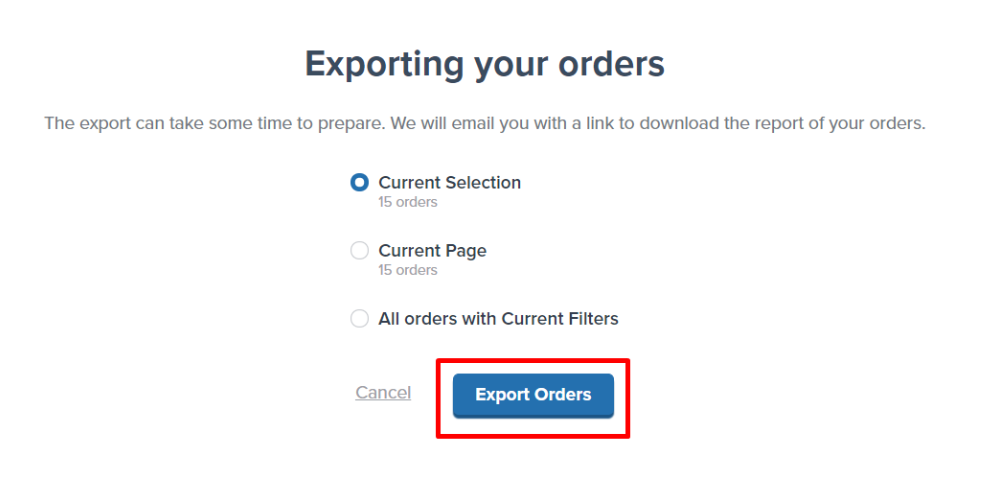 Click **Export Orders** to submit your request. Jetpack will begin preparing your export file.
### Receiving Your Export
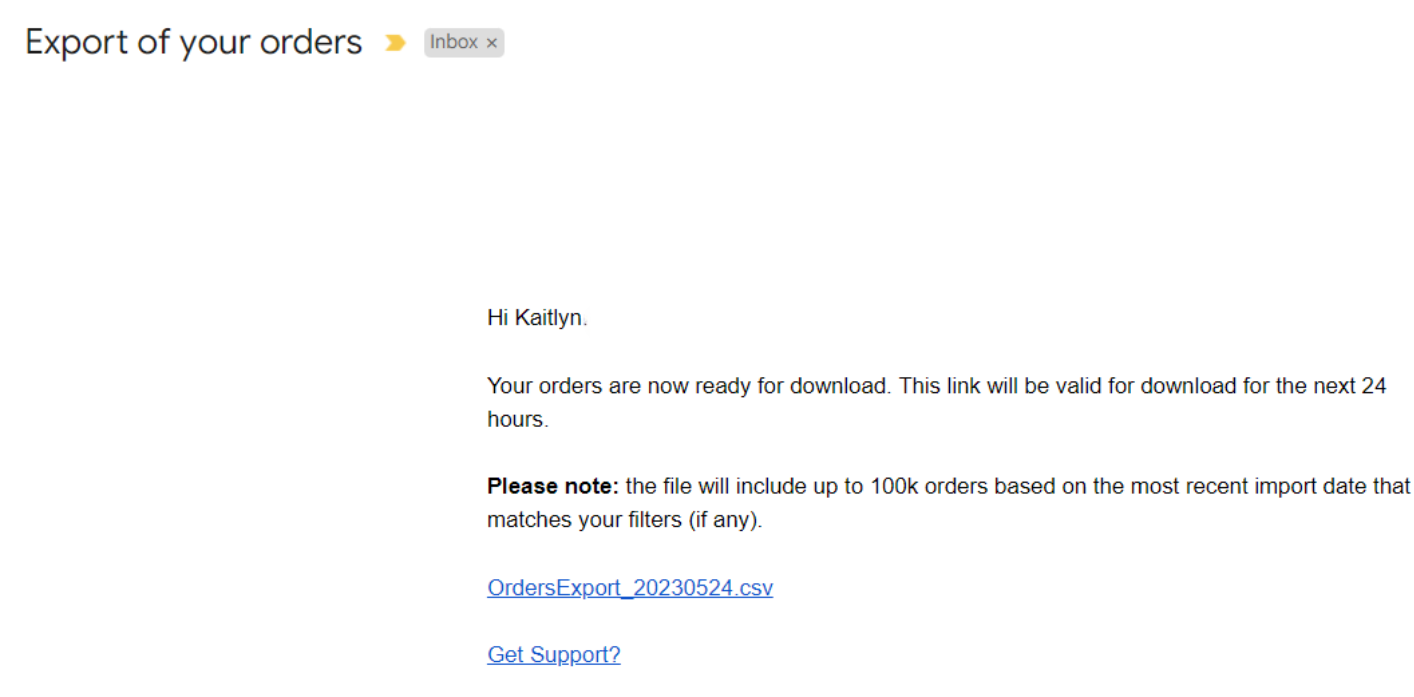
Jetpack will send you an email with the subject line **"Export of your orders."** The email contains a download link that's valid for 24 hours.
Check your inbox for the email with subject line "Export of your orders."
Click the hyperlink starting with **OrdersExport**. The `.csv` file will download to your computer.
Click **Export Orders** to submit your request. Jetpack will begin preparing your export file.
### Receiving Your Export
Jetpack will send you an email with the subject line **"Export of your orders."** The email contains a download link that's valid for 24 hours.
Check your inbox for the email with subject line "Export of your orders."
Click the hyperlink starting with **OrdersExport**. The `.csv` file will download to your computer.
 Open the downloaded file in Excel or your preferred spreadsheet application.
***
## Understanding Your CSV Export
Your exported CSV file contains comprehensive order data across multiple columns. Here's what each column represents:
### Order Identification
| Column | What It Contains |
| ------------------ | ------------------------------------------------------------------------------------------------------------ |
| **Shipment ID** | Unique number assigned in the Jetpack dashboard |
| **Store Order ID** | Unique number from your ecommerce store integration (blank if manually created or missing from Excel upload) |
### Dates and Timestamps
**Note**: All dates and timestamps are in **UTC time**.
| Column | What It Contains |
| ----------------------------- | ---------------------------------------------------------------------------------------------------------- |
| **Import Date** | UTC date/time when the order was imported (for non-integrated orders, this is the dashboard creation date) |
| **Purchase Date** | Date the customer placed the order (blank if manually created or uploaded via Excel) |
| **Ship Date** | UTC date/time when the order was shipped |
| **Delivery Date** | Date the order was delivered |
| **Order Processed Timestamp** | UTC date/time when the order entered Processing (blank if in Action Required or On-Hold) |
| **Picked Timestamp** | UTC date/time when picking began (blank if not yet picked) |
| **Packed Timestamp** | UTC date/time when the order was packed (blank if not yet packed) |
| **Labeled Timestamp** | UTC date/time when the order was labeled (blank if not yet labeled) |
### Customer Information
| Column | What It Contains |
| --------------------- | --------------------------------------------- |
| **Customer Name** | Recipient's name |
| **Customer Email** | Recipient's email address |
| **Shipping Address1** | Recipient's street address |
| **Shipping Address2** | Recipient's unit number (if applicable) |
| **Shipping Company** | Company receiving the order (B2B orders only) |
| **Shipping City** | Delivery city |
| **Shipping Zip** | Delivery zip/postcode |
| **Shipping State** | Delivery state |
| **Shipping Country** | Delivery country |
| **Shipping Phone** | Recipient's phone number |
### Order Source and Processing
| Column | What It Contains |
| -------------------- | --------------------------------------------------------------------------- |
| **Source** | Method used to import or create the order (e.g., Shopify) |
| **Order Status** | Current status (e.g., Processing, On-Hold, Exception) at the time of export |
| **Created By** | Jetpack user's name who created the order (for manual orders) |
| **ShipBob Batch Id** | Batch ID for orders picked together in bulk |
| **Notes** | Log of systematic changes (e.g., if an order was copied or split) |
### Shipping and Tracking
| Column | What It Contains |
| ------------------------ | -------------------------------------------------------------------------------------------------------- |
| **Carrier** | Assigned carrier (displays as "Prepaid Freight/Parcel" for prepaid B2B orders; blank if not yet labeled) |
| **Tracking Information** | Carrier tracking number (blank if not yet labeled) |
| **Delivery Status** | Carrier's delivery status (blank if in transit) |
| **Last Message** | Carrier delivery note (e.g., "Delivered: Side door") |
### Package Details
| Column | What It Contains |
| ----------------- | ------------------------------------------------------------------------------------------------ |
| **Length** | Exterior packaging length in inches (blank if not packed) |
| **Height** | Exterior packaging height in inches (blank if not packed) |
| **Width** | Exterior packaging width in inches (blank if not packed) |
| **Actual Weight** | Total order weight in pounds including products and packaging (blank if not packed) |
| **Shipping Zone** | Zone based on distance from the fulfillment center (blank for prepaid orders or if not invoiced) |
### Product Information
**Note**: A single order may span multiple rows if it contains more than one unique product.
| Column | What It Contains |
| ------------------------ | ----------------------------------------------------------------------- |
| **Line Item ShipBob Id** | Jetpack Inventory ID for the product(s) |
| **Line Item Name** | Product name as listed in the dashboard |
| **Line Item Qty** | Quantity picked for the product |
| **Total Item Quantity** | Total number of items (all SKUs) in the order |
| **Serial Numbers** | Scanned serial number during packing (blank unless configured) |
| **Lot Number** | Lot number for the unit (blank unless configured as a lot product) |
| **Expiration Date** | Expiration date for the unit (blank unless configured as a lot product) |
### Fulfillment Details
| Column | What It Contains |
| ---------------------- | ----------------------------------------------------------------------- |
| **Fulfillment Center** | Jetpack fulfillment center that shipped the order |
| **Fulfillment Cost** | Total cost charged for order fulfillment (shows 0 if unfulfilled) |
| **Invoice ID** | Billing order number (blank if not invoiced) |
| **Insurance Value** | Total insurance purchased in the local currency |
| **Reserve Date** | Date selected to reserve inventory for a B2B order (manual orders only) |
| **Ship By Date** | Same as Reserve Date |
### SLA and Fulfillment Metrics
| Column | What It Contains |
| ------------------------------ | ------------------------------------------------------------------------------------------------------------------------------ |
| **SLA Status** | Fulfillment SLA status: AwaitingInventoryAllocation, AwaitingReset, PendingOnTime, FulfilledOnTime, PendingLate, FulfilledLate |
| **Estimated Fulfillment Date** | Estimated packing date based on SLAs (subject to updates) |
| **Fulfillment Date** | Actual packing date (blank if not yet packed) |
Learn more about [SLA statuses and turnaround times](/fulfillment/d2c/turnaround-times-slas).
***
## Formatting the CSV in Excel
To ensure that tracking numbers and other numeric fields are formatted correctly in Excel, follow these steps to prevent Excel from automatically converting tracking numbers to scientific notation or removing leading zeros.
Locate and open the downloaded `.csv` file in Excel.
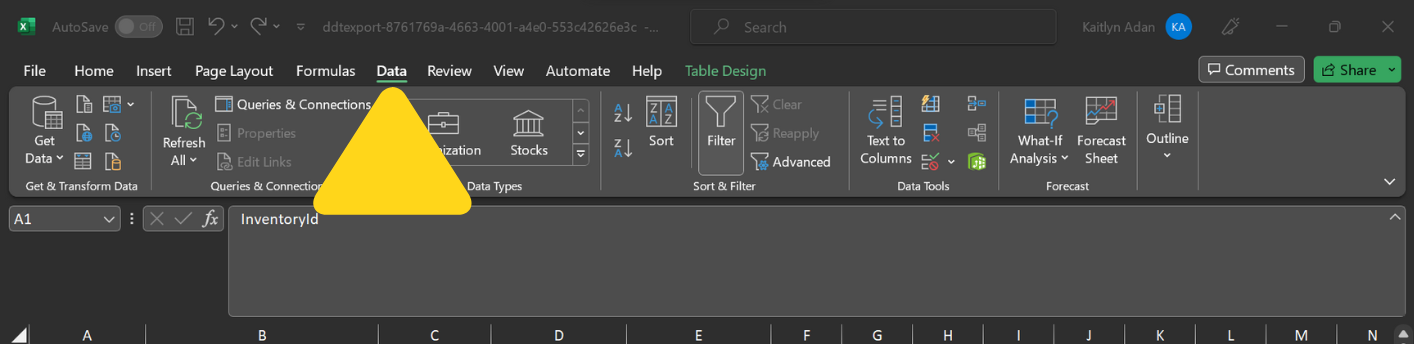
Click **Data** in the top navigation bar, then select **Get Data** and hover over **From File**.
Open the downloaded file in Excel or your preferred spreadsheet application.
***
## Understanding Your CSV Export
Your exported CSV file contains comprehensive order data across multiple columns. Here's what each column represents:
### Order Identification
| Column | What It Contains |
| ------------------ | ------------------------------------------------------------------------------------------------------------ |
| **Shipment ID** | Unique number assigned in the Jetpack dashboard |
| **Store Order ID** | Unique number from your ecommerce store integration (blank if manually created or missing from Excel upload) |
### Dates and Timestamps
**Note**: All dates and timestamps are in **UTC time**.
| Column | What It Contains |
| ----------------------------- | ---------------------------------------------------------------------------------------------------------- |
| **Import Date** | UTC date/time when the order was imported (for non-integrated orders, this is the dashboard creation date) |
| **Purchase Date** | Date the customer placed the order (blank if manually created or uploaded via Excel) |
| **Ship Date** | UTC date/time when the order was shipped |
| **Delivery Date** | Date the order was delivered |
| **Order Processed Timestamp** | UTC date/time when the order entered Processing (blank if in Action Required or On-Hold) |
| **Picked Timestamp** | UTC date/time when picking began (blank if not yet picked) |
| **Packed Timestamp** | UTC date/time when the order was packed (blank if not yet packed) |
| **Labeled Timestamp** | UTC date/time when the order was labeled (blank if not yet labeled) |
### Customer Information
| Column | What It Contains |
| --------------------- | --------------------------------------------- |
| **Customer Name** | Recipient's name |
| **Customer Email** | Recipient's email address |
| **Shipping Address1** | Recipient's street address |
| **Shipping Address2** | Recipient's unit number (if applicable) |
| **Shipping Company** | Company receiving the order (B2B orders only) |
| **Shipping City** | Delivery city |
| **Shipping Zip** | Delivery zip/postcode |
| **Shipping State** | Delivery state |
| **Shipping Country** | Delivery country |
| **Shipping Phone** | Recipient's phone number |
### Order Source and Processing
| Column | What It Contains |
| -------------------- | --------------------------------------------------------------------------- |
| **Source** | Method used to import or create the order (e.g., Shopify) |
| **Order Status** | Current status (e.g., Processing, On-Hold, Exception) at the time of export |
| **Created By** | Jetpack user's name who created the order (for manual orders) |
| **ShipBob Batch Id** | Batch ID for orders picked together in bulk |
| **Notes** | Log of systematic changes (e.g., if an order was copied or split) |
### Shipping and Tracking
| Column | What It Contains |
| ------------------------ | -------------------------------------------------------------------------------------------------------- |
| **Carrier** | Assigned carrier (displays as "Prepaid Freight/Parcel" for prepaid B2B orders; blank if not yet labeled) |
| **Tracking Information** | Carrier tracking number (blank if not yet labeled) |
| **Delivery Status** | Carrier's delivery status (blank if in transit) |
| **Last Message** | Carrier delivery note (e.g., "Delivered: Side door") |
### Package Details
| Column | What It Contains |
| ----------------- | ------------------------------------------------------------------------------------------------ |
| **Length** | Exterior packaging length in inches (blank if not packed) |
| **Height** | Exterior packaging height in inches (blank if not packed) |
| **Width** | Exterior packaging width in inches (blank if not packed) |
| **Actual Weight** | Total order weight in pounds including products and packaging (blank if not packed) |
| **Shipping Zone** | Zone based on distance from the fulfillment center (blank for prepaid orders or if not invoiced) |
### Product Information
**Note**: A single order may span multiple rows if it contains more than one unique product.
| Column | What It Contains |
| ------------------------ | ----------------------------------------------------------------------- |
| **Line Item ShipBob Id** | Jetpack Inventory ID for the product(s) |
| **Line Item Name** | Product name as listed in the dashboard |
| **Line Item Qty** | Quantity picked for the product |
| **Total Item Quantity** | Total number of items (all SKUs) in the order |
| **Serial Numbers** | Scanned serial number during packing (blank unless configured) |
| **Lot Number** | Lot number for the unit (blank unless configured as a lot product) |
| **Expiration Date** | Expiration date for the unit (blank unless configured as a lot product) |
### Fulfillment Details
| Column | What It Contains |
| ---------------------- | ----------------------------------------------------------------------- |
| **Fulfillment Center** | Jetpack fulfillment center that shipped the order |
| **Fulfillment Cost** | Total cost charged for order fulfillment (shows 0 if unfulfilled) |
| **Invoice ID** | Billing order number (blank if not invoiced) |
| **Insurance Value** | Total insurance purchased in the local currency |
| **Reserve Date** | Date selected to reserve inventory for a B2B order (manual orders only) |
| **Ship By Date** | Same as Reserve Date |
### SLA and Fulfillment Metrics
| Column | What It Contains |
| ------------------------------ | ------------------------------------------------------------------------------------------------------------------------------ |
| **SLA Status** | Fulfillment SLA status: AwaitingInventoryAllocation, AwaitingReset, PendingOnTime, FulfilledOnTime, PendingLate, FulfilledLate |
| **Estimated Fulfillment Date** | Estimated packing date based on SLAs (subject to updates) |
| **Fulfillment Date** | Actual packing date (blank if not yet packed) |
Learn more about [SLA statuses and turnaround times](/fulfillment/d2c/turnaround-times-slas).
***
## Formatting the CSV in Excel
To ensure that tracking numbers and other numeric fields are formatted correctly in Excel, follow these steps to prevent Excel from automatically converting tracking numbers to scientific notation or removing leading zeros.
Locate and open the downloaded `.csv` file in Excel.
Click **Data** in the top navigation bar, then select **Get Data** and hover over **From File**.
 Choose **From Text/CSV** from the submenu.
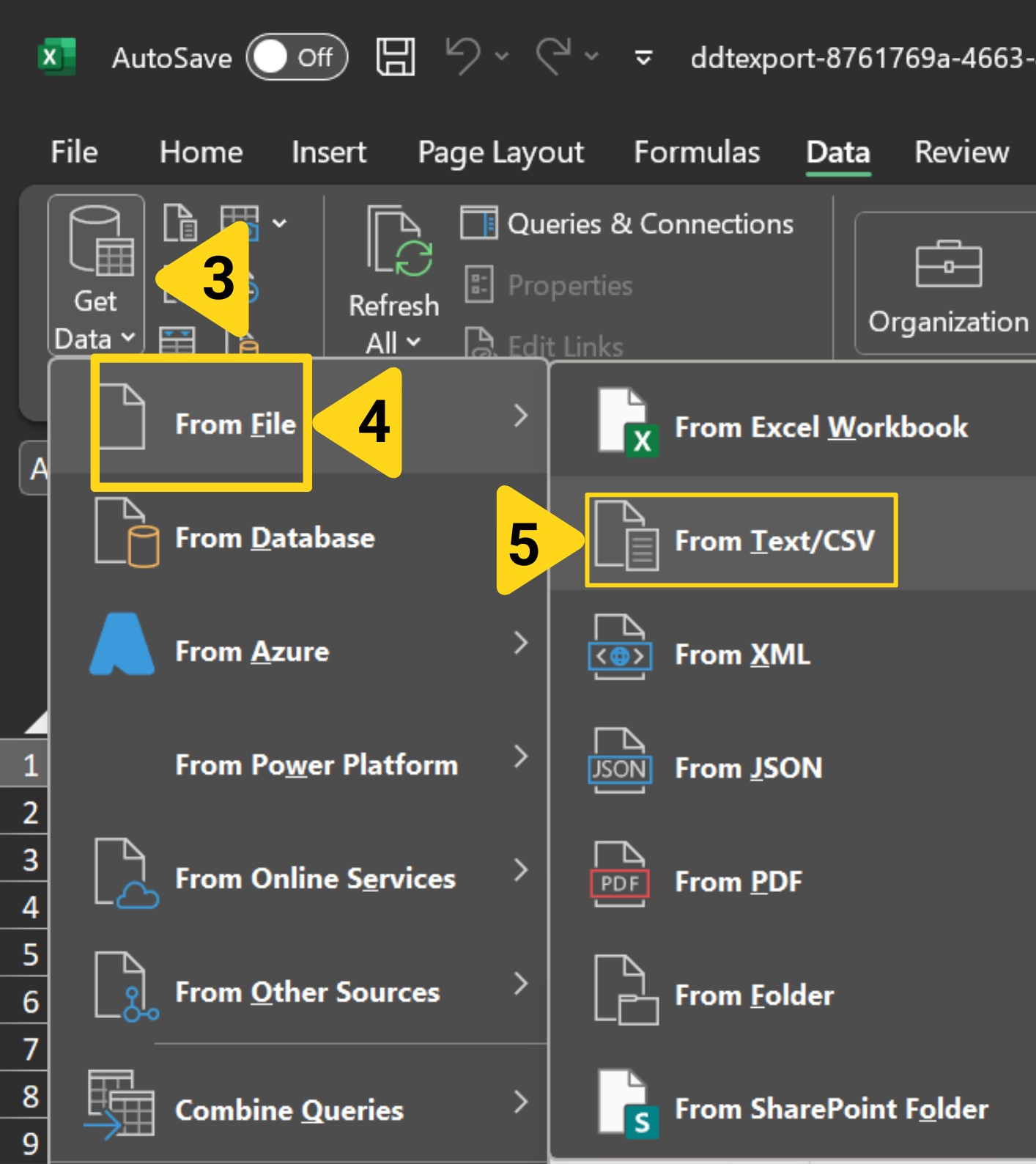 In the file browser popup, navigate to and select your exported CSV file.
In the import preview window, under **Data Type Detection**, select **Do not detect data types**.
In the file browser popup, navigate to and select your exported CSV file.
In the import preview window, under **Data Type Detection**, select **Do not detect data types**.
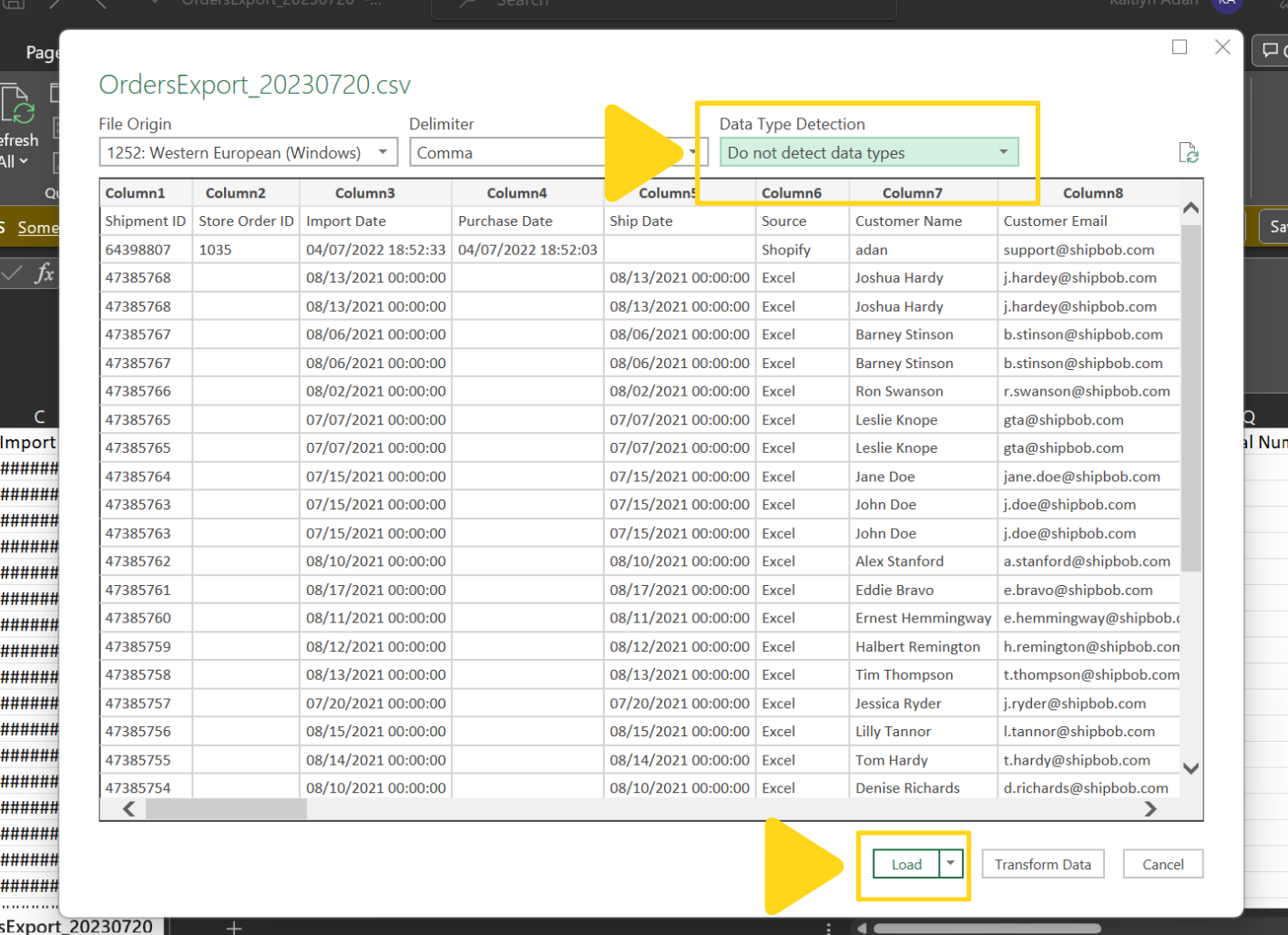 Click **Load** to import the data with proper formatting. Your tracking numbers and other numeric fields will now display correctly without scientific notation.
***
## CSV Export FAQs
Columns may be blank if the relevant data is unavailable at the time of export:
* **Tracking Information** is blank if the order hasn't been labeled yet
* **Delivery Date** is blank if the order hasn't been delivered
* **Package dimensions (Length, Width, Height, Actual Weight)** are blank if the order hasn't been packed
* **Store Order ID** is blank if the order was manually created or missing from an Excel upload
* **Purchase Date** is blank if the order was manually created
This is normal and expected for orders that are still in progress.
If an order contains **more than one unique product**, it will span multiple rows in the CSV export. Each row represents one product SKU.
**Example**: An order with 2 different products will have:
* Row 1: Product A with its quantity
* Row 2: Product B with its quantity
Both rows will share the same Shipment ID and order details, but will have different Line Item Name, Line Item ShipBob Id, and Line Item Qty values.
Automatic scheduled exports are not currently available through the dashboard. However, you can:
* Use the **ShipBob API** to pull order data programmatically
* Contact Jetpack Care to discuss custom reporting solutions for your business needs
Learn more about the [ShipBob API](https://developer.shipbob.com/).
**Purchase Date** is the date the customer placed the order in your ecommerce store (e.g., Shopify, WooCommerce). This comes from your integration.
**Import Date** is the date/time the order was imported into Jetpack. For integrated stores, this is typically within minutes of the Purchase Date. For manually created orders, Purchase Date is blank and Import Date is the dashboard creation date.
**Use Purchase Date** for customer-facing reports and analytics.
**Use Import Date** for Jetpack fulfillment timeline analysis.
To export orders from a specific fulfillment center:
On the Orders page, click the **funnel icon** to open the filter panel on the right side of the page.
Click **Fulfillment Center** from the filter categories on the left side. Then check the box next to your desired FC (e.g., Chicago, Los Angeles, Pennsylvania) on the right side.
Click **Apply Filters** at the bottom of the filter panel.
Click **Actions** → **Export To Excel**, then select **All Orders with Current Filters**.
Your export will include only orders processed by that fulfillment center.
Orders in Shipped status are removed from the dashboard after 14 months. If you need historical data older than 14 months, contact Jetpack Care via Slack or email.
**Best practice**: Export your order data quarterly or monthly to maintain long-term records without relying on dashboard retention limits.
***
## Let's Dive Deeper
Navigate and filter all your orders with customizable views
Understand SLA statuses in your export
Learn about order statuses appearing in exports
View tracking information for shipped orders
Efficiently manage orders before exporting
View complete order information and history
Click **Load** to import the data with proper formatting. Your tracking numbers and other numeric fields will now display correctly without scientific notation.
***
## CSV Export FAQs
Columns may be blank if the relevant data is unavailable at the time of export:
* **Tracking Information** is blank if the order hasn't been labeled yet
* **Delivery Date** is blank if the order hasn't been delivered
* **Package dimensions (Length, Width, Height, Actual Weight)** are blank if the order hasn't been packed
* **Store Order ID** is blank if the order was manually created or missing from an Excel upload
* **Purchase Date** is blank if the order was manually created
This is normal and expected for orders that are still in progress.
If an order contains **more than one unique product**, it will span multiple rows in the CSV export. Each row represents one product SKU.
**Example**: An order with 2 different products will have:
* Row 1: Product A with its quantity
* Row 2: Product B with its quantity
Both rows will share the same Shipment ID and order details, but will have different Line Item Name, Line Item ShipBob Id, and Line Item Qty values.
Automatic scheduled exports are not currently available through the dashboard. However, you can:
* Use the **ShipBob API** to pull order data programmatically
* Contact Jetpack Care to discuss custom reporting solutions for your business needs
Learn more about the [ShipBob API](https://developer.shipbob.com/).
**Purchase Date** is the date the customer placed the order in your ecommerce store (e.g., Shopify, WooCommerce). This comes from your integration.
**Import Date** is the date/time the order was imported into Jetpack. For integrated stores, this is typically within minutes of the Purchase Date. For manually created orders, Purchase Date is blank and Import Date is the dashboard creation date.
**Use Purchase Date** for customer-facing reports and analytics.
**Use Import Date** for Jetpack fulfillment timeline analysis.
To export orders from a specific fulfillment center:
On the Orders page, click the **funnel icon** to open the filter panel on the right side of the page.
Click **Fulfillment Center** from the filter categories on the left side. Then check the box next to your desired FC (e.g., Chicago, Los Angeles, Pennsylvania) on the right side.
Click **Apply Filters** at the bottom of the filter panel.
Click **Actions** → **Export To Excel**, then select **All Orders with Current Filters**.
Your export will include only orders processed by that fulfillment center.
Orders in Shipped status are removed from the dashboard after 14 months. If you need historical data older than 14 months, contact Jetpack Care via Slack or email.
**Best practice**: Export your order data quarterly or monthly to maintain long-term records without relying on dashboard retention limits.
***
## Let's Dive Deeper
Navigate and filter all your orders with customizable views
Understand SLA statuses in your export
Learn about order statuses appearing in exports
View tracking information for shipped orders
Efficiently manage orders before exporting
View complete order information and history

Questions? Contact Jetpack Care.
If you have any questions or run into issues, you can always contact Jetpack Care for help. Our team is always here to assist via Slack, phone, or email!