> ## Documentation Index
> Fetch the complete documentation index at: https://help.jetpack3pl.com/llms.txt
> Use this file to discover all available pages before exploring further.
# Editing an Order
> Learn what order details you can edit, when changes are allowed, and how to modify customer information, products, shipping details, and fulfillment settings.
Sometimes you need to make changes to an order after it's been imported—whether it's updating a customer's address, adding a product they forgot, or adjusting the shipping speed. The Jetpack dashboard gives you the flexibility to edit key order details, but with important timing restrictions to ensure fulfillment accuracy.
## What You Can Edit
In the Jetpack dashboard, you can edit the following order details:
* **Customer information** - Recipient name, shipping address, email, and phone number
* **Order items and quantities** - Add, remove, or adjust product quantities
* **Shipping details** - Ship option, carrier preferences, and insurance
* **Fulfillment center assignment** - Change which FC processes the order
* **Bulk orders** - Make changes to multiple orders simultaneously
**Critical timing restriction**: Orders in the Processing status can only be edited **if our Operations team has not started fulfilling the order**. Once an order reaches the **Picked** status, editing capabilities are locked.
***
## When Can You Edit Orders?
Understanding the editing windows is crucial to managing your orders effectively.
### Editing Timeline
| Order Status | What Can Be Edited | Restrictions |
| ------------------------------- | ---------------------------------------------------------- | ---------------------------------------------------------------------------------- |
| **Action Required** | Everything (customer info, products, shipping details, FC) | None - order hasn't entered fulfillment |
| **Processing (before picking)** | Everything (customer info, products, shipping details, FC) | Must edit before warehouse team picks the order |
| **Picked** | Nothing - all editing locked | Warehouse team has already picked products; changes would cause fulfillment errors |
| **Packed** | Nothing - all editing locked | Order is packaged and ready to ship |
| **Labeled** | Nothing - all editing locked | Shipping label generated; changes would require re-labeling |
| **Shipped** | Nothing - all editing locked | Order has left the fulfillment center |
**Why editing is locked after picking**: Once our warehouse team has physically picked the products from inventory and verified them against the order, any changes could result in incorrect shipments, fulfillment delays, or inventory discrepancies.
***
## Accessing Order Editing
From the Jetpack dashboard:
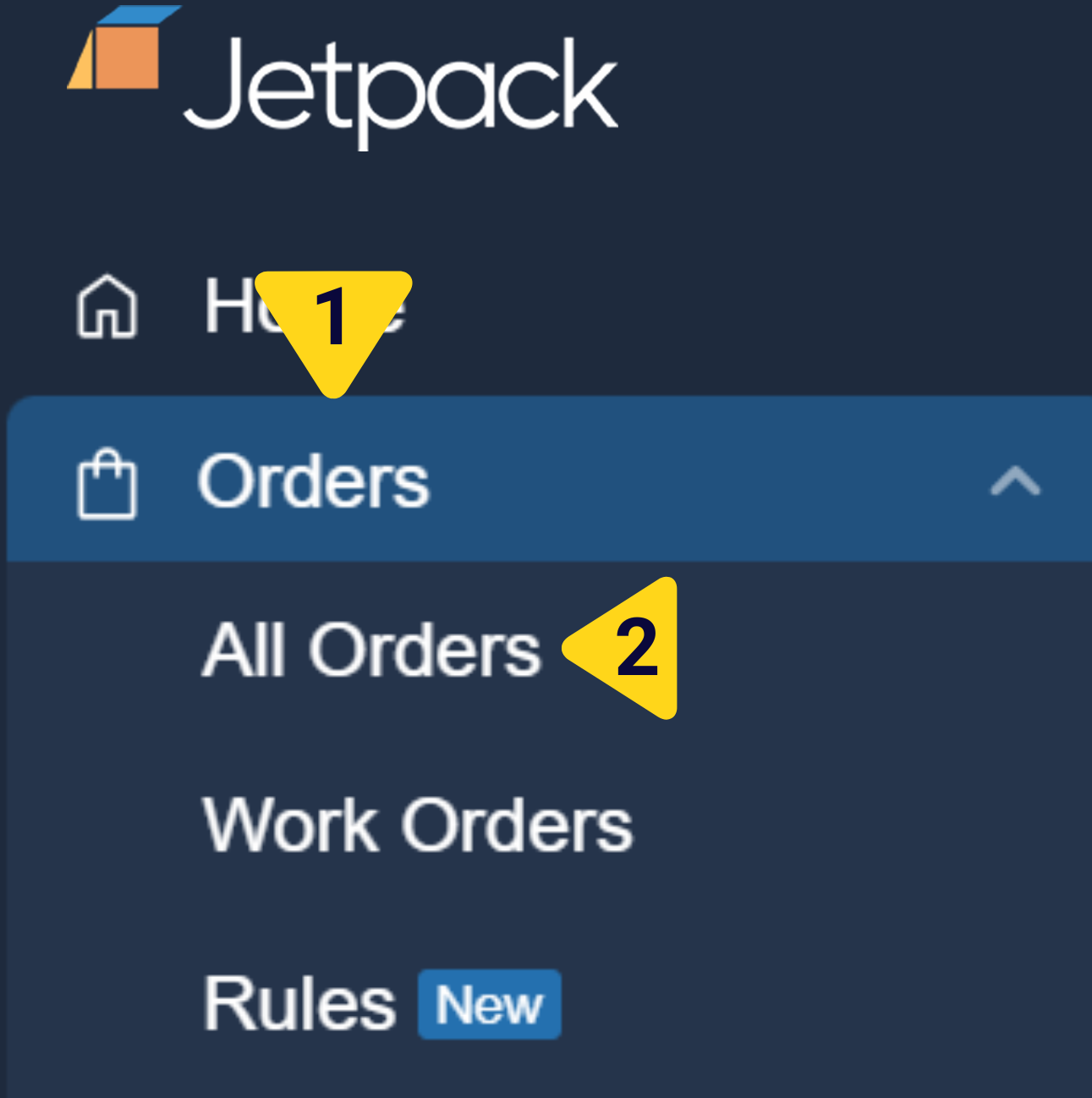
Click **Orders** on the left-hand navigation bar, then select **All Orders** from the menu that appears.
 On the Orders page, locate the order you wish to edit using the search bar, filters, or by scrolling through the list.
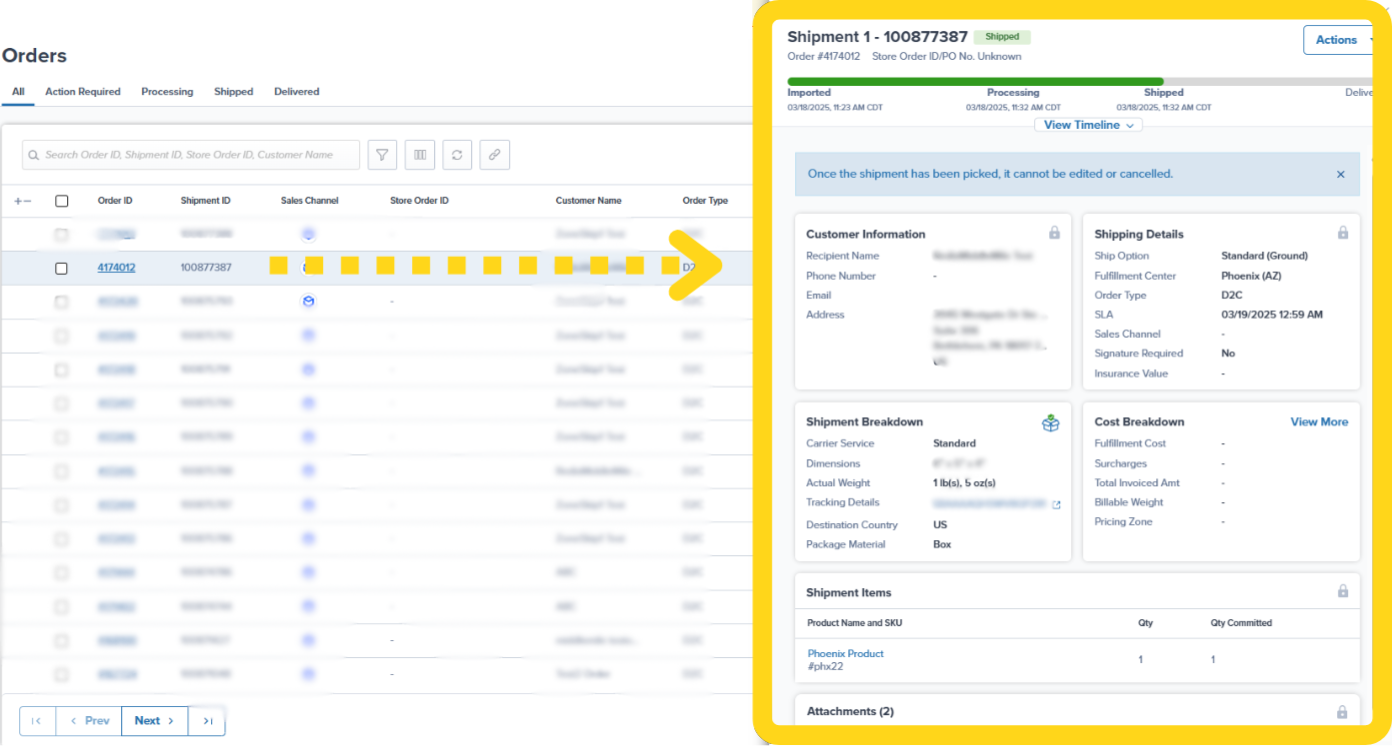
Click the **Shipment ID** (hyperlinked in blue) to access the [Shipment Details page](/fulfillment/order-management/shipment-details-page).
On the Orders page, locate the order you wish to edit using the search bar, filters, or by scrolling through the list.
Click the **Shipment ID** (hyperlinked in blue) to access the [Shipment Details page](/fulfillment/order-management/shipment-details-page).
 ***
## Editing Customer Information
The Customer Information panel on the Shipment Details page lets you update recipient details before the order is picked.
### How to Edit Customer Information
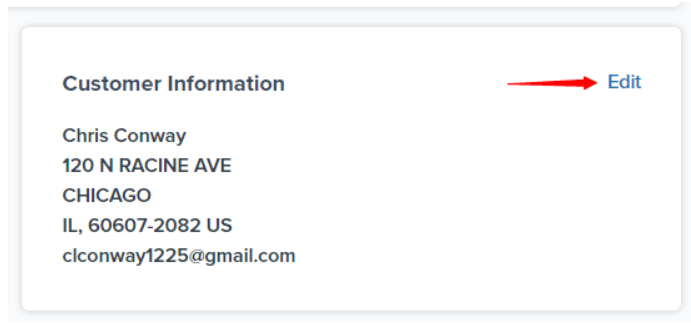
On the **Customer Information** panel, click **Edit** (hyperlinked in blue).
***
## Editing Customer Information
The Customer Information panel on the Shipment Details page lets you update recipient details before the order is picked.
### How to Edit Customer Information
On the **Customer Information** panel, click **Edit** (hyperlinked in blue).
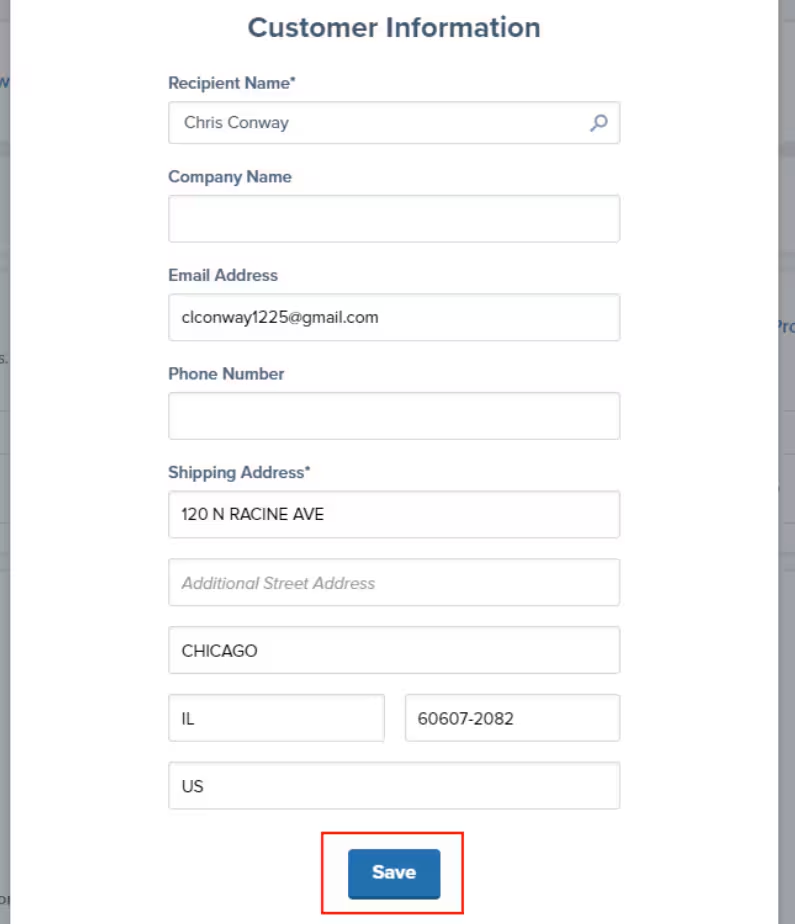
 In the editing dialog, update the recipient's information as needed:
* **Recipient Name** - Customer's full name
* **Company Name** - Business name (optional)
* **Email Address** - Customer's email address
* **Phone Number** - Customer's phone number
* **Shipping Address** - Complete street address, city, state/province, zip/postal code, and country
Click **Save** to apply the changes.
In the editing dialog, update the recipient's information as needed:
* **Recipient Name** - Customer's full name
* **Company Name** - Business name (optional)
* **Email Address** - Customer's email address
* **Phone Number** - Customer's phone number
* **Shipping Address** - Complete street address, city, state/province, zip/postal code, and country
Click **Save** to apply the changes.
 ### Address Validation and Action Required Status
**Important**: If an order is in **Action Required** status (previously called "On-Hold") due to an invalid address, updating the address to a valid one will **automatically move the order back to Processing**.
Jetpack validates addresses in real-time. When a valid address is detected:
* The order is released from Action Required status
* Inventory is reserved (if it was unreserved)
* The order enters the fulfillment queue
Learn more about [orders with action required](/fulfillment/d2c/orders-action-required).
***
## Editing Order Items and Quantities
The Shipment Items panel lets you add products, remove products, or adjust quantities before the order is picked.
### Editing Quantities, Removing Items, and Adding Items
On the Shipment Details page, find the **Shipment Items** panel showing your order's products.
### Address Validation and Action Required Status
**Important**: If an order is in **Action Required** status (previously called "On-Hold") due to an invalid address, updating the address to a valid one will **automatically move the order back to Processing**.
Jetpack validates addresses in real-time. When a valid address is detected:
* The order is released from Action Required status
* Inventory is reserved (if it was unreserved)
* The order enters the fulfillment queue
Learn more about [orders with action required](/fulfillment/d2c/orders-action-required).
***
## Editing Order Items and Quantities
The Shipment Items panel lets you add products, remove products, or adjust quantities before the order is picked.
### Editing Quantities, Removing Items, and Adding Items
On the Shipment Details page, find the **Shipment Items** panel showing your order's products.
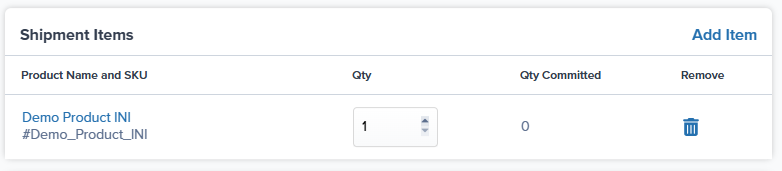 To change a product's quantity:
* Click in the **Qty** field for the product
* Delete the old quantity and enter the new quantity
* Click **Save** or click outside the field to apply changes
To remove a product from the order:
* Click the **Remove** button (trash icon) next to the item listing
* Confirm the removal when prompted
The inventory will be unreserved and become available for other orders.
To add products to the order:
* Click **Add Item** at the top right of the Shipment Items panel
* Search for products by **SKU ID** or **product name**
* Select the relevant products from the search results
* Specify quantities for each product
* Click **Add Items**
The new products will be added to the order and inventory will be reserved.
**Inventory consideration**: When adding products, ensure you have sufficient inventory at the assigned fulfillment center. If inventory is insufficient, the order will move to Action Required status.
***
## Editing Shipping Details
The Shipping Details panel lets you modify the ship option, carrier preferences, fulfillment center, and insurance value before the order is picked.
### How to Edit Shipping Settings
On the **Shipping Details** panel, click **Edit** (hyperlinked in blue).
To change a product's quantity:
* Click in the **Qty** field for the product
* Delete the old quantity and enter the new quantity
* Click **Save** or click outside the field to apply changes
To remove a product from the order:
* Click the **Remove** button (trash icon) next to the item listing
* Confirm the removal when prompted
The inventory will be unreserved and become available for other orders.
To add products to the order:
* Click **Add Item** at the top right of the Shipment Items panel
* Search for products by **SKU ID** or **product name**
* Select the relevant products from the search results
* Specify quantities for each product
* Click **Add Items**
The new products will be added to the order and inventory will be reserved.
**Inventory consideration**: When adding products, ensure you have sufficient inventory at the assigned fulfillment center. If inventory is insufficient, the order will move to Action Required status.
***
## Editing Shipping Details
The Shipping Details panel lets you modify the ship option, carrier preferences, fulfillment center, and insurance value before the order is picked.
### How to Edit Shipping Settings
On the **Shipping Details** panel, click **Edit** (hyperlinked in blue).
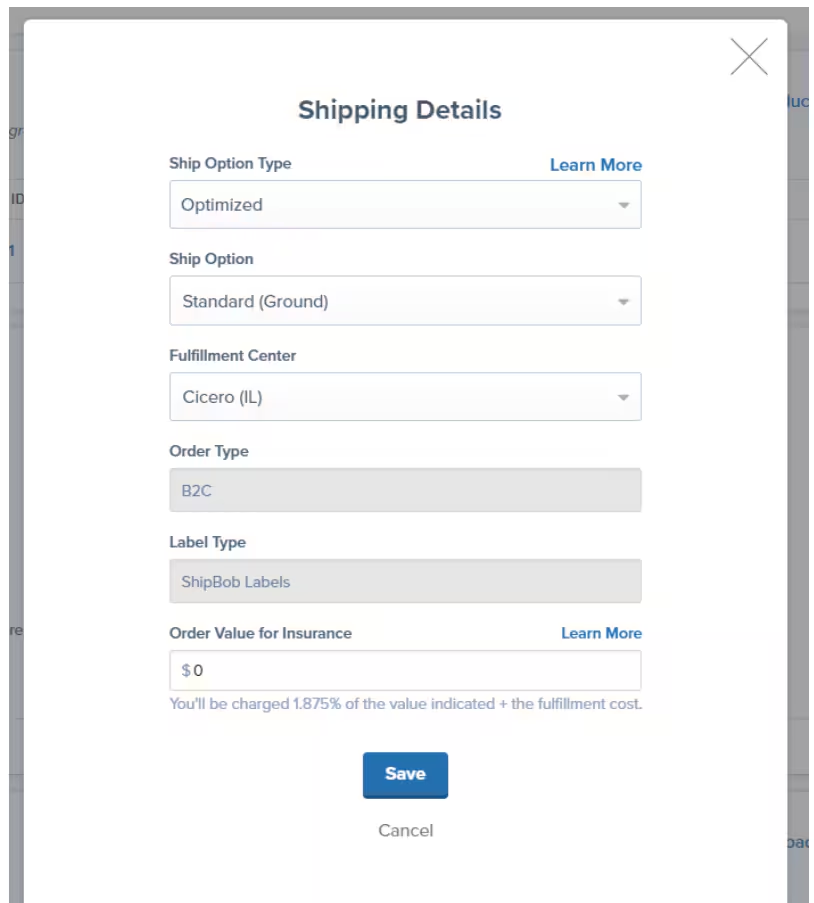
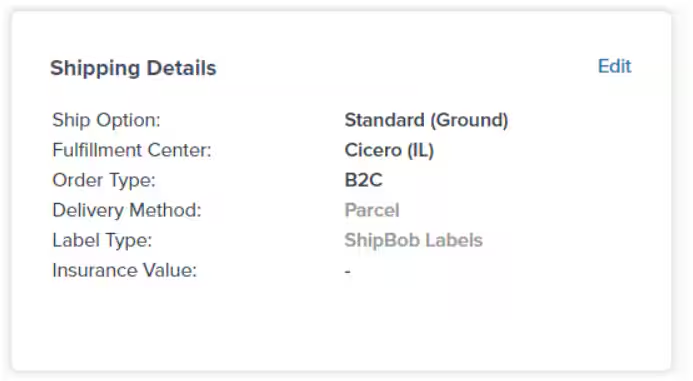 In the editing dialog, modify the shipping settings as needed:
**Ship Option Type:**
* **Optimized** (also called "ShipBob Optimized") - Jetpack will optimize the shipping method based on your chosen option (Overnight, Expedited, or Standard)
* **Carrier Specific** - Choose a specific carrier and service level (e.g., UPS and UPS SurePost)
Select your desired shipping speed or carrier service from the dropdown menus.
In the editing dialog, modify the shipping settings as needed:
**Ship Option Type:**
* **Optimized** (also called "ShipBob Optimized") - Jetpack will optimize the shipping method based on your chosen option (Overnight, Expedited, or Standard)
* **Carrier Specific** - Choose a specific carrier and service level (e.g., UPS and UPS SurePost)
Select your desired shipping speed or carrier service from the dropdown menus.
 To assign a different fulfillment center, select another option from the **Fulfillment Center** dropdown list.
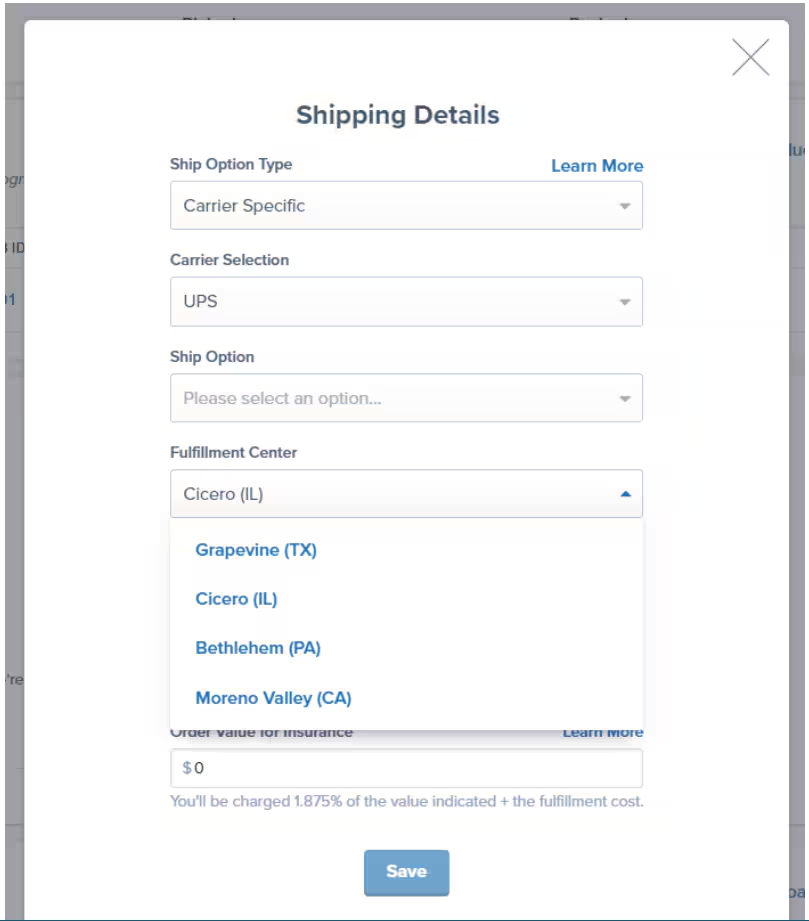 **Important considerations:**
* Ensure the new FC has sufficient inventory to fulfill the order
* The new FC location may affect shipping costs and transit times
* Changing FCs may impact the estimated delivery date
Under **Order Value for Insurance**, insert a numeric value representing the declared value of the shipment contents.
**Important considerations:**
* Ensure the new FC has sufficient inventory to fulfill the order
* The new FC location may affect shipping costs and transit times
* Changing FCs may impact the estimated delivery date
Under **Order Value for Insurance**, insert a numeric value representing the declared value of the shipment contents.
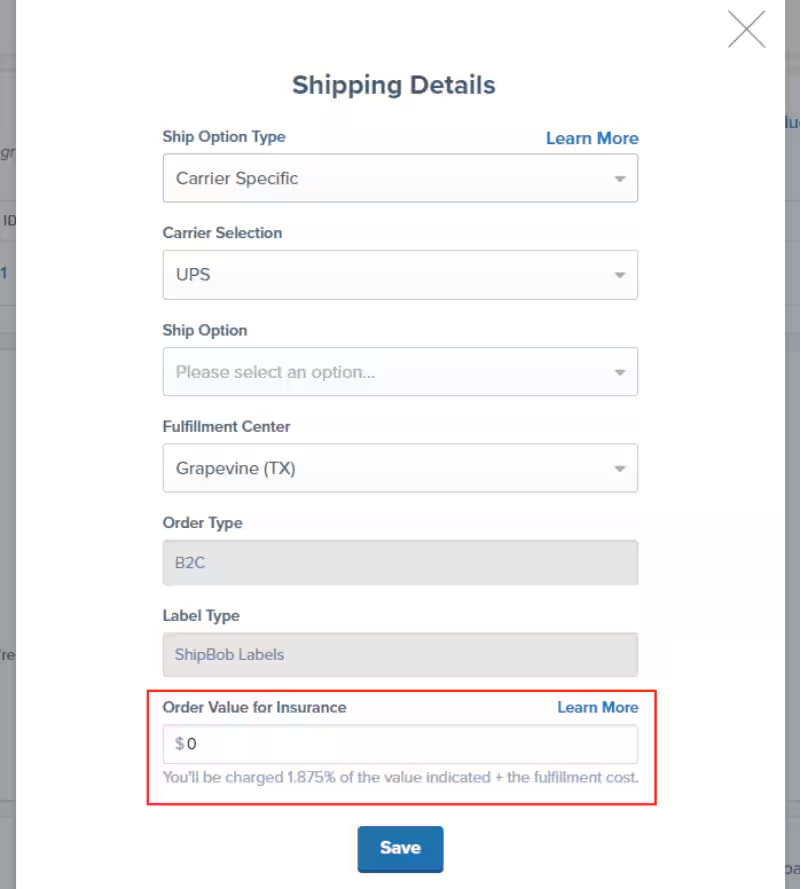 Insurance is calculated at **1.875% of the indicated value** and added to the order's invoice.
**Example**: If you declare $1,000 in insurance value, you'll be charged $18.75 for insurance coverage.
Click **Save** to apply all changes.
**Note about ship option mapping**: Account-level ship option mapping may override your changes to the ship option type. If a carrier-specific mapping is in place (e.g., DHL for Priority), it may override the chosen ship option if it's more cost-effective.
Learn more about [choosing default carriers](/fulfillment/account-setup/shipping-preferences/choosing-default-carriers) and [insurance options](/fulfillment/terms-and-slas/insurance-options).
**Note about MultiHub IQ**: For orders using [MultiHub IQ](/fulfillment/multi-hub-iq), the system automatically suggests optimal fulfillment center assignments based on inventory distribution and demand forecasting.
***
## Bulk Order Editing
If you need to edit multiple orders with similar changes, you can use bulk editing tools to save time.
### What Can Be Edited in Bulk
From the Orders page, you can perform bulk actions on selected orders:
* **Change fulfillment center** - Reassign multiple orders to a different FC
* **Add signature requirement** - Apply signature delivery to selected orders
* **Move to On-Hold** - Pause fulfillment for multiple orders
* **Cancel orders** - Cancel and unreserve inventory for selected orders
Learn more about [bulk actions on orders](/fulfillment/tools-techniques/bulk-actions-on-orders) and [bulk editing orders](/fulfillment/tools-techniques/bulk-editing-orders).
### Bulk Editing Limitations
**Note**: You cannot bulk edit customer information, order items, or quantities. These must be edited individually from each order's Shipment Details page.
***
## What Happens When Editing Is Locked
Once an order is picked, a **lock icon** appears on all editable panels, and editing capabilities are disabled.
### Why Editing Is Locked
After picking:
* Our warehouse team has already **physically picked the products** from inventory
* The products have been **verified against the order** for accuracy
* The order is moving through **packing and labeling** stages
* Changes at this point would cause **fulfillment errors, shipping delays, or incorrect shipments**
### What to Do If You Need Changes After Picking
If you discover an error or need to make changes to a picked order, contact Jetpack Care immediately via:
* **Chat feature** in your Jetpack dashboard
* **Phone** - Call your dedicated support line
* **Email** - Email Jetpack Care
Our team will evaluate the request and determine if changes can be made without disrupting fulfillment.
***
## Common Editing Scenarios
Here are practical examples of when and how to edit orders:
### Scenario 1: Customer Updates Their Address
**Situation**: Customer contacts you with a corrected shipping address.
**Action**:
1. Navigate to the order's Shipment Details page
2. Click **Edit** on the Customer Information panel
3. Update the shipping address
4. Click **Save**
**Result**: If the order was in Action Required due to an invalid address, it will automatically move back to Processing.
### Scenario 2: Customer Adds a Product to Their Order
**Situation**: Customer contacts you within an hour of placing the order to add a forgotten item.
**Action**:
1. Navigate to the order's Shipment Details page
2. Check if the order is still in Processing (not yet picked)
3. Click **Add Item** on the Shipment Details panel
4. Search for and add the product
5. Click **Save**
**Result**: The updated order with the new product enters the fulfillment queue.
### Scenario 3: Customer Wants Faster Shipping
**Situation**: Customer requests expedited shipping upgrade.
**Action**:
1. Navigate to the order's Shipment Details page
2. Click **Edit** on the Jetpack Shipping Details panel
3. Change the ship option from Standard to Expedited
4. Click **Save**
5. Inform the customer of any additional shipping costs
**Result**: Order will be fulfilled with the faster shipping method.
### Scenario 4: Wrong Fulfillment Center Assigned
**Situation**: Order was assigned to a fulfillment center that's out of stock, and another FC has inventory.
**Action**:
1. Navigate to the order's Shipment Details page
2. Click **Edit** on the Jetpack Shipping Details panel
3. Select the FC with inventory from the dropdown
4. Click **Save**
**Result**: Order moves to the new FC for fulfillment if it hasn't been picked yet.
***
## Order Editing FAQs
No, orders cannot be edited after they've been shipped. Once an order leaves the fulfillment center, all editing capabilities are permanently locked.
If you need to make changes to a shipped order (e.g., the customer needs a different address), your options are:
* **Intercept the shipment** - Contact Jetpack Care to request a carrier intercept (fees apply)
* **Create a replacement order** - Create a new order with the correct details
* **Process a return** - Have the customer return the incorrect shipment and create a new order
Learn more about [intercepting shipments](/fulfillment/billing-invoicing/additional-pricing/interceptions-corrections).
When you remove items from an order:
1. The inventory is **unreserved** and becomes available for other orders
2. The product is removed from the order's fulfillment instructions
3. The fulfillment cost is recalculated (you won't be charged for items you removed)
If you later decide to re-add the items, inventory will be reserved again if available.
You can perform certain bulk actions on multiple orders simultaneously from the Orders page, including:
* Changing fulfillment center
* Adding signature requirements
* Moving orders to On-Hold
* Canceling orders
However, you **cannot** bulk edit customer information, order items, or quantities. These must be edited individually for each order.
Learn more about [bulk editing orders](/fulfillment/tools-techniques/bulk-editing-orders).
It depends on the order's current status:
* **Action Required or early Processing** - Minimal to no delay; the order hasn't entered the fulfillment queue yet
* **Processing (after picking has started)** - Editing is locked; you cannot make changes
* **Picked or later** - Editing is locked; contact Jetpack Care for assistance
The best practice is to make address corrections as soon as you're notified, ideally within the first hour of order import.
Yes, **but only if the order hasn't been picked yet**.
Once you see the lock icon on the Jetpack Shipping Details panel, the ship option can no longer be changed. At that point, the shipping label may have already been generated with the original service level.
If you need to upgrade a picked order, contact Jetpack Care to see if an upgrade is still possible (additional fees may apply).
If you edit an order (by adding items or changing the fulfillment center) and there isn't sufficient inventory at the assigned FC, the order will automatically move to **Action Required** status.
You'll need to either:
* **Send inventory** - Create a [WRO](/fulfillment/sending-inventory/creating-wro) to replenish the FC
* **Change fulfillment center** - Reassign the order to an FC that has inventory
* **Remove items** - Remove the out-of-stock items from the order
The order will remain in Action Required status until the inventory issue is resolved.
***
## Let's Dive Deeper
Navigate and filter all your orders with customizable views
Explore all information and actions available for individual orders
Resolve common issues preventing order fulfillment
Efficiently manage multiple orders simultaneously
Make changes to multiple orders at once
Request kitting, de-kitting, and other inventory tasks
Insurance is calculated at **1.875% of the indicated value** and added to the order's invoice.
**Example**: If you declare $1,000 in insurance value, you'll be charged $18.75 for insurance coverage.
Click **Save** to apply all changes.
**Note about ship option mapping**: Account-level ship option mapping may override your changes to the ship option type. If a carrier-specific mapping is in place (e.g., DHL for Priority), it may override the chosen ship option if it's more cost-effective.
Learn more about [choosing default carriers](/fulfillment/account-setup/shipping-preferences/choosing-default-carriers) and [insurance options](/fulfillment/terms-and-slas/insurance-options).
**Note about MultiHub IQ**: For orders using [MultiHub IQ](/fulfillment/multi-hub-iq), the system automatically suggests optimal fulfillment center assignments based on inventory distribution and demand forecasting.
***
## Bulk Order Editing
If you need to edit multiple orders with similar changes, you can use bulk editing tools to save time.
### What Can Be Edited in Bulk
From the Orders page, you can perform bulk actions on selected orders:
* **Change fulfillment center** - Reassign multiple orders to a different FC
* **Add signature requirement** - Apply signature delivery to selected orders
* **Move to On-Hold** - Pause fulfillment for multiple orders
* **Cancel orders** - Cancel and unreserve inventory for selected orders
Learn more about [bulk actions on orders](/fulfillment/tools-techniques/bulk-actions-on-orders) and [bulk editing orders](/fulfillment/tools-techniques/bulk-editing-orders).
### Bulk Editing Limitations
**Note**: You cannot bulk edit customer information, order items, or quantities. These must be edited individually from each order's Shipment Details page.
***
## What Happens When Editing Is Locked
Once an order is picked, a **lock icon** appears on all editable panels, and editing capabilities are disabled.
### Why Editing Is Locked
After picking:
* Our warehouse team has already **physically picked the products** from inventory
* The products have been **verified against the order** for accuracy
* The order is moving through **packing and labeling** stages
* Changes at this point would cause **fulfillment errors, shipping delays, or incorrect shipments**
### What to Do If You Need Changes After Picking
If you discover an error or need to make changes to a picked order, contact Jetpack Care immediately via:
* **Chat feature** in your Jetpack dashboard
* **Phone** - Call your dedicated support line
* **Email** - Email Jetpack Care
Our team will evaluate the request and determine if changes can be made without disrupting fulfillment.
***
## Common Editing Scenarios
Here are practical examples of when and how to edit orders:
### Scenario 1: Customer Updates Their Address
**Situation**: Customer contacts you with a corrected shipping address.
**Action**:
1. Navigate to the order's Shipment Details page
2. Click **Edit** on the Customer Information panel
3. Update the shipping address
4. Click **Save**
**Result**: If the order was in Action Required due to an invalid address, it will automatically move back to Processing.
### Scenario 2: Customer Adds a Product to Their Order
**Situation**: Customer contacts you within an hour of placing the order to add a forgotten item.
**Action**:
1. Navigate to the order's Shipment Details page
2. Check if the order is still in Processing (not yet picked)
3. Click **Add Item** on the Shipment Details panel
4. Search for and add the product
5. Click **Save**
**Result**: The updated order with the new product enters the fulfillment queue.
### Scenario 3: Customer Wants Faster Shipping
**Situation**: Customer requests expedited shipping upgrade.
**Action**:
1. Navigate to the order's Shipment Details page
2. Click **Edit** on the Jetpack Shipping Details panel
3. Change the ship option from Standard to Expedited
4. Click **Save**
5. Inform the customer of any additional shipping costs
**Result**: Order will be fulfilled with the faster shipping method.
### Scenario 4: Wrong Fulfillment Center Assigned
**Situation**: Order was assigned to a fulfillment center that's out of stock, and another FC has inventory.
**Action**:
1. Navigate to the order's Shipment Details page
2. Click **Edit** on the Jetpack Shipping Details panel
3. Select the FC with inventory from the dropdown
4. Click **Save**
**Result**: Order moves to the new FC for fulfillment if it hasn't been picked yet.
***
## Order Editing FAQs
No, orders cannot be edited after they've been shipped. Once an order leaves the fulfillment center, all editing capabilities are permanently locked.
If you need to make changes to a shipped order (e.g., the customer needs a different address), your options are:
* **Intercept the shipment** - Contact Jetpack Care to request a carrier intercept (fees apply)
* **Create a replacement order** - Create a new order with the correct details
* **Process a return** - Have the customer return the incorrect shipment and create a new order
Learn more about [intercepting shipments](/fulfillment/billing-invoicing/additional-pricing/interceptions-corrections).
When you remove items from an order:
1. The inventory is **unreserved** and becomes available for other orders
2. The product is removed from the order's fulfillment instructions
3. The fulfillment cost is recalculated (you won't be charged for items you removed)
If you later decide to re-add the items, inventory will be reserved again if available.
You can perform certain bulk actions on multiple orders simultaneously from the Orders page, including:
* Changing fulfillment center
* Adding signature requirements
* Moving orders to On-Hold
* Canceling orders
However, you **cannot** bulk edit customer information, order items, or quantities. These must be edited individually for each order.
Learn more about [bulk editing orders](/fulfillment/tools-techniques/bulk-editing-orders).
It depends on the order's current status:
* **Action Required or early Processing** - Minimal to no delay; the order hasn't entered the fulfillment queue yet
* **Processing (after picking has started)** - Editing is locked; you cannot make changes
* **Picked or later** - Editing is locked; contact Jetpack Care for assistance
The best practice is to make address corrections as soon as you're notified, ideally within the first hour of order import.
Yes, **but only if the order hasn't been picked yet**.
Once you see the lock icon on the Jetpack Shipping Details panel, the ship option can no longer be changed. At that point, the shipping label may have already been generated with the original service level.
If you need to upgrade a picked order, contact Jetpack Care to see if an upgrade is still possible (additional fees may apply).
If you edit an order (by adding items or changing the fulfillment center) and there isn't sufficient inventory at the assigned FC, the order will automatically move to **Action Required** status.
You'll need to either:
* **Send inventory** - Create a [WRO](/fulfillment/sending-inventory/creating-wro) to replenish the FC
* **Change fulfillment center** - Reassign the order to an FC that has inventory
* **Remove items** - Remove the out-of-stock items from the order
The order will remain in Action Required status until the inventory issue is resolved.
***
## Let's Dive Deeper
Navigate and filter all your orders with customizable views
Explore all information and actions available for individual orders
Resolve common issues preventing order fulfillment
Efficiently manage multiple orders simultaneously
Make changes to multiple orders at once
Request kitting, de-kitting, and other inventory tasks

Questions? Contact Jetpack Care.
If you have any questions or run into issues, you can always contact Jetpack Care for help. Our team is always here to assist via Slack, phone, or email!