> ## Documentation Index
> Fetch the complete documentation index at: https://help.jetpack3pl.com/llms.txt
> Use this file to discover all available pages before exploring further.
# Customers Page
> Manage customer information, search for customers, view order history, and edit customer details from one centralized page.
The Customers page is your centralized hub for managing customer information in the Jetpack dashboard. Search for customers by name, email, location, or company, view their complete order history, and edit customer details to ensure accurate shipping and communication.
## What You Can Do from the Customers Page
The Customers page provides comprehensive customer management capabilities:
* **Add a new customer** - Manually create customer records for B2B orders or future use
* **Search for customers** - Find customers by name, company, city, or country
* **View customer information** - Access complete contact details and shipping addresses
* **View order history** - See all previous orders placed by a customer
* **Edit customer details** - Update customer information for future orders
***
## Accessing the Customers Page
From the Jetpack dashboard:
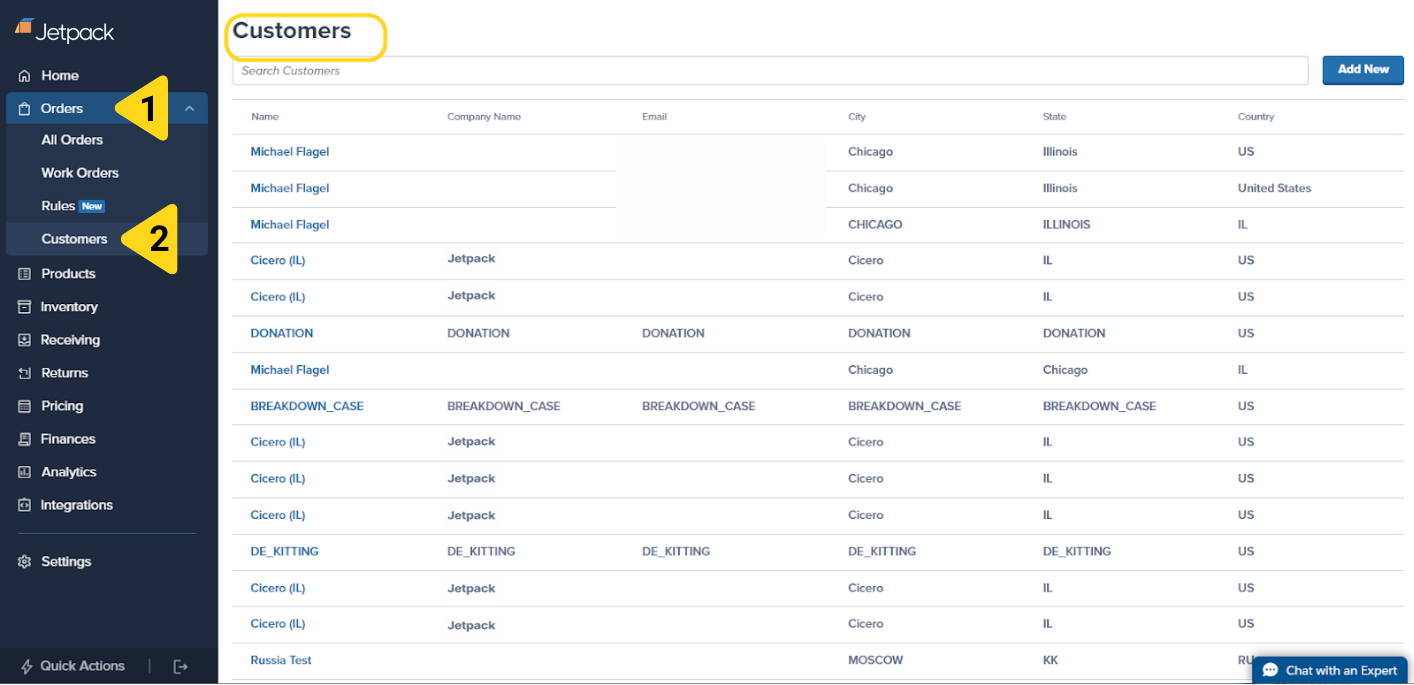
In the Jetpack dashboard, click **Orders** in the left-hand navigation menu.
From the dropdown options, select **Customers**. You'll be redirected to the Customers page.
 ***
## Adding a New Customer
You can manually add customer records to your Jetpack account, which is particularly useful for:
* Creating B2B customer profiles before receiving orders
* Pre-populating customer data for recurring manual orders
* Setting up customer information for upcoming campaigns
### How to Add a New Customer
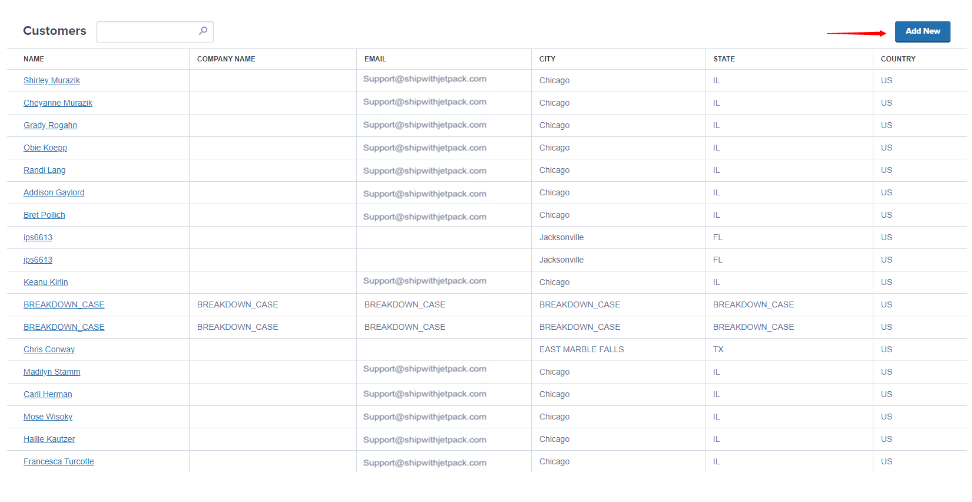
On the Customers page, click the **Add New** button in the top right corner.
***
## Adding a New Customer
You can manually add customer records to your Jetpack account, which is particularly useful for:
* Creating B2B customer profiles before receiving orders
* Pre-populating customer data for recurring manual orders
* Setting up customer information for upcoming campaigns
### How to Add a New Customer
On the Customers page, click the **Add New** button in the top right corner.
 Complete the customer information fields:
* **Customer Name** - Full name of the recipient
* **Company Name** - Business name (optional, primarily for B2B customers)
* **Email Address** - Customer's email
* **Phone Number** - Customer's phone number
* **Shipping Address** - Complete street address, unit number, city, state/province, zip/postcode, and country
Click **Save** or **Add Customer** to create the customer record.
The new customer record will be added to your Customers page and will be available when [creating manual orders](/fulfillment/b2b/creating-manual-b2b-orders).
***
## Searching the Customers Page
The Customers page includes a search feature to help you quickly locate specific customers.
### How to Search for Customers
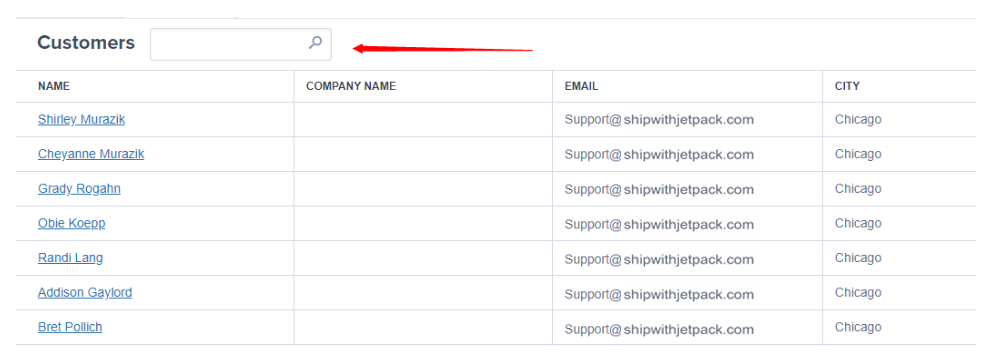
Use the **search box** at the top of the Customers page to search by any of the following attributes:
* **Name** - Customer's first or last name
* **Company Name** - Business name (for B2B customers)
* **City** - Shipping city
* **Country** - Shipping country
Simply enter your search term and the Customers page will filter to show matching results.
Complete the customer information fields:
* **Customer Name** - Full name of the recipient
* **Company Name** - Business name (optional, primarily for B2B customers)
* **Email Address** - Customer's email
* **Phone Number** - Customer's phone number
* **Shipping Address** - Complete street address, unit number, city, state/province, zip/postcode, and country
Click **Save** or **Add Customer** to create the customer record.
The new customer record will be added to your Customers page and will be available when [creating manual orders](/fulfillment/b2b/creating-manual-b2b-orders).
***
## Searching the Customers Page
The Customers page includes a search feature to help you quickly locate specific customers.
### How to Search for Customers
Use the **search box** at the top of the Customers page to search by any of the following attributes:
* **Name** - Customer's first or last name
* **Company Name** - Business name (for B2B customers)
* **City** - Shipping city
* **Country** - Shipping country
Simply enter your search term and the Customers page will filter to show matching results.
 **Tip**: If you have a large customer base, use specific search terms to narrow results quickly (e.g., full name or complete company name rather than just first name).
***
## Viewing Customer Information
Click on any customer's name from the Customers page to view their complete profile and order history.
### Customer Details Page
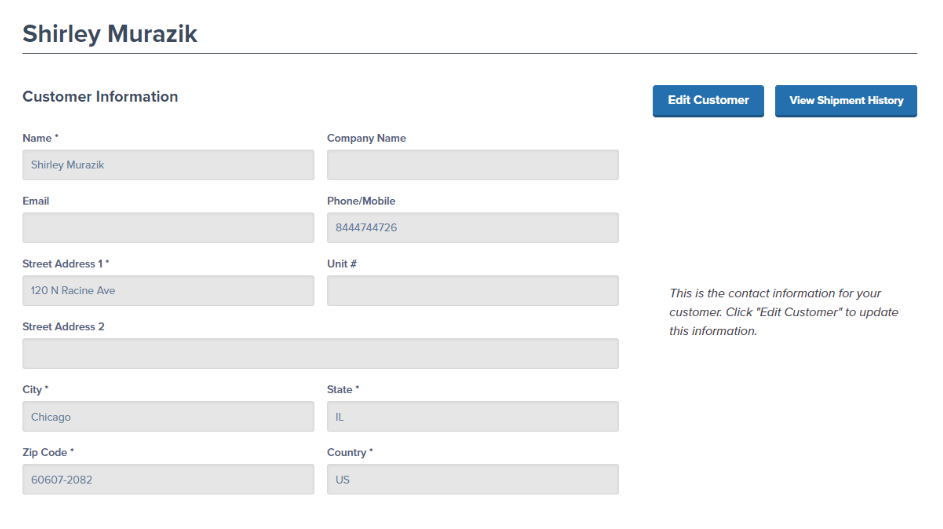
The customer details page displays:
* **Contact Information**:
* Full name
* Company name (if applicable)
* Email address
* Phone number
* **Shipping Address**:
* Street address and unit number
* City, state/province, zip/postcode
* Country
* **Order History**:
* List of all previous orders
* Order dates and statuses
* Shipment tracking information
**Tip**: If you have a large customer base, use specific search terms to narrow results quickly (e.g., full name or complete company name rather than just first name).
***
## Viewing Customer Information
Click on any customer's name from the Customers page to view their complete profile and order history.
### Customer Details Page
The customer details page displays:
* **Contact Information**:
* Full name
* Company name (if applicable)
* Email address
* Phone number
* **Shipping Address**:
* Street address and unit number
* City, state/province, zip/postcode
* Country
* **Order History**:
* List of all previous orders
* Order dates and statuses
* Shipment tracking information
 ***
## Viewing Shipment History
From the customer details page, you can view a complete history of all shipments to that customer.
### How to View Shipment History
On the customer details page, click the **View Shipment History** button.
You'll see a complete list of all orders sent to this customer, including:
* Shipment IDs
* Order dates
* Order statuses
* Tracking numbers (for shipped orders)
* Products ordered
This view is particularly useful for:
* Answering customer service inquiries about past orders
* Identifying repeat customers and order patterns
* Verifying delivery addresses used previously
* Reviewing product preferences for specific customers
***
## Editing Customer Information
You can update customer details to ensure accurate shipping and communication for future orders.
### How to Edit Customer Information
On the customer details page, click the **Edit Customer** button.
Modify any of the following fields as needed:
* Customer name
* Company name
* Email address
* Phone number
* Shipping address
Click **Save** to update the customer record.
### Important Note About Editing Customer Information
**When you edit a customer's details, changes may affect orders in Action Required status.**
If you update a customer's address and they have orders currently in Action Required status due to an invalid or incomplete address, those orders may automatically:
* Move back to Processing status if the new address is valid
* Reserve inventory if it was previously unreserved
* Enter the fulfillment queue
Always review any orders in Action Required status for that customer after making address changes.
***
## Customer Management FAQs
**Adding a customer** creates a customer profile/record in your account without creating an order. This is useful for:
* Pre-populating customer data for future B2B orders
* Setting up profiles before receiving purchase orders
* Managing customer information separately from order creation
**Creating an order** actually creates a shipment to be fulfilled. You can create an order using an existing customer from the Customers page or add a new customer during order creation.
Learn more about [creating manual B2B orders](/fulfillment/b2b/creating-manual-b2b-orders).
Customer deletion capabilities depend on your account configuration. If you need to remove a customer record, contact Jetpack Care for assistance.
Note that deleting a customer does not delete their order history—completed orders remain in the system for record-keeping and reporting purposes.
The Customers page displays customers for whom you've:
* Created manual orders in the Jetpack dashboard
* Manually added customer records using the "Add New" button
Customers from integrated ecommerce platforms (Shopify, WooCommerce, etc.) may not appear on this page unless you've specifically created a manual order for them in Jetpack.
This page is primarily used for B2B customer management and manual order creation workflows.
It depends on the order status:
* **Orders in Action Required status**: If the order is in Action Required due to an invalid address, updating the customer's address may automatically move the order back to Processing
* **Orders in Processing (not yet picked)**: The address update does NOT automatically apply to existing orders. You would need to edit each order individually from the [Shipment Details page](/fulfillment/order-management/shipment-details-page)
* **Picked, Packed, Labeled, or Shipped orders**: Address changes do NOT apply to these orders (editing is locked)
The updated address will apply to **future manual orders** created for this customer.
Bulk customer import capabilities vary by account configuration. If you need to import a large list of customers (e.g., for a B2B business with many wholesale clients), contact Jetpack Care to discuss bulk import options.
For small-scale additions, use the "Add New" button to add customers individually.
***
## Let's Dive Deeper
Navigate and filter all your orders with customizable views
Create manual orders for customers
View complete order information and history
Modify customer information on existing orders
Resolve address and order issues
Export orders as CSV files for analysis
***
## Viewing Shipment History
From the customer details page, you can view a complete history of all shipments to that customer.
### How to View Shipment History
On the customer details page, click the **View Shipment History** button.
You'll see a complete list of all orders sent to this customer, including:
* Shipment IDs
* Order dates
* Order statuses
* Tracking numbers (for shipped orders)
* Products ordered
This view is particularly useful for:
* Answering customer service inquiries about past orders
* Identifying repeat customers and order patterns
* Verifying delivery addresses used previously
* Reviewing product preferences for specific customers
***
## Editing Customer Information
You can update customer details to ensure accurate shipping and communication for future orders.
### How to Edit Customer Information
On the customer details page, click the **Edit Customer** button.
Modify any of the following fields as needed:
* Customer name
* Company name
* Email address
* Phone number
* Shipping address
Click **Save** to update the customer record.
### Important Note About Editing Customer Information
**When you edit a customer's details, changes may affect orders in Action Required status.**
If you update a customer's address and they have orders currently in Action Required status due to an invalid or incomplete address, those orders may automatically:
* Move back to Processing status if the new address is valid
* Reserve inventory if it was previously unreserved
* Enter the fulfillment queue
Always review any orders in Action Required status for that customer after making address changes.
***
## Customer Management FAQs
**Adding a customer** creates a customer profile/record in your account without creating an order. This is useful for:
* Pre-populating customer data for future B2B orders
* Setting up profiles before receiving purchase orders
* Managing customer information separately from order creation
**Creating an order** actually creates a shipment to be fulfilled. You can create an order using an existing customer from the Customers page or add a new customer during order creation.
Learn more about [creating manual B2B orders](/fulfillment/b2b/creating-manual-b2b-orders).
Customer deletion capabilities depend on your account configuration. If you need to remove a customer record, contact Jetpack Care for assistance.
Note that deleting a customer does not delete their order history—completed orders remain in the system for record-keeping and reporting purposes.
The Customers page displays customers for whom you've:
* Created manual orders in the Jetpack dashboard
* Manually added customer records using the "Add New" button
Customers from integrated ecommerce platforms (Shopify, WooCommerce, etc.) may not appear on this page unless you've specifically created a manual order for them in Jetpack.
This page is primarily used for B2B customer management and manual order creation workflows.
It depends on the order status:
* **Orders in Action Required status**: If the order is in Action Required due to an invalid address, updating the customer's address may automatically move the order back to Processing
* **Orders in Processing (not yet picked)**: The address update does NOT automatically apply to existing orders. You would need to edit each order individually from the [Shipment Details page](/fulfillment/order-management/shipment-details-page)
* **Picked, Packed, Labeled, or Shipped orders**: Address changes do NOT apply to these orders (editing is locked)
The updated address will apply to **future manual orders** created for this customer.
Bulk customer import capabilities vary by account configuration. If you need to import a large list of customers (e.g., for a B2B business with many wholesale clients), contact Jetpack Care to discuss bulk import options.
For small-scale additions, use the "Add New" button to add customers individually.
***
## Let's Dive Deeper
Navigate and filter all your orders with customizable views
Create manual orders for customers
View complete order information and history
Modify customer information on existing orders
Resolve address and order issues
Export orders as CSV files for analysis

Questions? Contact Jetpack Care.
If you have any questions or run into issues, you can always contact Jetpack Care for help. Our team is always here to assist via Slack, phone, or email!