> ## Documentation Index
> Fetch the complete documentation index at: https://help.jetpack3pl.com/llms.txt
> Use this file to discover all available pages before exploring further.
# Setting Product Preferences
> Quick guide to configuring essential product settings like packaging, returns, reorder points, and customs information.
Setting up your product preferences correctly ensures smooth fulfillment operations, accurate order processing, and seamless inventory management. This guide provides an overview of the key product-level settings you'll configure in the Jetpack dashboard.
## Where to Configure Product Preferences
Most product preferences are configured on the [Product Details page](/fulfillment/managing-products/product-details-page), which you can access through a simple process:
Click **Products** in the left-hand menu to open the [Product Catalog](/fulfillment/managing-products/index).
Locate the product you want to configure in the Product Catalog list.
Click on the product name to access the Product Details page where you'll configure all product-level preferences.
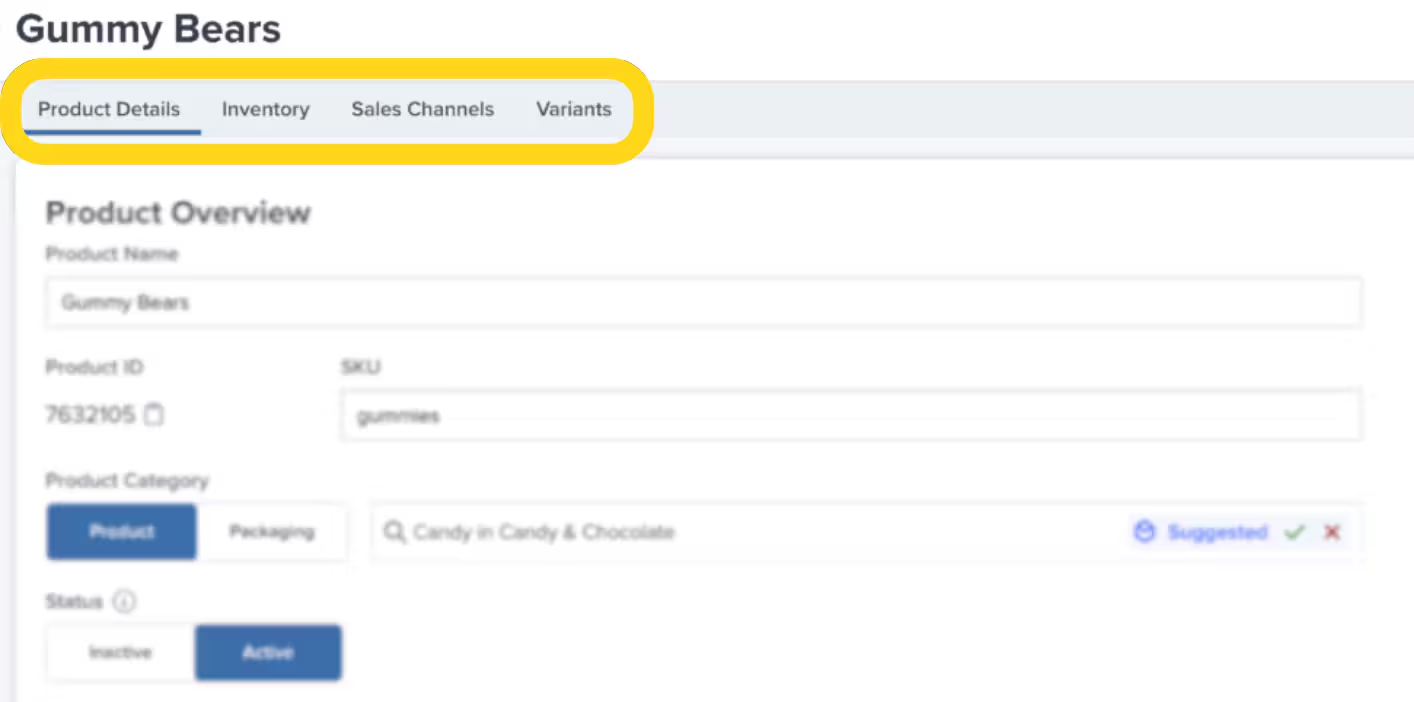 Some preferences are also accessible through global [Shipping Preferences](/fulfillment/account-setup/shipping-preferences/index) settings, which apply defaults across all products.
***
## Essential Product Preferences
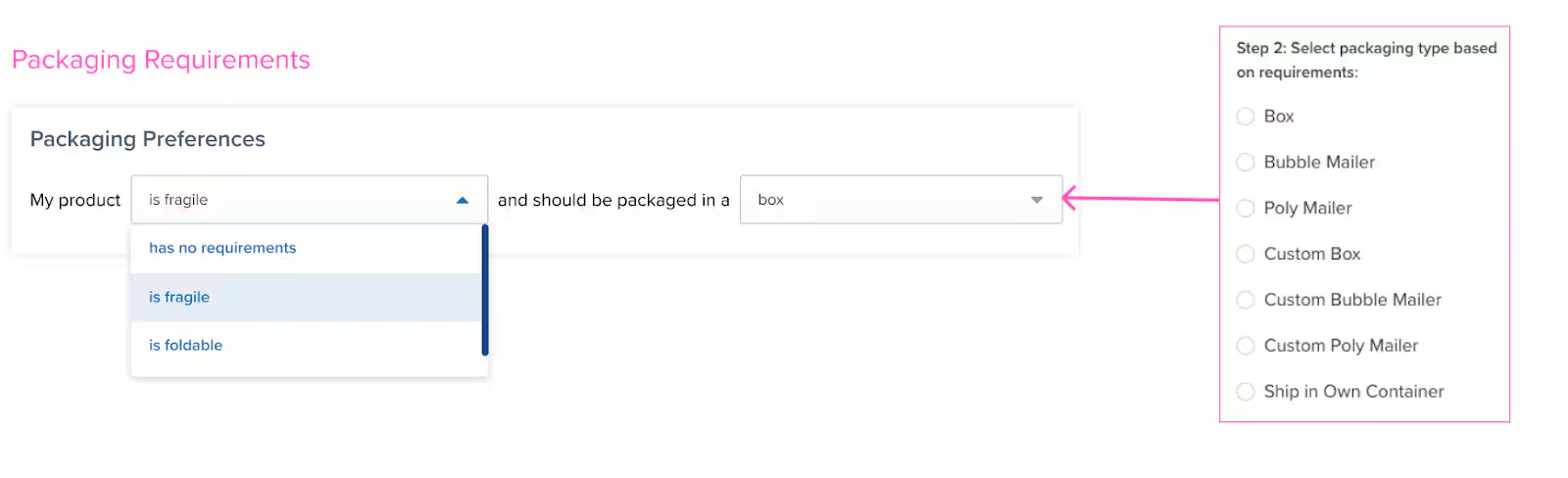
### 1. Packaging Requirements
**What it is:** Defines how your product should be packed for shipment.
**Why it matters:** Without packaging preferences, orders will move to On-Hold status until configured.
**Options:**
* Box
* Bubble Mailer
* Poly Mailer
* Custom Packaging
* Ship in Own Container
**Where to set it:** [Product Details page](/fulfillment/managing-products/product-details-page) → Product Details tab → Packaging Requirements tile
Learn more:
* [Standard Packaging](/fulfillment/d2c/standard-packaging)
* [Custom Packaging](/fulfillment/d2c/custom-packaging)
* [Packaging Preferences (global settings)](/fulfillment/account-setup/shipping-preferences/packaging-preferences)
Some preferences are also accessible through global [Shipping Preferences](/fulfillment/account-setup/shipping-preferences/index) settings, which apply defaults across all products.
***
## Essential Product Preferences
### 1. Packaging Requirements
**What it is:** Defines how your product should be packed for shipment.
**Why it matters:** Without packaging preferences, orders will move to On-Hold status until configured.
**Options:**
* Box
* Bubble Mailer
* Poly Mailer
* Custom Packaging
* Ship in Own Container
**Where to set it:** [Product Details page](/fulfillment/managing-products/product-details-page) → Product Details tab → Packaging Requirements tile
Learn more:
* [Standard Packaging](/fulfillment/d2c/standard-packaging)
* [Custom Packaging](/fulfillment/d2c/custom-packaging)
* [Packaging Preferences (global settings)](/fulfillment/account-setup/shipping-preferences/packaging-preferences)
 ***
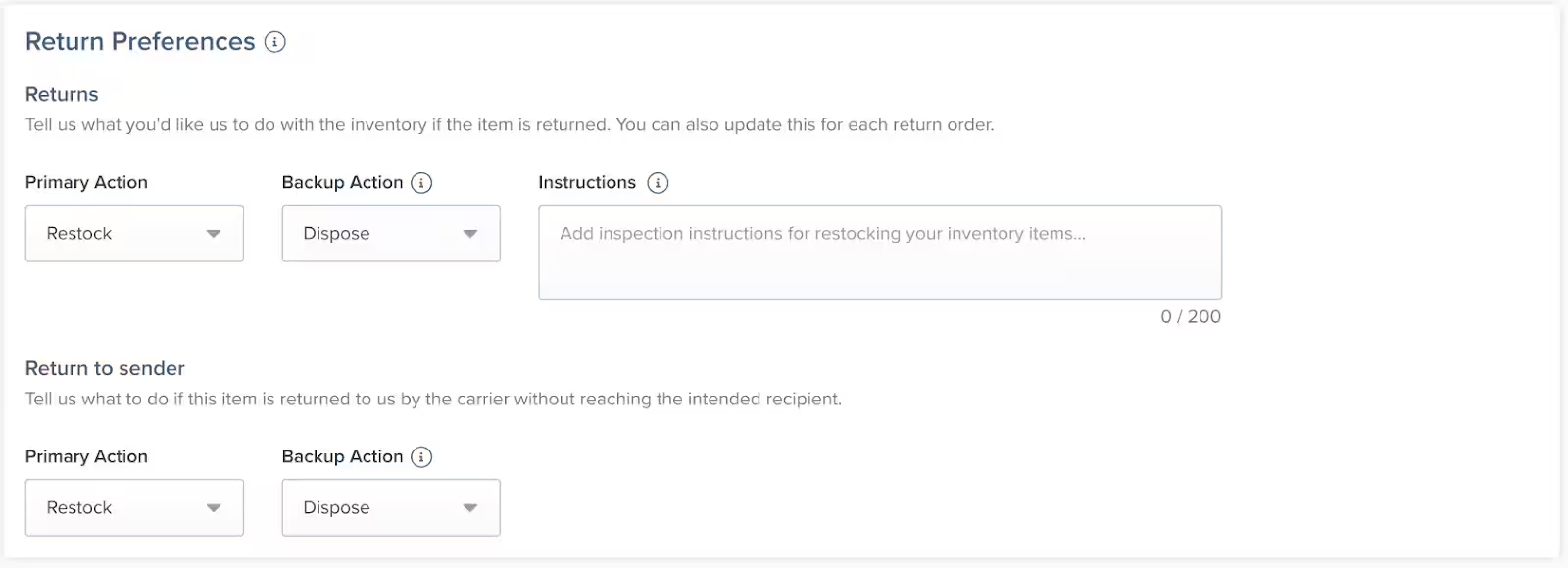
### 2. Return Preferences
**What it is:** Rules for how returned inventory should be processed at Jetpack fulfillment centers.
**Why it matters:** Determines whether returned products are restocked, quarantined, or disposed based on condition and shelf life.
**Configuration options:**
* Restock returned items automatically
* Require inspection before restocking
* Set minimum shelf life for lot products
* Reject returns below shelf life threshold
**Where to set it:** [Product Details page](/fulfillment/managing-products/product-details-page) → Product Details tab → Return Preferences tile
Learn more:
* [Setting Returns Preferences](/fulfillment/returns/setting-returns-preferences)
* [Our Approach to Returns](/fulfillment/returns/index)
* [Restocking Your Products](/fulfillment/returns/restocking-products)
***
### 2. Return Preferences
**What it is:** Rules for how returned inventory should be processed at Jetpack fulfillment centers.
**Why it matters:** Determines whether returned products are restocked, quarantined, or disposed based on condition and shelf life.
**Configuration options:**
* Restock returned items automatically
* Require inspection before restocking
* Set minimum shelf life for lot products
* Reject returns below shelf life threshold
**Where to set it:** [Product Details page](/fulfillment/managing-products/product-details-page) → Product Details tab → Return Preferences tile
Learn more:
* [Setting Returns Preferences](/fulfillment/returns/setting-returns-preferences)
* [Our Approach to Returns](/fulfillment/returns/index)
* [Restocking Your Products](/fulfillment/returns/restocking-products)
 ***
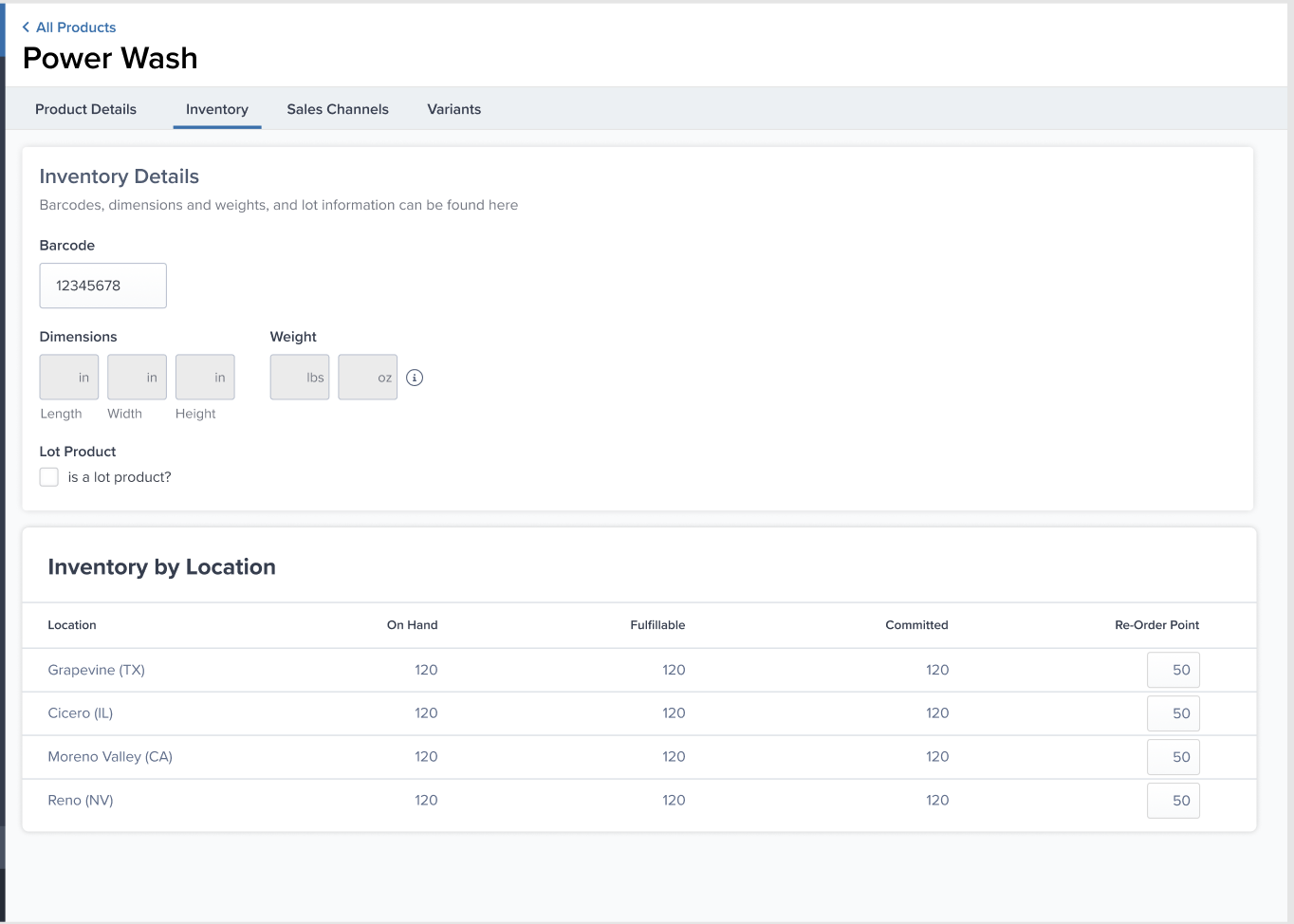
### 3. Reorder Points
**What it is:** Stock level thresholds that trigger email alerts when inventory runs low.
**Why it matters:** Helps prevent stockouts by notifying you when it's time to send more inventory to fulfillment centers.
**How it works:**
* Set a reorder point quantity for each fulfillment center
* Receive email alerts when stock drops below the threshold
* Plan [replenishment schedules](/fulfillment/sending-inventory/managing-replenishment-schedules) proactively
**Where to set it:** [Product Details page](/fulfillment/managing-products/product-details-page) → Inventory tab → Inventory by Location section
Learn more:
* [Setting Reorder Points](/fulfillment/account-setup/shipping-preferences/setting-reorder-points)
* [Managing Replenishment Schedules](/fulfillment/sending-inventory/managing-replenishment-schedules)
* [Inventory Distribution](/fulfillment/managing-inventory/inventory-distribution)
Set your reorder points based on your lead time for replenishment. If it takes 2 weeks to ship inventory to Jetpack and you sell 100 units per week, set your reorder point to at least 200 units.
***
### 3. Reorder Points
**What it is:** Stock level thresholds that trigger email alerts when inventory runs low.
**Why it matters:** Helps prevent stockouts by notifying you when it's time to send more inventory to fulfillment centers.
**How it works:**
* Set a reorder point quantity for each fulfillment center
* Receive email alerts when stock drops below the threshold
* Plan [replenishment schedules](/fulfillment/sending-inventory/managing-replenishment-schedules) proactively
**Where to set it:** [Product Details page](/fulfillment/managing-products/product-details-page) → Inventory tab → Inventory by Location section
Learn more:
* [Setting Reorder Points](/fulfillment/account-setup/shipping-preferences/setting-reorder-points)
* [Managing Replenishment Schedules](/fulfillment/sending-inventory/managing-replenishment-schedules)
* [Inventory Distribution](/fulfillment/managing-inventory/inventory-distribution)
Set your reorder points based on your lead time for replenishment. If it takes 2 weeks to ship inventory to Jetpack and you sell 100 units per week, set your reorder point to at least 200 units.
 ***
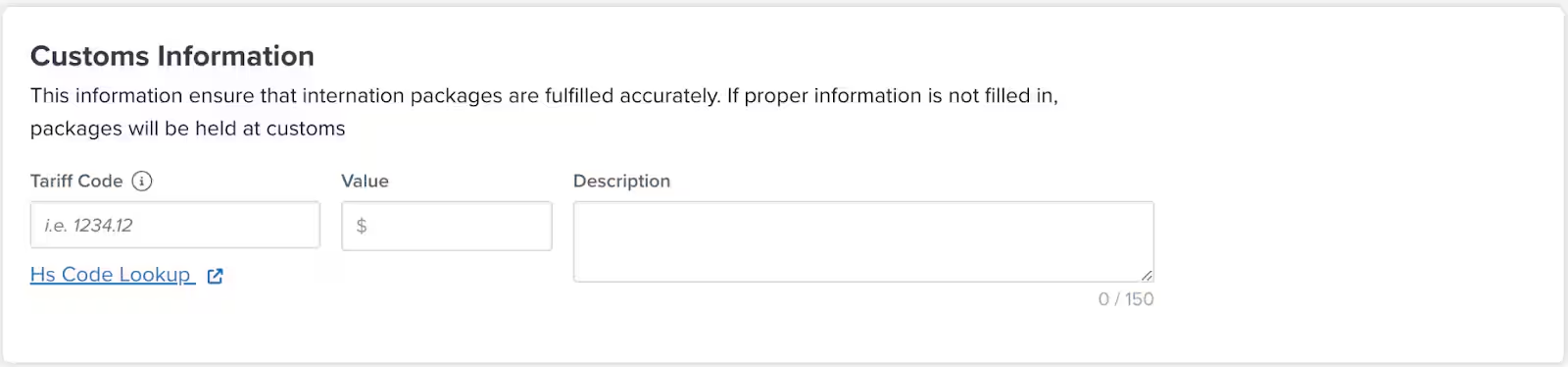
### 4. Customs Information
**What it is:** Product details required for international shipments to clear customs.
**Why it matters:** Required for all international orders. Missing customs information will delay shipments.
**Required fields:**
* **Tariff Code** - Numeric classification code (6+ digits)
* **Value** - Retail price for duties/taxes calculation
* **Description** - Detailed product description (max 150 characters)
**Where to set it:** [Product Details page](/fulfillment/managing-products/product-details-page) → Product Details tab → Customs Information tile
Learn more:
* [Customs + Commercial Invoices](/fulfillment/account-setup/shipping-preferences/customs-commercial-invoices)
* [Sending Inventory Across Borders](/fulfillment/sending-inventory/best-practices/sending-inventory-across-borders)
If you ship internationally, completing customs information for all products is mandatory. Orders without customs data will be held until you provide the information.
***
### 4. Customs Information
**What it is:** Product details required for international shipments to clear customs.
**Why it matters:** Required for all international orders. Missing customs information will delay shipments.
**Required fields:**
* **Tariff Code** - Numeric classification code (6+ digits)
* **Value** - Retail price for duties/taxes calculation
* **Description** - Detailed product description (max 150 characters)
**Where to set it:** [Product Details page](/fulfillment/managing-products/product-details-page) → Product Details tab → Customs Information tile
Learn more:
* [Customs + Commercial Invoices](/fulfillment/account-setup/shipping-preferences/customs-commercial-invoices)
* [Sending Inventory Across Borders](/fulfillment/sending-inventory/best-practices/sending-inventory-across-borders)
If you ship internationally, completing customs information for all products is mandatory. Orders without customs data will be held until you provide the information.
 ***
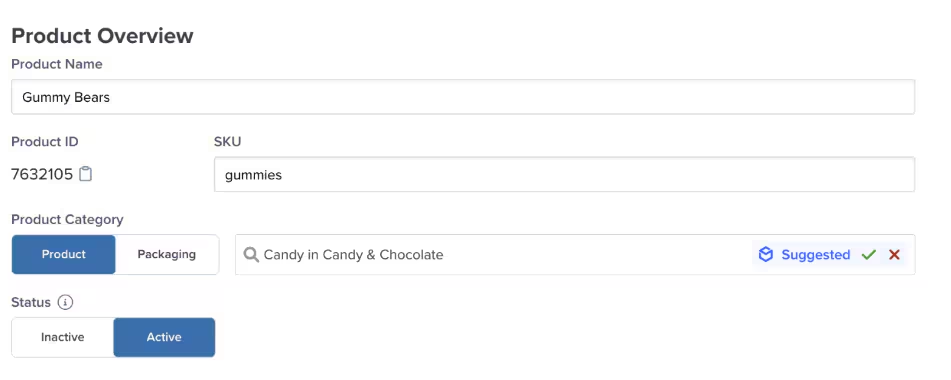
### 5. Product Category
**What it is:** Classification that determines packaging and handling requirements.
**Why it matters:** Categories influence packaging options and help Jetpack's team handle your products correctly.
**Examples:**
* **Books** → Use book fold packaging
* **Apparel** → Can use poly mailer or box
* **Fragile Items** → Require extra protection
* **Food & Beverage** → May require special handling
**Where to set it:** [Product Details page](/fulfillment/managing-products/product-details-page) → Product Details tab → Product Overview tile
Jetpack's AI can suggest categories based on your product name and description. You can approve or override these suggestions.
***
### 5. Product Category
**What it is:** Classification that determines packaging and handling requirements.
**Why it matters:** Categories influence packaging options and help Jetpack's team handle your products correctly.
**Examples:**
* **Books** → Use book fold packaging
* **Apparel** → Can use poly mailer or box
* **Fragile Items** → Require extra protection
* **Food & Beverage** → May require special handling
**Where to set it:** [Product Details page](/fulfillment/managing-products/product-details-page) → Product Details tab → Product Overview tile
Jetpack's AI can suggest categories based on your product name and description. You can approve or override these suggestions.
 ***
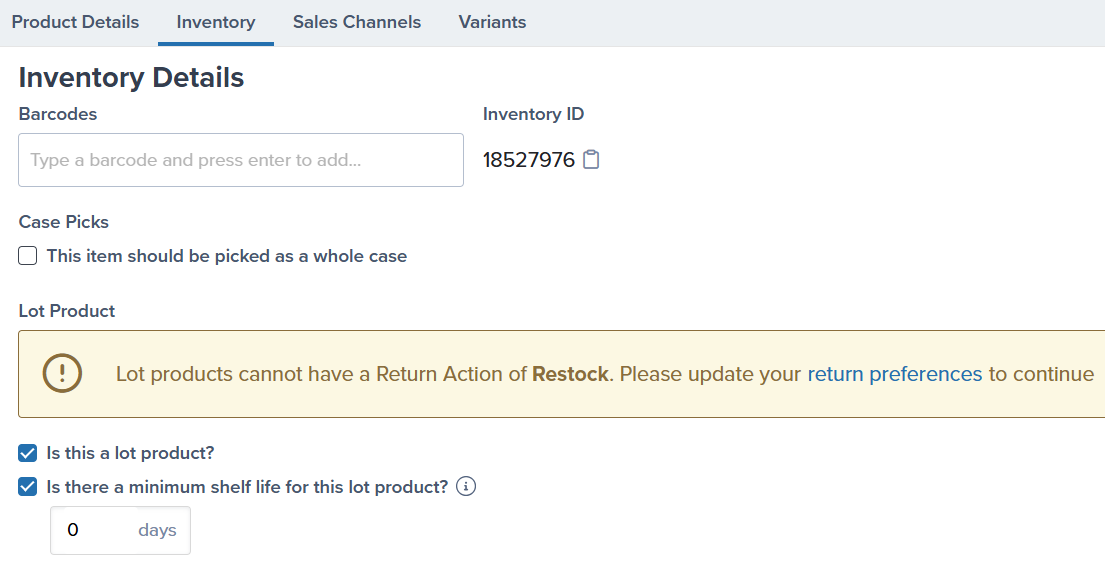
### 6. Lot Product Settings
**What it is:** Configuration for products with lot numbers, expiration dates, or batch tracking.
**Why it matters:** Ensures proper FEFO (First Expired, First Out) inventory rotation and compliance for perishable goods.
**Configuration options:**
* Enable lot tracking
* Require expiration dates
* Set minimum shelf life for returns
* Track by batch numbers
**Where to set it:** [Product Details page](/fulfillment/managing-products/product-details-page) → Inventory tab → Inventory Details section
Learn more:
* [Creating + Managing Lot Products](/fulfillment/sending-inventory/best-practices/lot-products)
* [Restocking Lot Products](/fulfillment/returns/restocking-products)
***
### 6. Lot Product Settings
**What it is:** Configuration for products with lot numbers, expiration dates, or batch tracking.
**Why it matters:** Ensures proper FEFO (First Expired, First Out) inventory rotation and compliance for perishable goods.
**Configuration options:**
* Enable lot tracking
* Require expiration dates
* Set minimum shelf life for returns
* Track by batch numbers
**Where to set it:** [Product Details page](/fulfillment/managing-products/product-details-page) → Inventory tab → Inventory Details section
Learn more:
* [Creating + Managing Lot Products](/fulfillment/sending-inventory/best-practices/lot-products)
* [Restocking Lot Products](/fulfillment/returns/restocking-products)
 ***
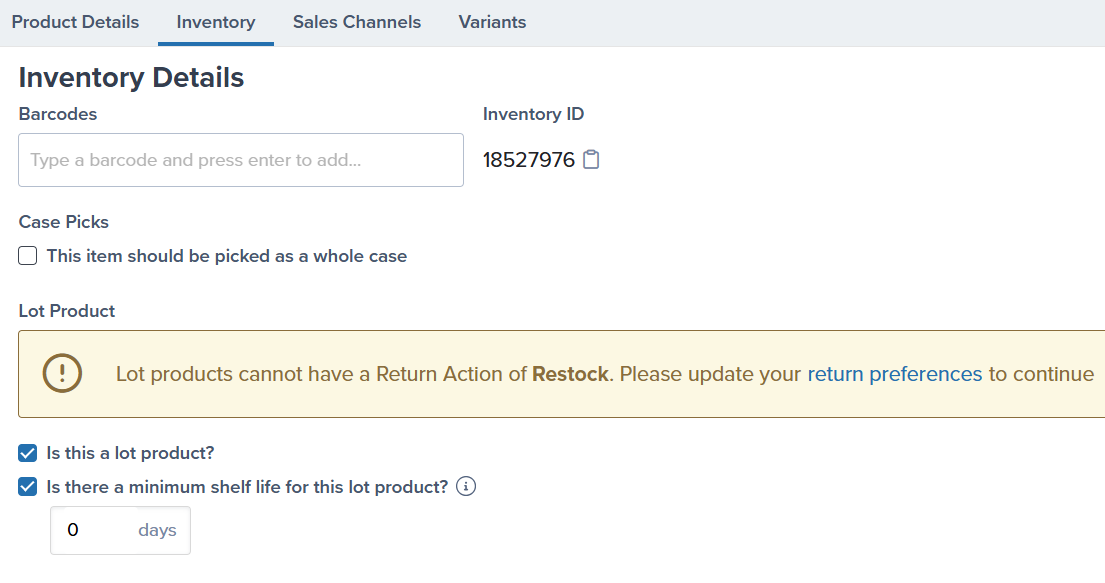
### 7. Barcode Requirements
**What it is:** Option to require barcode scanning during picking for added accuracy.
**Why it matters:** Reduces picking errors and ensures the correct product is shipped.
**When to use it:**
* Products with similar appearances
* High-value items requiring extra verification
* Products with strict compliance requirements
**Where to set it:** [Product Details page](/fulfillment/managing-products/product-details-page) → Inventory tab → Barcode(s) field
Learn more:
* [About Barcodes](/fulfillment/managing-products/more-tools/barcodes)
* [About Barcodes (in Sending Inventory)](/fulfillment/sending-inventory/best-practices/barcodes)
***
### 7. Barcode Requirements
**What it is:** Option to require barcode scanning during picking for added accuracy.
**Why it matters:** Reduces picking errors and ensures the correct product is shipped.
**When to use it:**
* Products with similar appearances
* High-value items requiring extra verification
* Products with strict compliance requirements
**Where to set it:** [Product Details page](/fulfillment/managing-products/product-details-page) → Inventory tab → Barcode(s) field
Learn more:
* [About Barcodes](/fulfillment/managing-products/more-tools/barcodes)
* [About Barcodes (in Sending Inventory)](/fulfillment/sending-inventory/best-practices/barcodes)
 ***
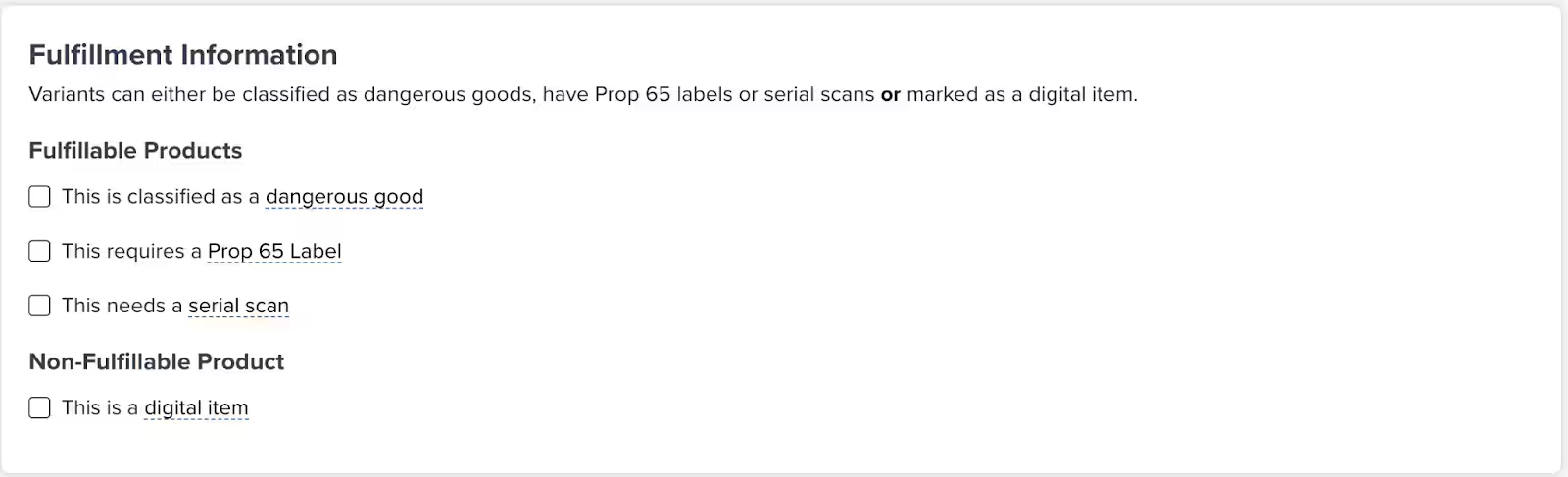
### 8. Special Handling Flags
**What it is:** Flags for products requiring special handling or compliance.
**Options:**
* **Dangerous Goods/HAZMAT** - Required for regulated products
* **Prop 65 Labeling** - For products sold in California
* **Serial Number Tracking** - For warranty or compliance tracking
* **Fragile Items** - Require extra packaging protection
**Where to set it:** [Product Details page](/fulfillment/managing-products/product-details-page) → Product Details tab → Fulfillment Information tile
Learn more:
* [Dangerous Goods + Hazmat](/fulfillment/goods-policies/dangerous-goods-hazmat)
* [Product Serial Numbers](/fulfillment/managing-products/more-tools/product-serial-numbers)
* [Packaging + Shipping Fragile Items](/fulfillment/tools-techniques/fragile-items)
Once a product is flagged as dangerous goods, it cannot be unmarked without Jetpack support approval. Contact your Jetpack Care team before flagging products as DG/HAZMAT.
***
### 8. Special Handling Flags
**What it is:** Flags for products requiring special handling or compliance.
**Options:**
* **Dangerous Goods/HAZMAT** - Required for regulated products
* **Prop 65 Labeling** - For products sold in California
* **Serial Number Tracking** - For warranty or compliance tracking
* **Fragile Items** - Require extra packaging protection
**Where to set it:** [Product Details page](/fulfillment/managing-products/product-details-page) → Product Details tab → Fulfillment Information tile
Learn more:
* [Dangerous Goods + Hazmat](/fulfillment/goods-policies/dangerous-goods-hazmat)
* [Product Serial Numbers](/fulfillment/managing-products/more-tools/product-serial-numbers)
* [Packaging + Shipping Fragile Items](/fulfillment/tools-techniques/fragile-items)
Once a product is flagged as dangerous goods, it cannot be unmarked without Jetpack support approval. Contact your Jetpack Care team before flagging products as DG/HAZMAT.
 ***
## Setting Preferences in Bulk
If you need to update preferences for many products at once, use the bulk update feature to save time and ensure consistency across your catalog.
Go to the [Product Catalog](/fulfillment/managing-products/index) from the Products menu.
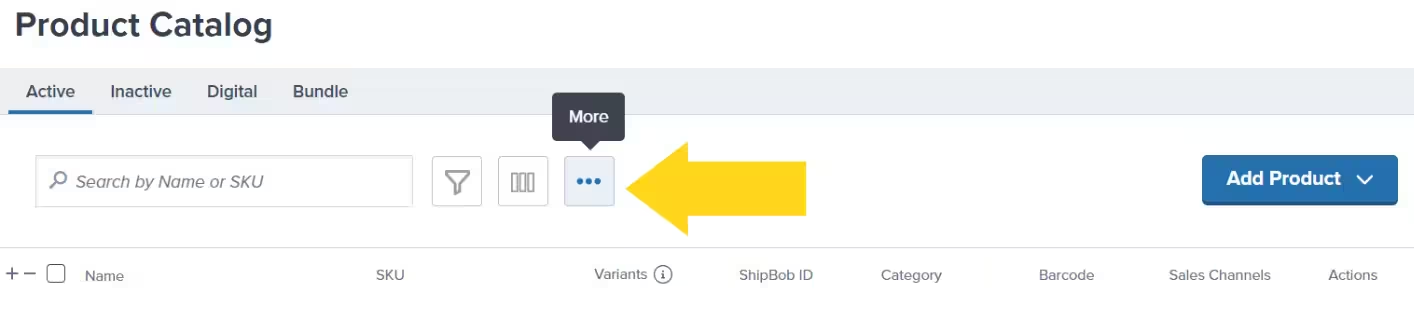
Click the **More** button (three horizontal dots) in the upper right corner of the Product Catalog page.
***
## Setting Preferences in Bulk
If you need to update preferences for many products at once, use the bulk update feature to save time and ensure consistency across your catalog.
Go to the [Product Catalog](/fulfillment/managing-products/index) from the Products menu.
Click the **More** button (three horizontal dots) in the upper right corner of the Product Catalog page.
 Select **Download Product Template** to get the Excel spreadsheet with all your current product data.
Open the spreadsheet and update the preference columns for your products (packaging requirements, customs information, return preferences, etc.).
Return to the Product Catalog, click **More** again, select **Import Products**, and upload your modified Excel file to apply all changes at once.
Learn more about [bulk updating product details](/fulfillment/managing-products/more-tools/bulk-updating-product-details), including detailed field definitions and formatting requirements.
***
## Global vs. Product-Level Preferences
Some preferences can be set globally (applying to all products) or overridden at the product level:
| Preference | Global Setting | Product-Level Override |
| ------------------ | ------------------------------------------------------------------------------------------------------ | --------------------------------------------------------------------------------- |
| Default Carrier | [Choosing Default Carriers](/fulfillment/account-setup/shipping-preferences/choosing-default-carriers) | Via [Automation Rules](/fulfillment/rules-customization-kitting/automation-rules) |
| Return Handling | [Setting Returns Preferences](/fulfillment/returns/setting-returns-preferences) | Product Details → Return Preferences tile |
| Packaging Defaults | [Packaging Preferences](/fulfillment/account-setup/shipping-preferences/packaging-preferences) | Product Details → Packaging Requirements tile |
| Gift Notes | [Gift Notes](/fulfillment/account-setup/shipping-preferences/gift-notes) | Order-level customization |
**Best practice:** Set global defaults for consistency, then override at the product level when specific products need different handling.
***
## Preference Checklist for New Products
**When adding a new product, make sure you've configured:**
* **Product Category** - Determines packaging and handling
* **Packaging Requirements** - Prevents On-Hold orders
* **Customs Information** - Required for international shipping
* **Reorder Points** - Avoid stockouts
* **Return Preferences** - How to handle returned inventory
* **Special Handling Flags** - DG/HAZMAT, Prop 65, Serial Numbers, etc.
* **Lot Tracking** (if applicable) - For perishable or batch-tracked products
* **Barcodes** (optional) - For added picking accuracy
If you're onboarding many products and need help setting preferences, your Jetpack Care team can guide you through the process or help configure settings via Slack or phone.
***
## Common Mistakes to Avoid
### 1. Not Setting Packaging Requirements
**Result:** Orders go On-Hold until packaging is configured
**Solution:** Set packaging requirements for all products before sending inventory
### 2. Missing Customs Information for International Products
**Result:** International orders are delayed or held
**Solution:** Complete customs information for any product that might ship internationally
### 3. Forgetting to Update After Integration Changes
**Result:** SKU mismatches cause fulfillment errors
**Solution:** Remember that SKU changes in Jetpack don't sync back to your store—update both places
### 4. Not Setting Reorder Points
**Result:** Surprise stockouts without warning
**Solution:** Set reorder points based on lead time and sales velocity
### 5. Incorrectly Flagging DG/HAZMAT Products
**Result:** Products quarantined or delayed; can't be unflagged without support
**Solution:** Verify DG/HAZMAT status with Jetpack Care before flagging
***
## Let's Dive Deeper
Full guide to all product configuration options
Navigate and organize your products
Group related products efficiently
Sell multiple SKUs as one unit
Ship products to Jetpack fulfillment centers
Configure default packaging settings
Select **Download Product Template** to get the Excel spreadsheet with all your current product data.
Open the spreadsheet and update the preference columns for your products (packaging requirements, customs information, return preferences, etc.).
Return to the Product Catalog, click **More** again, select **Import Products**, and upload your modified Excel file to apply all changes at once.
Learn more about [bulk updating product details](/fulfillment/managing-products/more-tools/bulk-updating-product-details), including detailed field definitions and formatting requirements.
***
## Global vs. Product-Level Preferences
Some preferences can be set globally (applying to all products) or overridden at the product level:
| Preference | Global Setting | Product-Level Override |
| ------------------ | ------------------------------------------------------------------------------------------------------ | --------------------------------------------------------------------------------- |
| Default Carrier | [Choosing Default Carriers](/fulfillment/account-setup/shipping-preferences/choosing-default-carriers) | Via [Automation Rules](/fulfillment/rules-customization-kitting/automation-rules) |
| Return Handling | [Setting Returns Preferences](/fulfillment/returns/setting-returns-preferences) | Product Details → Return Preferences tile |
| Packaging Defaults | [Packaging Preferences](/fulfillment/account-setup/shipping-preferences/packaging-preferences) | Product Details → Packaging Requirements tile |
| Gift Notes | [Gift Notes](/fulfillment/account-setup/shipping-preferences/gift-notes) | Order-level customization |
**Best practice:** Set global defaults for consistency, then override at the product level when specific products need different handling.
***
## Preference Checklist for New Products
**When adding a new product, make sure you've configured:**
* **Product Category** - Determines packaging and handling
* **Packaging Requirements** - Prevents On-Hold orders
* **Customs Information** - Required for international shipping
* **Reorder Points** - Avoid stockouts
* **Return Preferences** - How to handle returned inventory
* **Special Handling Flags** - DG/HAZMAT, Prop 65, Serial Numbers, etc.
* **Lot Tracking** (if applicable) - For perishable or batch-tracked products
* **Barcodes** (optional) - For added picking accuracy
If you're onboarding many products and need help setting preferences, your Jetpack Care team can guide you through the process or help configure settings via Slack or phone.
***
## Common Mistakes to Avoid
### 1. Not Setting Packaging Requirements
**Result:** Orders go On-Hold until packaging is configured
**Solution:** Set packaging requirements for all products before sending inventory
### 2. Missing Customs Information for International Products
**Result:** International orders are delayed or held
**Solution:** Complete customs information for any product that might ship internationally
### 3. Forgetting to Update After Integration Changes
**Result:** SKU mismatches cause fulfillment errors
**Solution:** Remember that SKU changes in Jetpack don't sync back to your store—update both places
### 4. Not Setting Reorder Points
**Result:** Surprise stockouts without warning
**Solution:** Set reorder points based on lead time and sales velocity
### 5. Incorrectly Flagging DG/HAZMAT Products
**Result:** Products quarantined or delayed; can't be unflagged without support
**Solution:** Verify DG/HAZMAT status with Jetpack Care before flagging
***
## Let's Dive Deeper
Full guide to all product configuration options
Navigate and organize your products
Group related products efficiently
Sell multiple SKUs as one unit
Ship products to Jetpack fulfillment centers
Configure default packaging settings

Questions? Contact Jetpack Care.
If you have any questions or run into issues, you can always contact Jetpack Care for help. Our team is always here to assist via Slack, phone, or email!