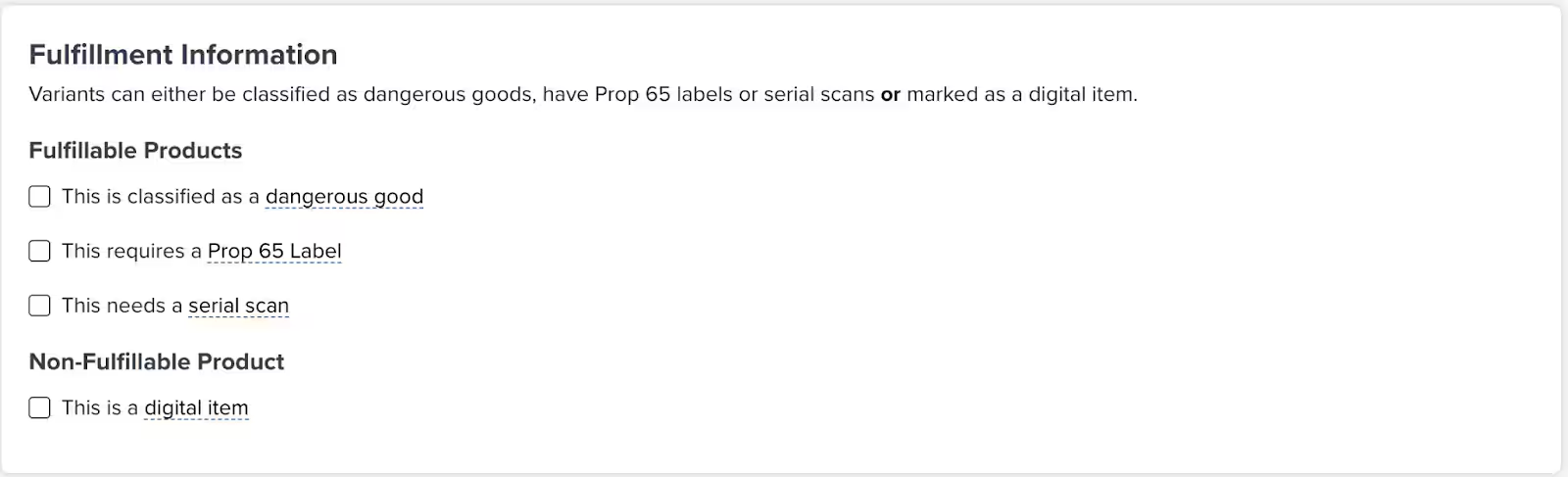
 **For Fulfillable Products:**
* **This is classified as dangerous goods (DG)/HAZMAT**
* Required for legal compliance
* Once flagged, cannot be unmarked without Jetpack support
* Products flagged as possible DG/HAZMAT will be delayed or quarantined until you provide required documentation
* Learn more about [dangerous goods policies](/fulfillment/goods-policies/dangerous-goods-hazmat)
* **This item requires a Prop 65 label**
* Applies to products sold in California
* Jetpack can apply these labels for you
* **This item requires serial number scans**
* Enables serial tracking during picking and packing
* Learn more about [product serial numbers](/fulfillment/managing-products/more-tools/product-serial-numbers)
**For Non-Fulfillable Products:**
* **This is a digital item**
* Automatically removes the product from physical orders
* Learn more about [digital products](/fulfillment/managing-products/more-tools/digital-products)
**For Fulfillable Products:**
* **This is classified as dangerous goods (DG)/HAZMAT**
* Required for legal compliance
* Once flagged, cannot be unmarked without Jetpack support
* Products flagged as possible DG/HAZMAT will be delayed or quarantined until you provide required documentation
* Learn more about [dangerous goods policies](/fulfillment/goods-policies/dangerous-goods-hazmat)
* **This item requires a Prop 65 label**
* Applies to products sold in California
* Jetpack can apply these labels for you
* **This item requires serial number scans**
* Enables serial tracking during picking and packing
* Learn more about [product serial numbers](/fulfillment/managing-products/more-tools/product-serial-numbers)
**For Non-Fulfillable Products:**
* **This is a digital item**
* Automatically removes the product from physical orders
* Learn more about [digital products](/fulfillment/managing-products/more-tools/digital-products)
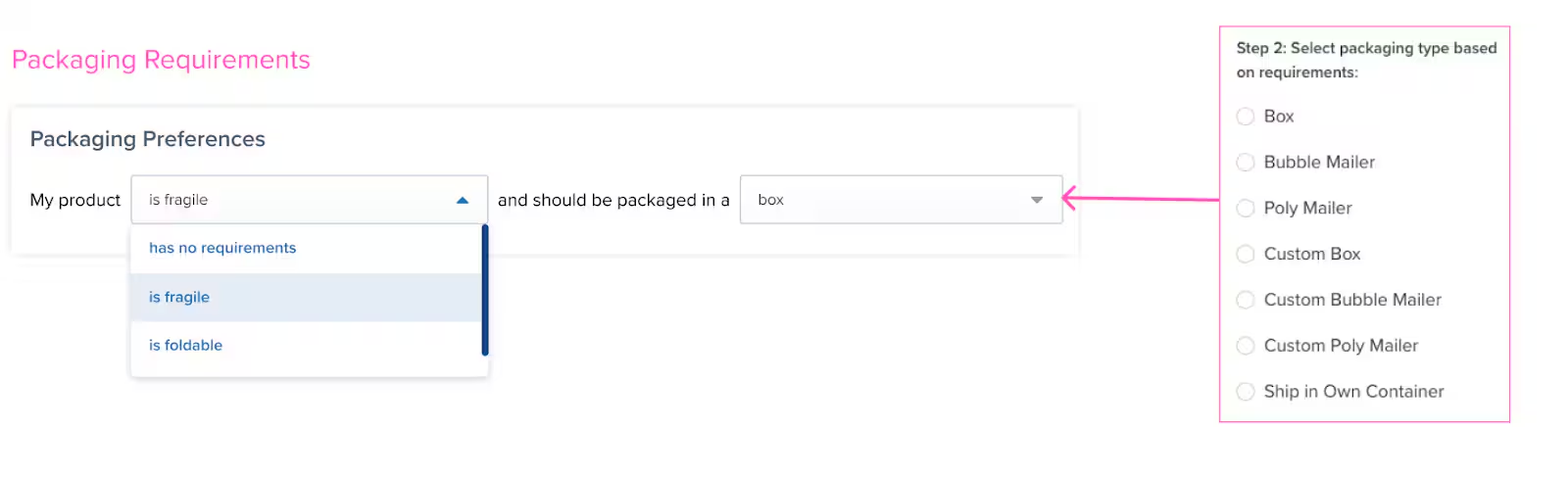 Packaging options are influenced by your Product Category and include:
* **Box**
* **Bubble Mailer**
* **Poly Mailer**
* **Custom Packaging**
* **Ship in Own Container**
Each SKU may have only **one** packaging attribute selected.
**Category-Specific Examples:**
* **Books** → Should use book fold packaging
* **Posters** → Should be shipped in poster tubes
* **Apparel** → Can use box, bubble mailer, or poly mailer depending on size and protection needs
Packaging options are influenced by your Product Category and include:
* **Box**
* **Bubble Mailer**
* **Poly Mailer**
* **Custom Packaging**
* **Ship in Own Container**
Each SKU may have only **one** packaging attribute selected.
**Category-Specific Examples:**
* **Books** → Should use book fold packaging
* **Posters** → Should be shipped in poster tubes
* **Apparel** → Can use box, bubble mailer, or poly mailer depending on size and protection needs
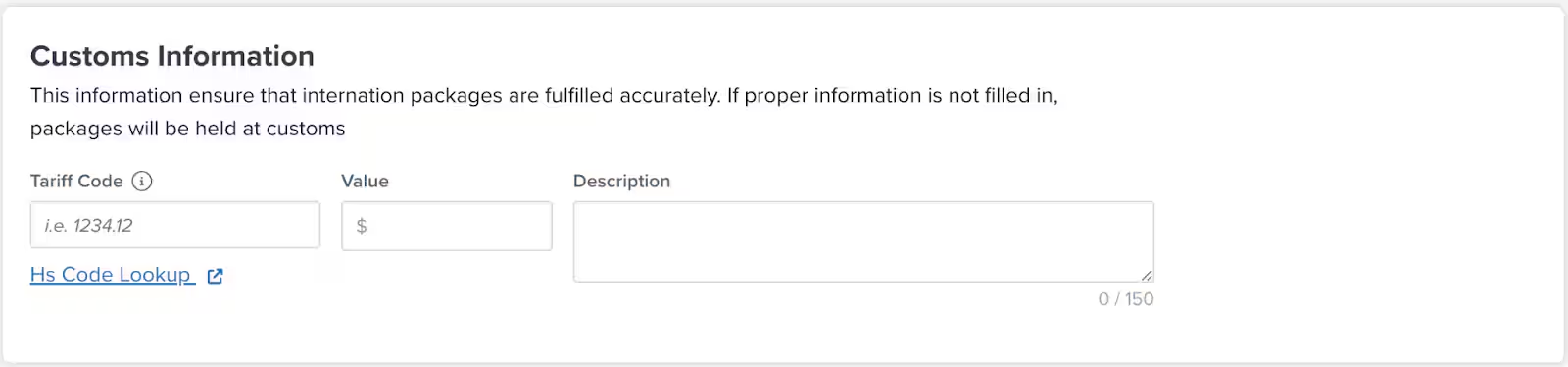 **Required Fields:**
* **Tariff Code** - Numeric classification code (6+ digits) for customs
* **Value** - Retail value of the product (used for duties/taxes calculation, not manufacturing cost)
* **Description** - Detailed product description (maximum 150 characters)
**Required Fields:**
* **Tariff Code** - Numeric classification code (6+ digits) for customs
* **Value** - Retail value of the product (used for duties/taxes calculation, not manufacturing cost)
* **Description** - Detailed product description (maximum 150 characters)
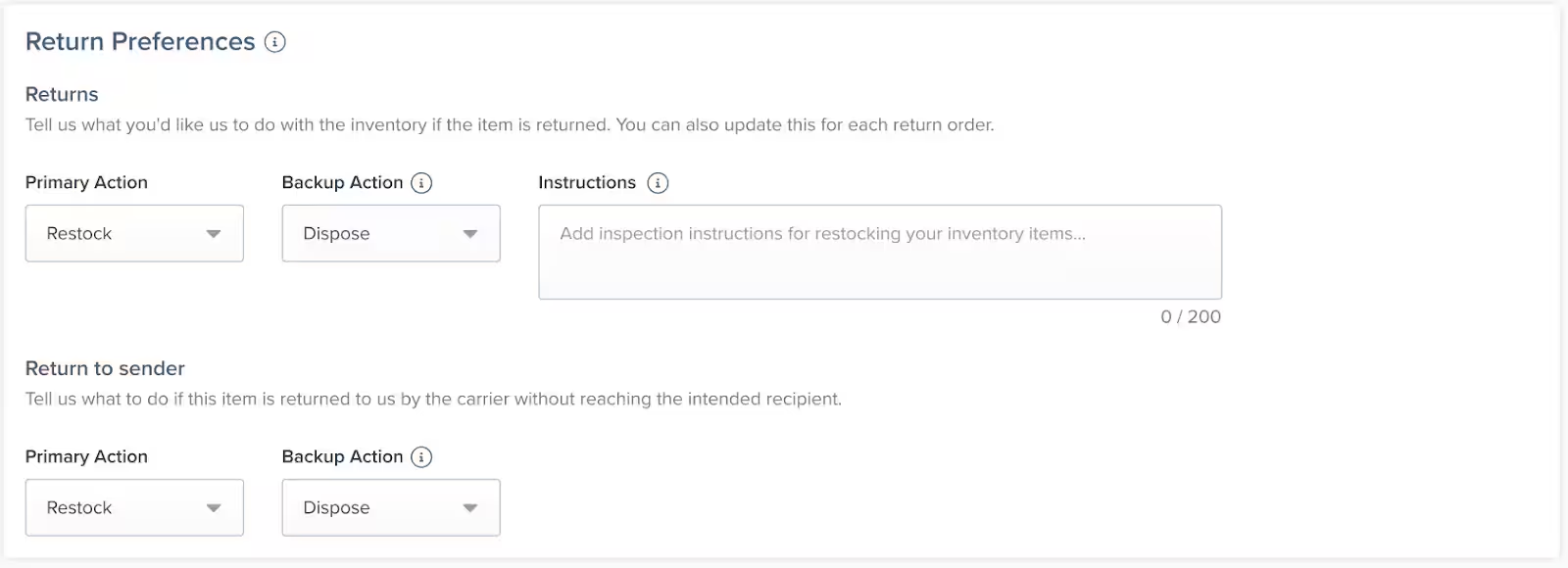 Learn more about [setting returns preferences](/fulfillment/returns/setting-returns-preferences).
### Bundles Tile
Bundles allow you to group multiple SKUs under one parent SKU for selling purposes. The individual products are stored separately but shipped together as a single order item.
Learn more about [setting returns preferences](/fulfillment/returns/setting-returns-preferences).
### Bundles Tile
Bundles allow you to group multiple SKUs under one parent SKU for selling purposes. The individual products are stored separately but shipped together as a single order item.
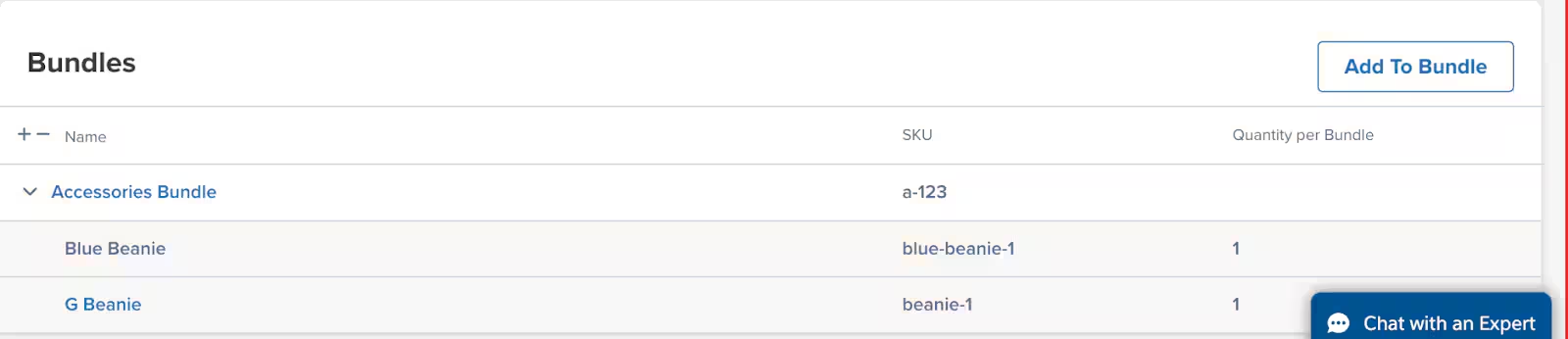 **How it works:**
* If the product is already part of a bundle, this tile displays bundle details
* If not part of a bundle, you can create one from this tile
Learn more about [creating product bundles](/fulfillment/managing-products/more-tools/creating-product-bundles).
***
## Inventory Tab
The Inventory tab provides tracking and configuration for your product's stock levels and physical characteristics.
**How it works:**
* If the product is already part of a bundle, this tile displays bundle details
* If not part of a bundle, you can create one from this tile
Learn more about [creating product bundles](/fulfillment/managing-products/more-tools/creating-product-bundles).
***
## Inventory Tab
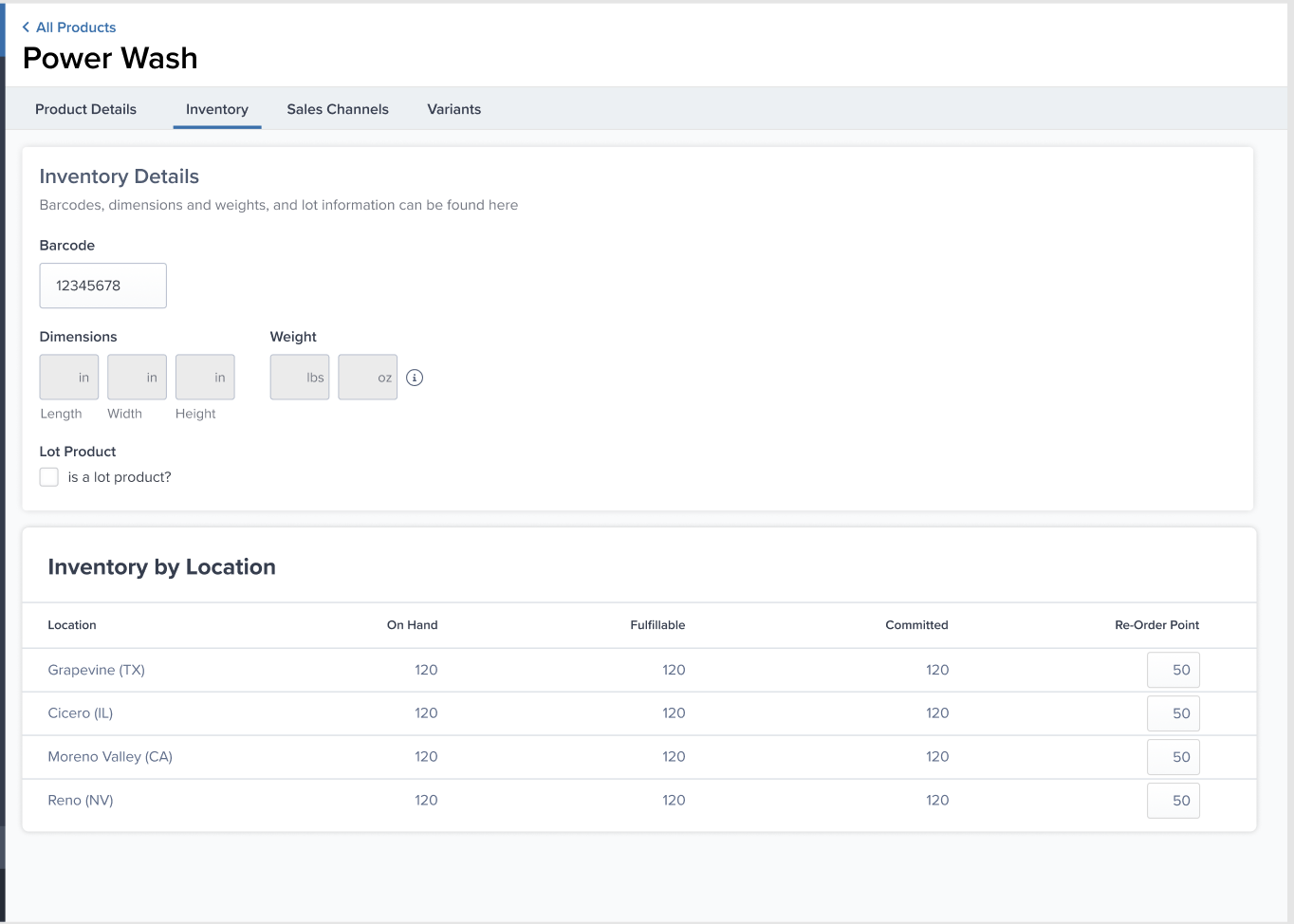
The Inventory tab provides tracking and configuration for your product's stock levels and physical characteristics.
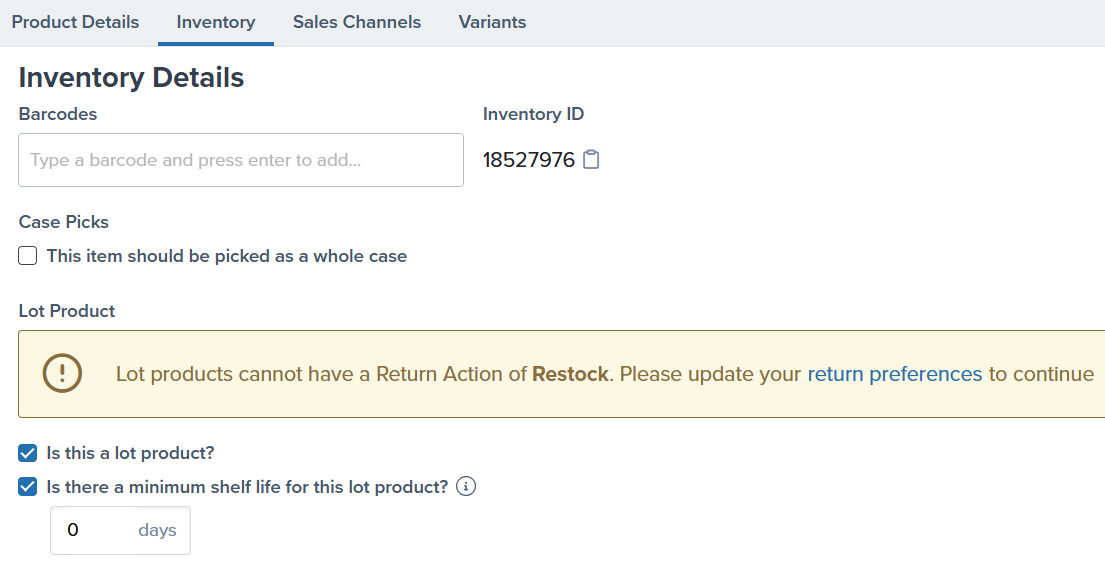 ### Inventory Details
**Barcode(s)**
* Indicates whether a barcode scan is required during picking (optional)
* Learn more about [adding barcodes](/fulfillment/managing-products/more-tools/barcodes)
**Dimensions & Weight**
* Auto-generated by Jetpack's Cubiscan system during receiving
* These fields are read-only and cannot be manually edited
**Case Picks**
* Define if the product should be picked in full cases rather than individual units
* Each unique case pack configuration requires its own SKU
**Lot Product**
* Specify if the product has lot numbers or expiration dates
* Jetpack automatically ships products with the nearest expiration date first (FEFO - First Expired, First Out)
* Learn more about [creating and managing lot products](/fulfillment/sending-inventory/best-practices/lot-products)
**Lot Minimum Shelf Life**
* Define the minimum shelf life required for returned products to be restocked
* Products below this threshold can be automatically rejected
### Inventory by Location
This section tracks your inventory levels across all Jetpack fulfillment centers and allows you to set re-order points.
**Features:**
* View inventory quantities by fulfillment center
* Set **Re-Order Point** thresholds to trigger low stock email alerts
* Track inventory in transit via [WROs](/fulfillment/sending-inventory/creating-wro)
Learn more about [setting reorder points](/fulfillment/account-setup/shipping-preferences/setting-reorder-points) and [inventory distribution](/fulfillment/managing-inventory/inventory-distribution).
### Inventory Details
**Barcode(s)**
* Indicates whether a barcode scan is required during picking (optional)
* Learn more about [adding barcodes](/fulfillment/managing-products/more-tools/barcodes)
**Dimensions & Weight**
* Auto-generated by Jetpack's Cubiscan system during receiving
* These fields are read-only and cannot be manually edited
**Case Picks**
* Define if the product should be picked in full cases rather than individual units
* Each unique case pack configuration requires its own SKU
**Lot Product**
* Specify if the product has lot numbers or expiration dates
* Jetpack automatically ships products with the nearest expiration date first (FEFO - First Expired, First Out)
* Learn more about [creating and managing lot products](/fulfillment/sending-inventory/best-practices/lot-products)
**Lot Minimum Shelf Life**
* Define the minimum shelf life required for returned products to be restocked
* Products below this threshold can be automatically rejected
### Inventory by Location
This section tracks your inventory levels across all Jetpack fulfillment centers and allows you to set re-order points.
**Features:**
* View inventory quantities by fulfillment center
* Set **Re-Order Point** thresholds to trigger low stock email alerts
* Track inventory in transit via [WROs](/fulfillment/sending-inventory/creating-wro)
Learn more about [setting reorder points](/fulfillment/account-setup/shipping-preferences/setting-reorder-points) and [inventory distribution](/fulfillment/managing-inventory/inventory-distribution).
 ***
## Sales Channels Tab
The Sales Channels tab displays all the platforms where your product is sold and connects each one to the appropriate Seller SKU.
***
## Sales Channels Tab
The Sales Channels tab displays all the platforms where your product is sold and connects each one to the appropriate Seller SKU.
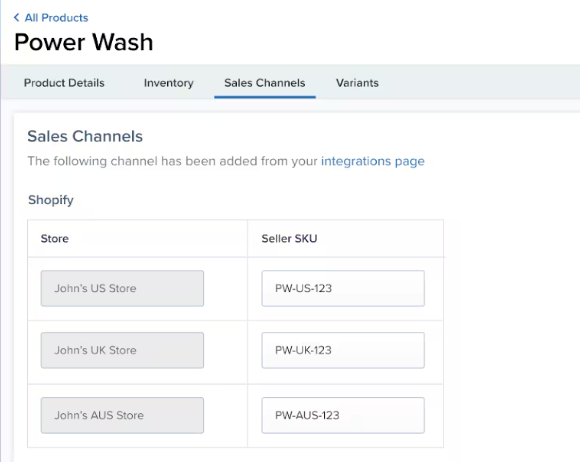 **What You'll See:**
* Integration names (Shopify, Amazon, WooCommerce, etc.)
* Connected Seller SKUs for each platform
* Store names for multi-store setups
**Adding New Sales Channels:**
* Click **Add Platform** to link additional sales channels
* Select the integration and map the Seller SKU
This ensures that when an order comes in from any of your connected stores, Jetpack knows exactly which physical product to fulfill.
Learn more about integrating stores like [Shopify](/fulfillment/account-setup/integrating-store/shopify), [Amazon](/fulfillment/account-setup/integrating-store/amazon), or [BigCommerce](/fulfillment/account-setup/integrating-store/bigcommerce).
**What You'll See:**
* Integration names (Shopify, Amazon, WooCommerce, etc.)
* Connected Seller SKUs for each platform
* Store names for multi-store setups
**Adding New Sales Channels:**
* Click **Add Platform** to link additional sales channels
* Select the integration and map the Seller SKU
This ensures that when an order comes in from any of your connected stores, Jetpack knows exactly which physical product to fulfill.
Learn more about integrating stores like [Shopify](/fulfillment/account-setup/integrating-store/shopify), [Amazon](/fulfillment/account-setup/integrating-store/amazon), or [BigCommerce](/fulfillment/account-setup/integrating-store/bigcommerce).
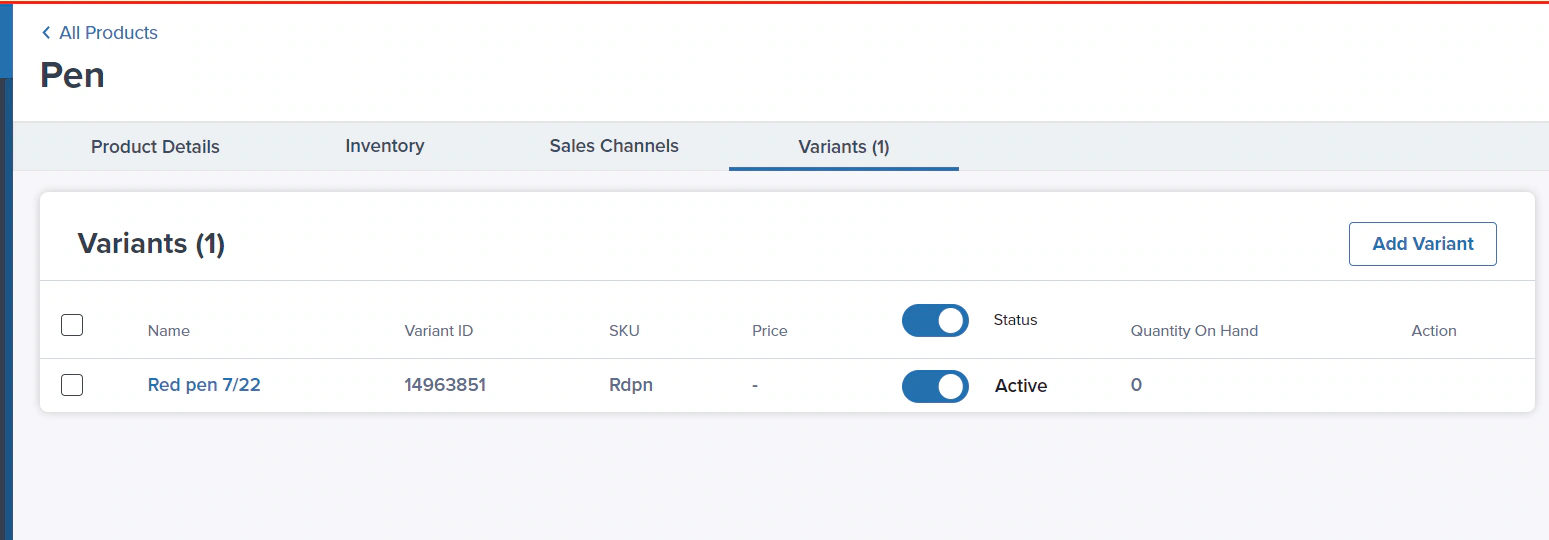 ### Understanding Parent Products vs. Variants
**Parent/Primary Product:**
* A non-physical container used for organization
* Has a Name and Category but no SKU
* Not stored or shipped
* Cannot be created retroactively from a base product
* Must contain at least 2 variants
**Variants:**
* The actual physical SKUs that are stored and shipped
* Each variant receives its own dimensions and weight via Cubiscan during receiving
* Can be added, removed, or moved between parent products
* Each has its own [Product Details page](/fulfillment/managing-products/product-details-page)
**For example:**
* **Parent Product**: "Cat Mug" (not physical)
* **Variants**: Blue Cat Mug (SKU: CAT-BLUE), Green Cat Mug (SKU: CAT-GREEN), Orange Cat Mug (SKU: CAT-ORANGE)
### Understanding Parent Products vs. Variants
**Parent/Primary Product:**
* A non-physical container used for organization
* Has a Name and Category but no SKU
* Not stored or shipped
* Cannot be created retroactively from a base product
* Must contain at least 2 variants
**Variants:**
* The actual physical SKUs that are stored and shipped
* Each variant receives its own dimensions and weight via Cubiscan during receiving
* Can be added, removed, or moved between parent products
* Each has its own [Product Details page](/fulfillment/managing-products/product-details-page)
**For example:**
* **Parent Product**: "Cat Mug" (not physical)
* **Variants**: Blue Cat Mug (SKU: CAT-BLUE), Green Cat Mug (SKU: CAT-GREEN), Orange Cat Mug (SKU: CAT-ORANGE)

If you have any questions or run into issues, you can always contact Jetpack Care for help. Our team is always here to assist via Slack, phone, or email!