> ## Documentation Index
> Fetch the complete documentation index at: https://help.jetpack3pl.com/llms.txt
> Use this file to discover all available pages before exploring further.
# Product Serial Numbers
> Configure serial scan requirements for products to track which specific units were packed in orders, using consistent prefix and suffix identifiers for warranty tracking and quality control.
Serial numbers are unique identifiers assigned sequentially to each individual unit of a product. Jetpack's Operations team scans serial numbers when picking products, allowing you to track exactly which specific units were packed in each order for warranty management, quality control, and traceability.
## Overview of Serial Numbers
A serial number is a unique identifier assigned sequentially to each individual unit of a product. Jetpack's Operations team scans the serial number when picking products, so you can track which specific units were packed.
**Key Points:**
* Each unit in an order gets its own serial number (e.g., if Item A is ordered with a quantity of 2, there will be 2 distinct serial numbers)
* To use the serial scan feature, you must include a consistent prefix and/or suffix across all units of the same SKU
**Example:** For 3 items with the prefix "123":
* 123ABC
* 123DEF
* 123GHI
***
## Pricing for Serial Number Management
Serial numbers are an advanced inventory tracking feature with associated costs.
Contact Jetpack Care to discuss pricing for enabling serial number management on your account. The team can provide detailed information about costs based on your specific inventory needs.
***
## Adding Serial Scan Requirements in the Product Catalog Page
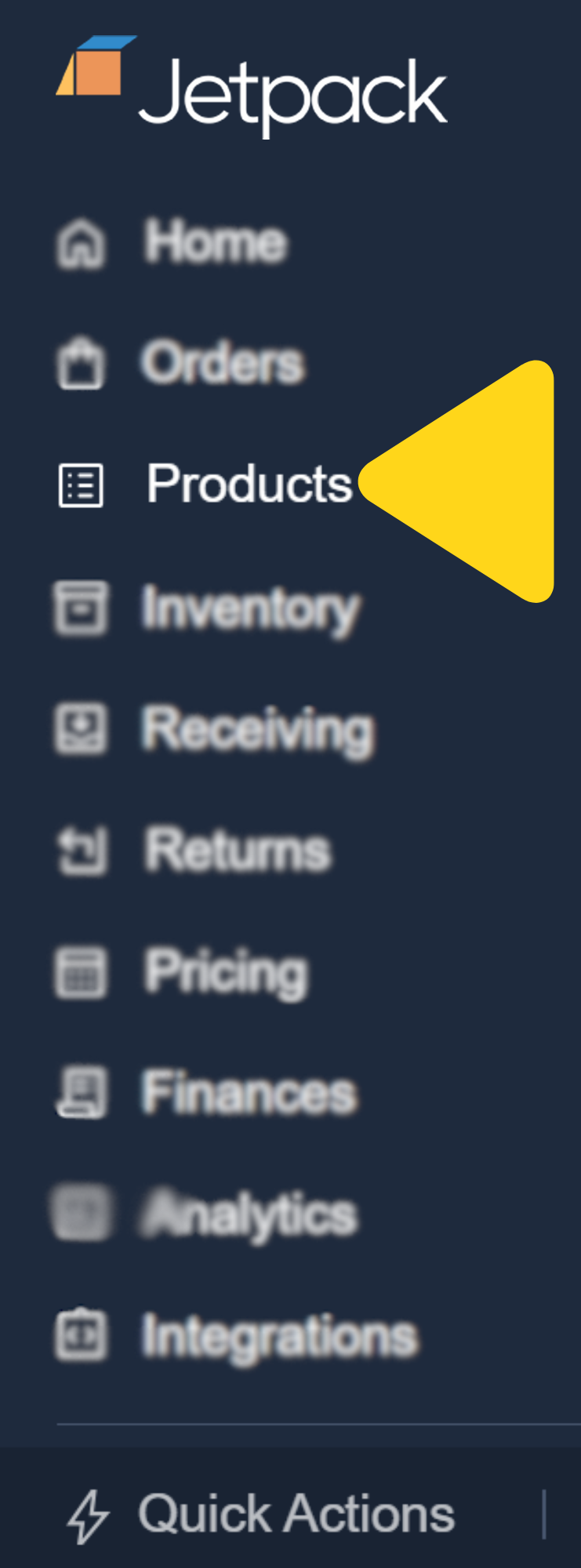
From the Jetpack dashboard, click **Products** on the left-hand navigation bar to access the Product Catalog page.
 Use the search bar or scroll to find the desired product, then click the product's name (hyperlinked) under the Name column to open its details.
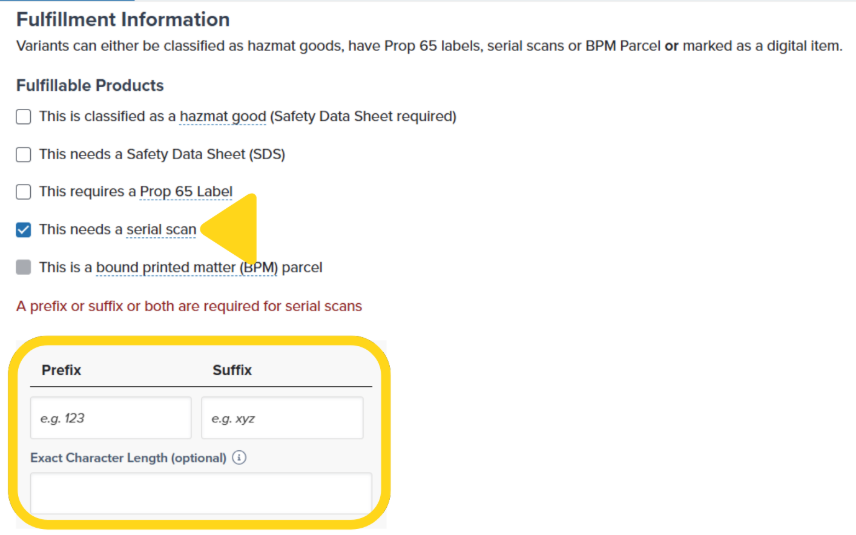
Scroll down to the **Fulfillment Information** tile and check the box labeled **This needs a serial scan**.
Input a **Prefix**, **Suffix**, or both in the fields provided. At least one is required; using both is optional.
Use the search bar or scroll to find the desired product, then click the product's name (hyperlinked) under the Name column to open its details.
Scroll down to the **Fulfillment Information** tile and check the box labeled **This needs a serial scan**.
Input a **Prefix**, **Suffix**, or both in the fields provided. At least one is required; using both is optional.
 Click **Save** at the top of your screen to apply the serial scan configuration.
 A success message will appear to confirm that the configuration is complete.
***
## Locating Serial Scan Numbers on Orders
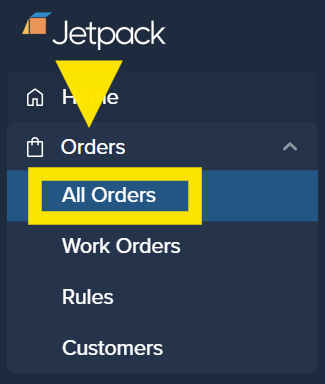
From the Jetpack dashboard, click **Orders** on the left-hand navigation bar, then select **All Orders** from the additional menu options.
A success message will appear to confirm that the configuration is complete.
***
## Locating Serial Scan Numbers on Orders
From the Jetpack dashboard, click **Orders** on the left-hand navigation bar, then select **All Orders** from the additional menu options.
 Locate the desired order and click on its **Shipment ID** (hyperlinked) to open the order details page.
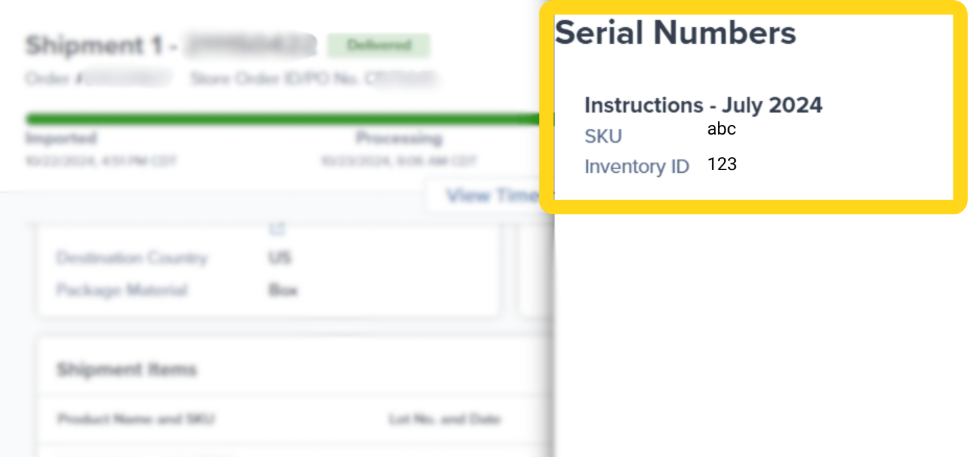
In the Shipment Items panel, locate the Serial Numbers column and click **View** next to the product whose serial numbers you wish to review.
Locate the desired order and click on its **Shipment ID** (hyperlinked) to open the order details page.
In the Shipment Items panel, locate the Serial Numbers column and click **View** next to the product whose serial numbers you wish to review.
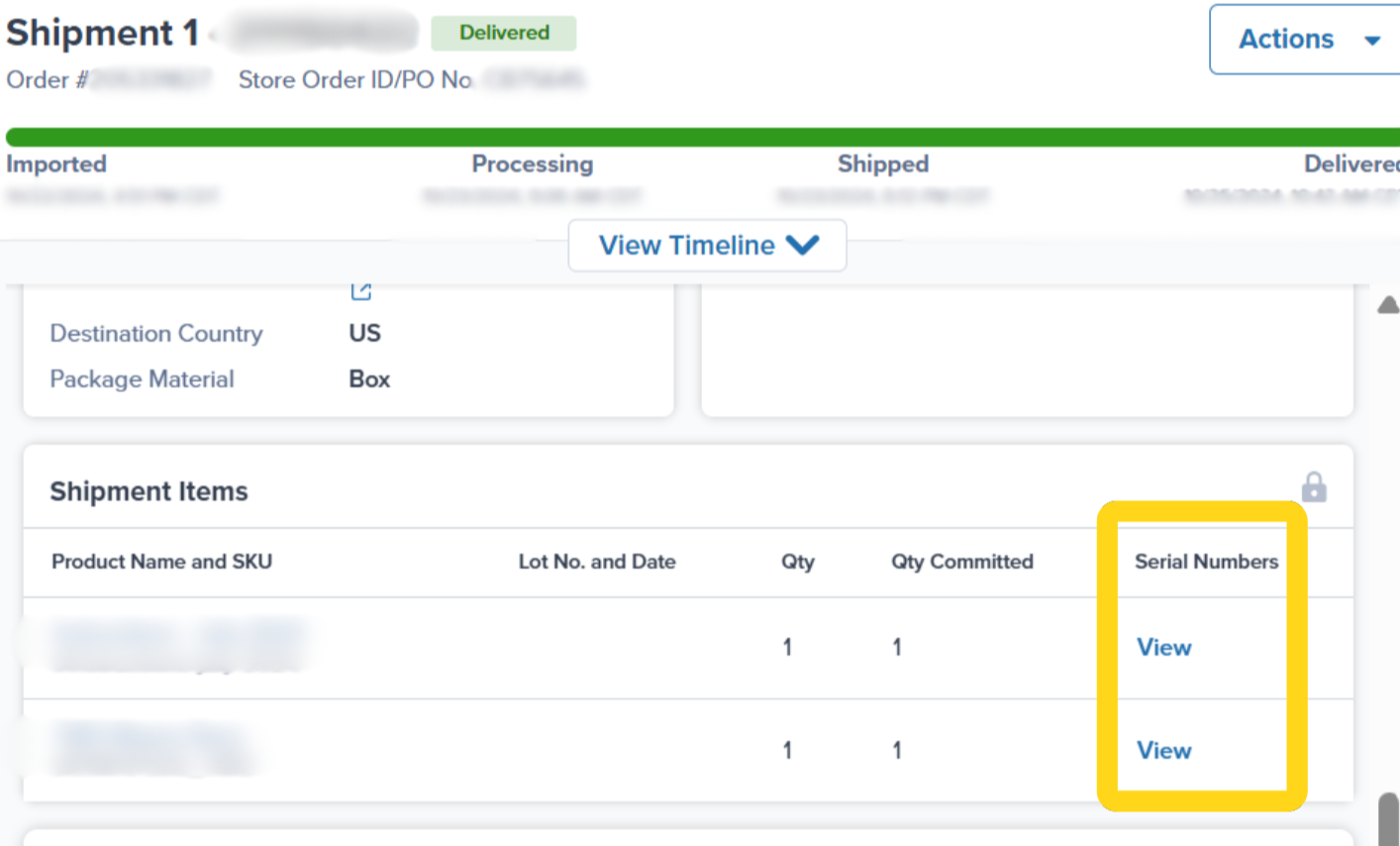 A side panel will appear, displaying the serial number(s) associated with that product.
 ***
## Let's Dive Deeper
Configure product-level settings
Product identification systems and scanning
Managing your product catalog
Sending inventory to fulfillment centers
Configure special handling requirements
View serial numbers on completed orders
***
## Let's Dive Deeper
Configure product-level settings
Product identification systems and scanning
Managing your product catalog
Sending inventory to fulfillment centers
Configure special handling requirements
View serial numbers on completed orders

Questions? Contact Jetpack Care.
If you have any questions or run into issues, you can always contact Jetpack Care for help. Our team is always here to assist via Slack, phone, or email!