> ## Documentation Index
> Fetch the complete documentation index at: https://help.jetpack3pl.com/llms.txt
> Use this file to discover all available pages before exploring further.
# Digital Products
> Mark non-physical products as Digital to automatically exclude them from warehouse fulfillment, preventing exception status on orders containing items like gift cards, downloads, or products not stored at Jetpack.
Digital products are automatically removed from orders when synced to the Jetpack dashboard because the Operations team doesn't pick non-physical items like online coupon codes, PDFs, or physical items not stored at Jetpack fulfillment centers. This prevents orders from going into Exception status due to insufficient On-Hand inventory for digital SKUs.
## What Happens When a Product is Marked as Digital
When you mark a product as Digital in the Jetpack dashboard, it's automatically excluded from warehouse fulfillment operations. This is essential for items that aren't physically stored or handled by the Operations team.
**Digital products are removed from orders because:**
* The Operations team doesn't pick non-physical items like online coupon codes, PDFs, or downloads
* Physical items not stored at Jetpack fulfillment centers shouldn't route to warehouse
* Gift cards and digital content are delivered through other systems
**The key benefit:** This automatic removal prevents orders from getting stuck in Exception status due to insufficient On-Hand inventory for digital SKUs that will never have physical inventory.
***
## Restrictions for Digital Products
There are a few limitations to be aware of when marking products as Digital:
You cannot mark a product as Digital if it currently has inventory On-Hand. The product must have zero inventory before you can change it to Digital status.
**Additional restrictions for Digital products:**
* Cannot be marked as dangerous goods/HAZMAT
* Cannot require a Prop 65 label
* Cannot require serial scans
These restrictions exist because Digital products represent non-physical items that don't go through standard warehouse handling processes.
***
## Marking a Product as Digital from the Product Catalog
Once you've confirmed your product has no On-Hand inventory and doesn't fall under any of the restricted categories, you can mark it as Digital.
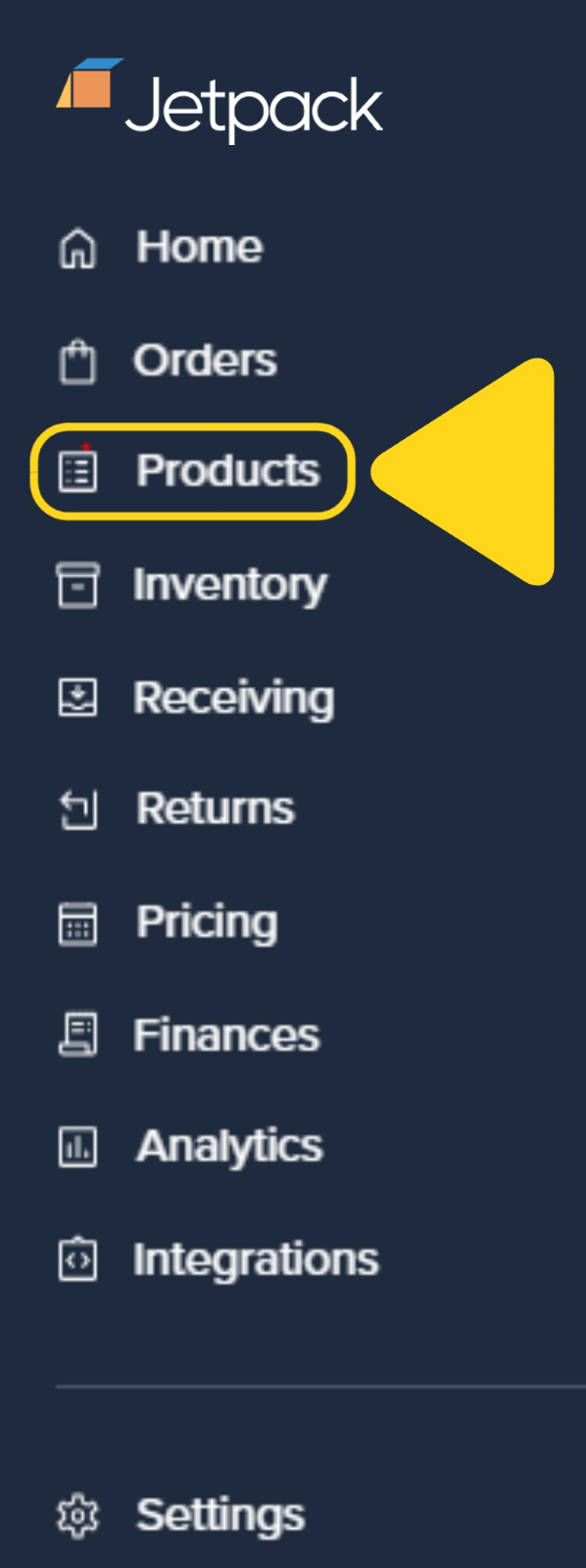
Click **Products** on the left-hand navigation bar.
 Use the search bar or scroll through the catalog to find the desired product.
Click the product's name hyperlink under the Name column to open the product details page.
Scroll down to the **Fulfillment Information** tile under the Product Details tab.
Check the box next to **This is a digital item**.
Click **Save**.
A success message will appear to confirm the product is now marked as Digital.
***
## Viewing Digital Products
To quickly see all products marked as Digital in your catalog, use the built-in filter on your Product Catalog page.
From the Jetpack dashboard, click **Products** on the left-hand navigation bar.
Click the **Digital** filter at the top of the Product Catalog.
Use the search bar or scroll through the catalog to find the desired product.
Click the product's name hyperlink under the Name column to open the product details page.
Scroll down to the **Fulfillment Information** tile under the Product Details tab.
Check the box next to **This is a digital item**.
Click **Save**.
A success message will appear to confirm the product is now marked as Digital.
***
## Viewing Digital Products
To quickly see all products marked as Digital in your catalog, use the built-in filter on your Product Catalog page.
From the Jetpack dashboard, click **Products** on the left-hand navigation bar.
Click the **Digital** filter at the top of the Product Catalog.
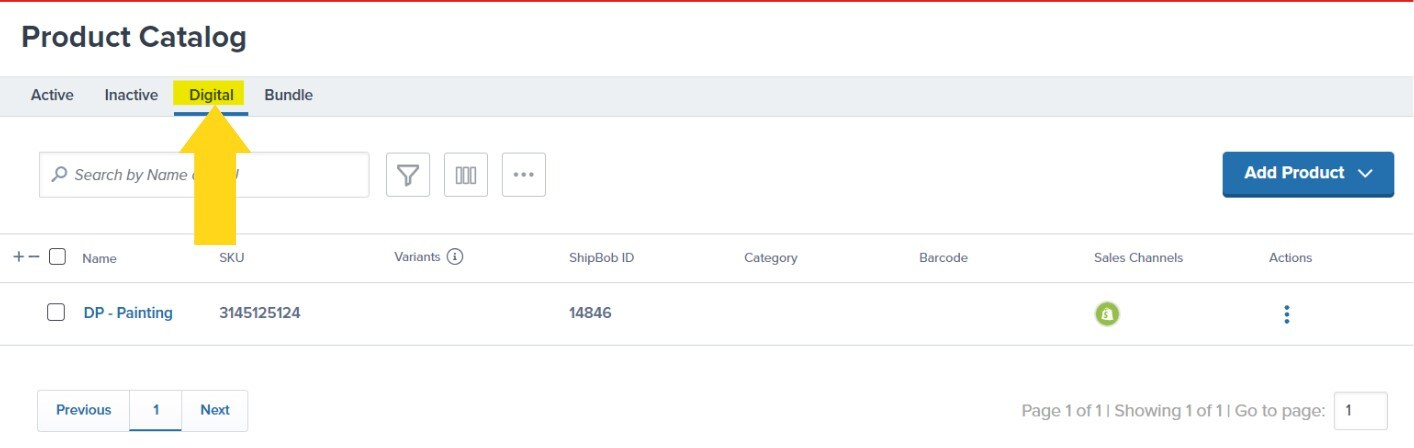 This filtered view displays only products marked as Digital, making it easy to manage your non-physical inventory separately from items stored at fulfillment centers.
***
## Let's Dive Deeper
Explore and manage your product catalog
Combine physical products together
Configure product settings and fulfillment
Create new products in bulk
Manage individual product configuration
Link products to multiple sales platforms
This filtered view displays only products marked as Digital, making it easy to manage your non-physical inventory separately from items stored at fulfillment centers.
***
## Let's Dive Deeper
Explore and manage your product catalog
Combine physical products together
Configure product settings and fulfillment
Create new products in bulk
Manage individual product configuration
Link products to multiple sales platforms

Questions? Contact Jetpack Care.
If you have any questions or run into issues, you can always contact Jetpack Care for help. Our team is always here to assist via Slack, phone, or email!