> ## Documentation Index
> Fetch the complete documentation index at: https://help.jetpack3pl.com/llms.txt
> Use this file to discover all available pages before exploring further.
# Bulk Updating Product Details
> Use Excel templates to update product information for multiple SKUs at once, ensuring accuracy and consistency across your entire catalog.
Managing hundreds or thousands of products requires efficiency. Jetpack's bulk update feature lets you modify product details for multiple SKUs simultaneously using a simple CSV template, helping you avoid pricing inconsistencies, reduce manual errors, and keep your entire catalog up to date.
## Benefits of Bulk Updating
Bulk editing allows you to quickly update product details in one batch to avoid pricing or shipping inconsistencies. It can also help reduce manual errors that may occur when updating SKUs individually and ensure that all products are up to date with the latest information across your catalog.
***
## How to Bulk Update Products
By following these steps, you can efficiently update your product details in bulk and maintain an accurate, consistent Product Catalog in your Jetpack dashboard.
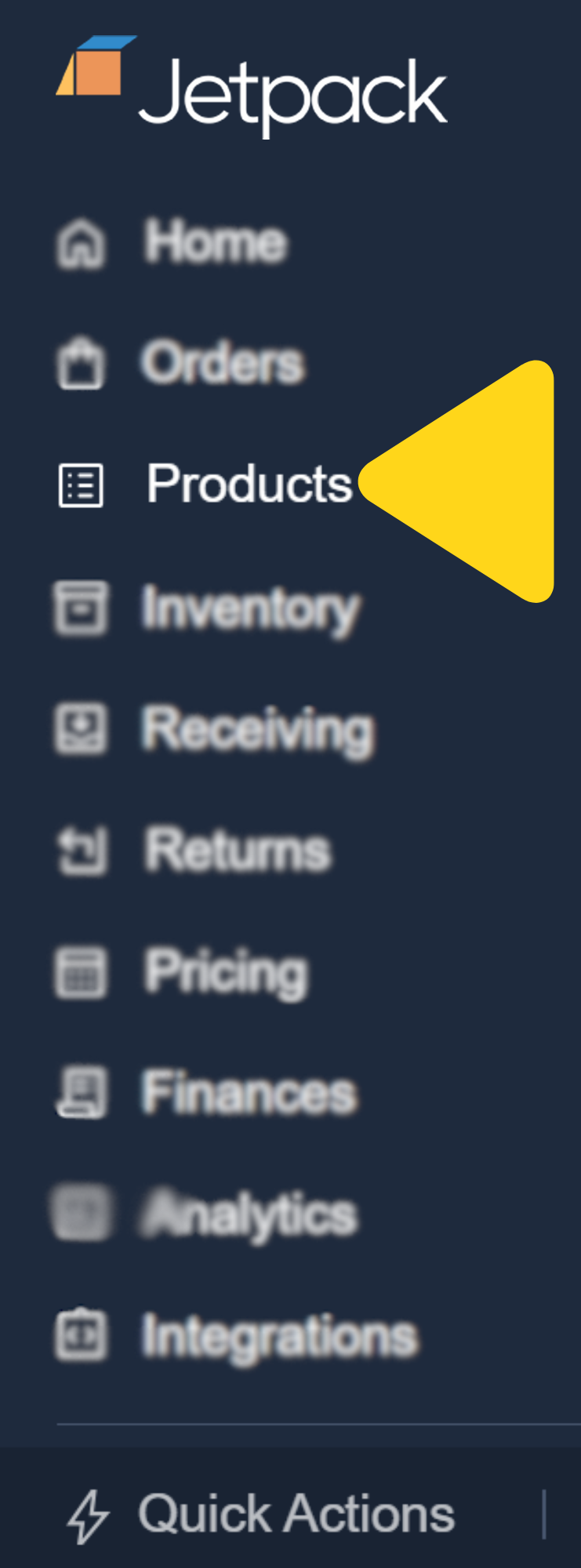
From the Jetpack dashboard, click **Products** on the left-hand side. You will be redirected to the Product Catalog page.
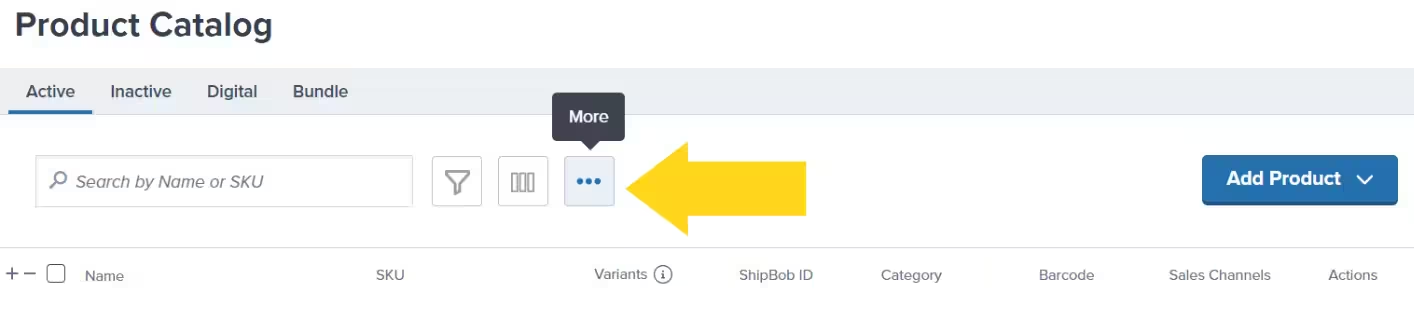
 Click the **3 horizontal dots icon** (hovering over it displays "More").
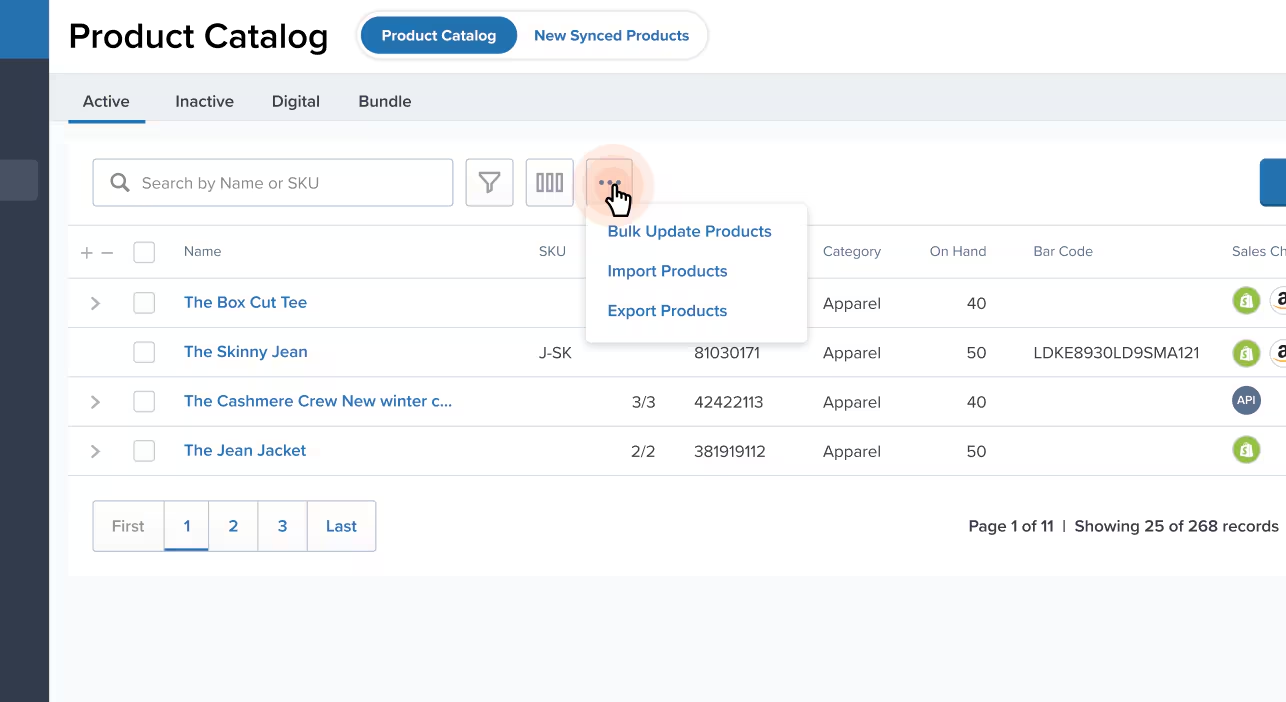
 Select **Bulk Update Products** from the drop-down menu. A pop-up window will appear.
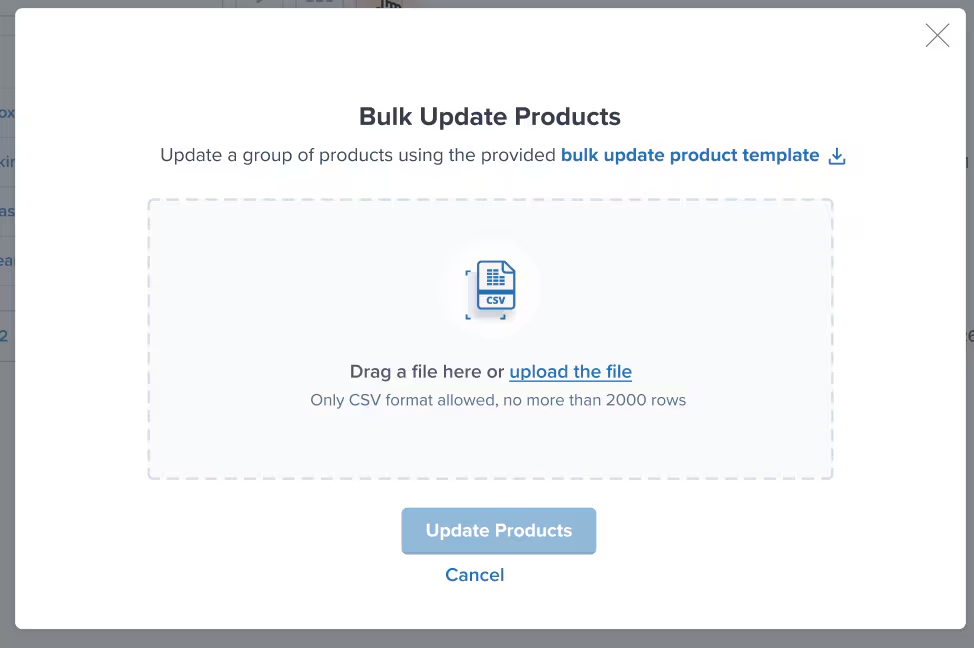
 Click the **bulk update product template** hyperlink.
If you already have a saved template, you can drag and drop the file within the dotted lines or click the **click here to browse** hyperlink to skip to step 9.
Click the **bulk update product template** hyperlink.
If you already have a saved template, you can drag and drop the file within the dotted lines or click the **click here to browse** hyperlink to skip to step 9.
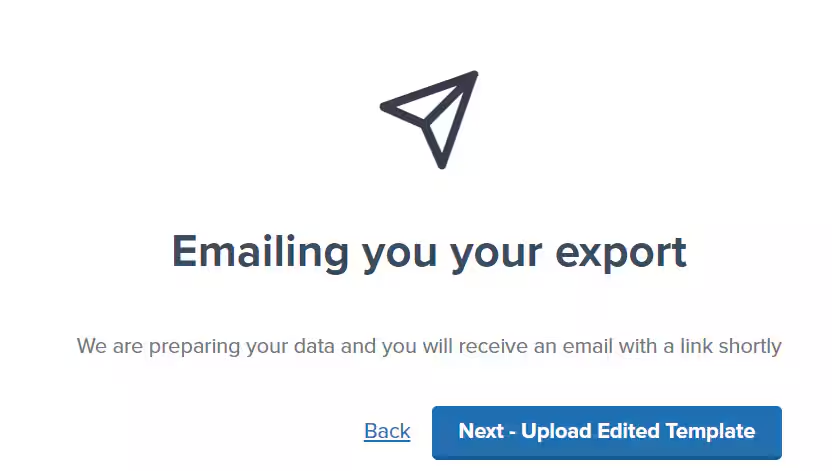
 Jetpack will send an email with a downloadable CSV template.
Locate the email and click **Download bulk update template**.
Jetpack will send an email with a downloadable CSV template.
Locate the email and click **Download bulk update template**.
 Open the downloaded CSV file to edit the template.
[Click here to review guidelines for fields and their valid inputs](/fulfillment/managing-products/more-tools/product-details-template-guidelines).
Save the edited file as a **.csv**.
Excel may default to .xlsx format. You must save as .csv (Comma Separated Values) for the upload to work properly.
Return to your Jetpack dashboard and reopen the Bulk Update Products dialog (repeat steps 1-3 if needed).
Drag and drop the updated CSV file within the dotted lines, or click the **click here to browse** hyperlink to locate and select your file.
Click **Import Products**. A success message will appear if all products are updated successfully. You will also receive an email summarizing the bulk update.
***
## Handling Update Failures
If any products fail to update, you'll receive an email detailing the reasons for failure. Resolve these issues, update your CSV file, and re-upload.
If you cannot resolve the errors, email Jetpack Care and provide a copy of the CSV file.
***
## Let's Dive Deeper
Complete field reference guide for Excel templates
Bulk import new products via Excel
Organize and filter products with saved views
Individual product configuration options
Navigate and manage your product catalog
Bulk create variants with Excel templates
Open the downloaded CSV file to edit the template.
[Click here to review guidelines for fields and their valid inputs](/fulfillment/managing-products/more-tools/product-details-template-guidelines).
Save the edited file as a **.csv**.
Excel may default to .xlsx format. You must save as .csv (Comma Separated Values) for the upload to work properly.
Return to your Jetpack dashboard and reopen the Bulk Update Products dialog (repeat steps 1-3 if needed).
Drag and drop the updated CSV file within the dotted lines, or click the **click here to browse** hyperlink to locate and select your file.
Click **Import Products**. A success message will appear if all products are updated successfully. You will also receive an email summarizing the bulk update.
***
## Handling Update Failures
If any products fail to update, you'll receive an email detailing the reasons for failure. Resolve these issues, update your CSV file, and re-upload.
If you cannot resolve the errors, email Jetpack Care and provide a copy of the CSV file.
***
## Let's Dive Deeper
Complete field reference guide for Excel templates
Bulk import new products via Excel
Organize and filter products with saved views
Individual product configuration options
Navigate and manage your product catalog
Bulk create variants with Excel templates

Questions? Contact Jetpack Care.
If you have any questions or run into issues, you can always contact Jetpack Care for help. Our team is always here to assist via Slack, phone, or email!