> ## Documentation Index
> Fetch the complete documentation index at: https://help.jetpack3pl.com/llms.txt
> Use this file to discover all available pages before exploring further.
# Inventory Status Page
> Monitor and manage your inventory levels with detailed views of units on hand, committed inventory, lot tracking, and more across all fulfillment centers.
The Inventory Status page is your command center for tracking inventory data across all fulfillment centers. View real-time information about units on hand, committed inventory, incoming shipments, lot numbers, expiration dates, and more—all organized by location or status to give you the visibility you need to manage your stock efficiently.
## Accessing the Inventory Status Page
The page opens with two main views—Location View and Status View—each offering different ways to organize and analyze your inventory data.
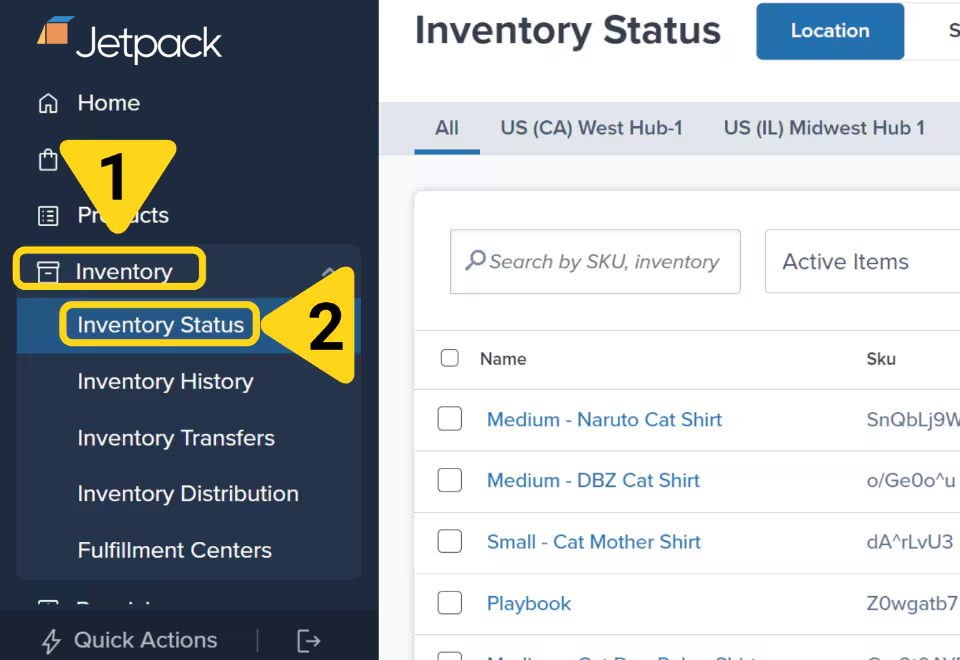
From your Jetpack dashboard, click **Inventory** on the left-hand navigation bar. Additional menu options will appear.
Click **Inventory Status** from the drop-down menu.
 ***
## Location View
The Location View organizes your inventory by fulfillment center, making it easy to see what's available at each location.
Use the tabs at the top of the page to view data for each fulfillment center individually, or select the **All** tab to see aggregated data across all centers. The available fulfillment centers are determined by the locations you have access to.
***
## Location View
The Location View organizes your inventory by fulfillment center, making it easy to see what's available at each location.
Use the tabs at the top of the page to view data for each fulfillment center individually, or select the **All** tab to see aggregated data across all centers. The available fulfillment centers are determined by the locations you have access to.
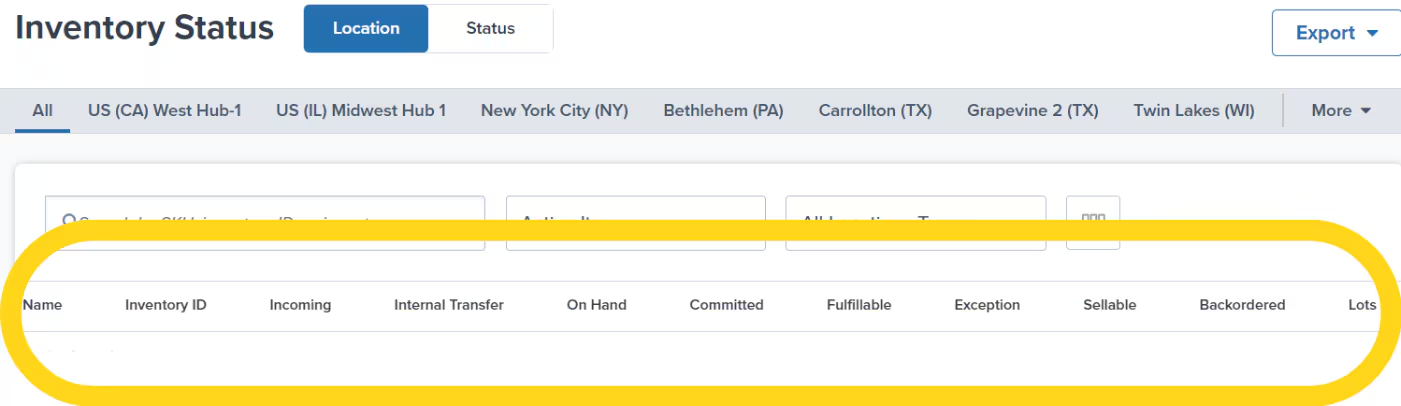 ### Columns in Location View
| Column | Description |
| --------------------- | --------------------------------------------------------------------------------------------------------------------------------------------------------------------------------------------------------------------------------------------------------------------------------------------------------------------------------------------------------------------------- |
| **Name** | Product name as listed on the product details page |
| **Inventory ID** | Unique identifier generated by Jetpack |
| **Incoming** |
### Columns in Location View
| Column | Description |
| --------------------- | --------------------------------------------------------------------------------------------------------------------------------------------------------------------------------------------------------------------------------------------------------------------------------------------------------------------------------------------------------------------------- |
| **Name** | Product name as listed on the product details page |
| **Inventory ID** | Unique identifier generated by Jetpack |
| **Incoming** | - Total units awaiting replenishment from inbound WROs
- Units appear here once a WRO's status is set to **Awaiting Arrival** (draft WROs are not shown)
|
| **Internal Transfer** | - Units in transit to other Jetpack hubs or fulfillment centers
- These units aren't available for orders until received and moved to **On Hand**
- **Note:** Units in this status can be sold on Shopify stores by enabling the selling of Internal Transfer inventory under Inventory Settings in your Shopify integration settings
|
| **On Hand** | - Total available units (includes units assigned to orders but not yet picked)
- Units will be deducted from the **On Hand** status once Jetpack's Operations team has picked them within the fulfillment center
- Internal or external transit quantities are excluded from **On Hand** calculations
|
| **Committed** | Units assigned to orders but not yet picked |
| **Fulfillable** | Calculated as: **On Hand – Committed** |
| **Exception** | Units that are part of orders in the **Exception** status (e.g., due to insufficient inventory) |
| **Sellable** | - The inventory that can be sold through your integrated sales channels
- Calculated as: **Sellable Quantity = Fulfillable - Exception**
|
| **Backordered** | - The difference between required units (from Exception status) and those available in Fulfillable
- Calculated as: **Backordered Quantity = Exception - Fulfillable**
|
| **Lots** | - Displays lot numbers and, upon clicking **View**, shows lot expiration dates and units on hand per lot
- A lot number is a unique ID number assigned to a particular quantity of material from a single manufacturer that enables tracing of the constituent parts or ingredients, labor, and equipment records involved in manufacturing a product
|
| **SKU** | The product SKU as seen on the product details page |
***
## Status View
The Status View displays your inventory based on the current status of the units, making it easy to see how much inventory is in each stage across all locations.
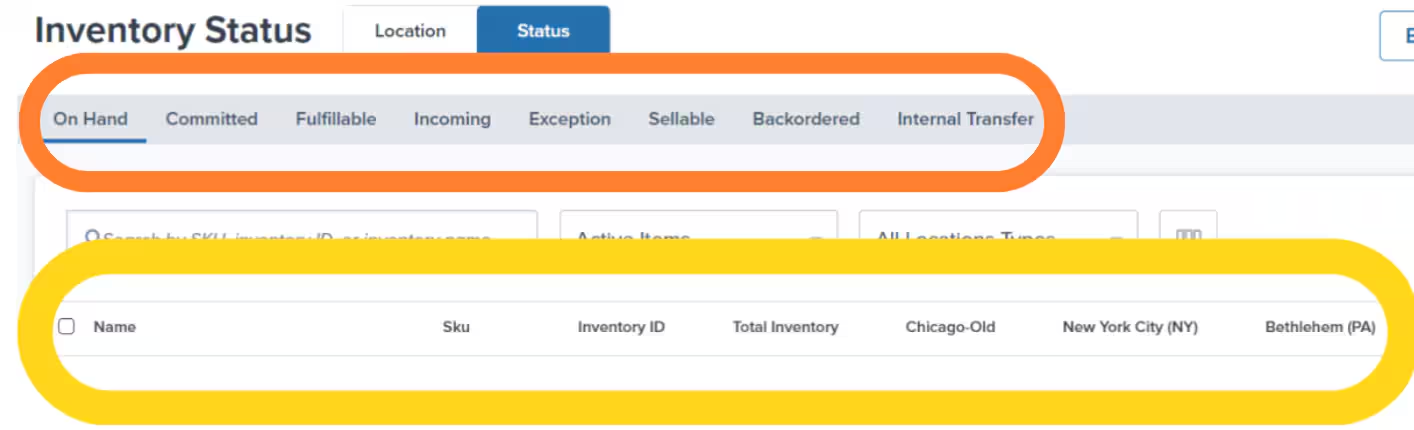 ### Columns in Status View
| Column | Description |
| ------------------------------------------------------------------------------------- | ----------------------------------------------------------------------------------------------------------------------------------------------------------------------- |
| **Name, SKU, Inventory ID** | Same definitions as in the Location View |
| **Total Inventory** | Sum of units across all fulfillment centers based on the selected status |
| **On Hand, Committed, Fulfillable, Exception, Sellable, Incoming, Internal Transfer** | Same definitions as in the Location View |
| **Fulfillment Center(s)** |
### Columns in Status View
| Column | Description |
| ------------------------------------------------------------------------------------- | ----------------------------------------------------------------------------------------------------------------------------------------------------------------------- |
| **Name, SKU, Inventory ID** | Same definitions as in the Location View |
| **Total Inventory** | Sum of units across all fulfillment centers based on the selected status |
| **On Hand, Committed, Fulfillable, Exception, Sellable, Incoming, Internal Transfer** | Same definitions as in the Location View |
| **Fulfillment Center(s)** | - Each fulfillment center you have access to
- The quantity displayed under each fulfillment center column will depend on the Status tab selected
|
***
## Customizing Columns on the Inventory Status Page
You can customize which columns appear in the Location View to focus on the data points most relevant to your needs.
In the Status View, all columns are selected by default and cannot be removed.
Click the **column icon** in the Location View. A pop-up will appear on the right side of the screen.
Check or uncheck boxes to show or hide data points such as Name, SKU, Inventory ID, On Hand, Committed, and other inventory metrics.
Use the **drag-and-drop icon** next to each column name to rearrange the order of the columns as needed.
Click **Apply** to save your settings. The Location View will update to reflect your column preferences.
***
## Additional Filters
Use filters to narrow down the inventory data based on where your inventory is stored or its status.
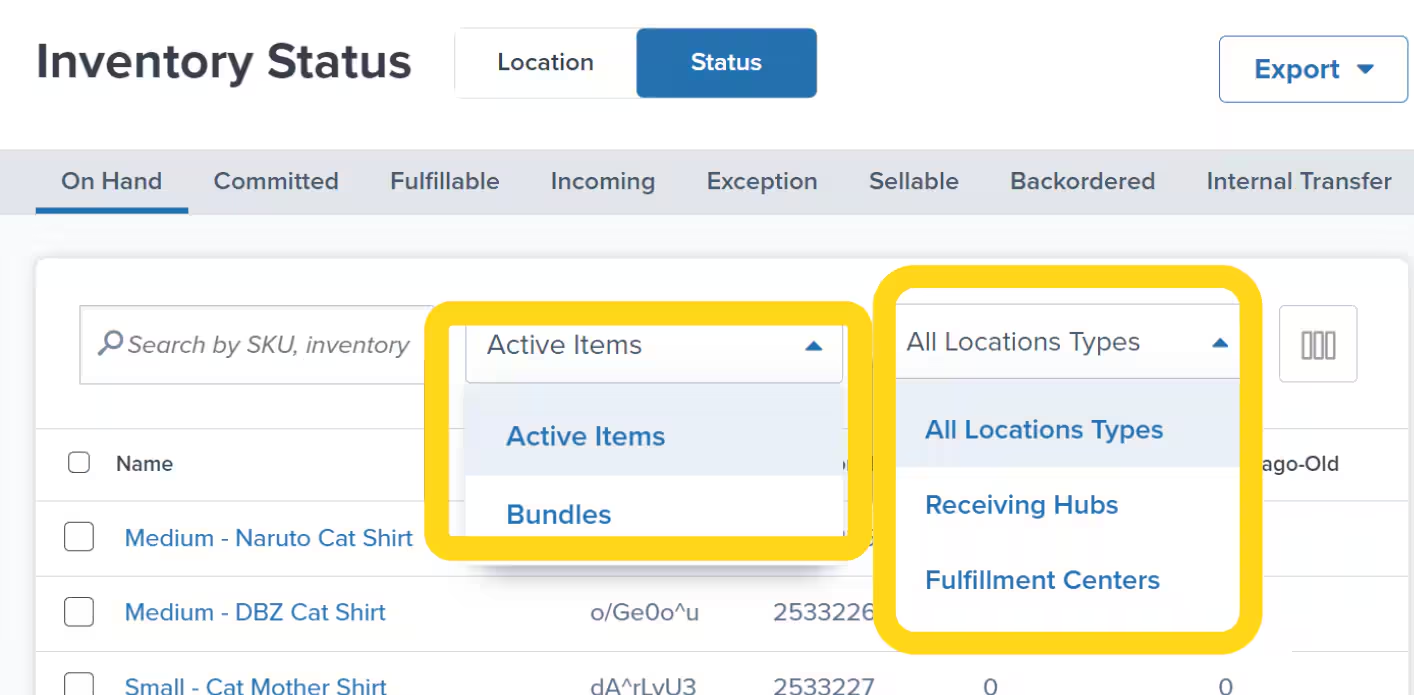
You can filter each view under the Inventory Status page by:
* Whether the product is **Active** or a **Bundle**, and/or
* The location type in which the inventory is currently stored (this includes all location types, hubs, or fulfillment centers)
 ***
## Downloading the Inventory Status Page Data
Export your inventory data for analysis, record-keeping, or sharing with your team.
Click the green **Actions** button on the Inventory Status page. Additional menu options will appear.
Select your export option:
* **Export All Data** - Exports quantities across all statuses
* **Export On Hand Summary** - Exports only On Hand units by fulfillment center
In the pop-up window, choose which data to export:
* **Current Selection** - Only selected rows
* **Current Page** - All items on the current page
* **All Pages** - All inventory items across all pages
Click **Export** to submit your request. A success message will appear confirming that the report will be emailed to your account.
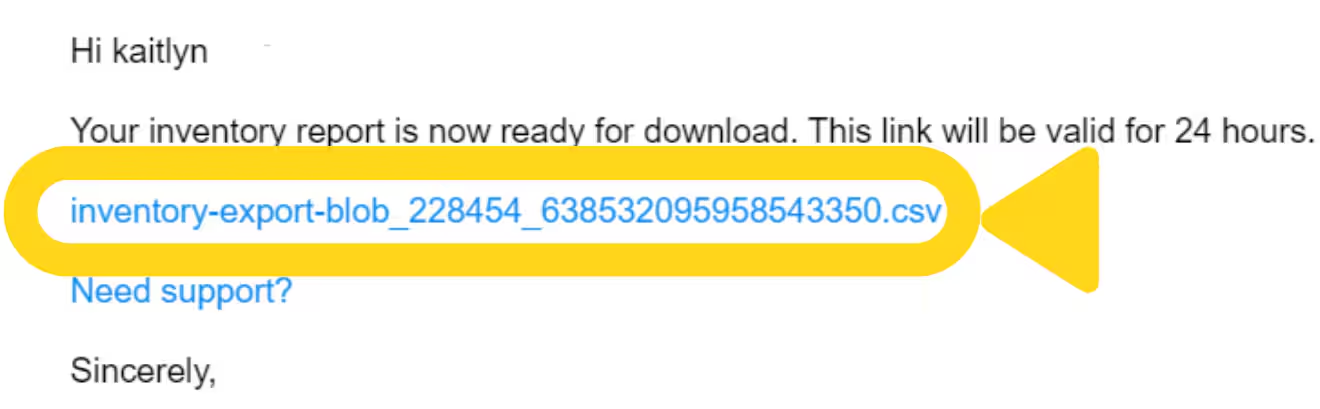
Check your email for the inventory report. The email will contain a download link valid for 24 hours.
***
## Downloading the Inventory Status Page Data
Export your inventory data for analysis, record-keeping, or sharing with your team.
Click the green **Actions** button on the Inventory Status page. Additional menu options will appear.
Select your export option:
* **Export All Data** - Exports quantities across all statuses
* **Export On Hand Summary** - Exports only On Hand units by fulfillment center
In the pop-up window, choose which data to export:
* **Current Selection** - Only selected rows
* **Current Page** - All items on the current page
* **All Pages** - All inventory items across all pages
Click **Export** to submit your request. A success message will appear confirming that the report will be emailed to your account.
Check your email for the inventory report. The email will contain a download link valid for 24 hours.
 The report delivery time may vary depending on the amount of data. Check your spam folder if you don't receive the email within an hour. For additional questions or assistance, please use Slack or email.
***
## Let's Dive Deeper
Back to the main inventory management guide with all tools and features
Track and audit all inventory adjustments with detailed records
Move inventory between fulfillment centers or to external facilities
Analyze customer locations and optimize inventory placement
Learn about intelligent inventory distribution across locations
Send inventory to Jetpack fulfillment centers
The report delivery time may vary depending on the amount of data. Check your spam folder if you don't receive the email within an hour. For additional questions or assistance, please use Slack or email.
***
## Let's Dive Deeper
Back to the main inventory management guide with all tools and features
Track and audit all inventory adjustments with detailed records
Move inventory between fulfillment centers or to external facilities
Analyze customer locations and optimize inventory placement
Learn about intelligent inventory distribution across locations
Send inventory to Jetpack fulfillment centers

Questions? Contact Jetpack Care.
If you have any questions or run into issues, you can always contact Jetpack Care for help. Our team is always here to assist via Slack, phone, or email!