> ## Documentation Index
> Fetch the complete documentation index at: https://help.jetpack3pl.com/llms.txt
> Use this file to discover all available pages before exploring further.

# Inventory Distribution Page

> View customer locations and estimate savings to optimize inventory placement across US fulfillment centers.

<div className="page-intro">
  The Inventory Distribution page provides powerful insights into where your customers are located and estimates potential savings from distributing your inventory strategically. This visual analysis helps you make informed decisions about how to split your inventory across Jetpack's US fulfillment centers for reduced fulfillment costs and faster transit times.
</div>

## Inventory Distribution Page Overview

The Inventory Distribution page shows you geographic patterns in your customer orders and calculates estimated savings from optimal inventory placement. This data-driven approach helps you determine the best way to distribute your inventory across Jetpack's US fulfillment centers.

<Info title="Important Note About Cost Estimates">
  The savings estimates shown on this page do not account for storage or inventory transfer costs. For complete storage cost information, see [Billing and Invoicing](/fulfillment/billing-invoicing).
</Info>

### Eligibility Requirements

| Requirement              | Details                                                                                       |
| ------------------------ | --------------------------------------------------------------------------------------------- |
| **Minimum Order Volume** | A minimum of 40 B2C orders per month is required for data generation                          |
| **Order Types Included** | Only domestic B2C orders shipped within the contiguous United States                          |
| **Order Types Excluded** | <ul><li>Alaska and Hawaii shipments</li><li>International orders</li><li>B2B orders</li></ul> |

***

## Understanding the Data Visualization

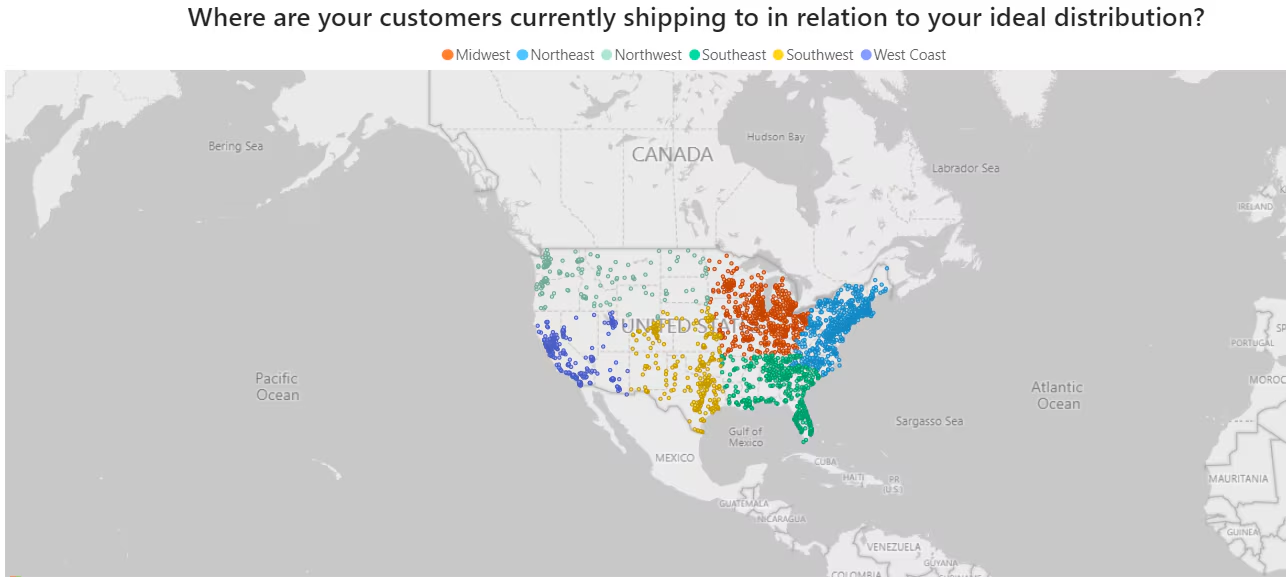
The Inventory Distribution page displays your order destinations as an interactive map. Each dot on the map represents a single order's shipping destination within your selected timeframe.

### How to Read the Map

| Element                 | What It Shows                                                                               |
| ----------------------- | ------------------------------------------------------------------------------------------- |
| **Dots**                | Each dot represents one order's shipping destination                                        |
| **Dot Colors**          | Colors indicate the regions of these destinations, corresponding to your selected timeframe |
| **Timeframe Selection** | Choose from Last 3, 6, 9, or 12 months to analyze different periods                         |

The geographic distribution of dots helps you visualize where your customers are concentrated, making it easier to identify which fulfillment center regions would serve them most efficiently.

<img src="https://mintcdn.com/jetpack/pHoLPX-YG9VNMl_V/images/managing-inventory/inventory-distribution-map.png?fit=max&auto=format&n=pHoLPX-YG9VNMl_V&q=85&s=528faa5376a30e6bd6855327677b999d" alt="Map visualization showing customer order destinations across US regions with color-coded dots" className="screenshot" width="1286" height="577" data-path="images/managing-inventory/inventory-distribution-map.png" />

***

## Accessing the Inventory Distribution Page

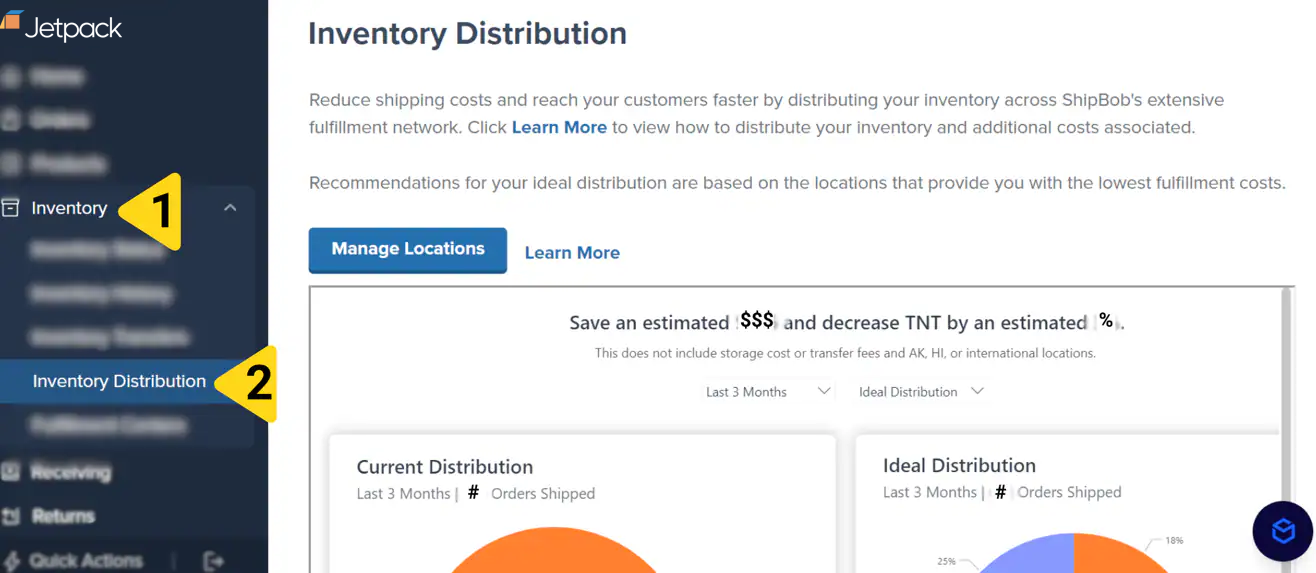
To access the Inventory Distribution page from your Jetpack dashboard:
<Steps>
  <Step title="Navigate to Inventory">
    Click **Inventory** on the left-hand navigation bar.
  </Step>

  <Step title="Open Inventory Distribution">
    From the expanded menu, select **Inventory Distribution**.

    <img src="https://mintcdn.com/jetpack/pHoLPX-YG9VNMl_V/images/managing-inventory/inventory-distribution-navigation.png?fit=max&auto=format&n=pHoLPX-YG9VNMl_V&q=85&s=e49b6ebcd1ef2d9fa3856d64be34f836" alt="Jetpack dashboard showing Inventory menu expanded with Inventory Distribution highlighted" className="screenshot" width="1316" height="573" data-path="images/managing-inventory/inventory-distribution-navigation.png" />
  </Step>
</Steps>

The page will load with your default timeframe view, showing your order destination map and distribution analysis.

***

## Reviewing Your Current vs. Ideal Distribution

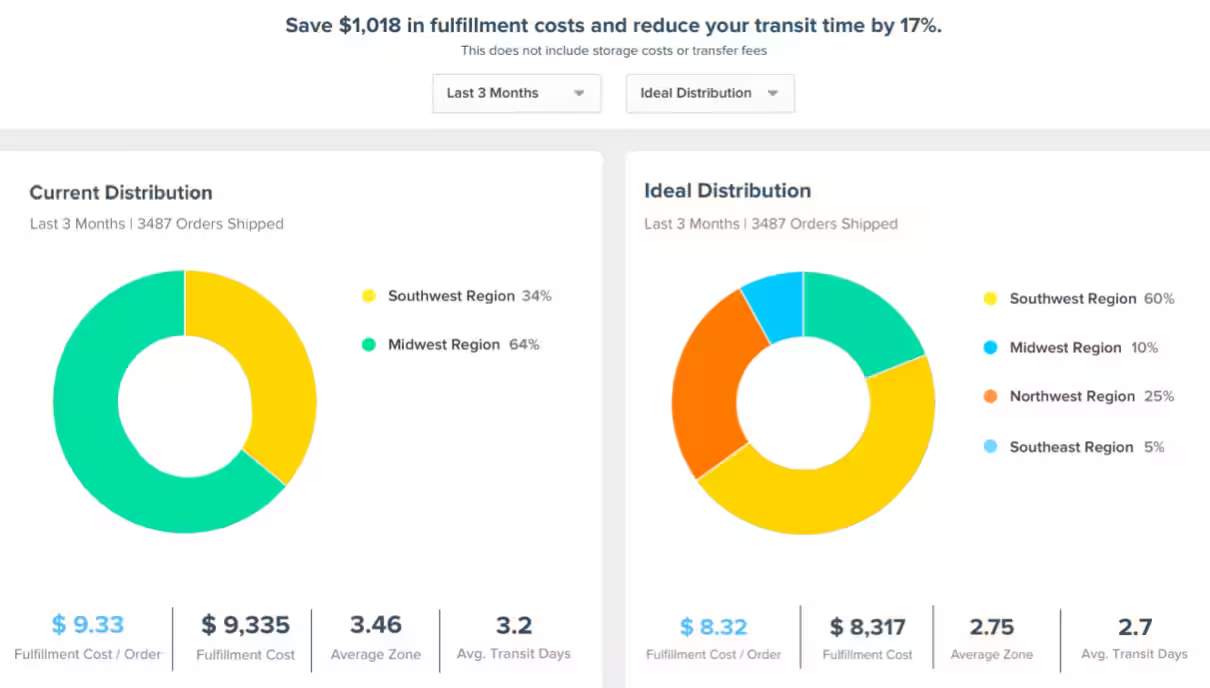
The Inventory Distribution page allows you to compare your current inventory placement against alternative configurations optimized for cost and speed.

### Distribution Types

| Distribution View        | Description                                                                                          |
| ------------------------ | ---------------------------------------------------------------------------------------------------- |
| **Current Distribution** | Displays your existing inventory placement based on recent domestic B2C orders                       |
| **Ideal Distribution**   | Offers alternate configurations based on Jetpack's US fulfillment center regions                     |
| **Best Regions Options** | Shows optimized configurations from Best 5 Regions down to Best 1 Region for your selected timeframe |

You can analyze each distribution option for the Last 3 Months, Last 6 Months, Last 9 Months, or Last 12 Months to understand how different timeframes affect the recommendations.

### Data Insights Available

The page provides several key metrics to help you evaluate distribution options:

<ul>
  <li><strong>Estimated Savings in Fulfillment Costs</strong> - Projected cost reductions from optimized inventory placement</li>
  <li><strong>Estimated Transit Time Reduction</strong> - Percentage reduction in shipping time (listed in business days, excluding observed holidays)</li>
  <li><strong>Total Order Count</strong> - Number of orders included in the analysis charts</li>
  <li><strong>Additional Comparative Metrics</strong> - Further data points to help evaluate your current setup versus optimal placements</li>
</ul>

<img src="https://mintcdn.com/jetpack/pHoLPX-YG9VNMl_V/images/managing-inventory/inventory-distribution-comparison.png?fit=max&auto=format&n=pHoLPX-YG9VNMl_V&q=85&s=655ec3fcdfbe6bd430c5dba8636eacc1" alt="Side-by-side comparison of Current Distribution and Ideal Distribution with pie charts showing regional percentages and cost metrics" className="screenshot" width="1210" height="688" data-path="images/managing-inventory/inventory-distribution-comparison.png" />

<Warning title="Historical Data Limitations">
  Ideal distribution information is based on your historical order data. It is not necessarily a prediction of where your future orders will come from. Use these insights in combination with your business knowledge about seasonal trends, marketing campaigns, and expansion plans.
</Warning>

***

## MultiHub IQ for Automated Distribution

Jetpack offers MultiHub IQ to automatically distribute inventory on your behalf and reduce multi-location shipments. This program handles the complexity of inventory placement for you, using demand forecasting algorithms to optimize your distribution.

Learn more about [MultiHub IQ](/fulfillment/multi-hub-iq) and how it can streamline your inventory management across multiple fulfillment centers.

By reviewing your current and ideal distributions on this page, you can better understand optimization opportunities and make strategic decisions about inventory placement across Jetpack's US fulfillment centers.

***

## Let's Dive Deeper

<CardGroup cols={3}>
  <Card title="Inventory Overview" icon="boxes-stacked" href="/fulfillment/managing-inventory">
    Back to the main inventory management guide
  </Card>

  <Card title="MultiHub IQ" icon="compass" href="/fulfillment/multi-hub-iq">
    Automated inventory distribution across fulfillment centers
  </Card>

  <Card title="Inventory Transfers" icon="truck-moving" href="/fulfillment/managing-inventory/inventory-transfers-page">
    Move inventory between fulfillment centers
  </Card>

  <Card title="Sending Inventory" icon="warehouse" href="/fulfillment/sending-inventory">
    Create WROs to replenish your inventory
  </Card>

  <Card title="Inventory History" icon="clock-rotate-left" href="/fulfillment/managing-inventory/inventory-history-page">
    Track all inventory movements and adjustments
  </Card>

  <Card title="Inventory Replenishment Report" icon="file-chart-line" href="/fulfillment/analytics-reporting/inventory-replenishment-report">
    Forecast-based replenishment recommendations
  </Card>
</CardGroup>

<div className="jetpack-callout">
  <img src="https://mintcdn.com/jetpack/2iejPNBTYKEx6ntF/images/jetpack-logomark-256.png?fit=max&auto=format&n=2iejPNBTYKEx6ntF&q=85&s=340604ced4add3864f2641341826e1c9" alt="Jetpack" className="jetpack-callout-icon" width="256" height="256" data-path="images/jetpack-logomark-256.png" />

  <div className="jetpack-callout-content">
    <h4 className="jetpack-callout-title">Questions? Contact Jetpack Care.</h4>
    <p className="jetpack-callout-text">If you have any questions or run into issues, you can always contact Jetpack Care for help. Our team is always here to assist via Slack, phone, or email!</p>
  </div>
</div>
