> ## Documentation Index
> Fetch the complete documentation index at: https://help.jetpack3pl.com/llms.txt
> Use this file to discover all available pages before exploring further.
# Donate + Dispose Inventory
> Learn how to dispose of or donate inventory through standard disposal, specialized disposal, or our nonprofit partner GiveNKind.
Jetpack can help you offload excess or unsellable inventory through disposal or donation work orders. This guide covers standard and specialized disposal methods, donations through our nonprofit partner GiveNKind, associated fees and service level agreements, and step-by-step instructions for submitting work orders in your dashboard.
## Inventory Disposal Overview
Jetpack offers flexible options to help you dispose of inventory that you no longer need. You can submit either a standard disposal request (for products that can be placed in a regular dumpster) or a specialized disposal request (for products requiring certified destruction, secure disposal, or special handling).
All inventory disposals must comply with local and federal regulations in the country where your fulfillment center is located. If you're unsure whether your products require specialized disposal, contact Jetpack Care via Slack or email.
***
## Types of Disposal Methods
The disposal method you'll need depends on your product types and your company's specific requirements. Jetpack supports four disposal options:
| Disposal Method | How It Works |
| ---------------------------------------------------------------------------------------------- | ------------------------------------------------------------------------------------------------------------------------------------------------------------------------------------------------------------------------------------------------------------------------------------------------------------------------------------- |
| **Standard Disposal Order** | Products are picked for the work order and placed in a standard dumpster.
Upon request, fulfillment centers can provide a notice confirming that goods were placed in a dumpster (this notice only states that goods were placed in the dumpster). To request this confirmation, contact Jetpack Care via Slack or email. |
| **Specialized Disposal – Certified Destruction** | A third-party disposal provider collects the goods and transfers them to an end-of-life facility. The disposal provider supplies a Certificate of Destruction (COD) to certify that the product was destroyed. |
| **Specialized Disposal – Third-Party Pickup** | A more secure disposal process where a disposal company picks up your goods and transfers them directly to a landfill (no COD provided). This option addresses concerns about inventory sitting in a dumpster. |
| **Specialized Disposal – Dangerous Goods (DG), HAZMAT, Universal Waste, & Non-Standard Goods** | Products that cannot be placed in a standard dumpster or landfill are picked up by a third party for proper disposal. |
Jetpack's Operations team differentiates between standard and specialized disposal work orders by reviewing the configuration of each product in the work order. Ensure your products are properly configured in the Jetpack dashboard (for example, products must be classified as dangerous goods or HAZMAT if applicable) so they receive the correct disposal handling.
***
## Inventory Donation Overview (US Only)
Jetpack partners with **GiveNKind**, a nonprofit organization that distributes donated goods to local 501(c)(3) organizations. If you have eligible items you'd like to donate rather than dispose of, you can submit a donation work order through your Jetpack dashboard.
**Before submitting a donation work order:**
* Obtain approval from GiveNKind confirming they can accept your products by following [their approval process](https://www.givenkind.com/)
* Ensure any dangerous goods are properly identified in the Jetpack dashboard for safe handling
***
## Non-Accommodated Requests
Jetpack cannot accommodate the following requests for disposal or donation work orders:
* Shipping orders on plastic pallets
* Modifying shipping labels
* Supporting custom labels unless a PDF attachment is provided
***
## Fees for Disposal and Donation Work Orders
Both disposal and donation work orders have associated fees that vary by country and work order type.
**Donation Work Order Fees:**
Contact Jetpack Care to review the fees associated with donation work orders.
**Disposal Work Order Fees:**
Contact Jetpack Care to review country-specific fees for disposal orders.
***
## Service Level Agreements (SLAs)
Standard disposal and donation work orders have established processing timelines to help you plan inventory removal.
Contact Jetpack Care to review the SLAs for donation and standard disposal orders.
Specialized disposal requests have variable timelines depending on the disposal type and third-party provider availability. Jetpack Care will provide estimated timelines when you request a quote for specialized disposal.
***
## Requesting Specialized Inventory Disposal
Specialized disposal requests (certified destruction, third-party pickup, or dangerous goods disposal) must be coordinated through Jetpack Care. You cannot submit specialized disposal work orders directly through the dashboard.
To request specialized disposal, contact Jetpack Care via Slack or email.
**Information to provide when requesting specialized disposal:**
* The Inventory ID of each product
* The total units to be disposed of for each product
* The fulfillment center location where the products are stored
* The type of specialized disposal you need (if you're unsure, Jetpack Care will provide a recommendation based on your products)
Once Jetpack Care receives your request, they'll provide a quote along with instructions for submitting your specialized disposal request if you approve the quote.
***
## Submitting a Standard Disposal or Donation Work Order
Follow these steps to create a standard disposal or donation work order in your Jetpack dashboard.
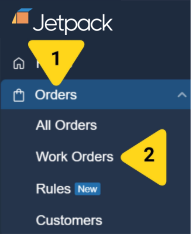
From the Jetpack dashboard, click **Orders** on the left-hand navigation bar, then select **Work Orders** from the additional menu options.
 You'll be redirected to the Select a Work Order page.
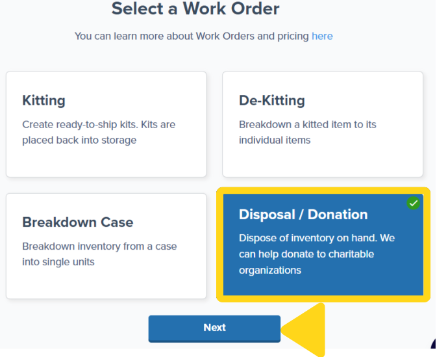
Select **Disposal/Donation**, then click **Next**.
You'll be redirected to the Select a Work Order page.
Select **Disposal/Donation**, then click **Next**.
 You'll be redirected to the disposal/donation work order submission form.
Select the radio button next to either **Disposal Request** or **Donation Request**.
You'll be redirected to the disposal/donation work order submission form.
Select the radio button next to either **Disposal Request** or **Donation Request**.
 * **Disposal Request:** Select this option to submit a standard disposal order
* **Donation Request:** Select this option if donating your inventory through GiveNKind (US only) or if you are instructed to do so by Jetpack Care
Configure your disposal or donation order:
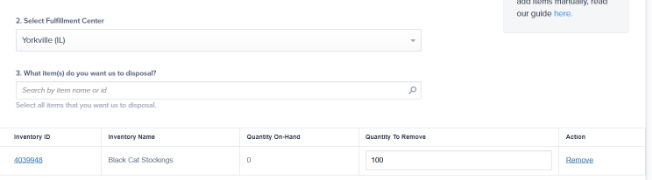
1. Select the appropriate fulfillment center from the dropdown list under **Select Fulfillment Center**
2. Add the products you wish to dispose of or donate by searching via product name or Inventory ID
3. Input the total number of units for each product in the textbox under **Quantity To Remove**
* **Disposal Request:** Select this option to submit a standard disposal order
* **Donation Request:** Select this option if donating your inventory through GiveNKind (US only) or if you are instructed to do so by Jetpack Care
Configure your disposal or donation order:
1. Select the appropriate fulfillment center from the dropdown list under **Select Fulfillment Center**
2. Add the products you wish to dispose of or donate by searching via product name or Inventory ID
3. Input the total number of units for each product in the textbox under **Quantity To Remove**
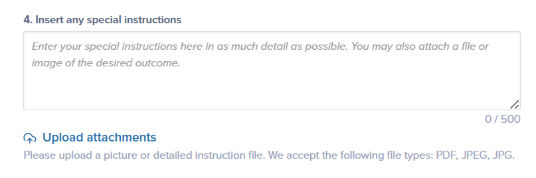
 If you're submitting a donation work order, provide any special instructions and upload attachments if needed.
 Click **Submit Request** to complete your work order.
You'll be redirected to the work order details page, where you can monitor the status of your disposal or donation request.
***
## Let's Dive Deeper
Back to the main inventory management guide
Monitor your inventory levels across fulfillment centers
Move inventory between fulfillment centers
View and manage all work order types
Combine or prepare inventory with work orders
Learn about specialized disposal requirements
Click **Submit Request** to complete your work order.
You'll be redirected to the work order details page, where you can monitor the status of your disposal or donation request.
***
## Let's Dive Deeper
Back to the main inventory management guide
Monitor your inventory levels across fulfillment centers
Move inventory between fulfillment centers
View and manage all work order types
Combine or prepare inventory with work orders
Learn about specialized disposal requirements

Questions? Contact Jetpack Care.
If you have any questions or run into issues, you can always contact Jetpack Care for help. Our team is always here to assist via Slack, phone, or email!