> ## Documentation Index
> Fetch the complete documentation index at: https://help.jetpack3pl.com/llms.txt
> Use this file to discover all available pages before exploring further.
# Customize Order Documents Page
> Configure settings for gift notes and marketing inserts from the Customize Order Documents page in your Jetpack dashboard.
The Customize Order Documents page is your central hub for managing gift notes and marketing inserts. From this page, you can view the status of each feature and access additional configuration settings to personalize your order fulfillment experience.
This feature is exclusively available to merchants who meet certain eligibility criteria. To learn more about pricing and enablement, please reach out to your Jetpack Care Manager.
***
## What You Can Configure
The Customize Order Documents page allows you to configure the settings for gift notes and marketing inserts. From this page, you can see whether each feature is Active or Inactive and navigate to their respective management pages for detailed configuration.
By default, gift notes and marketing inserts are disabled. You'll need to enable and configure these features if you want to use them for your orders.
***
## Access Custom Document Settings
Follow these steps to access the Customize Order Documents page:
From the Jetpack dashboard, click **Settings** on the left-hand navigation bar. Additional menu options will appear.
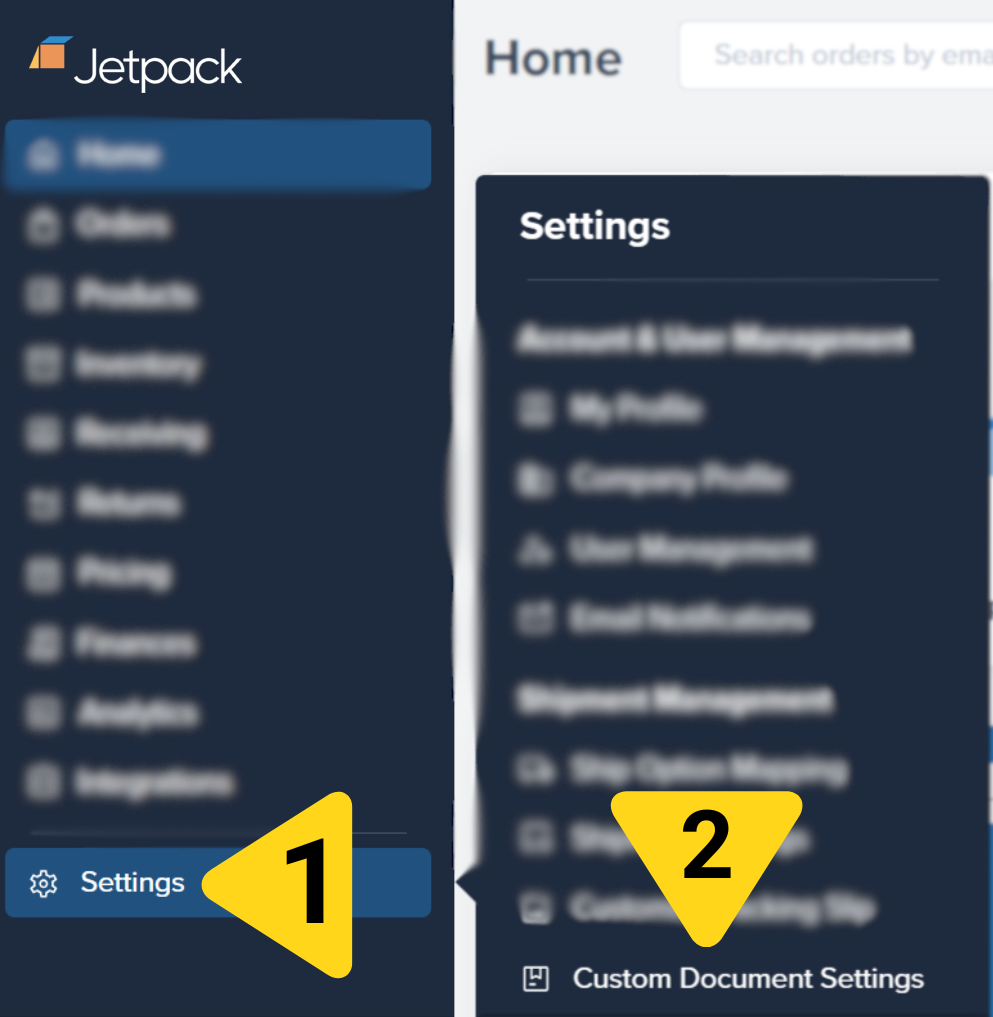 Select **Custom Documents Settings** from the menu. You will be redirected to the Customize Order Documents page.
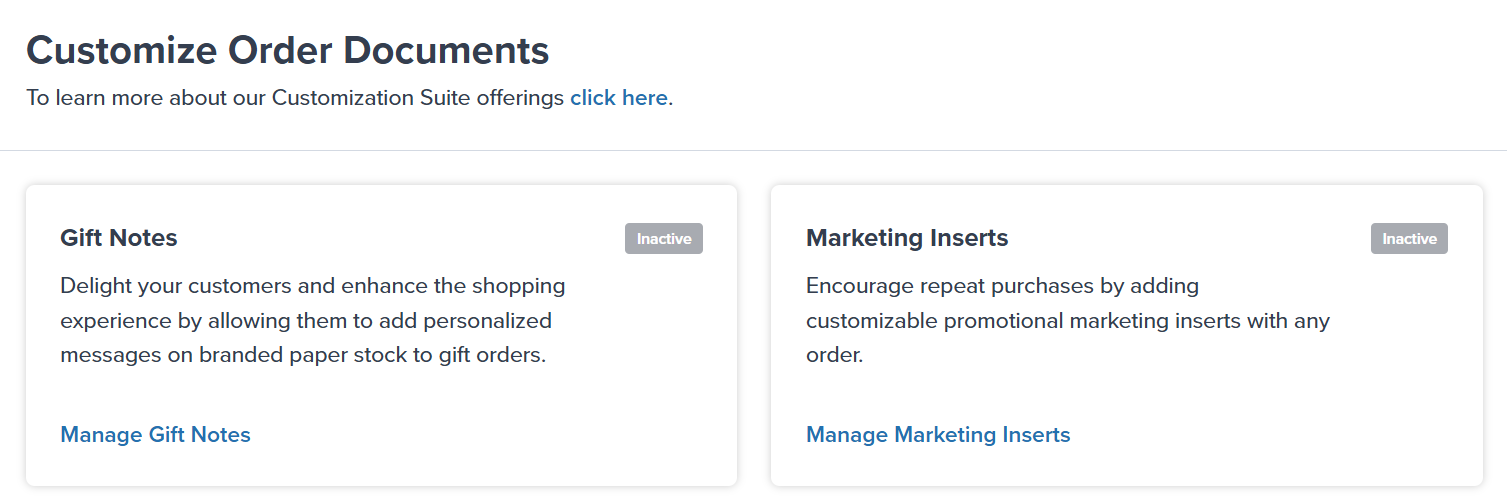 From this page, you can manage both features by clicking **Manage Gift Notes** or **Manage Marketing Inserts** to access their respective configuration pages.
***
## Let's Dive Deeper
Back to the main labels and packaging guide
Learn how to add personalized gift notes to orders
Include branded marketing materials with shipments
Personalize sender information on shipping labels
Configure standard, SIOC, or custom packaging types
Send custom packaging materials to fulfillment centers
From this page, you can manage both features by clicking **Manage Gift Notes** or **Manage Marketing Inserts** to access their respective configuration pages.
***
## Let's Dive Deeper
Back to the main labels and packaging guide
Learn how to add personalized gift notes to orders
Include branded marketing materials with shipments
Personalize sender information on shipping labels
Configure standard, SIOC, or custom packaging types
Send custom packaging materials to fulfillment centers
Questions? Contact Jetpack Care.
If you have any questions or run into issues, you can always contact Jetpack Care for help. Our team is always here to assist via Slack, phone, or email!