> ## Documentation Index
> Fetch the complete documentation index at: https://help.jetpack3pl.com/llms.txt
> Use this file to discover all available pages before exploring further.

# Custom Sender Labels

> Personalize the sender name and company name on your shipping labels at no extra cost.

<div className="page-intro">
  Jetpack allows you to customize the sender name and company name that appears on the shipping labels attached to your packages. This personalization feature is available at no extra cost and can help reinforce your brand identity with every shipment.
</div>

## Customizing the Sender Label on Your Packages

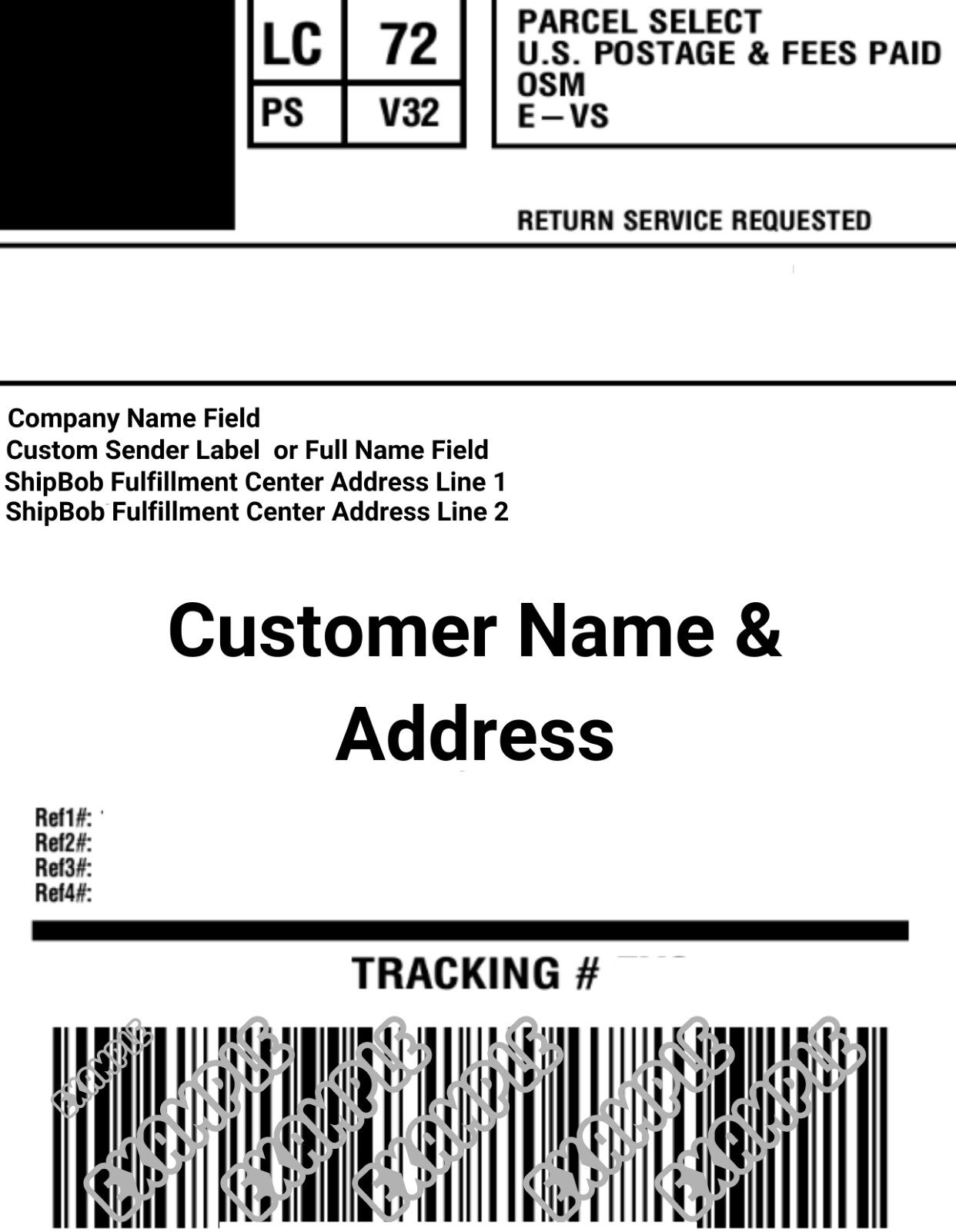
You can personalize the Sender Name and Company Name fields on the shipping label attached to your packages through the Jetpack dashboard. Simply enter your preferred names in the Custom Sender Label and Company Name fields in your [Company Profile settings](/fulfillment/account-setup/account-users/company-profile).

<img src="https://mintcdn.com/jetpack/QaTErcqvHU7lymuZ/images/labels-and-packaging/custom-sender-label-preview.png?fit=max&auto=format&n=QaTErcqvHU7lymuZ&q=85&s=209f289478220abb60594b1779a827d4" alt="Example of custom sender label on shipping label" className="screenshot" width="1242" height="1600" data-path="images/labels-and-packaging/custom-sender-label-preview.png" />

***

## Important Guidelines

When customizing your sender labels, keep the following requirements in mind:

| Guideline                      | Details                                                                                                                                                                                 |
| ------------------------------ | --------------------------------------------------------------------------------------------------------------------------------------------------------------------------------------- |
| **Return Labels**              | Return labels cannot be customized, in order to prevent issues with carrier drop-offs and ensure a smooth returns process.                                                              |
| **Fulfillment Center Support** | All Jetpack fulfillment centers support custom sender labels.                                                                                                                           |
| **Customs Compliance**         | To comply with customs regulations, the sender label must reflect your company's information.                                                                                           |
| **Default Name**               | If the Custom Sender Label field is left blank, the Account Owner's first and last name (as listed on the My Profile page) will appear under the Full Name field on the shipping label. |
| **Carrier Formatting**         | Label formatting varies by carrier, meaning the order of information and whether both fields (Full Name and Business) are required will differ.                                         |

***

## Editing Custom Sender Labels

Follow these steps to customize your sender labels in the Jetpack dashboard:

<Steps>
  <Step title="Navigate to Company Profile">
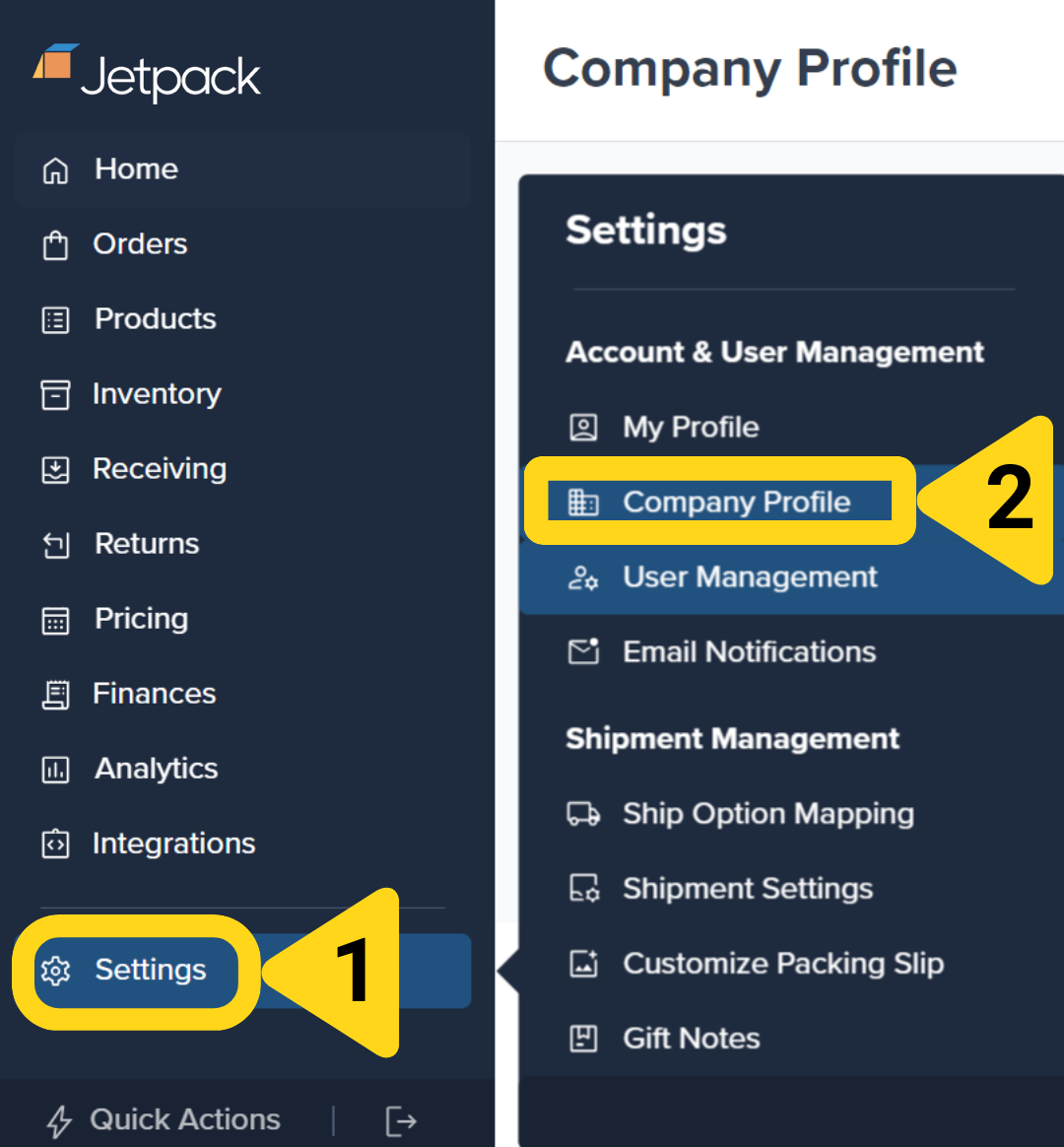
    Click **Settings** in the left-hand navigation bar, then select **Company Profile**.

    <img src="https://mintcdn.com/jetpack/pHoLPX-YG9VNMl_V/images/labels-and-packaging/custom-sender-settings-nav.png?fit=max&auto=format&n=pHoLPX-YG9VNMl_V&q=85&s=2cc934580fac7a31c39494639f53962e" alt="Settings navigation to Company Profile" className="screenshot" width="1080" height="1164" data-path="images/labels-and-packaging/custom-sender-settings-nav.png" />
  </Step>

  <Step title="Open the Company Info editor">
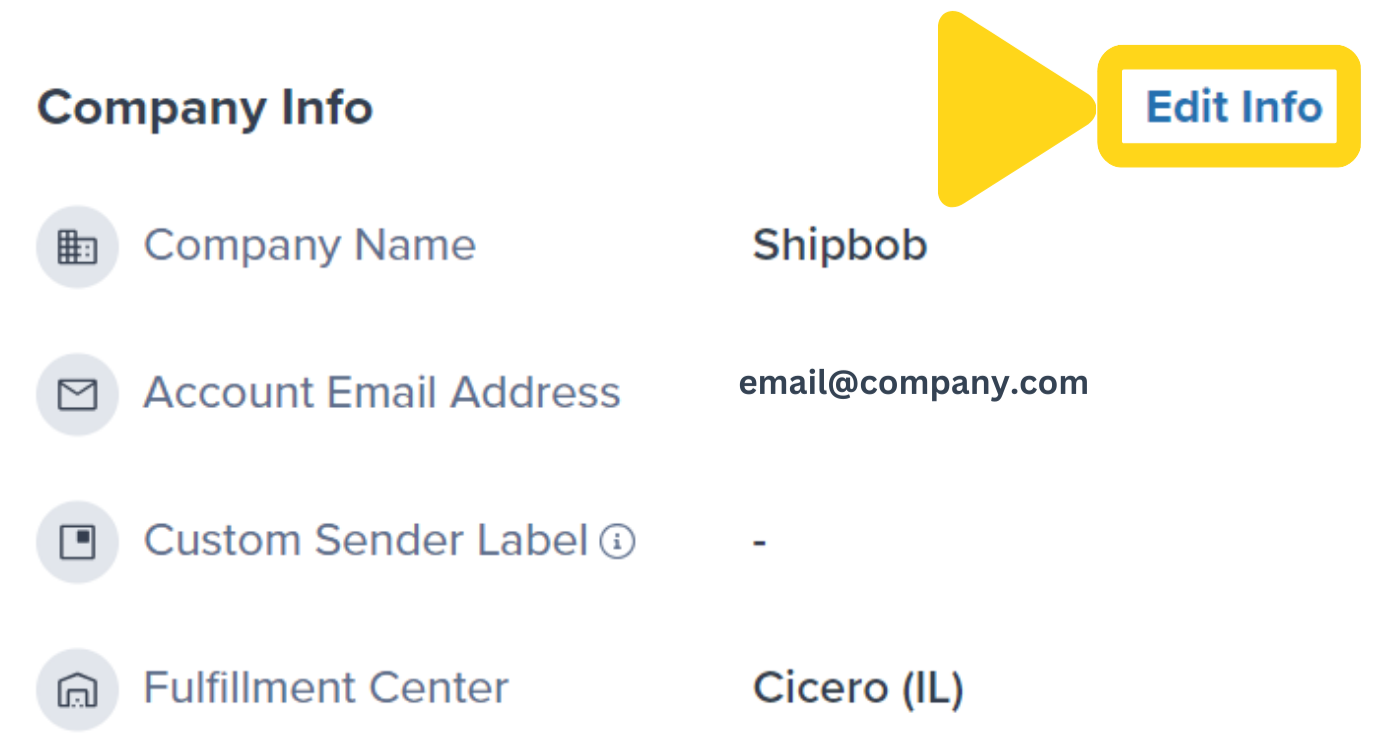
    Click **Edit Info** in the Company Info section. A panel will appear on the right side of your screen.

    <img src="https://mintcdn.com/jetpack/QaTErcqvHU7lymuZ/images/labels-and-packaging/custom-sender-edit-info.png?fit=max&auto=format&n=QaTErcqvHU7lymuZ&q=85&s=b40b1b08923cb0af8bac19a6bbc4733a" alt="Edit Info button in Company Info section" className="screenshot" width="1377" height="750" data-path="images/labels-and-packaging/custom-sender-edit-info.png" />
  </Step>

  <Step title="Enter your custom sender label and save">
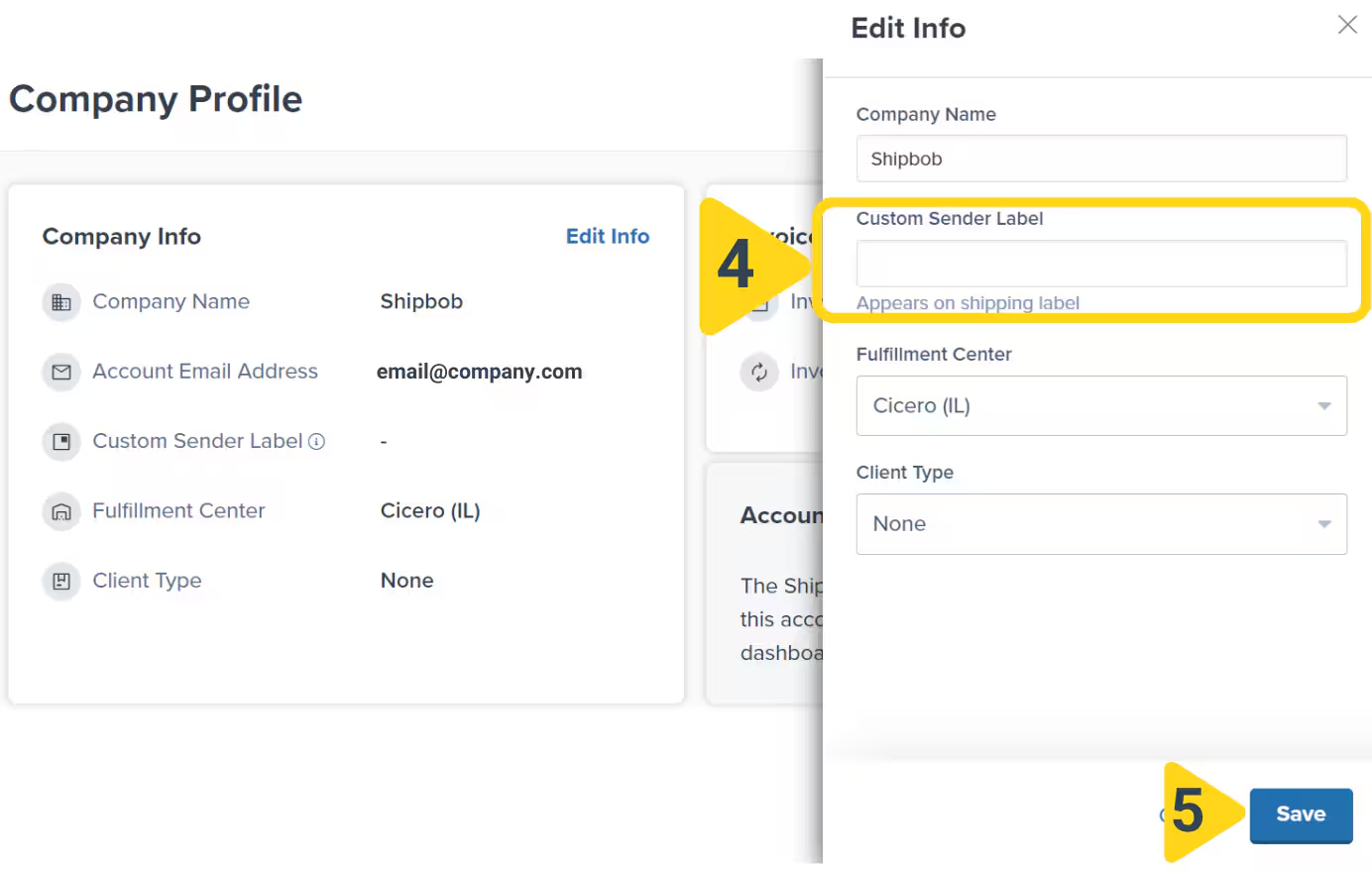
    In the Edit Info panel that appears on the right, enter your desired Company Name in the **Custom Sender Label** field. The name must be at least 5 characters and no more than 35 characters (including spaces). Special characters are not supported.

    Once you've entered your custom sender label, click the **Save** button to apply it.

    <img src="https://mintcdn.com/jetpack/QaTErcqvHU7lymuZ/images/labels-and-packaging/custom-sender-save-dialog.png?fit=max&auto=format&n=QaTErcqvHU7lymuZ&q=85&s=62e34ec57fe48e2054d56973c21cb0fc" alt="Edit Info panel showing Custom Sender Label field highlighted with character limit note and Save button" className="screenshot" width="1384" height="880" data-path="images/labels-and-packaging/custom-sender-save-dialog.png" />
  </Step>

  <Step title="Confirm the update">
    A confirmation message will appear. Once saved, the Custom Sender Label will appear on all parcel orders for your company.
  </Step>
</Steps>

***

## Let's Dive Deeper

<CardGroup cols={3}>
  <Card title="Labels and Packaging Overview" icon="layer-group" href="/fulfillment/labels-and-packaging">
    Explore all customization options
  </Card>

  <Card title="Customize Order Documents" icon="sliders" href="/fulfillment/labels-and-packaging/customize-order-documents">
    Configure settings for gift notes and marketing inserts
  </Card>

  <Card title="Gift Notes" icon="gift" href="/fulfillment/labels-and-packaging/gift-notes">
    Add personalized Standard or Premium gift notes
  </Card>

  <Card title="Marketing Inserts" icon="rectangle-ad" href="/fulfillment/labels-and-packaging/marketing-inserts">
    Print on-demand promotional materials
  </Card>

  <Card title="Packaging Preferences" icon="box" href="/fulfillment/account-setup/shipping-preferences/packaging-preferences">
    Configure packaging types
  </Card>

  <Card title="Custom Packaging" icon="boxes-stacked" href="/fulfillment/sending-inventory/best-practices/custom-packaging">
    Send custom packaging materials
  </Card>
</CardGroup>

<div className="callout-jetpack">
  <h3>Questions? Contact Jetpack Care.</h3>
  <p>If you have any questions or run into issues, you can always contact Jetpack Care for help. Our team is always here to assist via Slack, phone, or email!</p>
</div>
