> ## Documentation Index
> Fetch the complete documentation index at: https://help.jetpack3pl.com/llms.txt
> Use this file to discover all available pages before exploring further.
# Work Orders
> Request inventory-related tasks from Jetpack's Operations team using work orders for kitting, de-kitting, case breakdowns, and disposals.
Work orders are your way to request inventory-related tasks from Jetpack's Operations team. Whether you need to combine multiple SKUs into ready-to-ship kits, break down existing kits, separate case packs into individual units, or dispose of unwanted inventory, following the step-by-step instructions ensures your request is completed accurately and on time.
## Types of Work Orders
Jetpack supports four types of work orders, each designed for specific inventory tasks:
| Work Order Type | Description |
| -------------------------------------- | -------------------------------------------------------------------------------------------------- |
| **Kitting Work Orders** | Combine many SKUs into one ready-to-ship kit. Kits are returned to storage. |
| **De-Kitting Work Orders** | Break down a previously built kit into its individual items (one SKU into many SKUs). |
| **Breakdown Case Work Orders** | Break down inventory from a case into individual units (one SKU into one SKU). |
| **Disposals or Donations Work Orders** | Request the disposal of inventory on hand or the donation of products to charitable organizations. |
***
## Creating a Work Order
The best way to ensure that your work order is performed to your specifications and completed on time is to provide complete and detailed instructions.
From your Jetpack dashboard, click **Orders** on the left-hand navigation bar, then select **Work Orders** from the drop-down options.
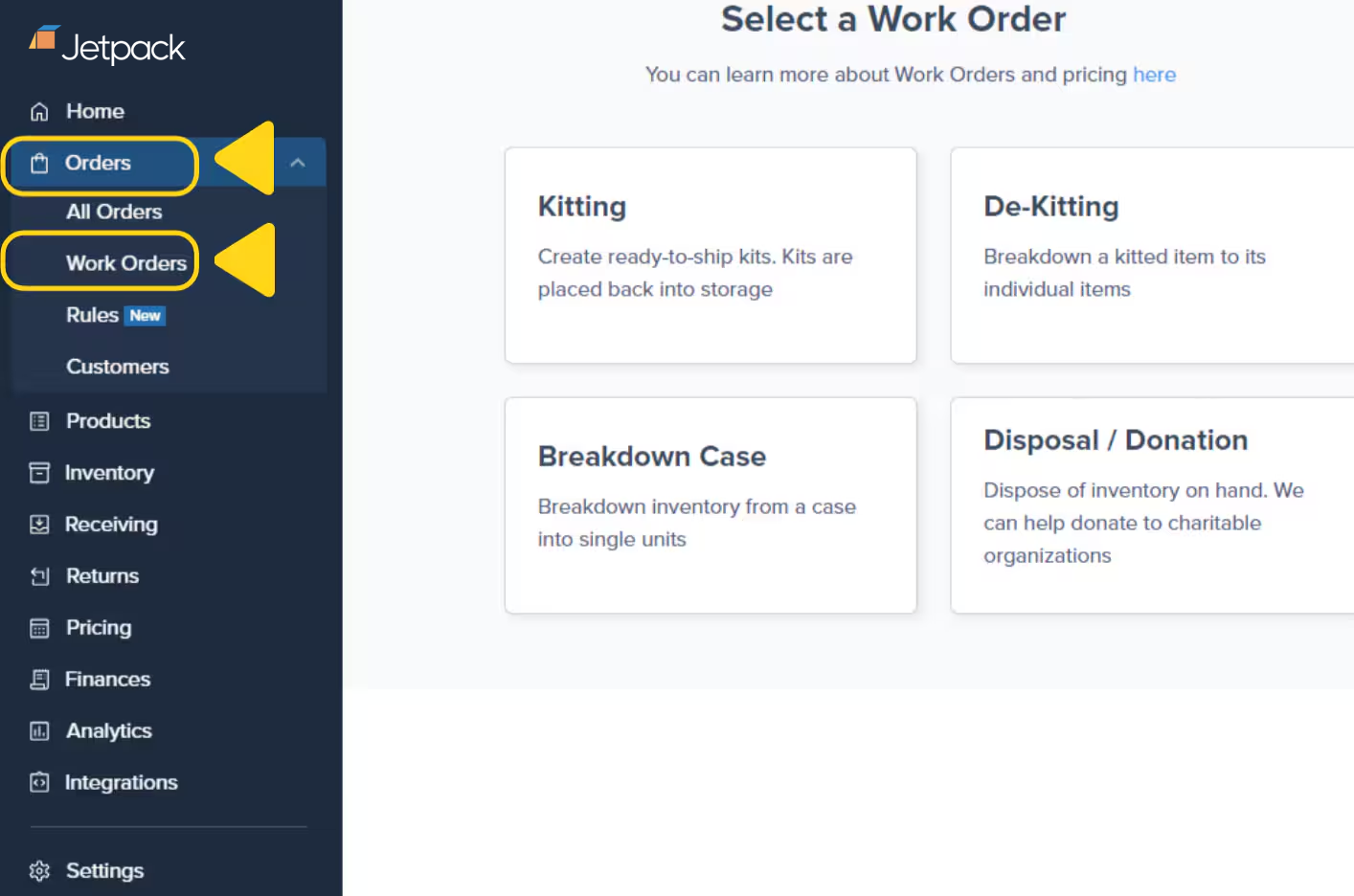 On the work order selection screen, choose the type of work order you need:
* **Kitting** - Combine multiple SKUs into one kit
* **De-Kitting** - Break down a kit into individual items
* **Breakdown Case** - Separate cases into individual units
* **Disposal/Donation** - Dispose of or donate inventory
On the work order selection screen, choose the type of work order you need:
* **Kitting** - Combine multiple SKUs into one kit
* **De-Kitting** - Break down a kit into individual items
* **Breakdown Case** - Separate cases into individual units
* **Disposal/Donation** - Dispose of or donate inventory
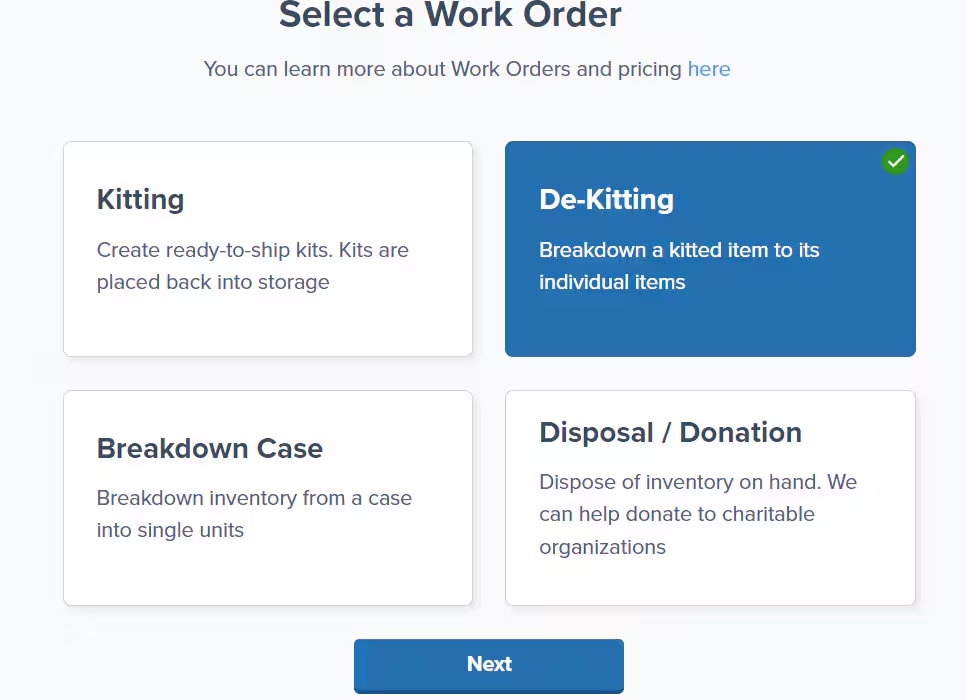 Click **Next** to continue to the work order submission form.
Complete the form with detailed instructions to ensure the task is performed to your specifications. The specific fields will vary depending on the work order type you selected:
* **Kitting** - Specify which SKUs to combine and the resulting kit SKU
* **De-Kitting** - Identify the kit SKU to break down
* **Breakdown Case** - Indicate which cases need individual unit separation
* **Disposal/Donation** - List the inventory to be disposed of or donated
Upload attachments (photos, PDFs) and add any special instructions if needed to clarify your request.
Click **Next** to continue to the work order submission form.
Complete the form with detailed instructions to ensure the task is performed to your specifications. The specific fields will vary depending on the work order type you selected:
* **Kitting** - Specify which SKUs to combine and the resulting kit SKU
* **De-Kitting** - Identify the kit SKU to break down
* **Breakdown Case** - Indicate which cases need individual unit separation
* **Disposal/Donation** - List the inventory to be disposed of or donated
Upload attachments (photos, PDFs) and add any special instructions if needed to clarify your request.
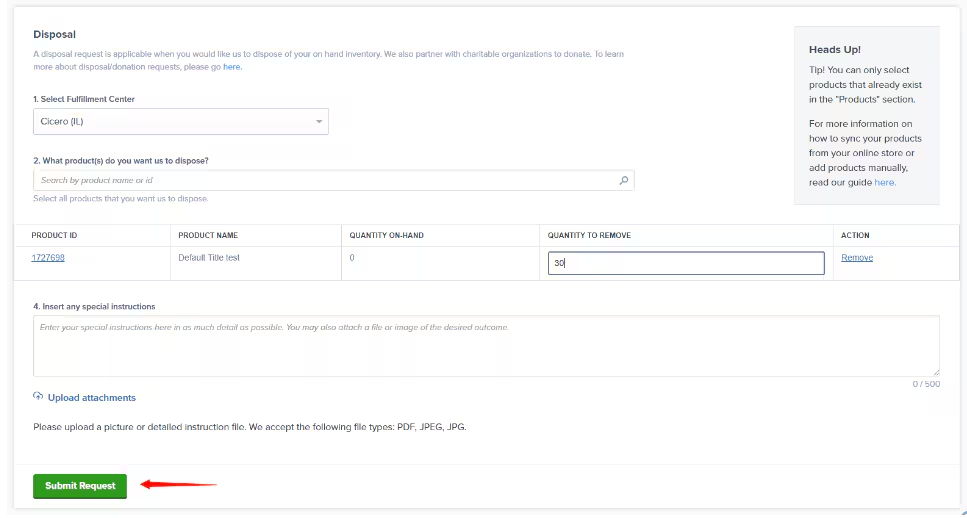 Click the **Submit Request** button to send your work order to Jetpack's Operations team.
Once submitted, an order form is automatically created. For kitting, de-kitting, and breakdown case work orders, a Warehouse Receiving Order (WRO) will also be generated. The WRO ID appears on the order details page under Special SKU Instructions.
Click the **Submit Request** button to send your work order to Jetpack's Operations team.
Once submitted, an order form is automatically created. For kitting, de-kitting, and breakdown case work orders, a Warehouse Receiving Order (WRO) will also be generated. The WRO ID appears on the order details page under Special SKU Instructions.
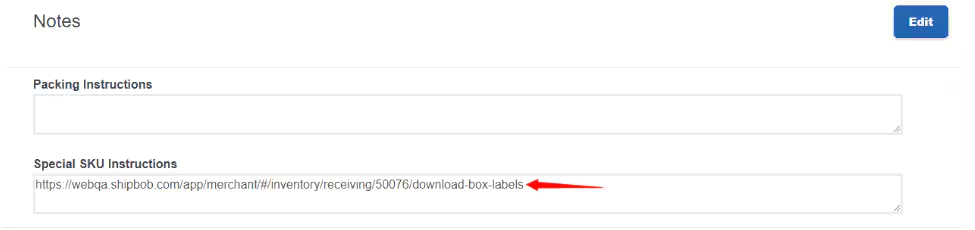 Do not copy an old work order. Each request must be filled out and submitted as a new form to ensure proper processing and WRO creation.
***
## Let's Dive Deeper
Back to the kitting and work orders overview
Detailed guide to kitting work orders
Break down kits into individual components
Separate cases into individual units
Dispose of or donate inventory
Common questions about work orders
***
Do not copy an old work order. Each request must be filled out and submitted as a new form to ensure proper processing and WRO creation.
***
## Let's Dive Deeper
Back to the kitting and work orders overview
Detailed guide to kitting work orders
Break down kits into individual components
Separate cases into individual units
Dispose of or donate inventory
Common questions about work orders
***

Questions? Contact Jetpack Care.
If you have any questions or run into issues, you can always contact Jetpack Care for help. Our team is always here to assist via Slack, phone, or email!