> ## Documentation Index
> Fetch the complete documentation index at: https://help.jetpack3pl.com/llms.txt
> Use this file to discover all available pages before exploring further.
# Kitting Orders FAQs
> Answers to frequently asked questions about kitting orders, from updating submissions to reviewing end-kitted inventory.
Kitting orders notify Jetpack on how to prepare your inventory or orders before shipping to customers. The FAQs below provide clear answers about the kitting order process, reviewing end-kitted inventory, and viewing the detailed steps of submitted kitting orders with step-by-step instructions to ensure a smooth process.
***
## Frequently Asked Questions
The kitting action you choose depends on how the items were shipped to Jetpack from you or your manufacturer.
**If the items are already packed in their cases**, but the inventory ID is designated as a single unit in the Jetpack dashboard, use the kitting action **Change item SKU to kit SKU**.
**If the items need to be packed into Jetpack standard boxes** to create the cases, use the kitting action **Place item in Jetpack packaging**.
For additional assistance, please use Slack or email.
Cancel the current kitting order and submit a new one by selecting **Copy and Edit** from the Actions menu on the order's details page.
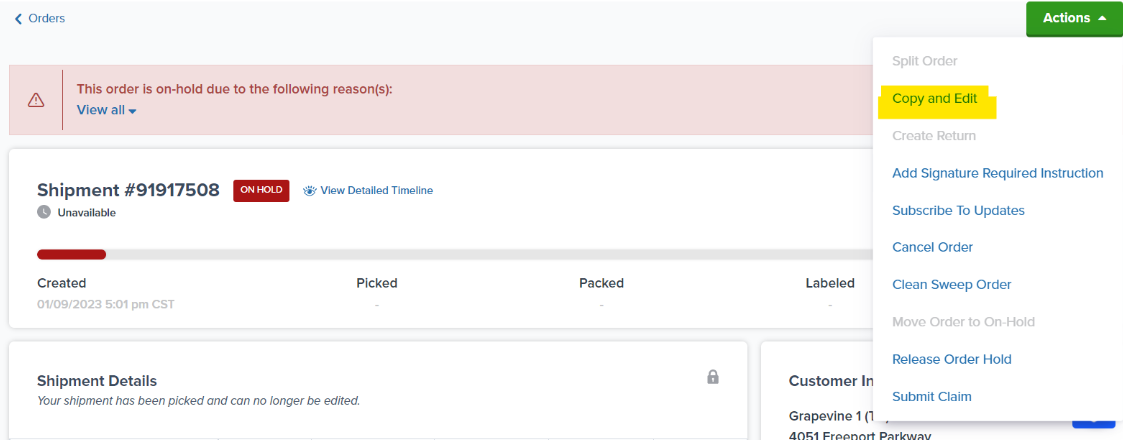 Creating a new kitting order resets the SLA based on the new submission time.
You can remove or add steps, update actions, and include additional products as necessary.
Do not update the fulfillment center during editing, as doing so will erase the order details.
Once the kitting order is completed, the order status will change from **Processing** to **Completed** in your dashboard. After completion, you can view the On Hand units for the end-kitted inventory ID on the Inventory Status page.
Navigate to your Orders page from the Jetpack dashboard.
Creating a new kitting order resets the SLA based on the new submission time.
You can remove or add steps, update actions, and include additional products as necessary.
Do not update the fulfillment center during editing, as doing so will erase the order details.
Once the kitting order is completed, the order status will change from **Processing** to **Completed** in your dashboard. After completion, you can view the On Hand units for the end-kitted inventory ID on the Inventory Status page.
Navigate to your Orders page from the Jetpack dashboard.
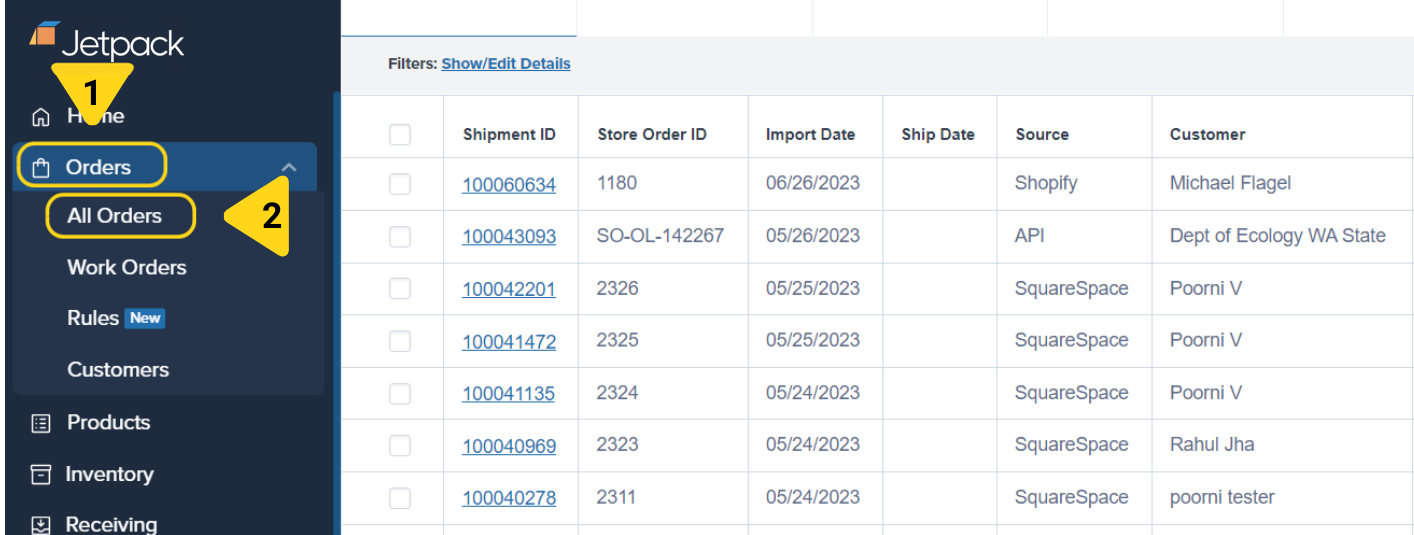 Locate your kitting order using the Source and Shipment ID columns.
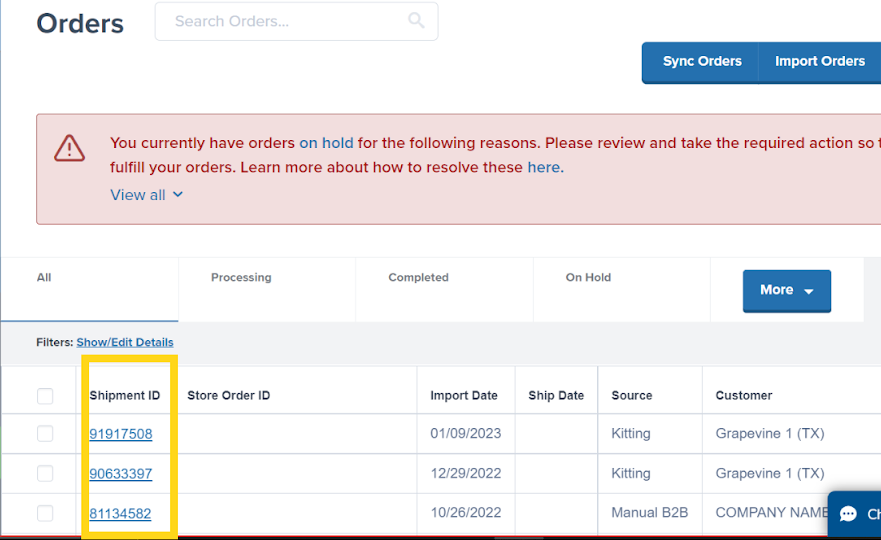 Scroll down to the Packing Instructions tile on the kitting order details page. Click on the **View Kitting Instructions** hyperlink to be redirected to a page with the selected kitting actions.
***
## Let's Dive Deeper
Learn how to create kitting orders
Back to the main kitting guide
Update and resubmit kitting orders
Learn about all work order types
Break down kits into components
Separate cases into individual units
***
Scroll down to the Packing Instructions tile on the kitting order details page. Click on the **View Kitting Instructions** hyperlink to be redirected to a page with the selected kitting actions.
***
## Let's Dive Deeper
Learn how to create kitting orders
Back to the main kitting guide
Update and resubmit kitting orders
Learn about all work order types
Break down kits into components
Separate cases into individual units
***

Questions? Contact Jetpack Care.
If you have any questions or run into issues, you can always contact Jetpack Care for help. Our team is always here to assist via Slack, phone, or email!