
> ## Documentation Index
> Fetch the complete documentation index at: https://help.jetpack3pl.com/llms.txt
> Use this file to discover all available pages before exploring further.

# Creating Kitting Orders

> Learn how to create kitting orders in the Jetpack dashboard to prepare your inventory before shipping to customers.

<div className="page-intro">
  Kitting orders notify Jetpack on how to prepare your inventory or orders before shipping to customers. This guide walks you through when kitting orders are required, important considerations like fees and SLAs, and the complete step-by-step process to create, review, and edit kitting orders in your dashboard.
</div>

## When Kitting Orders Are Required

Kitting orders are essential when you need to prepare your inventory before it ships to customers. You'll need to create a kitting order when:

* Items arrive separately and must be assembled or packaged together
* Custom boxes require folding of inserts or dividers
* Custom boxes require more than eight folds
* A SKU needs a barcode or sticker on individual units
* A SKU requires an inspection
* A SKU must be transferred from one inventory ID to another (for example, from a single unit SKU to a case pick SKU)

***

## Important Kitting Order Considerations

Take the following into account when planning and creating kitting orders:

| Consideration              | What You Need to Know                                                                                                                                                                                                                                                                                                                                                                                                                                                                  |
| -------------------------- | -------------------------------------------------------------------------------------------------------------------------------------------------------------------------------------------------------------------------------------------------------------------------------------------------------------------------------------------------------------------------------------------------------------------------------------------------------------------------------------- |
| **Fees**                   | Each kitting order is subject to a flat fee (for training and workstation setup), a picking fee per SKU, and other charges based on preset actions. A breakdown of fees is available in the [Billing + Invoicing](/fulfillment/billing-invoicing) section.                                                                                                                                                                                                                             |
| **Inventory Requirements** | All products used in the kit, as well as the end-kitted item, must be synced and marked as active in the Inventory section. The end-kitted item is a physical product that will be stored in the fulfillment center and will incur warehousing fees.                                                                                                                                                                                                                                   |
| **Self-Contained Orders**  | Kitting orders must include all required SKUs, stickers, and packaging in a ready-to-use state. If additional supplies (like zip-lock bags or bubble wrap) are provided, each must be stored as its own inventory ID, incurring separate storage fees and being counted as an individual pick.<br /><br />For standard packaging materials (e.g., brown dunnage paper, geami for fragile items), include a note when placing the kitting order if you prefer using Jetpack's supplies. |
| **Unsupported Requests**   | Jetpack cannot accommodate orders for:<ul><li>Shipping on a plastic pallet</li><li>Modifying shipping labels</li><li>Creating custom labels without an attached PDF of the label</li></ul>                                                                                                                                                                                                                                                                                             |
| **Reorder Notifications**  | To manage kitting inventory levels, set up reorder notifications to avoid running out of your end-kitted items.                                                                                                                                                                                                                                                                                                                                                                        |

<Warning title="Unsupported Kitting Requests">
  Jetpack cannot accommodate orders for shipping on a plastic pallet, modifying shipping labels, or creating custom labels without an attached PDF of the label. If you have questions about whether your kitting needs can be supported, contact Jetpack Care before creating your order.
</Warning>

***

## Kitting Order SLA (Service Level Agreement)

The kitting SLA for up to 500 kits is available in the [Terms and SLAs](/fulfillment/terms-and-slas) section.

<Info title="SLA Extensions">
  If a kitting order cannot be completed due to unavailable supplies, unclear instructions, or missing components, a 3-business-day extension will be added once the missing information is provided. If issues are unresolved within 5 business days (and not actively addressed with Jetpack Care), the order will be restocked, and restocking fees will apply.
</Info>

***

## Creating a Kitting Order in the Jetpack Dashboard

Follow these steps to create a kitting order in your dashboard:

<Steps>
  <Step title="Navigate to Inventory in the left-hand navigation">
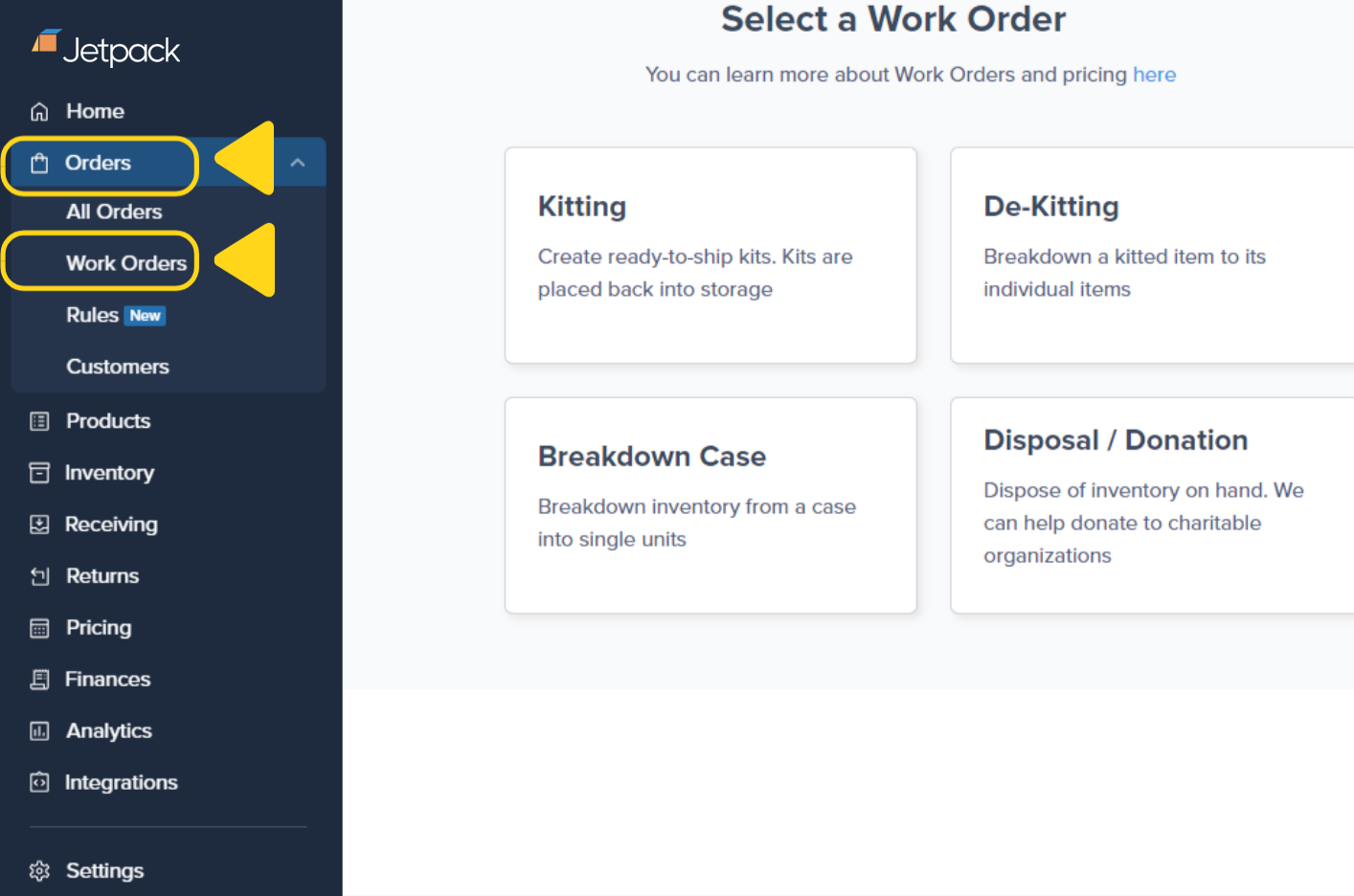
    From the Jetpack dashboard, click **Inventory** in the left-hand navigation bar.

    <img src="https://mintcdn.com/jetpack/QaTErcqvHU7lymuZ/images/kitting-and-work-orders/navigation-select-work-order.png?fit=max&auto=format&n=QaTErcqvHU7lymuZ&q=85&s=1650b1e7caca76288054aaa811d192da" alt="Jetpack navigation showing Inventory menu with Work Orders option" className="screenshot" width="1414" height="936" data-path="images/kitting-and-work-orders/navigation-select-work-order.png" />
  </Step>

  <Step title="Select Work Orders, then choose Kitting">
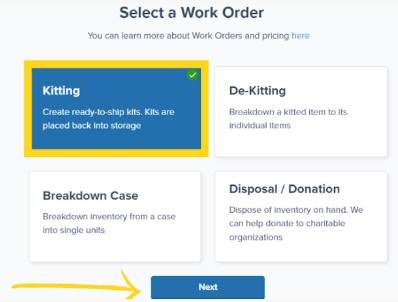
    Select **Work Orders** from the drop-down menu, then choose **Kitting** from the work order options.

    <img src="https://mintcdn.com/jetpack/QaTErcqvHU7lymuZ/images/kitting-and-work-orders/kitting-card-next-button.jpg?fit=max&auto=format&n=QaTErcqvHU7lymuZ&q=85&s=310b6e0833778232819ecaca9910e159" alt="Work order selection page with Kitting card highlighted and Next button" className="screenshot" width="398" height="302" data-path="images/kitting-and-work-orders/kitting-card-next-button.jpg" />
  </Step>

  <Step title="Click Next to access the kitting order submission page">
    Click **Next** to access the kitting order submission page.
  </Step>

  <Step title="Select a fulfillment center">
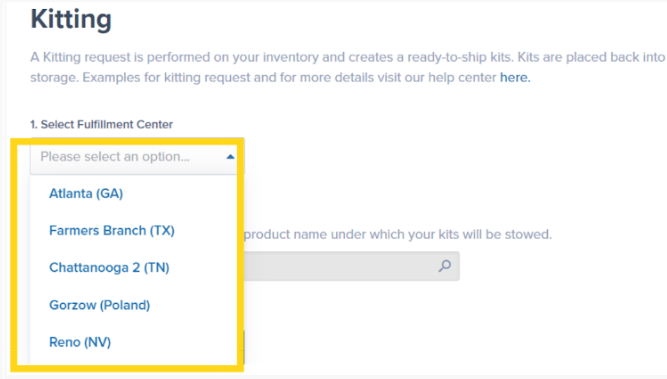
    Select a fulfillment center from the drop-down list where you want the kitting work to be performed.

    <img src="https://mintcdn.com/jetpack/QaTErcqvHU7lymuZ/images/kitting-and-work-orders/select-fulfillment-center.png?fit=max&auto=format&n=QaTErcqvHU7lymuZ&q=85&s=ad6f348954945640c05d7105f414341c" alt="Fulfillment center dropdown showing available locations" className="screenshot" width="667" height="379" data-path="images/kitting-and-work-orders/select-fulfillment-center.png" />
  </Step>

  <Step title="Search for the end-kitted item">
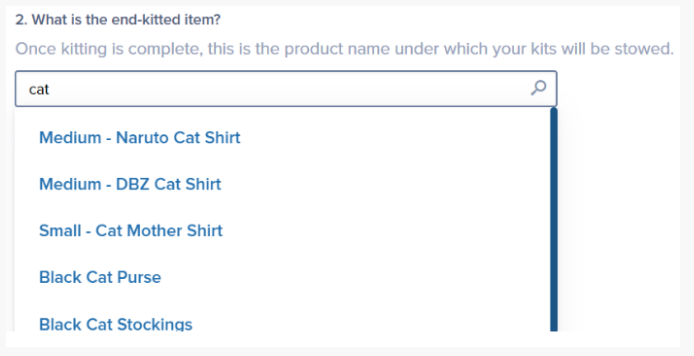
    Search for the end-kitted item by name or inventory ID. Ensure the item is synced with your ecommerce platform so it receives orders correctly.

    <img src="https://mintcdn.com/jetpack/QaTErcqvHU7lymuZ/images/kitting-and-work-orders/search-end-kitted-item.png?fit=max&auto=format&n=QaTErcqvHU7lymuZ&q=85&s=64d67fa56294d3fe10404eb6d8221dcc" alt="Search field showing results for end-kitted item" className="screenshot" width="694" height="356" data-path="images/kitting-and-work-orders/search-end-kitted-item.png" />
  </Step>

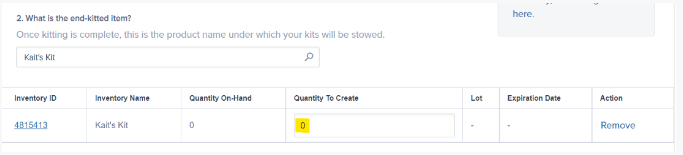
  <Step title="Enter the total number of kits to be created">
    Enter the total number of kits to be created.

    <img src="https://mintcdn.com/jetpack/2iejPNBTYKEx6ntF/images/kitting-and-work-orders/enter-quantity-to-create.png?fit=max&auto=format&n=2iejPNBTYKEx6ntF&q=85&s=4b00ed0d6e2a3d9184a02336e2b43afc" alt="Quantity to Create field with example entry" className="screenshot" width="683" height="155" data-path="images/kitting-and-work-orders/enter-quantity-to-create.png" />
  </Step>

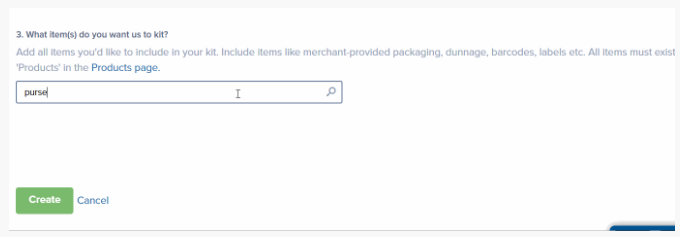
  <Step title="Click to proceed to Step 3">
    Click to proceed to Step 3 where you select all products that make up the kit.

    <img src="https://mintcdn.com/jetpack/QaTErcqvHU7lymuZ/images/kitting-and-work-orders/step-3-search-components.png?fit=max&auto=format&n=QaTErcqvHU7lymuZ&q=85&s=ee8d02f606c7ac6ce7c917e8f6658469" alt="Step 3 page showing search field for kit components" className="screenshot" width="680" height="237" data-path="images/kitting-and-work-orders/step-3-search-components.png" />
  </Step>

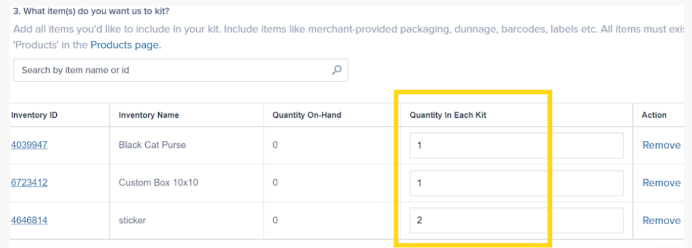
  <Step title="Enter the quantity required for each component">
    Enter the quantity required for each item to form one kit.

    <img src="https://mintcdn.com/jetpack/2iejPNBTYKEx6ntF/images/kitting-and-work-orders/component-quantities.png?fit=max&auto=format&n=2iejPNBTYKEx6ntF&q=85&s=6e2d06261747428f171e967d743776f3" alt="Quantity in Each Kit fields showing component quantities" className="screenshot" width="692" height="248" data-path="images/kitting-and-work-orders/component-quantities.png" />
  </Step>

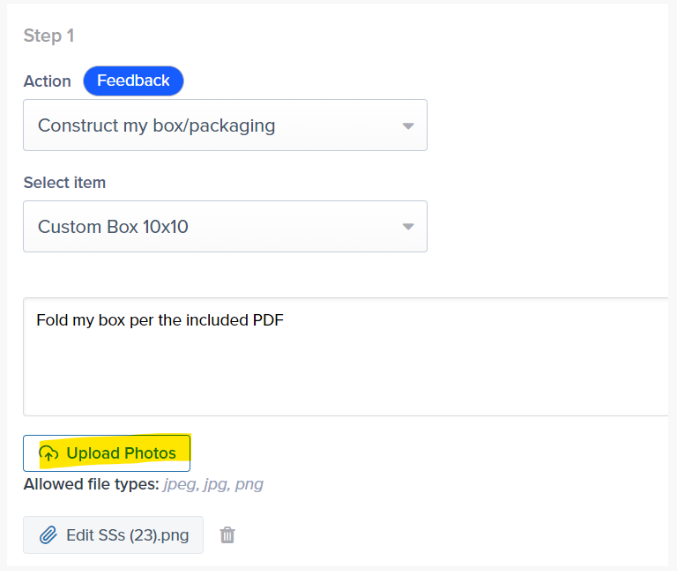
  <Step title="Select an action for each item">
    For each item, choose an action from the drop-down menu. Supported actions include:

    * Constructing or closing packaging
    * Placing items in packaging
    * Affixing stickers, labels, or barcodes
    * Removing items or packaging
    * Adding dunnage or constructing box dividers
    * Inspecting items or changing SKU labels

    <img src="https://mintcdn.com/jetpack/QaTErcqvHU7lymuZ/images/kitting-and-work-orders/select-action-dropdown.png?fit=max&auto=format&n=QaTErcqvHU7lymuZ&q=85&s=b75bcbb16a072e59aea10a6907bed6ee" alt="Action dropdown showing Construct my box/packaging option with item selection and instructions field" className="screenshot" width="677" height="571" data-path="images/kitting-and-work-orders/select-action-dropdown.png" />
  </Step>

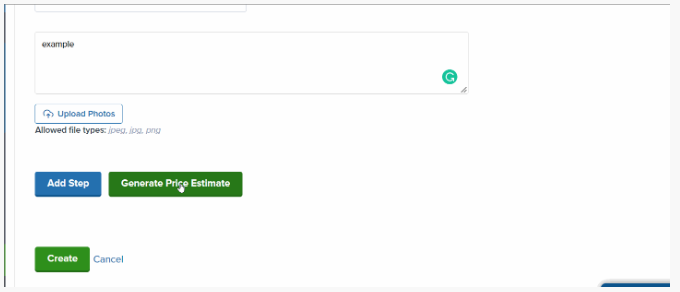
  <Step title="Provide detailed instructions and upload photos">
    Provide detailed instructions for each action and upload photos if needed to clarify the kitting requirements.

    <img src="https://mintcdn.com/jetpack/QaTErcqvHU7lymuZ/images/kitting-and-work-orders/upload-photos-generate-estimate.png?fit=max&auto=format&n=QaTErcqvHU7lymuZ&q=85&s=0bb5efe88bbdbc1d5dfd8ec02fc06e73" alt="Upload Photos button and Generate Price Estimate button" className="screenshot" width="680" height="292" data-path="images/kitting-and-work-orders/upload-photos-generate-estimate.png" />
  </Step>

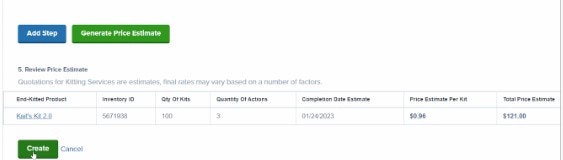
  <Step title="Click Generate Price Estimate">
    Click **Generate Price Estimate** to review the estimated costs for your kitting order.
  </Step>

  <Step title="Create your kitting order">
    Once satisfied with the details and pricing, click **Create** to finalize and submit the order.

    <img src="https://mintcdn.com/jetpack/QaTErcqvHU7lymuZ/images/kitting-and-work-orders/price-estimate-create-button.jpg?fit=max&auto=format&n=QaTErcqvHU7lymuZ&q=85&s=d1119dc8f7f012d5a8d6e242e9020723" alt="Price estimate table with Create button" className="screenshot" width="563" height="160" data-path="images/kitting-and-work-orders/price-estimate-create-button.jpg" />
  </Step>
</Steps>

***

## Copying and Editing Kitting Orders

If you need to update a kitting order after submission, cancel the order and submit a new one by selecting **Copy and Edit** from the Actions menu on the order's details page. Creating a new order resets the SLA based on the new submission time.

When editing, you can remove or add steps, update actions, and add additional products as necessary.

<Warning title="Don't Update Fulfillment Center When Editing">
  Do not update the fulfillment center during editing, as this will erase the order details. If you need to change the fulfillment center, you'll need to create a new kitting order from scratch.
</Warning>

***

## Let's Dive Deeper

<CardGroup cols={3}>
  <Card title="Kitting Overview" icon="box" href="/fulfillment/kitting-and-work-orders">
    Back to the main kitting guide
  </Card>

  <Card title="Managing Products" icon="cube" href="/fulfillment/managing-products">
    Ensure kit components are set up correctly
  </Card>

  <Card title="Billing + Invoicing" icon="file-invoice-dollar" href="/fulfillment/billing-invoicing">
    Understand kitting fees and pricing structure
  </Card>

  <Card title="Copy/Edit Kitting Orders" icon="pen-to-square" href="/fulfillment/kitting-and-work-orders/copy-edit-kitting-orders">
    Update and resubmit kitting orders
  </Card>

  <Card title="Work Orders" icon="clipboard-list" href="/fulfillment/kitting-and-work-orders/work-orders-page">
    Learn about all work order types
  </Card>

  <Card title="Kitting Orders FAQs" icon="circle-question" href="/fulfillment/kitting-and-work-orders/kitting-orders-faq">
    Answers to common kitting questions
  </Card>
</CardGroup>

***

<div className="jetpack-callout">
  <img src="https://mintcdn.com/jetpack/2iejPNBTYKEx6ntF/images/jetpack-logomark-256.png?fit=max&auto=format&n=2iejPNBTYKEx6ntF&q=85&s=340604ced4add3864f2641341826e1c9" alt="Jetpack" className="jetpack-callout-icon" width="256" height="256" data-path="images/jetpack-logomark-256.png" />

  <div className="jetpack-callout-content">
    <h4 className="jetpack-callout-title">Questions? Contact Jetpack Care.</h4>
    <p className="jetpack-callout-text">If you have questions about creating kitting orders, need help with complex assembly instructions, or want to verify whether your kitting needs can be supported, contact Jetpack Care for assistance. Our team is always here to help via Slack, phone, or email!</p>
  </div>
</div>
