> ## Documentation Index
> Fetch the complete documentation index at: https://help.jetpack3pl.com/llms.txt
> Use this file to discover all available pages before exploring further.
# Copy/Edit Kitting Orders
> Learn how to update a kitting order by copying and editing it to make necessary changes while managing SLA expectations.
If you've made an error in a kitting order, you can submit a revised order using the Copy and Edit feature in your Jetpack dashboard. This process allows you to duplicate the original order, make necessary updates, and resubmit it for processing.
## Editing a Kitting Order
If you made an error in a kitting order, you must submit a new order by selecting Copy and Edit to make the necessary updates. Following these steps will help you accurately update your kitting order while ensuring your new kitting order is processed correctly.
Keep in mind that the service level agreement (SLA) will reset based on the submission time of the new order.
Updating the fulfillment center is not recommended as it will erase your current kitting order data.
***
## How to Copy and Edit a Kitting Order
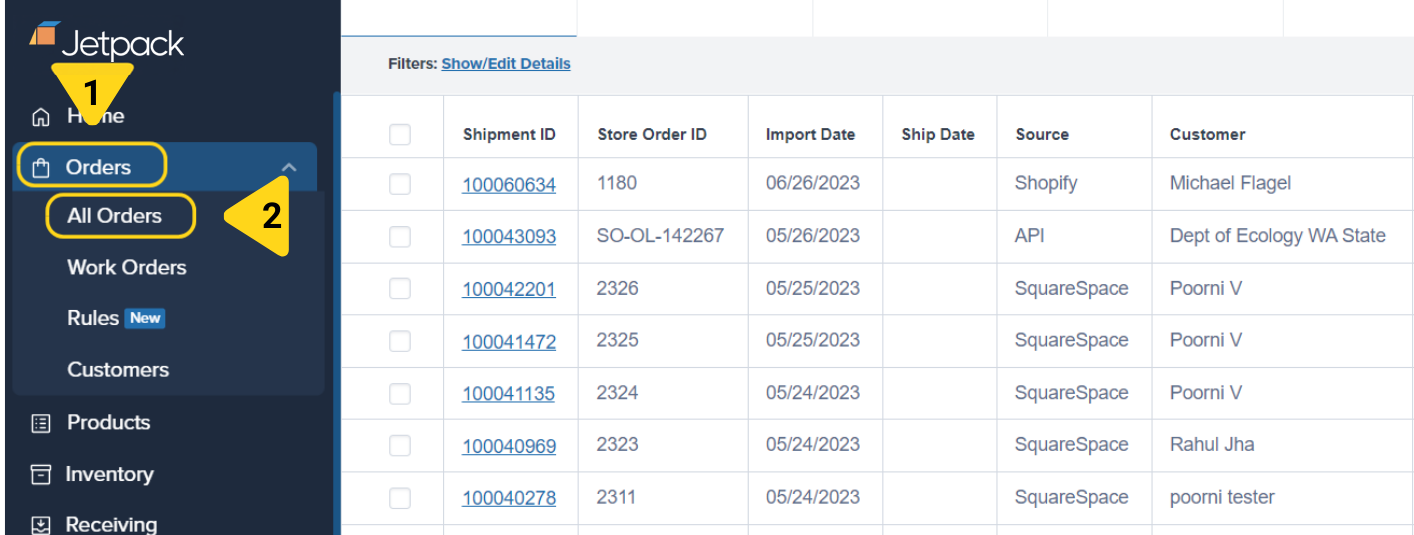
From your Jetpack dashboard, click **Orders** on the left-hand navigation bar, then select **All Orders** from the drop-down options.
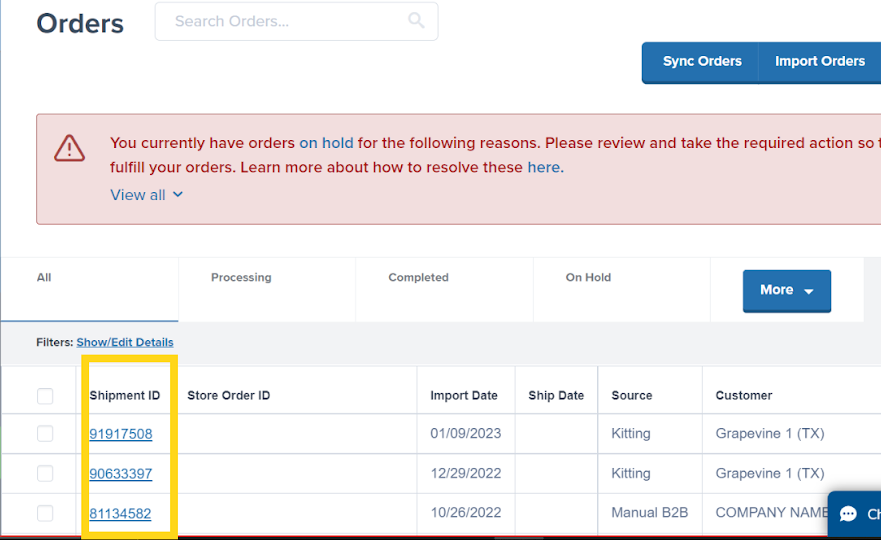
 Locate the desired kitting order using the **Shipment ID** column. Use the search bar or filters (look for **Kitting** in the **Source** column) to find your order, then click the **Shipment ID hyperlink** to access the order's details page.
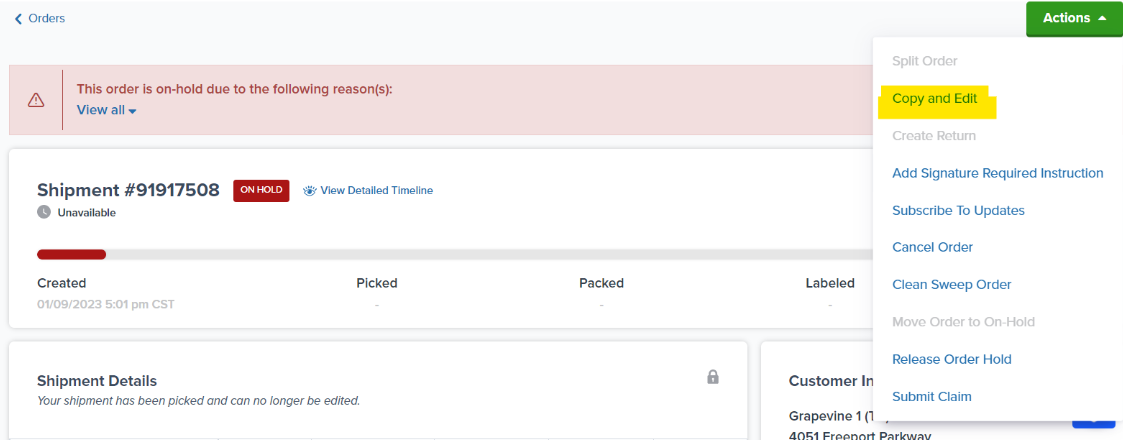
 Click the green **Actions** button at the top right, then select **Copy and Edit** from the drop-down menu.
 You will be redirected to the kitting order creation page, prefilled with the original order's information. Update as needed:
* Remove any unnecessary kitting order actions by clicking the garbage can icon
* Add more steps by clicking the **Add Step** button
* Update existing step actions as needed
* Add products by scrolling up to the **What item(s) do you want us to kit?** tile
Once you've made all necessary changes, review your updated kitting order and submit it for processing. The new order will begin with a fresh SLA based on the submission time.
***
## Let's Dive Deeper
Learn how to create a new kitting order from scratch
Back to the main kitting guide
Learn about all work order types
Break down kits into components
Separate cases into individual units
Common questions about kitting
***
You will be redirected to the kitting order creation page, prefilled with the original order's information. Update as needed:
* Remove any unnecessary kitting order actions by clicking the garbage can icon
* Add more steps by clicking the **Add Step** button
* Update existing step actions as needed
* Add products by scrolling up to the **What item(s) do you want us to kit?** tile
Once you've made all necessary changes, review your updated kitting order and submit it for processing. The new order will begin with a fresh SLA based on the submission time.
***
## Let's Dive Deeper
Learn how to create a new kitting order from scratch
Back to the main kitting guide
Learn about all work order types
Break down kits into components
Separate cases into individual units
Common questions about kitting
***

Questions? Contact Jetpack Care.
If you have any questions or run into issues, you can always contact Jetpack Care for help. Our team is always here to assist via Slack, phone, or email!