> ## Documentation Index
> Fetch the complete documentation index at: https://help.jetpack3pl.com/llms.txt
> Use this file to discover all available pages before exploring further.

# Case Breakdowns

> Request case breakdown work orders to convert case-packed SKUs into individual units for separate fulfillment.

<div className="page-intro">
  When you send inventory packed in cases but need to fulfill individual units, Jetpack's case breakdown work orders make it possible. This service instructs the Jetpack Operations team to remove products from their case packaging so individual units (eaches) can be sold and shipped separately.
</div>

## What is a Case Breakdown Work Order?

A case breakdown work order instructs Jetpack's Operations team to remove products from a case so that individual units (eaches) can be sold separately.

This service is essential when your inventory arrives in bulk case packaging, but your fulfillment strategy requires shipping individual units to customers.

<Info title="Pricing and SLA Information">
  **Pricing**: Case breakdown work orders are billed as an additional service. For detailed pricing by region, visit the [Pricing Overview](/fulfillment/billing-invoicing/general-pricing) page.

  **Service Level Agreement**: Case breakdown requests are processed according to standard work order SLAs. Review the complete [Turnaround Times and SLAs](/fulfillment/terms-and-slas/turnaround-times-slas) for current timelines.
</Info>

***

## Submitting Case Breakdown Work Orders

Follow these steps to request a case breakdown work order in your Jetpack dashboard:

<Steps>
  <Step title="Navigate to Work Orders">
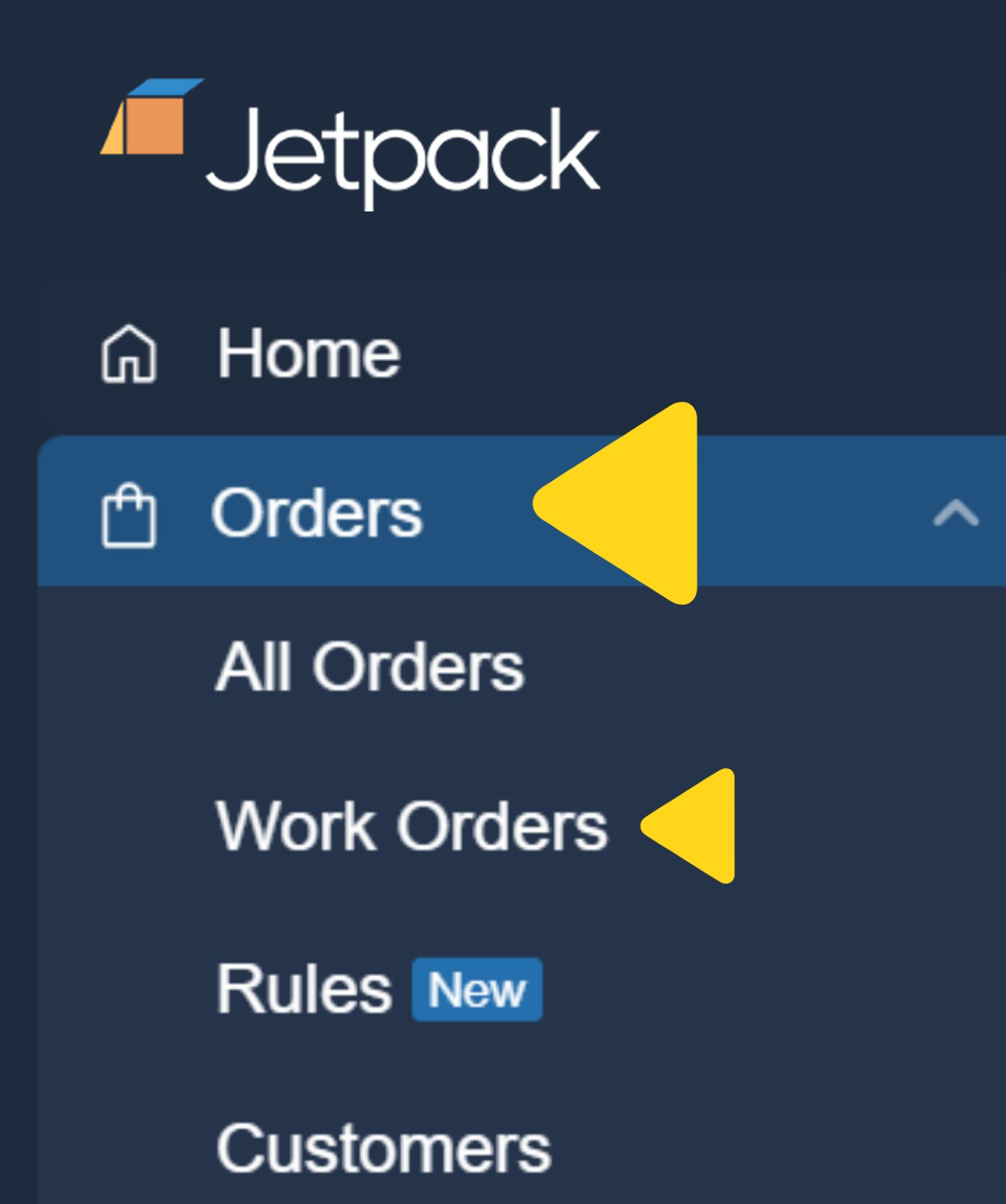
    Click **Orders** on the left-hand navigation bar. Additional menu options will appear.

    Select **Work Orders**.

    <img src="https://mintcdn.com/jetpack/QaTErcqvHU7lymuZ/images/kitting-work-orders/navigate-to-work-orders.png?fit=max&auto=format&n=QaTErcqvHU7lymuZ&q=85&s=d7badbc77ffd201154c8a6d418c4cc3d" alt="Navigation menu showing Orders and Work Orders option" className="screenshot" width="1337" height="1600" data-path="images/kitting-work-orders/navigate-to-work-orders.png" />
  </Step>

  <Step title="Select Breakdown Case">
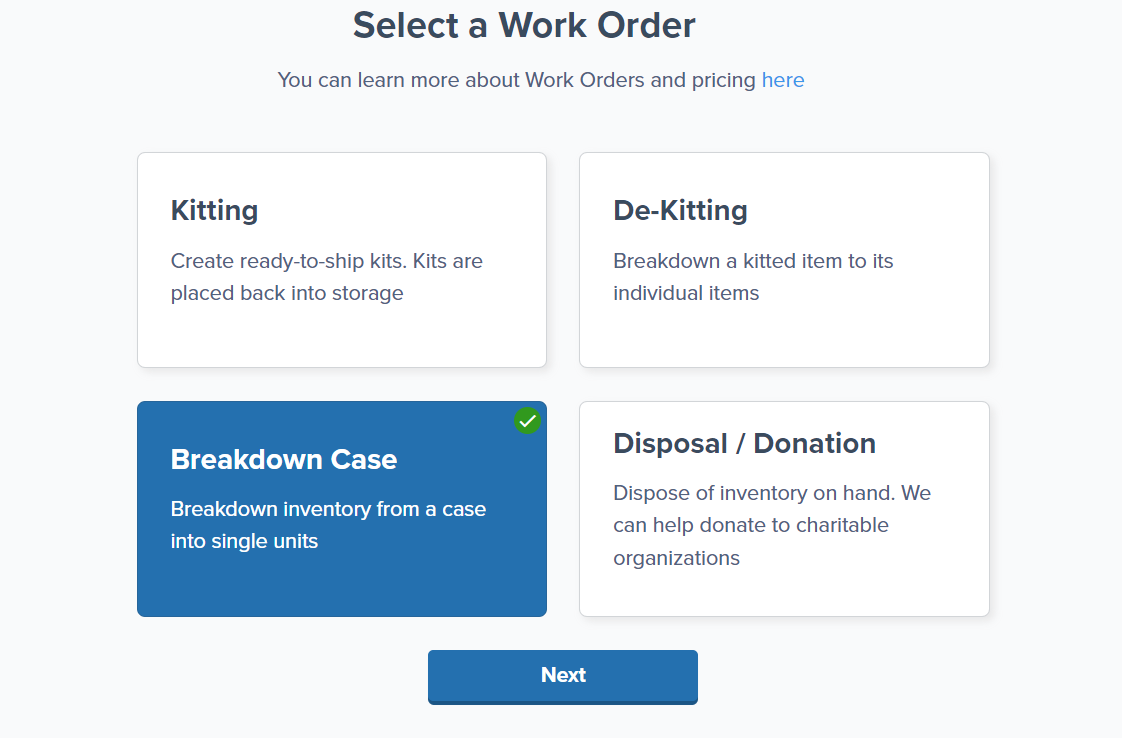
    Click the **Breakdown Case** tile.

    Click **Next**.

    <img src="https://mintcdn.com/jetpack/QaTErcqvHU7lymuZ/images/kitting-work-orders/breakdown-case-tile.png?fit=max&auto=format&n=QaTErcqvHU7lymuZ&q=85&s=c1b3e09b9bcb43d9d35c5475ce8264cf" alt="Work order types with Breakdown Case tile highlighted" className="screenshot" width="1122" height="754" data-path="images/kitting-work-orders/breakdown-case-tile.png" />
  </Step>

  <Step title="Select the fulfillment center">
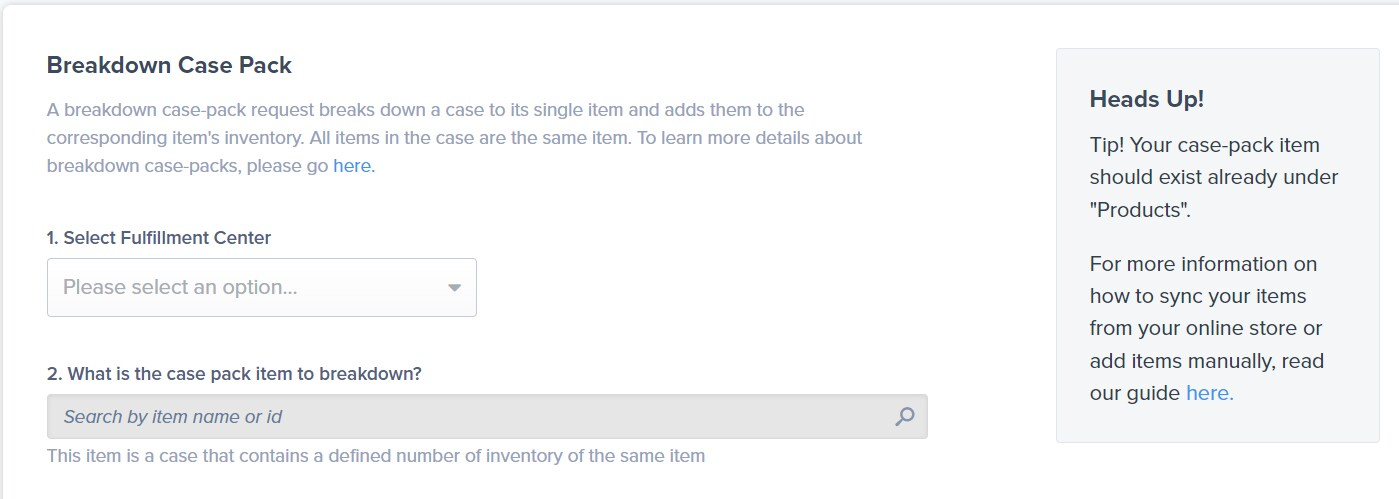
    From the drop-down menu under **Select Fulfillment Center**, choose the spoke fulfillment center (the warehouse where orders are fulfilled).

    <img src="https://mintcdn.com/jetpack/QaTErcqvHU7lymuZ/images/kitting-work-orders/case-breakdown-fc-selection.png?fit=max&auto=format&n=QaTErcqvHU7lymuZ&q=85&s=87cb79914cb6055f54bd21fb41839b4d" alt="Breakdown Case Pack form showing fulfillment center dropdown" className="screenshot" width="1399" height="499" data-path="images/kitting-work-orders/case-breakdown-fc-selection.png" />
  </Step>

  <Step title="Identify the case pack item">
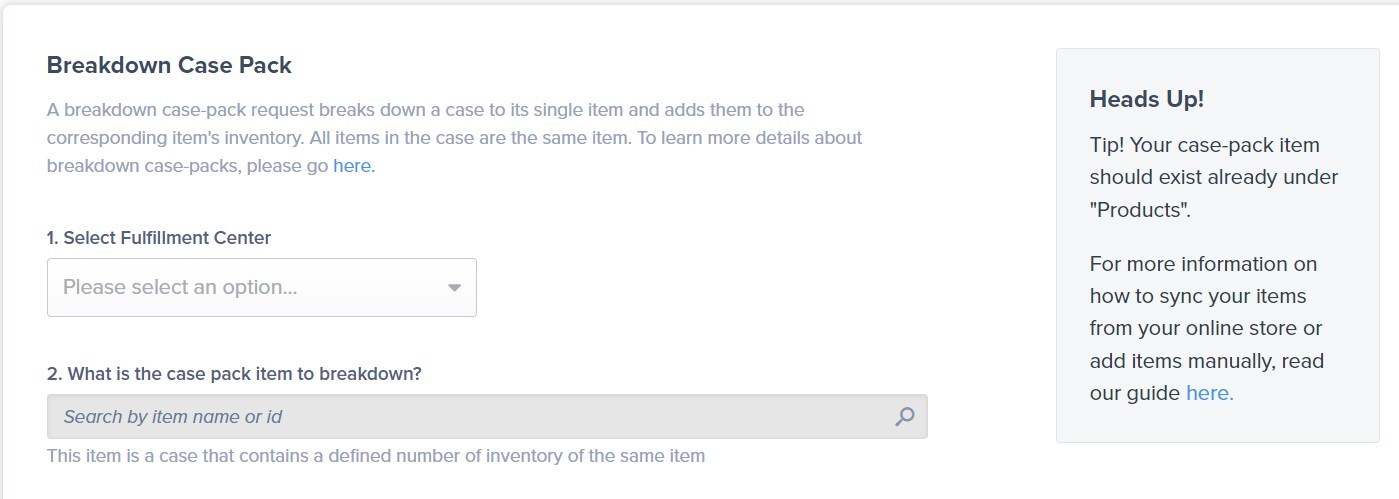
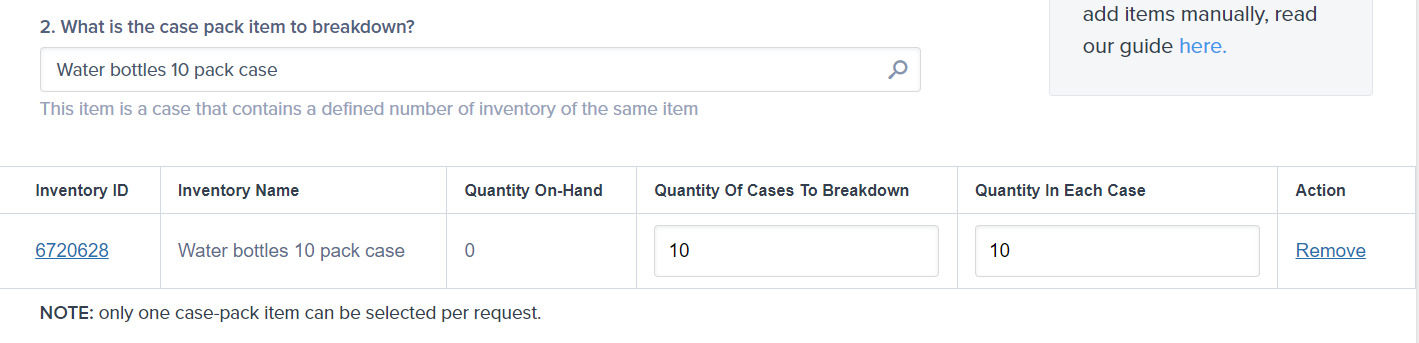
    Under **2. What is the case pack item to breakdown?**, use the search bar to locate the product by name or Product ID.

    <img src="https://mintcdn.com/jetpack/QaTErcqvHU7lymuZ/images/kitting-work-orders/case-pack-search.png?fit=max&auto=format&n=QaTErcqvHU7lymuZ&q=85&s=68b092a2d6a544a04a09365764d0f9fa" alt="Search interface for locating case pack product" className="screenshot" width="1399" height="499" data-path="images/kitting-work-orders/case-pack-search.png" />
  </Step>

  <Step title="Input the number of cases to break down">
    In the **Quantity Of Cases To Breakdown** field, enter the number of cases you want to break down.
  </Step>

  <Step title="Enter the quantity in each case">
    In the **Quantity In Each Case** field, enter the number of individual SKUs contained in each case.

    <img src="https://mintcdn.com/jetpack/QaTErcqvHU7lymuZ/images/kitting-work-orders/case-breakdown-quantities.png?fit=max&auto=format&n=QaTErcqvHU7lymuZ&q=85&s=02ad98044b3c0e7e7b19a30988997040" alt="Table showing quantity fields for cases and individual units" className="screenshot" width="1419" height="343" data-path="images/kitting-work-orders/case-breakdown-quantities.png" />
  </Step>

  <Step title="Identify the individual unit SKU">
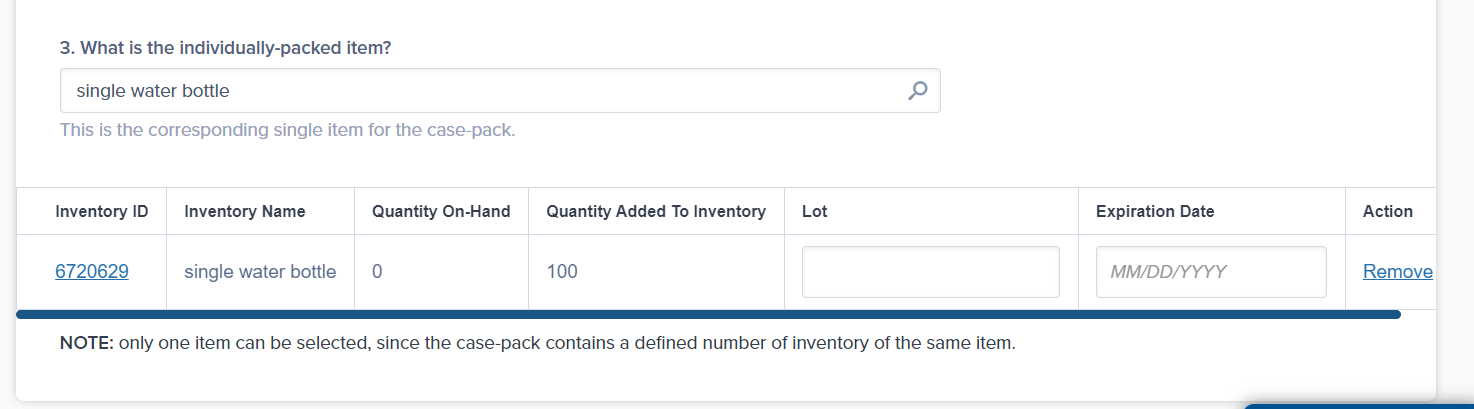
    Under **3. What is the individually-packed item?**, search for and select the product that represents a single unit.

    <Note title="For Lot Products">
      If you're working with lot products, enter the **Lot Number** (if applicable) and **Expiration Date** in the provided textboxes.
    </Note>

    <Warning title="SKU Must Exist First">
      If the individual unit SKU does not exist, you must create it on the Products page in your dashboard before submitting this work order.
    </Warning>

    <img src="https://mintcdn.com/jetpack/QaTErcqvHU7lymuZ/images/kitting-work-orders/individual-unit-selection.png?fit=max&auto=format&n=QaTErcqvHU7lymuZ&q=85&s=08f5d24d1bf17a7d875940ee07423f21" alt="Interface for selecting individually-packed item SKU" className="screenshot" width="1474" height="409" data-path="images/kitting-work-orders/individual-unit-selection.png" />
  </Step>

  <Step title="Add special instructions (optional)">
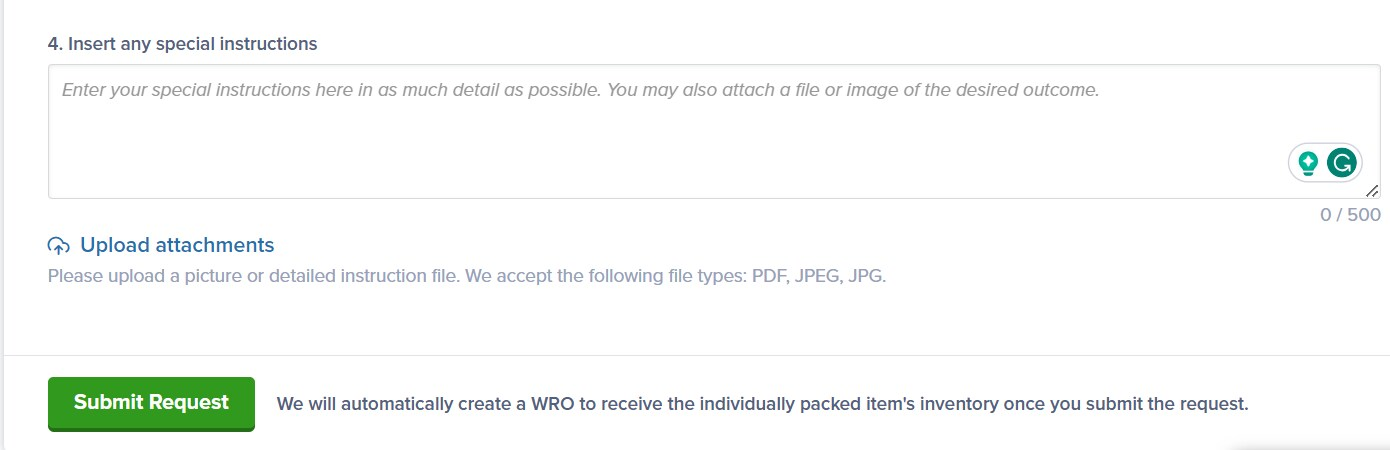
    In the **Insert any special instructions** field, include simple special instructions if needed (e.g., handle fragile products with care).

    <Warning title="Instruction Limitations">
      Instructions requiring extra work beyond the case breakdown are not allowed.
    </Warning>
  </Step>

  <Step title="Upload attachments (optional)">
    Click **Upload Attachments** to add a photo or PDF that details your request.

    Accepted file types include PDF, JPEG, and JPG.

    <img src="https://mintcdn.com/jetpack/QaTErcqvHU7lymuZ/images/kitting-work-orders/case-breakdown-special-instructions.png?fit=max&auto=format&n=QaTErcqvHU7lymuZ&q=85&s=8685d65a67afc8650bac2d1f1c7e16a2" alt="Special instructions field and upload attachments section" className="screenshot" width="1390" height="450" data-path="images/kitting-work-orders/case-breakdown-special-instructions.png" />
  </Step>

  <Step title="Submit your request">
    Click **Submit Request** to finalize the work order.

    <Info title="Automatic WRO Generation">
      Jetpack will automatically create a Warehouse Receiving Order (WRO) to receive the individually-packed item's inventory once you submit the request.
    </Info>

    Your case breakdown work order will be processed according to the SLA timelines.
  </Step>
</Steps>

***

## Let's Dive Deeper

<CardGroup cols={3}>
  <Card title="Kitting Overview" icon="box" href="/fulfillment/kitting-and-work-orders">
    Back to the main kitting guide
  </Card>

  <Card title="Creating Product Bundles" icon="layer-group" href="/fulfillment/managing-products/creating-product-bundles">
    Bundle multiple SKUs into single products
  </Card>

  <Card title="Managing Your Products" icon="cube" href="/fulfillment/managing-products">
    Configure and organize your product catalog
  </Card>

  <Card title="Work Orders" icon="clipboard-list" href="/fulfillment/kitting-and-work-orders/work-orders-page">
    Learn about all work order types
  </Card>

  <Card title="De-Kitting" icon="box-open" href="/fulfillment/kitting-and-work-orders/de-kitting">
    Break down kits into components
  </Card>

  <Card title="Creating Kitting Orders" icon="wrench" href="/fulfillment/kitting-and-work-orders/creating-kitting-orders">
    Step-by-step guide to kitting orders
  </Card>
</CardGroup>

***

<div className="jetpack-callout">
  <img src="https://mintcdn.com/jetpack/2iejPNBTYKEx6ntF/images/jetpack-logomark-256.png?fit=max&auto=format&n=2iejPNBTYKEx6ntF&q=85&s=340604ced4add3864f2641341826e1c9" alt="Jetpack" className="jetpack-callout-icon" width="256" height="256" data-path="images/jetpack-logomark-256.png" />

  <div className="jetpack-callout-content">
    <h4 className="jetpack-callout-title">Questions? Contact Jetpack Care.</h4>
    <p className="jetpack-callout-text">If you have any questions or encounter issues with case breakdown work orders, you can always contact Jetpack Care for help. Our team is always here to assist via Slack, phone, or email!</p>
  </div>
</div>